

Overview
Checklists (previously called job forms) are customizable forms that can be attached to assessments and jobs so that your team can collect information while on-site. Checklists can are a good way of standardizing the way information is entered when different employees are filling out the forms. Job forms can be set up with checkboxes, dropdowns, image upload fields, signature collection fields, as well as short and long answer fields to customize based on your needs. The job forms report is a way to view your job form submissions and see the filled out information.
The checklists report is available to admin users or users with these permissions:
- Schedule: View and complete their own
- Jobs: View all jobs
- Reports: View reports
To navigate to the checklists report, select Insights then Reports from the side navigation, then select Checklists Report.
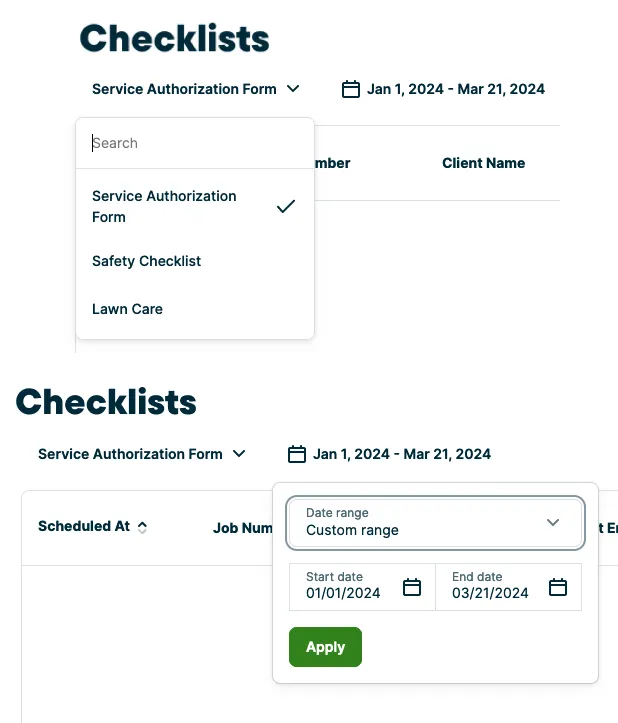
Select a checklist and set a date range
One checklist at a time can be selected to view in the report where there are rows for each instance of it being filled out on a visit.
To generate the report, start by selecting the checklist you want to view and setting the date range from the dropdowns. The date can be:
- Today
- Yesterday
- This week
- Last week
- Last 30 days
- This month
- Last month
- This year
- Last 12 months
- All time
- Custom range
Note: If you have created many checklists, use the search bar to locate the checklist you wish to view in the report.
Columns for the checklists report
The only fields that are shown on the checklists report are fields that are currently set up for checklists. If you change the name of a field, existing data for that field will not show in the report. Job form names should be unique to make sure the right data is being mapped to the right field.
Columns in the checklists report can be customized by selecting the Columns button, then selecting the columns for the report from the columns list.
To see all the columns in the report, scroll to the right.
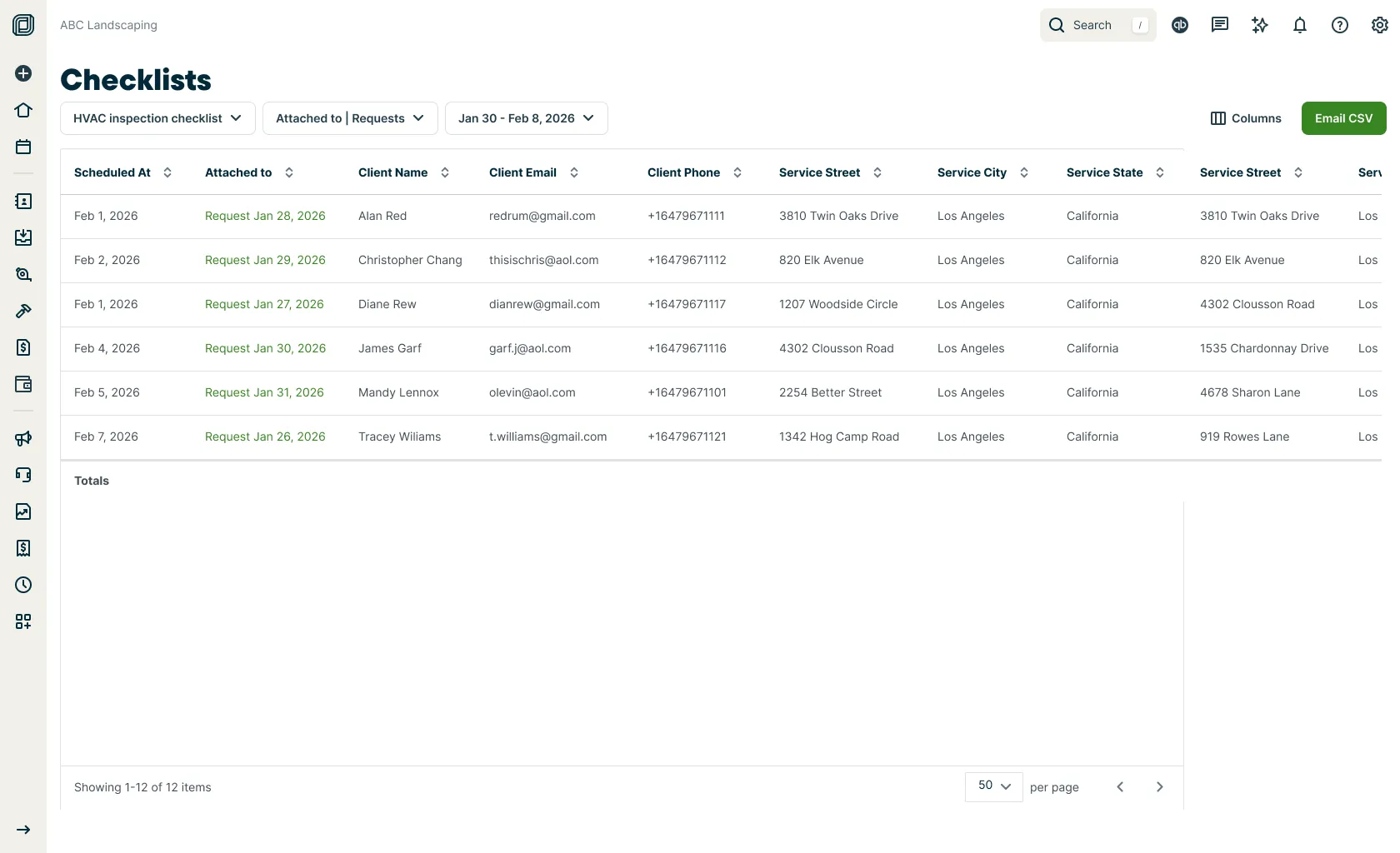
The options for columns that can be added to the checklists report are:
- Scheduled date: This is the date of the visit the checklists belongs to
- Source: This is where the job form can be found. This field may include the job number or request date. The source will be linked to the related job or request.
- Client name
- Client email
- Client phone
- Service street
- Service city
- Service state/province
- Service ZIP/postal code
- Last updated
- Updated by
- Sent on
- Custom form fields: These are the checkboxes, dropdowns, signature collection, text fields, or image upload fields you set up for this checklist.
Note: Images uploaded to checklists don’t display as images within in the checklists report. Instead, a column will show the name of the image field, along with the number of files uploaded. To view the actual images, click the linked job and open the visit.
Export the checklists report to CSV
To export the checklists report, click the Email CSV button, then select if you’d like to export the report will all columns or just the selected ones. The report will then be sent to the same email address that you use to log into Jobber.
Note: Checklist fields need to be unique to successfully export the checklists report. If a checklist has multiples of the same question, the export will have errors.
Exporting the CSV is a good option if you need to work with the data in the report, print the report, or share it with someone who is not a user in Jobber account.