

Overview
Route optimization helps you plan your team’s day more efficiently by arranging anytime visits in the best possible order. Instead of manually deciding which appointment should come first, Jobber’s schedule can automatically reorder visits to reduce backtracking and make better use of travel time.
The route optimization described in this article is available in the New Schedule.
Route optimization works in both the vertical day view and the week view of the schedule, and you can also add the map view to visualize routes as lines on a map.
Route optimization is done through Jobber.com and the Jobber app will reflect the optimized order of the appointments. Route optimization must be done on Jobber.com rather than the Jobber app.
Route optimization availability
Route optimization is available on Connect, Grow, and Plus plans. View our current pricing plans.
To check what plan you’re on, select the Gear Icon, then choose Account and Billing. If you have any questions about your plan’s features or pricing, our support team is here to help!
What’s changed with route optimization?
In the past, Jobber used a master route to define the default order of visits for each team member. This worked well if your schedule rarely changed, but it meant you needed to keep the master route updated manually whenever new clients, addresses, or route changes came up.
With route optimization on the new schedule, you no longer need to maintain a separate master route. Instead:
- Routes are optimized directly from the schedule.
- Optimization takes into account the specific anytime visits on the selected days, rather than relying on a fixed master route.
- Optimization is based on actual driving distance between stops, rather than straight-line distance, for a more accurate order.
- You can optimize for one team member, a group, or your whole team at once.
- Start and end points can be set dynamically by choosing which visits should come first and last.
- The process can be repeated as often as needed, so routes stay flexible when schedules change.
This gives you more control, saves time, and ensures your team’s routes are always built around the most up-to-date schedule.
Optimize your route from the day view of the schedule
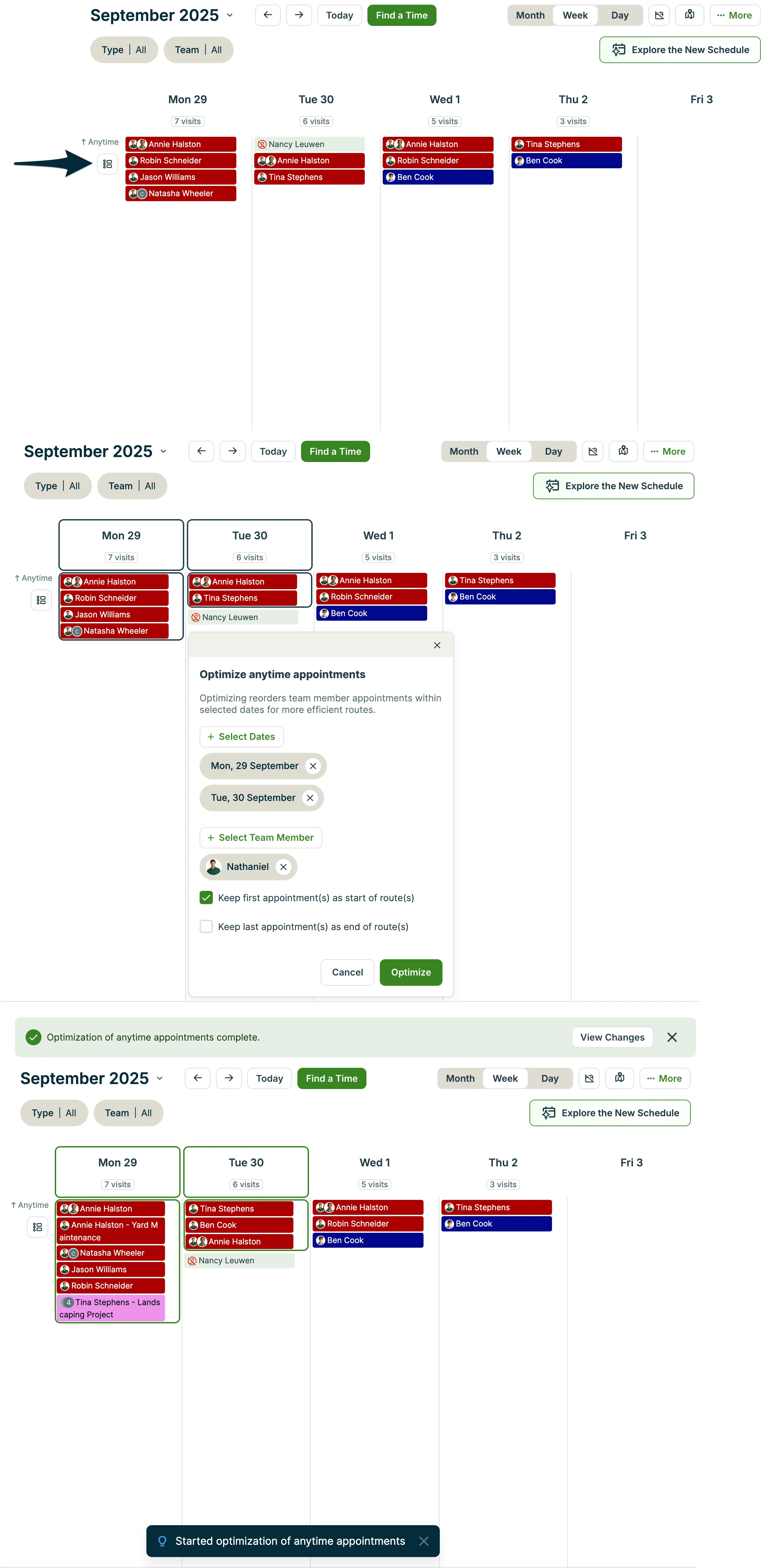
Your anytime visits can be be optimized into the most efficient order from the vertical day view of the schedule.
Note: Only admin users can optimize routes.
To get started with route optimization:
- Navigate to the day view of the schedule and select the vertical view.
- From the anytime visits section, select the Optimize anytime appointments icon.
- From the “optimize anytime appointments” pop-up, select the dates you wish to optimize and the team member(s) whose routes you’d like to optimize.
- Check the boxes for “Keep first appointment at start of route” or “Keep the last appointment at end of route” if you don’t want to change the order of the first or last appointment.
- Click Optimize. The optimization will be in progress and there will be a message at the bottom of the screen for “started optimization of anytime appointments”. Once complete the message will disappear.
- Optional: Add the map to the day view to see the new route.
Note
To use route optimization, make sure you’re in the vertical day view of the schedule. Only anytime visits (visits without a scheduled start or end time) can be optimized as part of your route. Up to 7 days can be optimized at once.
Optimize your route from the week view of the schedule
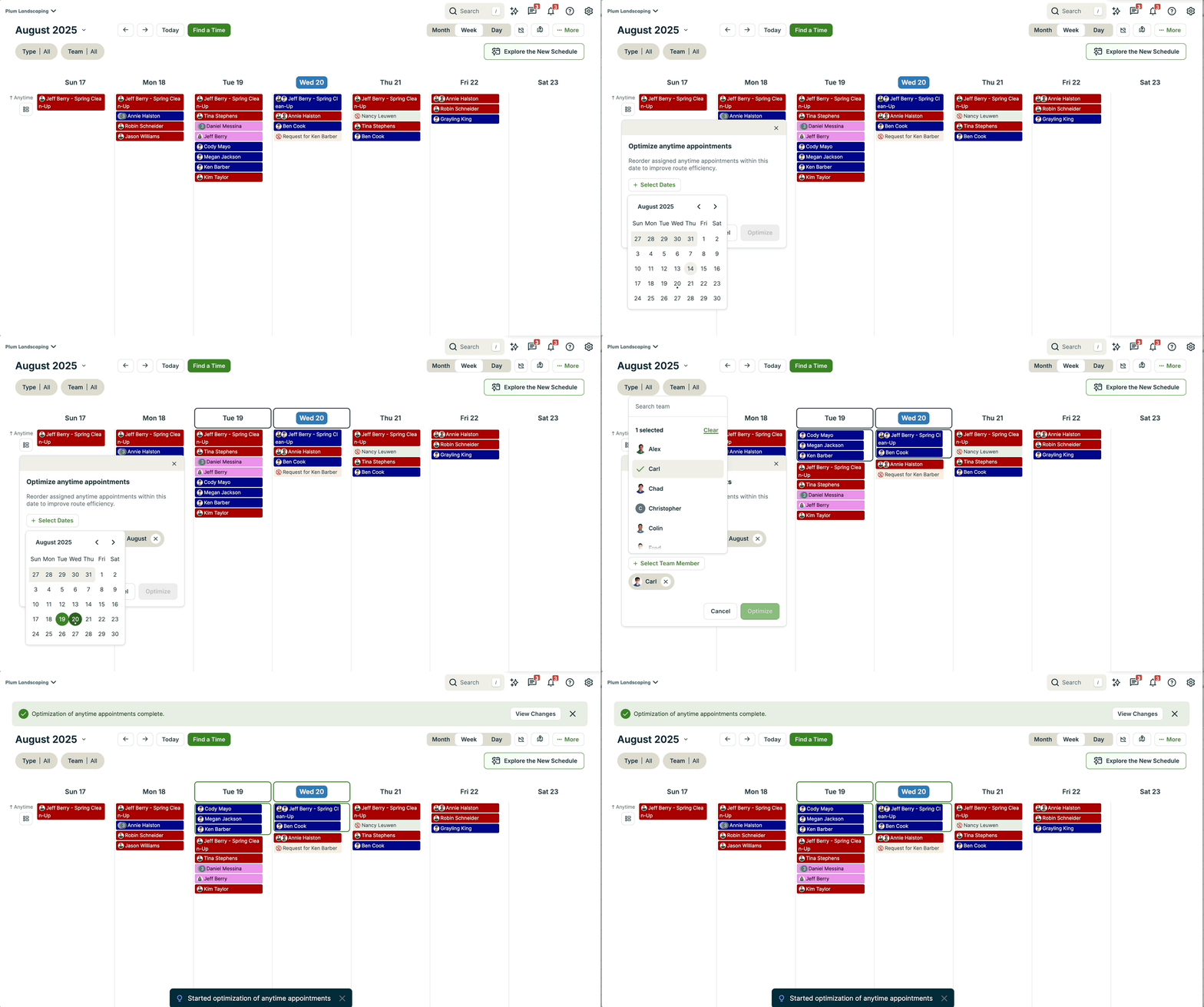
The week view of the schedule can optimize up to 7 days of routes at a time.
Note: Only admin users can optimize routes.
To get started with route optimization from the week view:
- Navigate to the schedule and select the week view.
- From the anytime visits section, select the Optimize anytime appointments icon.
- From the “optimize anytime appointments” pop-up, select the dates you wish to optimize and the team member(s) whose routes you’d like to optimize.
- Check the boxes for “Keep first appointment at start of route” or “Keep the last appointment at end of route” if you don’t want to change the order of the first or last appointment.
- Click Optimize. The optimization will be in progress and there will be a message at the bottom of the screen for “started optimization of anytime appointments”. Once complete the message will disappear.
Set the start and end points on your route
When optimizing routes, you can choose where the day begins and ends by setting the first and last appointments.
- Set the start point: Drag the appointment you want to begin with to the top of the list.
- Set the end point: Drag the appointment you want to finish with to the bottom of the list.
Tip: If you’d like your office to be the first or last stop, create an anytime visit for your office location and drag it to the top (start) or bottom (end) before running the optimizer.
Add the supplementary map

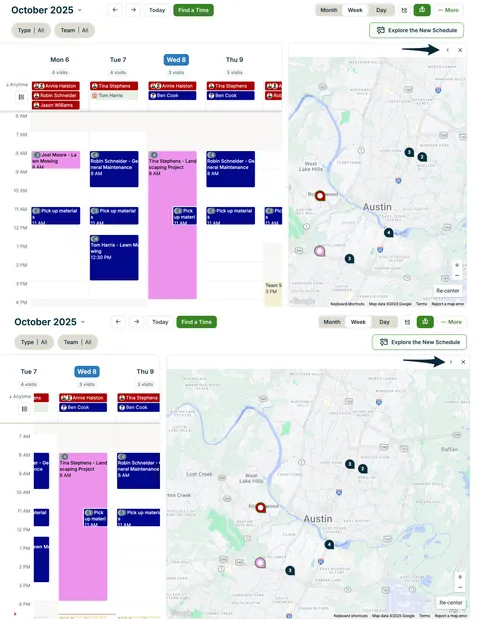
The supplementary map view can be added to the week or day view to see your team member’s routes visually on a map. There are directional lines that show the order of appointments throughout each team member’s day.
To view routes in the week view map, hover over an appointment on the map to see the route that appointment belongs to.
If multiple team members are assigned to the same appointment, hovering over the appointment on the map will show the directional lines for each assigned team member’s routes.
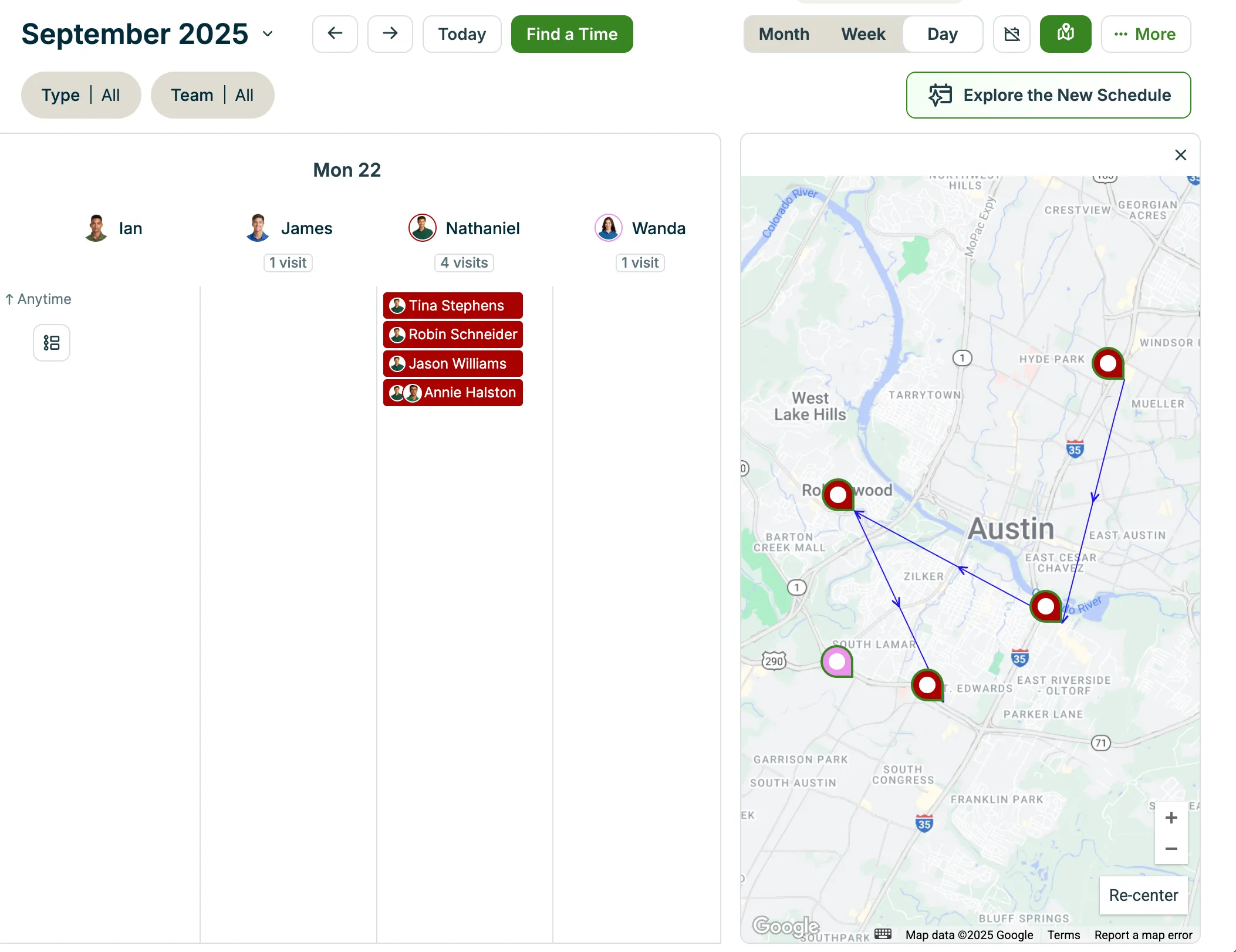
To expand the width of the map, click the arrow icon in the top right corner of the supplementary map panel.
Reschedule and reassign appointments
You can reschedule or reassign multiple appointments at once from the More button on the schedule. This makes it easy to adjust your team’s day or move visits to a new date without opening each appointment individually and be used when your schedule changes. While the Reschedule and Reassign popover is open, you can continue navigating the schedule as usual including, using filters, switching views, or opening the unscheduled and map sidebars as usual.
To bulk reschedule and/or reassign appointments:
-
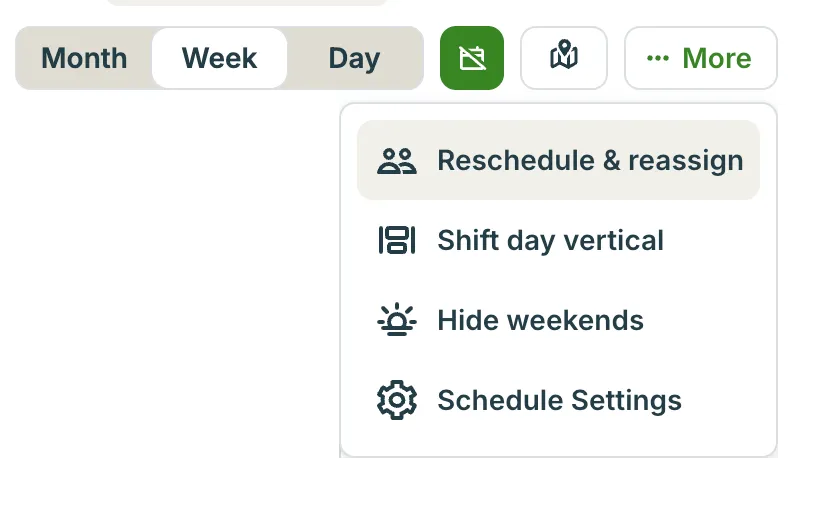
Click the More button on the Schedule and select Reschedule & reassign.
-
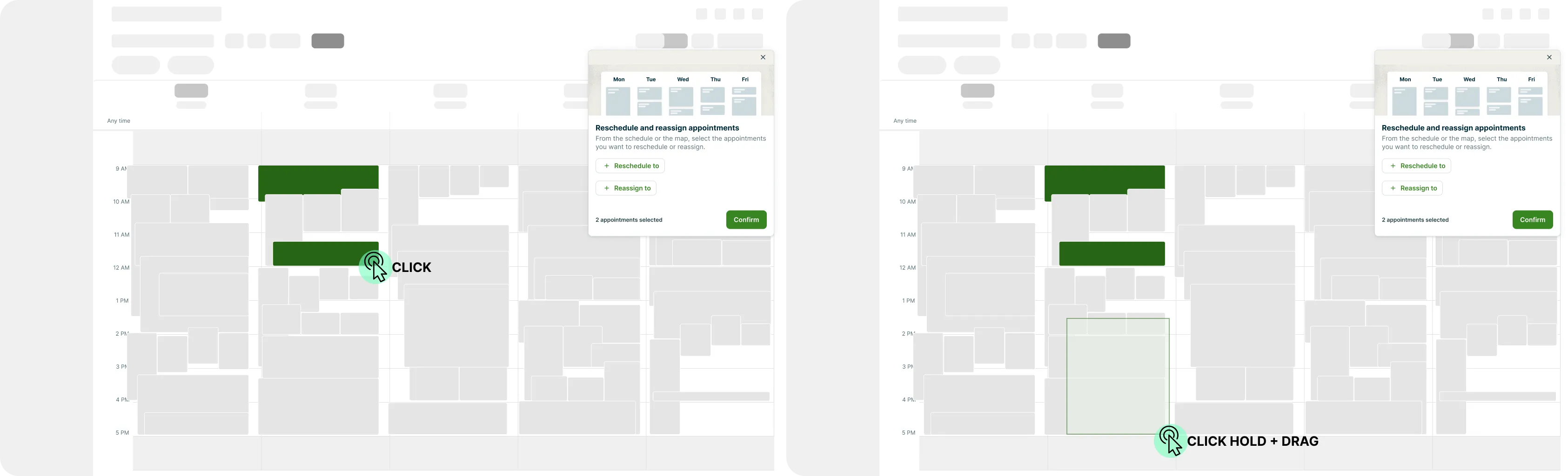
Select the appointments you want to update. Click on an appointment to select it, or click and drag to select multiple at once. You can make your selections from either the schedule or the map.
-
Review your selections. You’ll see your chosen dates and assignees appear as chips in the popover, along with the number of appointments selected.
-
Confirm your updates. Click Confirm to apply your changes. A success message will appear once your appointments have been updated.
If something goes wrong, an error message will appear with a Try again option. This keeps your selections so you can quickly re-apply them.