Overview
Optional line items on quotes give your clients the ability to add on items to their quotes.
Optional line items provide clients with extra products and services they can choose to add onto their quote. Maybe these are items that would complement the items that you’re already quoting, or maybe you’d like to offer your client a selection of items. With optional line items, clients can select which extra products or services they’d like, then approve the quote including those items they added.
Optional line items on quote are available on select plans. View our current pricing plans.
To check what plan you’re on, navigate to the Gear Icon, then select Account and Billing. If you have any questions about your plan’s features or pricing, our support team is here to help!
Ways to use optional line items
There are two ways you can use optional line items:
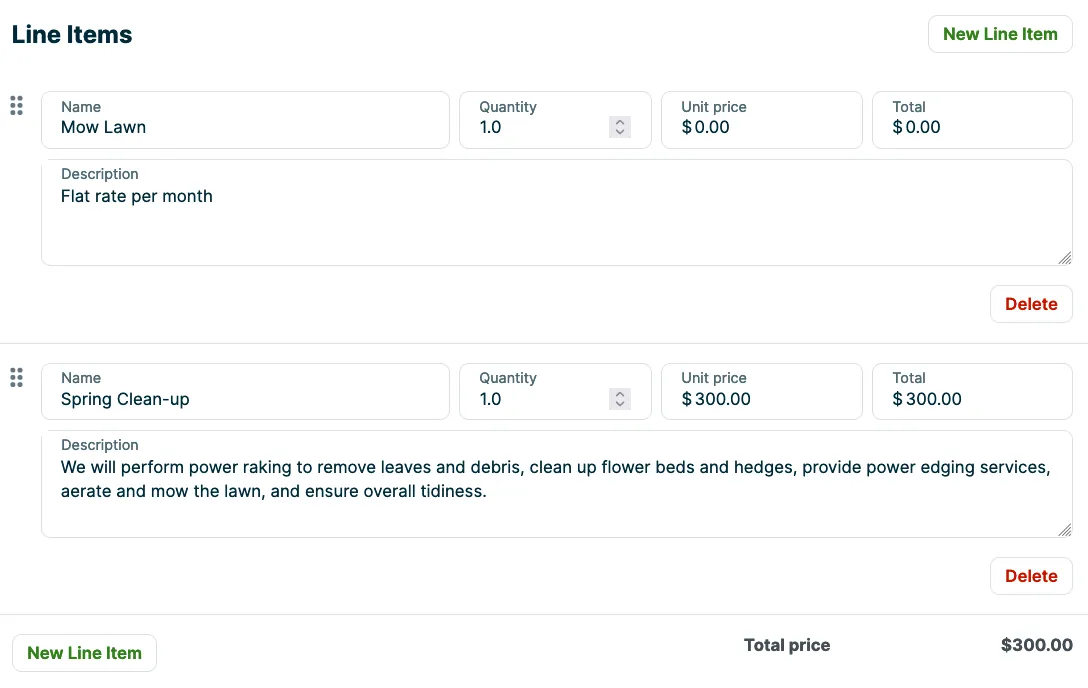
- You can feature your mandatory line items and include optional line items as possible add-ons. This is a great opportunity to offer an upsell and potentially increase the value of each quote. For example, you might quote someone a monthly rate for mowing, but also offer an optional spring cleanup service.
- You can feature all optional line items. This can be useful when you have different service package levels that you’d like to provide to the client. For example, a landscaping company might have gold, silver, and bronze seasonal packages that offer different levels of service.
Add optional line items
When creating a quote, a blank line item appears that you can assign to a product or service. Line items are set up to be mandatory by default as part of the total quote price. If you want to make the line item optional instead, select the Mark as optional checkbox. You can add as many optional line items as you want.
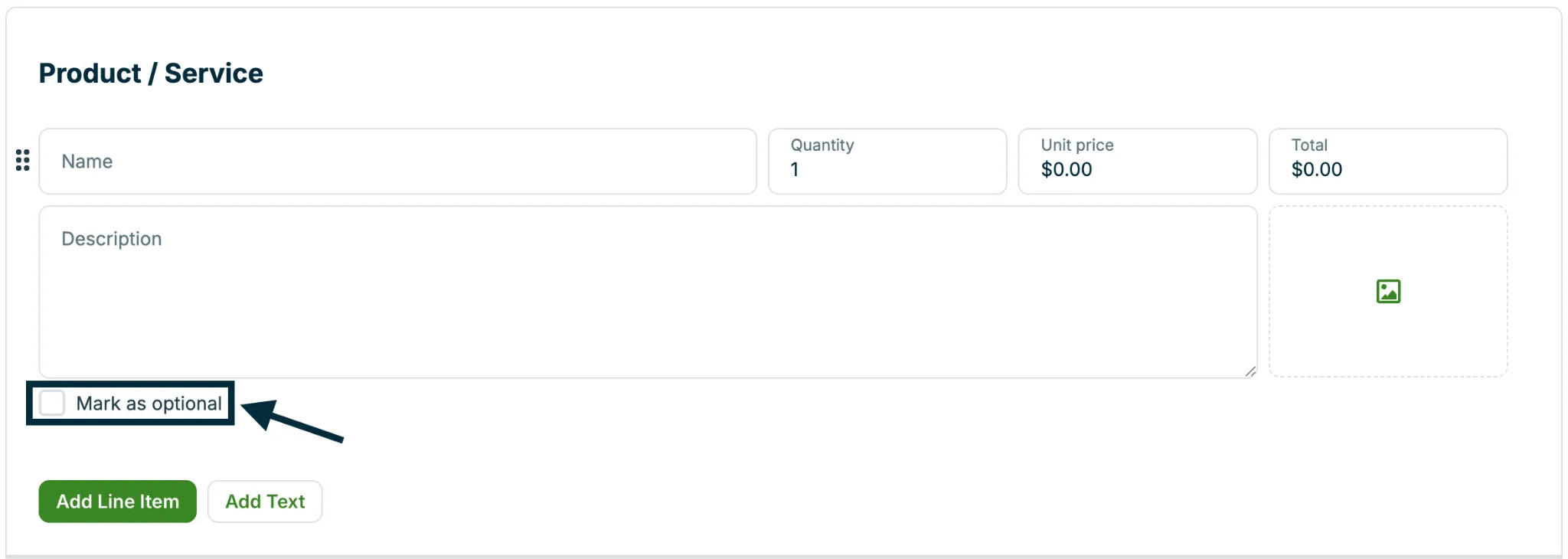
To add additional optional line items, click the Add Line Item button and select the Mark as optional checkbox.
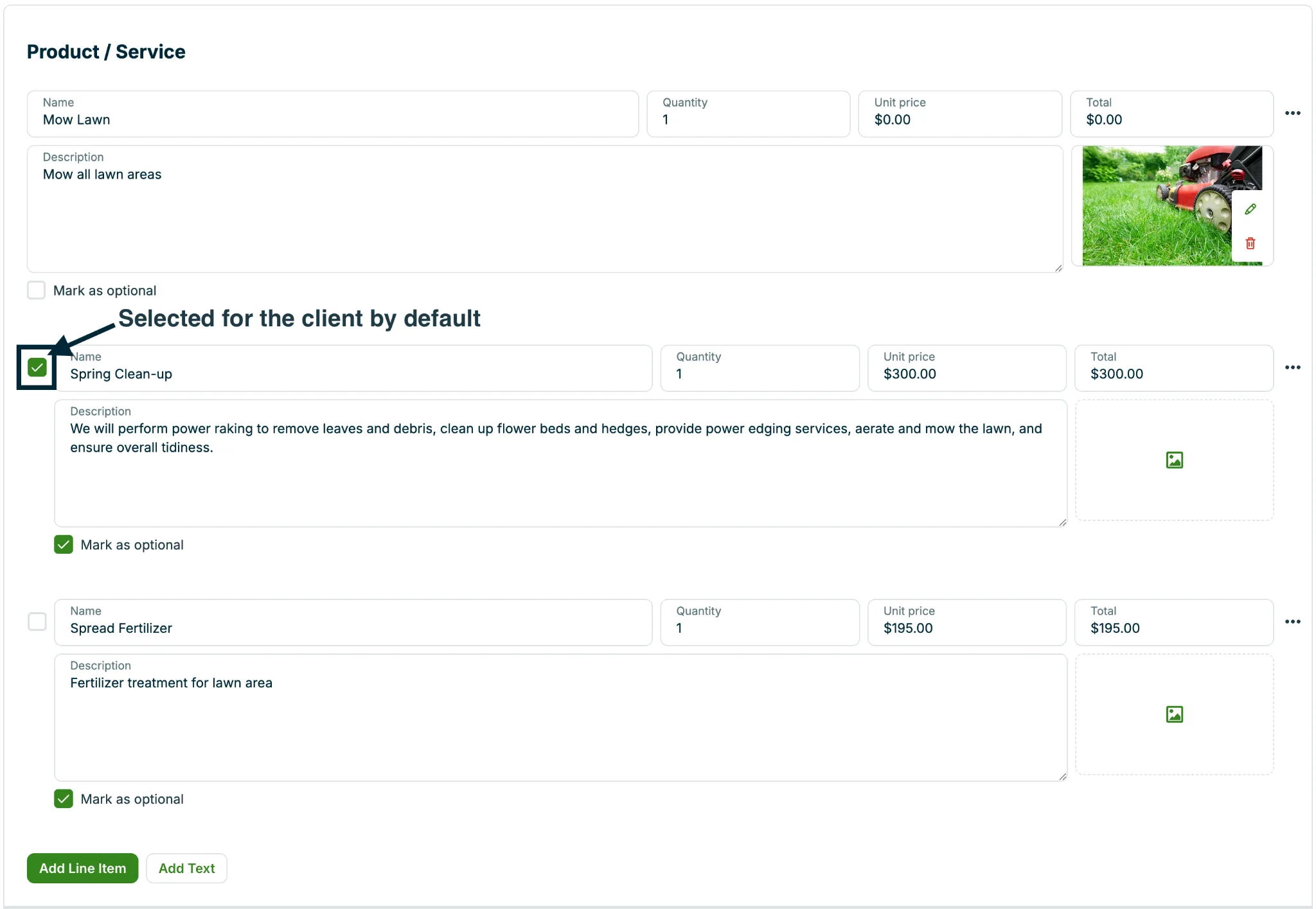
You can also set an optional line item to be selected for the client by default. The client can still deselect it, but it can help set up a recommended assortment of line items without locking the client into more than they want. To pre-select an optional line item for the client, select the checkbox next to the line item’s name field.
What does your client see?
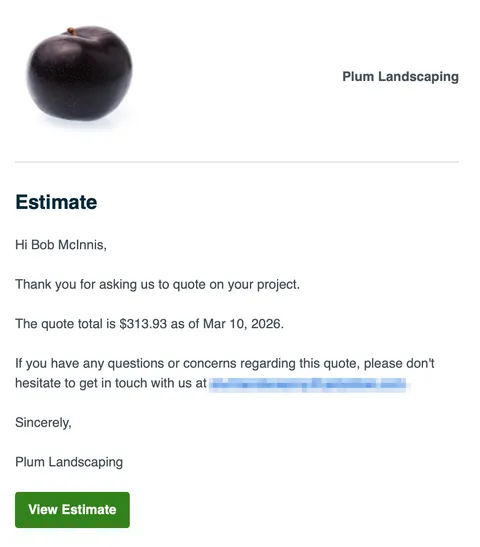
Your client will receive an email or a text message letting them know that they have a new quote with an option to view it in client hub.
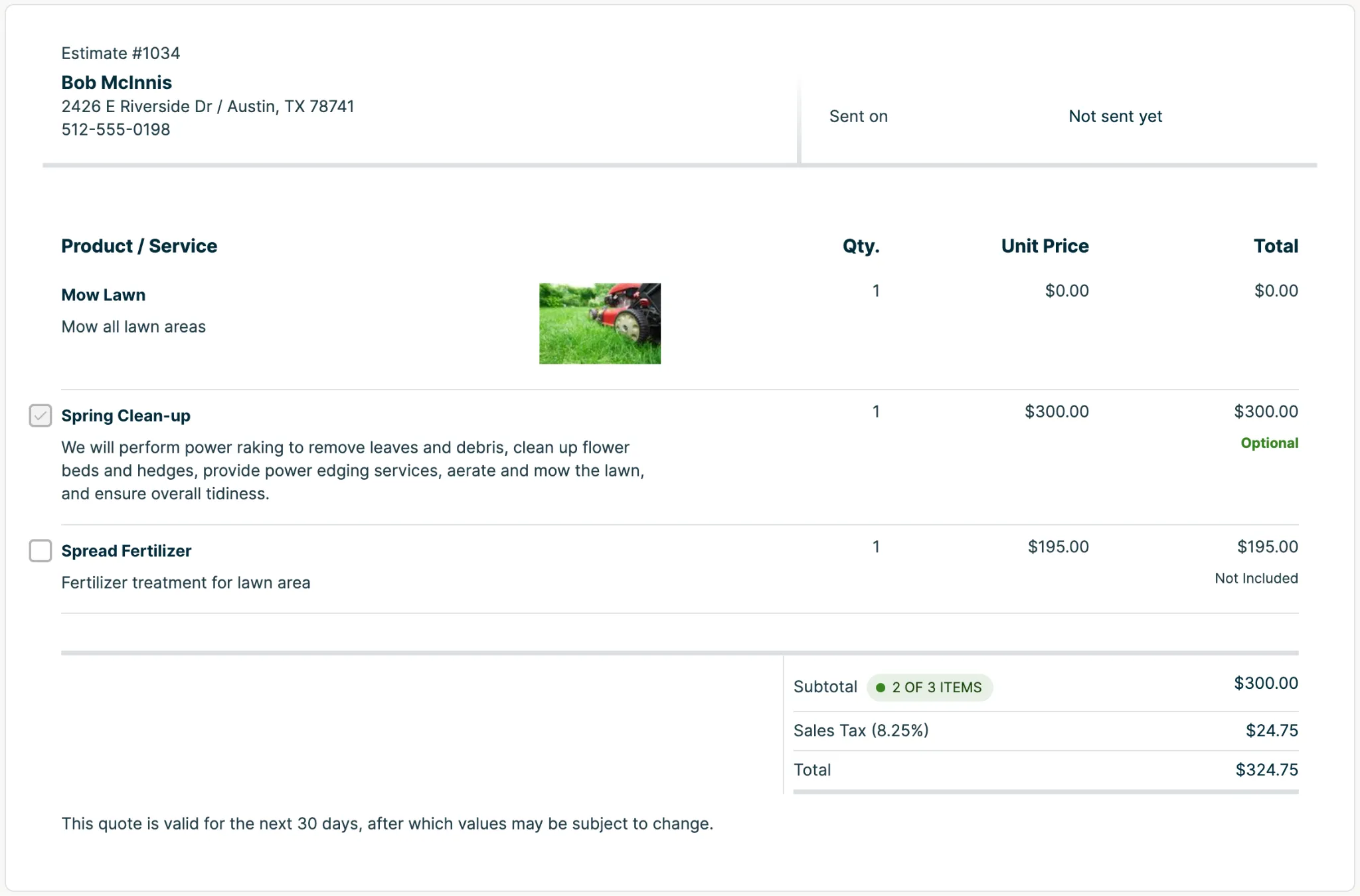

When reviewing a quote from client hub, your client can select and deselect line items and the quote total will automatically adjust.
In client hub, the total column has a label to show if a line item is optional or not. The labels are:
- Optional- this label identifies an optional line item that was selected. This line item is included in the total of the quote. This also includes line items that were “recommended” since those line items were pre-selected for the client.
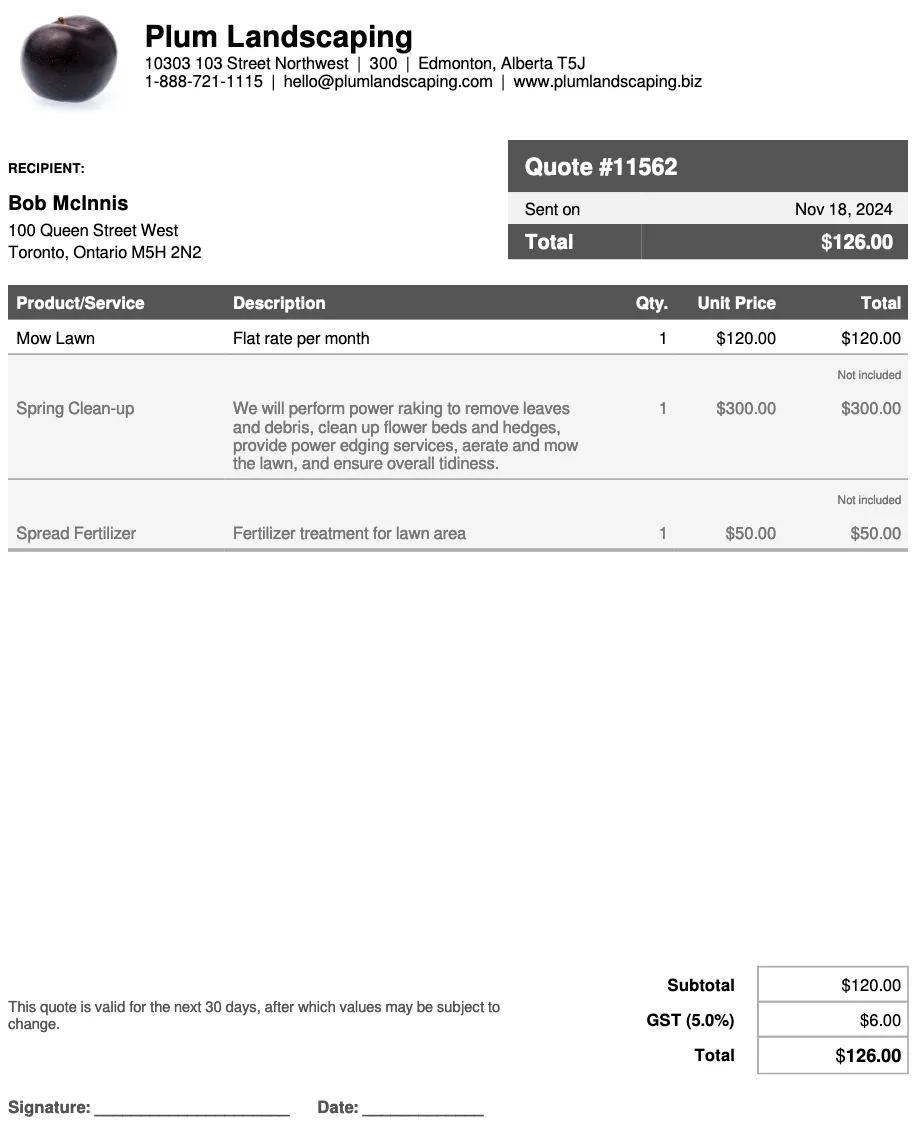
- Not included- this line item was not selected. It is not reflected in the quote total and is greyed out on the PDF.
If your quote has a required deposit that is a percentage, the amount will update based on additional line items the client adds or removes. The required deposit will reflect the percentage of the total items selected.
If you send your client the PDF version of their quote, their optional line item selections are reflected by labels in the total column like in client hub. The PDF shows both optional items that were on the original quote that the client didn’t go with, as well as those that they selected.
Preview as client
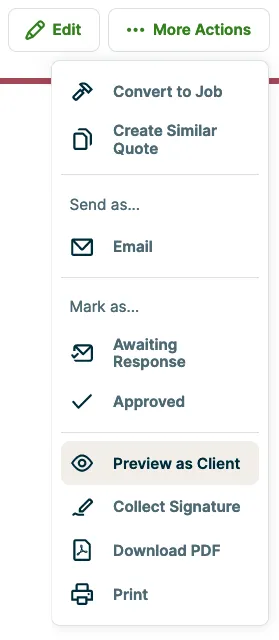
Before sending the quote to your client, you can preview how it will appear to them in client hub. From the quote in Jobber, click More Actions, then Preview as Client.
What you see in this preview screen is read-only, so if there are any changes that you need to make on the quote, you’ll need to go back to the edit screen to make them.
Convert the quote to a job
When the quote is approved, if the client selected any additional line items they will appear with a greyed out checkbox. The value of the quote will include any items added on.
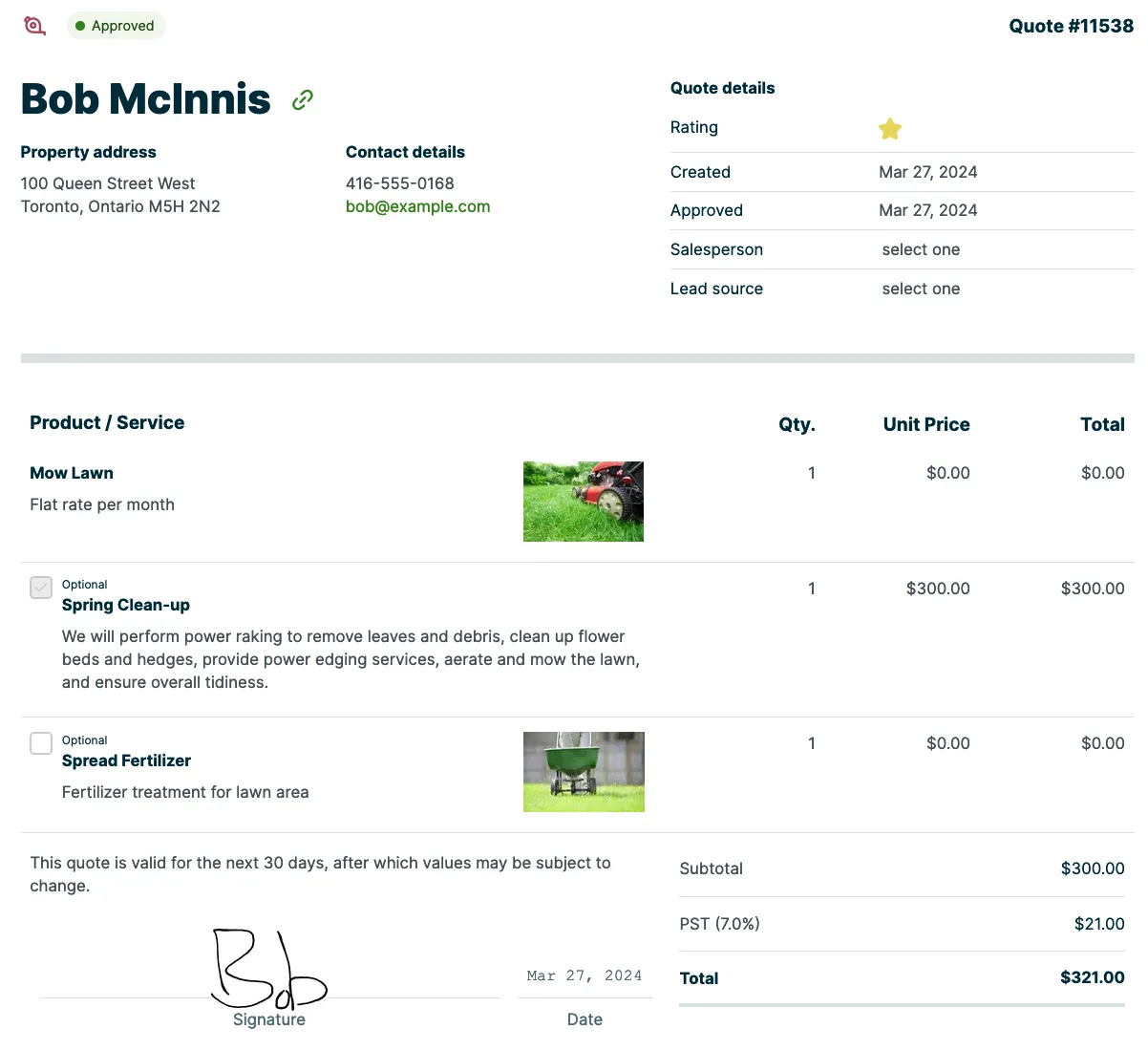
To convert the quote to a job, click Convert to Job.

When the quote is converted to a job, any selected optional line items will become regular line items on the job. Any optional line items that were not selected will disappear and not be included on the job. The quoted price will appear along with the quantity and cost, so it can be referenced if you need to edit the line items.