

Overview
Build custom forms and checklists so your team delivers consistent service, and share them with your customers to show off what was done.
Checklists (previously called job forms) are customizable forms with data collection tools that can be attached to jobs and assessments for your team to complete when on-site. Checklists in Jobber help standardize how information is gathered (especially when multiple team members are involved) ensuring consistency across the board.
You can tailor checklists to your needs using checkboxes, dropdown menus, and short or long answer fields. Team members can also upload images or collect signatures directly to the form as part of their visit documentation.
Once completed, checklists can be shared with clients by email or downloaded for your records.
Checklist availability
Checklists are available on select plans. View our current pricing plans.
To check what plan you’re on, navigate to the Gear Icon then select Account and Billing. If you have any questions about your plan’s features or pricing, our support team is here to help!
Create a checklist
Checklists can be set up for the different types of work or services your business offers, to make sure all the key details are being captured. This way, each form can be tailored to collect the details you need right from the start.
Note: You can create up to 100 checklists in Jobber.
To create a new checklist:
- Click the Gear Icon then select Settings.
- From the settings menu, select Checklists.
- Click the New Checklist button.
To edit an existing checklist:
- Click the Gear Icon then select Settings.
- From the settings menu, select Checklists.
- Click the checklist name from the list to open the editor.
Customize checklists with sections and questions
Every checklist can be tailored to the type of work you’re offering. By dragging and dropping new sections and questions from the Manage Form panel, you can build checklists to keep track of important details during the visit.
Organizing your form with section names and questions, helps set clear expectations for your team members about what they need to do to complete this work.
Every checklists is built from sections and questions:
- Sections act like containers. They group related questions together under a section name.
- Questions are the individual fields inside a section that team members fill out. Questions can be set as required if there is certain information you need up-front.
The types of questions that can be added to checklists are:
- Short answer: Adds a field for a short answer question to your checklist. This is useful for questions where team members won’t need to enter a lot of detail in their response.
- Long answer: Adds a field for a long answer question to your checklist. This is useful for questions where team members may need to provide a lot of information.
- Dropdown (single choice): Adds a dropdown menu to your checklist where your team members can select only a single option.
- Checkbox: Adds a checkbox selection to your checklist where team members can check a box.
- Numerical answer: Adds a field to your checklist for team members to enter numbers into. This question field does not support text.
- Image upload form: Add an image upload option for your team members. Up to 10 files per form can be uploaded, where each file must be under 50MB individually. Supported file types for checklist image uploads are: JPEG, PNG, and HEIC.
- Date picker: Add a date selection tool to your checklist where your team can select a date from a calendar. This is a useful question type for questions where you’re asking the client for their availability, or when the answer is a date.
- Signature: Add a field for your team members to collect a signature.
By adding and organizing sections and questions, you can create checklist that collect the right details for a variety of uses.
Add a new section to your checklist
- From the Manage Form panel, select Add section from the menu on the right, then drag and drop the new section into your checklist.
- Click the new section in your checklist to edit it. Type in a name for this section.
- Drag and drop questions from the Manage Form panel to add questions into this section.
- Repeat to add new sections and questions.
Add a new question to your checklist
- From the Manage Form panel, choose the type of question you want to add.
- Drag and drop the question into the section where you want it to appear.
- Click the question field to edit the options or instructions, so clients know what to enter.
Make a checklist question required
- Start by creating or editing a checklist.
- Locate the question that you want to make required.
- Use the Required toggle to turn the field on or off. When a question is marked as required and isn’t filled out, team members will see a banner flagging that required fields were missed on the checklist.
Reorder sections and questions on checklists
- In the form editor, hover over the section or question you want to move.
- Select the drag handle (⋮⋮).
- Drag the content to its new place on the form.
- Release the section when it’s in the right spot.
Your form will automatically update to reflect the new order.
Another option to reorder checklist sections is to select the … icon from a section, then select either Move section up or Move section down.
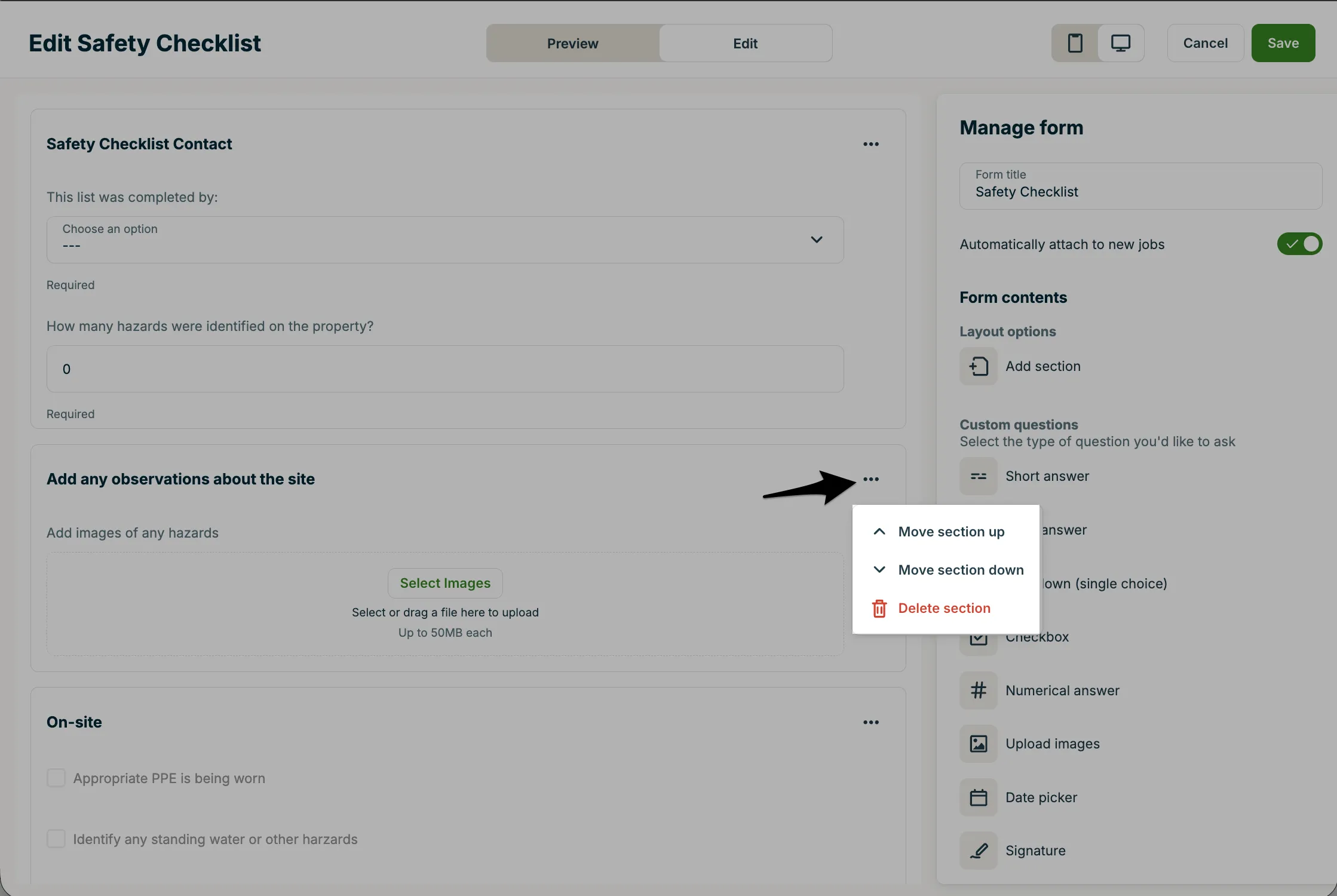
Remove a section or question from a checklist
- In the form editor, locate the section or question you want to remove.
- Click the three dot icon.
- Select Delete.
- From the pop-up confirm you wish to delete this section or question by selecting Delete.
Delete a checklist
- Navigate to the Gear Icon, then select Settings.
- From the settings menu, select checklists.
- Locate the checklist you wish to delete from the list of checklists.
- In that row, click the three dot icon and select Delete.
Preview checklists
Before attaching your new job from to assessments or jobs, you can preview it to see exactly what your team will see. Preview mode shows you how the form looks on both desktop and mobile, so you can double-check the flow and make sure all your questions are clear.
To preview a checklist, follow these steps:
- From the form editor, select Preview at the top of the page.
- Use the device icons in the top right to switch between mobile view and desktop view.
- Review the form sections and questions to confirm everything looks the way you expect.
- When you’re done previewing, select Edit to return to editing mode, or choose Save to keep your changes.
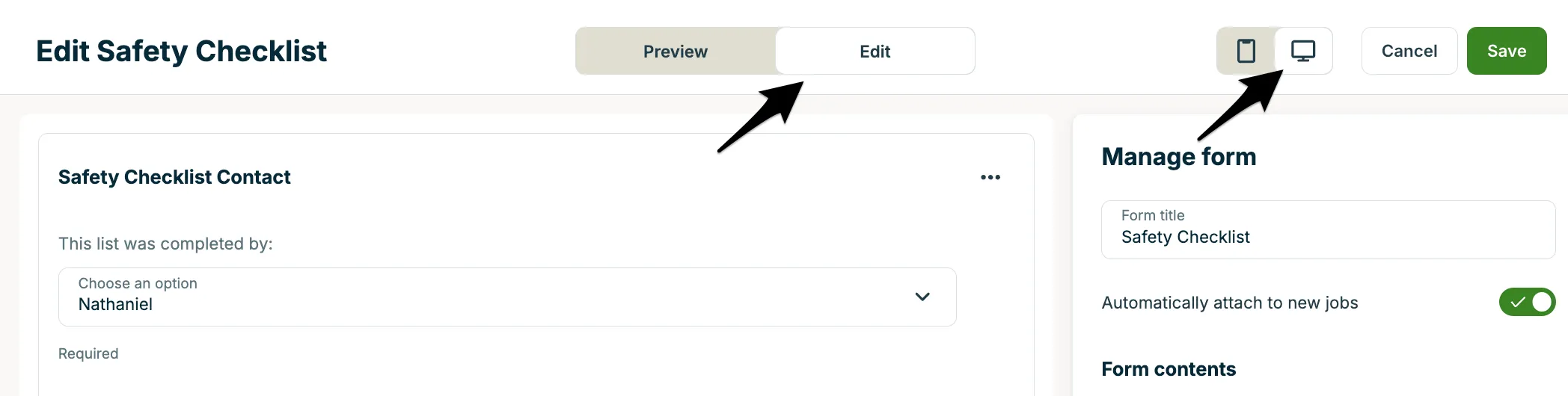
Attach checklists to assessments and jobs
Checklists can be added to assessments, specific jobs, or you can set up checklists to automatically attach to newly created jobs.
Note: When a checklist is added to an existing job, past visits aren’t updated.
Add a checklist to an assessment
- Start by creating an assessment. Click Create from the side navigation, then select Request.
- Start filling out the details of the request, as needed.
- Locate the “On-site assessment” section of the request, then click the truck icon to add an on-site assessment to the request.
- Start adding the details of the assessment. Click Checklists to select a checklist to add to this assessment, or if you haven’t created any checklists yet, select Create a checklist.
Set a checklist to automatically attach to all new jobs or assessments
- Click the Gear Icon then select Settings.
- From the settings menu, select Checklists.
- Locate the checklist you’d like have auto attached to assessments or jobs. Hover over the three dots and select Edit.
- From the Manage checklist panel, turn on the toggles for Automatically attach to new jobs and/or Automatically attach to new assessments.
Checklists that are set to attach automatically will have a label in the “auto attach” column on the checklists settings page to indicate if the checklist is automatically attached to new jobs (green) or assessments (orange), or both. If a checklist isn’t set up to auto attach, the column will be empty.
Add a checklist while creating a job
- From the side navigation in Jobber.com, click Create select Job.
- Fill out the job details as needed.
- In the Schedule section, locate Checklists.
- Click the Checklists dropdown menu.
- Select the form you want to add.
- Finish creating the job, then click Save.
- The selected checklist will be added to the job and available on visits.
Add a checklist to all visits for a job
- Navigate to the job.
- Scroll to the Scheduled visits section.
- Click the Edit all visits button.
- In the Checklists field, click the dropdown menu.
- Select the form you want to add.
- Click Update incomplete visits.
- The checklist will be added to all incomplete visits on the job.
How team members fill out checklists
Checklists can be filled out in the Jobber App or on any device by logging in at jobber.com.
Fill out a checklist in the Jobber App
Your team in the field will be able to fill out a checklist in the Jobber app by navigating to a visit. If there are checklists added to this job, tap the Checklist to fill them out.
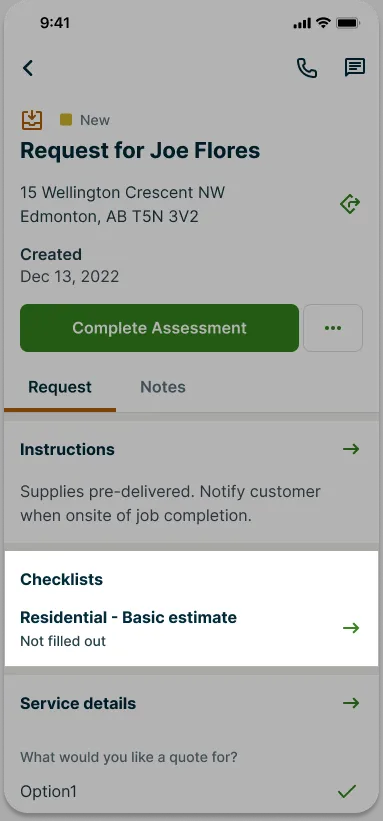
On the checklist, you will be able to fill out the fields that were set up from jobber.com. Field types may include checkboxes, short or long answer, images or drop-downs.
When your checklist includes required questions, you will see a progress bar at the top of the checklist that tracks how many of the required questions have been completed so far. Each required question will be indicated with “Required” below the answer field.
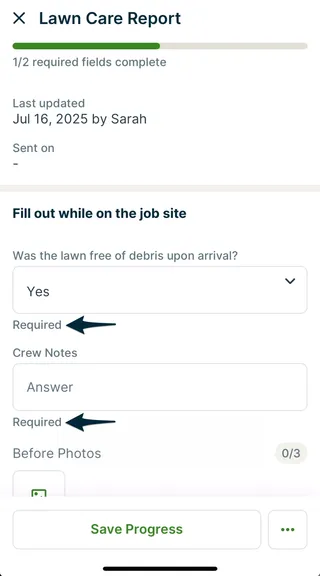
If there are required questions on a checklist and your team tries to navigate away, they’ll see a reminder to finish the form first.
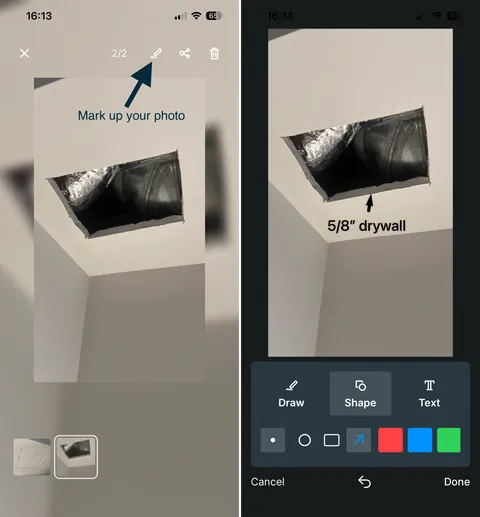
If you include photos in your checklist, you can take up to 10 photos, one after the other, without leaving the camera view. Once you have taken your photos, or uploaded them from your device’s storage, you can select any image and use the image markup tool to add drawings, shapes, and text by tapping the pencil icon.
Once your form is filled out, tap Save (or Save Progress) to save your entries or … to save and send an email copy to your client all in one go. Before the email is sent, you’ll have an opportunity to look the email over.
In low-connectivity or offline locations, the Jobber app stores checklist updates on your device. Tap the offline banner, or navigate to More, then select Sync Queue, to see the status of your pending, uploading, and failed uploads. Once you reconnect, Jobber finishes syncing your updates. Learn more in Notes and Attachments in the Jobber App.
Fill out a checklist on jobber.com
You can fill out checklist from any device by logging in to Jobber.com and following these steps:
- Go to the Schedule.
- Find and click the visit that includes the checklist you want to complete.
- Select View Detail.
- In the visit details, click the Checklists tab.
- If multiple checklists are assigned to the job, choose the one you want to fill out from the dropdown menu.
- Start filling out the fields on the checklist.
When your checklist includes required questions, you will see a progress bar at the top of the checklist that tracks how many of the required questions have been completed so far. Each required question will be indicated with “Required” below the answer field.
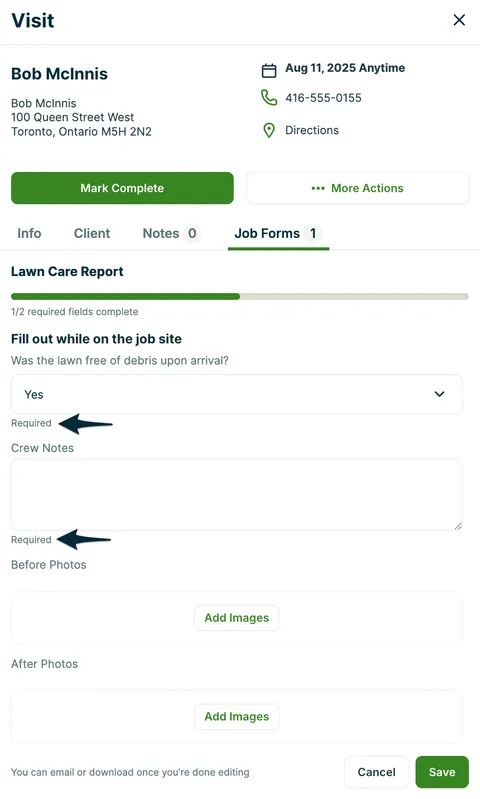
When you have made your updates to the checklist, click Save.
Once you’ve started editing your checklist, the email and download buttons will be greyed out until the updates are saved.
To clear a checklist, select another checklist from the dropdown list. This will open the other checklist and any unsaved changes to your current checklist will be lost.
View completed checklists
You can see a completed checklist by navigating to the visit either in the Jobber app or on any device by logging in at jobber.com. Visits are accessible from either the schedule or from the job.
Open the visit and then navigate to the Checklists section:
- From jobber.com, this will be a pop-up will appear with a tab for Checklists.
- From the Jobber app, it will be the Checklists section of the visit.
How do I know when a checklist has been left incomplete?
When checklists aren’t completed, but the visit has been completed, you will be notified via activity feed in both Jobber.com and the Jobber App.

In the Jobber App, you can check whether a checklist is complete by going to the Checklists section of the job. If your form has required questions, you’ll see its status at a glance:
- A green checkmark means the form is complete.
- A yellow alert icon will indicate if a form is incomplete, and you’ll also see how many required fields have been filled out.
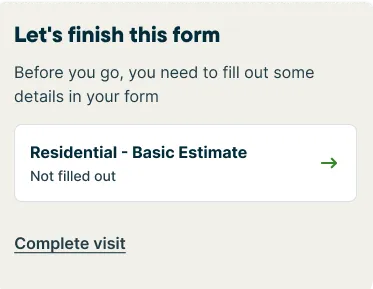
If a visit is marked complete while a checklist still has required fields left blank, the team member will get a prompt to go back and finish it. Tap the Checklist to navigate back to the form, or tap Complete visit to complete the visit and leave the checklist unfinished.
Checklists report
To view completed checklists, check out the checklists report. This report shows completed checklists for visits within your selected date range.
Note: Checklist fields need to be unique to successfully export the checklists report. If a checklist has multiples of the same question, the export will have errors.
To navigate to the checklists report, select Reports from the side navigation, then select Checklists Report.
The checklists report is available to admin users or users with these permissions:
- Schedule: View and complete their own
- Jobs: View all jobs
- Reports: View reports
Share completed checklists with clients
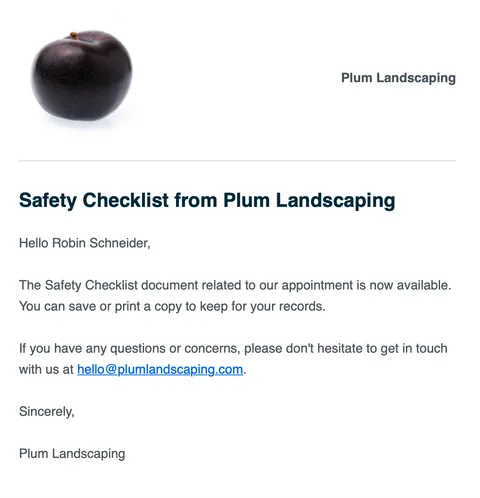
PDF versions of your checklists can be downloaded for your records or emailed to your client. For emailed checklists, the email your client receives looks like this, with the checklist PDF added as an attachment:
The attached checklist PDF looks like this:
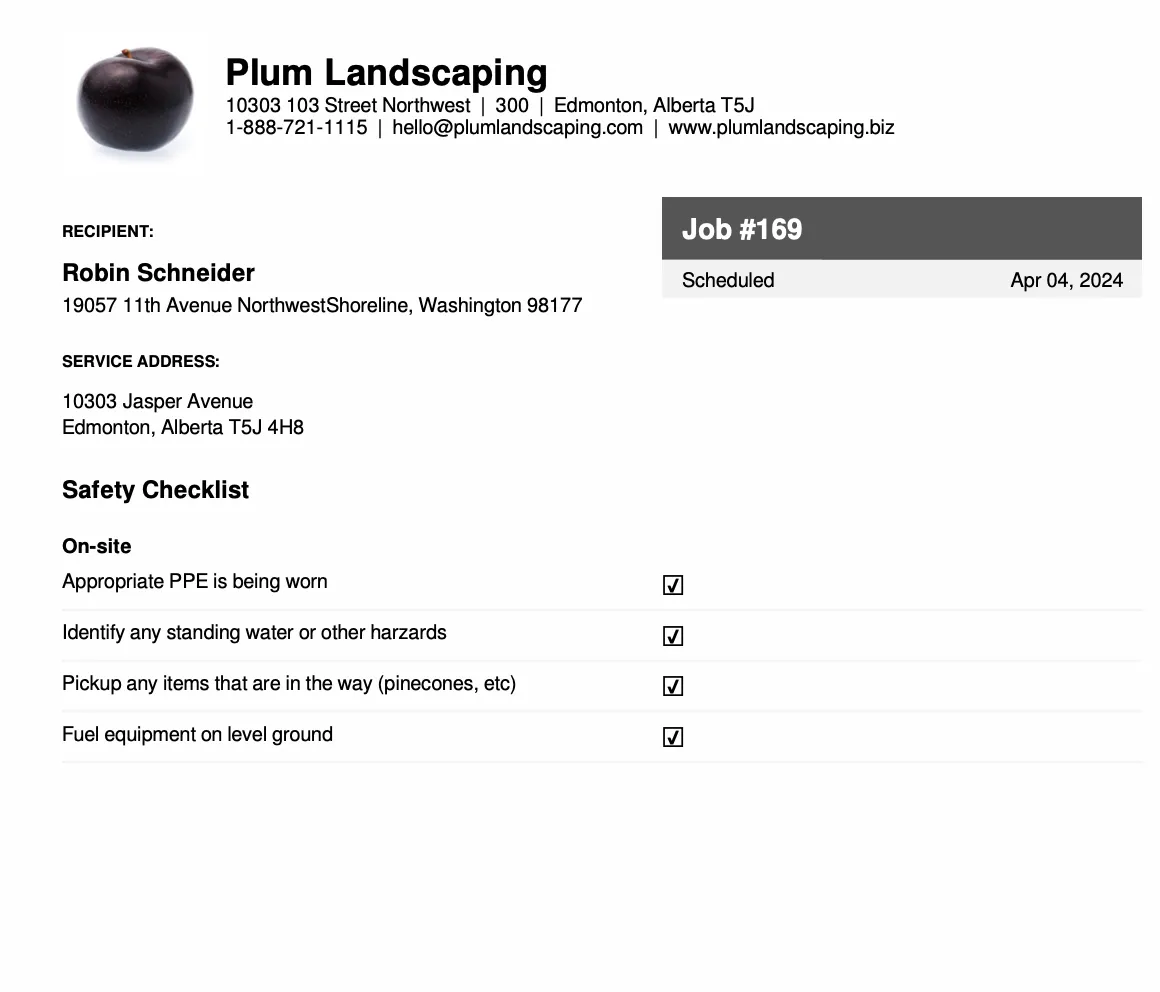
If you uploaded images on your checklist, they will also be included on the checklist PDF.
The style of this PDF comes from the same settings as your job PDFs. This is managed in your client document settings.
If you’ve selected to send the PDF by email, you’ll have an opportunity to customize the message to your client before it is sent off. The email will include the checklist PDF, but you can add any other attachments that you would like to send to your client as well. The sent form will always be the last saved version of your form so we recommend that you double-check for accuracy before you send it. All sent emails will be able to be viewed on your client communications report.
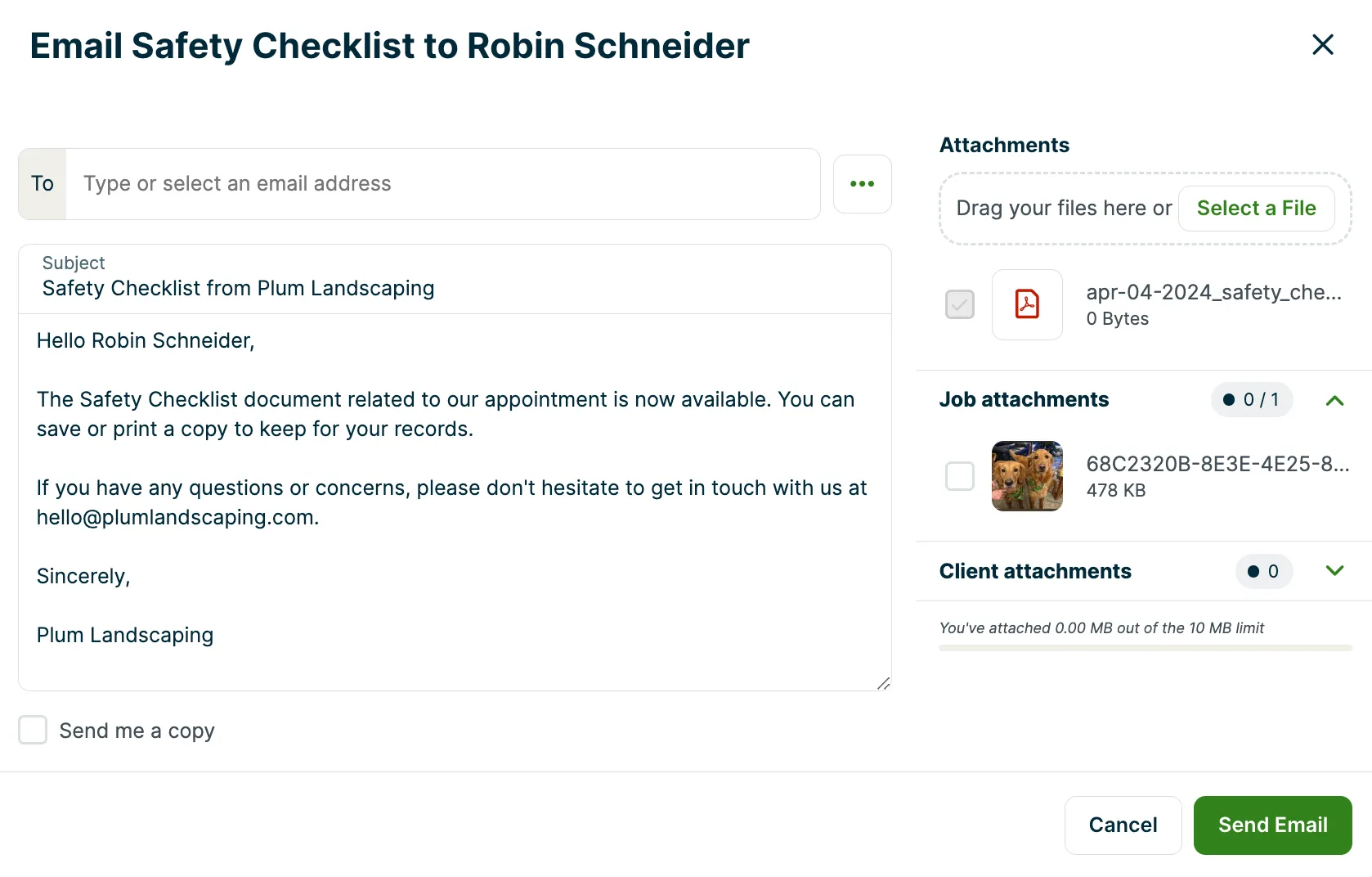
The text that appears in the email preview is the checklists template which can be customized in Settings from the Emails & Text Messages settings page. The checklist email template can be found in the Jobs section.
From jobber.com
When viewing the checklist tab on a visit, there are buttons to Email or Download the checklist. If these buttons are greyed out, it means that you have unsaved changes on your checklist. Save your changes in order to email or download the checklist.
From the Jobber app
From your checklist tap … then select Save & Send to save your entries in this checklist and email a PDF copy, or Save & Download to save your entries and download a PDF to your device.
How to share pictures and notes with clients
Checklists are the best way to capture photos and notes during a visit and share them with your client once the work is done. Here’s how to set it up from start to finish:
Set up your checklist
When creating or editing your checklist, add the following question types from the Manage Form panel:
- Image upload: this lets your team upload up to 10 photos per form (JPEG, PNG, or HEIC, max 50MB each). Images can be marked up with drawings, shapes, and text directly from the app.
- Long answer: this provides a text field for your team to write detailed notes about the visit.
Fill out the form during the visit
Your team completes the checklist from the Jobber app or at jobber.com, uploading photos and adding notes as they go. Once saved, everything is stored on the visit.
Share the completed form with your client
When the form is ready, email it to your client as a PDF. Any uploaded photos and notes will be included in the attachment.
- From jobber.com: open the visit, go to the checklists tab, then select Email.
- From the Jobber app: tap … (three dots) on the checklist, then select Save & Send.
Uses for checklists
The sky’s the limit with creating checklists and they can certainly be customized based on your needs. Here are some examples of checklist uses to get you started:
- Safety checklists: Make sure your team has the correct PPE for the job, hazards are cleared out of the way, and anything else you need to keep your team safe. Checkboxes are a great fit for this type of checklist.
- Inspection forms: If you have to perform an inspection while on a job, the inspection paperwork can be created digitally with a checklist to make sure all the right things are looked at and inspections are standardized between different team members. Checkboxes work well for an inspection checklist as well as the short and long answer fields for taking notes and recording specific details.
- Service authorization forms: If you need your client to authorize your work, a service authorization form can be created where you set up fields for details like the client name (short answer field), technician (short answer or dropdown field), date (short answer field), details (long answer field), and client approval where a client’s name can be entered to indicate their approval (short answer field).
- Chemical records: track the chemicals being applied during a visit directly from the app with a checklist! Create lists of each chemical applied as well as the quantity. Dropdown and short answer fields can work well for this type of checklist.
- Start or end of day checklists: Do you have processes your team needs to follow at the start or end of the day? Set up a checklist with a checklist to ensure nothing gets missed. If you need to record any notes about the day, long answer fields will let you do that. Set up checkboxes for any tasks that need to be completed.
- Equipment checklists: Ensure all the right equipment is being loaded onto the truck by creating a list with checkboxes of everything your team needs to have with them.