

Overview
Payment terms determine when an invoice is due. With client payment terms, you can set different default net terms for your residential and commercial clients, or customize terms for individual clients. When you create an invoice, Jobber automatically applies the right terms for that client so you spend less time updating invoices manually.
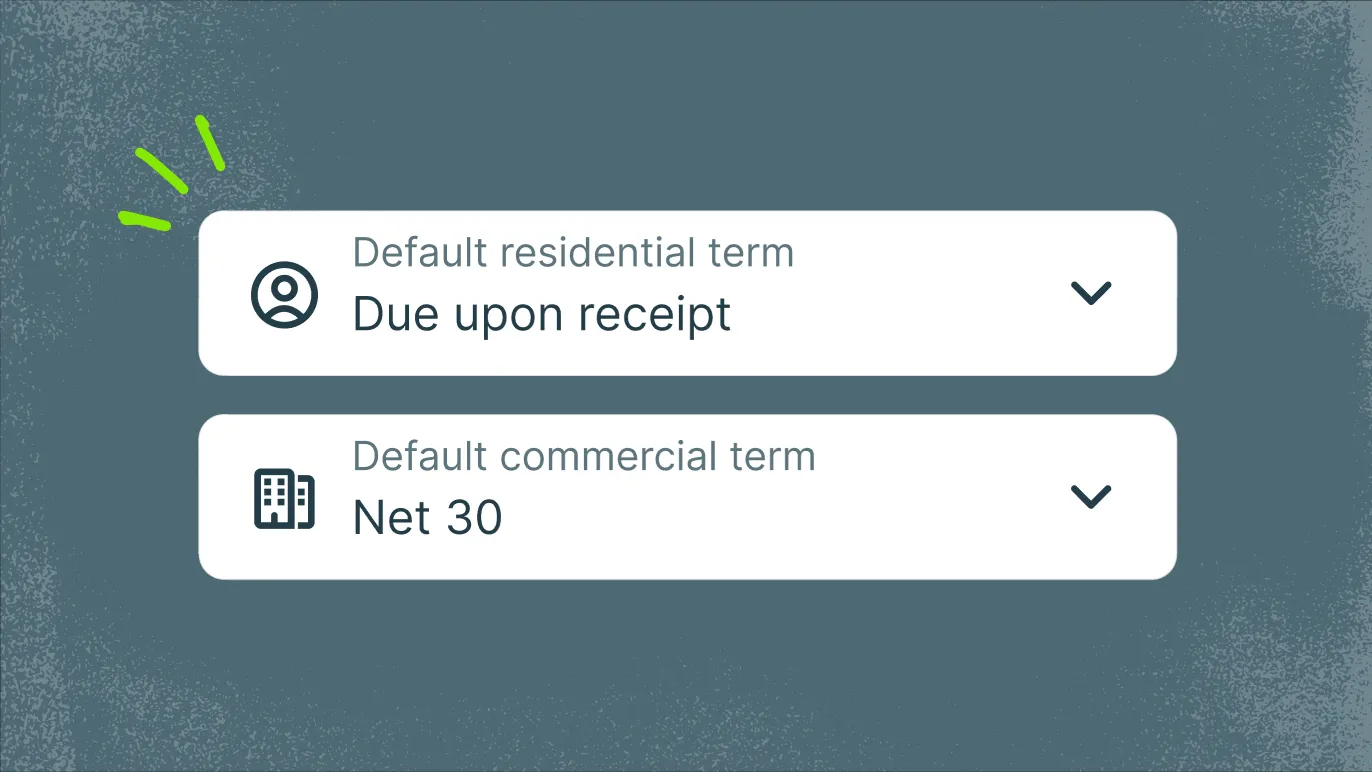
Set up payment terms in your settings
Your account comes with a standard set of payment terms ready to use. You can add custom terms, rename existing ones, and remove any that do not apply to your business from your work settings.
The following terms are defaults in every account and are always available:
- Due upon receipt
- Net 7
- Net 15
- Net 30
- Net 45
- Net 60
- End of the month
- End of next month
To manage your payment terms:
- Select the Gear Icon, then select Settings.
- From the settings menu, select Work Settings.
- Locate the “Invoices” section then locate the “Payment Terms” section. This is where you can update your default residential term, commercial term, and your saved terms (including the term name and number of days).
Note: The “residential” and “commercial” labels for the term defaults do not appear on your invoices, so your clients won’t see these labels.
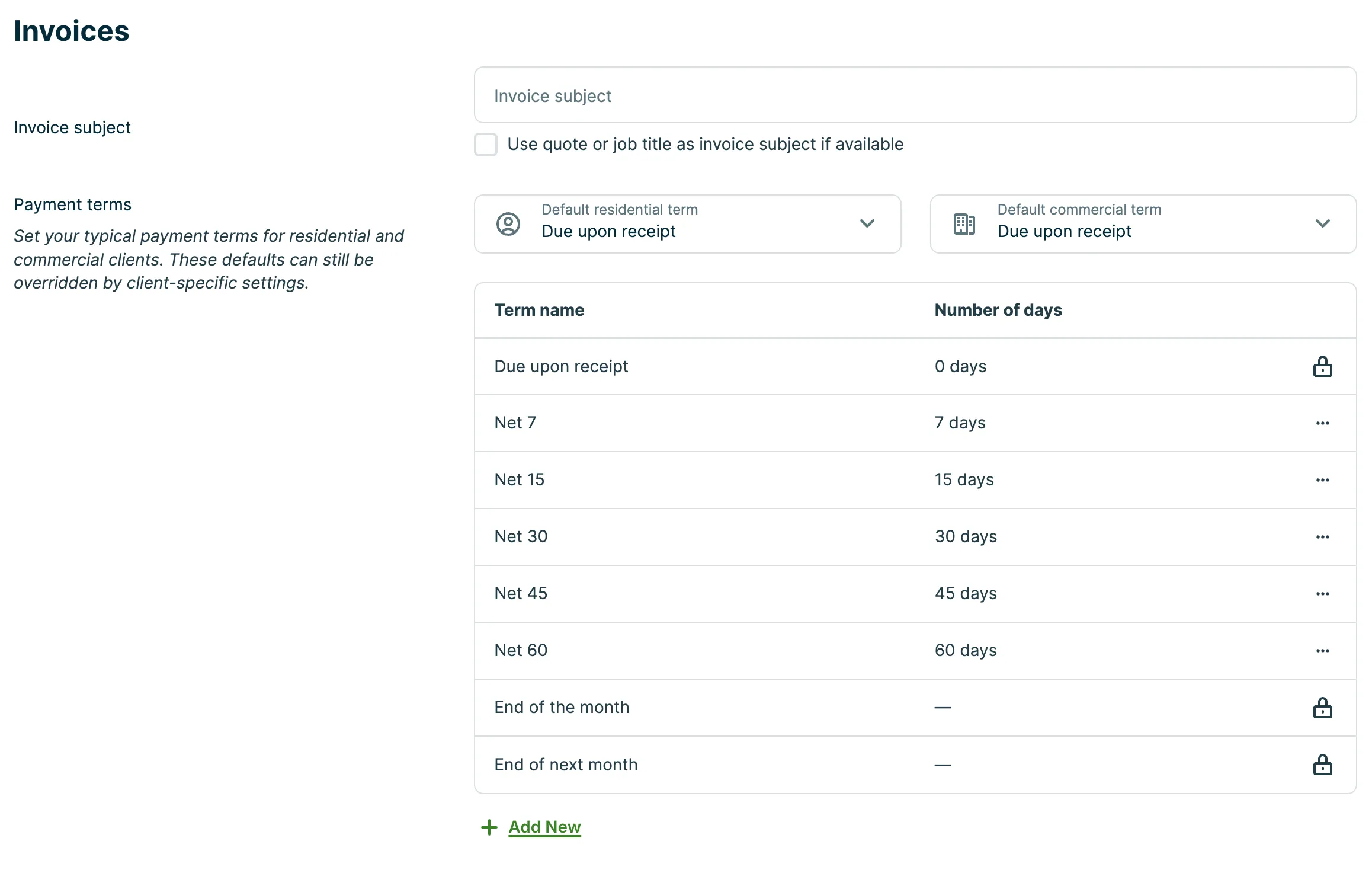
From here you can:
- Add a term: Select Add Term, enter a name and the number of days until payment is due, then select Save.
- Rename a term: In the row of the term you want rename, click the three dots button. Then select Edit. Enter the new name, then select Save.
- Delete a term: In the row of the term you want rename, click the three dots button. Select the term, then select Delete.
Note: The “Due upon receipt,” “End of the month,” and “End of next month” cannot be deleted or renamed, or have their number of days changed.
If you delete a term that is set as a default, Jobber automatically updates that default to “Due upon receipt.”
How are payment terms applied to invoices?
When Jobber creates an invoice, it applies payment terms in the following order:
- The client’s individual payment term, if one is set
- The default for the client’s type (residential or commercial)
You can override terms on any individual invoice at any time.
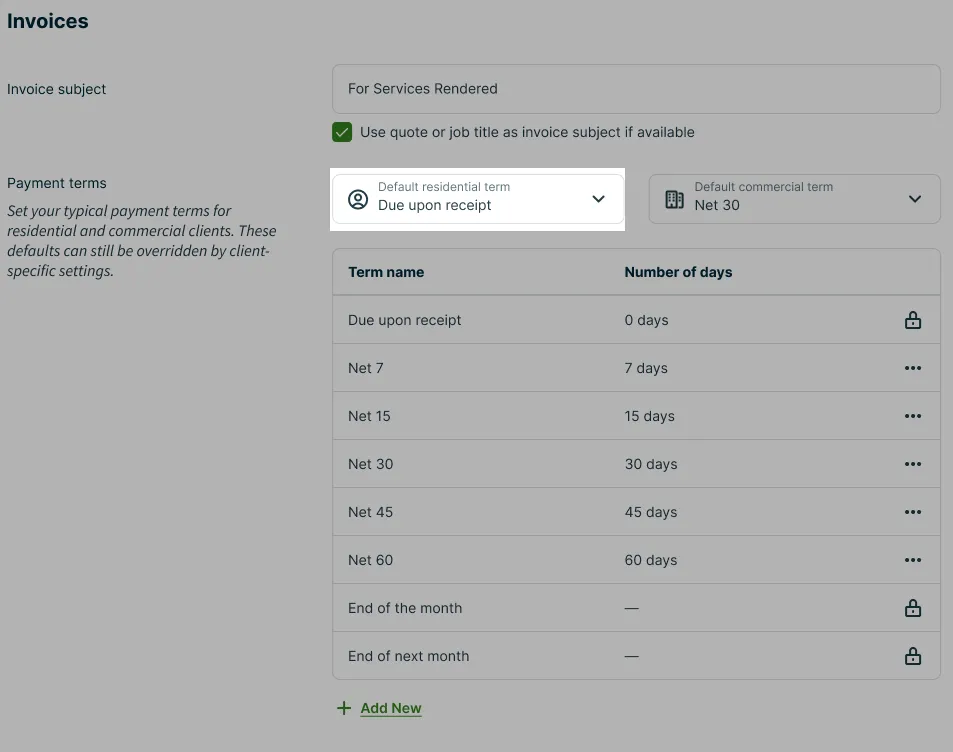
Set up default payment terms for residential clients
The residential default applies automatically to any client designated as a residential client, and to any client with no type specified.
To set the residential default:
- Select the Gear Icon, then select Work Settings.
- Under Payment Terms, select Residential Default.
- Select the term you want to use from the dropdown, then select Update Settings to save.
Set up default payment terms defaults for commercial clients
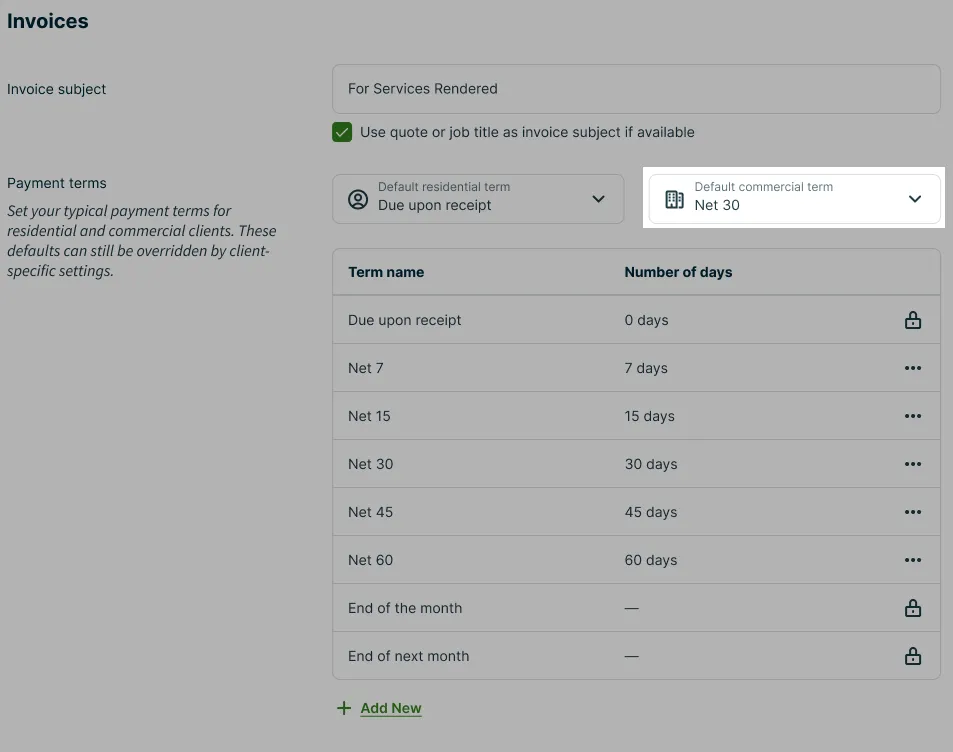
The commercial default applies automatically to any client that uses a company name, rather than a first and last name.
To set the commercial default:
- Select the Gear Icon, then select Work Settings.
- Under Payment Terms, select Commercial Default.
- Select the term you want to use from the dropdown, then select Update Settings to save.
Set payment terms for individual clients
You can set a specific payment term on any client profile. This overrides the residential or commercial default for that client only.
To set a client-level payment term:
- Open the client’s profile.
- Select the pencil icon at the top of the invoice.
- Under Payment Terms, select the term you want to apply to this client.
- Select Save.
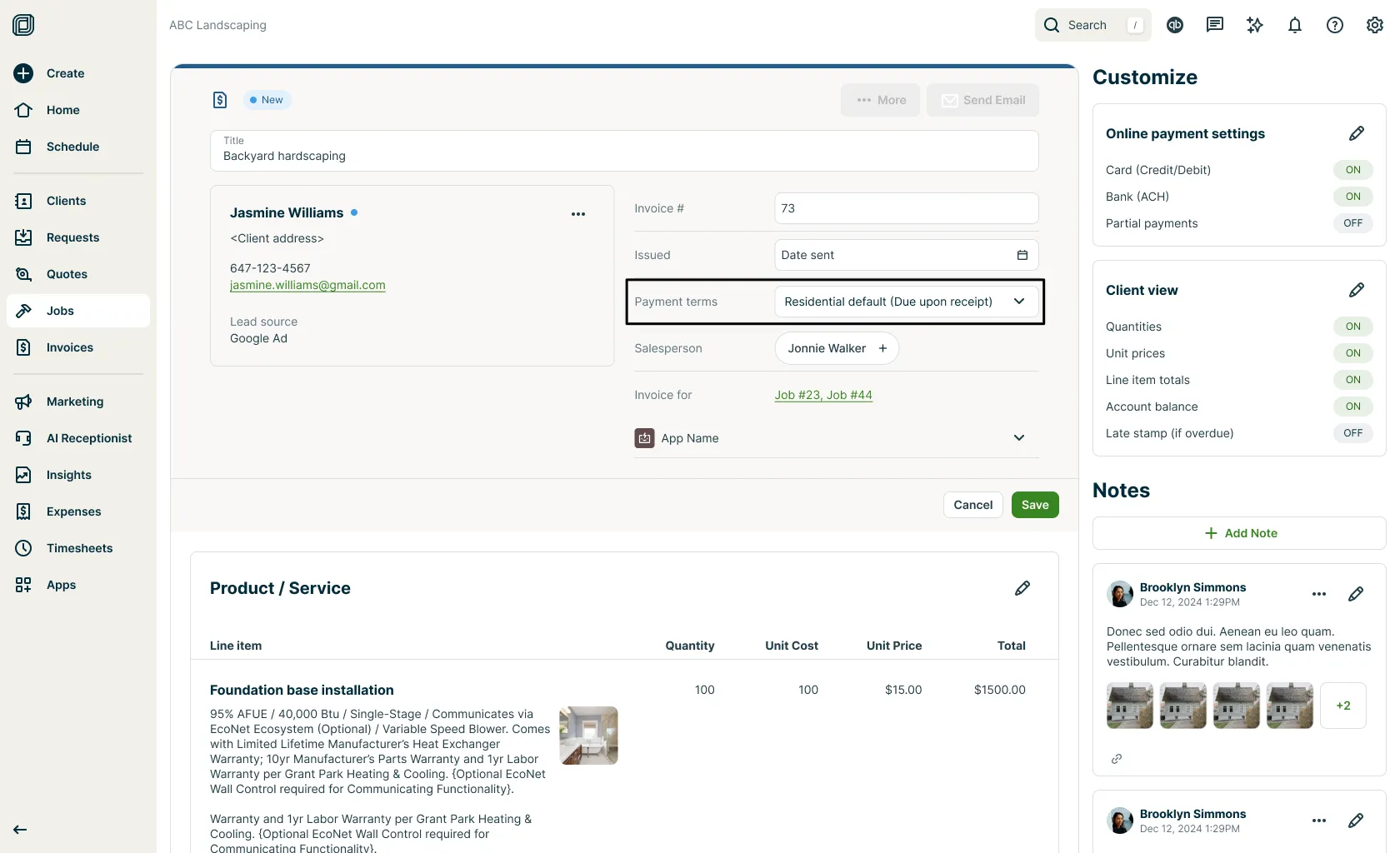
When a client has an individual term set, the dropdown shows the specific term, for example “Net 60.” When a client is using the account default, the dropdown shows “Account default (Net 30)” with the resolved term shown in the label.
To remove the override and return a client to the type default, select Residential default or Commercial default from the dropdown, then select Save.
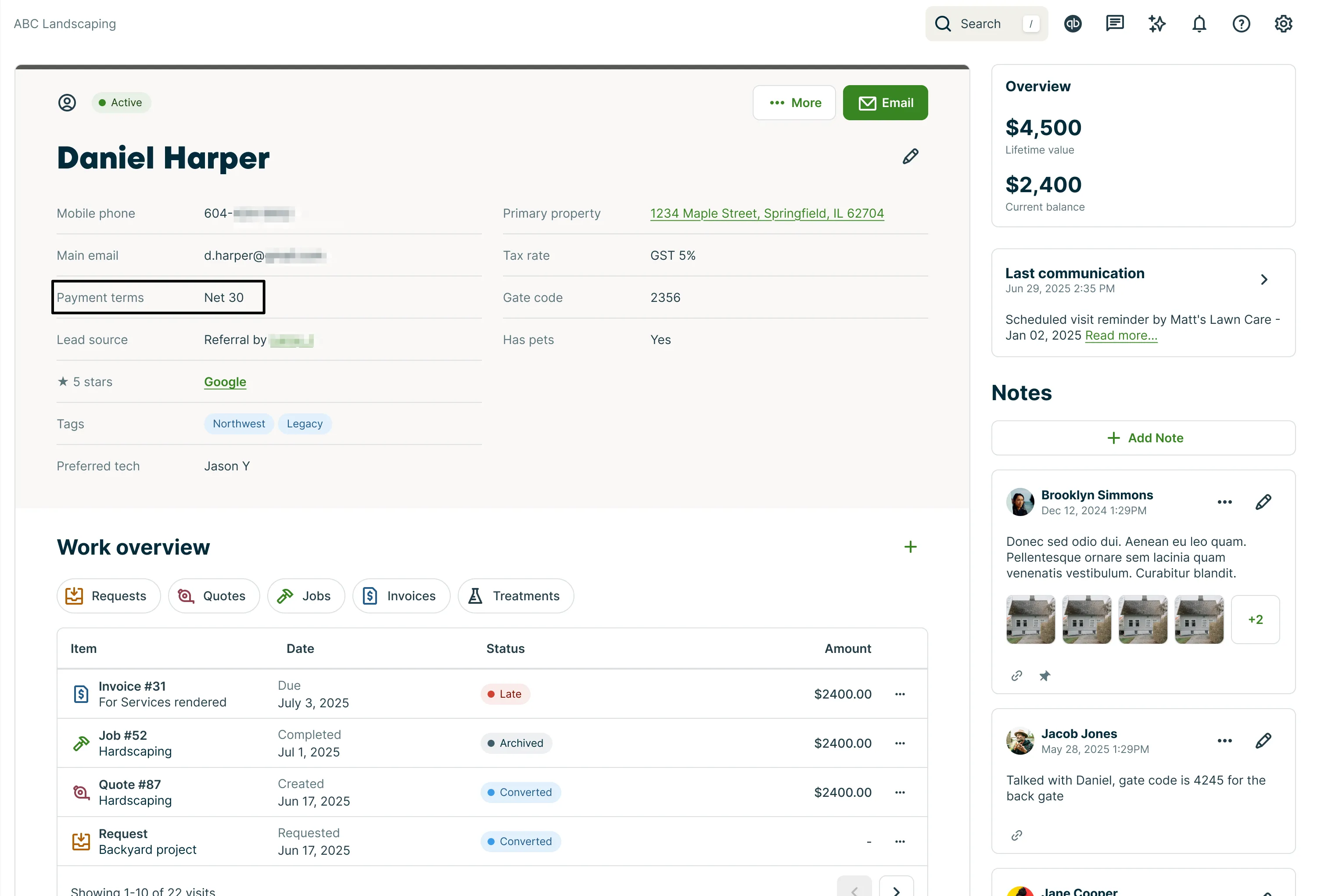
Client payment terms will be displayed on the client’s profile in their overview.
Keep client terms up to date from an invoice
When you manually change payment terms on an invoice, Jobber gives you the option to save that term as the client’s new default. Select the checkbox to update the client’s term, or leave it unchecked to apply the change to that invoice only.