

Overview
Eagleview is a remote measurement solution built for pros who need fast, accurate roof data without ever stepping on-site.
Eagleview’s precise measurements flow seamlessly into Jobber, giving you everything you need in one place to send accurate quotes quickly, win more bids, and deliver projects faster.
Eagleview Availability
The Jobber and Eagleview integration is available on Jobber’s Connect, Grow, and Plus Plans in the United States and Canada. View our current pricing plans.
To check what plan you’re on, select the Gear Icon, then choose Account and Billing. If you have any questions about your plan’s features or pricing, our support team is here to help!
You must have an active Eagleview account to use this integration. If you don’t already have an Eagleview account, sign up here. You must have billing information set up in Eagleview before you can order reports from Jobber.
As part of Jobber’s partnership with Eagleview, new and existing Eagleview users will be able to order their first 5 free reports via the integration, for a combined value of up to $450! There is no information you need to add during the order process to take advantage of this promotion, the promotion will be applied automatically to the first 5 reports you order with the Jobber and Eagleview integration.
Note: Promo codes cannot be applied to changes in delivery method. For example, if you choose to have your report delivered faster for an additional cost, the promo code discount will not apply to that upgrade. If you order a BidPerfect Report, you cannot use the promo code to upgrade the report to a Premium report.
Connect Jobber and Eagleview
- Sign into Jobber.com and select Apps from the side navigation.
- Search for Eagleview, then select it. From the App Marketplace listing, click Connect.
- To authorize Eagleview to access the listed information from your Jobber account, select Allow Access.
- Next, you’ll be prompted to input your Eagleview login information to connect to your Eagleview account. If you don’t have an Eagleview account, you can create one at this stage.
- Your accounts will now sync. If successful, you’ll see a success screen. Click Return to Jobber to navigate back to Jobber and get started.
- If you haven’t already setup your billing information in Eagleview, you’ll be prompted to navigate to Eagleview and enter it before getting started.
Note: When you first connect the Eagleview integration to your Jobber account, it may take a few minutes for all the properties to show the Order Report custom field.
Order Eagleview reports from Jobber
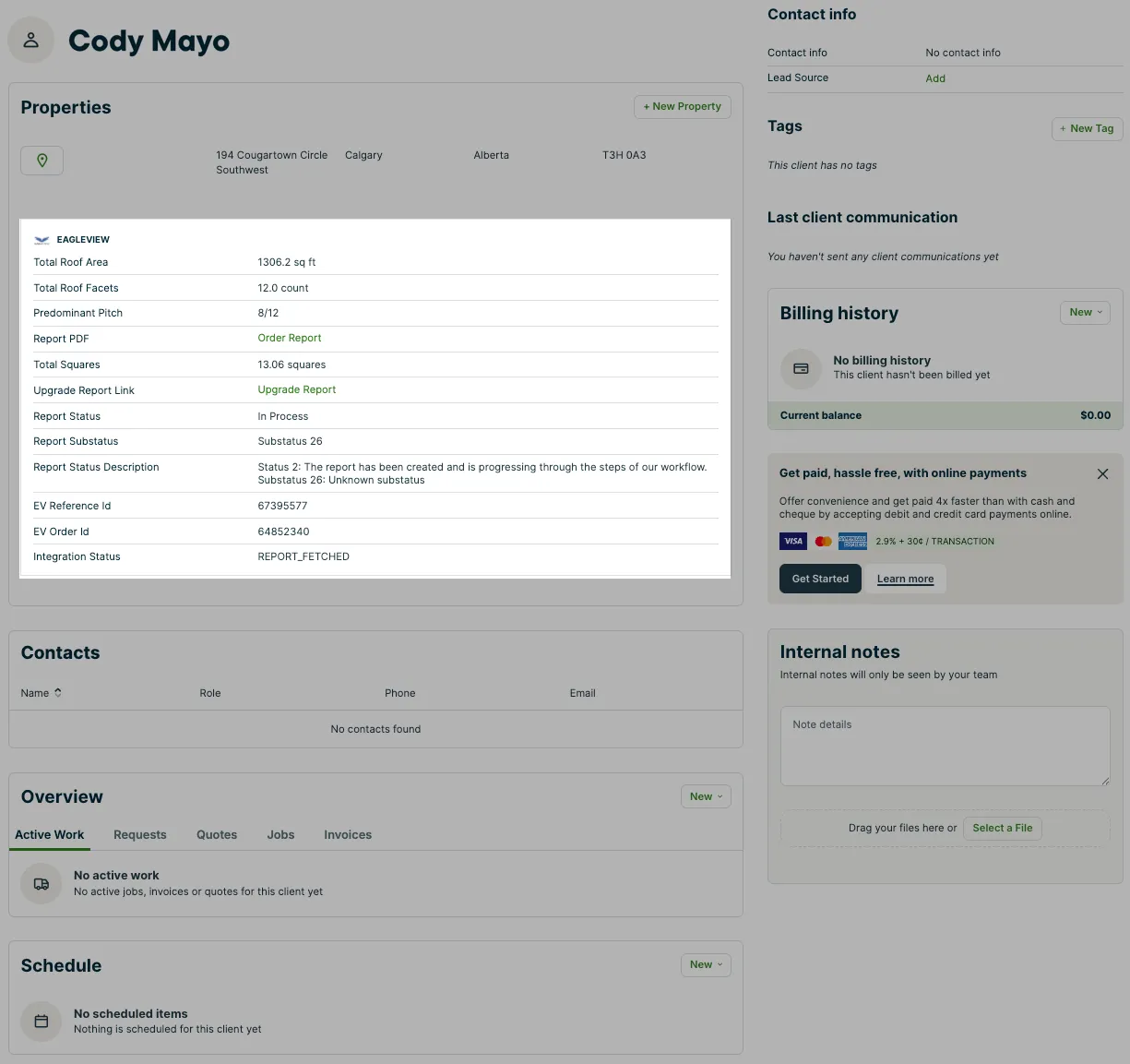
Once you’ve synced the Eagleview integration with your Jobber account, the properties section on a client’s profile will show a new custom field for Eagleview with a link to Order Report.
If you create a new property in your Jobber account, once the property has been saved it will have the Eagleview Order Report custom field visible.
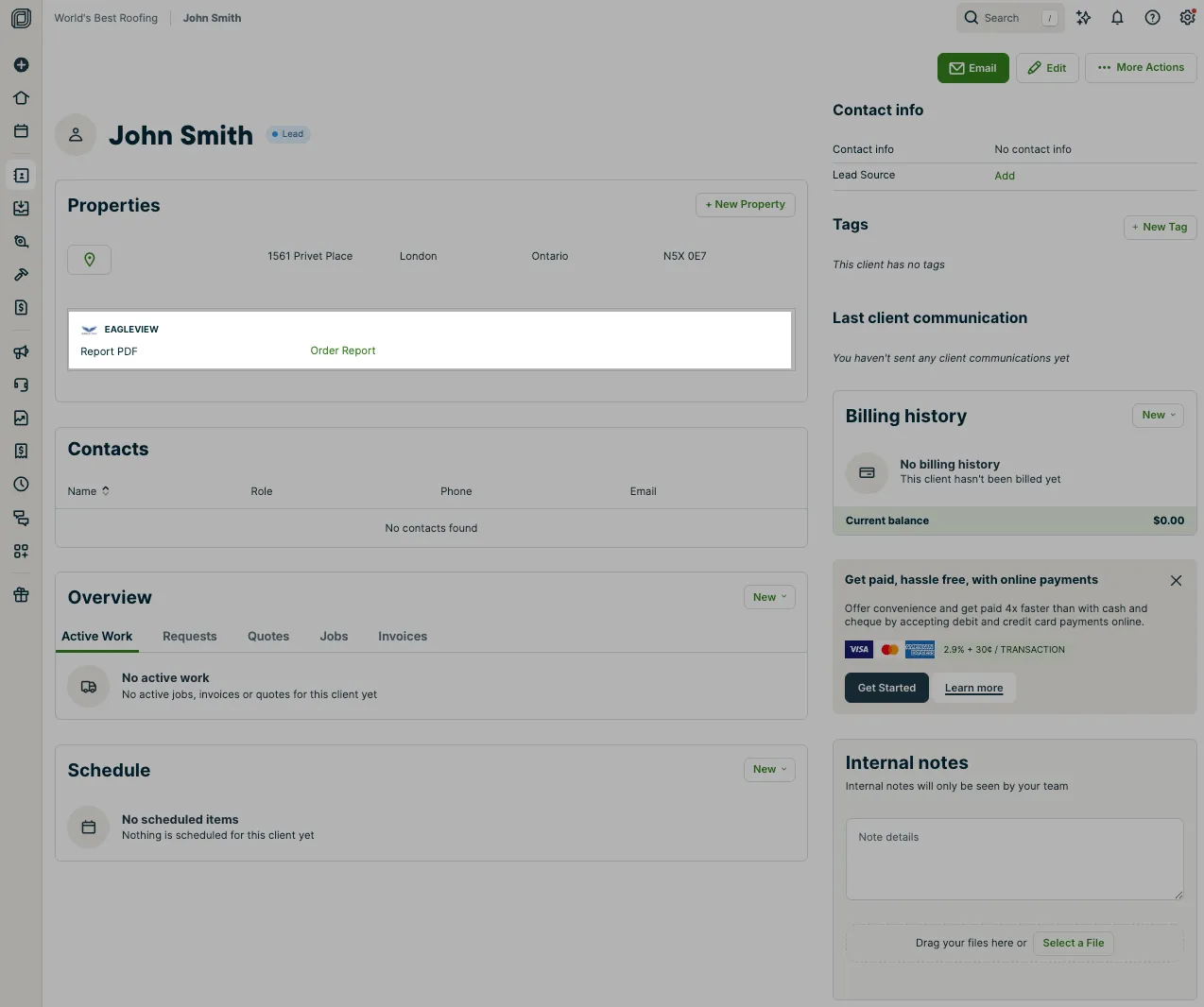
When you click the Order Report link, it will redirect you to a Order Report page, where the order will be pre-filled with the property address from Jobber. It’s important to ensure that the property’s address has been inputted correctly, so that it can be easily located on the order screen.
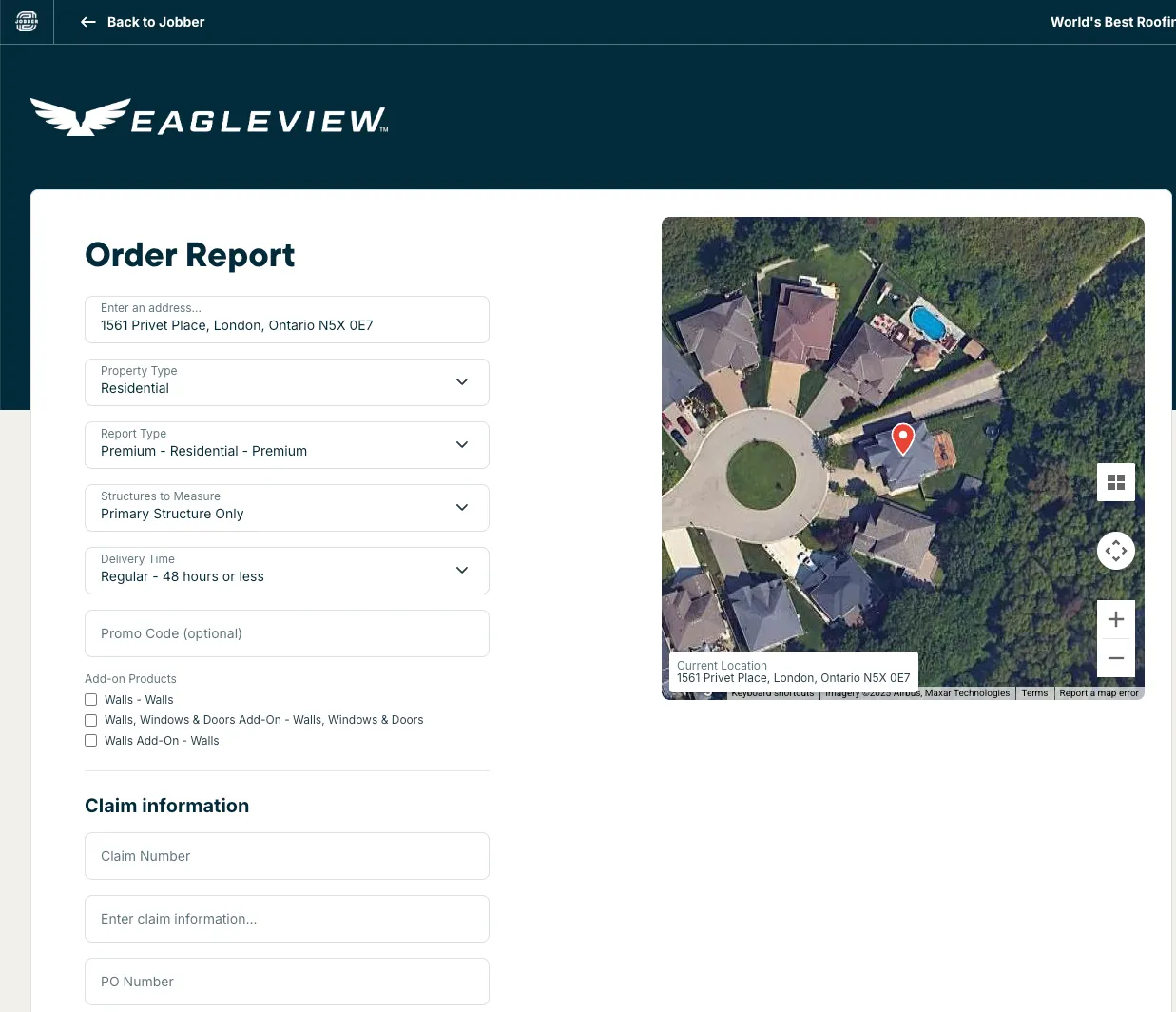
If the structure displayed on the map is not the structure that you want to measure, you can click on the map and drag the pin icon to the desired structure you want measured.
Note: The Eagleview integration uses both the address and the latitude/longitude coordinates of the structure, which will ensure the correct structure is measured in the report.
Select your report and add-ons
Once you have chosen your desired property, you will need to select your report type and add-ons. Use the drop down menus to make your selections:
- Property Type: Choose between residential, commercial, or multi-family.
- Report Type: Select from the Eagleview Report offerings.
- Structures to Measure: Choose between the Primary Structure Only, All Structures on Parcel,
- Delivery Time: Choose between Regular Delivery (2 business days), Express Delivery (1 business day), and 3 hour delivery. Note: You can also choose Quick Delivery if ordering a BidPerfect Report
- Promo Code: If you have a promo code, enter it here. Please note that this is different from the promo code automatically provided for users.
Add claim information
If you are purchasing a report related to an insurance claim, you can enter this information in the Claim Information section. These pages are optional and not required to submit a report. If you do fill out these fields, they will be automatically synced to your Eagleview account and from there, transferable to Xactimate.
Place your order
After you have filled out all the relevant fields, click Review Order to open the Order Confirmation window. This is where you’ll see your selected report configurations and the total cost of the report.
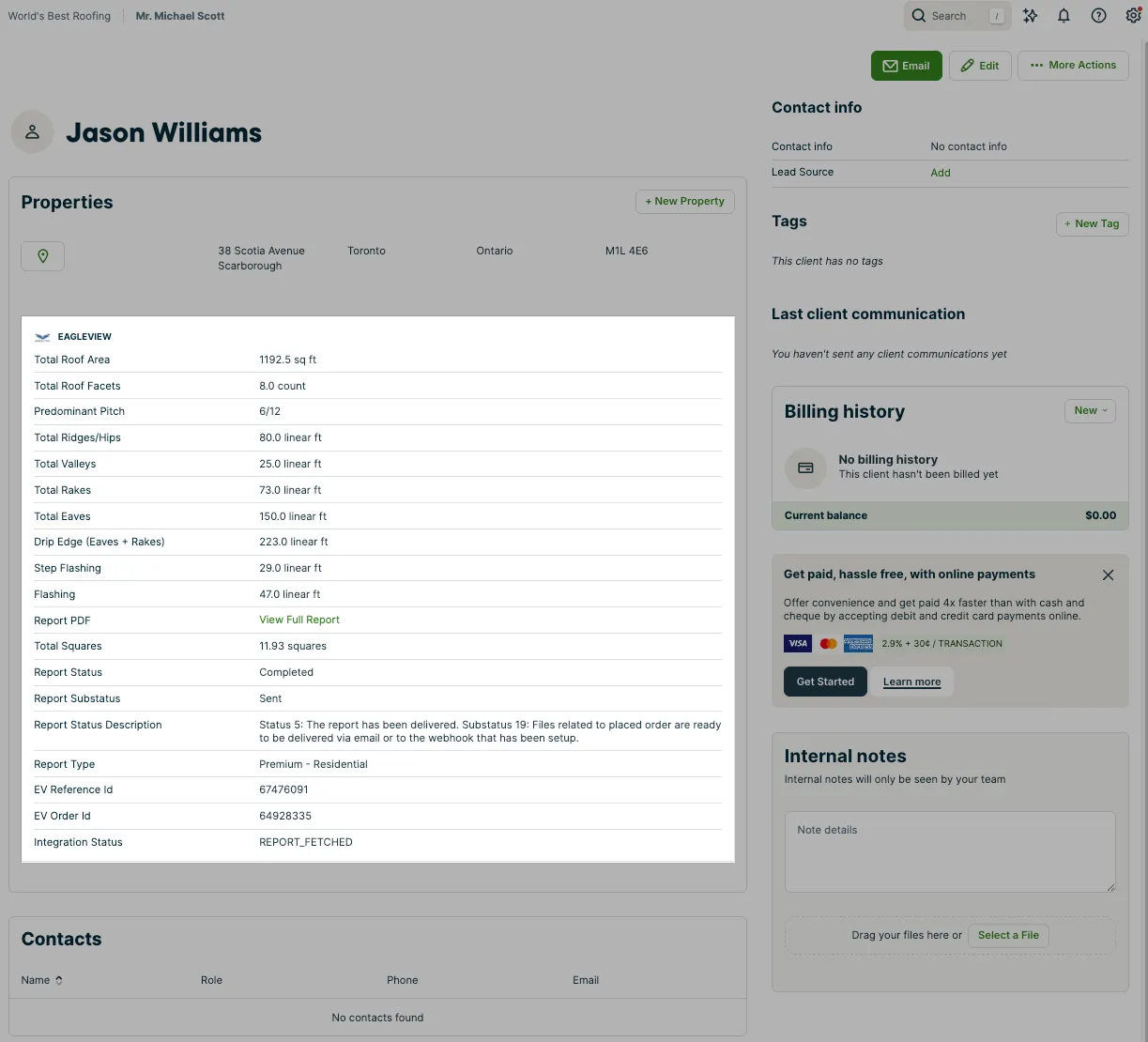
Once your order has been placed, the property in Jobber will update to display some new fields, including:
- Report Status
- Report Substatus
- Report Status Description
- EV Reference ID
- EV Order ID
- Integration Status
These fields help provide more information about the current status of your report as it is processed with Eagleview. While the report is processing, the status will be “In Process”.
View completed reports
When the report has completed processing, the data will be available on the property in Jobber.
The data points displayed from the report vary depending on the report you’ve ordered. The Eagleview custom field on the property in Jobber will show rows with info from the report, including a row for Report PDF with a link for View Full Report that you can use to view the full report from Eagleview, including the images of the property.
Sync existing reports from Eagleview to Jobber
If you have reports that were previously completed in Eagleview and you would like to sync them to Jobber, you can do this from the Sync Property tab in your app settings. The integration will search for reports in Eagleview that are associated with the property address in Jobber.
Select the report you’d like to sync with Jobber and click Sync Report.
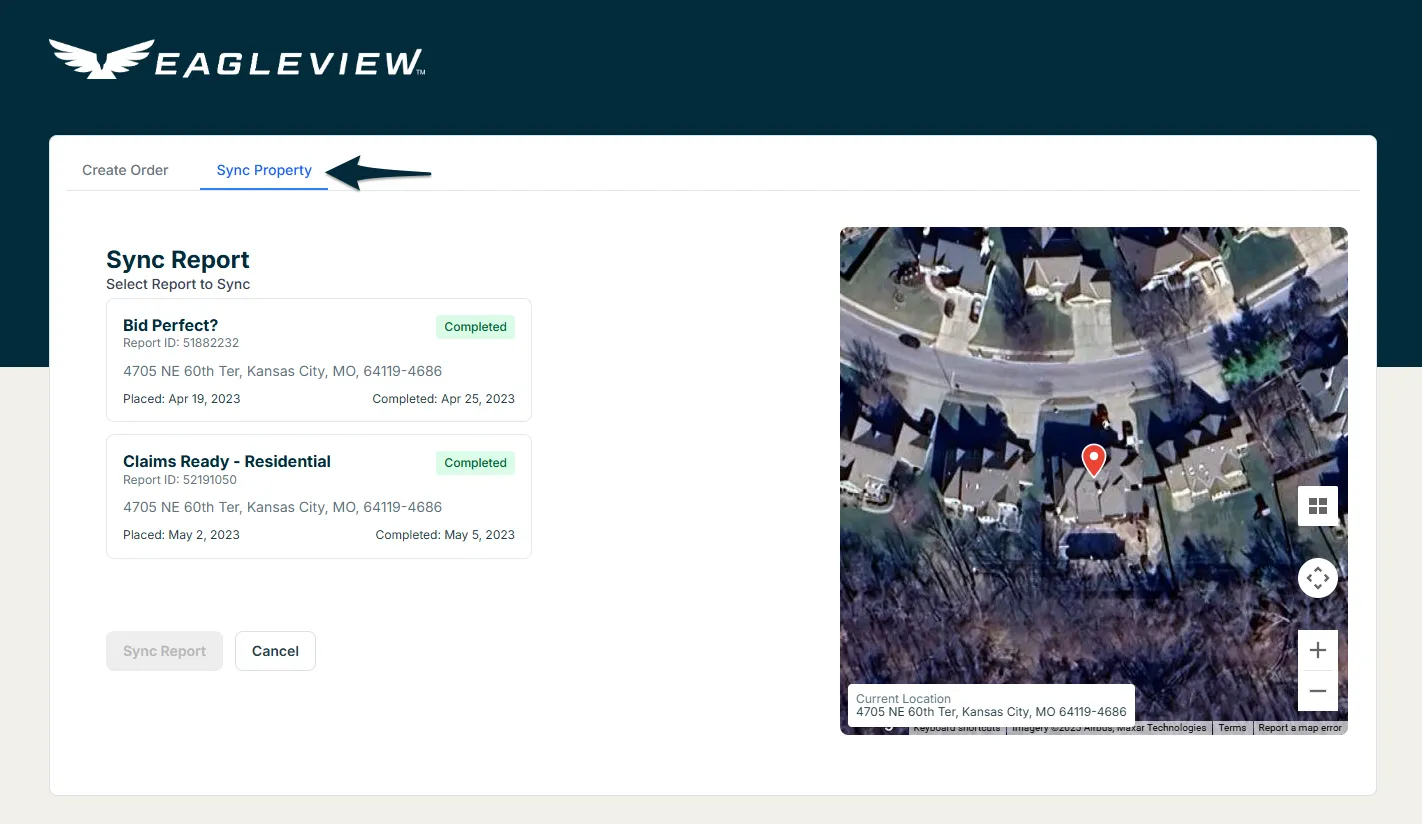
Note: The sync property tab only displays reports from Eagleview that are completed. If a report was ordered from Eagleview, but has bot finished processing, it will not be displayed in this tab.
BidPerfect Reports
One of Eagleview’s most common reports, BidPerfect, has a unique feature different from all other reports. BidPerfect Reports allow a user to “upgrade” the report and order a more expensive premium report for the same property and only pay the difference in price.
After a BidPerfect Report has finished processing, the Eagle View custom field on the property in Jobber will have a row for “Upgrade Report Link” with a link for Upgrade Report. When clicked, this will redirect the user back to the Order Report page, again pre-filled with the property address.
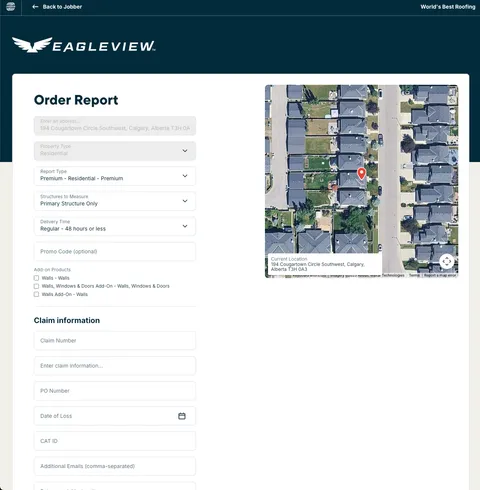
Since we are ordering an upgraded report, the report type (along with the property address) cannot be changed. However, you can still edit the:
- Structures to Measure
- Delivery Time
- Selected add-ons
- Claim information
Once you have setup all your report configurations, click Place Order.
Questions?
If you need help while using the Jobber and Eagleview integration, the right support team depends on what you’re experiencing.
Reach out to Jobber Support for questions or issues related to the integration itself, such as setting up the connection between Jobber and Eagleview or using the Eagleview custom field in Jobber.
Jobber Support:
- Phone (North America): 1-888-721-1115
- Email: [email protected]
- Live Chat: Available directly in Jobber via sparkle icon
Reach out Eagleview Support for questions about specific reports, accuracy, and measurements.
Eagleview Support:
- Phone: 1-866-659-8439
- Email: [email protected]