

Overview
Attract new customers when you let them book new work through your website and Facebook page and receive a notification as soon as it happens.
Make it easy for clients to request work or book services with you directly from your website and social media—and receive a notification as soon as they do.
With Jobber, you can create customizable request and booking forms to collect job details and allow clients to schedule work based on your availability. Whether you prefer to review requests first or let clients book appointments online, you can design forms that match how your business operates.
Share your forms across your website, social media, or other online channels so new and existing clients can reach you anytime, from any device. Each submission appears in Jobber instantly, allowing you to review details, follow up quickly, and keep work moving from first contact to scheduled job.
Request and booking availability
Requests are available on all current plans. View our current pricing plans.
To check what plan you’re on, navigate to the Gear Icon then select Account and Billing. If you have any questions about your plan’s features or pricing, our support team is here to help!
Share your request and booking forms
In order for requests to start coming in, you need to make your request forms visible to clients.
Navigate to your Requests and Bookings Settings by:
- Signing into Jobber.com (not the Jobber App).
- Go to the Settings menu (gear icon) and select Settings.
- Navigate to Requests and Bookings.
Note: Only admin users can access settings, including your request settings.
From the share request form section of the requests and bookings settings page, turn on the toggle for Visible to clients and customers to make your default request form accessible in client hub or anywhere you’ve shared your request link, giving clients a direct way to submit new requests online. This is a global setting that makes all request forms visible.

You’ll also have a unique URL for each of your request forms that you can share anywhere you connect with clients. Many businesses add this link to their website, include it in emails, post it on social media, or even create a QR code that links directly to their form. How you share it is up to you—the link will always take clients straight to your request form.
To share your request form link:
- Go to the Settings menu (gear icon) and select Settings.
- Navigate to Requests and Bookings.
- Select the More actions menu (…) beside the form you want to share.
- Click Share links to open the sharing options.
- Select Copy link to copy the link hosted in client hub.
- Paste this link anywhere you’d like clients to access your form, such as your website, social media, emails, or QR codes.
Tip: Keep your form visible so clients always have an easy, self-serve way to reach you.
If you have multiple request forms set up, repeat the process for each form that you wish to share.
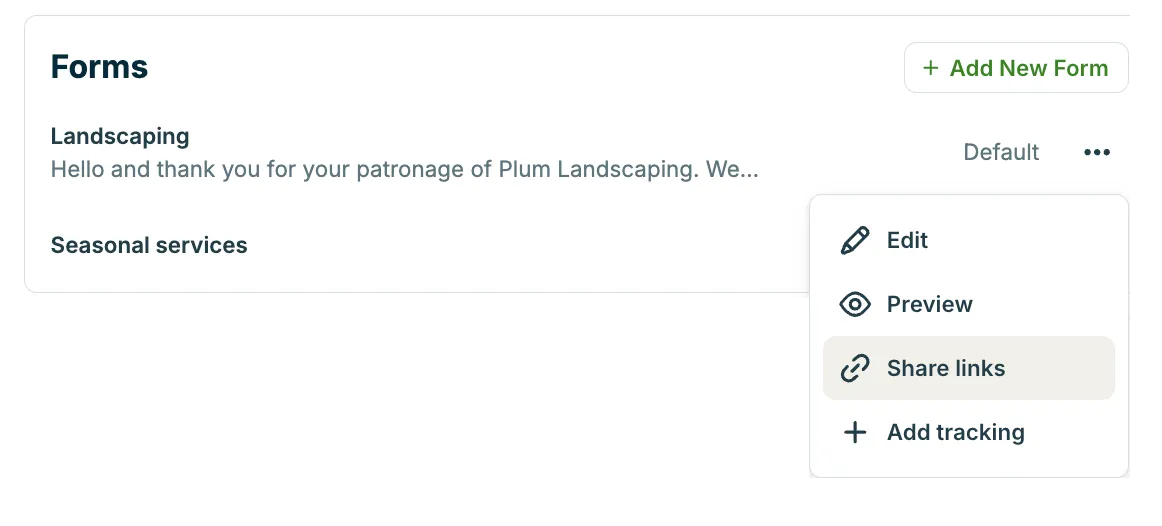
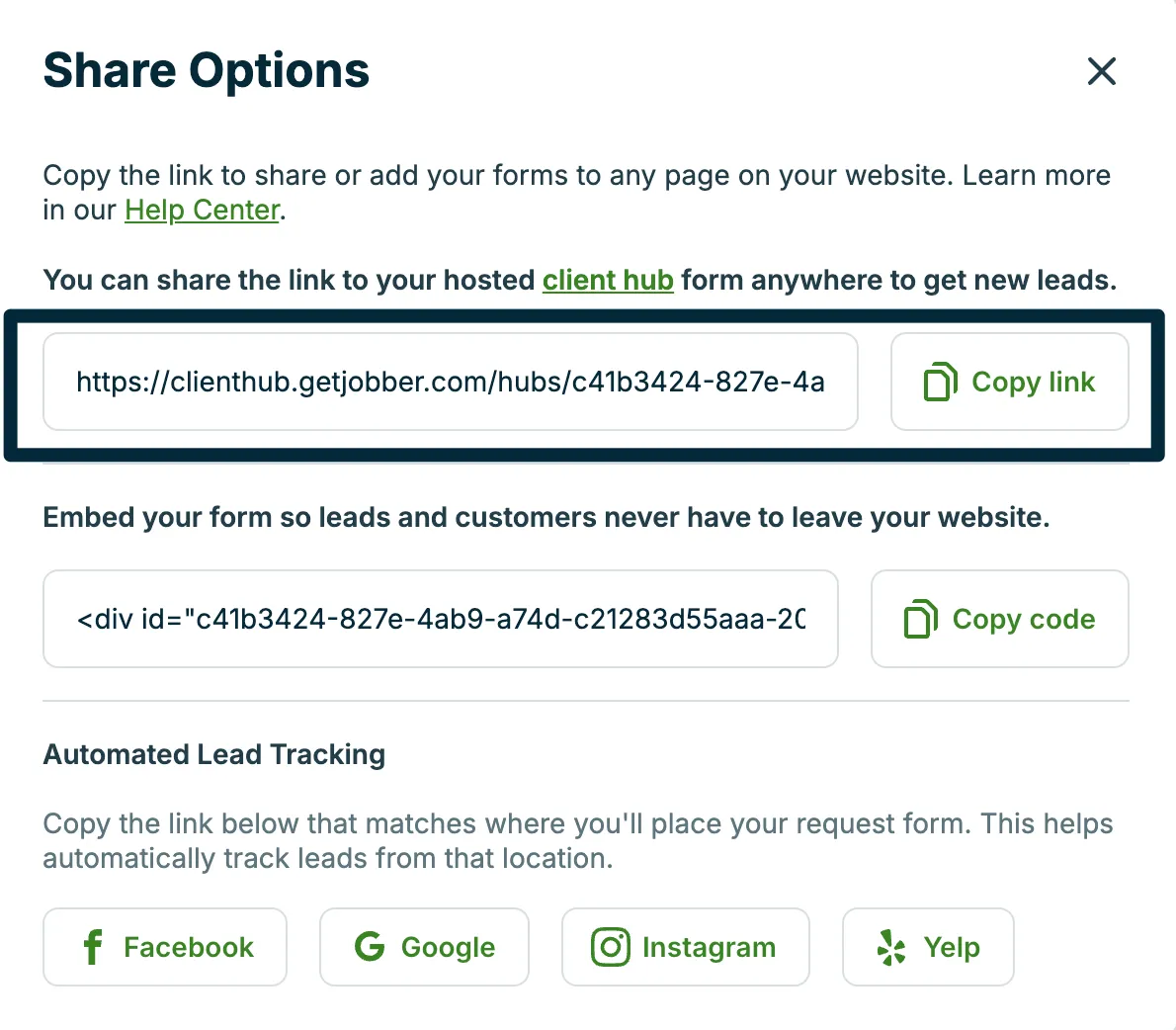
Note: For security, the payment method field on requests and booking forms only appears when clients access the form through client hub. If you share or embed your form on a website or social media, the payment method field does not display. Clients who submit the form through an embedded version can still add a payment method later through their wallet in client hub.
Set up automatic lead tracking
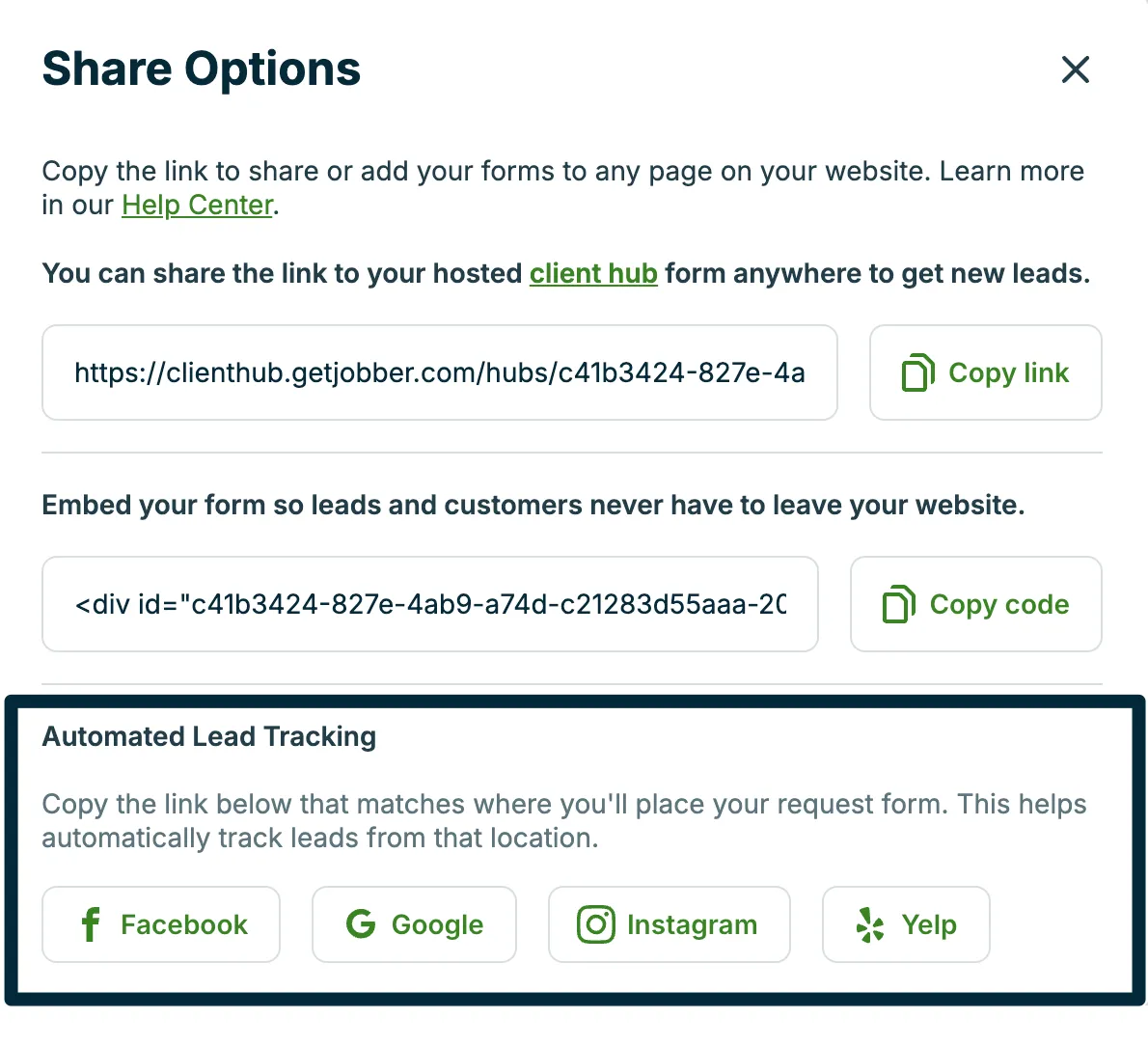
Another way to share your request forms is to copy the links provided by Jobber that are already set up with automated lead tracking. When clients book through these links, their request will be automatically attributed to the platform from the link and visible on the lead source field on the client’s profile as well as in your clients report.
- Go to the Settings menu (gear icon) and select Settings.
- Navigate to Requests and Bookings.
- Select the More actions menu (…) beside the form you want to share.
- Click Share links to open the sharing options.
- From the Automated Lead Tracking section, click the icon for Facebook, Google, Instagram, or Yelp to copy the link for that platform.
- Paste this link on the matching platform (for example, if you copied the Facebook link, paste it onto your Facebook page) so that requests submitted through this link are automatically attributed to that platform.
Create a button or icon for your request form
One option for how you can use the request link is to format a button or icon on your website where clicking the button will open the URL. You might use this option rather than embedding your request form.
From your website editor of choice, add a button or icon. In a lot of common website builders, this might be a widget but will vary depending on what platform you’re using to set up your website.
Format your button to link to this URL. Here is an example from Wix that shows what this setup might look like in your website builder. Every website builder looks a bit different so yours might vary a bit from what is seen here, but look for the option to link a URL or web address, then paste the URL you copied from Jobber.

Add your request form to your Facebook page
When you create a Facebook business page (facebook.com/pages/create) you will have the option to add a button to your page which you can setup to link to your request form.
- Go to the Settings menu (gear icon) and select Settings.
- Navigate to Requests and Bookings.
- Select the More actions menu (…) beside the form you want to share.
- Click Share links, then select Copy link.
- Navigate to your business page on Facebook. In the top right of your profile below your cover image, you will have a call to action button. It might be set up already as a call to action to send you a message. Click this button and select Edit button from the dropdown.
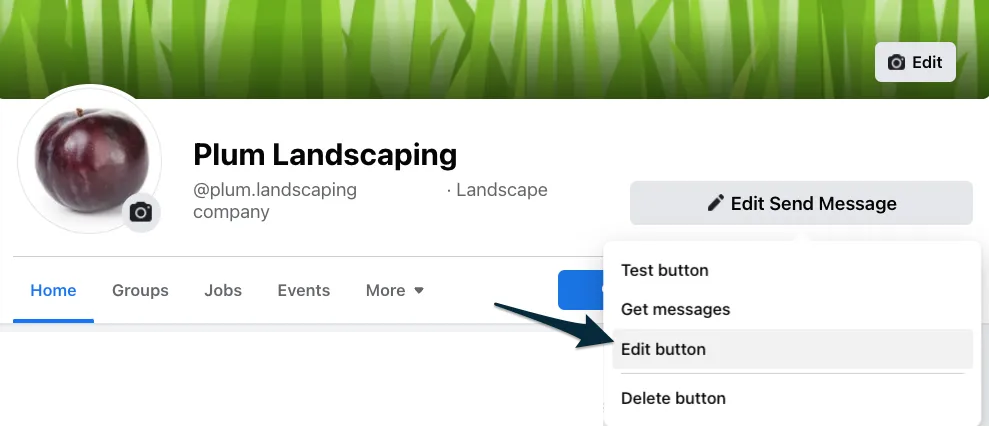
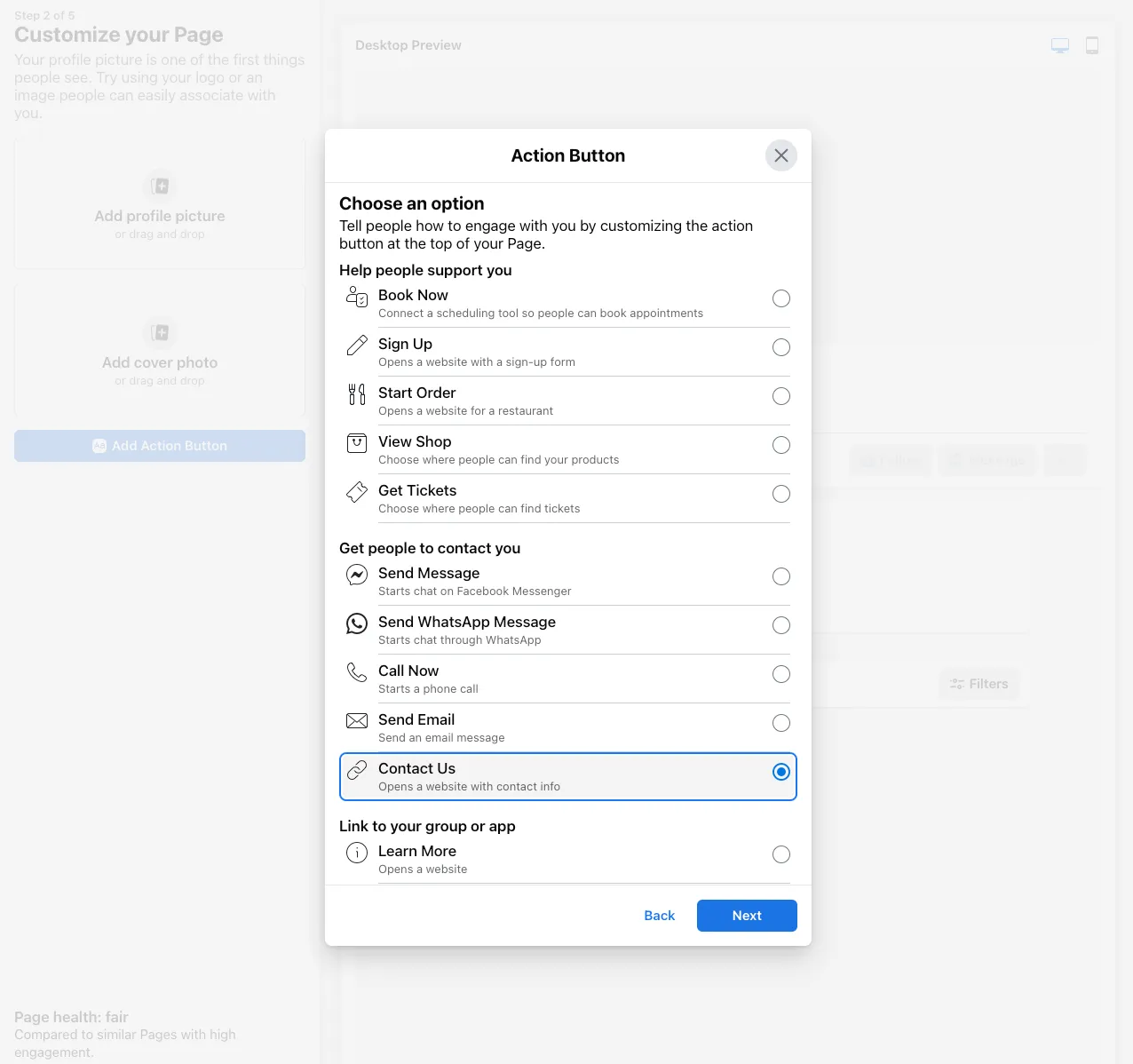
- From the list of options, select Contact Us. It’s important to use this option since it supports a URL.
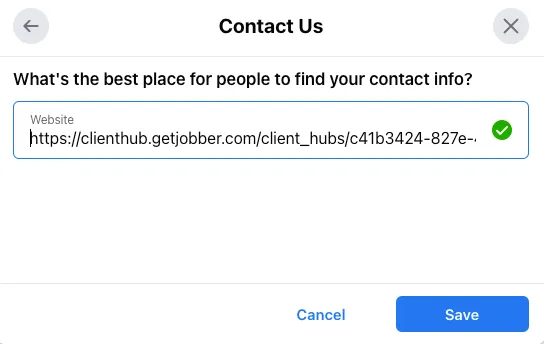
- Paste the URL you copied into the website field. Then click Save.
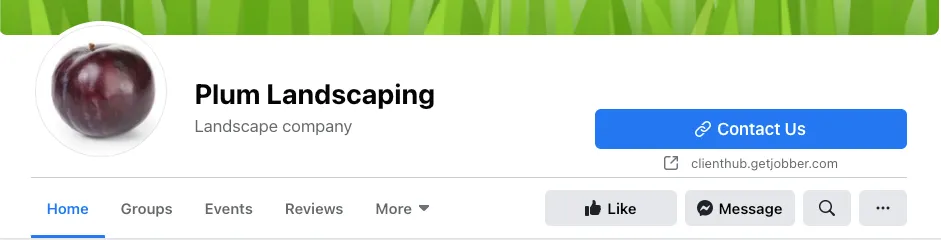
Your button to link to your request form is now setup. When potential clients click the Contact Us button on your Facebook page, they will be prompted to fill out a request form.
Check out our Jobber Academy article for more tips on creating a Facebook business page or check out Meta’s guide to Adding a CTA Button to a Page.
Link to your request form from your Google Business Profile
If your Google Business Profile is connected to Jobber, a Book Online button already appears on your Google listing, linked directly to your default request form. Clients can submit a request straight from Google, with no setup required beyond the connection itself, and this works on all plans. For how the connection works, and how to choose which form Google shows, see Jobber and Google Business Profiles.
If you’d rather add the link to your Google Business Profile manually, for example if you want a specific link placement Google’s own Booking button doesn’t cover, you can do that directly from your Google Business Profile dashboard:
- Go to your Business Profile.
- Select Booking.
- Select Add link. If you already have links on your Business Profile, select Add another link.
- Enter the URL that you want to link to the button, this will be the URL from the “Share link” copied from Jobber.
Create a QR code with your request form
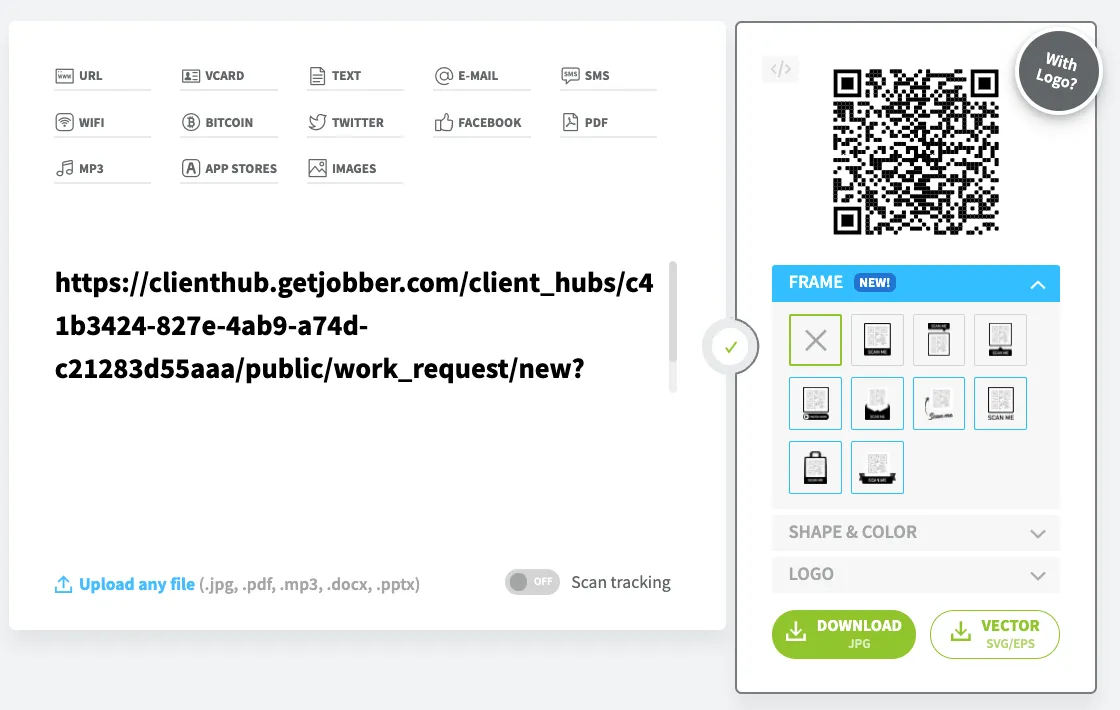
QR codes can be printed on business cards, door hangers, or other marketing materials so that your leads or clients can scan them as a quick way to fill out your request form.
Here are the steps for creating a QR code for your request form:
1. From Jobber.com, select the Gear Icon then Settings.
2. Select Requests.
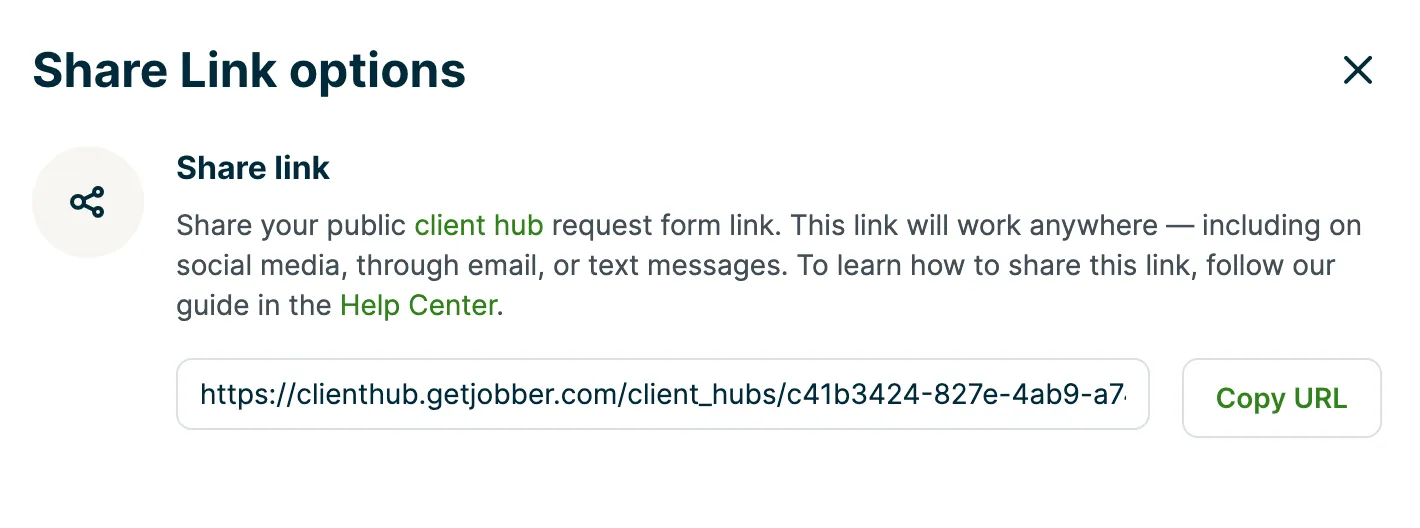
3. Click on Share Link Options, under the Share link section, click Copy URL.
4. Visit a QR code generator website, such as QR Code Generator.
5. Paste the copied URL into the generator to create a QR code linking to your URL.
6. Download the QR code for future use.
Embed your request form on your website
If you want your request form to appear directly on a webpage rather than opening via a link, you can embed it using the HTML embed code. This lets clients fill out the form without leaving your site.
To embed your request form:
- Go to the requests settings page.
- Hover over the form you want to share.
- Select the More actions menu (…).
- Click Share links to open the sharing options.
- Select Copy code to copy the HTML embed code.
Paste the copied code into the HTML of your website where you want the form to appear. The exact steps will depend on your website builder — refer to your platform’s documentation for guidance.
Note the following limitations when embedding a form:
- The payment method field does not display on embedded forms. Clients can still add a payment method later through their wallet in client hub.
- Google Analytics 4 tracking may not work reliably on an embedded form. Tracking relies on third-party cookies inside the iframe, and most browsers block them by default (Google Chrome is a notable exception), a browser limitation outside Jobber’s control. Events are also logged against the website where the form is embedded, not against Client Hub, so you can tell activity apart if the form is embedded in more than one place.
Embed your request form in your WordPress website
If your website is built with WordPress, you can also use the Jobber WordPress plugin to easily embed your request or online booking forms. This plugin simplifies the process by letting you add your forms directly through WordPress blocks or shortcodes—no coding required. Once installed, you can configure your form settings right within your WordPress dashboard.
Learn more about WordPress Plugin for Online Booking and Requests
Embed your request form in your Wix website
If your website is built with Wix, you can use the Jobber Wix Plugin to embed your request or booking form directly on your site.
Learn more about Wix Plugin for Online Booking and Requests
How do clients submit a request?
When a new person submits a request, they are automatically added to your client list in Jobber. On select plans, this client will appear as a lead since they have not yet met the criteria to be a client. On all plans, by default their phone number will be set as ‘text message enabled’ which sets you up to send them a quote via text or communicate via two-way text messaging (two-way text messaging is available on select plans).
When a client opens your request form, they’ll be guided through the questions and sections you’ve set up. Depending on how your form is structured, this can appear in two ways:
- Paginated form: Each section of your form is shown on its own page, with a progress bar at the top so clients can see how far along they are. Clients can use Next and Back buttons to move between pages before submitting. Pagination is enabled by default, but this can be adjusted in your form settings.
- Single-page form: All sections and questions appear on one continuous page. Clients can scroll through the full form before submitting. To set up a single-page form, navigate to your form settings, and toggle off Form pages.
Once clients complete the form, they’ll see a review screen with all the details they’ve entered. From here, they can go back and make changes or confirm their submission.
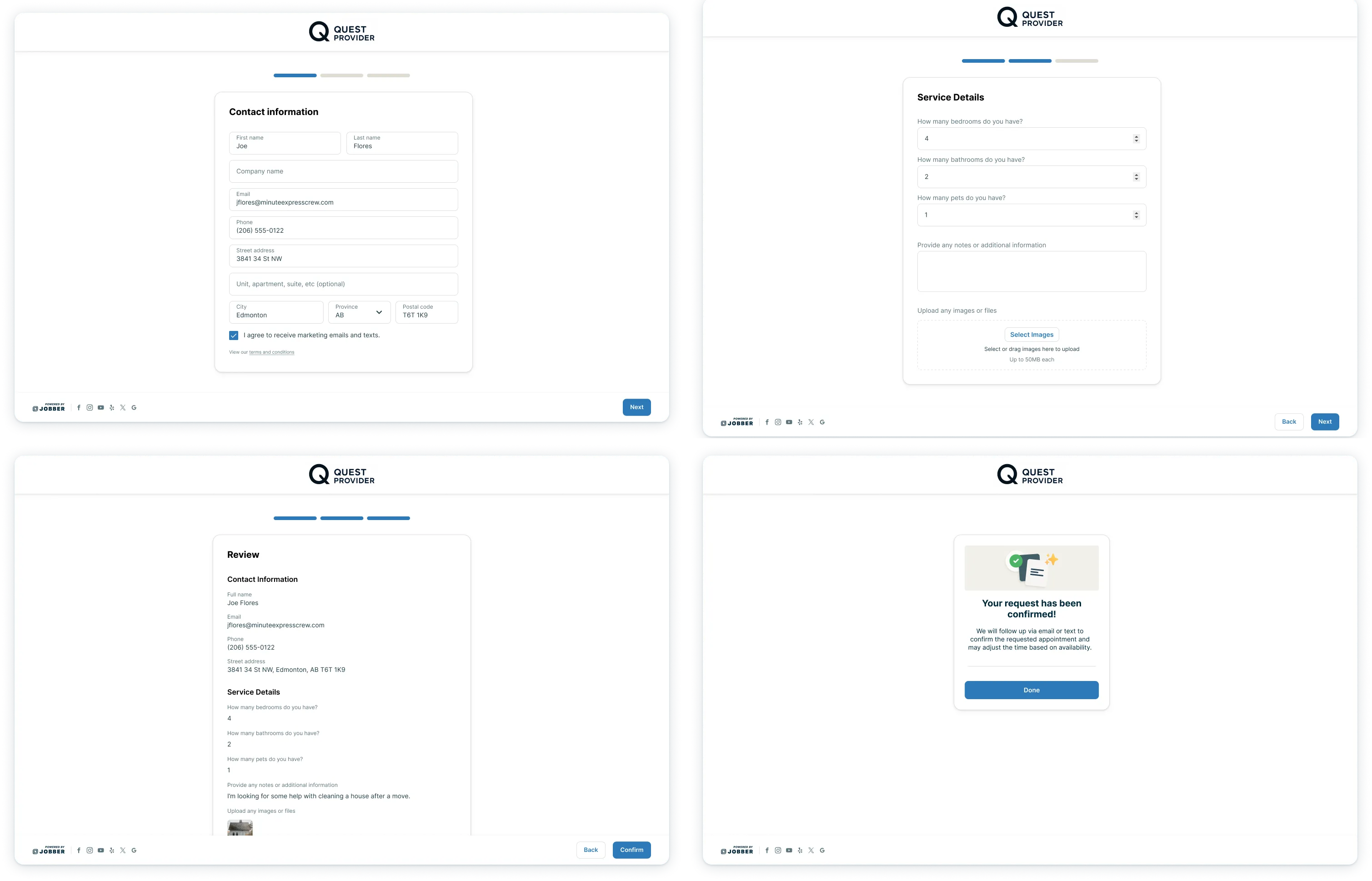
After a client confirms their request, they’ll see the confirmation message. They’ll also receive an email copy of their request for their records.
The request confirmation email is managed in your Emails and Text Messages Settings. From this page, you can:
- Choose which team member should receive replies if a client responds to the request email (including assessment reminders).
- Set up notifications so your team is alerted when new requests come in.
- Decide whether replies should go to a specific user, the email sender, or your company email.
Note: If the reply-to for requests is the sender, all admin users will receive an email about the new request since there was no original sender.
Set up Google Analytics tracking on requests
Tracking your Jobber request forms in Google Analytics helps you understand how often people view and submit your forms. This can give you insight into how visitors interact with your website and which marketing efforts are bringing potential clients to your forms.
Check out the below article to learn how to set up Google Analytics tracking for your request forms.