

Overview
Royalties in Jobber Central gives group operators a clear view of royalty amounts owed across all business units in their organization. It automatically calculates royalties using consistent rules, so you can see what’s owed by each unit without manual tracking or spreadsheets.
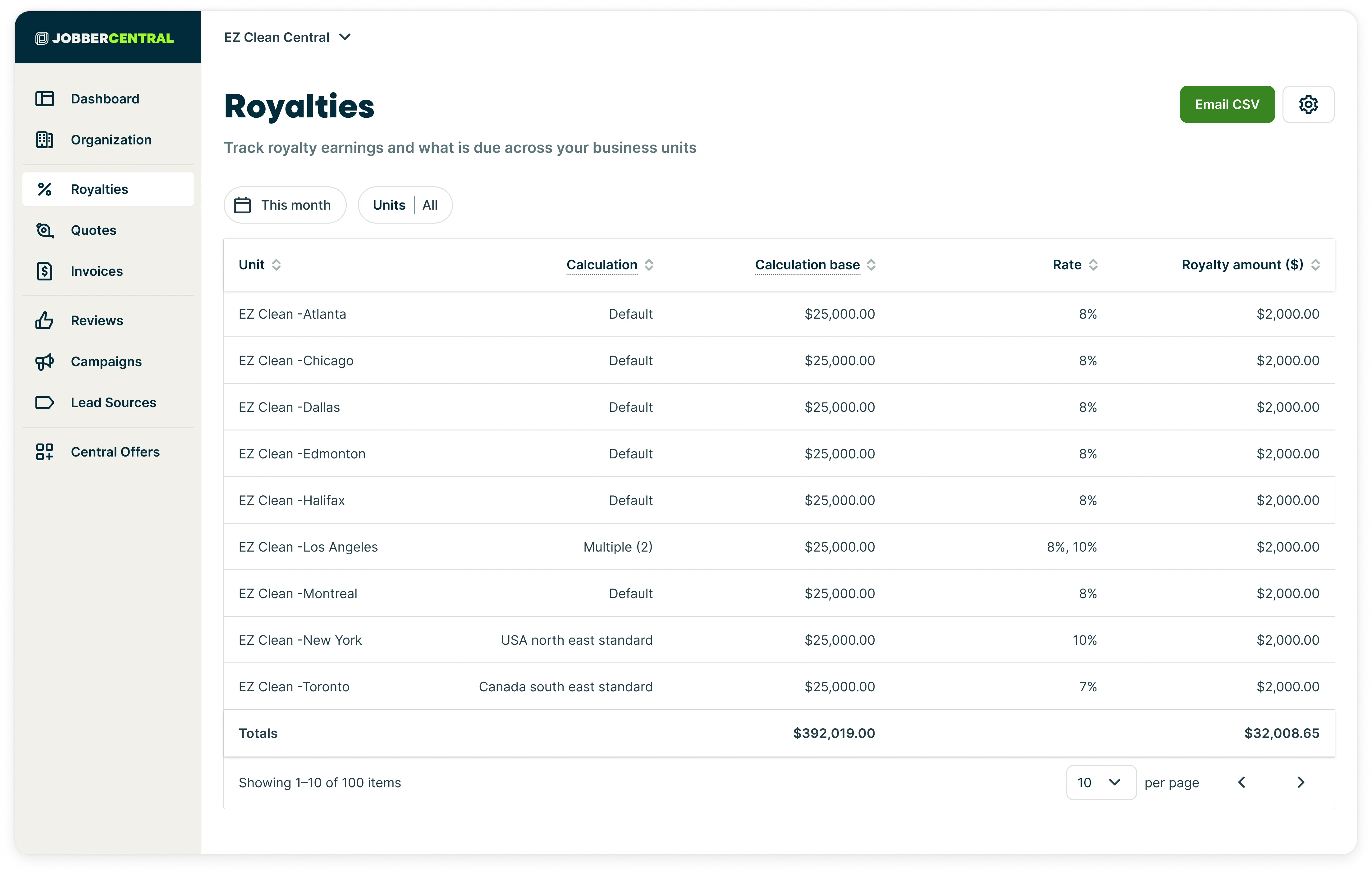
To navigate to Royalties, select the Royalties tab on the Jobber Central side navigation.
From the Royalties dashboard, you can review how royalties are calculated, compare amounts across units, and export data for reconciliation or accounting. This helps ensure transparency between head office and individual locations while keeping royalty calculations accurate and up to date across your entire network.
Set filters for the royalties report
The royalties report for Jobber Central can be filtered by:
- Date range: Select the Date filter dropdown, then select a date range. Your options are:
- Last week
- Last 30 days
- Last month
- This year
- Last 12 months
- All time
- Custom range
- Unit: Select the Unit dropdown, then select:
- All units
- An individual unit

Columns on the royalties report
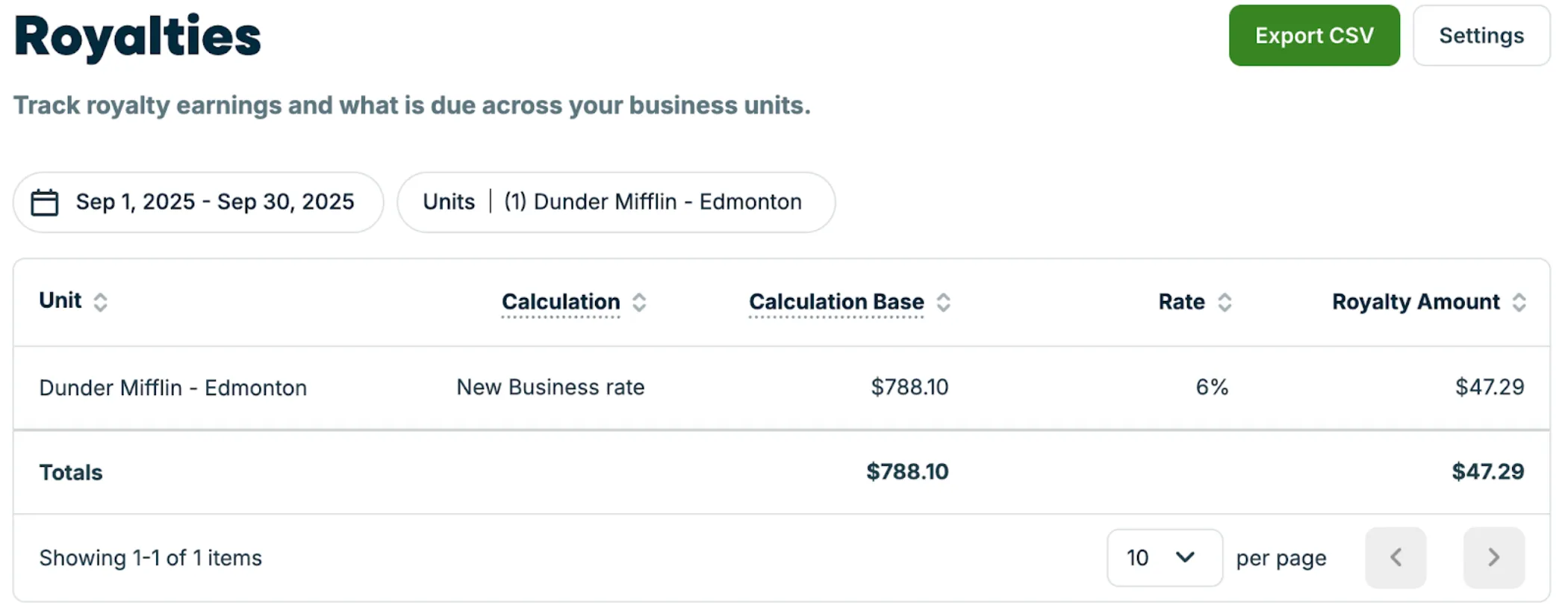
The royalties dashboard displays a break down of business units and royalty earnings. The columns on the dashboard include:
- Unit
- Calculation
- Calculation Base
- Rate
- Royalty Amount
Customize royalties settings
To open your royalties settings, select the Settings button on the Royalties page.
From your royalties settings, there are options for your:
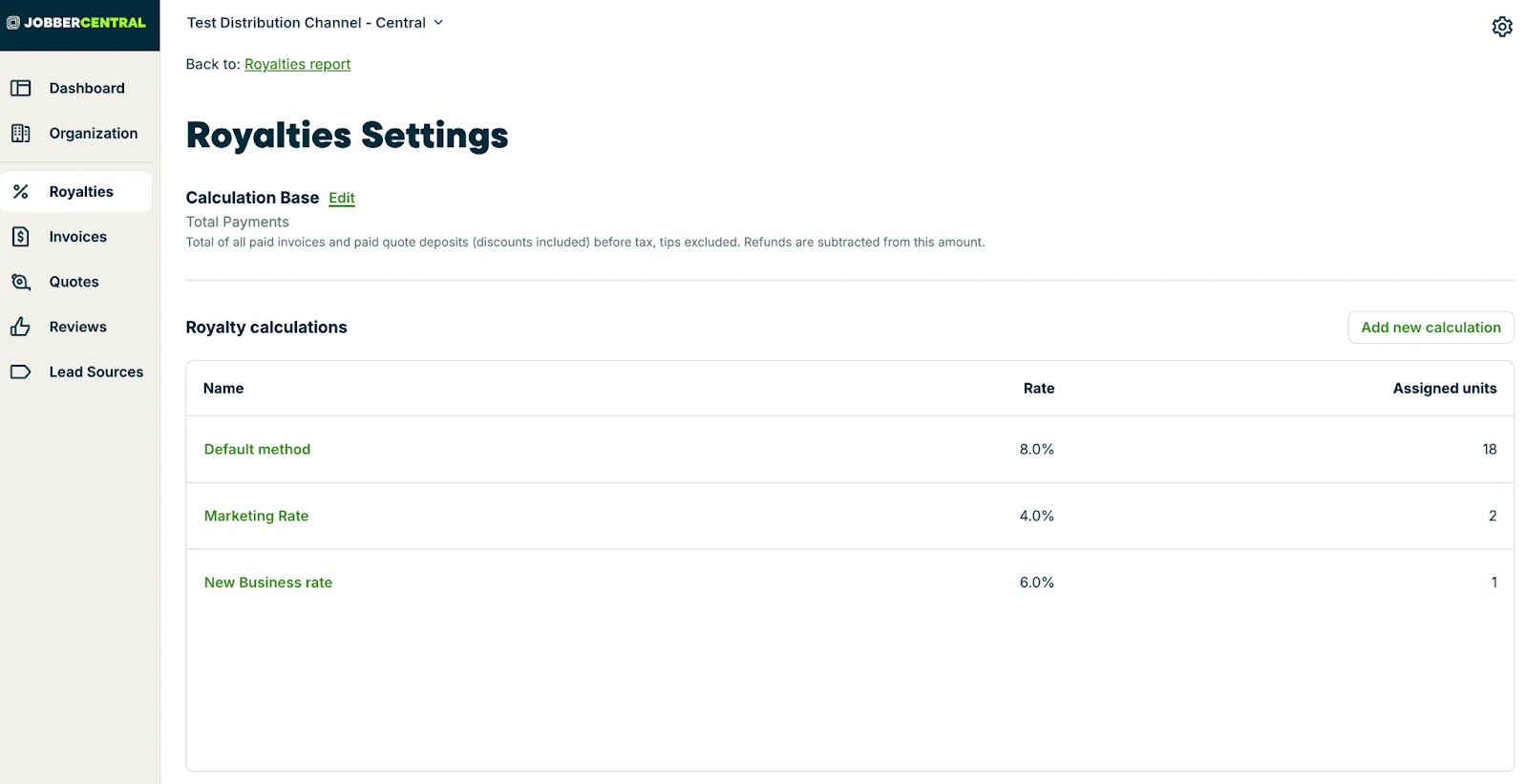
Calculation base
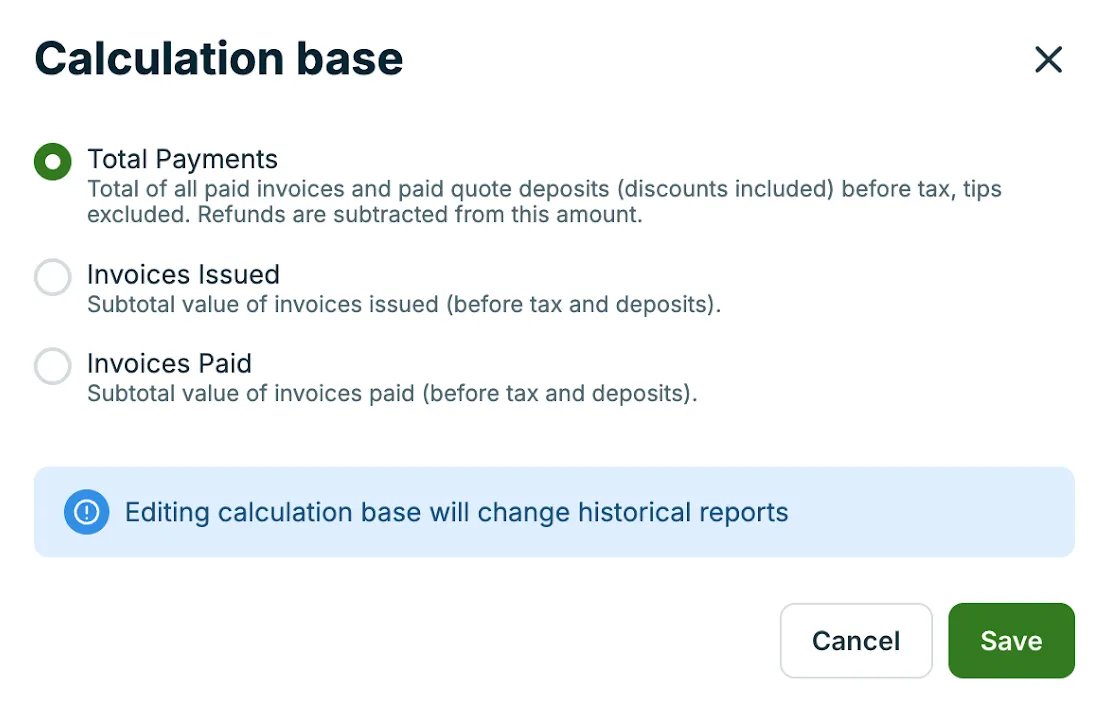
The calculation base is the revenue figure that royalties are calculated from. There are three options to select from:
- Total payments: Total of all paid invoices and paid quote deposits (discounts included) before tax, tips excluded. Refunds are subtracted from this amount. Total payments is the default calculation base.
- Invoices Issued: Subtotal value of invoices issued (before tax and deposits).
- Invoices Paid: Subtotal value of invoices paid (before tax and deposits).
To change your calculation base for the royalties report:
- Navigate to your Royalties report, then click Settings.
- From the Calculation Base heading, click Edit.
- Select one of the calculation base options, then select Save.
Note: Editing the calculation base will change historical reports.
Royalty calculations
Royalty calculations define a specific fee and rate that’s applied to the royalty calculation base.
Multiple royalty calculations can be set up in Jobber. These each apply a royalty rate percentage of total payments towards assigned business units.
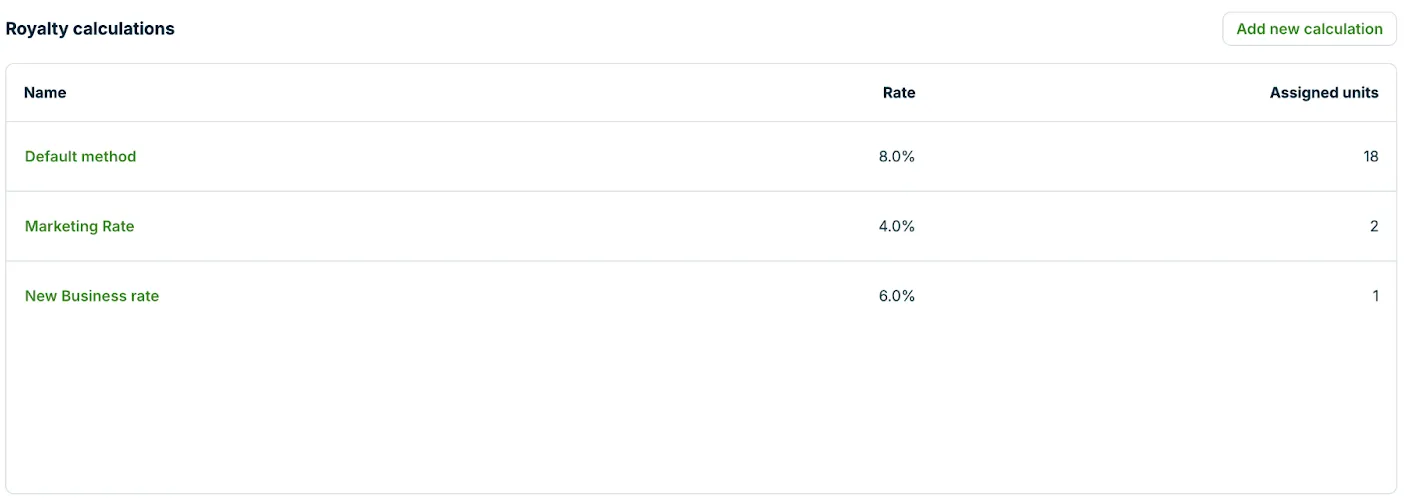
Jobber has created some default calculations, including:
- Default (8.0%)
- Marketing Rate (4.0%)
- New Business Rate (6.0%)
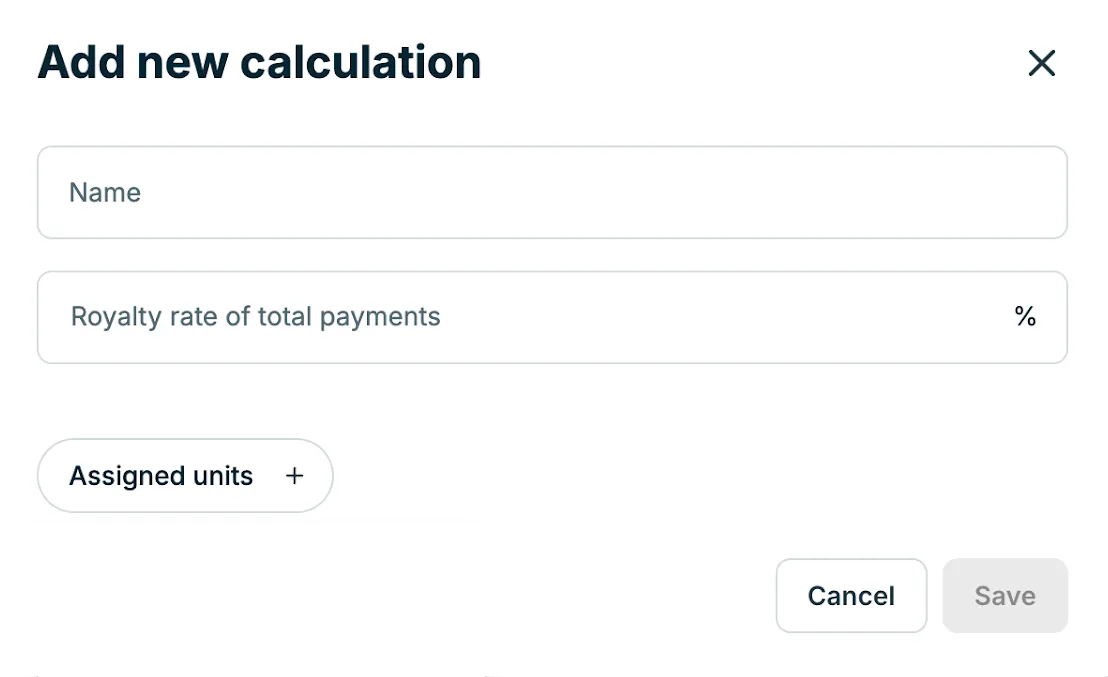
However royalty calculations can also be created manually. To create a new royalty calculation:
- Navigate to your Royalties report, then click Settings.
- From the Royalty calculations section, click the Add new calculations button.
- Enter the name, royalty rate percentage of total payments, and select which business units this calculation is assigned to.
- When you’re done, select Save.
The royalties calculation table in your royalties settings will display the number of units assigned to this calculation.
How royalty numbers are calculated for your HQ
For anyone who needs a clear explanation of how royalty amounts are calculated in Jobber, including franchisors, franchisees, and central operations teams, this section covers how to verify the numbers shown in Jobber Central for your HQ.
Royalties are calculated by totaling all paid invoices and paid quote deposits (including discounts) before tax, excluding tips. Refunds are subtracted from this amount.
To find how the royalty amount from the royalty dashboard is calculated, follow these steps:
-
From the side navigation, select Insights then select Reports.
-
From the Reports list, select the Transactions list.
-
Set the date range on the transactions list to your desired period.
-
The “paid or deposited” overview of the transactions list shows your total payments taken, including tax.
-
If you do not charge taxes, the transactions list amount is all you need to see the total calculation based used for your royalty payments.
-
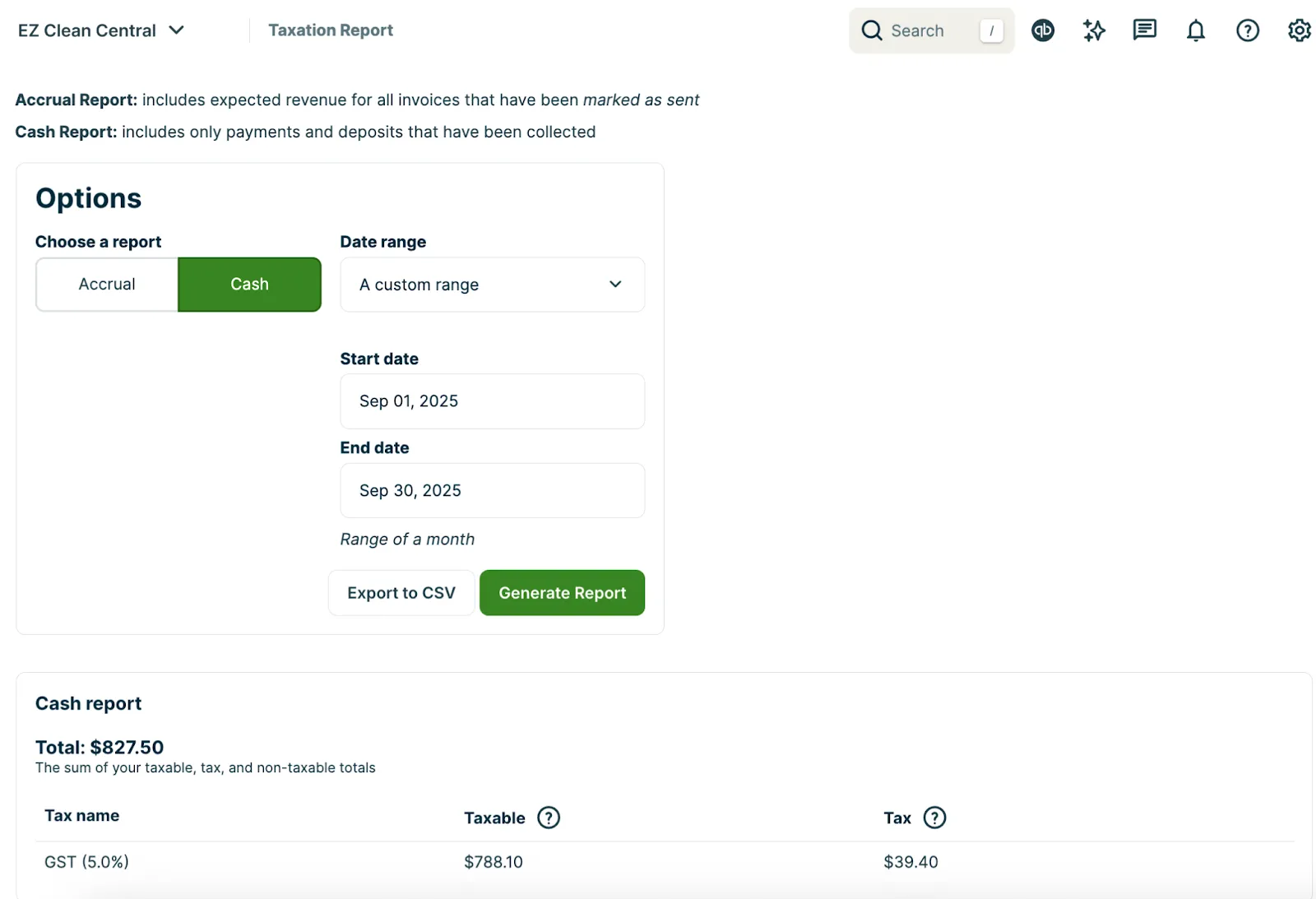
If you do charge taxes, you’ll need to subtract the cash taxes from the “paid or deposited” amount listed in the transactions list. To calculate cash taxes, navigate to the taxation report then set the date range to the same time period as the transactions list, and generate the report.
-
-
Take the “paid or deposited” amount minus cash taxes for the same date range to get the calculation base for the royalty amount that would show for HQ.
Export the royalties report
To export the royalties report, click the Export CSV button on the royalties report.
A CSV version of the royalties report will be sent to the same email address that you use when you log into Jobber. Exporting to CSV is a good option if you need to work with the data in the report, print the report, or share it with someone who is not a user in your Jobber account.