Overview
Stay up to date with your business’s Receptionist conversations anytime, anywhere with the Jobber mobile app.
Receptionist powered by Jobber AI is a powerful tool that ensures your business never misses a call that could lead to a job opportunity. With Receptionist in the mobile app, you can easily review conversations in the field that took place while you were busy working or off the clock, without having to switch to your browser.
Navigate Receptionist in the Jobber app
View your Receptionist conversation logs
There are two ways to access your Receptionist conversation logs in the Jobber app:
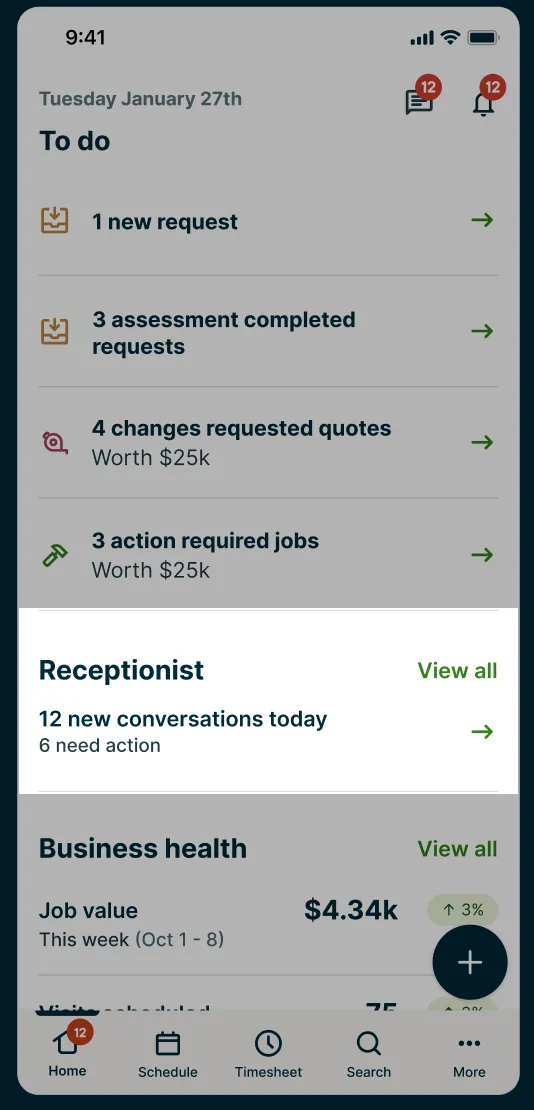
- On the home screen, navigate to the Receptionist section. You can either:
- Tap the text to see your conversation logs with the status filter applied.
- Tap View all to see the unfiltered conversation log screen.
- Tap More and then select Receptionist. This brings you to the unfiltered conversation logs screen.
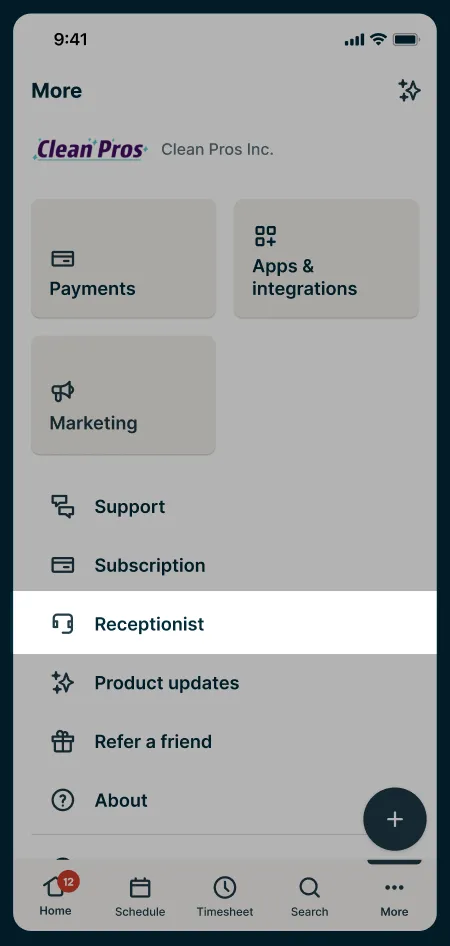
Note: The Receptionist section only appears in accounts that have an active Receptionist add-on subscription.
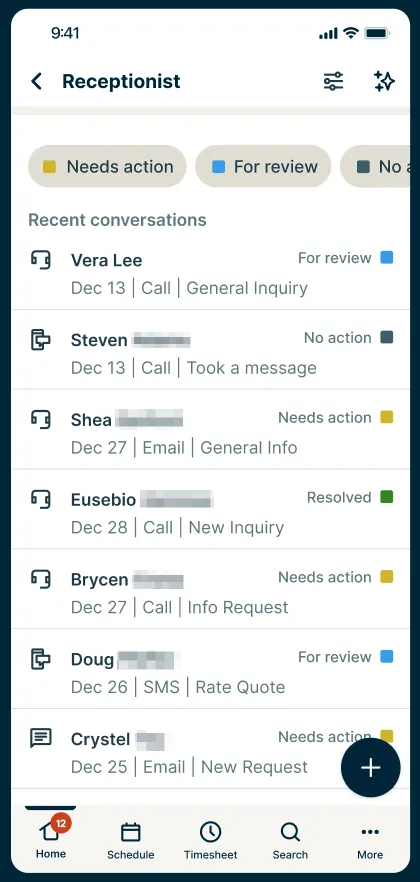
On the conversation log screen, you’ll be able to see:
- Conversation logs from calls, SMS text messages, and webchats from your Jobber website that Receptionist has handled.
- The status, including needs action, for review, no action, and resolved.
- The conversation’s outcome, detailing what was discussed or requires follow-up with the client.
- Filter options so you can focus on specific follow-up tasks.
View conversation details
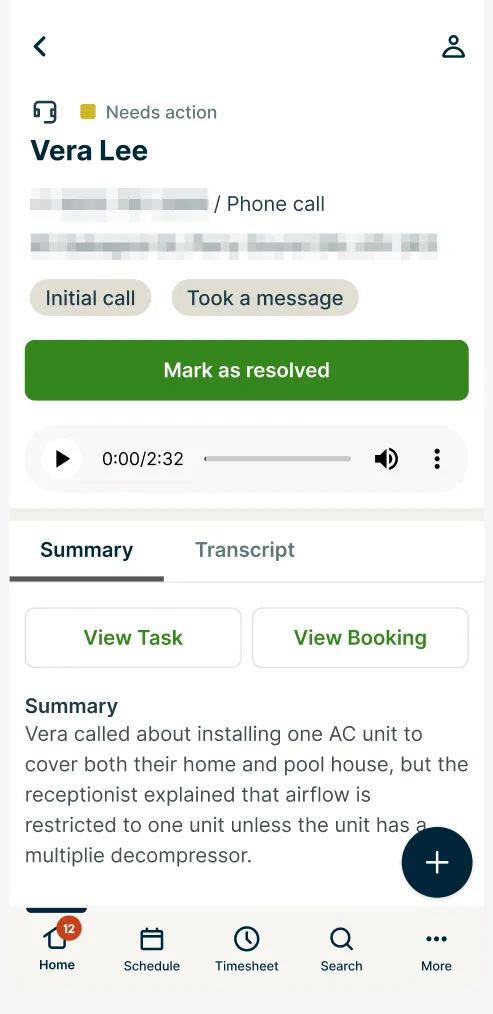
When you select a specific conversation log, you are taken to a screen that includes the following conversation details and features:
- Information collected about the client, if relevant to the request.
- The outcome of the call.
- The audio recording of the call (if not an SMS or webchat conversation).
- A conversation summary.
- A full written transcript of the conversation.
- Links to any actions that were completed during the conversation, like the creation of a request or a job booking.
- If the conversation has a related client, tapping their name brings you to their account profile.
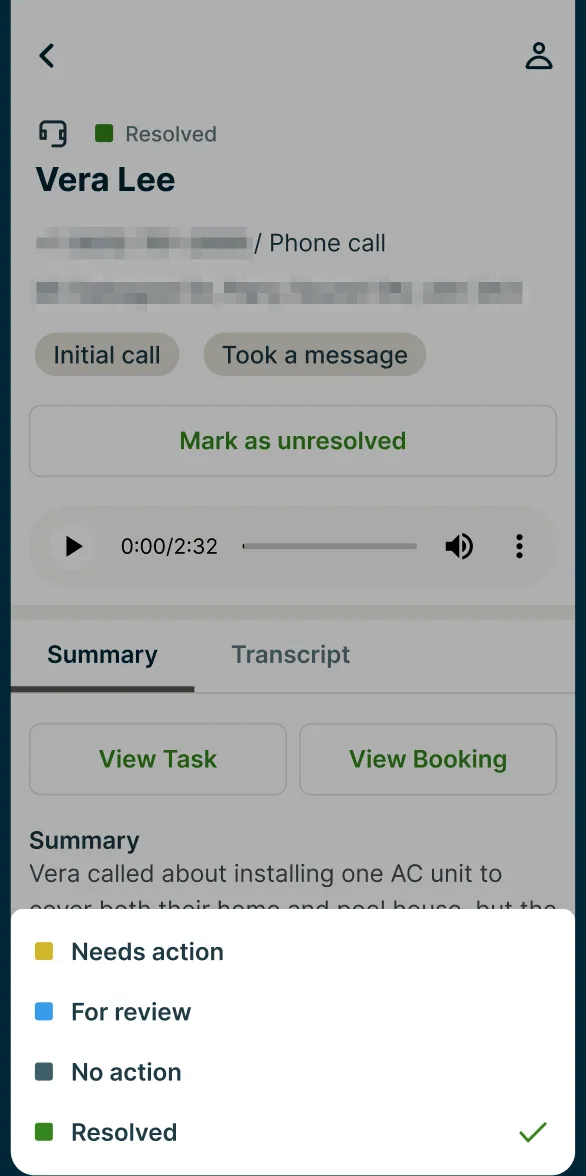
- A Mark as resolved button to change the status to “resolved”. If you or Receptionist has already resolved the call and you want to undo this status, the button will show up as “Mark as unresolved”. Statuses include:
- Needs action: Requires manual follow-up.
- For review: Requires manual review to determine next steps.
- No action: No further steps will be completed and no further engagement is necessary.
- Resolved: The request has been addressed and no further action is necessary.
- Tapping the status at the top opens a menu that allows you to select a specific status.
Configure Receptionist in the app
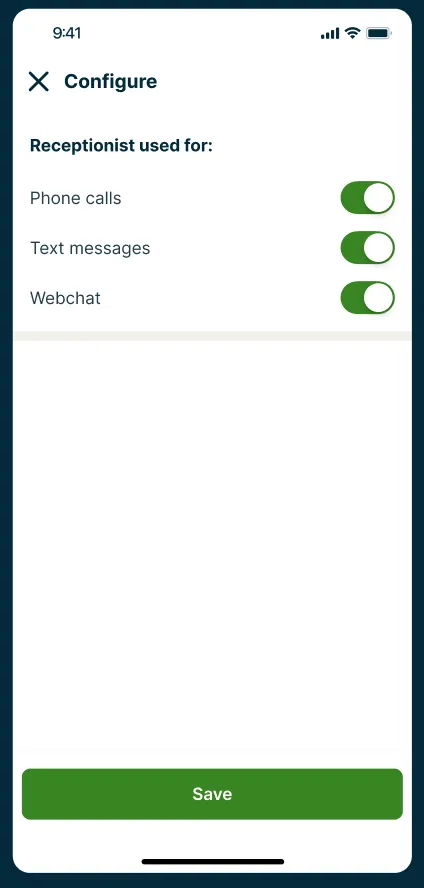
While the more advanced configuration features remain in the browser version of your Jobber account, you have some configuration options in the app. From the Jobber app, you can toggle Receptionist on or off for phone calls, text messages, and webchats from Receptionist on your Jobber website.
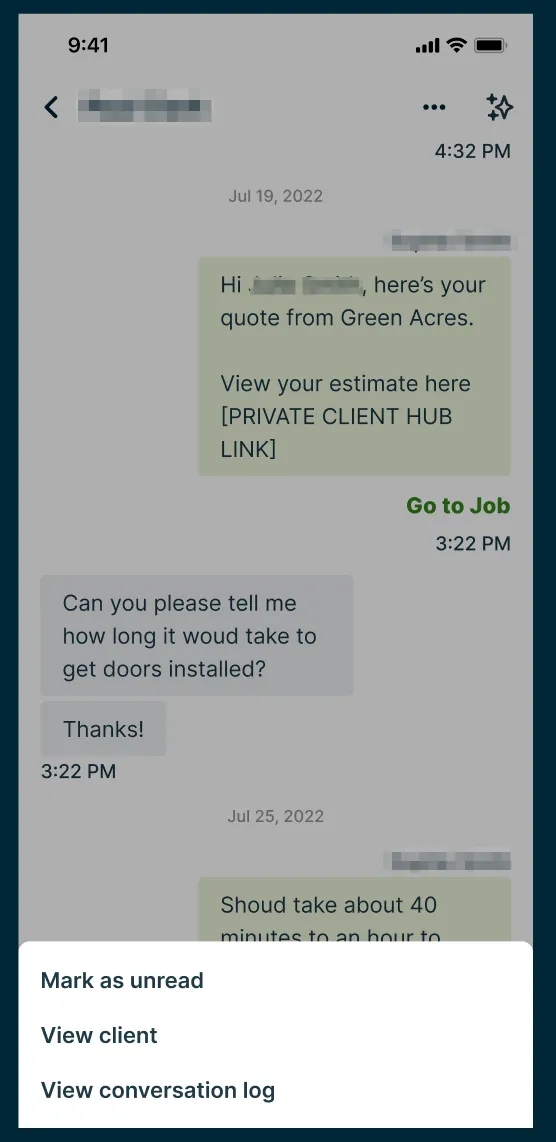
View two-way SMS logs where Receptionist was involved
In the two-way SMS screen, you can view related conversation logs where Receptionist was involved by tapping the three dots followed by View conversation log. This will take you to the most recent conversation log for the client.