

Overview
The Quo (formerly known as OpenPhone) integration with Jobber helps home service businesses communicate more efficiently with their clients while keeping everything organized in one place. By connecting your Quo account to Jobber, you can automatically log call summaries and transcripts from Quo on your Jobber clients and requests. This gives your team full visibility into communication history without having to switch between tools or manually copy updates.
Quo Integration Availability
The Quo integration is available on Jobber’s Core, Connect, Grow, and Plus plans. View our current pricing plans.
Note: To use the click-to-call feature, you must be on Jobber’s Connect, Grow, or Plus plans.You will also need to have a subscription with Quo on their Business or Scale Plans.
Connect Jobber and Quo
- In Jobber, click Apps from the side navigation.
- From the App Marketplace, select Quo.
- From the Quo app description, select Connect
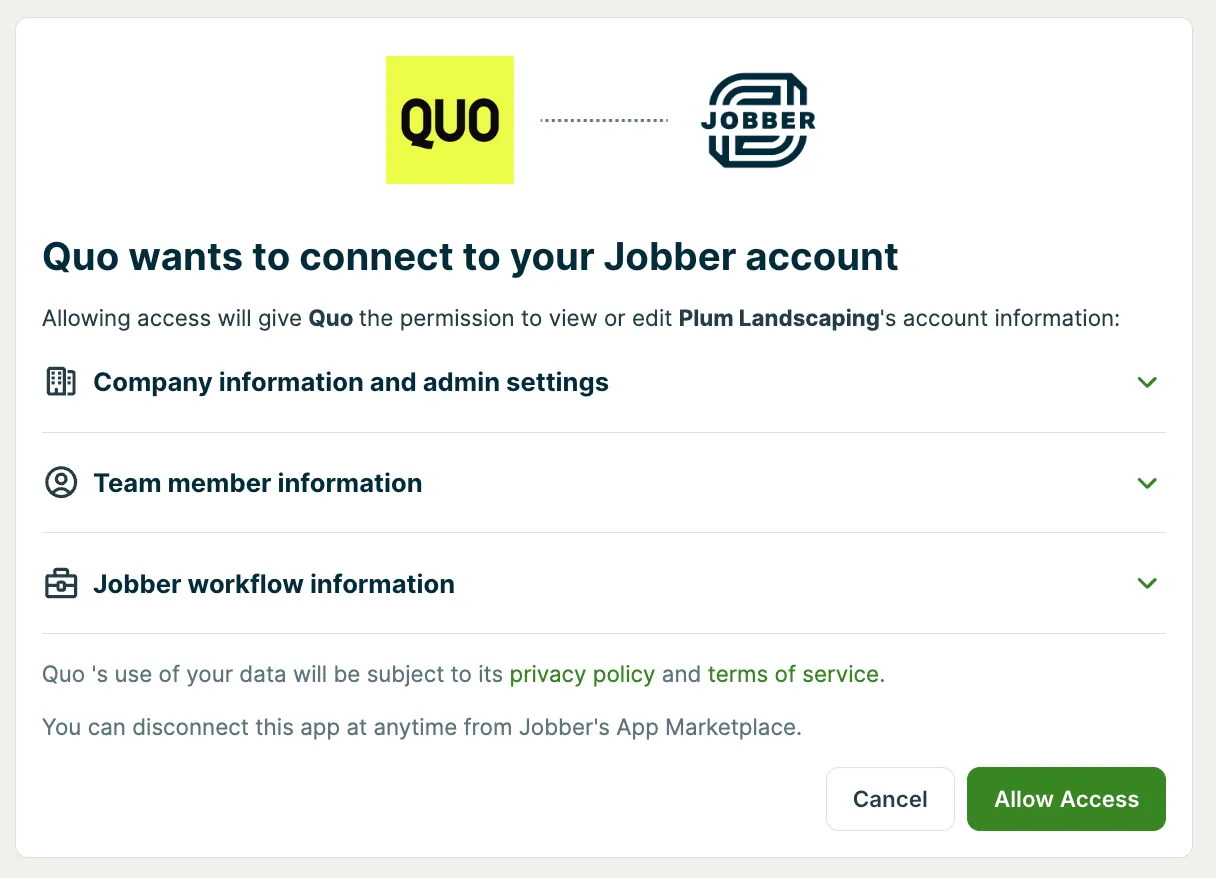
- Click Allow Access to authorize Quo to send data to your account.
How Quo works with Jobber
Once you’ve connected Quo to your Jobber account, the integration automatically brings your business communications into Jobber—so you can manage your operations and client conversations in one place. All communication data synced through the integration is stored securely and follows your team’s existing access permissions in Jobber, so only the right people can view and manage client interactions.
Automatically create clients and requests in Jobber
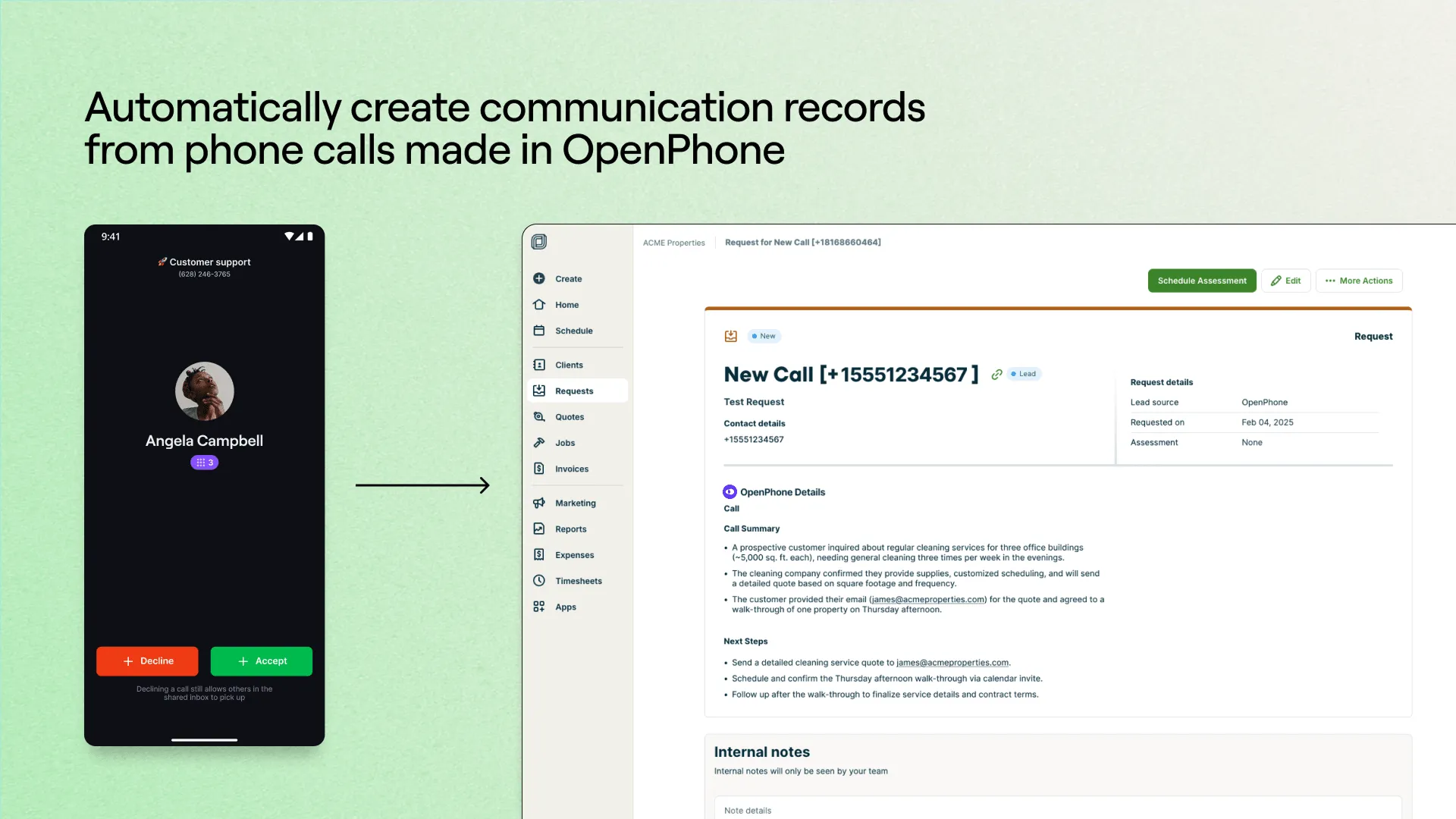
When an inbound call comes through Quo, the integration checks Jobber for a matching client based on the caller’s phone number. If no match is found, a new placeholder client is automatically created in Jobber—so you can track and follow up with new leads, even if you haven’t added them manually yet.
For each client, Quo creates a request with key details from the call, such as a summary of the call and next steps to make sure important conversations are documented and easy to follow up on. If the call isn’t linked to an existing request in Jobber, the integration creates a new request automatically. If a client in Jobber only has converted or archived requests, a new request will be created.
Sync AI-generated call summaries and transcripts
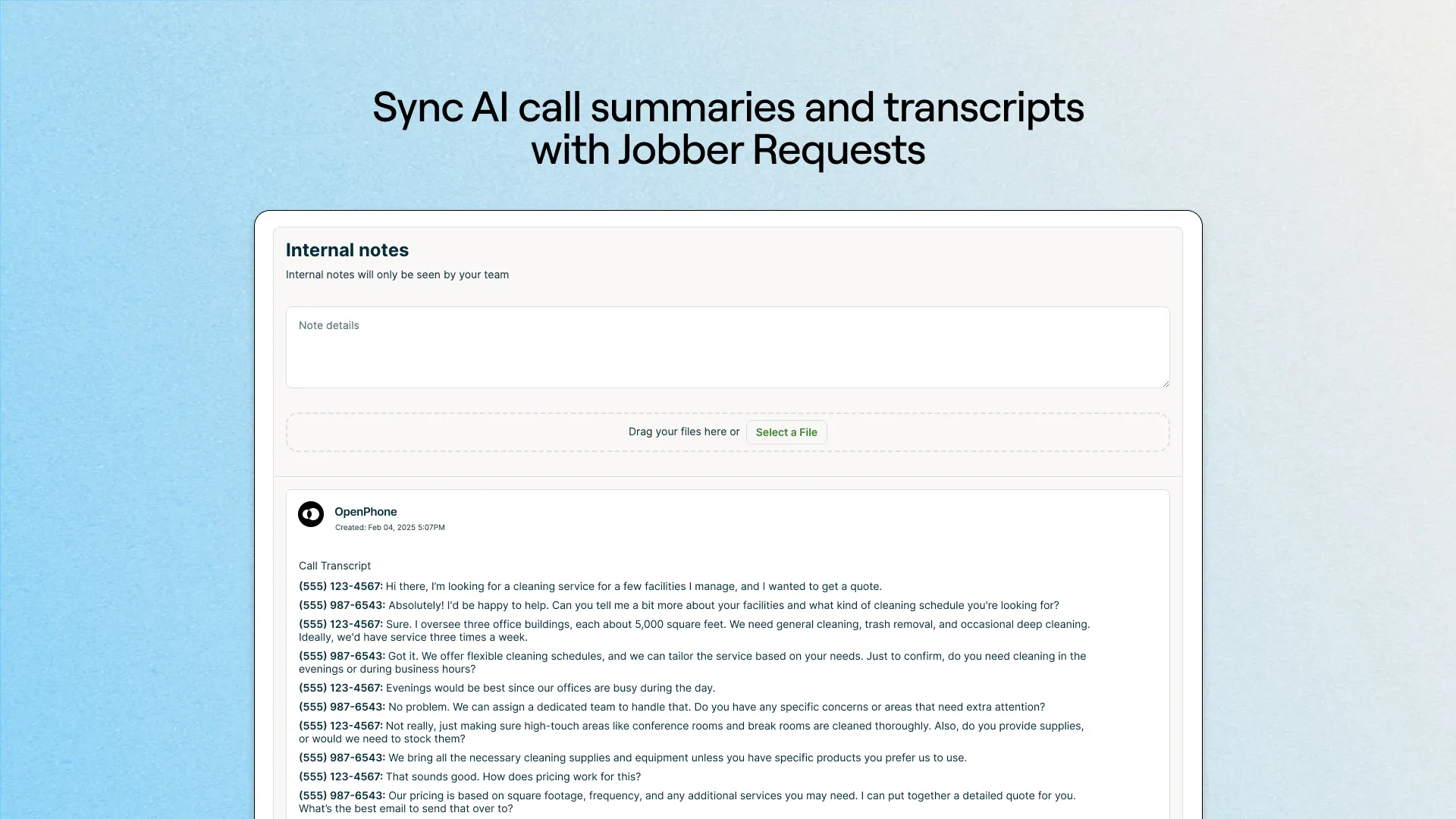
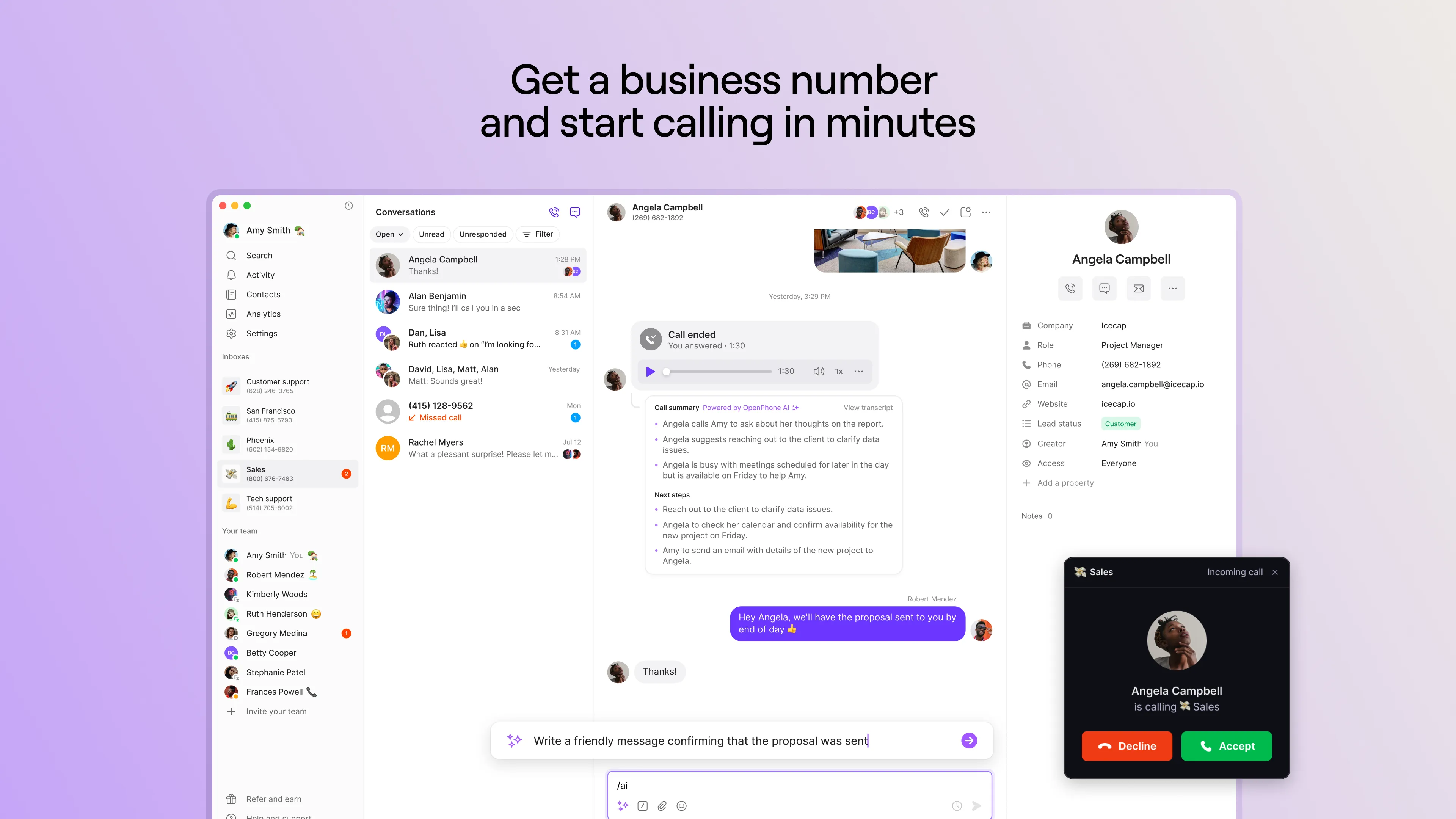
After every call, Quo’s AI creates a concise summary of the conversation, along with a full transcript. Both are automatically synced to the internal notes on requests in Jobber. This eliminates the need to manually log call details and gives your team instant access to key information—right where they already manage scheduling, quotes, and invoices.
Click-to-call from Jobber using your Quo number
With Jobber’s Quo integration, you can call clients directly from their contact details in Jobber—no app switching or number copy-pasting required.
Click-to-call availability
Click-to-call (through the Quo integration) is available on Jobber’s Connect, Grow, and Plus Plans. View our current pricing plans.
To check what plan you’re on, select the Gear Icon , then choose Account and Billing. If you have any questions about your plan’s features or pricing, our support team is here to help!
To click-to-call:
- From Jobber, navigate to a client’s profile. You can get to a client’s profile by clicking their name at the top of a request, or by using the global search.
- From the client’s contact info, locate the Quo section (it will be labelled “Call from Quo”). Click the link to launch the Quo desktop app.
- From the Quo desktop app, click Call to dial the number.
Using click-to-call saves time, reduces manual steps, and keeps your focus in Jobber while staying connected to clients.
Choose which Quo numbers sync with Jobber
With per-number sync settings, you have full control over which Quo numbers are connected to Jobber.
To manage sync settings:
- In Quo, navigate to your phone number settings.
- Find the number you want to manage and open its settings.
- Turn the Jobber sync on or off for that phone number.
Only the numbers you’ve chosen to sync will share information with Jobber. This helps you keep your Jobber account organized and ensures you’re only syncing what’s relevant.
Need help?
Check out Quo’s Resource Center. This is where you can start a chat with Quo or read articles about Quo’s functionality.