

Overview
The payments list is where you can view and manage all payments collected through Jobber Payments. From this page, you’ll see a complete list of payments along with tools to filter, sort, and review details, so you can keep accurate records of the money you’ve received.
The payments list page is available to eligible accounts on all plans, whether or not Jobber Payments has been set up yet. Only account owners and admins can access this page. If Jobber Payments hasn’t been set up, you’ll see an option to get started here. Account owners can complete setup directly, and admins will see a prompt to ask the account owner to do so.
To open the payments list:
- Sign into Jobber.com.
- From the side navigation, click Payments
The payments list page has two tabs: Overview and Payouts.
The Overview tab contains information about the payments you’ve collected (including offline methods like cash and check), whereas the Payouts tab has information about the online payments that will be deposited into your bank account through Jobber Payments.
In the upper right corner of the Payments page, you can access:
- Settings: Opens your Jobber Payments settings, where you can manage payment configurations, payout preferences, and other related options.
- Disputes: Opens the Disputes dashboard, where you can view and respond to payment disputes.
Overview tab on the payments list page
Click Payments on the side navigation in Jobber.com to open the Payments list page. This page opens to the Overview tab of the payments list by default.
Key metrics on the payments overview tab
The key metrics at the top of the payments overview tab are:
- Upcoming payouts: This is the dollar amount of funds that that you have collected through Jobber Payments that are on their way to your bank account.
- Skip the wait: The funds listed here are available to be paid out as an instant payout to your bank.
- Invoice payment time: The average time it takes an invoice for residential and commercial clients to be paid once sent. There is a trend indicator to show how this compares to the previous 30-day period.
- Invoices paid on time: This is the percentage of invoices that were paid on time (before their due date passes) over the last 60 days. There is a trend indicator that shows how this compares to the previous 60-day period for both residential and commercial clients.
Filter and search the payments list
Below the key metrics is a list of all the payments you’ve collected. This includes online payment methods like card and bank payments (ACH) processed through Jobber Payments as well as offline payment methods like cash, check, and other.
The Payments Overview page includes multiple filtering and search options to help you locate and review specific payments. Filters can be applied individually or in combination to narrow the list of results.
To filter payments:
Use the status filter
Select the Status dropdown to filter payments by their current status.
The following payment status options are available:
- All: Displays payments with any status.
- Pending: Payments that are still processing.
- Succeeded: Payments that were processed successfully.
- In Dispute: Payments that are currently disputed. Learn more about Jobber Payments disputes.
- Disputed: Payments with a completed dispute.
- Refunded: Payments that were fully refunded. Learn more about Jobber Payments Refunds.
- Partially Refunded: Payments with a partial refund issued.
- Failed: Payments that could not be completed.
Use the method filter
Use the Method dropdown to filter payments by the payment method used.
The following payment methods can be selected:
- All: Includes all payment methods.
- Jobber Payments
- Jobber Payments – Bank Payment (ACH)
- Jobber Payments – Card
- Bank payments (ACH)
- Bank Transfer
- Cash
- Cash App
- Check
- Consumer Financing
- Credit Card
- ePayment
- e-Transfer
- Money Order
- Other
- PayPal
- Venmo
- Zelle
Use the date filter
Click the date selector to filter payments by date range.
The following date range options are available:
- All: Includes payments from all dates.
- Last week: Payments collected within the past 7 days.
- Last 30 days: Payments collected within the past 30 days.
- Last month: Payments collected during the previous calendar month.
- This month: Payments collected during the current calendar month.
- This year: Payments collected during the current calendar year.
- Last 12 months: Payments collected over the past 12 months.
- Custom range: Select a specific start date and end date.
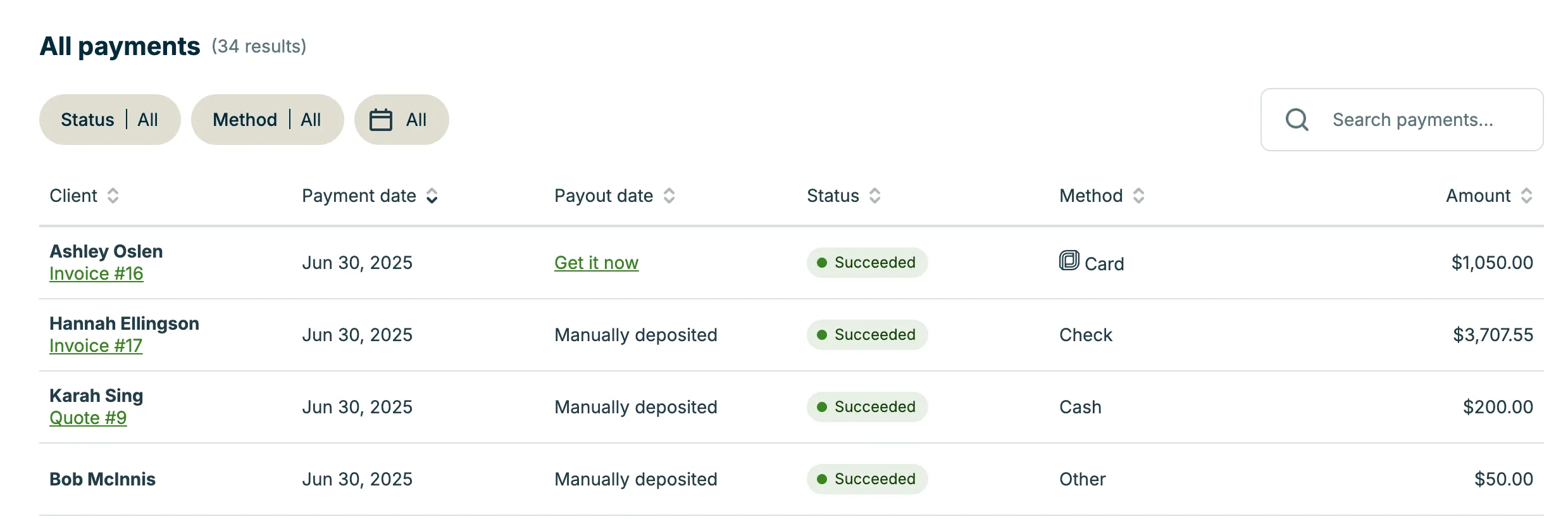
Each column in this report can be used to sort the report. Click the arrows to arrange the report in ascending or descending order. The columns include:
- Client: This is the client’s name.
- Payment date: The date the payment was received.
- Payout date: The date when the funds from this payment were included in a payout and deposited to your bank account.
- Status: The payment status.
- Method: How your client paid. Learn more about payment methods.
- Amount: Total the client paid.
You can search for payment using the search bar in the top right.
View individual payment details
Reviewing payment details can help you confirm the payment method, verify when a payment was collected, and see which invoice it was applied to. This view also provides a timeline so you can track the payment’s progress from collection to deposit.
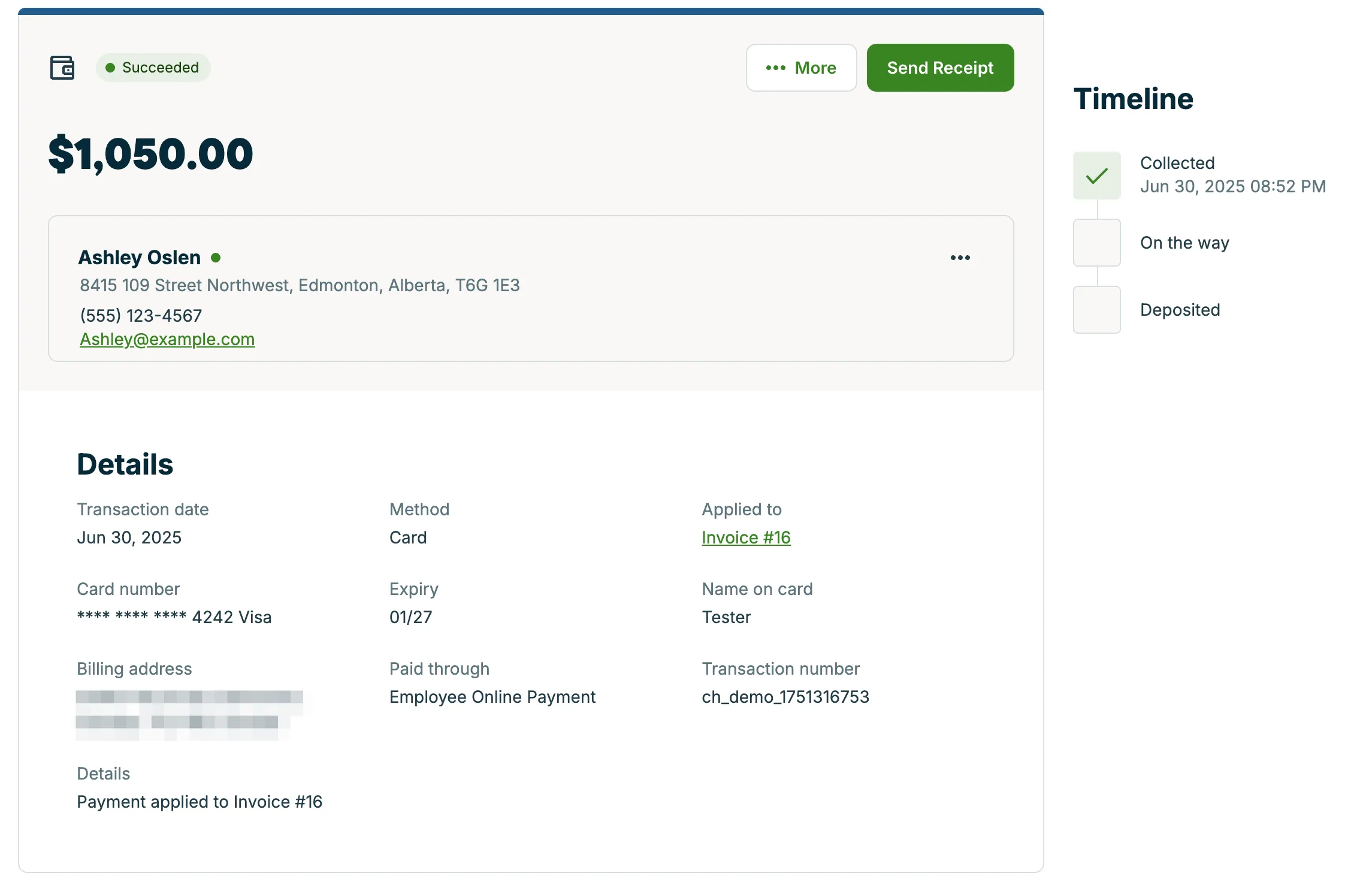
To view a specific payment, click a row from the payment list to open the details of that payment. This includes the payment’s:
- Transaction date: The date the payment was collected.
- Method: The payment method used (for example, Card, e-Transfer, Cash).
- Applied to: A link to the invoice or quote associated with the payment.
- Card details: For card payments, the masked card number, expiry date, and cardholder name.
- Billing address: The address associated with the payment.
- Paid through: How the payment was collected. Methods include:
- Jobber App
- Employee Online Payment
- Digital Wallet
- Mobile Payment
- Card Swipe
- Automated Payment
- Card Reader
- Other
- Transaction number: A unique identifier for the payment.
- Additional details: Notes about how the payment was applied.
There is a timeline on the right side of the page that shows this payment’s progress from when you collect it, to when it’s deposited in your bank account. The stages are:
- Collected: The date and time when the payment was successfully received.
- On the way: Indicates when the funds are processing for payout.
- Deposited: Confirms when the funds have been deposited into your bank account.
The timeline updates as the payment progresses, providing clear visibility into each step.
Payouts tab on the payments list page
The Payouts tab displays the funds that have been deposited to your bank account from payments processed through Jobber Payments. This tab provides visibility into the timing, amounts, and details of each payout, including processing fees and related transactions.
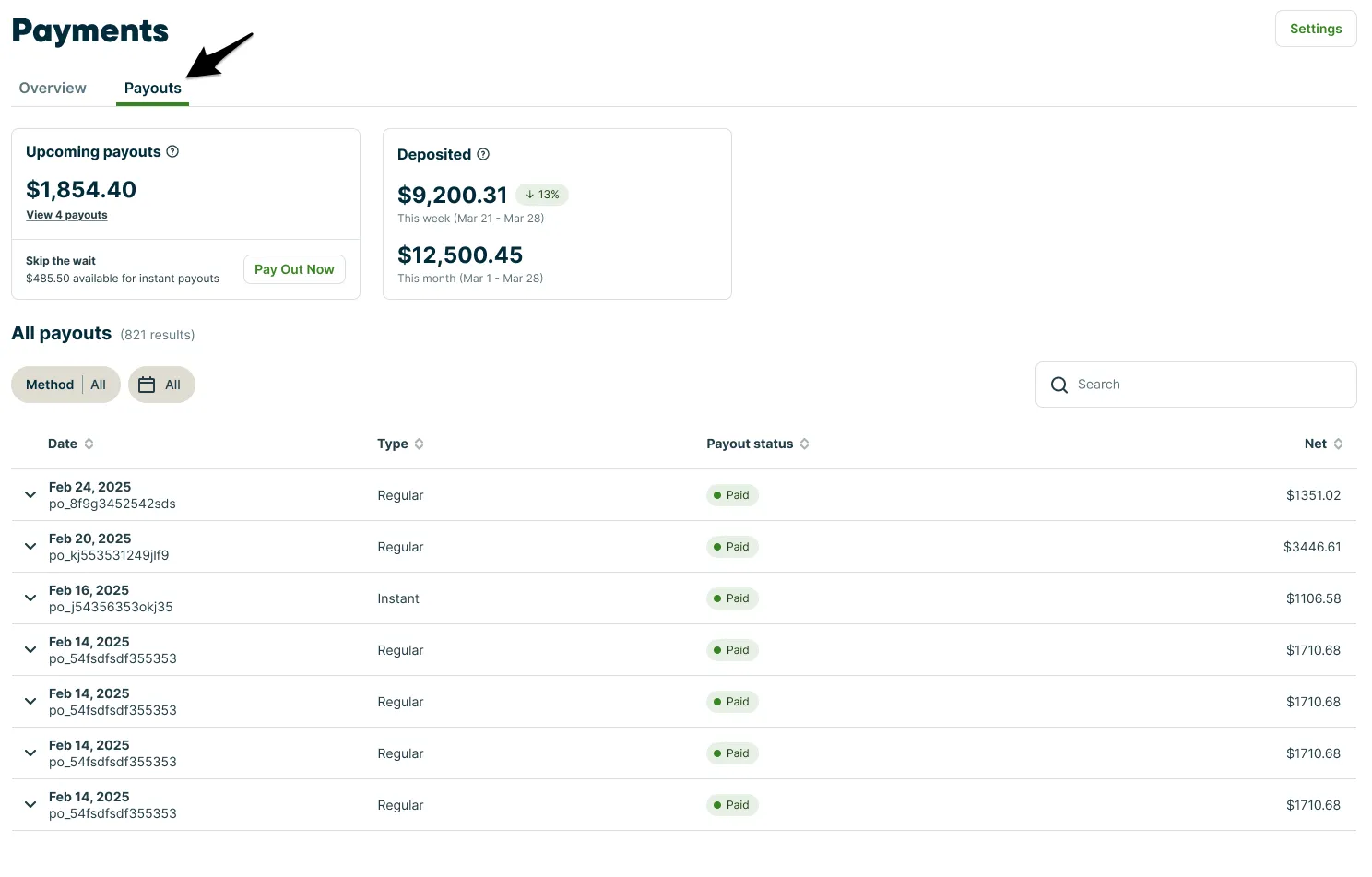
To access the Payouts tab, click Payments in the side navigation, then select Payouts.
Key metrics on the payouts list
At the top of the Payouts tab, you’ll see two summary sections:
- Upcoming payouts: This is the dollar amount of funds that that you have collected through Jobber Payments that are on their way to your bank account. Click View payouts from the upcoming payments section to see the individual payouts that make up this total.
- Skip the wait: The funds listed here are available to be paid out as an instant payout to your bank. Click Pay Out Now initiate an instant payout.
- Deposited: Shows the total amount deposited in your bank account for both the current week and the current month.
Note: There may be a delay between the payout date in Jobber and when your bank releases the funds.
Filter and search the payouts list
Below the key metrics is a list of payouts. Each payout includes the following columns:
- Date: The date the payout was initiated. If a payout is still processing, the expected deposit date appears in parentheses.
- Type: Indicates whether the payout is Standard or Instant.
- Payout status: Displays the current status of the payout:
- Upcoming: These are payouts where the funds will be deposited in the future.
- Paid: These are payouts where the funds have been deposited to your bank account.
- Net: The amount deposited into your bank account after fees have been deducted.
Use the Method and Date filters above the list to refine which payouts are displayed.
View individual payout details
To see the transactions included in a payout, click the arrow to expand a payout row.
At the top of the payout, you’ll see:
- The total payout amount with a status indicator to show if it’s paid or upcoming
- The deposit date for this payout
- The delivery method for this payout (standard or instant)
- The payout ID
Below is a summary this payout, including:
- Count of payments (or other transactions like refunds)
- The gross total
- Tips included in the payments
- The total fees that were part of this transaction
Below is a breakdown of individual transactions that make up this payout payout, including:
- Time: The time this transaction occurred
- Type: The type of transaction (for example, refunds, payments, or financing repayments)
- Details: Includes the client’s name and payment ID
- Gross: The gross total of the transaction
- Tip: If a tip was part of the transaction, this column will show the tip amount
- Fees: Details about processing fees or instant payout fees deducted from the gross amount.
Each transaction record includes a timestamp for reference.