

Overview
Job Showcase turns completed jobs into ready-to-publish marketing content. Collect photos and details from a job, then share that work across your Jobber Website, email campaigns, Facebook, and Google Business Profile — all from one place.
Job Showcase availability
Job Showcase is included with Marketing Suite. Add Marketing Tools to your Jobber Plan Subscription.
To check what plan you’re on, navigate to the Gear Icon, then select Account and Billing. If you have any questions about your plan’s features or pricing, our support team is here to help.
Included with Marketing Suite:
Included on all Jobber plans at no extra cost:
Create a showcase from a completed job
To create a job showcase:
- Navigate to Marketing from the side navigation menu, then select the Job Showcase tab from the top of the page.
- Select the New Job Showcase button.
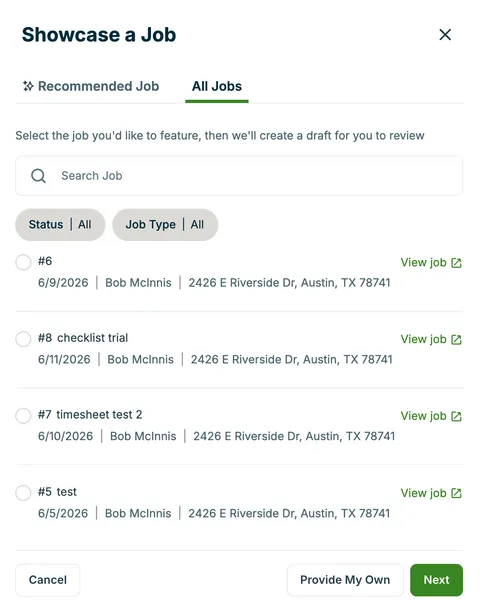
- Select a job from either the recommended jobs tab or the all jobs tab, then select Next. The recommended jobs are ones where Jobber AI has identified high quality photos and descriptions.
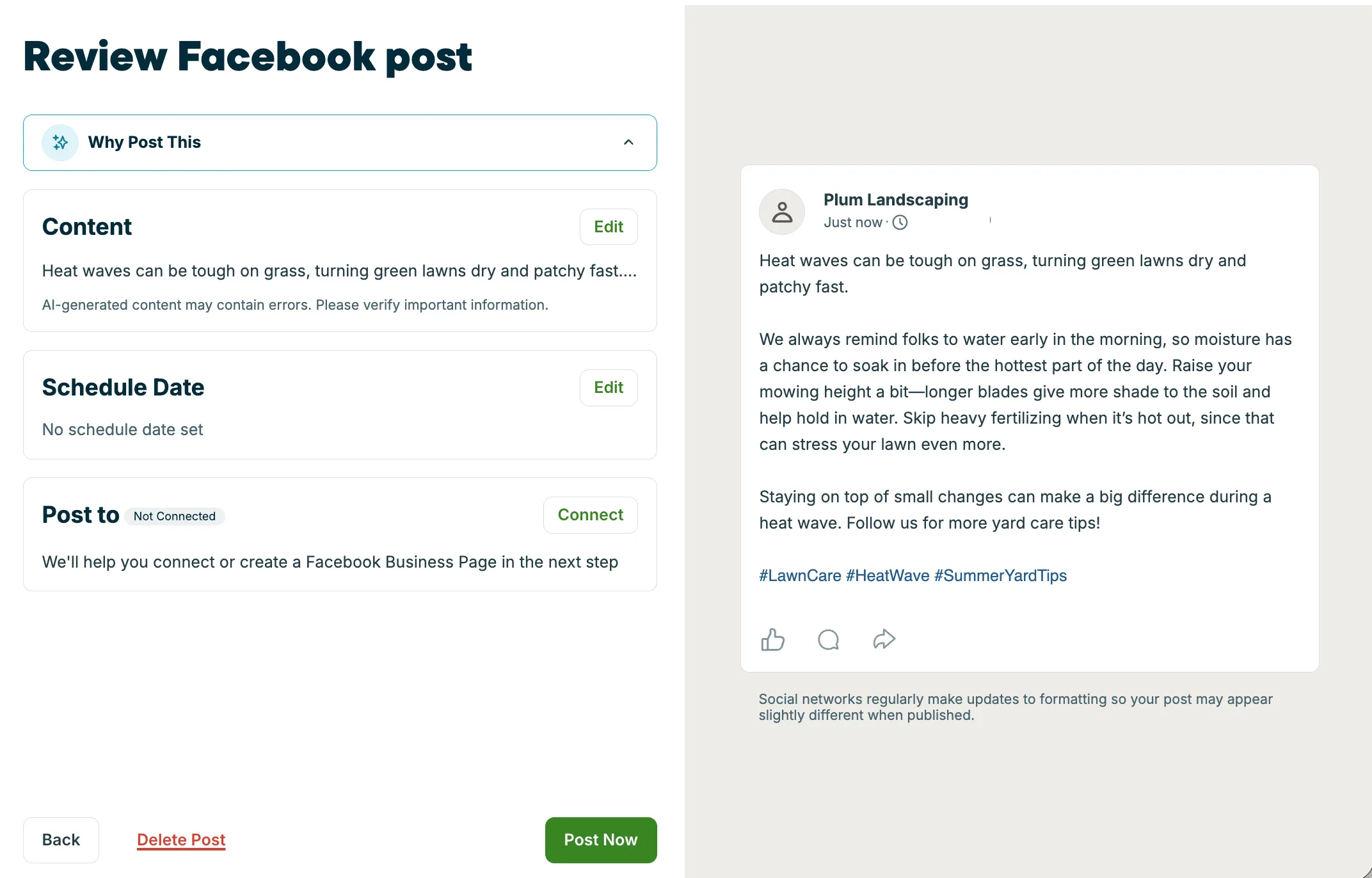
- Review the post, including the content, the scheduled date, and the social channel where it will be posted. To change or add photos, select Choose image to pick from photos already stored in your Jobber account, or select Upload to add a new photo from your device.
- Select Post now to publish to your selected social channel.
Manage your showcases
The All job showcases table displays all showcases created in your account. The following columns appear in the table:
- Content: The title or description of the post
- Created by: The team member who created the post. Posts recommended by Jobber AI will show Jobber in this column.
- Status: The current stage of the post. See “Understand job showcase statuses” for a full list of statuses.
- Channel: The social media platform the post targets, for example Facebook or Google.
- Last Updated: The date the post was most recently changed.
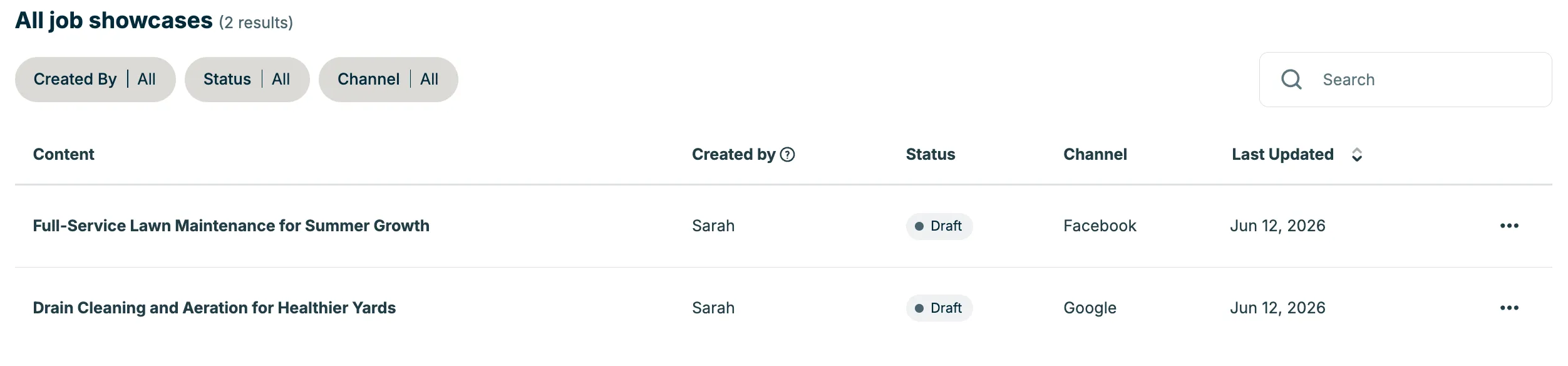
Use the filters at the top of the table to narrow down your showcase history. The following filters are available:
- Created By: Show posts created by a specific team member. Select All to view job showcases from everyone on your team.
- Status: Show job showcases at a specific stage. Select All to view every status.
- Channel: Show job showcases for a specific social media platform. Select All to view job showcases across all channels.
Understand job showcase statuses
Each post in your job showcase list has a status that tells you where it is in its lifecycle:
- Published: The post is live on your Facebook page
- Draft: The post is saved but not yet scheduled or published
- Recommended: Jobber identified this as a good candidate for posting
- Missed: A Recommended post that was not published within its suggested window
How recommended posts work
Jobber reviews your recent jobs and activity to identify content worth showcasing on your social accounts. These appear as Recommended posts in your social posting tab within Marketing. Jobs that have high quality photos and descriptions will be suggested for job showcases by Jobber AI.
To act on a Recommended post:
- Navigate to Marketing, then select Job Showcase.
- Open a post with Recommended status.
- Review the suggested content and edit as needed.
- Select Publish now or Schedule to post it.
If a Recommended post passes its suggested timing without being published, its status changes to Missed. You can still publish a Missed post at any time.
Add a showcase to your Marketing Plan
You can include a Job Showcase as a scheduled activity in your Marketing Plan.
To add a showcase to your plan:
- Open the Marketing Plan tab in Marketing.
- Select Add activity.
- Select Job Showcase as the activity type.
- Choose the showcase you want to use and select a publish date.
- Select Save.
Learn more about Marketing Plan.