

Overview
Make it easy for customers to find your business and explore your services with a professional and personalized website you can set up in minutes.
Included with your Jobber plan subscription, Jobber can generate a website for your business so that your customers have an always-on way to find and contact your business. This is done directly in Jobber.com so the setup is quick and easy and you don’t need to find a third-party web developer. Your website will be set up for you to accept requests from clients and leads alike.
Website availability
A website is available on all plans. View our current pricing plans.
Note: A website can be generated while in trial, but it cannot be published until you select a plan. Your website will stay online as long as you have an active Jobber subscription.
To check what plan you’re on, select the Gear Icon, and then select Account and Billing. If you have any questions about your plan’s features or pricing, our support team is here to help!
Create your website
To set up your business’s website, select Marketing from the side navigation, then select Website. From the landing page, select View my website.
Note: Only admin users or users with the Marketing Suite permission can generate and publish websites. Learn more about user permissions.
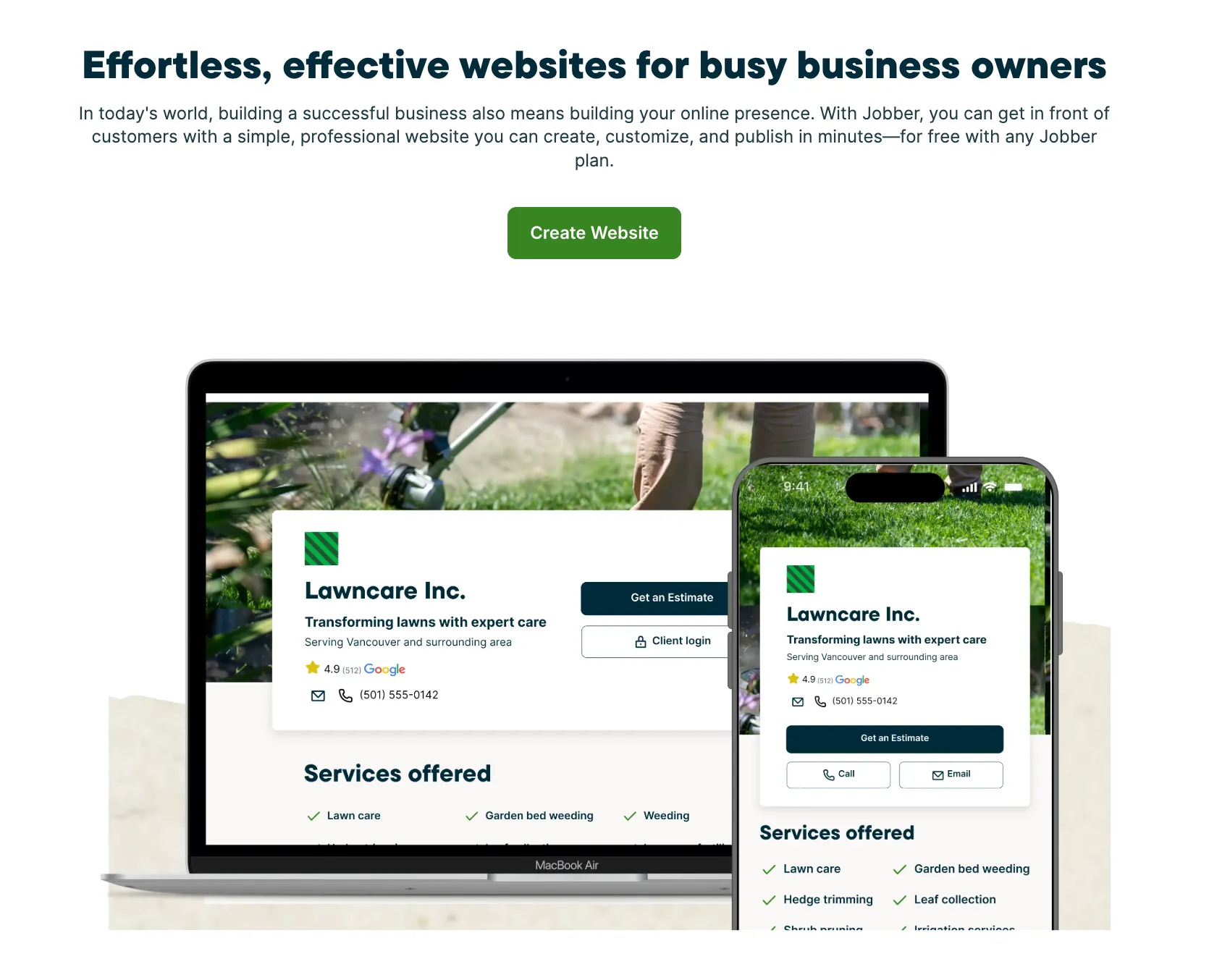
There are two steps in setting up your website. The first step is to share your business story. Jobber will automatically generate your business story for you to approve or edit. Your business story should highlight details like:
- where your business is located
- the services you offer
- what sets your business apart from your competitors
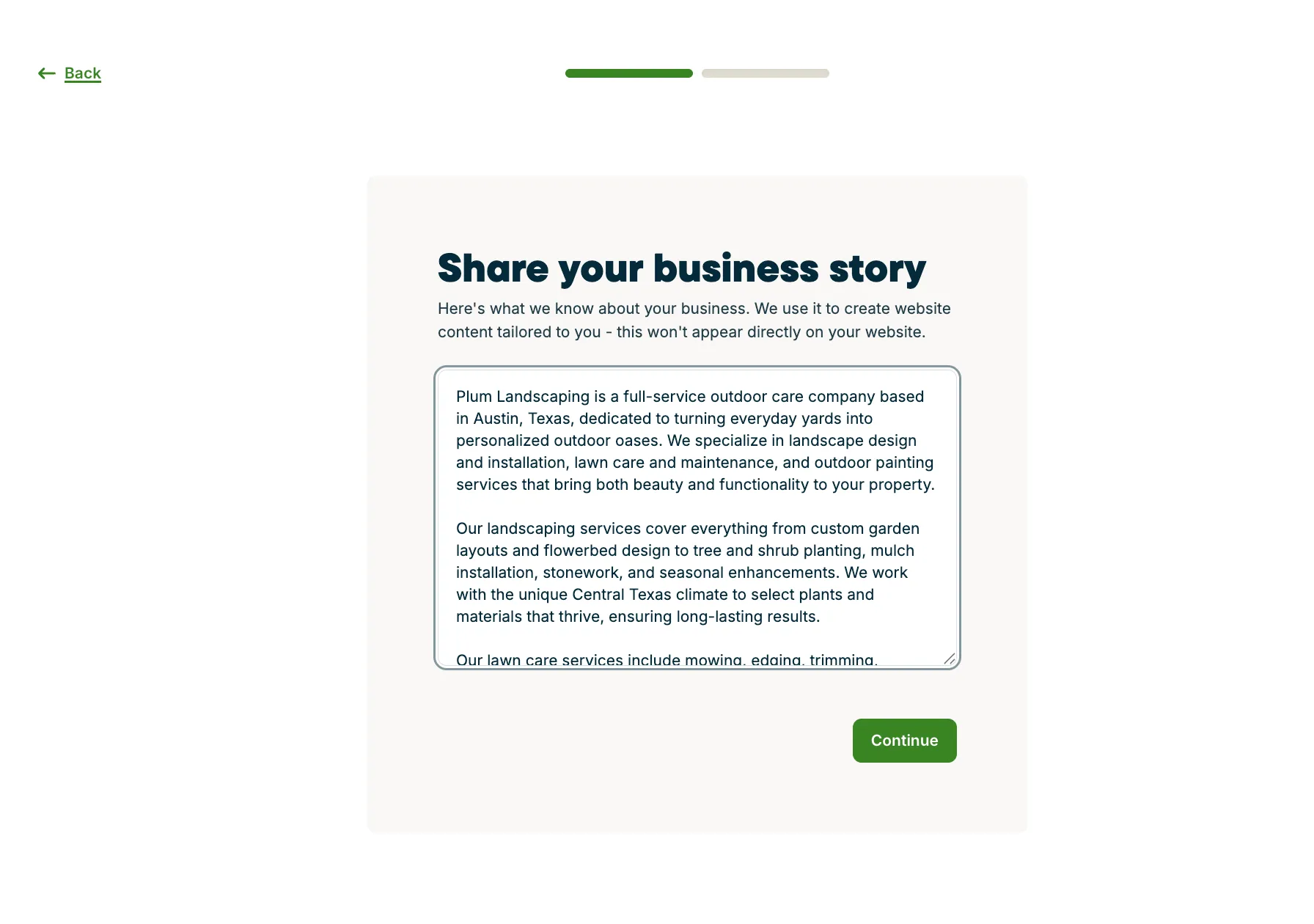
Your business story will not appear word-for-word on your website. Instead, Jobber uses it to suggest service pages and create content for your website. You can update this description at any time.
Note: There is a limit of 1000 characters for your business story.
Once you’ve entered your business story, select Continue.
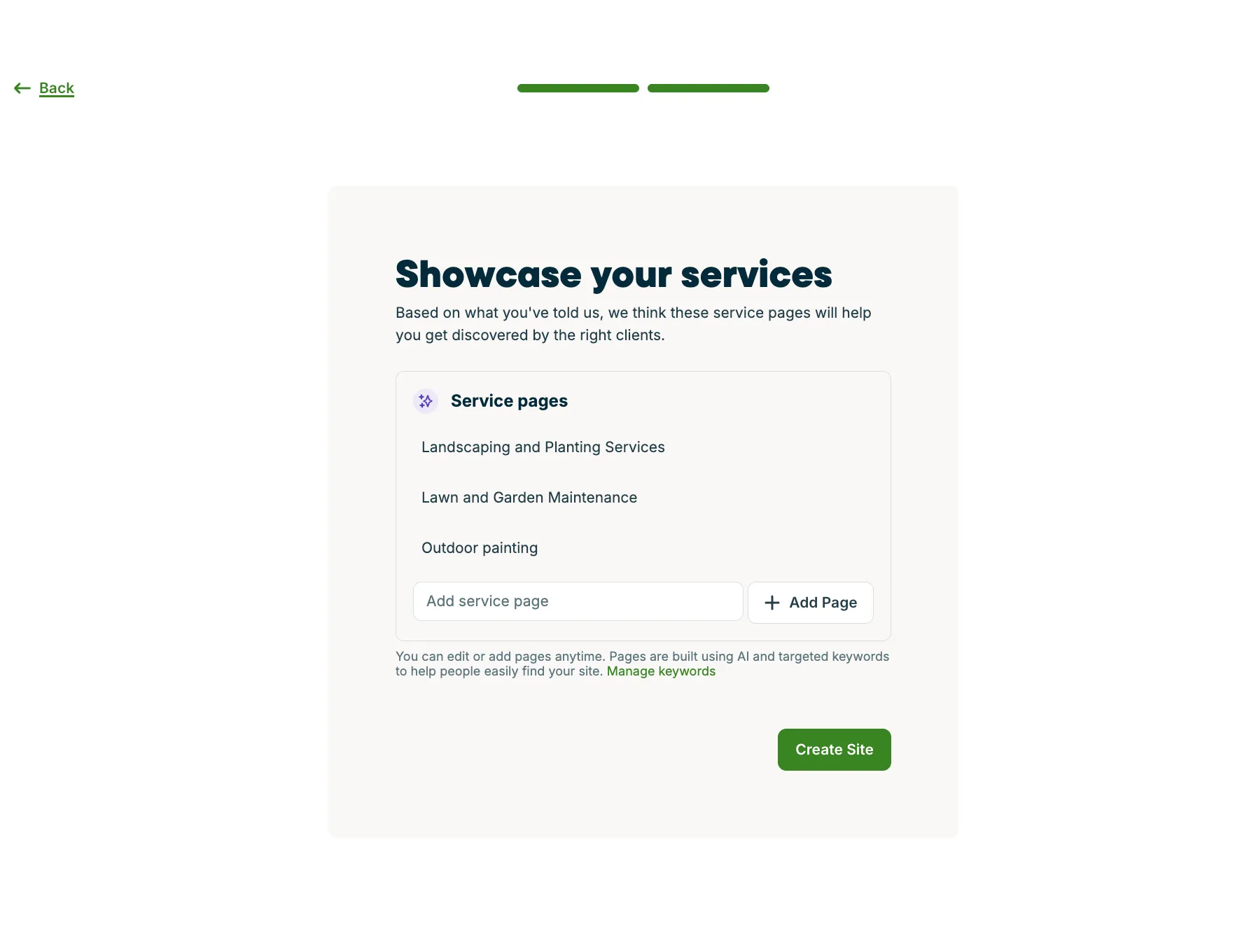
Next, a list of recommended service pages will be generated based on what you’ve told us in your business story. These pages are designed to improve your SEO.
Why service pages matter for SEO
Search engines like Google rank websites based on how relevant and helpful they are for specific searches. Having dedicated service pages gives your site more opportunities to match what potential clients are searching for.
Here’s how it helps:
Targeted keywords: Each page can focus on keywords related to a specific service (e.g., “lawn care in Austin” or “power washing driveway”). This makes it more likely that your site shows up when someone searches for that service.
Clear structure: A multi-page site tells search engines that your business covers multiple topics or services. This improves crawlability (how search engines scan your site) and makes it easier for them to understand what your business offers.
Relevant content: With text, images, and FAQs tailored to each service, your site has more unique, high-quality content. This signals authority and improves your chances of ranking higher.
Better user experience: When clients land directly on the service page that matches their search, they’re more likely to stay on your site and contact you — which search engines view as a positive ranking signal.
To create additional service pages, enter the name of the service page, then select Add Page. When you’ve added pages for all your services, click the Create Site button to generate your website.
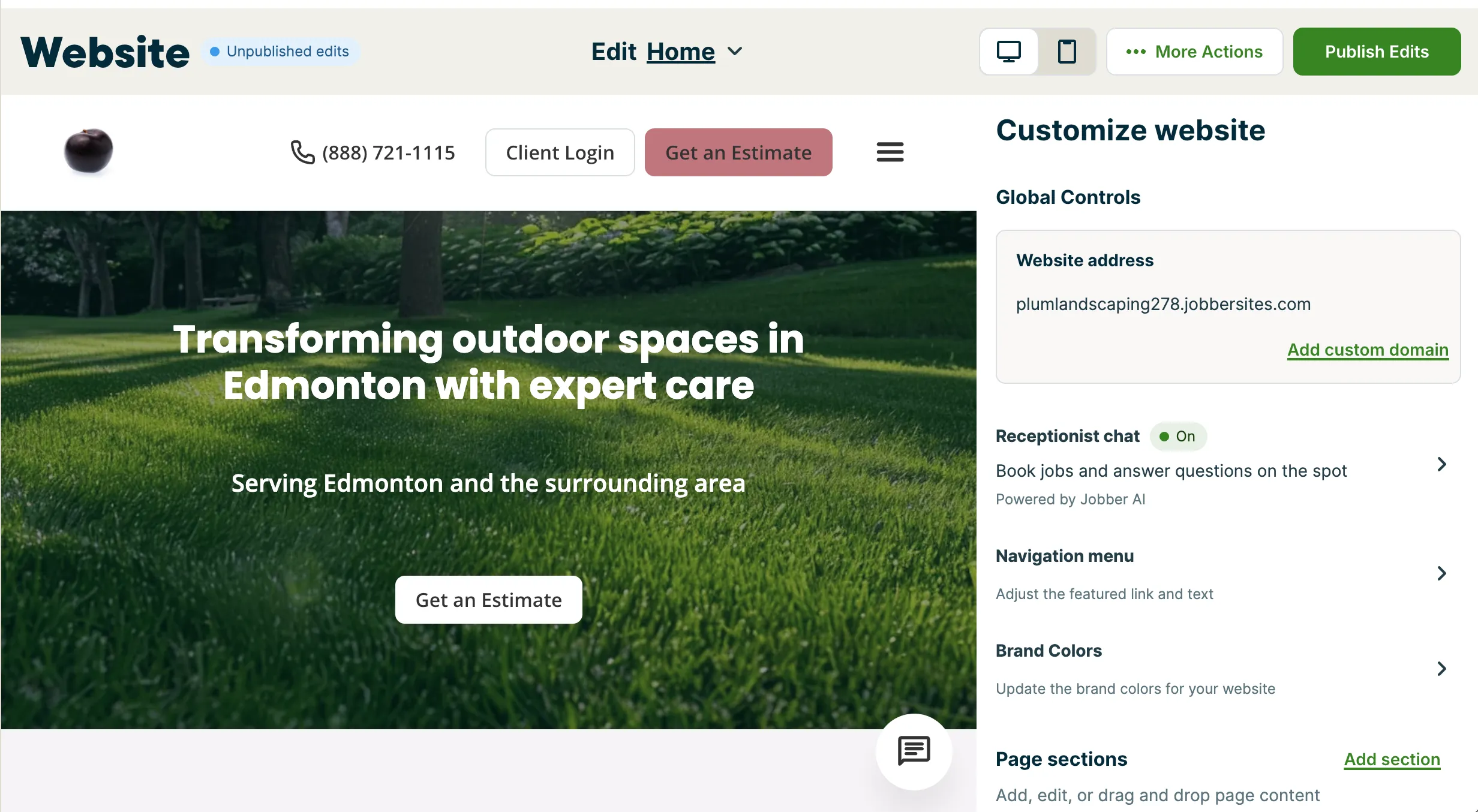
It can take a few minutes to generate your website. Once ready, you’ll see a preview of your new website based on the information you entered during the set up. This is just a preview, your website will not be online until you publish it. If there is anything you’d like to tweak to better reflect your business, your website can be customized.
Preview your website
Now that your website has been generated, it’s time to take a look! Previewing your site lets you see exactly how it will appear to clients before you publish. From the top navigation bar, select the icons for Desktop and Mobile to preview how your website will look on different devices.

Since most people browse on their phones, checking the mobile view can make the difference between winning or losing a new client.
What content can you add to your website?
When you create a website in Jobber, we set you up with the essentials so you have a professional site ready to go right away. Every website includes core features that make it easy for clients to learn about your business and get in touch. From there, you can customize the content, add pages, and make changes so your site reflects exactly what makes your business unique.
Your website is made up of sections, which you can think about as the building blocks of your website’s content. These sections can be added, removed, and reordered to customize the content on your website. You can also set up multiple of the same section.
The sections that you can include on your website are:
- Hero: This is a large introduction with a headline, short text, and a call-to-action.
- List: This is a scannable way to show services, packages, or step-by-step instructions.
- Cards: Display small blocks for highlighting page links.
- Testimonials: Showcase your Google reviews.
- Image gallery: Add a collection of photos.
- FAQs: Common questions and answers.
- Text and Image: Add a paragraph and optional image.
- Featured content: Image and multiple text blocks for highlighting key business details.
- Banner: Wide strip across the page for highlighting key business details.
- Form: Embed a Jobber request form.
To add a section to your website, from the Customize website panel, select Add section. Then pick the section type from the list.
Custom HTML and custom button links aren’t supported
A Jobber website only uses the section types in the Jobber website editor. The editor doesn’t support:
- Custom HTML or embed code: You can’t add your own code to your Jobber website, or embed content from another service, such as a Google Form or a booking widget from another app.
- Buttons with a custom URL: Buttons on your Jobber website link to one of your Jobber request forms or to another page of your website. You can’t link a button to an outside web address.
To add a Jobber request form to a website you built somewhere else, such as WordPress or Wix, see Add your request and booking forms to your website and social media.
A note about images
Many of the sections have options to upload images to showcase what your business offers. Here are a few things to know about adding images to your website.
- Images used on your website must be under 5MB and a .png, .jpg, or .jpeg file type.
- There are no specific dimension requirements for your images as they’re all dynamically sized based on the device your website is viewed on.
- We recommend that your images do not include text, as that can hurt your website’s SEO score due to accessibility concerns.
With the basics covered, it’s time to get practical. Here’s a closer look at the sections you might add to your website and what they can do for your business.
Your website is made up of sections that include different information about your company.
A Hero section, including:
- A heading and subtitle that can be used for a title and tagline (in the example below, “transforming outdoor spaces in Edmonton with expert care” is the heading and “Serving Edmonton and the surrounding area” is the subtitle)
- A header image (in the example below, it’s the lawn image)
- Call to action button (in the example below, this is “Get an Estimate”)
- Google review rating
To edit the Hero section, navigate to Website from the side navigation, then from the Customize website panel, select Header.
Use the Style tab to choose a desired layout.
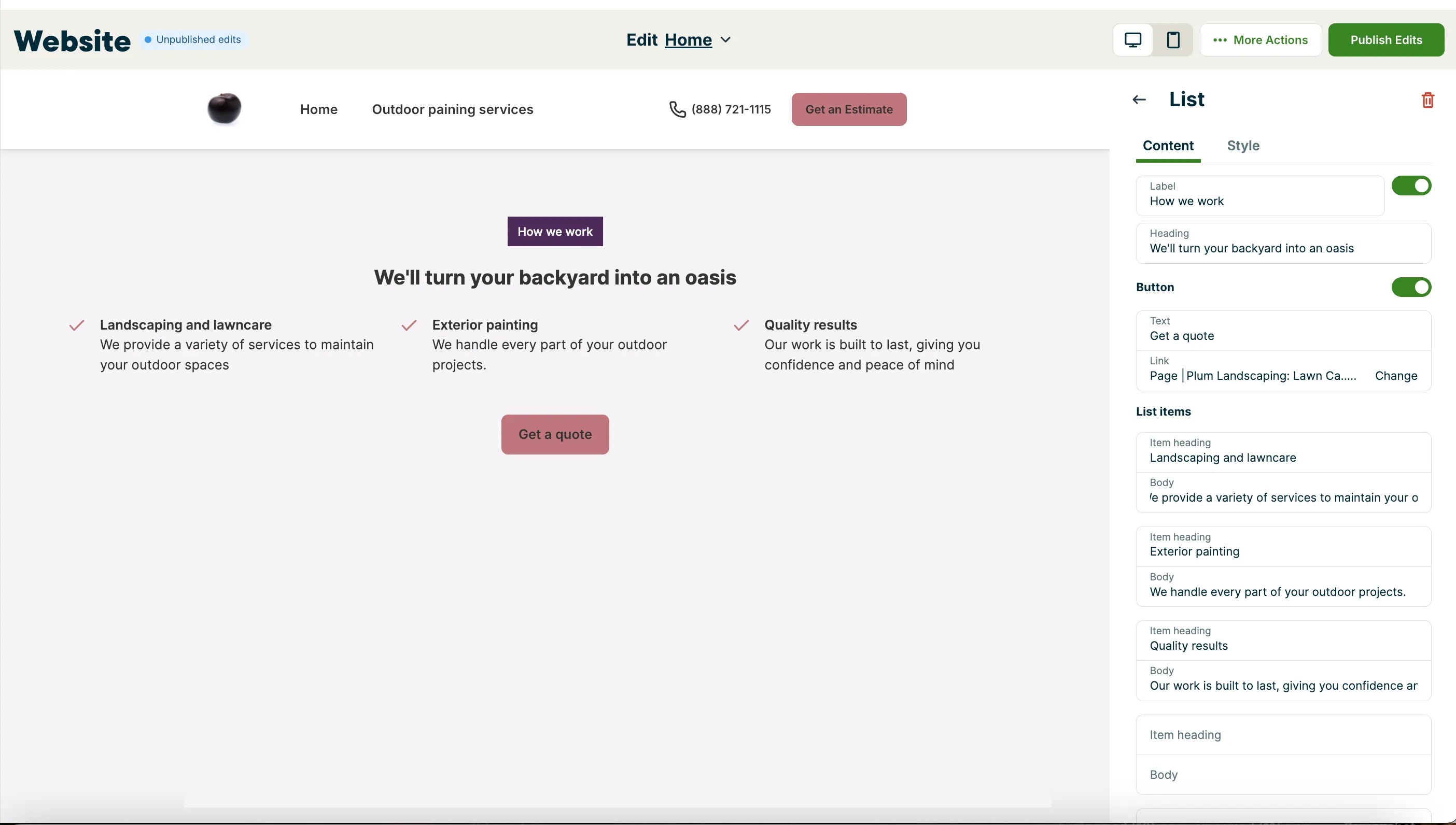
A List section, including:
- A button that is connected to one of your request forms so that customers have an easy way to book with you. In the example below, this is the “get a quote” button.
- A list can contain up to 12 items. Empty rows won’t be shown.
Switch to the Style tab for the list to select how these items are displayed.
To edit a List section on your website, navigate to Website from the side navigation, then from the Customize website panel, select List.
To remove the list section from your website, select List from the Customize website panel, then click the red trash can icon.
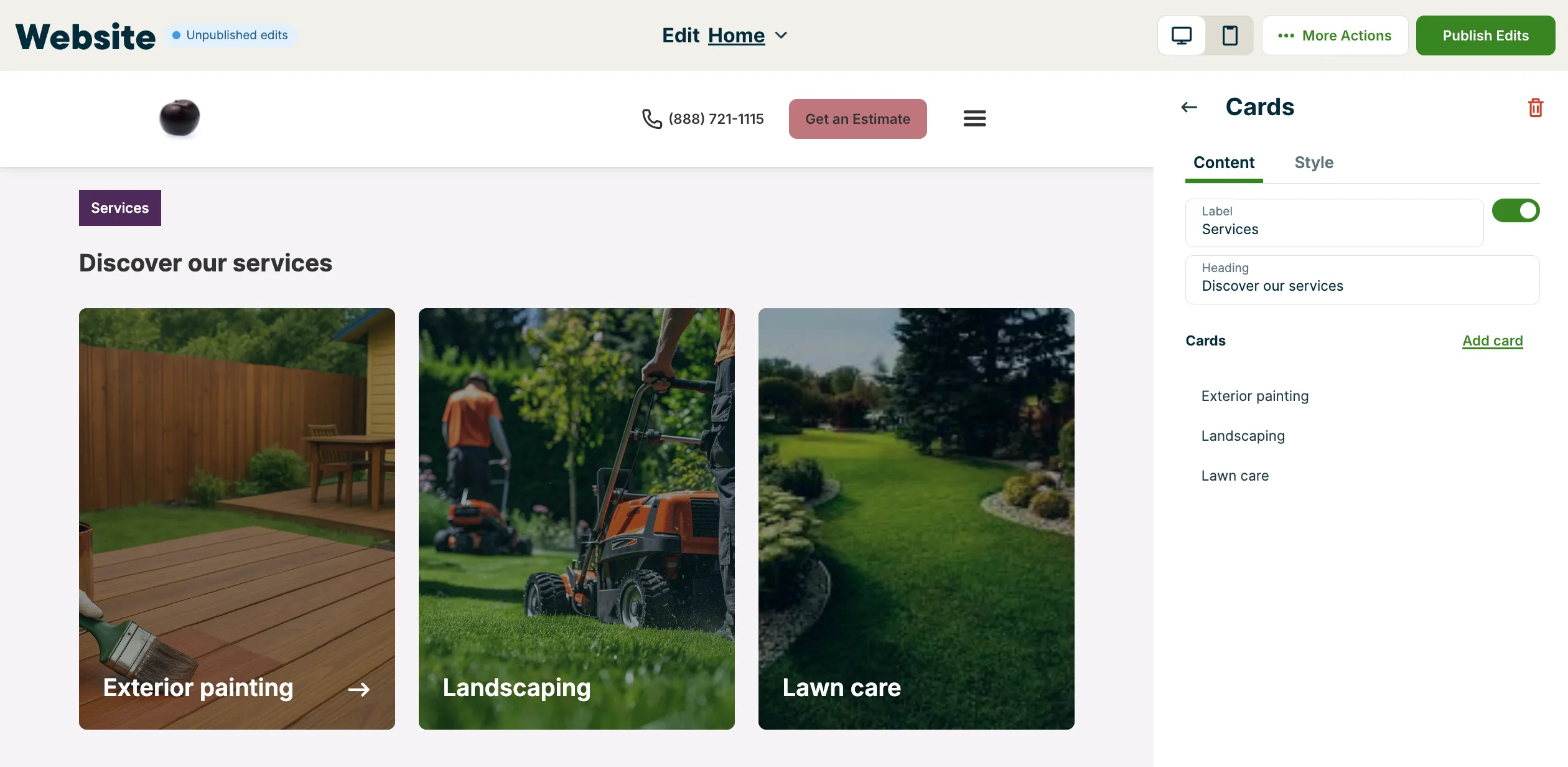
A Cards section, including:
- A label for this section on your website. A label will be generated using AI based on your section content. This label can be edited, or hidden using the toggle.
- A heading that appears on your website above the cards. This will be AI generated based on your section content.
- Images displayed as “cards” on your website. Click Add card to set up additional cards. To edit a card, hover over the card from the list, then select the pencil icon to edit the card or the trash can icon to delete the card.
- When a website viewer hovers over one of the images, they will see a description. There is an option to link the card to one of your request forms or another page of your website. This can be a great way to get bookings for certain types of services!
Switch to the Style tab in the cards panel to select how your cards are displayed.
To remove the cards section from your website, select Cards from the Customize website panel, then click the red trash can icon.
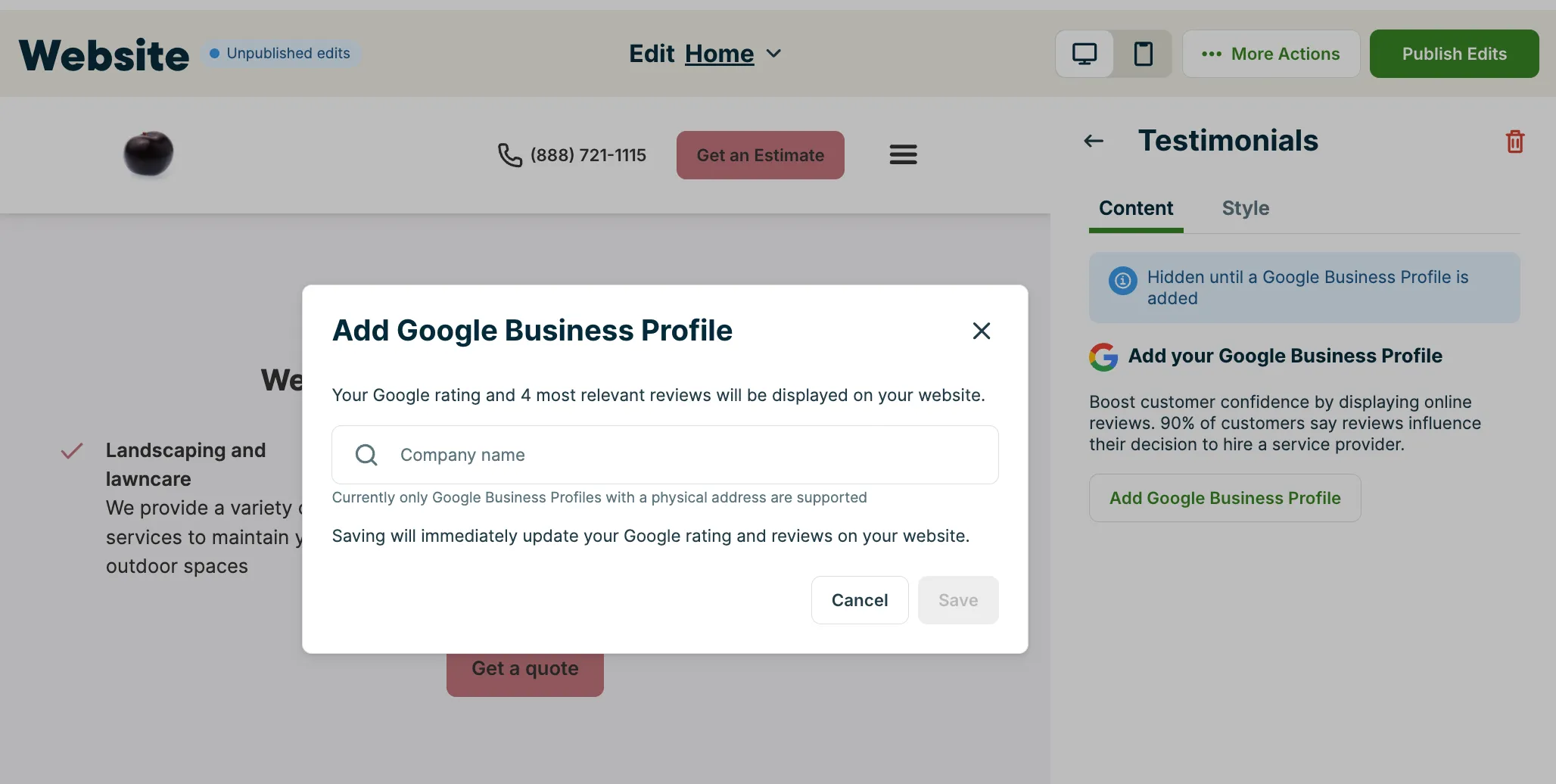
A Testimonials section, including:
- Reviews from your Google Business Profile
To add your reviews to your Jobber website, navigate to the Content tab of the Testimonials panel. Select the button for Add Google Business Profile then enter your company name into the search bar and select it from the list.
Note: Your Google Business Profile must be verified to appear in the search bar when you connect it to your website. This includes service area businesses. Search by your business name to find your profile.
Switch to the Style tab in the testimonials panel to select how your reviews are displayed.
To remove the testimonials section from your website, select Testimonials from the Customize website panel, then click the red trash can icon.
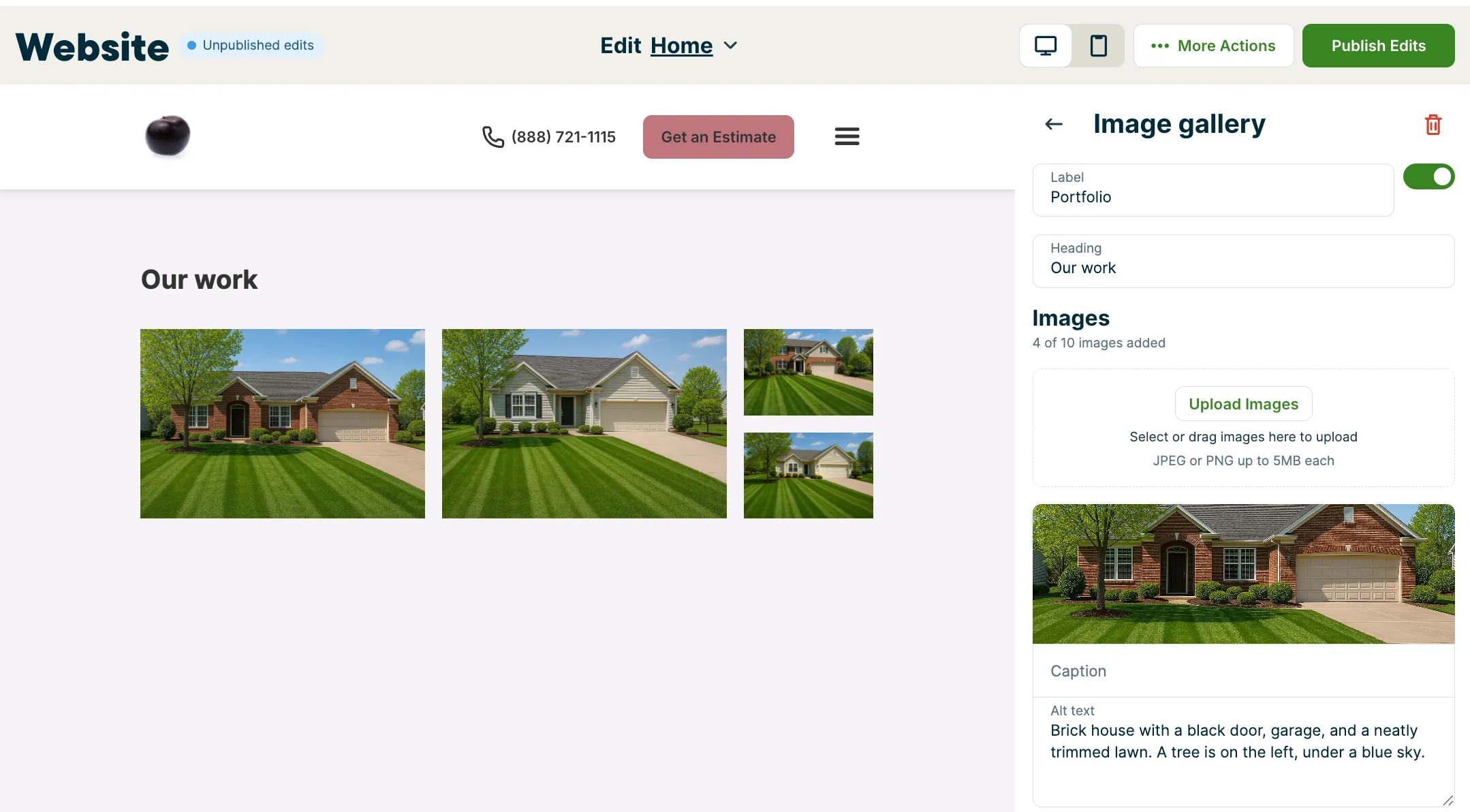
An Image gallery section, including:
- A label. This can be hidden using the toggle next to the label field in the image gallery side panel.
- A section title, this will be the heading above your images on your website.
- Up to 10 images to showcase your company’s work. Each image must be under 5MB and a .png, .jpg, or .jpeg file type.
- For each image, enter a caption. The alt text will be automatically generated and improves your website’s accessibility and SEO.
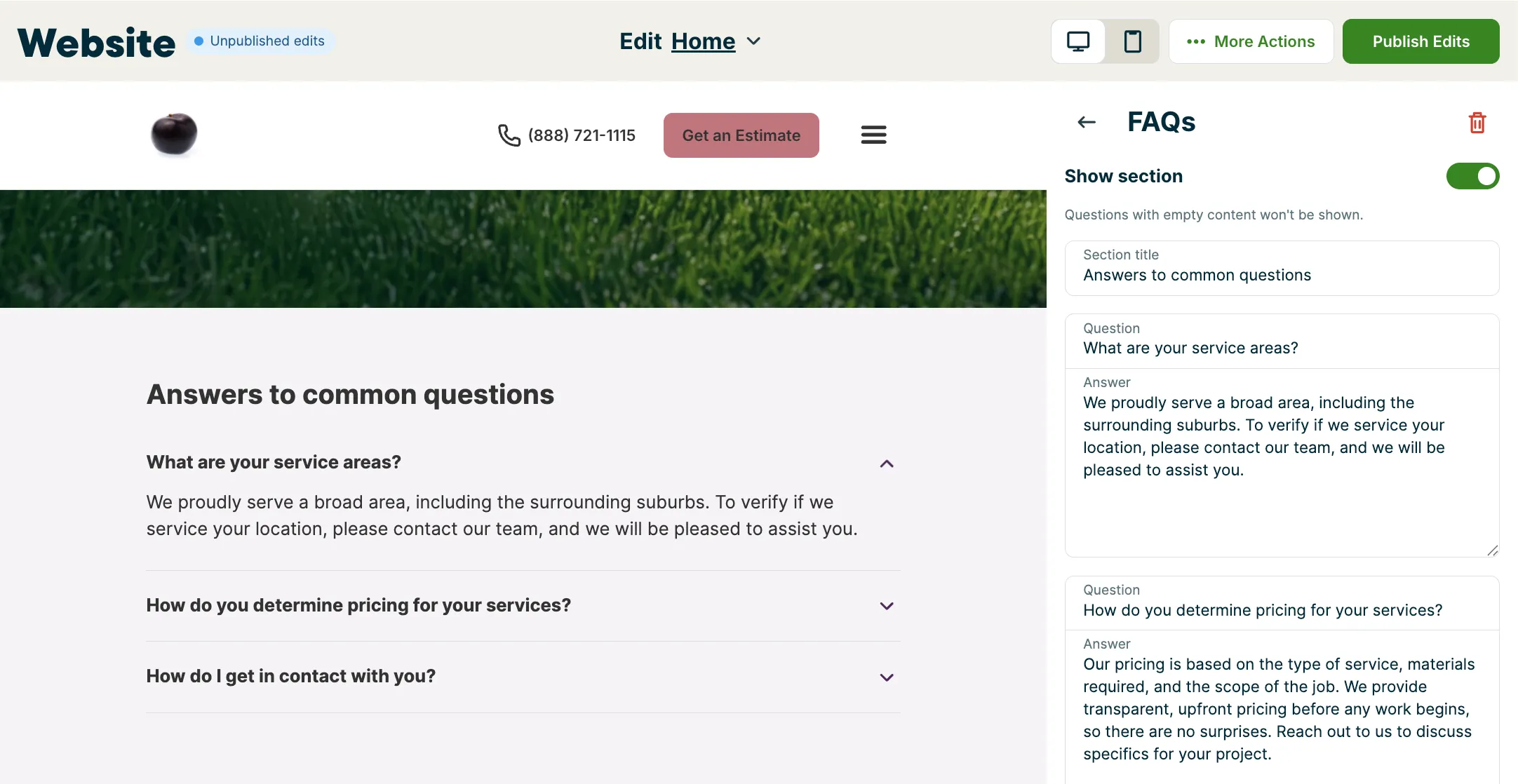
An FAQ section, including:
- Add up to six questions and answers to appear on your website. These questions typically address the most frequent questions customers have. FAQs are also great for your website’s SEO since they contain keywords your customers may search for and helpful information your customers tend to look for when searching for services.
Rich text formatting is supported for the FAQ section of your website.
To remove the FAQ section from your website, select FAQ from the Customize website panel, then click the red trash can icon.
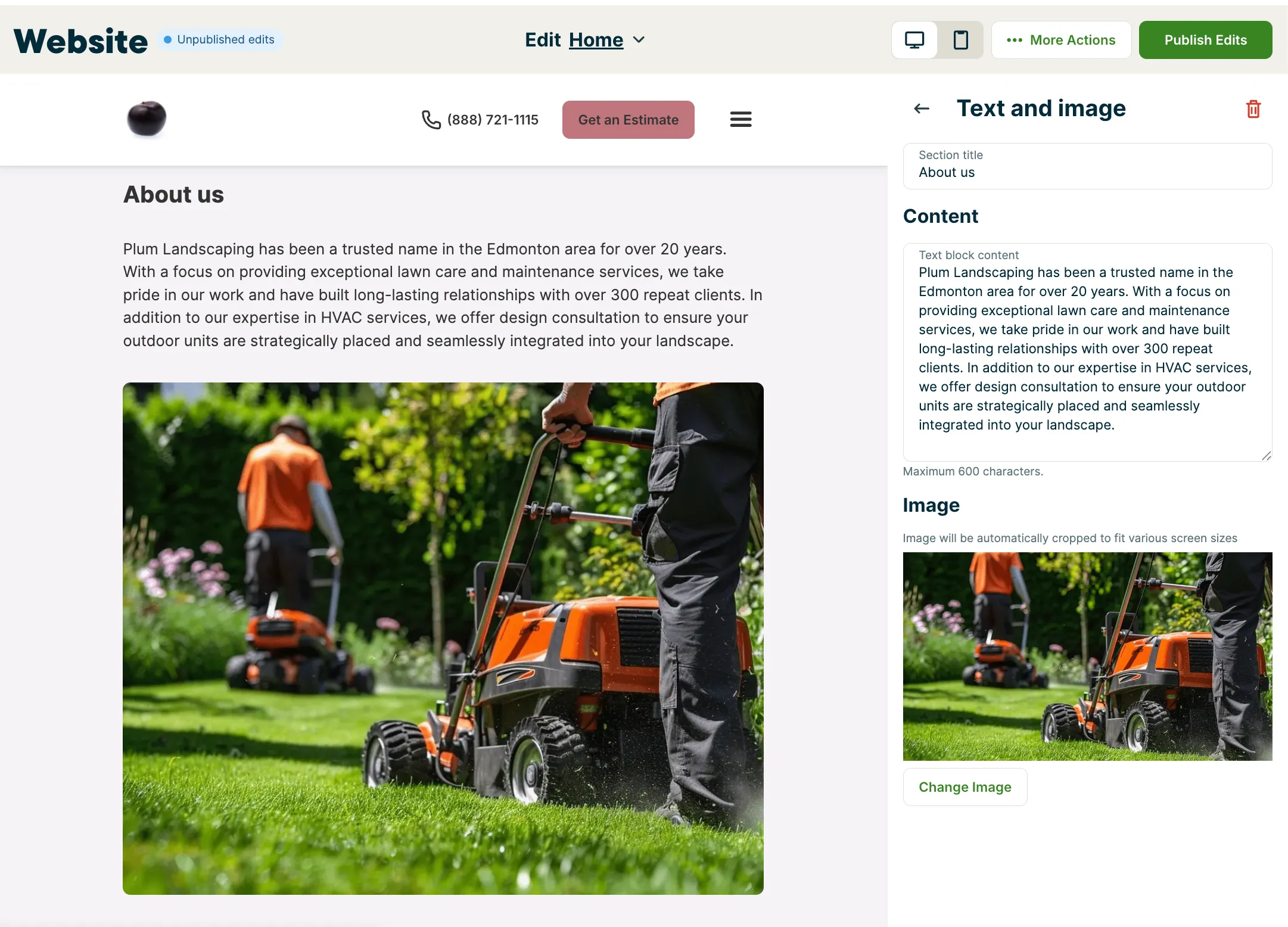
A Text and image section, including:
- A section title, a multi-purpose paragraph such as a service description or the story of your company, and an optional image.
Rich text formatting is supported for the Text and image section of your website.
To remove the text and image (“about us”) section from your website, select Text and image from the Customize website panel, then click the red trash can icon.
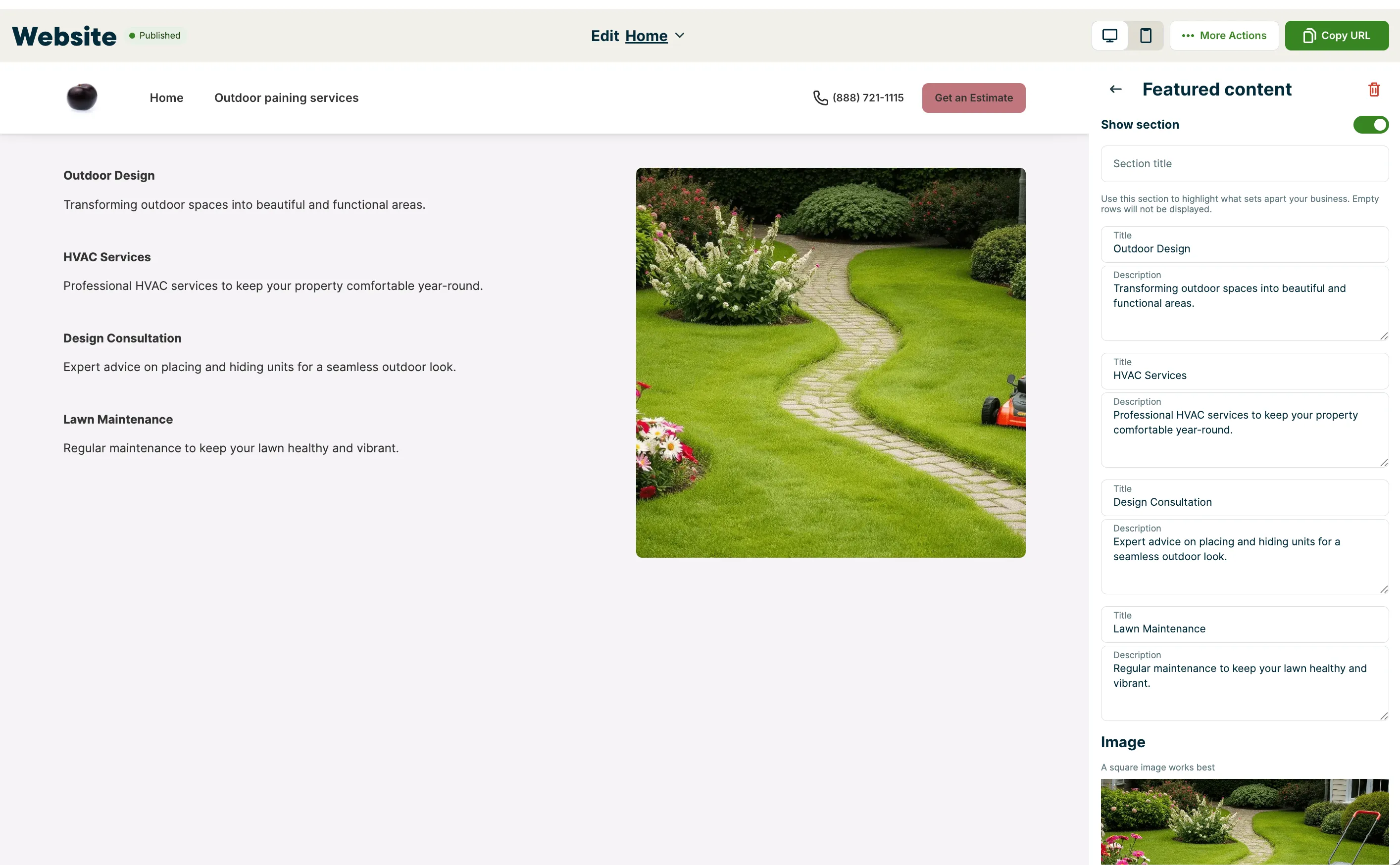
A Featured content section, including:
- Titles and descriptions for up to 4 headings. Rows with empty title fields will not be displayed. These are headings and descriptions for things that set your business apart - In the website example below, these are the headings for “Design Consultation”, “HVAC Services”, “Outdoor Design”, and “Lawn Maintenance”.
- An image
Note: Images must be under 5MB and a .png, .jpg, or .jpeg file type
To edit any of the fields that make up the featured content section of your website, navigate to Website from the side navigation, then from the Customize website panel, select Featured Content. Rich text formatting is supported for the featured content section of your website.
To remove the featured content section from your website, select Featured Content from the Customize website panel, then click the red trash can icon.
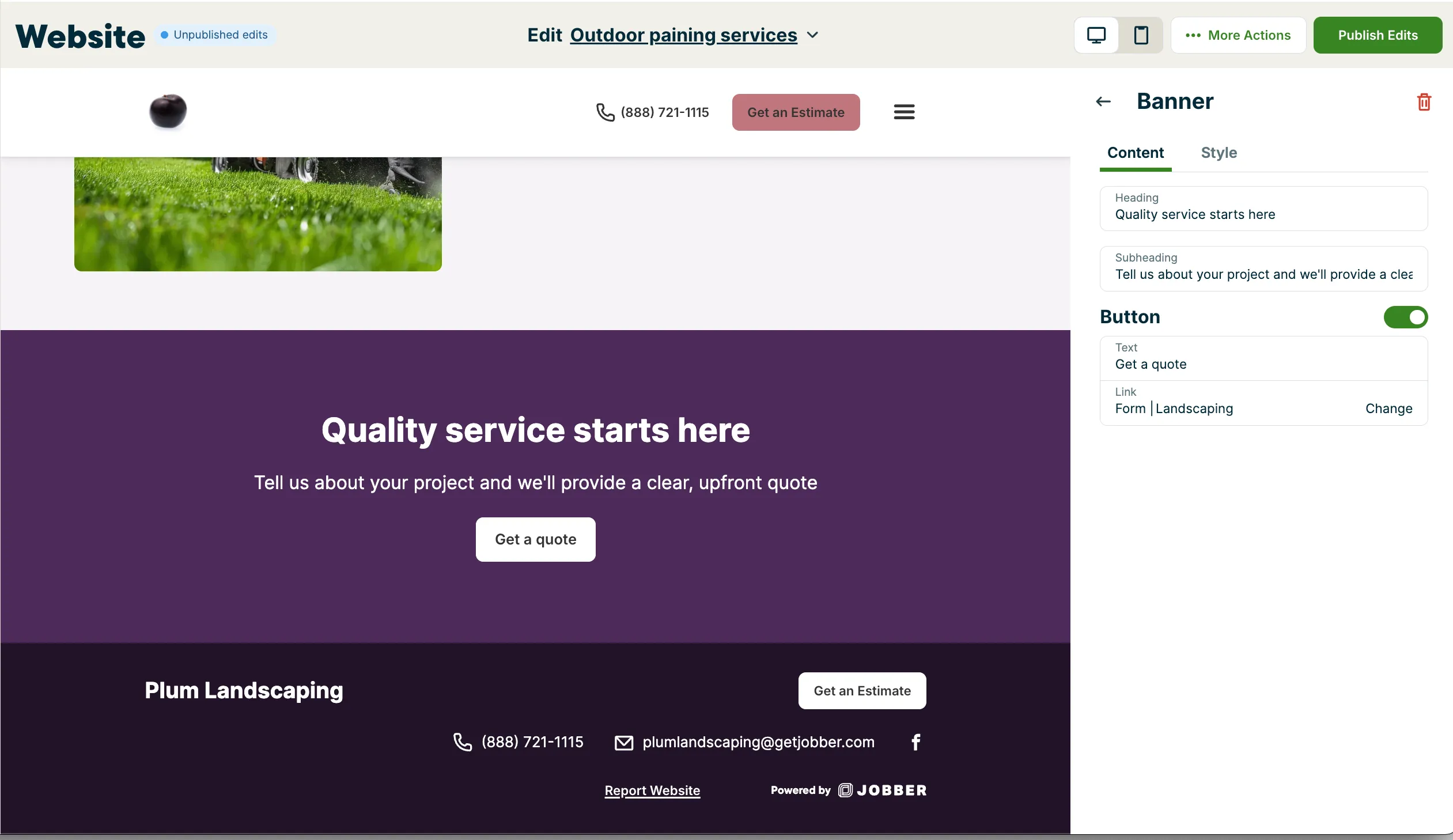
A Banner section for highlighting a message or link. The banner section includes:
- A heading (in the example, it’s “Quality service starts here”)
- A subheading (in the example, it’s “Tell us about your project and we’ll provide a clear, upfront quote”)
- Optionally, you can add a button to link to a request form or another page of your website. To add a button, turn the button toggle on. Then enter the button text, and select the form or page the button will link to.
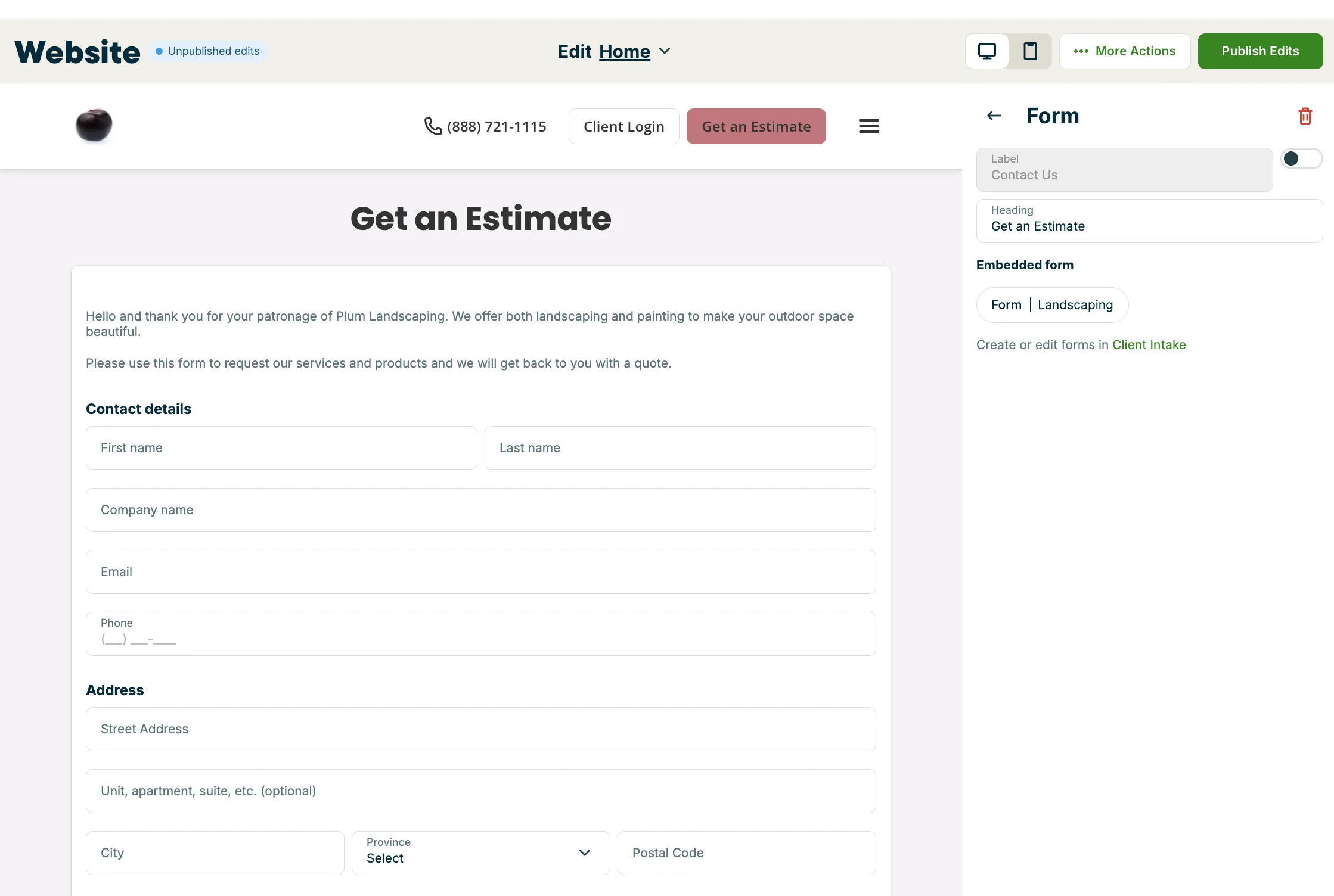
A Form section, including:
- An embedded request form so that your customers can request your services directly from your website. You can select which request form to embed from the dropdown.
To manage your request forms, click the text for “Client intake” in the Form side panel. This will take you to your Jobber request settings.
To remove the form section from your website, select Form from the Customize website panel, then click the red trash can icon.
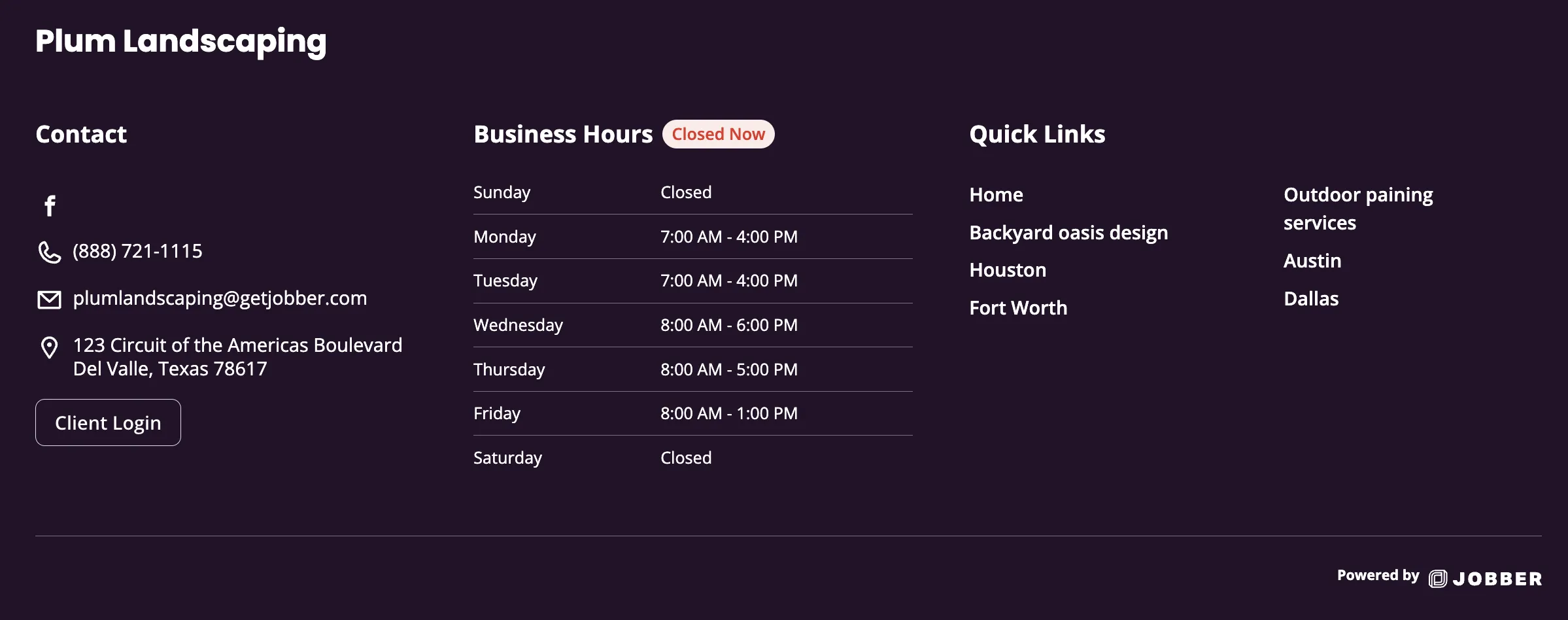
A footer section is included at the bottom of your website by default, including:
- A background color derived from your main brand color
- Your company name
- a “Client Login” button that gives your clients an easy way to access client hub
- Phone number (as listed in your Company Settings)
- Email address (as listed in your Company Settings)
- Icons that link to your socials (as listed in your Business Profile)
- Company address (as listed in your Company Settings), unless you select Keep address private
- Business hours (as listed in your Company Settings), if you turn on Show business hours
- Quick links to other pages on your website
Note: Changes to your address or business hours can take up to 5 minutes to appear in your website’s footer.
Add multiple pages to your website
If you added service pages when you first generated your website, you can always add more later. Setting up pages on your website is a great way to highlight additional services you offer and give potential clients more ways to discover your business online. Beyond service pages, you can also set up pages for your terms and conditions and privacy policy.
Note: You can add up to 100 pages on your website.
To add a new page to your Jobber website:
- From the top bar of the Jobber website editor, select Home.
- In the dropdown menu, choose Add page.
- Select what type of page to add to your website. Page options include:
- Service: More details about a particular service that you want to highlight. Once created, it automatically goes into the Services dropdown menu in the navigation bar. Manually add details about a service you provide.
- Privacy Policy: Adds a page that only appears in your footer for a privacy policy. Your privacy policy should explain how you collect and use customer data. Learn more about Privacy Policy Requirements for your Dedicated Phone Number Application.
- Terms and Conditions: Adds a footer only page where you can outline your terms or liability limits.
- Custom: A custom page that can be used for any purpose such as pricing, locations, seasonal promotion, or hiring.
- Once the page is created, use the Customize website editor to update the sections add images, and make changes so it reflects the purpose of the page. Additional sections can be added to your pages. Learn more about adding sections to your website.
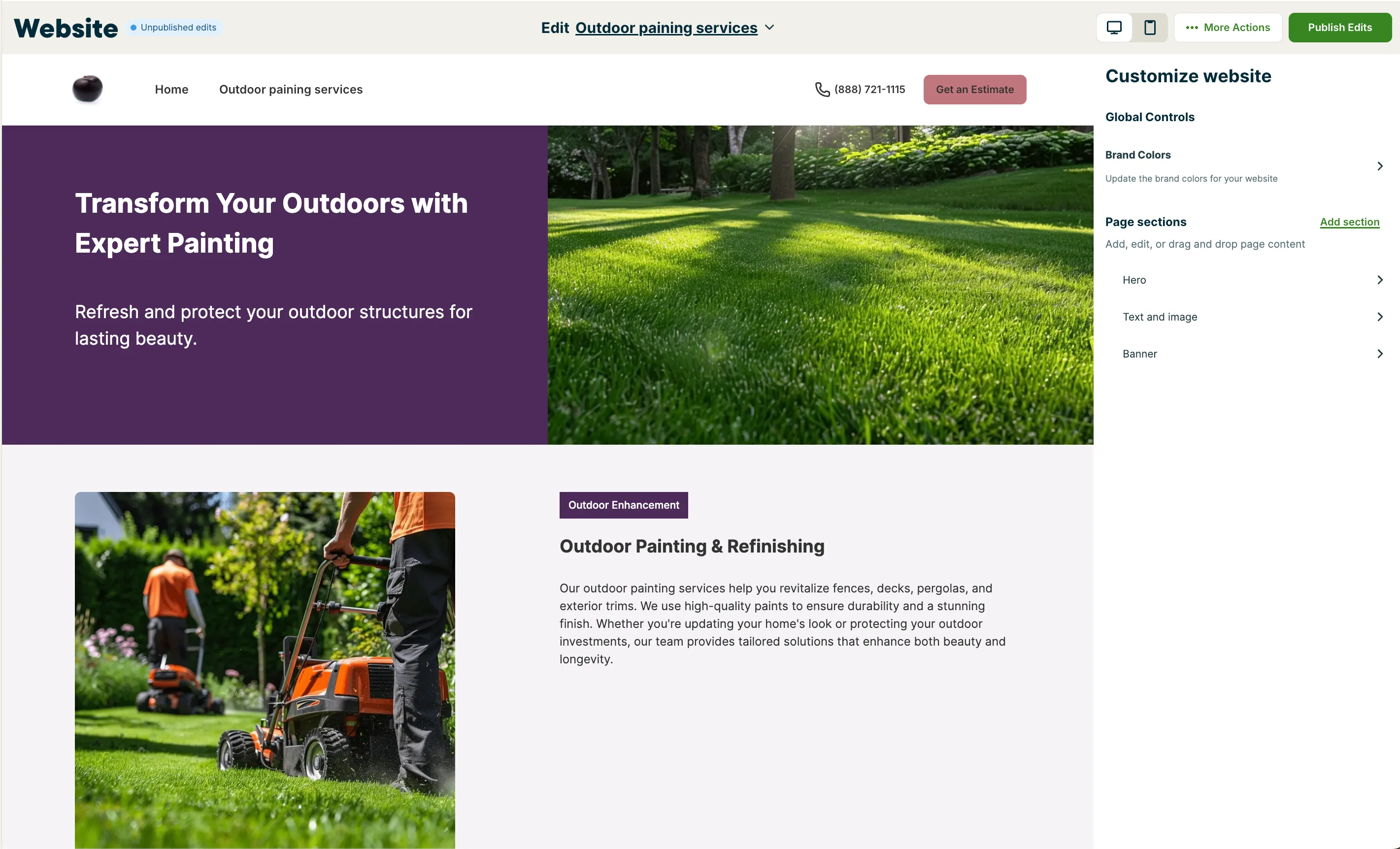
New pages will appear in the navigation bar alongside your other pages, making it easy for clients to browse your services.
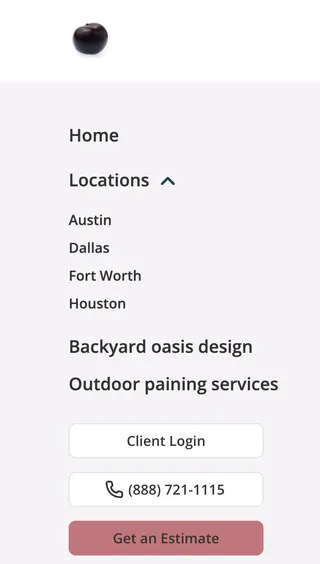
You can organize your website pages into menu groups. A menu group adds a heading to your site’s navigation, with any pages in that group nested underneath it. Pages that aren’t in a menu group will appear directly in the navigation bar.
Manage the pages on your website
Once pages on your website have been added, they can be managed using the the dropdown menu at the top of the website editor.
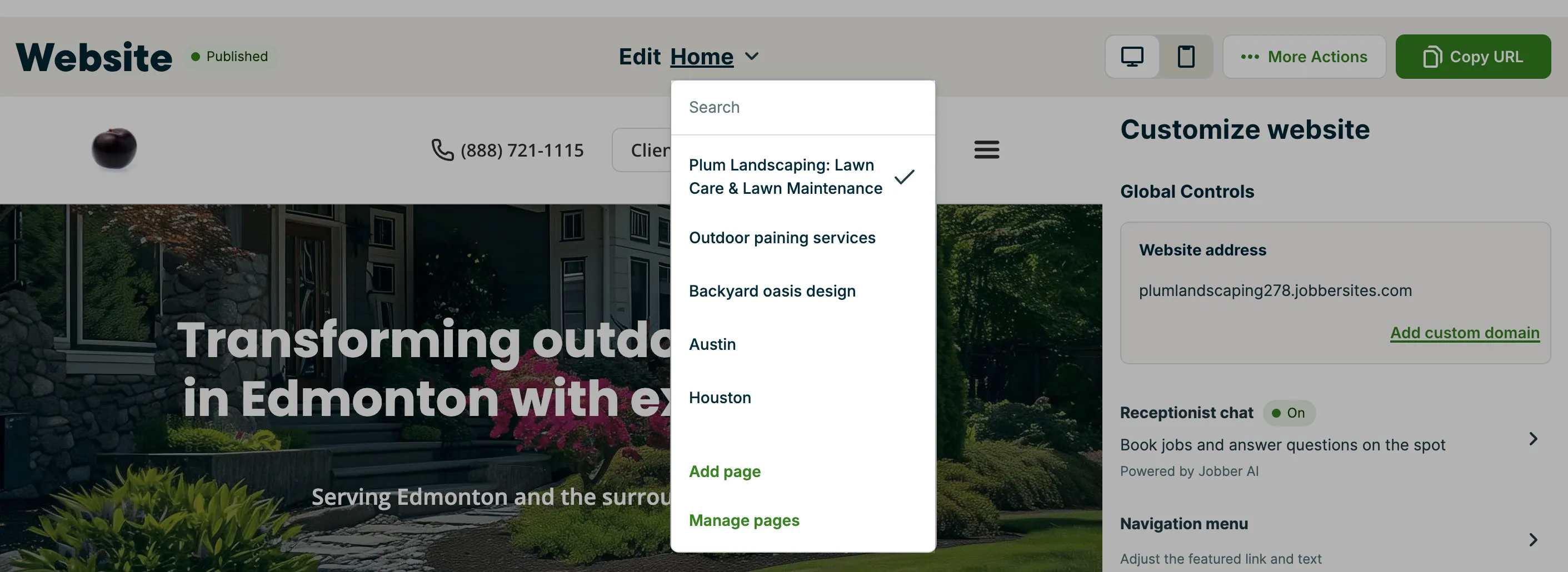
This drop down menu can be used to:
- Search: If you have multiple pages, use the search bar to quickly find the one you want to edit.
- Switch pages: Select a page from the list to open it in the editor.
- Add a page: Choose Add page to create a new service or custom page.
- Manage pages: Select Manage pages to see a full list of your website’s pages.
The order of pages in your Manage Pages list matches the order they appear in your website’s navigation. To rearrange pages, click and drag any page to a new position. If you’ve created a menu group, you can also drag pages into that group to nest them.
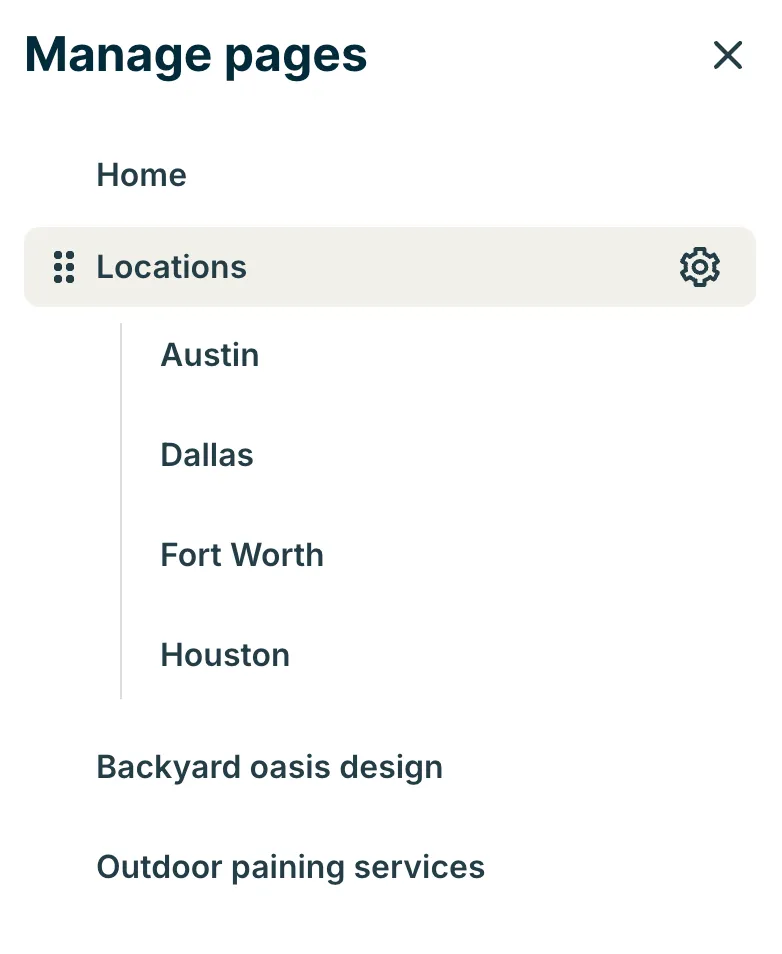
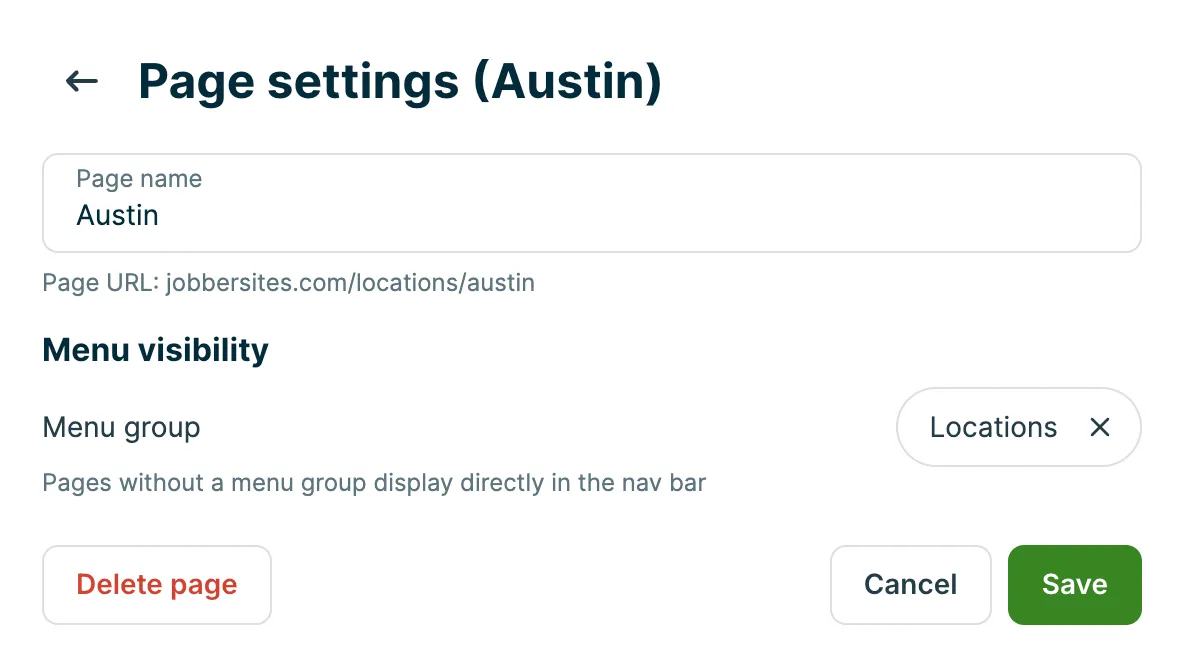
Select the Gear Icon in line with each page to edit the page’s settings, including:
- Page name: To rename this page, enter a new page name then select Save. The page URL will be automatically adjusted to reflect the new name.
- Menu group: Pages that have been set up in menu groups will appear directly in your website’s navigation bar nested under that group’s name. To add a menu group, select Add menu group from the menu visibility section of the page settings. If the page already belongs to a menu group, click the x to remove the menu group before adding a new one.
- Delete page: To delete this page from your website, select the Delete button, then confirm the deletion.
Receptionist–powered by Jobber AI–is included in your website
You can add Receptionist to your Jobber website with one click. Adding Receptionist to your website gives your clients a chat option where they can:
- Chat to ask questions and get instant answers
- Submit requests for services
- Book jobs directly online if you have Online Booking set up
Receptionist availability on websites
The website chat feature of Jobber Receptionist is available on all plans.
Phone and text message replies are an additional feature which can be added on to select plans, or are included on all Plus Plans. Receptionist is available in the United States, Canada, and the United Kingdom.
Note: While you can continue using your existing phone number with Receptionist, a dedicated phone number (DPN) in Jobber is still required.
Only admin users can access the Receptionist dashboard and settings.
To set Receptionist up on your website:
- In Jobber, go to Website from the side navigation.
- In the website editor panel, select the option for Receptionist chat.
- Toggle Show Receptionist chat to turn it on.
- (Optional) Select Preview Chat to see what your customers will experience when they interact with Receptionist.
Choose which phone number displays in your navigation menu
Your website’s navigation menu can display either the phone number in your Company Settings or your Dedicated Phone Number (DPN).
If you have an active DPN, your website displays it by default when you create a new website. If you already have a website, your navigation menu keeps displaying your Company Settings number until you switch it.
To choose which phone number your website displays:
- Select Marketing, then Website from the side navigation.
- From the Customize website panel, select Header and Footer.
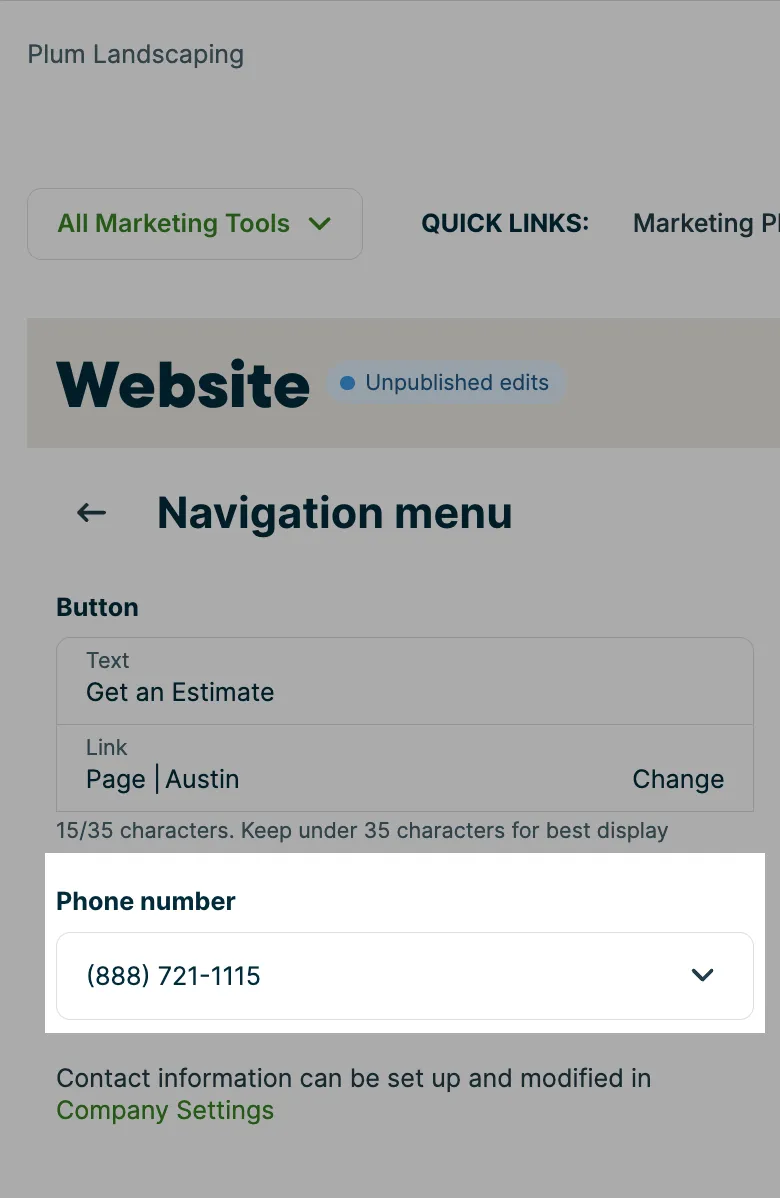
- Under Phone number, select the number you want to display.
If your Dedicated Phone Number becomes inactive, your website automatically displays your Company Settings number instead.
Change your website’s URL
The URL for your website is displayed above “Customize website”. Once published, this will be your website’s address.
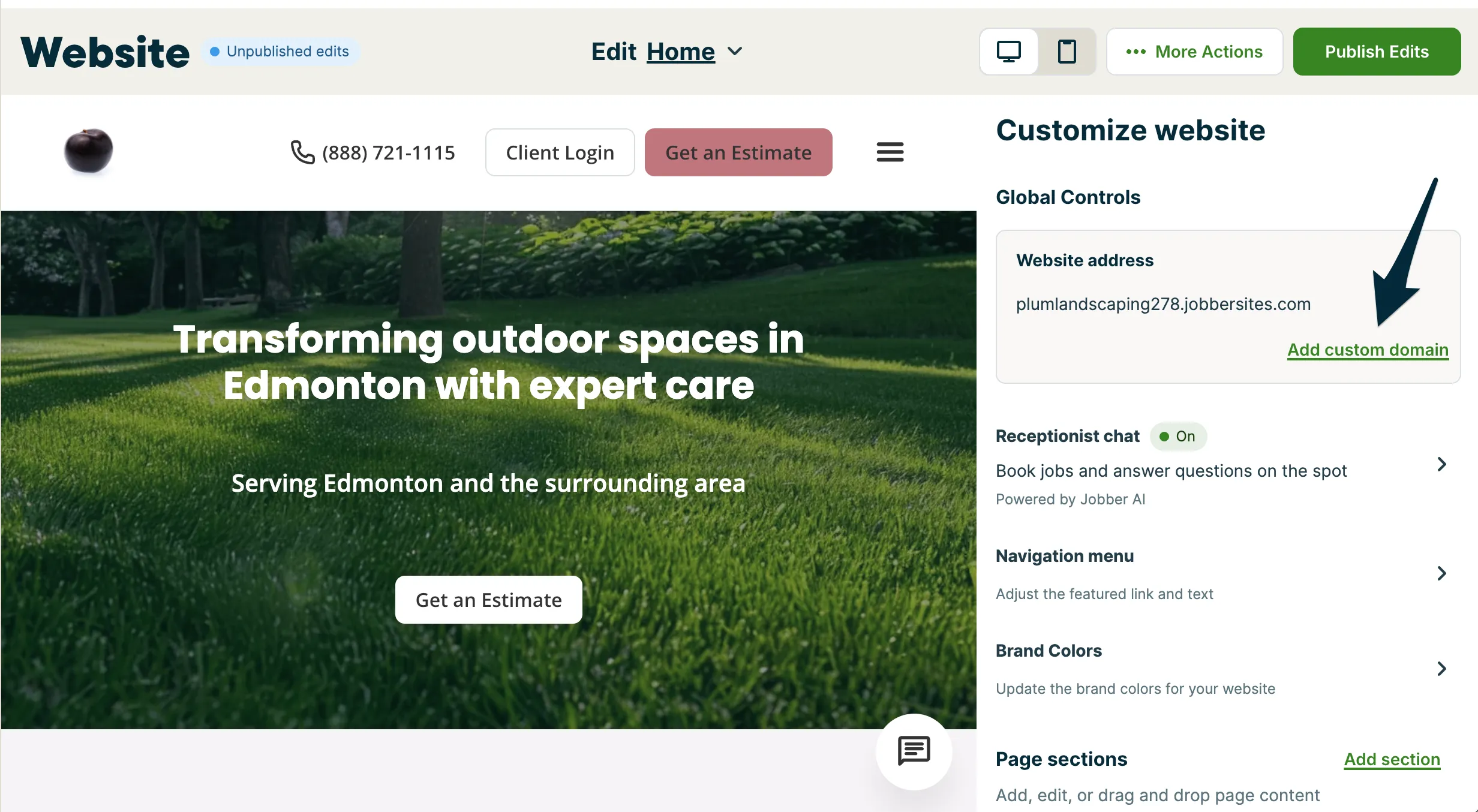
To change your article URL, select the pencil icon. From the pop-up enter the URL that you would prefer.
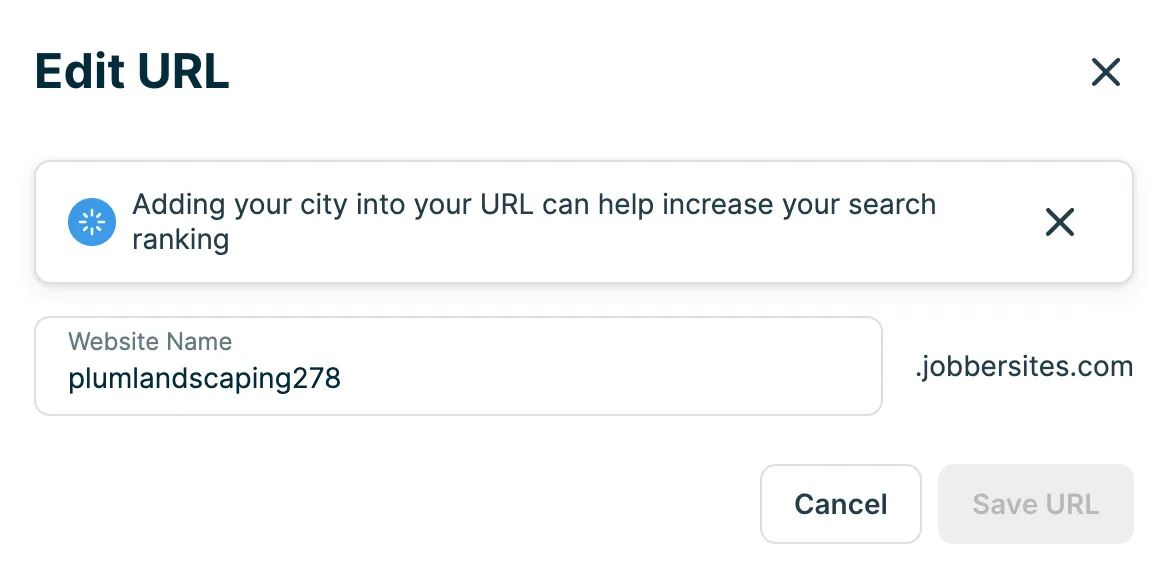
Note: All websites generated through Jobber will have “.jobbersite.com” as part of the domain, unless you have set up a custom domain.
Publish your website
When your website is customized the way you want, you can make it live by clicking Publish. Your site will then go through a review process to ensure it complies with Jobber’s Terms of Service. This review usually takes up to three business days.
After your site is approved and published, you’ll see a Published label in the website navigation header.

Note: Websites are available when subscribed to Jobber on select plans. If you are still in trial, you will need to subscribe to Jobber on a supported plan to publish your website.
Publish edits to your website
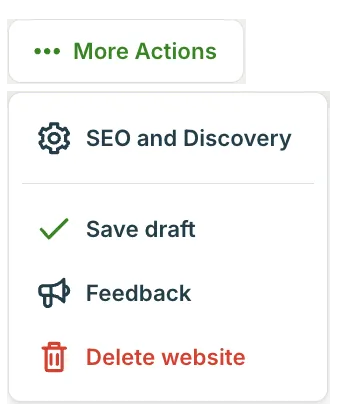
When you make edits to your website, they won’t go live right away. Instead, you’ll see a label showing that you have unpublished edits. To publish them, click Publish Edits. If you need to leave before publishing, you can save your changes as a draft by clicking More Actions and selecting Save draft.

Delete your website
To delete your website:
- Select Marketing, then Website from the side navigation.
- Select More Actions, then choose Delete Website.
- Select Delete from the pop-up to confirm your website’s deletion.
Note: Once deleted, your website cannot be recovered. A new website can be generated, however.
Optimize your website for search engines
Your website will be online immediately after being published, however websites may take up to 2 weeks to appear in search results. Your website will be automatically created with meta tags and descriptions to boost your SEO, however your site title and site description can be updated to make it easier for potential customers to find and choose your business.
To optimize your website’s SEO:
-
Select Marketing, then Website from the side navigation.
-
Select More Actions, then choose SEO and Discovery.
-
Update your Site Title and Site Description.
Site Title: This is the headline that appears in search results and browser tabs. It should clearly reflect what your business does. If you change your company name after publishing your website, make sure to adjust the Site Title field with your new company name. The Site Title field supports up to 60 characters.
Site Description: This short paragraph appears below your title in search results. It’s a great place to highlight your services, location, and anything that sets your business apart. Keep it under 150 characters for best results.
-
Select Update Settings to save your changes.
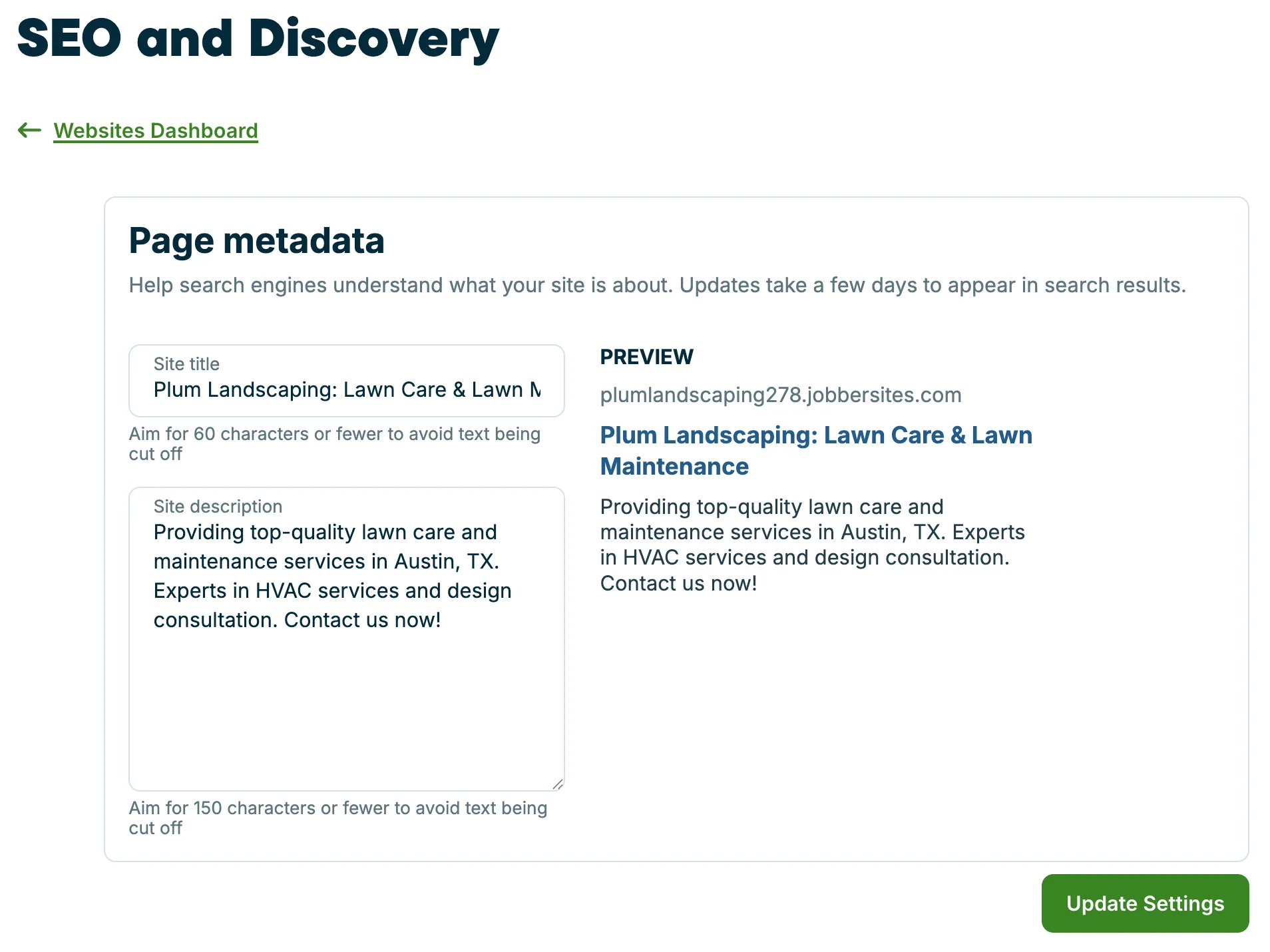
As you fill in your title and description, you’ll see a live preview showing how your site might appear in Google search results. This helps you write copy that’s clear, compelling, and easy to scan.
It can take a few days for updates to appear in search engines. While we can’t control when search engines crawl your site, updating your metadata ensures you’re putting your best foot forward.
If publishing your website is successful, you will see a pop-up letting you know. This pop-up will also have a link to your new website! Select the clipboard icon to copy your new website’s URL. You will also receive an email letting you know your website has been published.
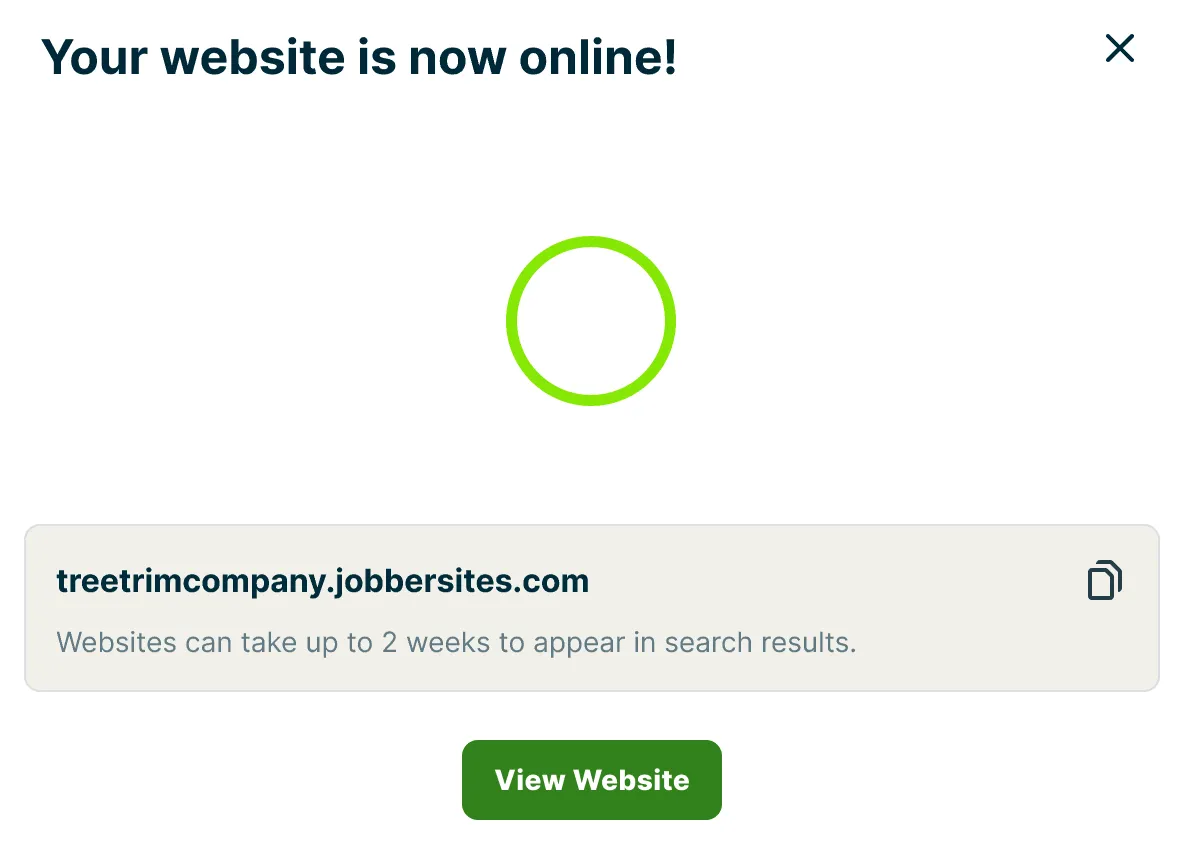
Your website may be flagged by review if the content does not pass moderation. If this is the case, your website will be automatically published when the review is complete, typically within 48 hours. You will receive an email letting you know once your website has been published.
In the meantime, you’ll see the status of your website as “under review” from the website dashboard.

Set up a custom domain
By default, your Jobber Website comes with a Jobber-provided web address. You can take it a step further by using a custom domain—your own unique web address, like www.yourbusinessname.com.
A custom domain helps your business look more professional, makes your site easier to remember, and strengthens your brand.
Learn how to set up a custom domain
Note
In order to set up a custom domain, you must first publish your website. You won’t see the option to add a custom domain if your website is unpublished.