

Overview
Your team can clock in and out of jobs and track expenses from anywhere, so you can prep payroll faster.
Timesheets in Jobber help you track your team’s work hours, stay organized, and prepare for payroll—all in one place. Your team can clock in and out from the Jobber app or add time manually, so every hour worked is captured accurately.
As time is tracked throughout the day, it automatically appears in Timesheets, giving you a clear view of who worked, when, and where. Timesheets can capture all time tracked by your team — including time on visits, time on assessments, and time between jobs like travel or breaks. Timesheets give you a clear view of your team’s time in one place, with both daily details and weekly summaries to review and prepare payroll.
From the Timesheets page, you can review, edit, and manage time entries for your team. You can also approve timesheets, confirm payroll, and see total hours worked—making it easier to pay your team and understand labor costs.
With built-in features like GPS tracking and mobile timers, Timesheets give you better visibility into your team’s day while reducing manual admin work.
Time tracking availability
Time tracking is available on select plans. View our current pricing plans.
To check what plan you’re on, navigate to the Gear Icon then select Account and Billing. If you have any questions about your plan’s features or pricing, our support team is here to help!
Navigate to timesheets
To get to the timesheets section, click Timesheets from the left menu.
To view your timesheets in Jobber:
- Sign in to Jobber.com.
- Select Timesheets from the side navigation.
This page (timesheets) shows time entries created by you and your team, either by logging time manually or by starting and stopping timers in the Jobber app. From the Timesheets page, you can add, edit, or delete time entries. All tracked time is displayed in hours and minutes.
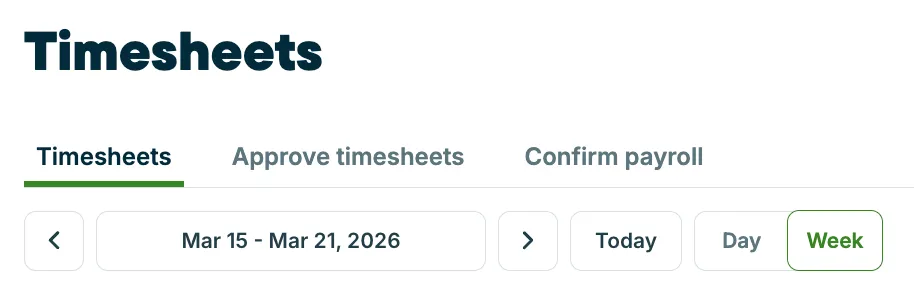
Use the date controls at the top of the page to move between days or weeks, switch views, or jump back to today.
At the top of the timesheets page, are tabs for Approve Timesheets and Confirm Payroll. Click each tab to open that page.
Time is added to the timesheets automatically when team members start and stop timers in the Jobber app, or when time is manually added to time sheets.
How do timers work in Jobber?
Jobber tracks time using timers that your team can start and stop from the mobile app. There are two types of timers:
- Visit timer tracks time spent on a specific job or visit. These are started from a scheduled visit and are tied directly to that work.
- Assessment timer tracks time spent on a scheduled assessment directly from the Jobber app. Assessment time appears on Timesheets in Jobber.com alongside visit and general time entries.
- General timer tracks time that isn’t linked to a specific job, like travel, breaks, or shop time.
Jobber also uses location timers, which automatically track when your team arrives at and leaves a job site based on their device’s location. This provides additional visibility into time spent on-site without needing to manually start or stop a timer.
On the Plus plan, there are timers for Driving, Office, Supplies, and Break, plus the ability to create up to 6 custom time tracking labels. Learn more about Tracking Time Categories and Breaks.
All tracked time—whether from visit timers, general timers, or location timers—automatically appears in Timesheets, where it can be reviewed, edited, and used for payroll.
Switch between days and timesheet views
Use the controls at the top of the timesheets page to navigate between dates and adjust how time is displayed:
- Date arrows: Move backward or forward through days or weeks.
- Date picker: Click the date range to open a calendar and select a specific date or week.
- Day: View time entries for a single day.
- Week: View time entries for the full week.
- Today: Jump back to the current day or week, depending on your selected view.
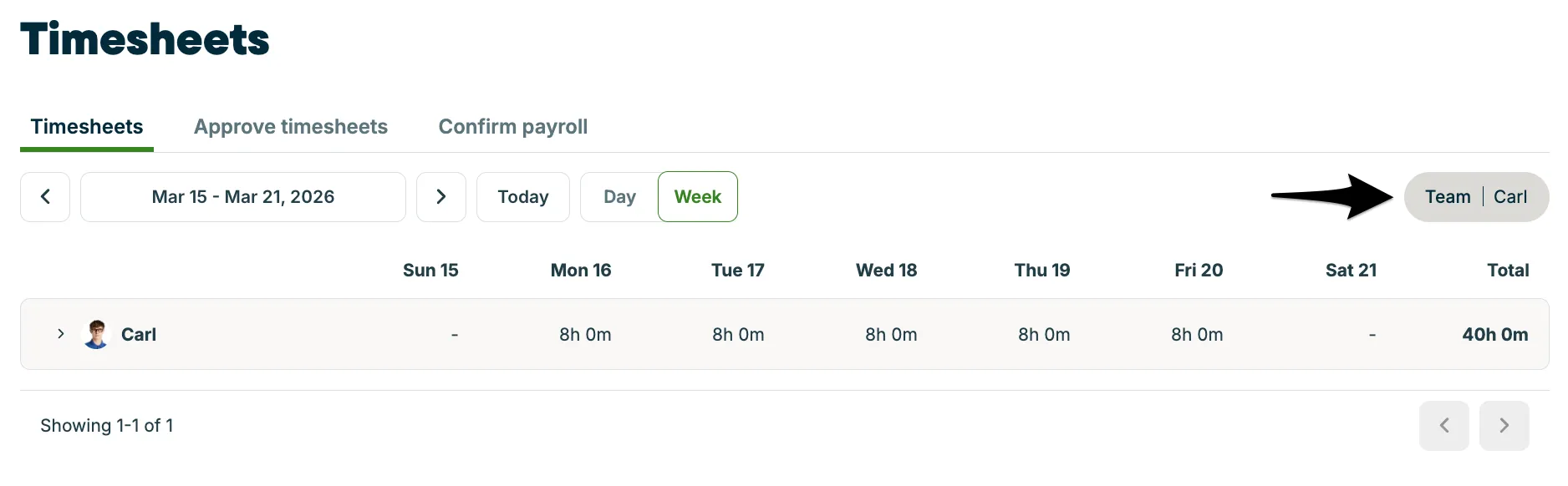
- Team: Select which team members’ timesheets to view.
From the Timesheets tab, there are two options to view your timesheets:
- By day
- By week
Select the button for either Day or Week to view your timesheets in that format.
To narrow down the number of timesheets you’re looking at, use the Team filter to select which team member’s time entries are visible on the timesheets page.
Note: If you deactivate a team member, they can still appear in the Team filter for any period where they have tracked time. This means you can review and prepare payroll for a recently deactivated team member without reactivating them.
Turn on crew control
Crew control lets team members with permission to view and edit everyone’s time clock in, clock out, and start or stop visit timers for the whole crew at once from mobile. It’s on by default for eligible accounts on Plus or Unlimited plans.
To turn it on or off:
- Select Timesheets from the side navigation.
- Select Settings.
- Turn on or off Crew control.
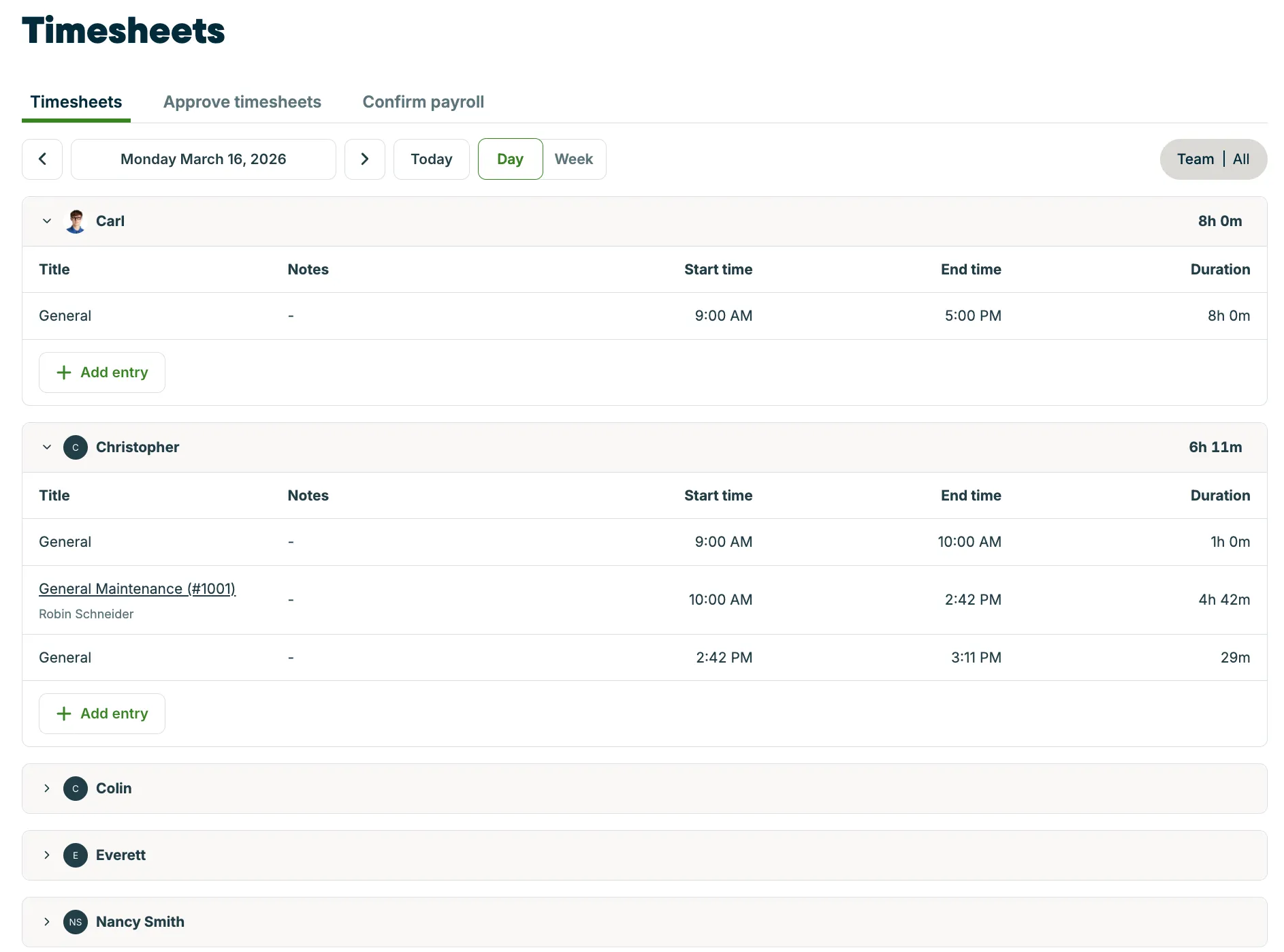
View timesheets by day
The daily view shows detailed time entries for each team member on a specific day, including start times, end times, and total duration.
To view and manage time entries for a single day:
- Click Timesheets from the left menu.
- Select Day to switch to the daily view.
- Use the date controls to choose the day you want to review.
- Review each team member’s total hours for the day, displayed on the right side of their row.
- Click a team member’s row to expand it and view individual time entries.
Each time entry includes the title, timesheet notes, start time, end time, and duration, so you can see exactly how time was tracked throughout the day.
From the day timesheet view, you can:
- Click an existing entry to edit the details.
- Click Add entry to log additional time.
The daily view is helpful when you need a more detailed breakdown of how time was spent, making it easier to review, adjust, and verify hours worked.
View timesheets by week
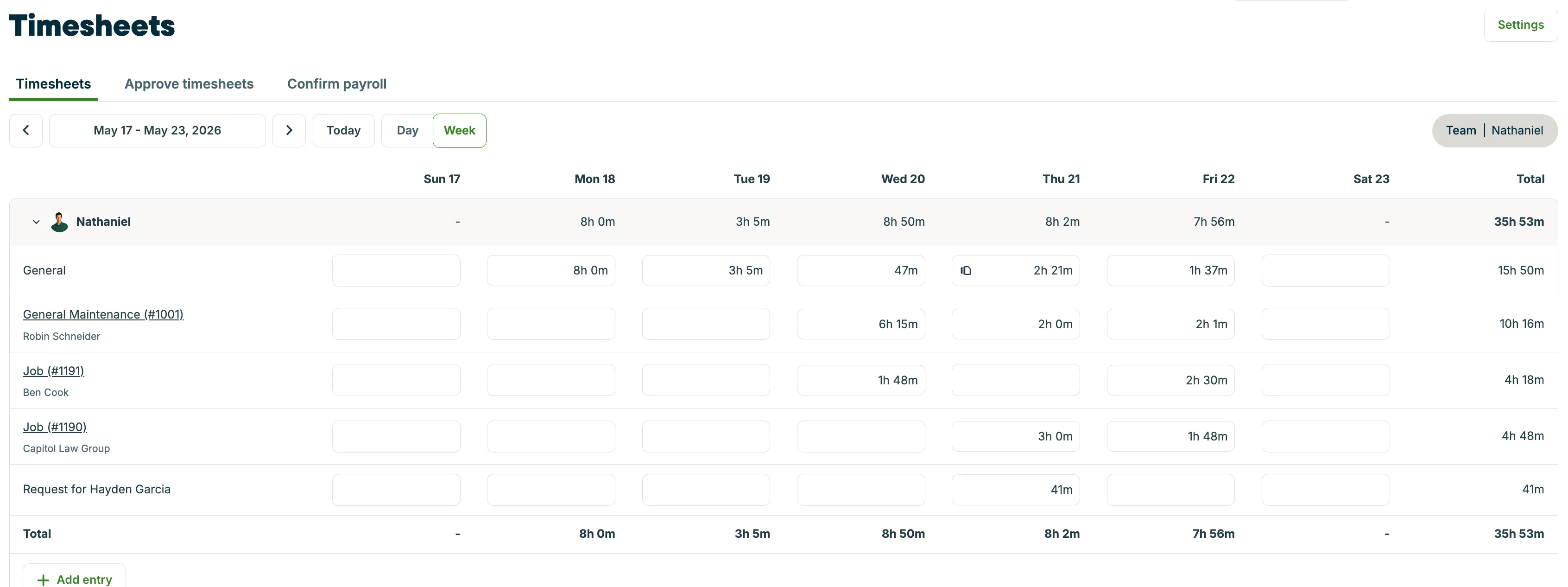
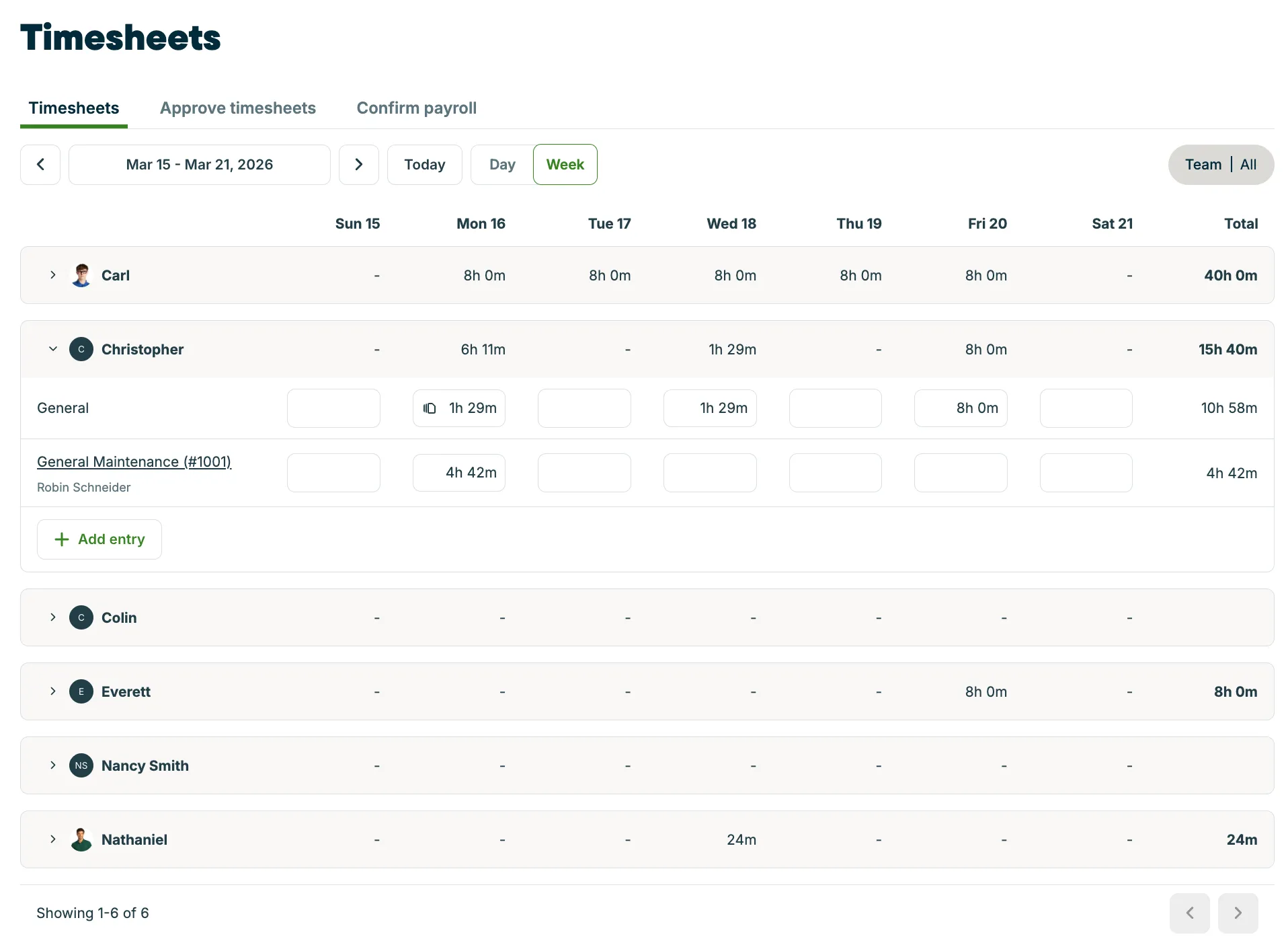
The Timesheets page gives you a weekly view of your team’s tracked time, so you can review and manage hours all in one place. Use the weekly view to compare hours across your team and review totals at a glance.
To view timesheets by week:
- Click Timesheets from the left menu.
- Select Week to view time entries for the selected date range.
- Use the date picker or arrows to move between weeks.
- Review each team member’s total hours for the week, with a daily breakdown across the row.
- Click a team member’s row to expand it and view detailed time entries, including time tracked for visits and general time.
- Select a time entry to edit the hours, or use Add entry to log additional time.
- Use the totals column to quickly review each team member’s total hours for the week.
Each time entry includes the title, timesheet notes, start time, end time, and duration, so you can see exactly how time was tracked throughout the day.
In the weekly view, all team members are displayed in a single list, making it easier to compare hours, review time at a glance, and make updates without switching between pages.
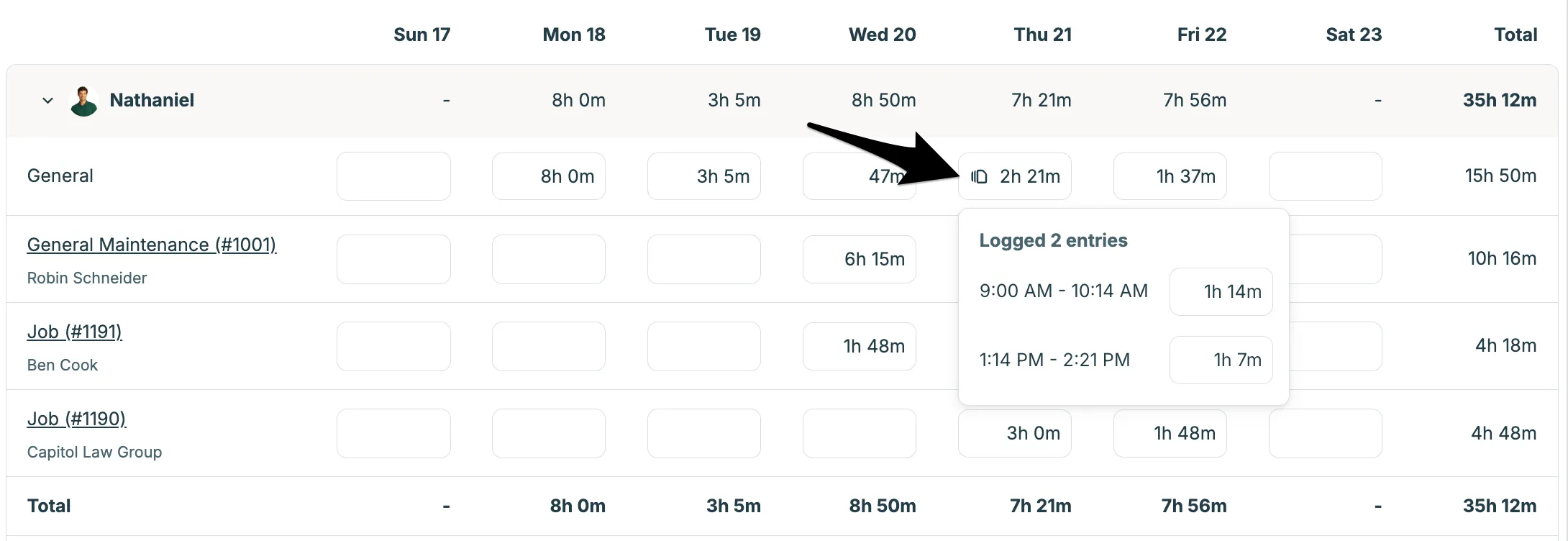
On a day where there are multiple time entries recorded for a category, you’ll see an icon of multiple timesheets. Click this icon to view the breakdown of time entries. This only appears on the week view since time recorded in each category is aggregated.
Add time manually
You can track time from the timesheets page by either clocking in to start a general timer (typically at the beginning of your day) or by adding a time entry manually.
Clock in and out (general timer)
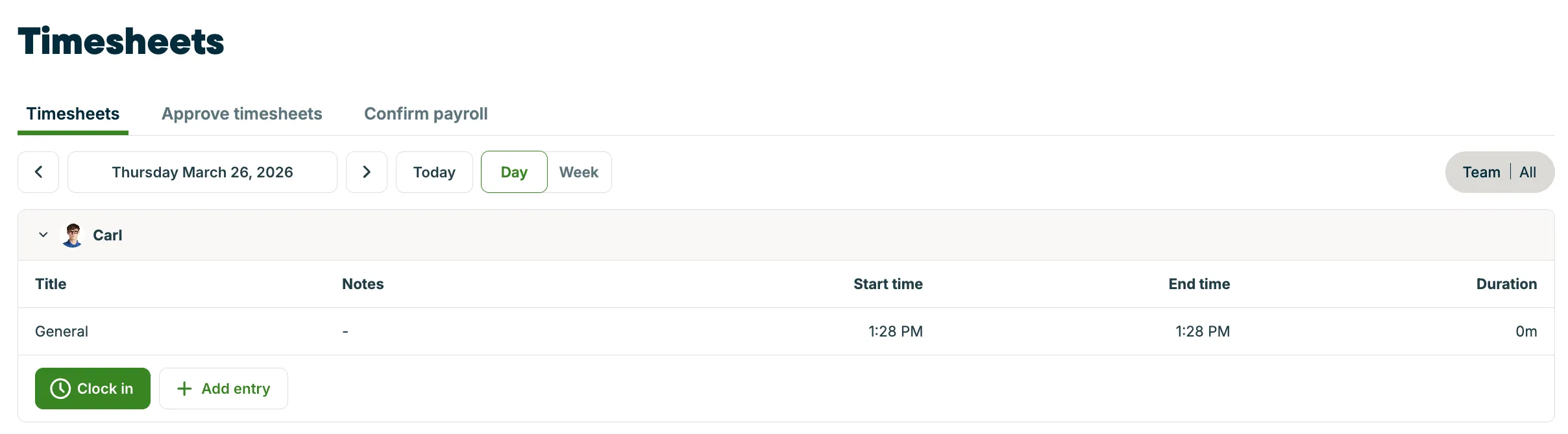
Use Clock in to start tracking time in real time.
- Click Timesheets from the side navigation menu.
- Locate the team member and expand their row.
- Click Clock in to start a general timer.
The general timer will begin running immediately and track time until it is stopped or a visit timer is started. The general timer tracks time not tied to a specific job (such as travel, breaks, or shop work).
To stop the general timer, click Clock out.

Add a manual time entry
To add a manual time entry:
- Click Timesheets from the side navigation menu.
- Locate the team member and expand their row.
- Click the Add entry button.
- Enter the job or general time, date, start time, and end time.
- Add notes if needed.
- Click Save.
The new entry will appear in the team member’s timesheet and be included in their total hours.
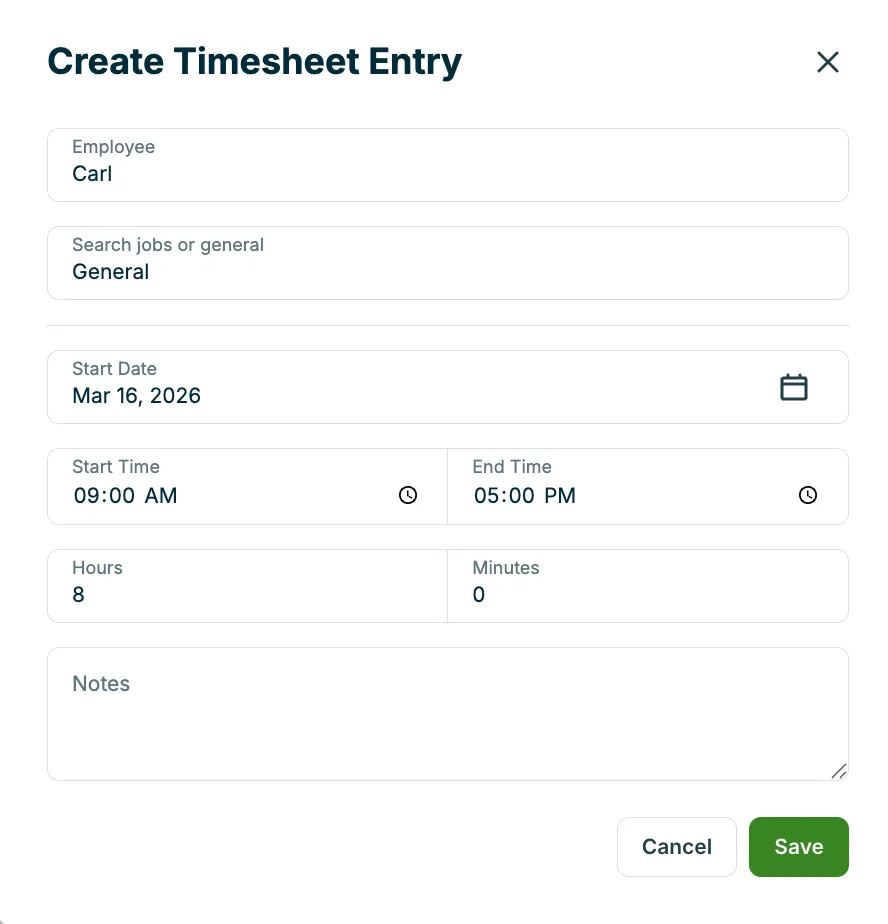
When creating or editing a timesheet entry, you’ll fill out the following fields:
- Employee: The team member the time entry is for. This is filled in automatically based on the selected user.
- Job or general: Select a specific job/visit or choose General for time that isn’t tied to a job (like travel or breaks).
- Start date: The date the time was worked.
- Start time / End time: The time the work began and ended.
- Hours / Minutes: The total duration of the time entry. This is calculated automatically based on the start and end times, but can also be adjusted manually.
- Notes: Optional details about the work performed or any additional context.
Edit or delete timesheet entries
You can edit time entries from the Timesheets page if changes are needed:
- Click Timesheets from the left menu.
- Find the team member and expand their row.
- Locate the time entry you want to update.
- Click the entry to open it.
- Make changes to the employee, category, date, start time, end time, or notes.
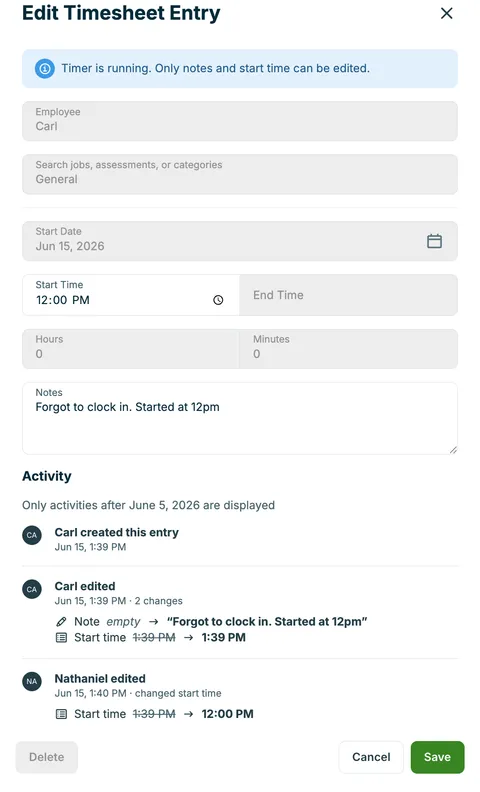
Note: When a timer is currently running, only the notes and start time can be edited. - Click Save to apply your changes.
Every edit you make is recorded in the entry’s edit history. Any updates will automatically be reflected in the team member’s total tracked time.
To delete a time entry:
- Click Timesheets from the left menu.
- Find the team member and expand their row.
- Locate the time entry you want to update.
- Click the entry to open it.
- Open the time entry, then click Delete.
- Confirm your deletion, by selecting Delete.
Note: Time entries cannot be deleted while the timer is currently running.
View the edit history for a time entry
Every timesheet entry keeps a log of changes made to it. The edit history shows who created or edited an entry, when the change happened, and what was updated — so you can verify your timesheet data with confidence.
Each log entry includes:
- The name of the team member who made the change
- The date and time of the change
- The field that was updated, including the previous and new values
To view the edit history for a time entry:
- Select Timesheets from the side navigation.
- Locate the team member and expand their row.
- Click the time entry you want to review.
- Scroll to the Activity section at the bottom of the edit window.
The edit history stores up to 100 entries per timesheet. Only changes made from June 5, 2026 onward appear in the log.
Generate GPS waypoints with timers
When your team uses timers in the Jobber app, GPS waypoints are automatically recorded to show where work took place.
Each time a timer is started or stopped, Jobber logs the location of the device. These GPS waypoints are attached to the time entry and provide a record of where the timer activity occurred.
Note: GPS waypoints are only recorded for time tracked using timers in the Jobber app.
GPS waypoints help you:
- See where your team was when time was tracked
- Verify when work started and ended at a location
- Get additional context for time entries on the Timesheets page
Waypoints are collected automatically while using timers and do not need to be added manually. They are tied to the time entry and can be viewed alongside the tracked time for more visibility into your team’s workday.
Learn more about GPS Waypoints
Timer GPS waypoint troubleshooting and tips:
- If no GPS data appears, the time entry may have been added manually instead of tracked with a timer.
- If visit locations seem inaccurate or missing, check that location services are enabled on the team member’s device. Learn more about Location Timers in the Jobber App.
- GPS waypoints are only recorded when timers are used in the mobile app—they are not added to manually created entries.
View GPS waypoints on timesheets
You can view GPS waypoints recorded by timers directly from the day view of the timesheets page to see where time was tracked.
- Click Timesheets from the left menu.
- Switch to the Day view and navigate to the date you’re looking for.
- Locate the team member and expand their row.
- Find the time entry you want to review.
- Click the map pin icon to open the GPS waypoint details.
GPS waypoints show where a timer was started and stopped, helping you verify when and where work took place.
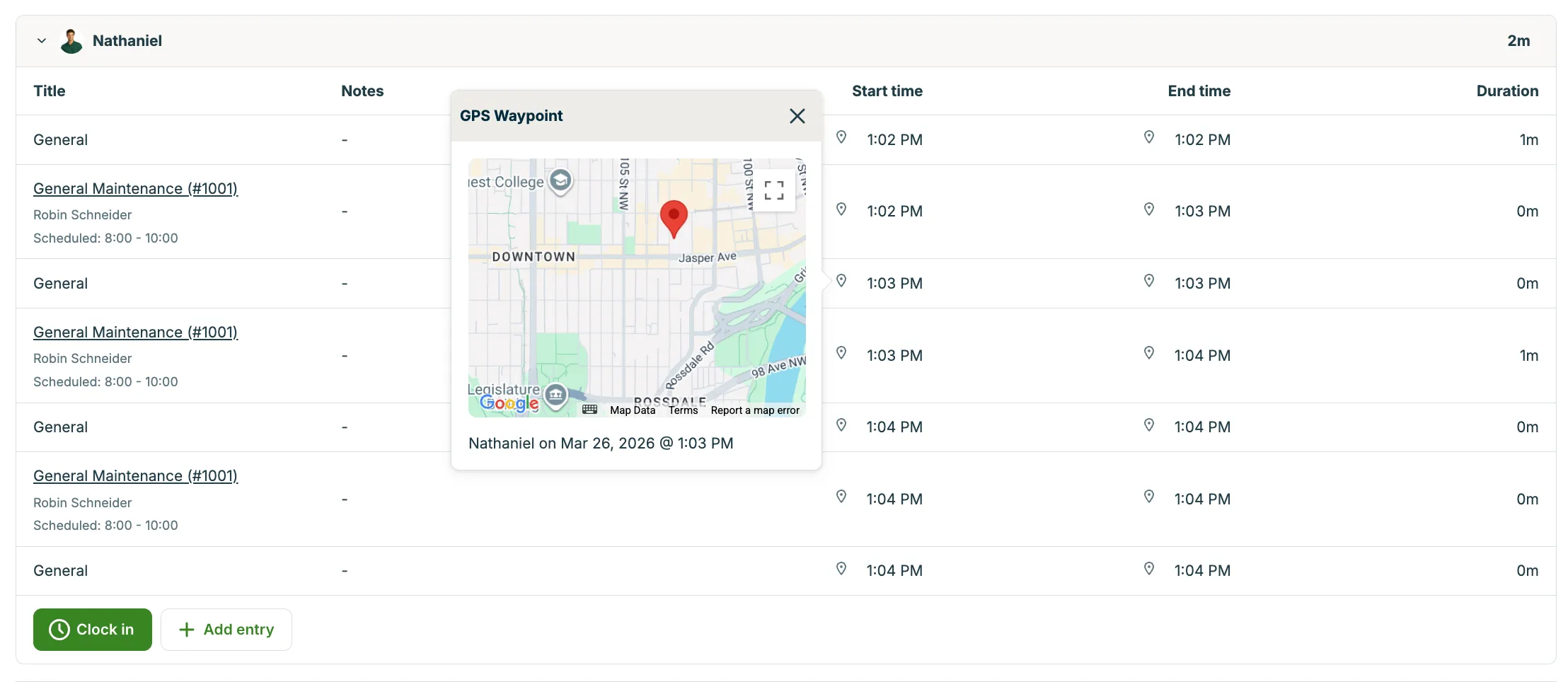
Note: To view detailed time entry information, including start and end times and GPS waypoints, switch to the Day view. The weekly view shows a summary of hours worked.
Labor on jobs
Timesheet entries for jobs show in the Labor section of the job. Time entries can be added both manually from the job, from Timesheets on the side navigation, or by using timers in the Jobber app.
Note: Timesheets display time in hours and minutes, but calculations (like labor costs) include seconds. This can cause slight differences in totals. For example, labor costs are calculated using the full duration (including seconds), so they may not exactly match a calculation based only on the displayed hours and minutes.
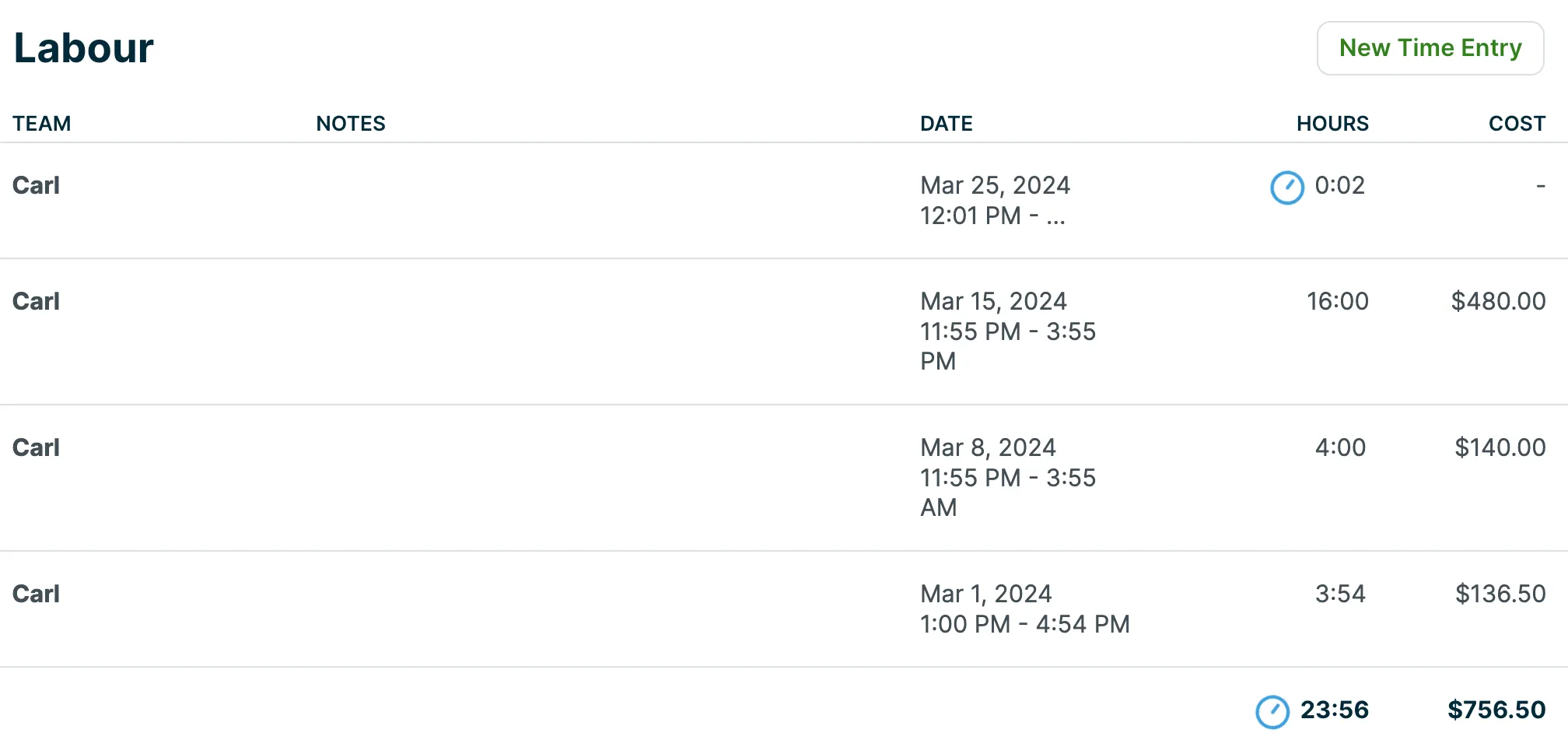
If a team member has a visit timer currently running, it will be indicated by a running clock icon. Labor costs for job costing (available on select plans) are not calculated until the timer has been stopped.
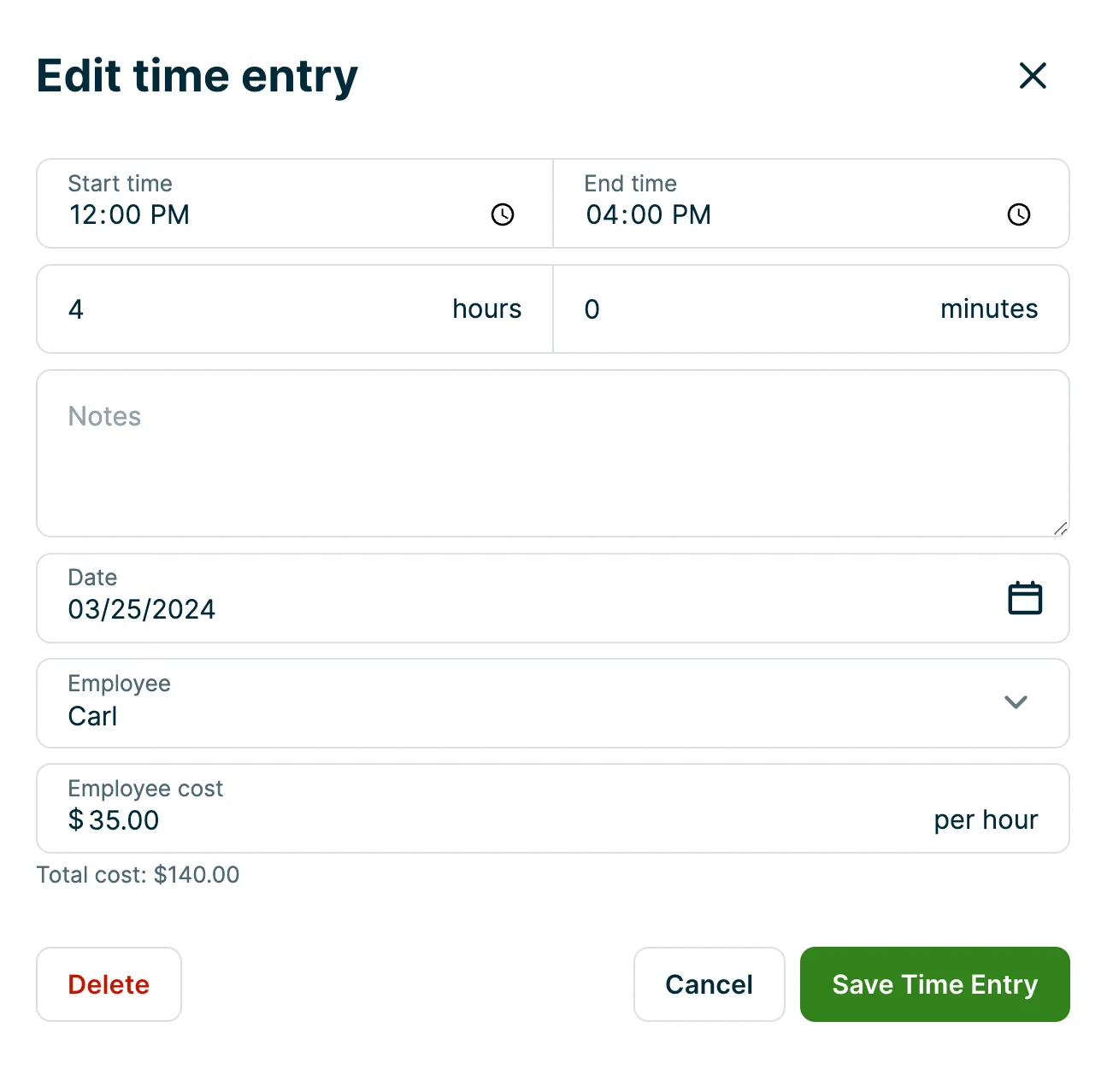
To manually add time, select New Time Entry to manually add time that an employee has worked to this job. Then enter the:
- Start time an end time (duration will be automatically calculated based on these times)
- Notes
- Date
- Employee cost per hour (available on select plans as part of job costing)
Below the fields, you’ll see the total cost based on what you have filled out. When you’re done, select Save Time Entry.
Timesheet report
To open the timesheets report, follow these steps:
- From the side navigation, select Insights then Reports.
- From the Work reports category, select Timesheets Report.
The timesheet report is where you might view your time entries for processing your company’s payroll.
At the top of the report you can change the date range, and the report will show an overview of hours broken out by user.
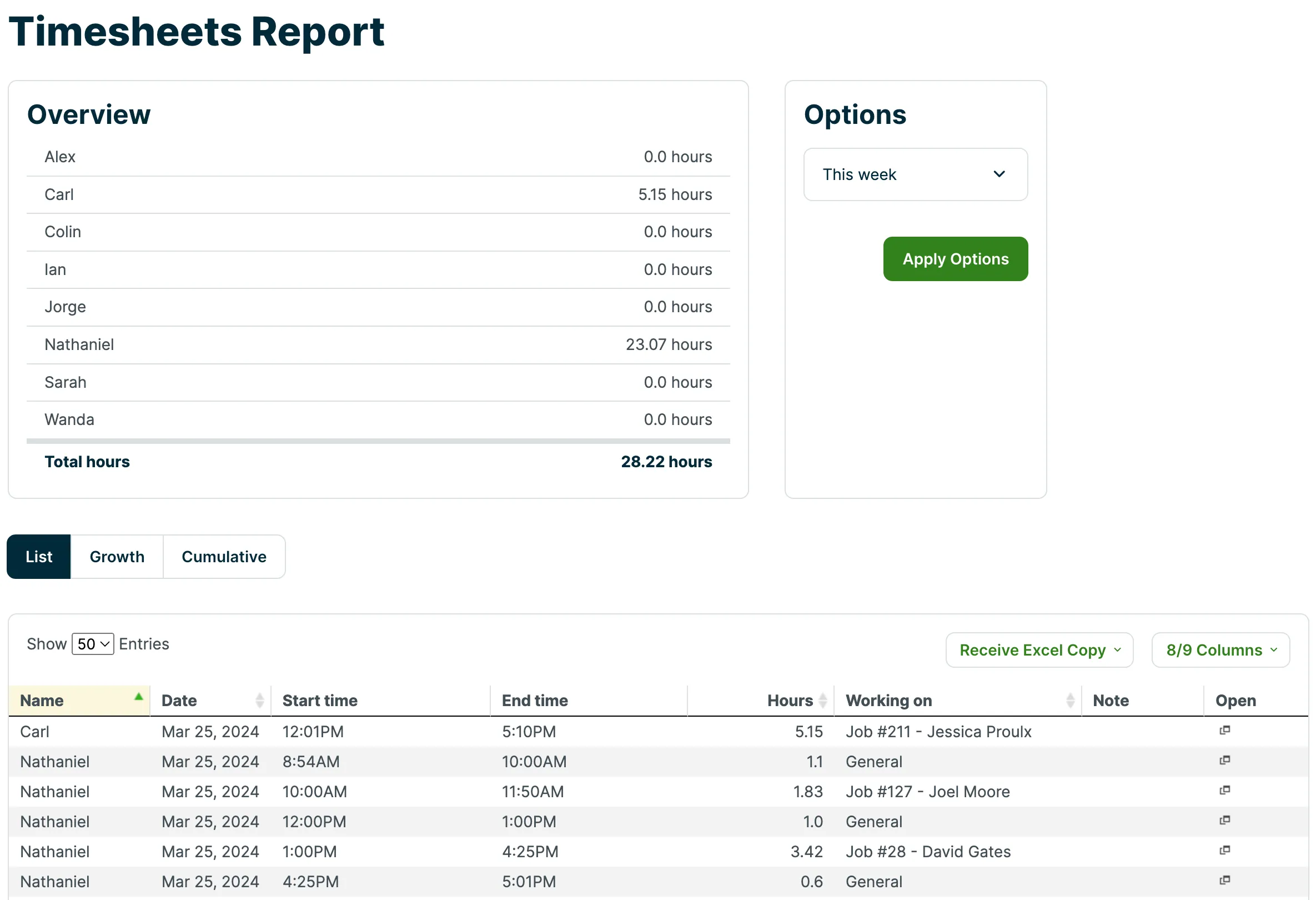
Under this there is a list report of all the entries.
To export the report click Receive Excel Copy.
You can add or take away columns from the report using the Columns button. If you want to change between a list report and a growth or cumulative report click the Growth or Cumulative buttons.
The hours column in this report does not show time in hours and minutes the way the Timesheet page does. Time here is displayed in hours with decimal places, so 2 hours and 30 minutes would be displayed as 2.5 in the hours column.