

Overview
Job costing lets you track profit margin, profit, and total price on both one-off and recurring jobs — so you can see exactly how each job contributes to your bottom line.
Job costing is available on the Grow and Plus Plans. View our current pricing plans.
To check what plan you’re on, navigate to the Gear Icon, then select Account and Billing. If you have any questions about your plan’s features or pricing, our support team is here to help!
Your profitability is calculated using:
- Timesheets - based on the hourly cost of your employees and their time worked on a job
- Line items - including both unit costs and unit prices
- Expenses - these are the expenses logged on a job
Job costs are internal, so your clients won’t see your profits or costs. Only employees with job costing permissions will be able to view the profit bar on jobs.
Settings
To get started with job costing, there are some settings that you may first wish to adjust.
Set your hourly labor cost
Each user can be set up with a labor cost in order to calculate job profitability.
Navigate to the Gear Icon then select Manage Team then select your user. From the labor cost section, enter the employee cost in dollars per hour. The employee cost should include the employee’s wage, benefits, and taxes. When you’re done, click Save User.
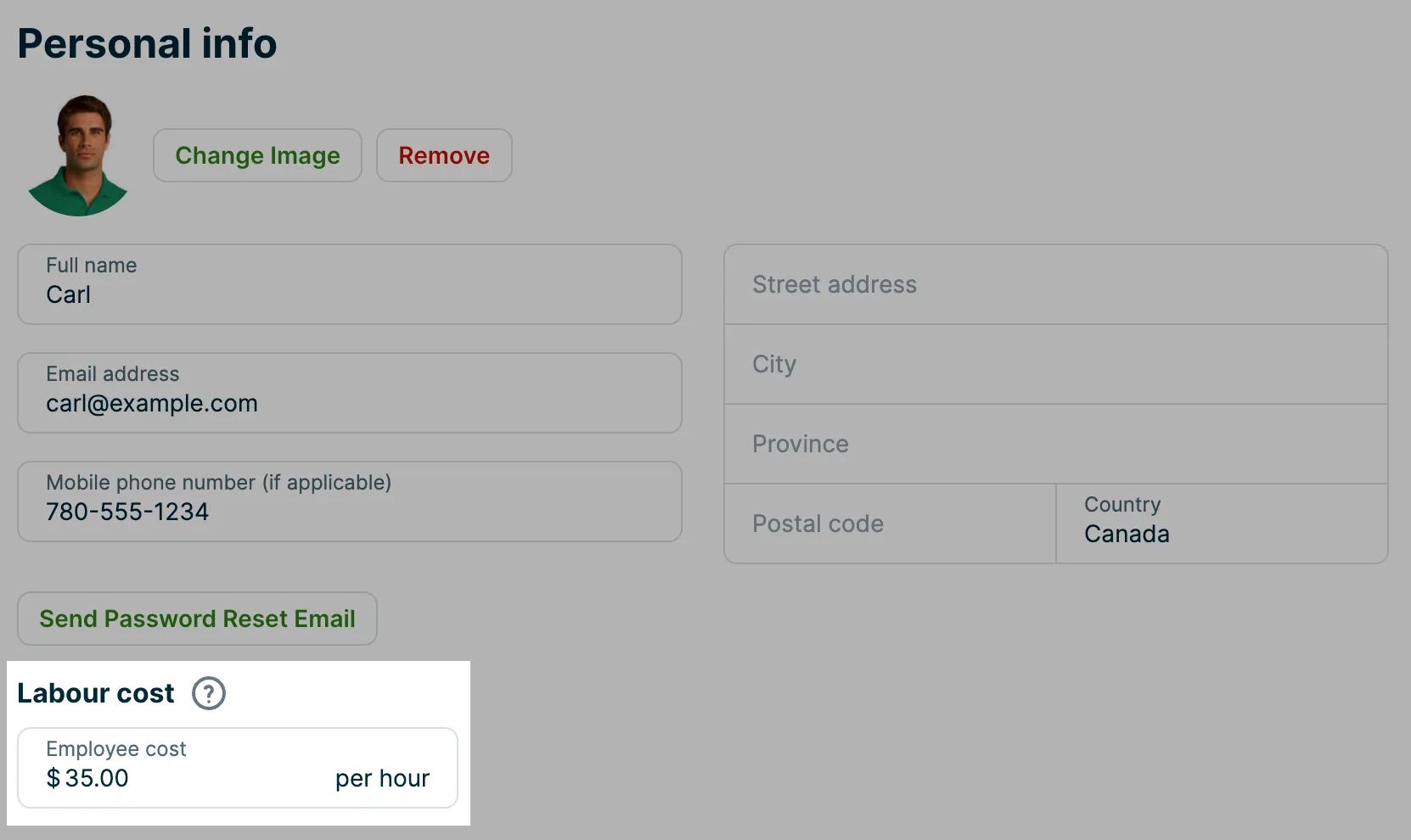
When employees log their time using time sheets in Jobber, their labor costs are calculated based on their current labor rate and time entries for the job. The labor cost will apply to their future time sheet hours, not any past time sheets. In the future if your team member gets a raise and their labor cost is edited, the new employee cost will apply to their time sheets going forward. Learn more about timers and timesheets.
User permissions
Also from your Manage Team settings, there is a user permission setting for job costing that when enabled, allows non-admin team members to see job profits that are calculated from line items, labor, and expenses. Admin users have access to job costs within their admin user permissions. In order to turn on the job costing permission for a non-admin user, team members must also have access to the following permissions (at minimum):
- Show pricing: Enabled
- Timesheets: View, record, and edit everyone’s timesheets
- Expenses: View, record, and edit everyone’s
- Note: for non-admin users to have this permission setting, expense tracking needs to be enabled in your settings first. Learn more about Expenses
- Jobs: View only
Once these are enabled, the job costing permission can be toggled ON.
Note: the job costing permission is different than the “show pricing” permission which controls whether a user can see line item prices and costs.
Set up your line items
For job costing, line items need to be set up with a unit cost in order to calculate the job profitability. Unit costs can be added to the line item on the quote or job level, or from your products and services list.
From the job, in the line items section, select New line item then enter your line item or select from the list. Make sure there is a quantity, unit cost and and unit price entered.
Note: As a best practice, we suggest only adding costs to product line items for material costs. Since costs can be both stored on line items and also on labor (timesheets) and expense entries, the job profit can be inaccurate if the same cost is accounted for twice. To ensure accurate job profitability make sure not to add labor costs to line items, but instead record them using timesheet expenses. If labor costs have been added to line items at the quote level, and then are being double accounted delete the costs on the line items at the job level to correct.
Costs on jobs
The way job costs are calculated for one-off and recurring jobs varies. For one-off jobs, the job cost is calculated based on the entire duration of the job. For recurring jobs, since you may be performing the job for several years, the job costs are calculated based on the last 30 days (including today). Recurring jobs also vary in that they may be set up either as fixed price jobs (where the client is paying a flat rate each month), or recurring jobs that are billed per visit.
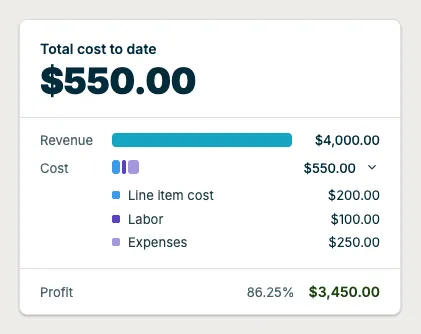
On your jobs, there is a section that includes your line items, timesheets, and expenses which is what makes up the the calculation for your job profitability. At the top of this section is your “profit bar” which shows:
- Profit margin % (calculated by profit / revenue * 100)
- Total price (This is your revenue, calculated as the sum of the line items on the job. This is pre-tax. Jobber is gradually rolling out a change so this figure will include any discounts applied to the job. If you don’t see discounts reflected here yet, check back soon. In the meantime, this figure excludes discounts.)
- Total line item costs (This is the total of the line item costs, ie. the cost that you pay for a product or what a service costs you)
- Total timesheets costs (these are your labor costs)
- Total expense costs (these are expenses associated with this job)
- Profit (revenue - total costs)
- A visualization of the line item cost, labor, expenses, and profit
How the profit bar displays depends on whether the job is complete or still in progress. For completed jobs, Jobber highlights profit percentage — giving you a clear picture of your final margin. For jobs that are still in progress, Jobber shows costs so far instead of a profit percentage. Because the job is not yet finished, a profit percentage at this stage would reflect incomplete data. These calculations are for this job only.
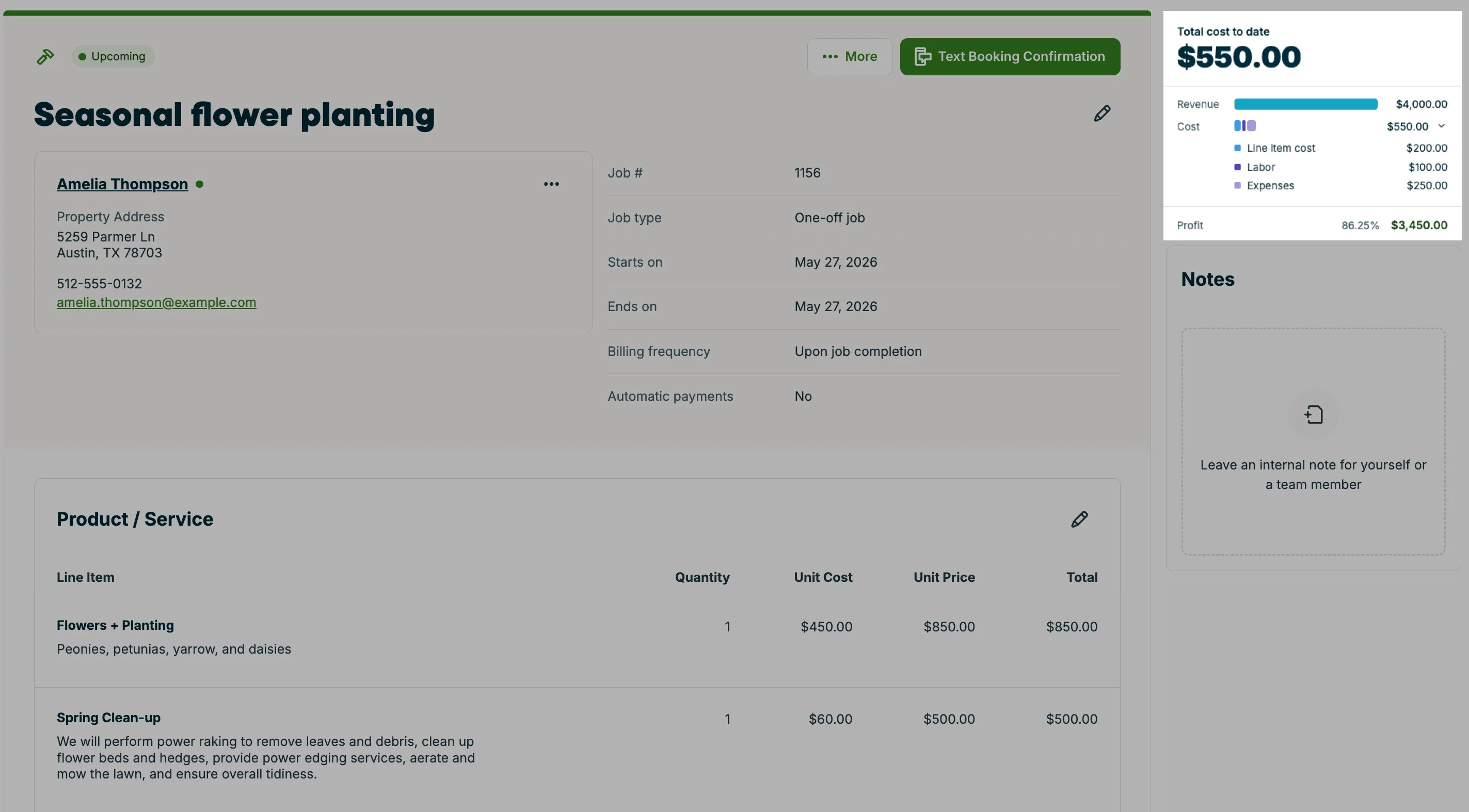
For fixed price recurring jobs, revenue is calculated by multiplying the price of the line item by the number of invoice reminders scheduled in the last 30 days.
For per visit recurring jobs, revenue is returned as the job line item price multiplied by the number of visits with a start date in the last 30 days.
Products and services
Below are your line items where you can add quantity as well as both unit cost and unit price.
Note: The unit cost is the amount that you’ve spent on a line item. The unit price is the amount charged to the client for the line item.
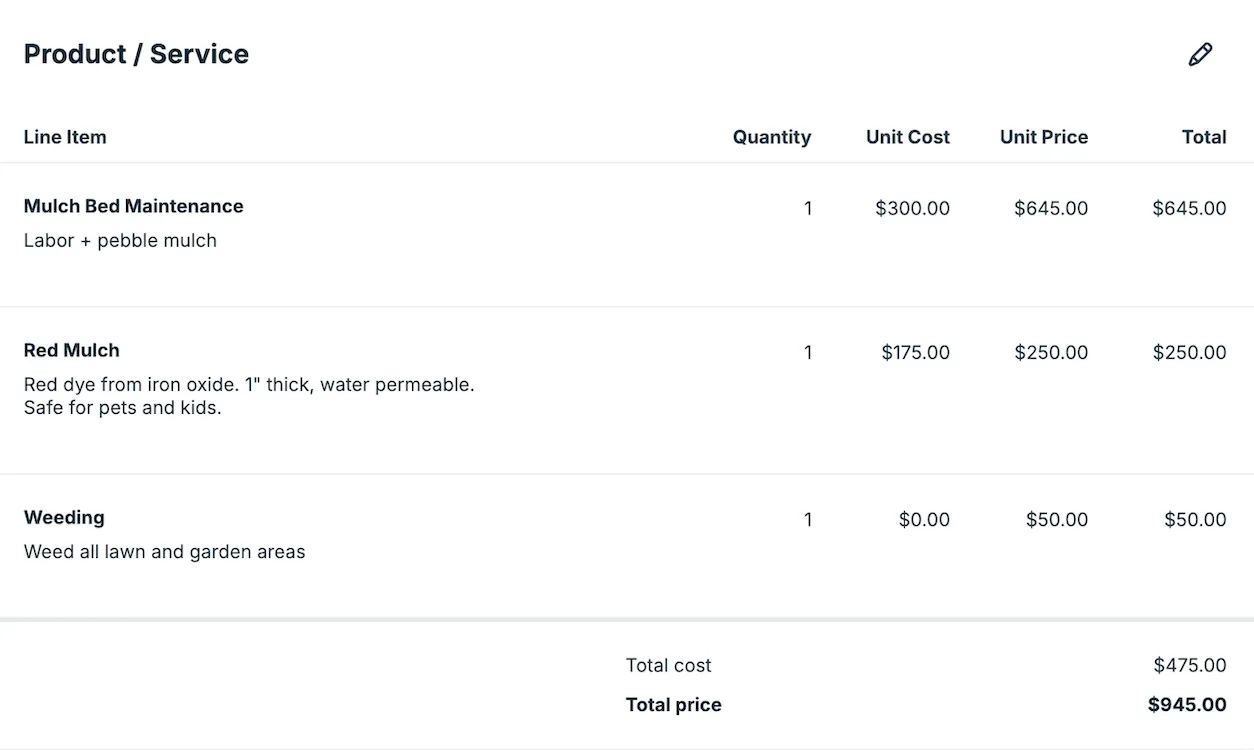
For one-off jobs or recurring jobs with a fixed price, the line items cost is calculated as the total of the line item costs. For recurring jobs with fixed price billing, if there are visits with custom line items that are different than the line items on the job, the custom line items are taken into account for the job profitability calculations. To see the number of visits and the line item cost and price, hover over the line items tooltip.
Labor
Next are your timesheets which calculate the labor for this job based on the time worked and the employee cost. Time sheets can be added both manually from the job, from Timesheets on the side navigation, or by using timers in the Jobber app.
We display the labor timesheet entries without showing the seconds, but we calculate the labor costs with the seconds to ensure accuracy. This means that sometimes the labor cost for a time entry is slightly different than what you would get if you multiply the hours and minutes by the labor cost rate, as we are calculating the value by multiplying the labor cost rate by the duration including seconds.
If a team member has a visit timer currently running, it will be indicated by a running clock icon. Labor costs are not calculated until the timer has been stopped.
To manually add time, select the Plus Icon to manually add time that an employee has worked to this job. Then enter the:
- Start time an end time (duration will be automatically calculated based on these times)
- Notes
- Date
- Employee
- Employee cost per hour
Below the fields, you’ll see the total cost based on what you have filled out. When you’re done, select Save Time Entry.
Expenses
Expenses can be added both from the job as well as from Expenses on the side navigation. Expenses associated with the job are part of the profitability calculation.
To add an expense manually, select New Expense. Then enter the:
- Date
- Item name
- Description
- Total (you can also enter a negative amount to record a credit or refund)
- Job (you can link the expense to a specific job if creating the expense from the Expenses page)
- Accounting code (these are set up in your expense tracking settings)
- Reimburse to (You can select a team member, if applicable, or leave as “not reimbursable”)
- Receipt
When you’re done, select Save Expense.
Supplier invoice scanning
On Jobber’s Plus Plan, you can also add expenses to a job by uploading supplier invoices directly from the Expenses page. Jobber scans each invoice, extracts the details, and matches it to the right job using the purchase order (PO) number on the invoice. You review and approve each draft before it is added to the job’s cost calculation.
If you’re in the field, you can capture a receipt the same way from the Jobber app using Jobber AI.
Learn more about supplier invoice scanning or capturing a receipt with Jobber AI.
Set a job profit alert
Note
Job profit alerts are available on the available on the Plus Plan. View our current pricing plans.
To check what plan you’re on, select the Gear Icon, then choose Account and Billing. If you have any questions about your plan’s features or pricing, our support team is here to help!
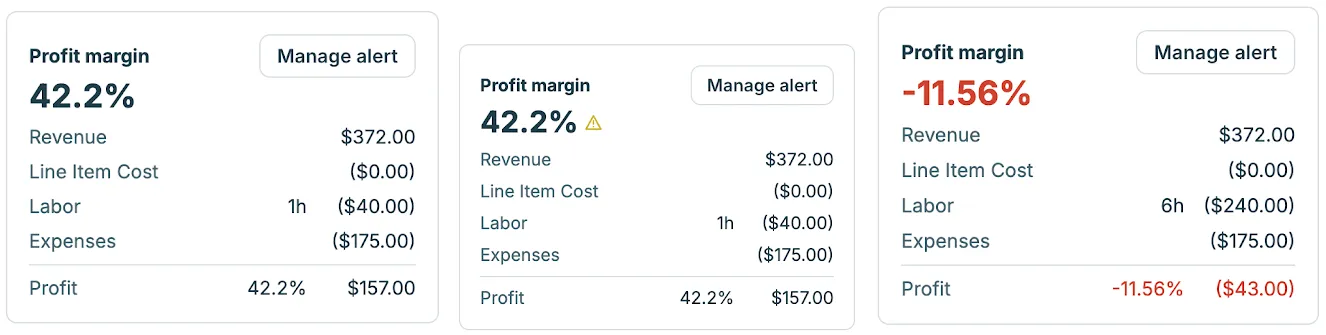
Job profit alerts help you catch margin problems early. Set a profit margin percentage for your business, and Jobber flags any one-off job that falls below it — right on the job detail page, in reports, and on your Insights dashboard.
Once saved, Jobber checks every qualifying one-off job against your alert automatically. There is no per-job setup required.
If a job’s profit margin drops below your alert, Jobber highlights it with a visual warning. If you change your alert percentage, every job is re-evaluated immediately — there is no processing delay.
Job profit alerts currently apply to one-off jobs only. Recurring jobs are not included.
Set or update your job profit alert
You can set or update your profit alert from two places:
- Insights dashboard: Select Set margin alert on the “Recent one-off jobs” widget.
- Job detail page: Set it directly from any individual job.
Your alert is an account-wide setting. No matter where you set it, it applies to all qualifying one-off jobs across your account.
Job profit alerts can be viewed from the following places:
- Job detail page: This page will display an alert label showing how far below your threshold the job is. For example, “42% – 8pts below your 50% alert.”
- One-off jobs report: A warning icon in the alert column. You can also filter the report to show only jobs below your alert.
- Insights dashboard: A “Recent one-off jobs” widget with flagged rows highlighted.
- Activity feed: A notification reading “A job dropped below your minimum profit threshold” with the job number and client name.
- Email: A once-daily digest email listing recent one-off jobs that fell below your alert threshold, sent to every admin on the account. This is only available in Jobber Online, not the mobile app. To stop receiving these emails, turn off your job profit alert. There’s no separate email setting yet.
Reporting
The one-off jobs report includes the following job costing columns:
- Expenses total ($) - Sum of all expenses associated with that job
- Time tracked - Number of hours billed to a job. Displayed as HH:mm
- Labor cost total ($) - Sum of the cost of labor associated with the job. This would be the total cost for each time entry associated with the job
- Line item cost total ($) - Sum of line item costs
- Total costs ($) - Expenses total + line item + labor costs total
- Profit ($) - Job revenue - Job costs
- Profit % - ((job revenue - total costs)/job revenue) * 100
To view the one-off jobs report, select Reports from the side navigation. Under Work Reports, select One-off jobs report.
See the full column list and learn more about the one-off jobs report.
Note: Reporting is not available for job costs on recurring jobs.
Syncing with QuickBooks Online
With the NEW QuickBooks Online integration, costs initially sync from QuickBooks into Jobber. After the initial import, Jobber becomes the source of truth for costs so going forwards changes made to your costs in Jobber will be reflected in QuickBooks.
FAQ
What about jobs created before May 4, 2023?
If you have a job created before May 4, any line item costs present on the quote or products and services list will not show on the job costs. This is because the job costs model didn’t exist before May 4. When a job is created the line items are independent of both the products and services list and the quote line items, i.e. if you have a job created from a quote with a price of $10 and then you update quote line item price to $20, the job will still be priced at $10. It’s the same for costs.
Labor costs are not applied to previously existing timesheet entries. Only new timesheet entries created after a labor cost has been applied will have the labor cost. This is to allow the user to updated labor costs (due to a pay raise etc) and keep the integrity of old timesheet costs.
What about double counting — my profit looks lower than it should?
If you have both line item costs on a quote and expenses on the same job, Jobber currently counts both against your profitability. This can make your profit margin appear lower than it actually is — for example, if you quoted a $500 material cost on a line item and then also logged a $500 expense for that same material, Jobber counts $1,000 in costs instead of $500.
We’re aware of this issue and it has been raised by multiple customers. This is currently a known limitation. The right solution is more complex than simply removing one of the inputs — we’re exploring ways to give you more control over which costs are included in the profit calculation.
In the meantime, if you’re seeing unexpectedly low margins, check whether the same cost is being captured in both your line item costs and your expenses.
If you use supplier invoice scanning, check that the same material cost is not also captured in your line items. Uploaded invoices create expenses automatically, so this can happen without a manual entry step to prompt the check.