Overview
Automations in Jobber take care of repetitive admin tasks for you, so you can focus on running your business. From following up on quotes and invoices, to creating draft quotes from client requests, to alerting you about high-value opportunities—automations keep work moving in the background without you needing to remember or take manual steps. You’ll always have visibility into what’s running, and you can manage or adjust your automations anytime from your settings.
To set up or manage an automation:
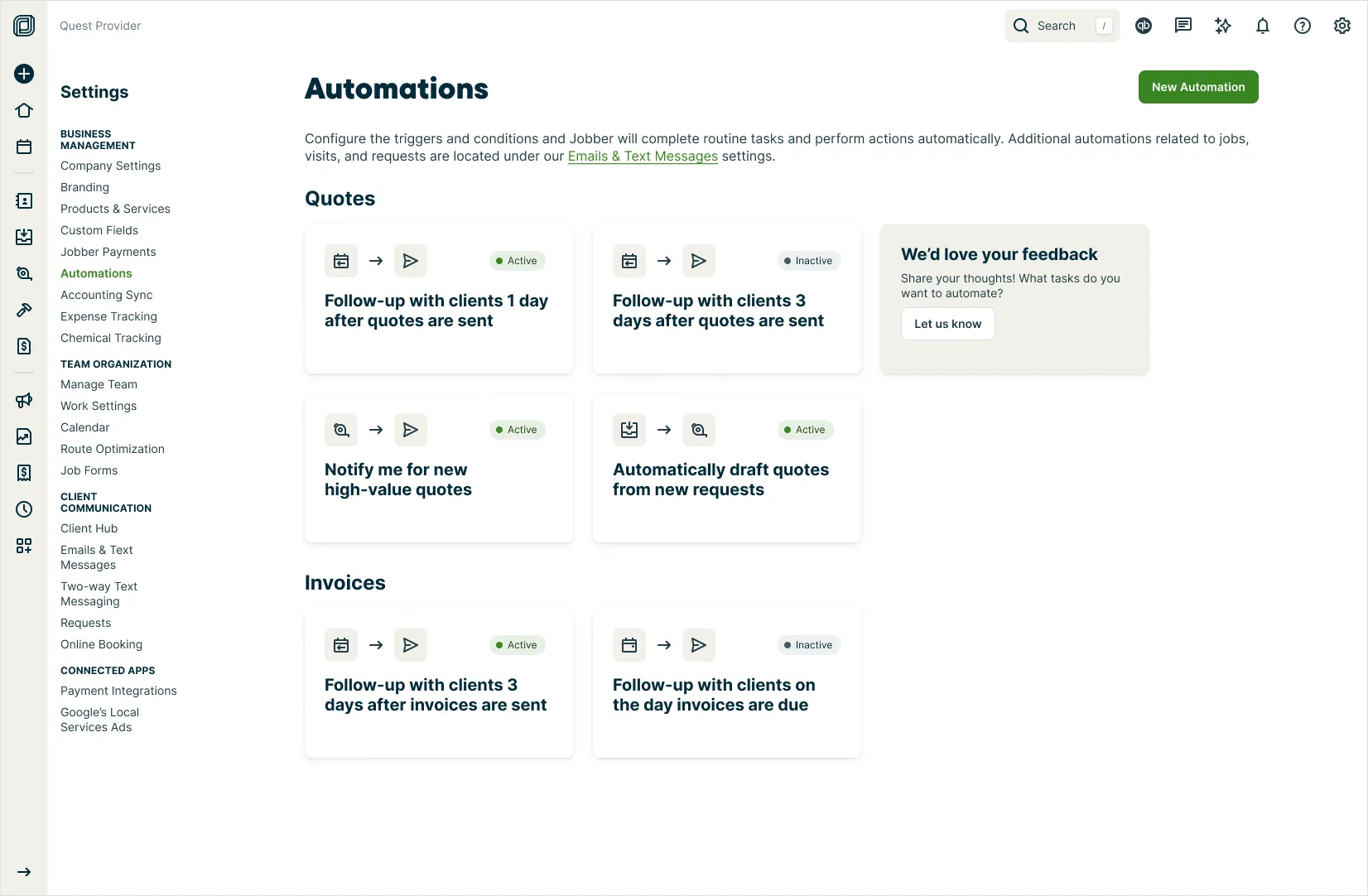
- Navigate to the Gear Icon then select Settings.
- From the settings menu, select Automations
The automations setting page is accessible to admin users.
Automations availability
Automations are available by feature availability by plan. View our current pricing plans.
If you do not see Automations in your settings menu, you can set up quote follow-ups and invoice follow-ups from your Emails and Text Messages settings.
To check what plan you’re on, navigate to the Gear Icon then select Account and Billing. If you have any questions about your plan’s features or pricing, our support team is here to help!
Request automations
The following automations are available for requests:
- Automatically archive requests – Automatically archive requests when they exceed a select number of days after the request was created without getting converted into a quote or job. This automation helps keep your sales pipeline clean so you can focus on the work that you’ve won.
Quote automations
The following automations are available for quotes:
- Quote follow-up: Send automatic email and/or text message follow ups to clients about quotes you haven’t heard back on
- This notification is sent automatically according to a schedule based on the number of days since the quote has been sent.
- This notification is sent in the same method as the quote. For example, if a quote was sent via text then the quote follow-up will also be sent via text.
- Clients and contacts who received the original quote will receive the follow-ups if they have “outstanding quote follow-ups” enabled in their communication settings on their client (or contact) profile. Learn more.
- Automatically archive quotes
- Custom quote automations
- Automatically draft quotes from new requests
- Notify me for new high value quotes
Follow up on quotes
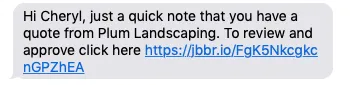
Quote follow-ups will allow you to touch base with clients when they haven’t responded back to a quote you’ve sent them. This feature will automatically send an email or text message to remind your client about their quote.
Quote follow up availability
Quote follow-ups are available Jobber’s Connect Plan and up. View our current pricing plans.
To check what plan you’re on, navigate to the Gear Icon then select Account and Billing. If you have any questions about your plan’s features or pricing, our support team is here to help!
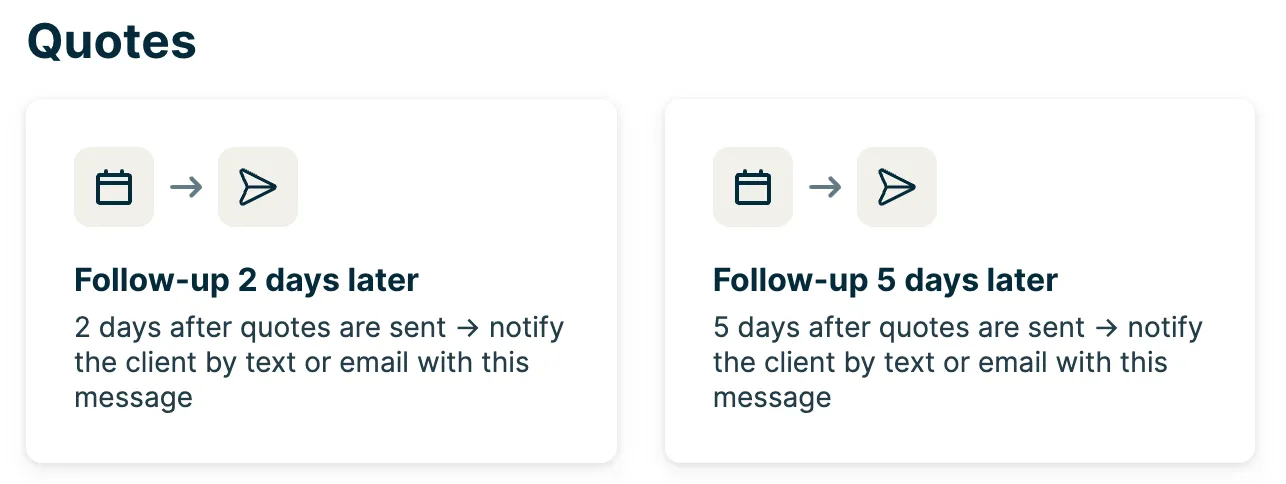
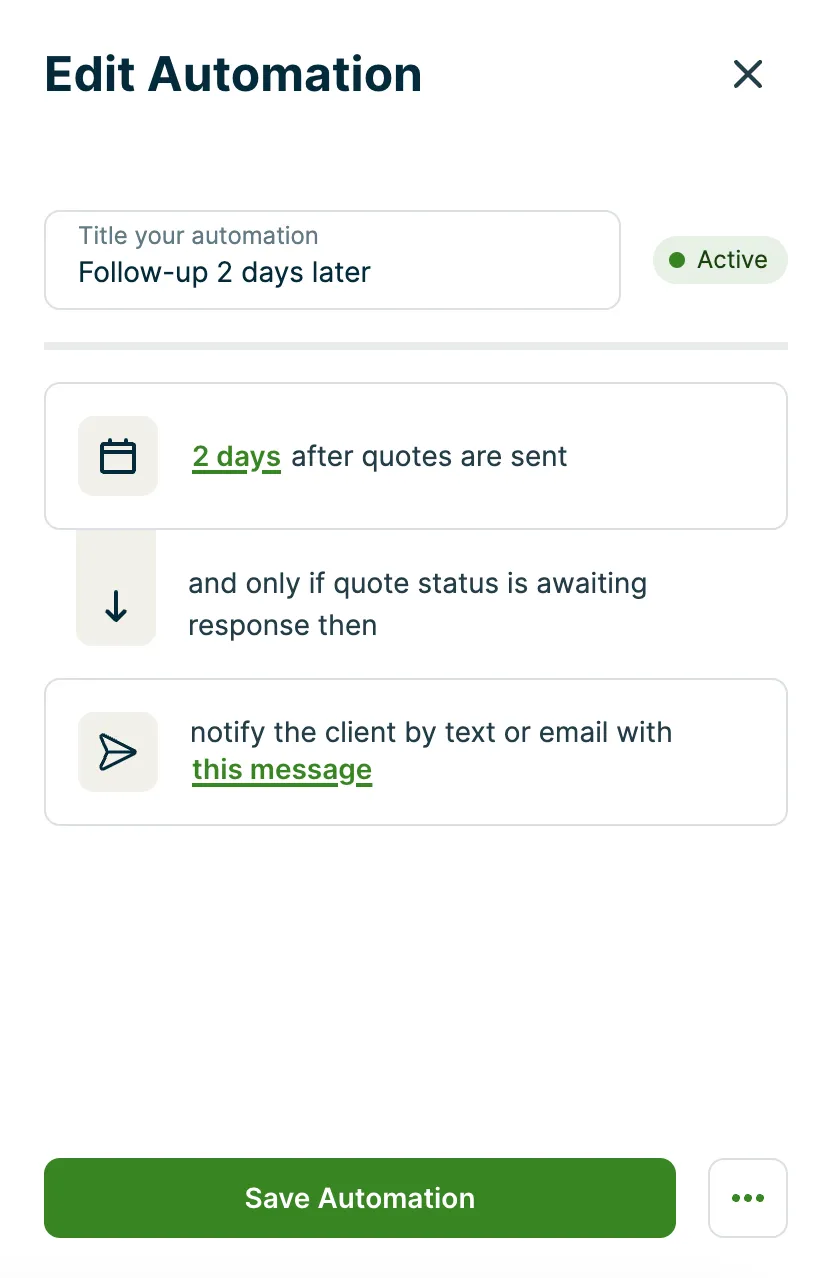
There are two quote follow-up automations available, so that you can send your clients up to two reminders about their quotes in “awaiting response” status. To customize the quote follow up automation, select one of the follow-up cards under the quotes heading to open the Edit Automation menu.
The Edit Automation menu is where you’ll set:
-
an automation title
-
when the follow-up will be sent: the number of days after sending the original quote that the follow-up will be sent. To change the number of days select the green, underlined number text and select another option from the menu. A maximum of 90 days can be set.
-
the message text: customize the content of the follow-up message.
Note: the follow-up will be sent in the same method as the quote. So if the quote was sent via text message, the follow-up will also be sent via text message.
Select Save Automation to save your automation settings.
Quote follow-ups will send at the same time of day (local time) as the original quote.
Automatically archive quotes
Tired of dealing with endless outdated quotes? Jobber can archive them automatically so your sales pipeline stays clean.
With this automation, select how many days after a quote has been sent until it should be archived. If the quote remains in “awaiting response” status (meaning it isn’t converted to a job or manually archived), it will be automatically archived according to the number of days you’ve set.
Automatically draft quotes from new requests
When clients submit requests in Jobber, automations can save you time by creating draft quotes automatically. Instead of starting from scratch, Jobber will use the details from the request, your quote templates, and past quotes to build a draft that’s ready for you to review and send.
When converting a request to a quote, there is a button for Draft for me that uses Jobber AI to generate a quote based on what was filled out on the request.
Note: Draft for me will only be an option when the request has a property associated with it. Learn how to change a property on a request.
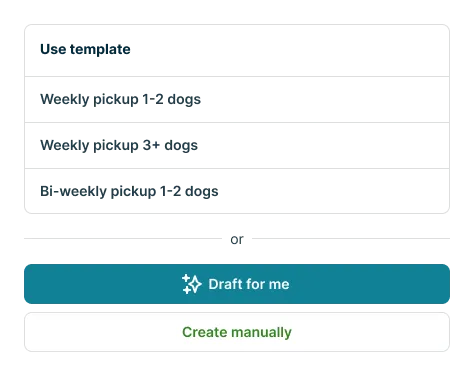
Note: Selecting Draft for me does not automatically enable the auto-drafted quotes automation. You can use this option as a one-off without turning on auto-drafting.
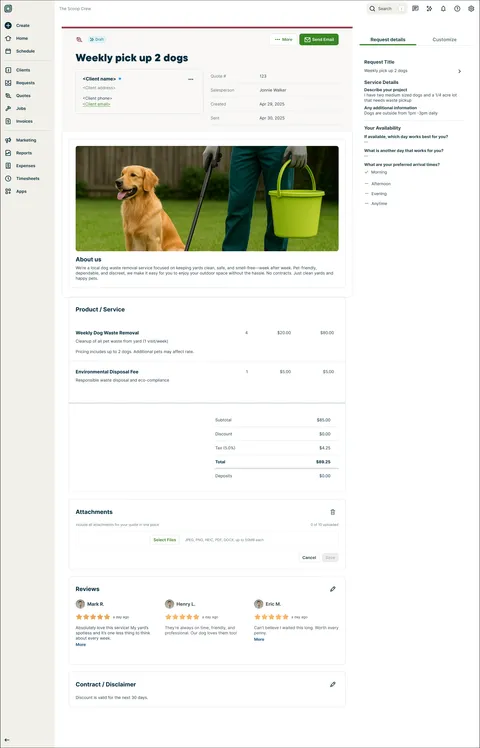
Quotes that were created by Jobber AI will be indicated by a sparkle label in the draft quote status.

Next, review the quote drafted by Jobber AI.
If you need to make any changes, select the Edit button and update the quote. The request details will show in a panel on the right of your quote as a reference for what the client initially asked for.
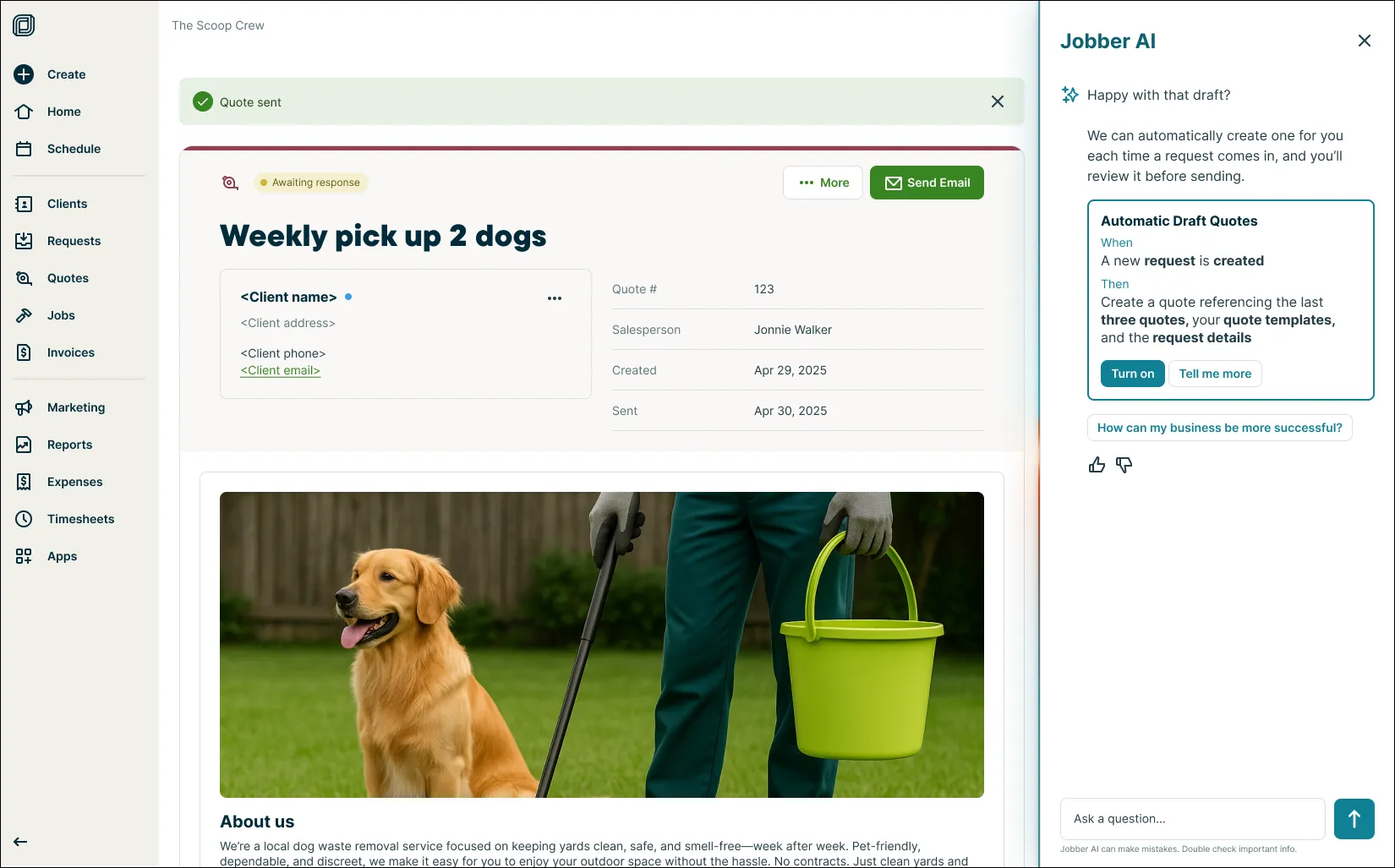
If you move forward with the quote by sending it to your client, Jobber AI will ask if you want to automatically create a quote every time a request is created, click Turn On enable to the Automatic Draft Quotes automation.
Note: To see this recommendation, you’ll need to have sent (or marked as sent) at least three quotes using the Draft for me button. Each of those quotes must be sent, drafts or deleted quotes don’t count toward this total.
Once turned on, the Automatic Draft Quotes automation is triggered when a new request is created. Jobber AI will create a quote referencing your quote templates and the request details.
The auto-drafted quotes automation can be managed by going to:
- The Gear Icon then Settings. From the settings menu, select Automations.
- From the quote automations, locate “automatically draft quotes from new requests” and select it.
- Click More then select Deactivate to stop automatically drafting quotes.
Notify me for new high-value quotes
High-value quote alerts let you know right away when a big opportunity comes into your pipeline. When an auto-drafted quote is created above your average quote value, Jobber can send you a push notification so you can follow up quickly and give it your personal touch.
Note: You must have auto-drafted quotes turned on in order to see high-value quote notifications.
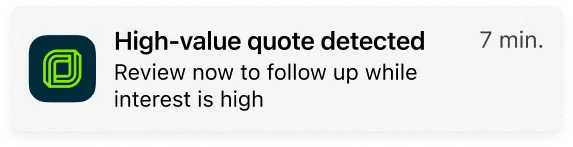
To turn on notifications about new high-value quotes:
- Ensure the Automatic Draft Quotes automation is enabled.
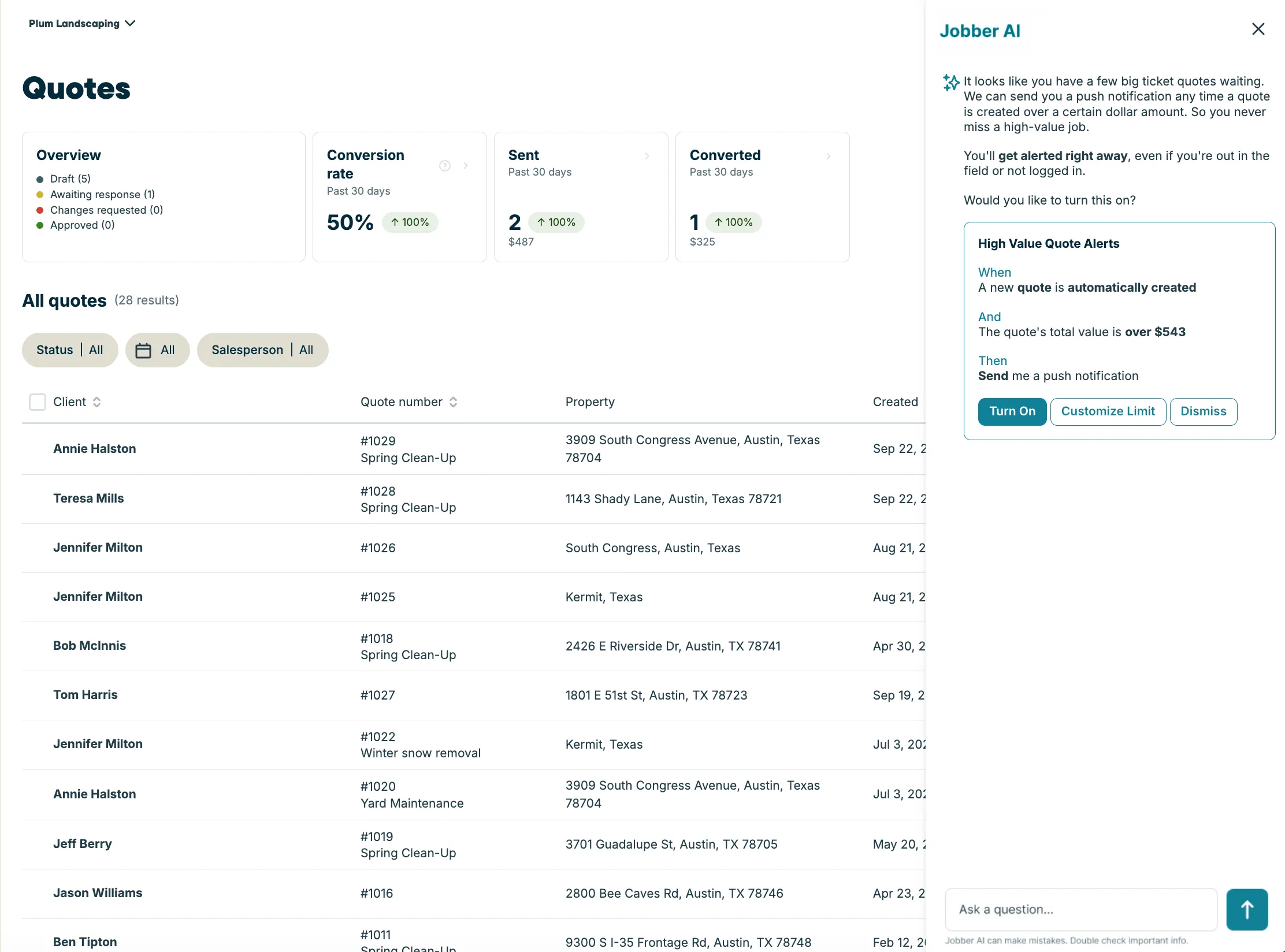
- If so, select Quotes from the side navigation. From the quotes list page, the Jobber AI drawer will open and highlight the High-Value Quote Alerts. If you do not have the Automatic Draft Quotes automation enabled, you will not see this automation.
- Review the details of the High-Value Quote Alerts. This will show when you will receive the alerts, including the dollar amount the quote total needs to be over to be considered “high-value”. Click Turn on to enable High-Value Quote Alerts.
- Click Customize limit to set the minimum total a quote must reach to be considered “high-value” and trigger this notification.
Once set up, the High-Value Quote Alert automation can be managed by going to:
- The Gear Icon then Settings. From the settings menu, select Automations.
- From the quote automations, locate “notify me for new high-value quotes” and select it.
- From here, you can:
- Click More then select Deactivate to stop receiving high-value quote alerts.
- Click Customize limit to set the minimum total a quote must reach to be considered “high-value” and trigger this notification.
Invoice automations
The following automations are available for invoices:
- Invoice follow-up – Automatically remind clients their invoice is due by email and/or text message, and give them an easy, one-click option to pay.
- This notification is sent according to a schedule based on the number of days since the invoice has been sent.
- This notification is sent in the same method as the invoice. For example, if an invoice was sent via text then the invoice follow-up will also be sent via text.
- Clients and contacts who received the original invoice will receive the follow-ups if they have “overdue invoice follow-ups” enabled in their communication settings on their client (or contact) profile. Learn more.
- Custom invoice automations
Follow up on invoices
Are you still waiting on a payment from a client? You can send them an invoice follow-up to prompt them to pay their overdue invoice. Jobber will send out an automatic reminder to your client by email or text asking them to pay the outstanding balance.
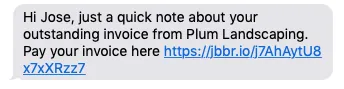
Invoice follow-up availability
Invoice follow-ups are on Jobber’s Connect Plan and up. View our current pricing plans.
To check what plan you’re on, navigate to the Gear Icon then select Account and Billing. If you have any questions about your plan’s features or pricing, our support team is here to help!
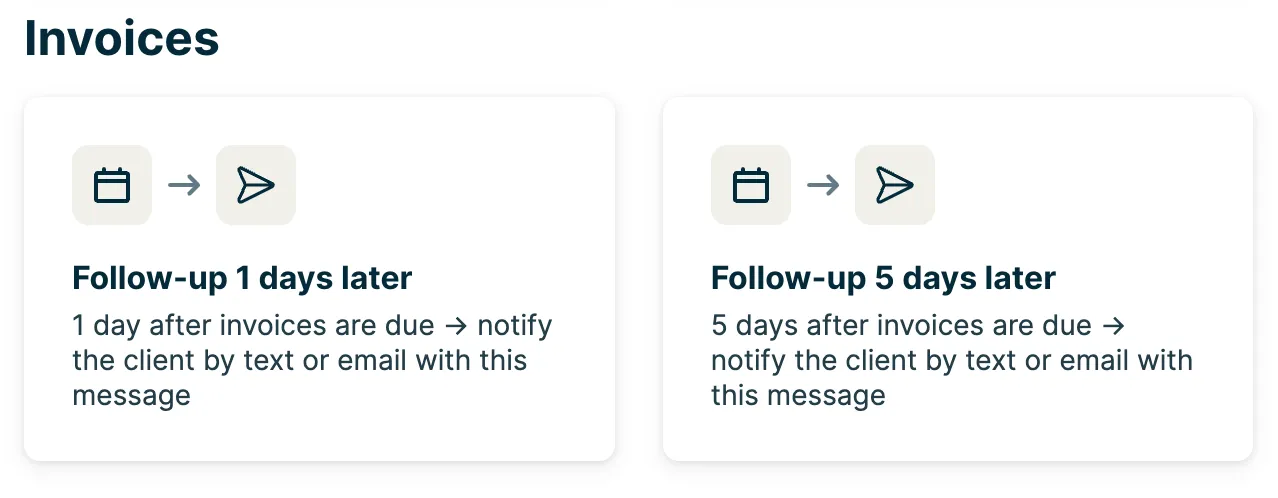
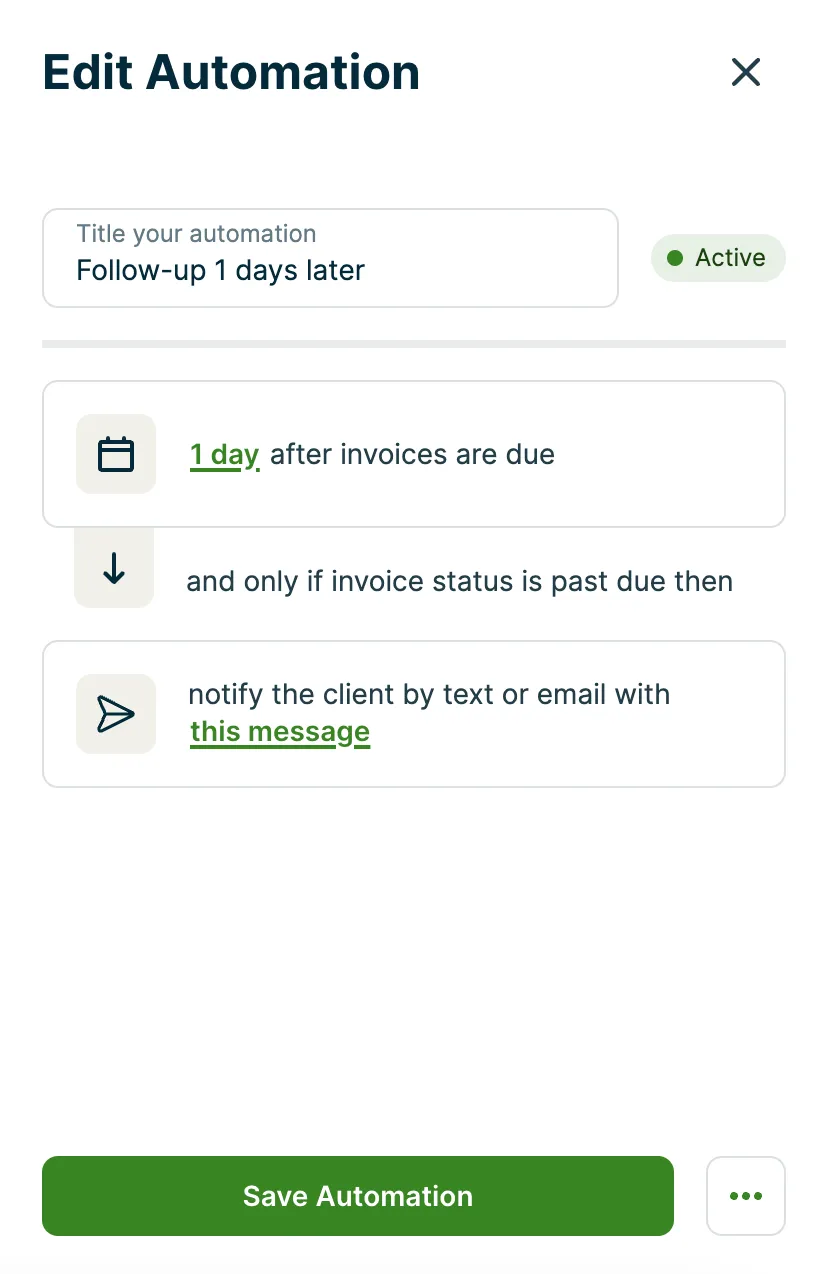
There are two invoice follow-up automations available, so that you can send your clients up to two reminders about their invoices in “past due” status. To customize the invoice follow-up automation, select one of the follow-up cards under the invoices heading to open the Edit Automation menu.
The Edit Automation menu is where you’ll set:
- an automation title
- when the follow-up will be sent: this is the number of days after the invoice’s due date when the follow-up will be sent. To change the number of days, select the green underlined text and select another option from the menu. A maximum of 90 days can be set.
- the message text: customize the content of the follow-up message.
Note: the follow-up will be sent in the same method as the invoice. So if the invoice was sent via text message, the follow-up will also be sent via text message.
Select Save Automation to save your automation settings.
Invoice follow-ups will send shortly after 8AM (local time) on the day they are set to send.
Deactivate an automation
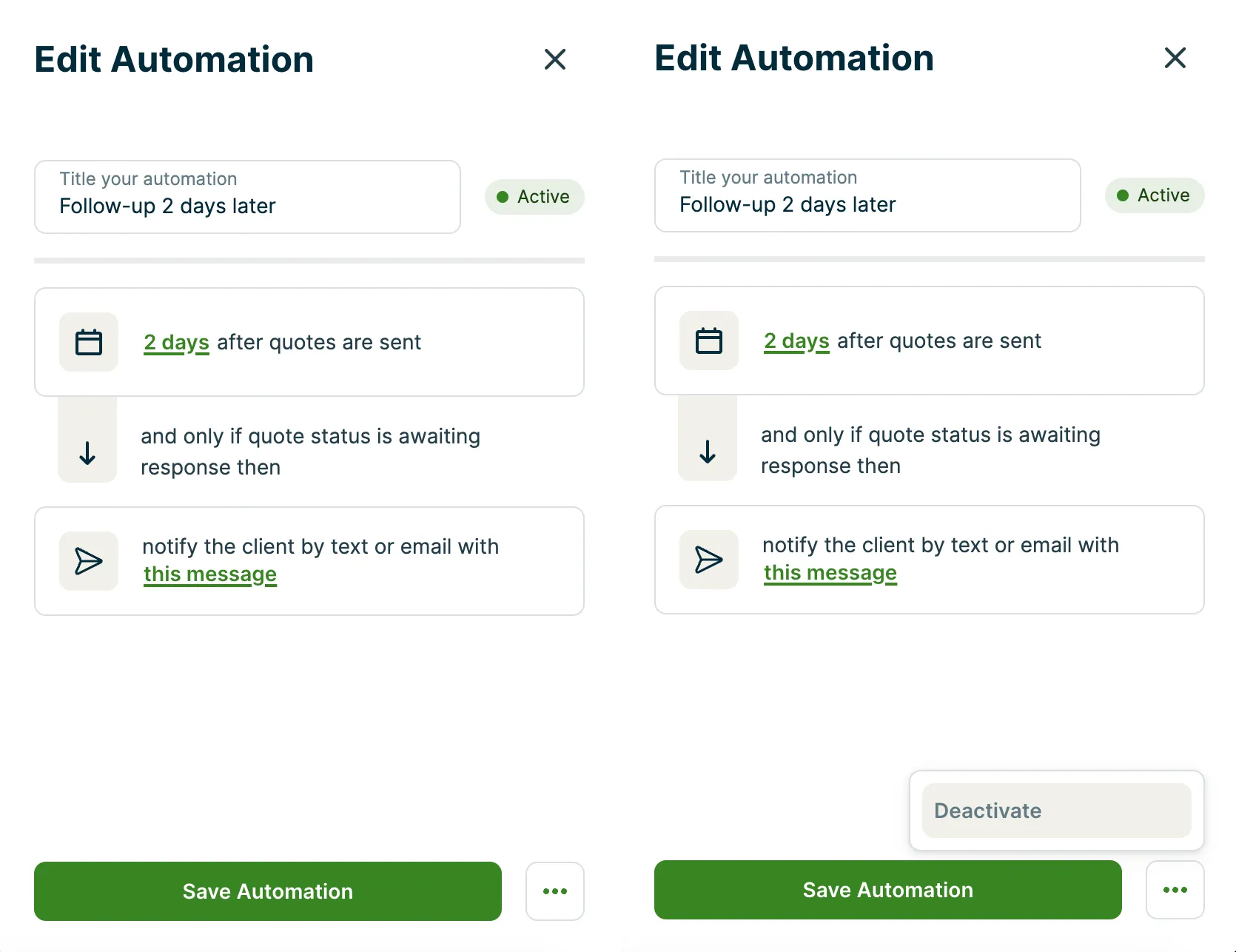
To deactivate an active automation, select the automation card from the automation settings page. From the edit automation menu, select the more actions (…) button, then select Deactivate.
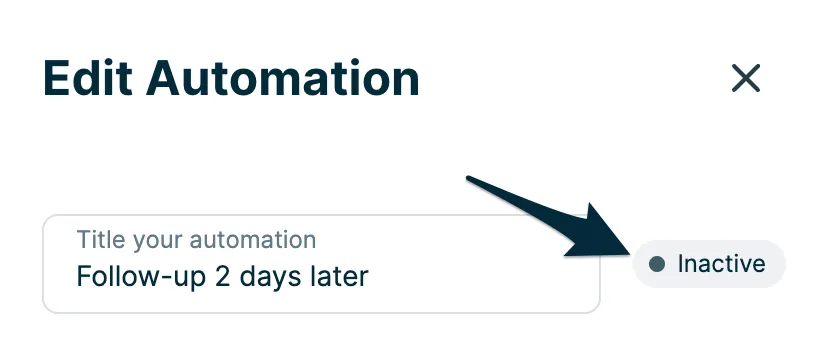
Once the automation is deactivated, the “active” label will become an “inactive” label.
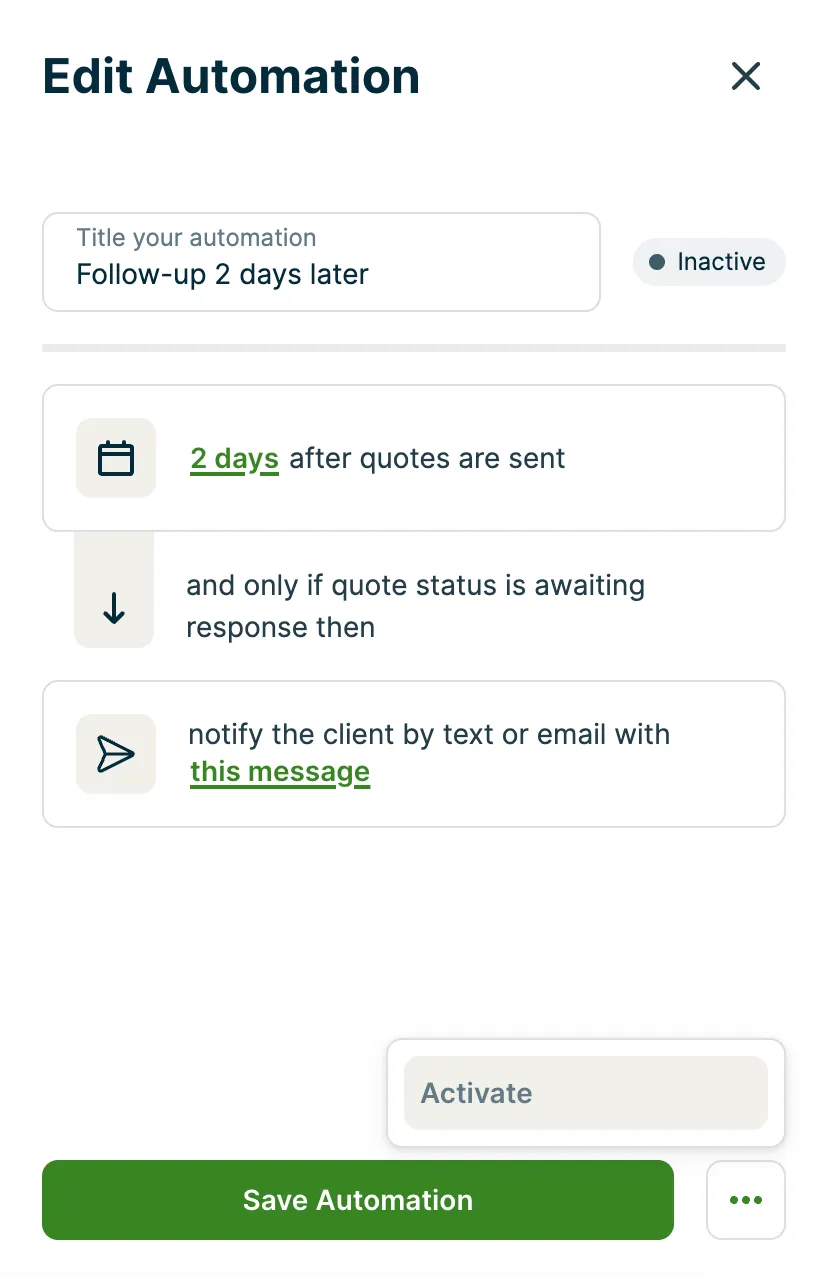
To set the automation active again, navigate back to the edit automation menu, then select more actions (…) button then select Activate.
Custom automation builder
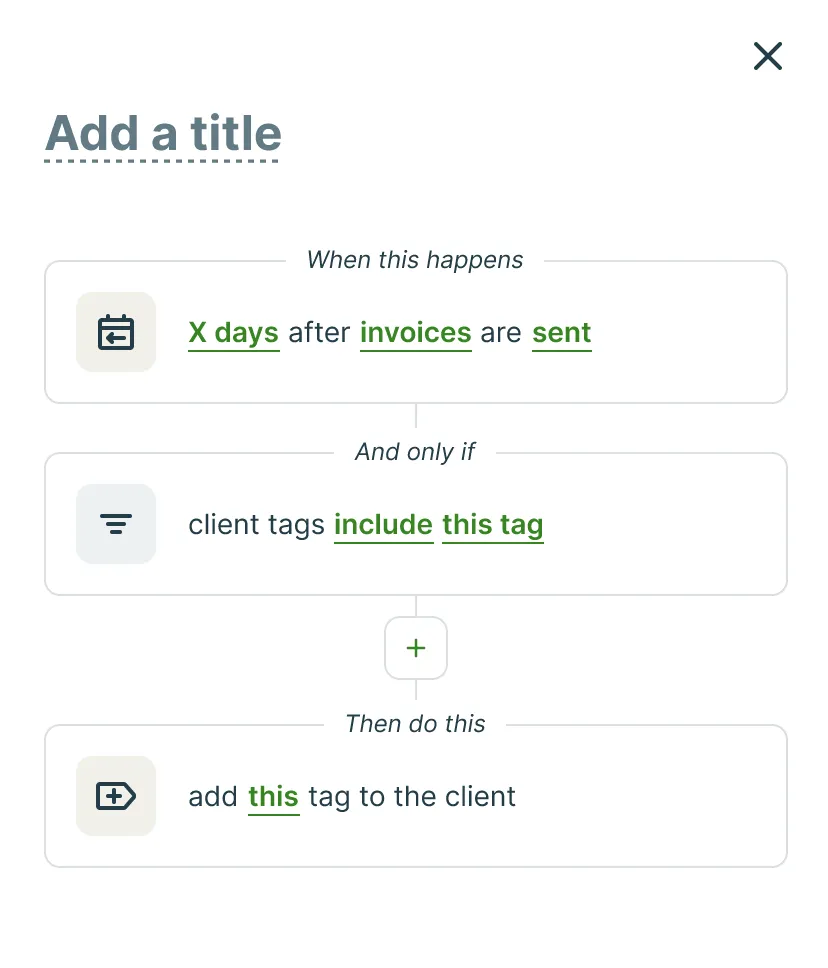
Custom automation builder is a tool for automating your workflows in Jobber. Build your own automations using triggers, conditions, and actions to automate routine tasks and actions within your day-to-day.
Learn more about Custom Automation Builder
Custom automation builder availability
Custom automation builder is available on select plans. View our current pricing plans.
To check what plan you’re on, navigate to the Gear Icon then select Account and Billing. If you have any questions about your plan’s features or pricing, our support team is here to help!
What else can I automate in Jobber?
Beyond automations that run quietly in the background, Jobber AI works alongside you–answering questions, completing tasks, and making everyday work easier and more efficient. Built into both Jobber.com and the Jobber mobile app, Jobber AI is designed to be your most trusted employee—always ready to act when you need it. You can chat by typing or simply speak out loud using Voice in the Jobber app.
With Jobber AI, you can:
- Work hands-free in the field: Use Voice to create quotes, send invoices, check your schedule, or capture notes without stopping what you’re doing. Just open the Jobber app, tap the sparkle icon, and tell Jobber what you need.
- Stay on top of your day: Ask Jobber things like “What visits do I have today?” or “Which invoices are still unpaid?” to get instant answers from your account data.
- Handle client communication quickly: From one prompt, Jobber can text, email, or call a client, or even send an “On My Way” message while you’re driving between jobs.
- Turn requests into revenue faster: Use Voice to convert a request into a quote or job, so opportunities don’t sit idle while you’re in the field.
- Get business insights and coaching: Ask questions like “What’s my quote conversion rate?” or “How can I grow my repeat business?” to receive tailored insights and advice.
Share your feedback
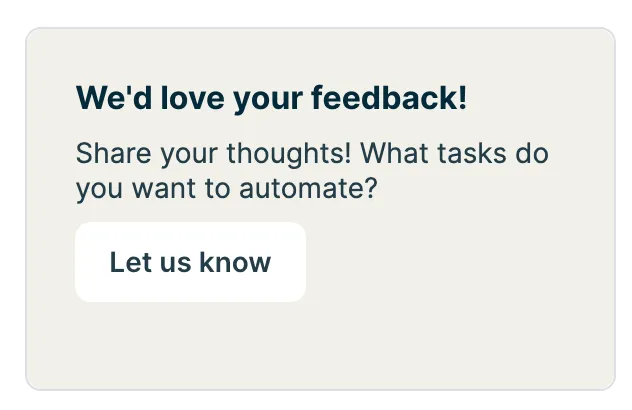
Is there something in Jobber you’d like to automate? From the automations settings page, select the Let us know button and share your feedback with our product team.