

Overview
Missed calls have steep consequences. With your Receptionist, you can take time away from your phone without the risk of losing a lead to a competitor, or damaging customer relationships.
Provide 24/7 customer service over call or text. When you’re busy on a job, enjoying personal time, or your admin is focused on other work, your Receptionist is there. Powered by Jobber AI, it can assist customers with anything from answering inquiries, to booking a job in your calendar. You control what it can and can’t do.
Receptionist availability
Receptionist is included on the Plus Plan with unlimited usage.
Receptionist can be added-on to select plans for $29 per month, which includes 30 conversations. If you go over 30 conversations in a billing cycle, Jobber charges $0.79 per additional conversation. Conversations tagged as “no conversation, “spam” do not count towards your conversation total.
Note: While you can continue using your existing phone number with Receptionist, a dedicated phone number (DPN) in Jobber is still required. DPNs are currently available in the US, Canada, and UK.
Only admin users can access the Receptionist dashboard and settings.
To check what plan you’re on, select the Gear Icon, then choose Account and Billing. If you have any questions about your plan’s features or pricing, our support team is here to help!

Get started with Receptionist
Testing the Receptionist lets you experience its benefits firsthand before fully integrating it into your operations. By trying it out, you can verify that it handles calls accurately, delivers clear and engaging voice interactions, and fits smoothly into your existing workflow. Testing helps you identify any adjustments needed, ensuring that the system truly enhances your customers’ experience.
To get started with Receptionist:
- From the side navigation on Jobber.com, select Receptionist.
- From the Receptionist page, select Get Started. You will be walked through some set up steps to quickly prepare your Receptionist.
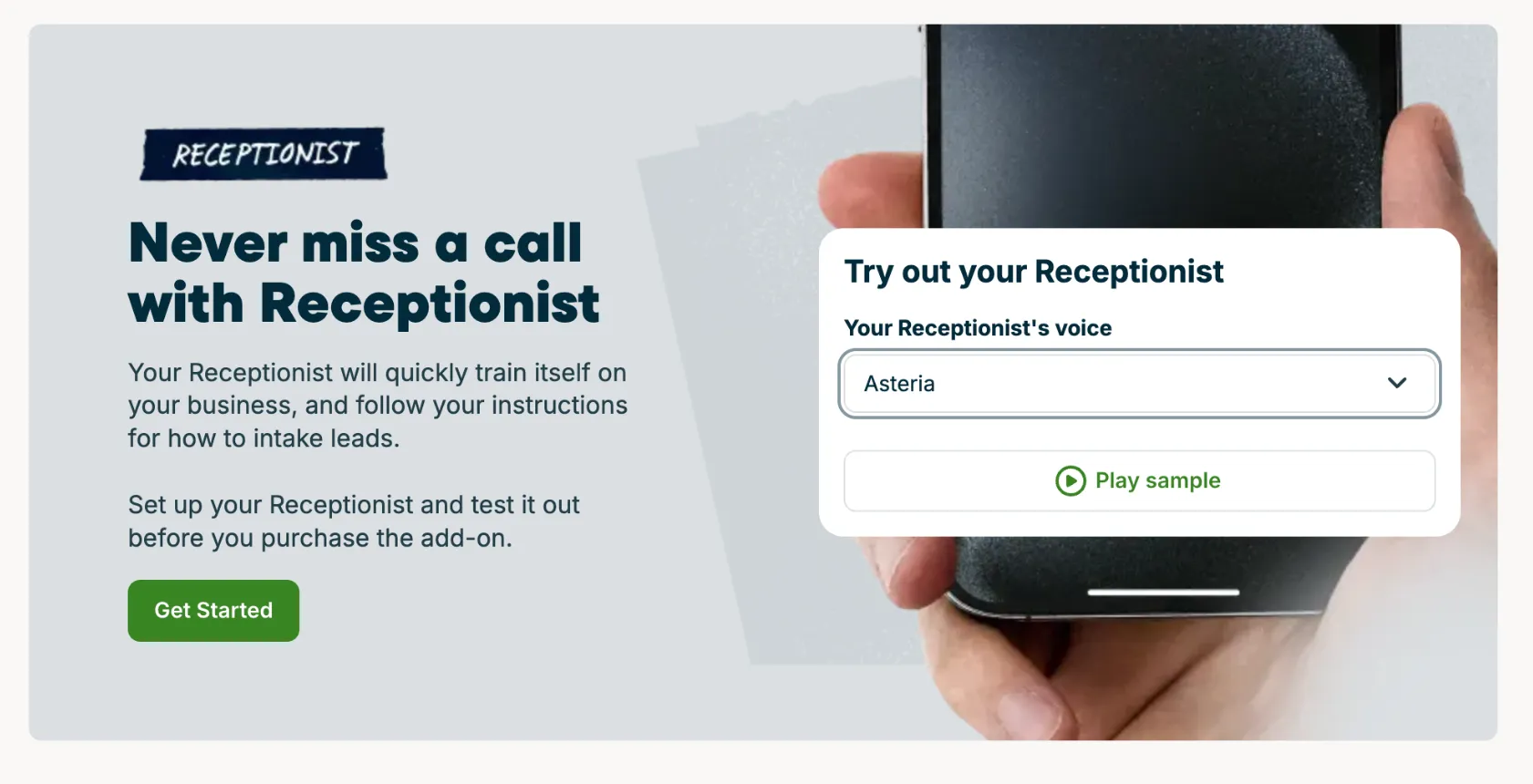
There are six set up steps:
- Set up your greeting: This is a preview of the script your Receptionist will use to greet callers.
- Click Play preview to have your Receptionist call your number so you can hear how Receptionist calls sound.
- Click the pencil icon to make changes to your greeting.
- What should Receptionist do automatically: Select the tasks that Receptionist can do automatically. For actions that are turned off, Receptionist will ask before taking action. Actions that can be automatically done by Receptionist include:
- Scheduling jobs
- Taking requests
- Who is in the loop: Select which members of your team to whom Receptionist will assign tasks as well as which keywords will escalate calls and texts to a team member.
- Essential information: Add your “about” information, policies, and services. Your Receptionist will use this information to answer customer questions.
- After filling out your information, check the box to agree to generate content with AI, then click Continue.
- Test your Receptionist: Your Receptionist is now ready to handle questions and inquiries. Enter your phone number in the phone number field to have Receptionist call you so you can ask questions and test it out. There are some example questions on this page that you can use to make sure your Receptionist can cover a breadth of customer questions.
- Receptionist is set up!
- If you have not yet added-on Receptionist as part of your plan, there will be a link on this page to purchase the Receptionist add-on.
- If you have not yet set up a dedicated phone number, you will be prompted to set one up. Learn more about dedicated phone numbers.
- Click Save & Exit to view your Receptionist dashboard.
Manage your Receptionist
To manage your Receptionist settings:
- Select Receptionist from your side navigation
- Then select Manage.
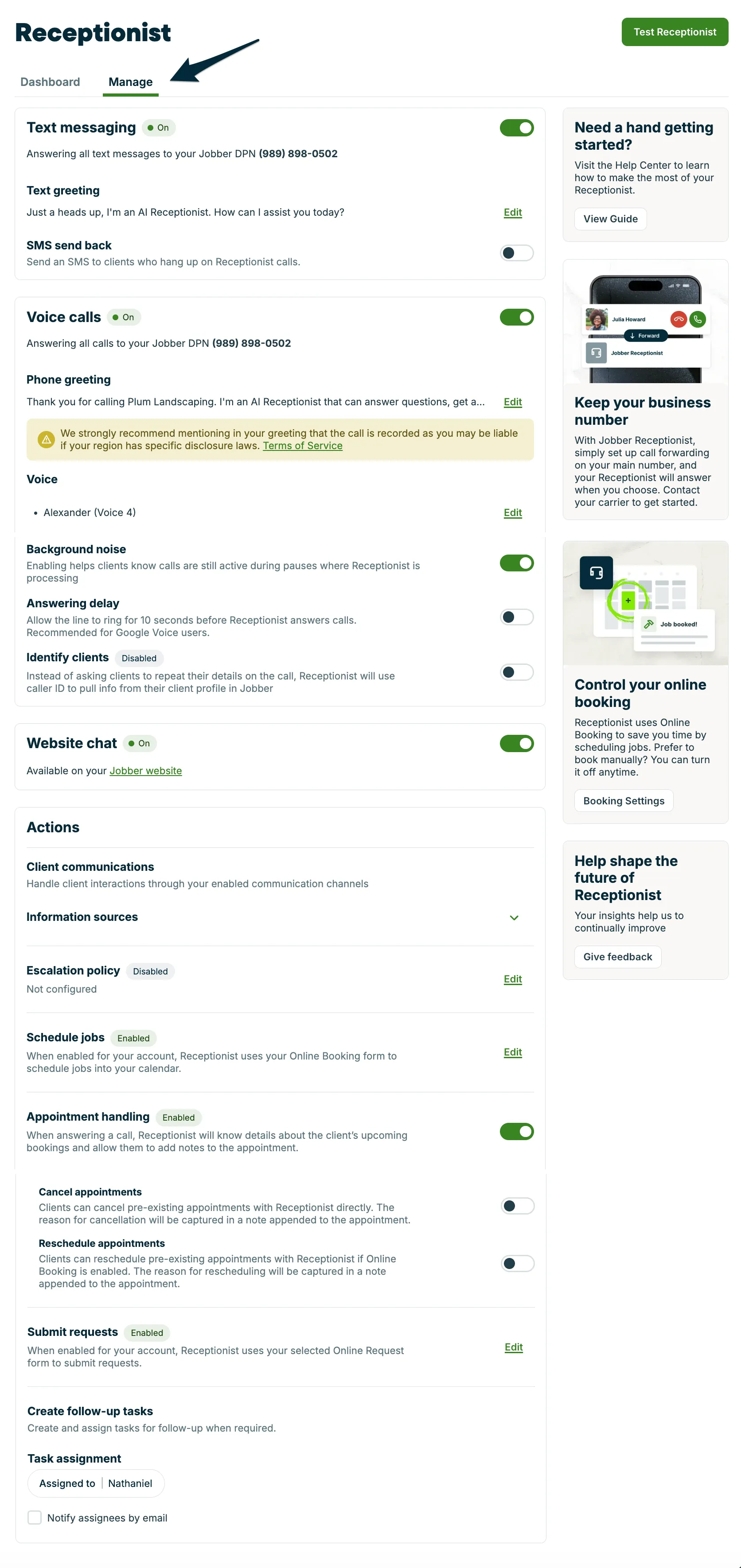
The Manage Receptionist page includes settings for:
- Text messaging, including:
- If Receptionist will accept text messages
- your text greeting
- if you’d like to send a text message to clients who hang up on Receptionist calls
- Voice calls, including:
- If Receptionist will accept voice calls
- your phone greeting
- your Receptionist’s voice
- if there is background noise on calls
- if there is a 10 second answering delay (recommended for Google Voice)
- if you want to identify your clients through caller ID
- Website chat
- Actions
- escalating specific inquiries to a team member
- booking jobs in your schedule
- helping your clients with their appointments, including:
- canceling appointments
- rescheduling appointments
- creating requests
- creating and assigning follow-up tasks
Text messaging
To enable your Receptionist to respond to text messages, set the toggle for text messaging to On.
Text message statuses
Your Receptionist handles incoming text messages based on its current status.
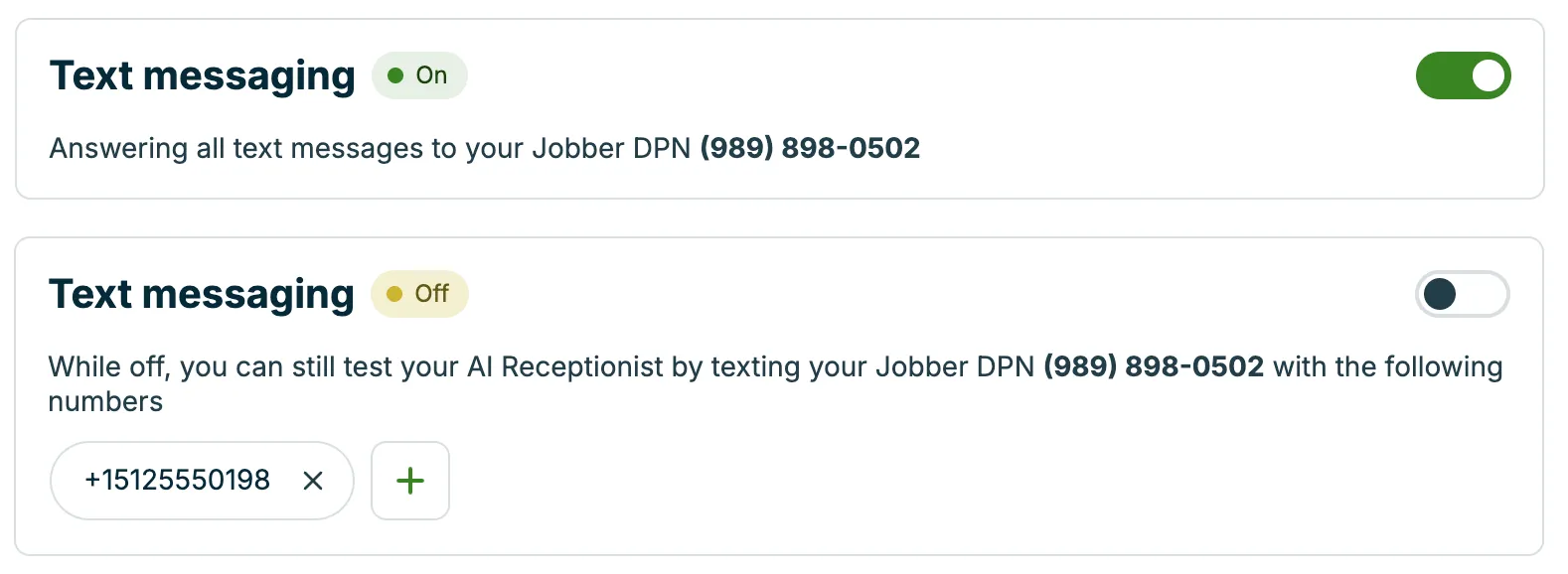
- On: The Receptionist answers every text sent to your dedicated phone number.
- Off: Receptionist is not answering texts. If there are select phone numbers you’d like to accept texts from, select the + icon to add these the phone numbers as “trusted access”. Adding numbers to the trusted access list can be a good way to test the Receptionist, or limit it to certain customers.
Text greeting
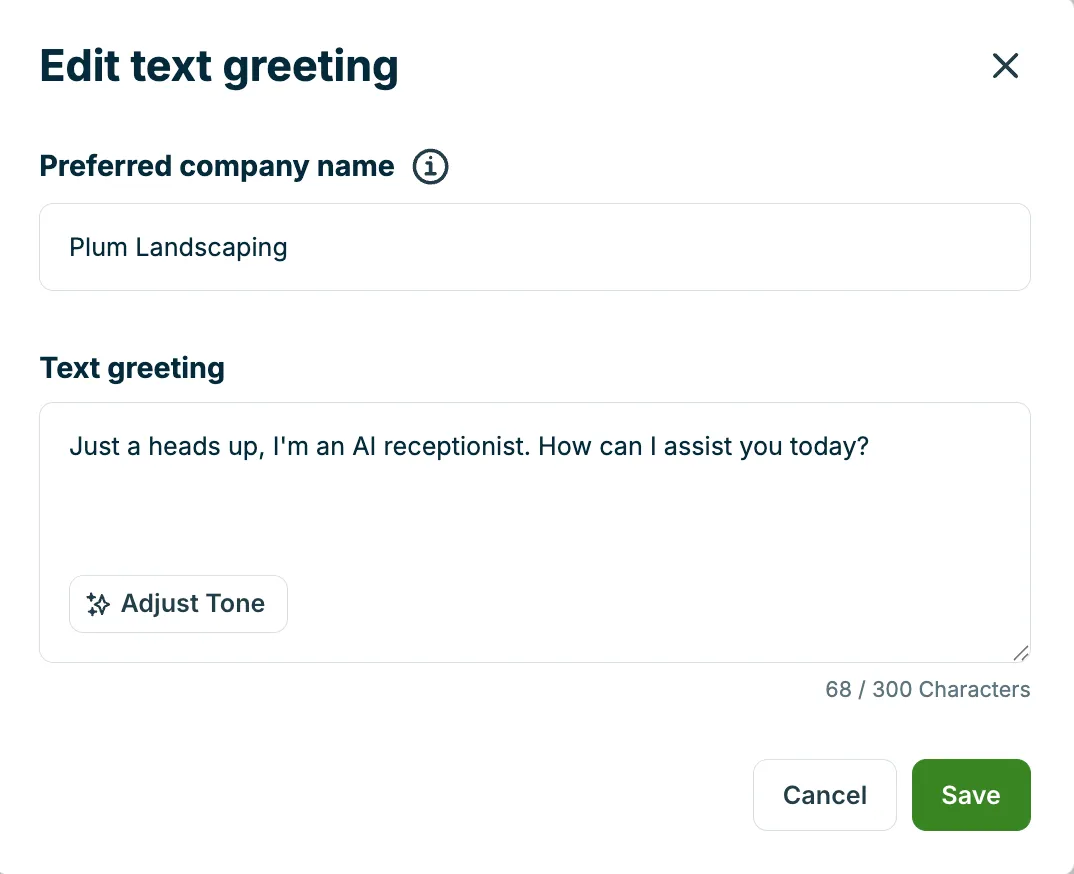
The text greeting is how your Receptionist will start the conversation with clients who send text messages to your dedicated phone number. To customize the greeting, click Edit.

From the text greeting pop-up, enter your preferred company name and the text greeting. There is a limit of 300 characters (including spaces) for how long this greeting can be.
Tip: If you find that your Receptionist is mispronouncing your company name, try spelling it phonetically.
SMS send back
If a caller hangs up before Receptionist can start a conversation (for example, partway through the greeting) the Receptionist can automatically send them a text message to follow up.
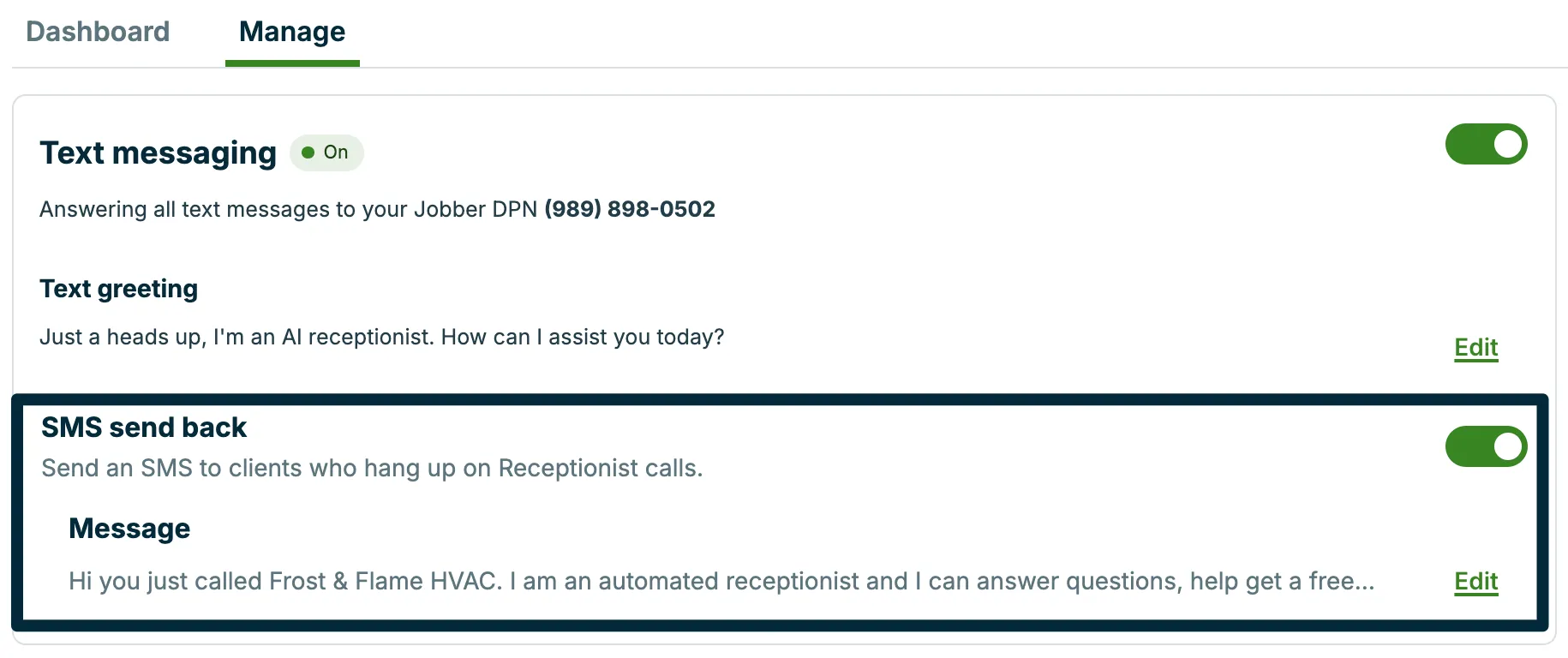
To enable SMS send back, turn the toggle ON, then select Edit to customize the message that callers will receive if they are disconnected. You can let callers know that Receptionist can answer their questions or take a message.
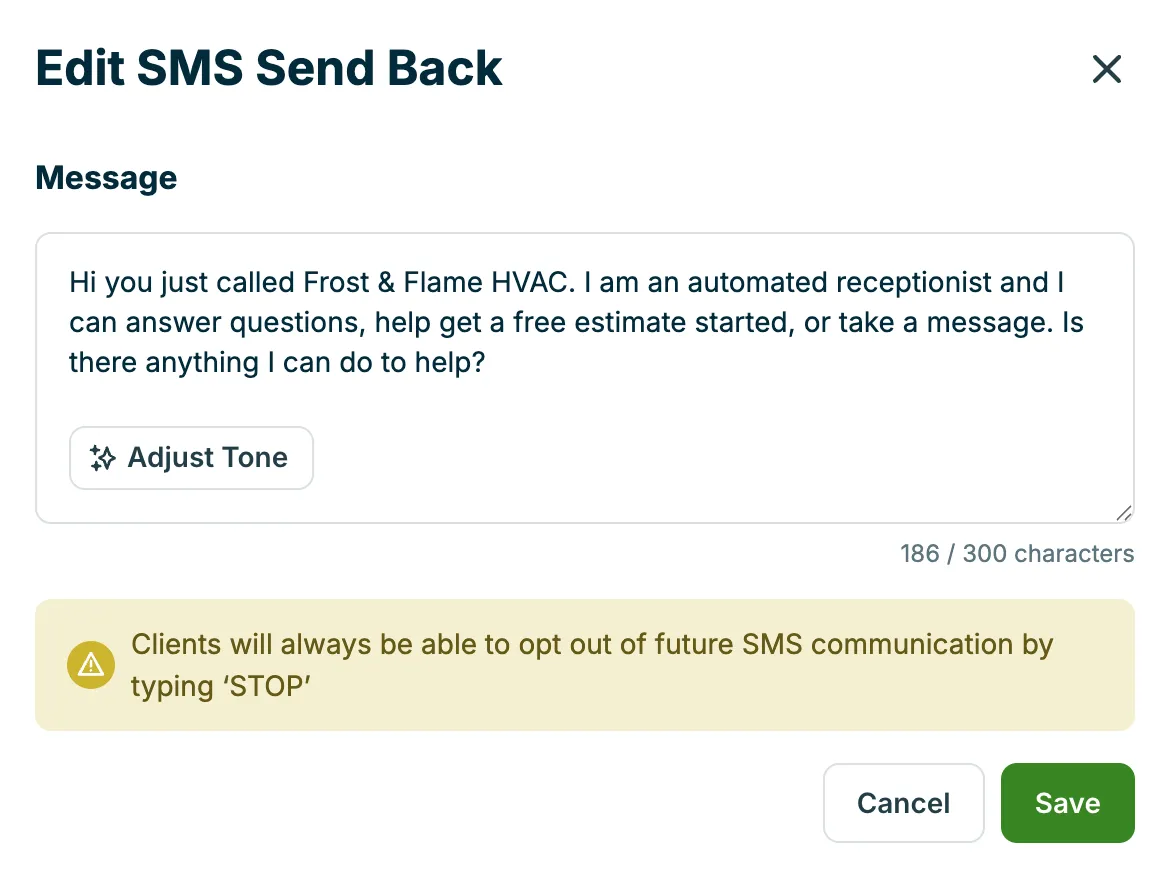
Text-back messages are sent to:
- New callers (people who don’t have a matching client profile in your Jobber account)
- Callers with an existing client profile that matches the phone number
- Callers who haven’t received a text-back in the past 24 hours
- Callers who haven’t replied with “STOP” to previous text messages from Jobber
This helps ensure that callers who couldn’t connect are still supported while making sure callers aren’t receiving too many text messages from Receptionist.
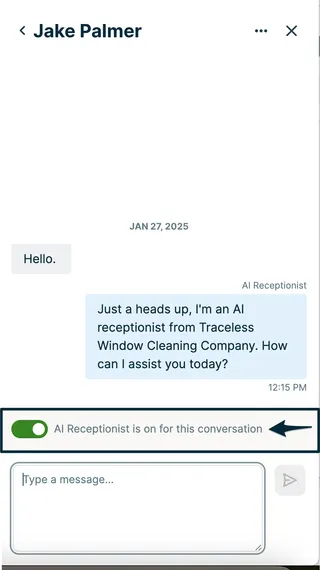
Disable the Receptionist for select client conversations
The Receptionist can be disabled for individual client conversations from the message center by opening a text conversation and turning off the toggle for Receptionist is on for this conversation.
Voice calls
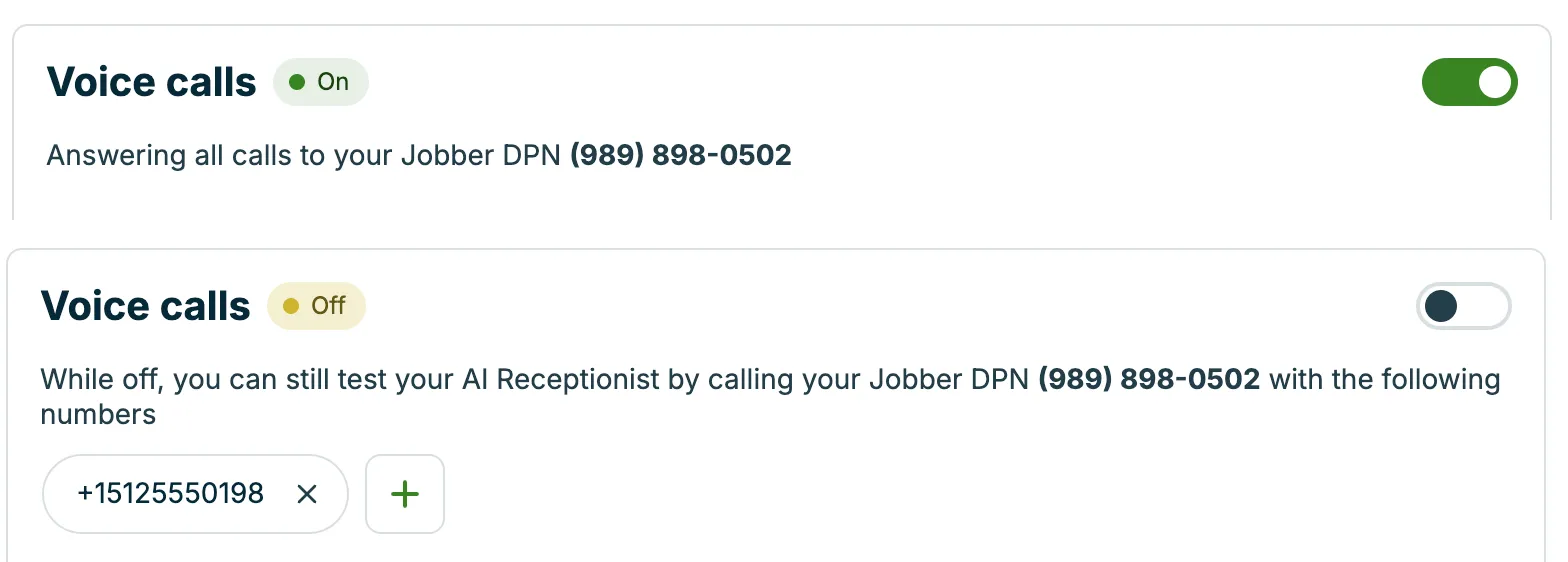
To enable your Receptionist to respond to voice calls, set the toggle for voice calls to On.
Voice call statuses
Your Receptionist handles incoming calls based on its current status.
- On: The Receptionist answers every call to your dedicated phone number.
- Off: Without a dedicated phone number enabled, the Receptionist does not answer calls. If there are select phone numbers you’d like to accept calls from, select the + icon to add these the phone numbers as “trusted access”. Adding numbers to the trusted access list can be a good way to test the Receptionist, or limit it to certain customers.
Phone greeting
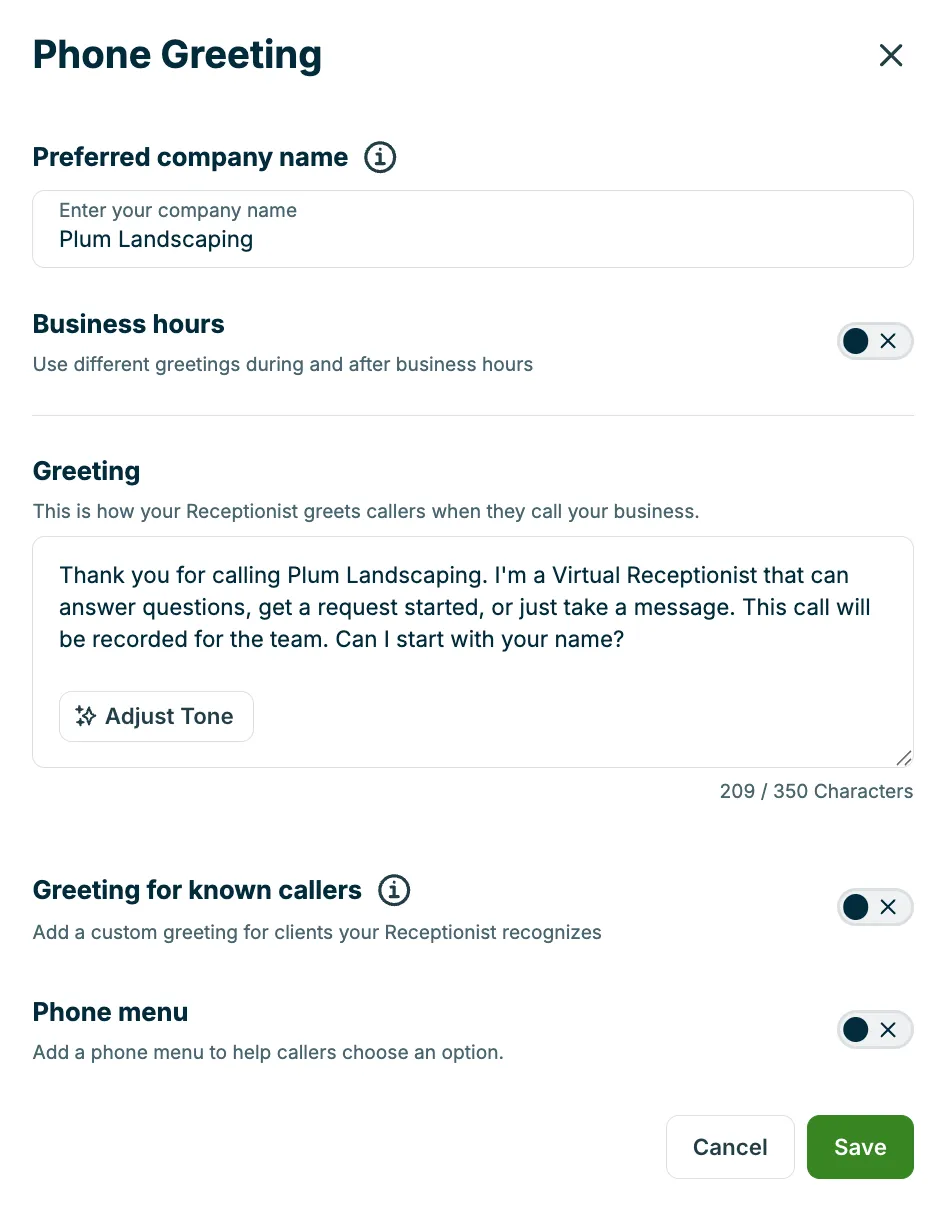
Your Receptionist greets callers based on when they call and who they are. You can configure different greetings for business hours and after hours, personalize greetings for known callers, and acknowledge upcoming appointments.
To view or update your Receptionist’s phone greeting:
- Select Receptionist from the side navigation.
- Select the Manage tab from the Receptionist dashboard.
- From the Phone Greeting section, select Edit.
An initial phone greeting is created automatically by the Receptionist, however it can be updated to reflect your business and the tone you’d like to set when callers get in touch.
The phone greeting will be read exactly as written when Receptionist answers a call. Your company name will be part of the phone greeting and is entered in your phone greeting settings automatically based on how your company name is entered in your company settings. However, if the Receptionist has issues pronouncing your company name, try entering it with a phonetic spelling instead.
Note
Changes to your phone greeting may be reviewed. If a greeting appears to misrepresent your business or includes content that could put the caller at risk, the update may not be saved. If you believe your greeting was incorrectly flagged, reach out to our Support Team.
We encourage you to let callers know that your phone is answered by AI, or that calls may be recorded, but this isn’t required. Be sure to check any local or state regulations about recording phone calls to ensure compliance with relevant laws.
To adjust the tone of the greeting, select the Adjust tone button, then choose from the following options:
- Casual
- Professional
- Brief
Set up business hours
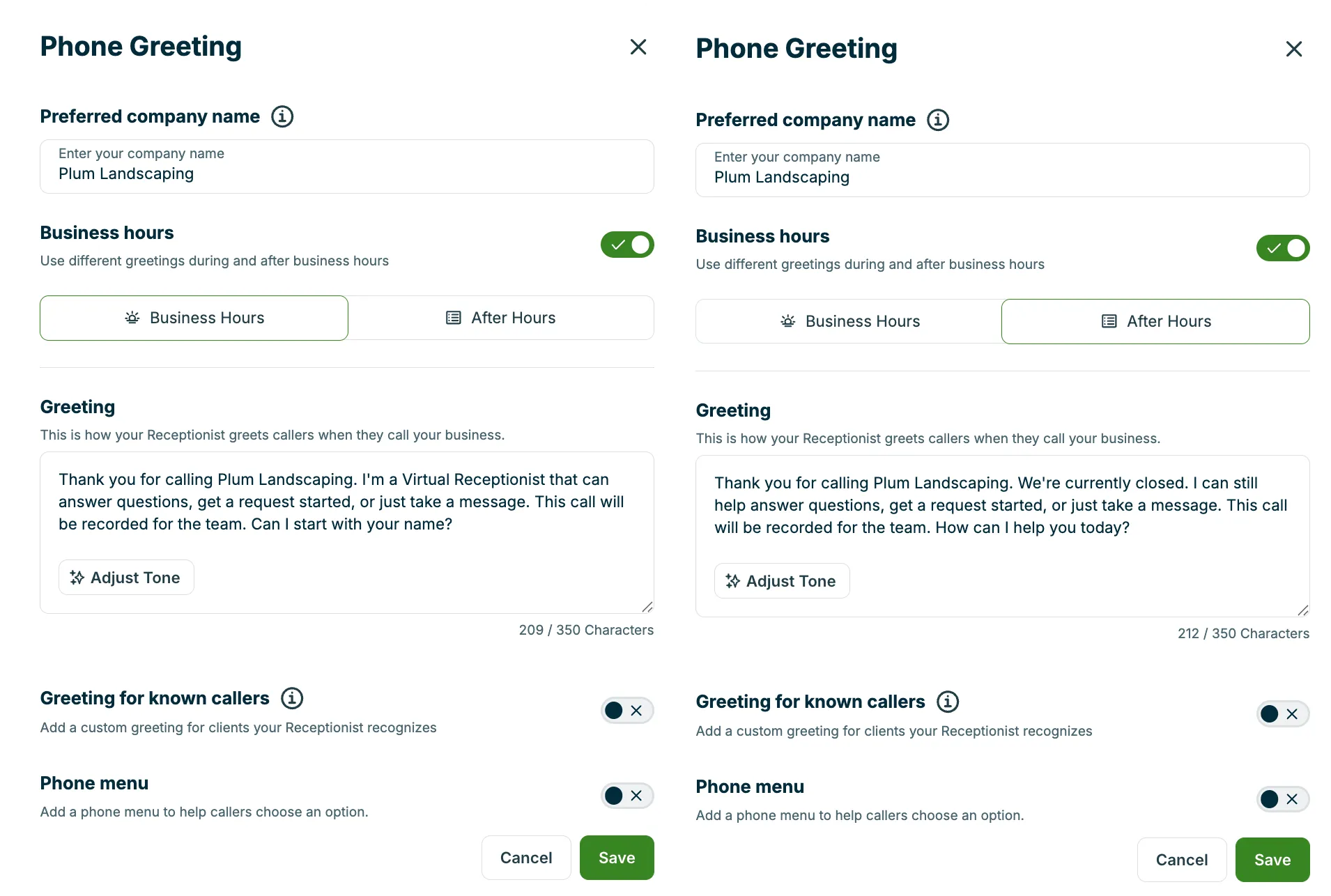
Toggle on Business hours to enable separate greetings for when your business is open and when it is closed. When this setting is turned on, you can customize two distinct greetings during and after business hours.
- Business hours greeting: The greeting callers hear during your set business hours.
- After-hours greeting: The greeting callers hear outside your business hours.
Each time slot also has its own phone menu (IVR) configuration. For example, you could offer a “Press 4 to speak with someone” escalation option during business hours, but remove it after hours when no one is available to take the transfer.
When the business hours toggle is off, all callers hear the same default greeting regardless of when they call.
Greet known callers
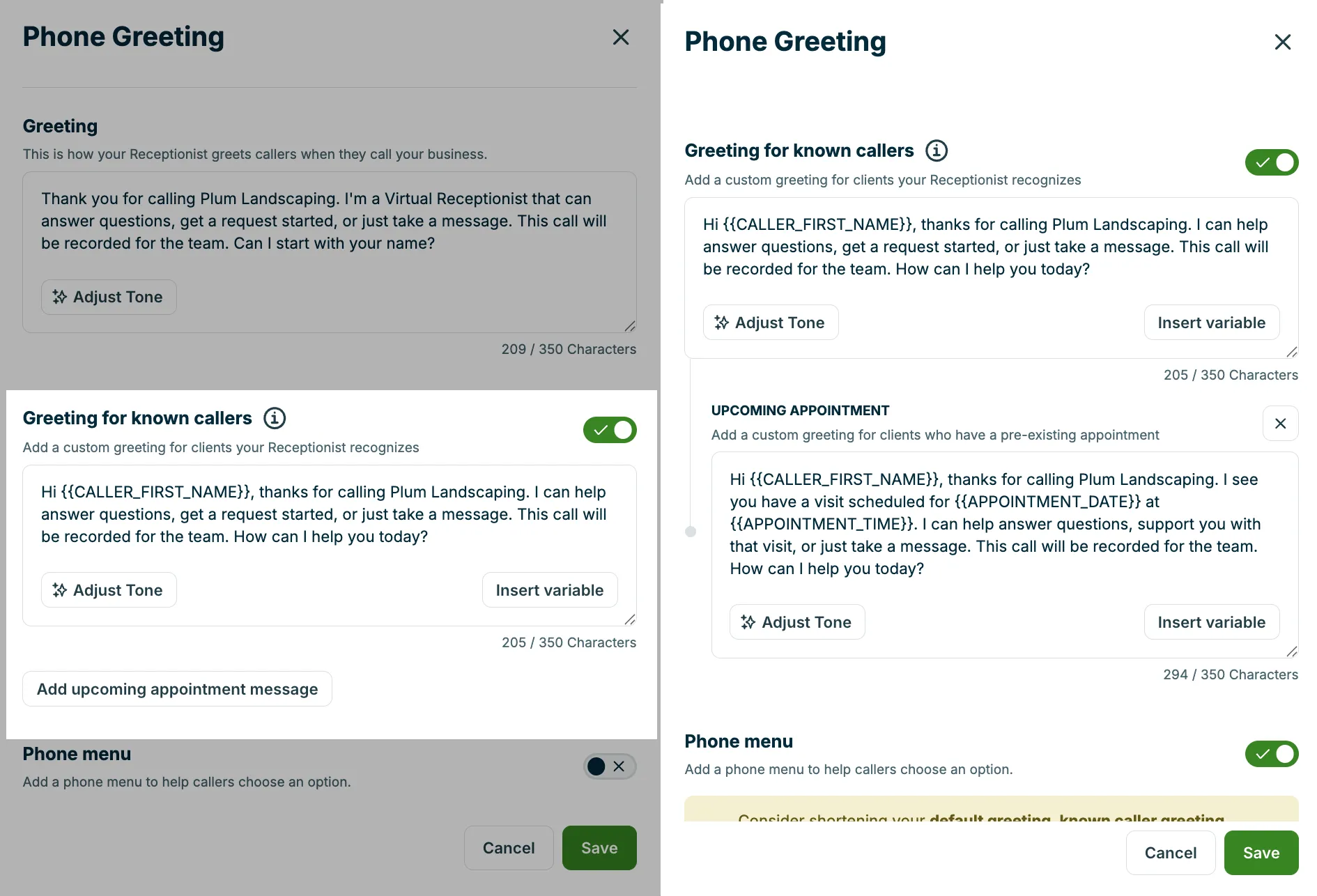
When Receptionist recognizes a caller’s phone number from an existing client in your Jobber account, it can greet them personally by addressing them by name.
To enable Receptionist to greet known callers:
- Select Receptionist from the side navigation.
- Select the Manage tab from the Receptionist dashboard.
- From the Phone Greeting section, select Edit.
- In your greeting settings, toggle on the Known callers option.
- Customize the greeting text. Template variables let you include details like the caller’s name, which auto-fill with real data at call time.
- (Optional) Select Add upcoming appointment message to set up Receptionist to proactively inform known callers about the date and time of their next appointment. Customize the message. Template variables let you include appointment details like the date and time, which auto-fill with real data at call time.
Callers whose phone numbers are not recognized still hear the standard greeting.
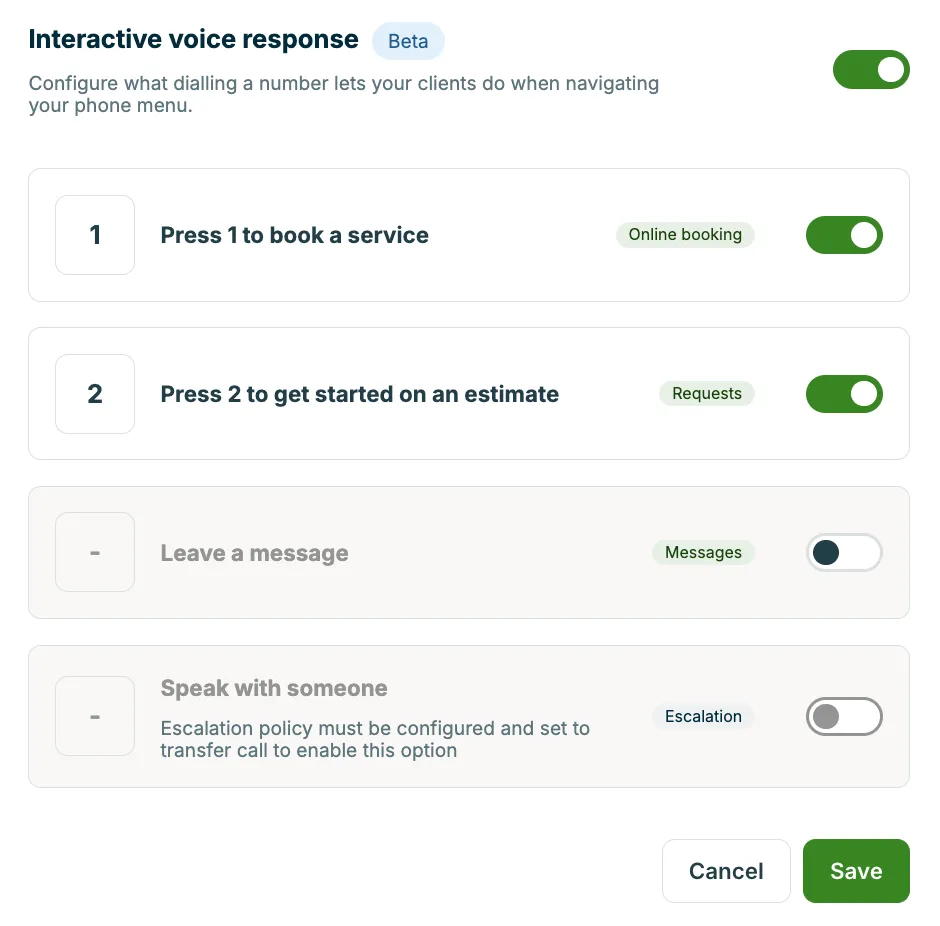
Next is the phone menu section where you can add an interactive voice response. When the phone menu is enabled, your callers can select a number on their phone’s dial pad to take certain actions (for example, Press 1 to book a service). To configure what dialing a number lets your clients do, toggle on Phone menu.
Once enabled, you can set up select which actions will be available, including:
- Book a service
- Get started on an estimate
- Leave a message
- Speak with someone - Note: You must have an escalation policy set up to transfer calls in order to enable this option
When each action is enabled, you’ll see the number the client will press to take this action:
Voice selection
To change the voice of your Receptionist, select a voice from the Voice dropdown. Then, click Play sample to hear how each voice sounds.
Background noise
Including simulated background noise is recommended for Receptionist calls. Background noise sounds similar to a call center environment and helps clients know calls are still active during pauses when the Receptionist is processing.
To remove background noise, set the background noise toggle to Off.
Answering delay
Allow the line to ring for 10 seconds (about two rings) before Receptionist answers. If you are using call forwarding, this delay will be in addition to the delay you have set up with your phone provider. In this case, we recommend disabling the answering delay in Jobber.
Note: If you are using Google Voice, we recommend enabling the answering delay.
To add an answering delay, set the answering delay toggle to On.
Identify clients
When the setting for “identify clients” is enabled, Receptionist will use caller ID to match the caller’s phone number to a client in your Jobber account. This saves your existing clients from having to repeat their information on the call.
Call forwarding
If you already have a business number that your clients call, you can forward those calls to your Jobber number so the Receptionist can handle them.
There are two common ways to set this up:
Set up call forwarding with your forwarding with your phone provider
Most carriers allow you to forward calls to another number after a certain number of rings or outside business hours. This often involves dialing a specific code. Check with your provider for exact instructions.
Set up call forwarding from Google Voice
If you’re already using Google Voice to manage calls for your business, you can easily connect it to your Jobber Receptionist to streamline communication with your clients. Linking your Jobber dedicated phone number to Google Voice allows your Receptionist to answer calls that come through your existing number.
Learn how to set up Google Voice
Link your Google Voice account to your Jobber dedicated phone number so your Receptionist can answer incoming calls by following these steps:
- Go to voice.google.com and sign in.
- Click the gear icon in the top-right corner to open Settings.
- In the left menu, select Account.
- Scroll to the Linked numbers section, then select New linked number.
- In the pop-up box, enter your Jobber dedicated phone number. This will be the number that you link to your Google Voice account. When you’re done, select Send code.
- Check the message center in Jobber and copy the six-digit code that was sent to you.
- Navigate back to your Google Voice settings and paste the six-digit code, then click Verify.
- Your phone number will now be linked. Select Finish.
Your Jobber number is now linked to Google Voice, but a few settings still need to be updated in both Google Voice and Jobber to ensure your Receptionist can answer forwarded calls properly.
Settings to update in Google Voice
To make sure your calls will be forwarded to your Jobber Receptionist, make sure call forwarding is enabled for the linked number.
We also recommend disabling the “Show my Google Voice number as caller ID when forwarding calls’ option. This will ensure that the caller’s actual phone number is provided to your Receptionist, rather than your Google Voice number. This setting is found in your Google Voice settings.
Next, update the “Screen calls” option so that it’s disabled. This needs to be turned off so that callers can hear your Receptionist greeting and be able to leave a message.
Settings to update in Jobber
Next, set up the answering delay in Jobber. When Google Voice forwards calls, it requires an additional delay on the receiving number to be able to cleanly hand-off the call and ensure the Receptionist’s greeting is captured. Enabling the answer delay in your Receptionist settings will add an extra unnoticed two rings before your Jobber Receptionist answers the call.



Actions
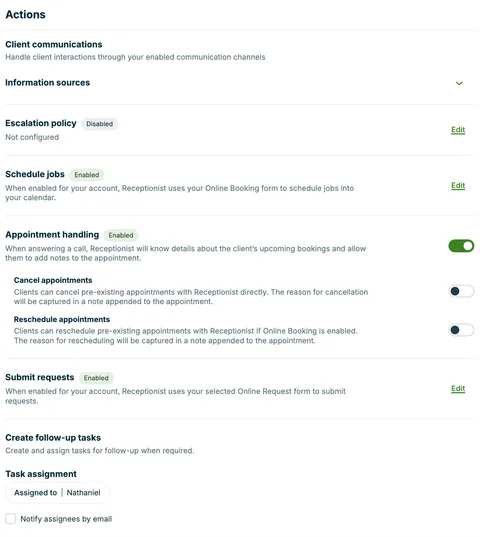
Your Receptionist can perform a variety of tasks for you including:
- answering questions about your business
- escalating specific inquiries to a team member
- booking jobs in your schedule
- helping your clients with their appointments, including:
- canceling appointments
- rescheduling appointments
- creating requests
- creating and assigning follow-up tasks
When each of these actions are enabled for your Receptionist, an “enabled” label appears next to each action type in the Actions section of your Receptionist settings.
Information sources
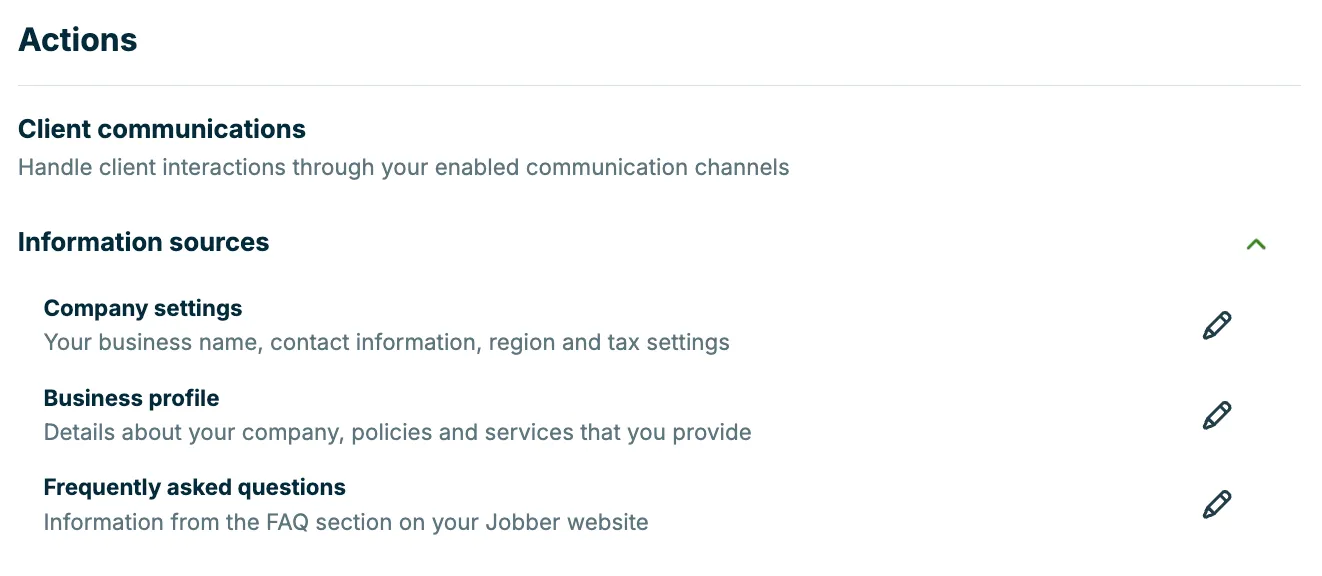
Your Receptionist will be trained based on your information, including your:
- Company settings: Your business name, contact information, region, and tax settings. Click the pencil icon to open your Company Settings to make changes to this information.
- Business profile: The essential information section in your Business Profile helps Receptionist better understand your business. A short summary of your business will be generated to teach your Receptionist about your business. If you do not have a website listed in your company settings, a basic summary will be generated which can be adjusted later. You can add info about your services, policies, and what makes your business unique. This content helps guide AI responses, but won’t be read to clients word-for-word. Click the pencil icon to open your business profile to make updates.
- Frequently asked questions: If you have a Jobber website created (it does not need to be published), your Receptionist can use the FAQ section to answer questions about your business. Click the pencil icon to open your website settings.
Set up an escalation policy
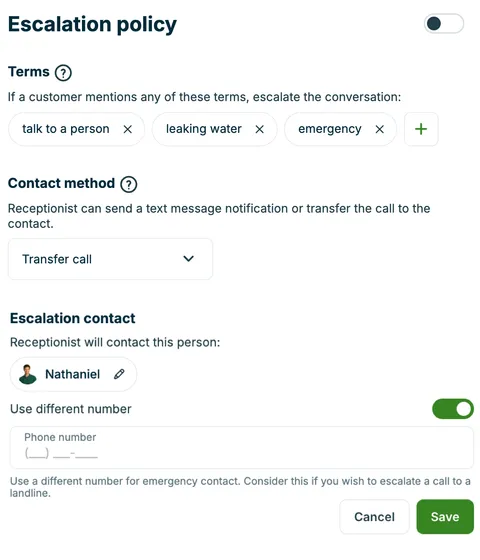
You can create an escalation policy to ensure that urgent or sensitive calls are redirected to a team member when specific terms or phrases are mentioned.
To set up an escalation policy for your Receptionist:
- Navigate to your Receptionist Settings: Select Receptionist from the side navigation, then select the Manage tab.
- From the Actions section, toggle the Escalation Policy to ON.
- Add the terms that will trigger the conversation to be escalated to your selected team member. For example: “emergency,” “speak to a manager,” or “urgent.” Use the + icon to add additional terms.
- Select the contact method: This is how Receptionist will notify you about the escalation. There are two options:
- Send a text message: A notification will be sent to your escalation contact with a transcript snippet and a link to return the call.
- Transfer the call: The call will be immediately transferred to your escalation contact’s phone number. With this method, you can enter in a different phone number to the one set for the escalation contact’s user account by turning on the toggle for “Use different number”, then entering another escalation contact’s phone number.
- Choose your escalation contact: This is the person who will be notified or take over the call when escalation is triggered.

You can add multiple trigger terms to match the kinds of situations your team wants to be notified about. Receptionist will listen for these during calls and automatically initiate your selected escalation method when one is detected.
Note
Your escalation contact’s phone number must be different from your business phone number or dedicated phone number to ensure calls are properly transferred.
Schedule jobs
When enabled, Receptionist uses your Online Booking form to schedule jobs in your calendar. When booking directly into your schedule, your Receptionist uses your online booking settings to determine which team members to schedule for appointments as well as the services that can be booked.
Appointment handling
When appointment handling is enabled, your Receptionist will be able to lookup upcoming visit details and add any notes that your clients request. Receptionist is also able to reschedule appointments (if online booking is enabled).
Note: When appointment handling is disabled, clients won’t be able to view their appointments in client hub as they won’t have access to the “appointments” tab.
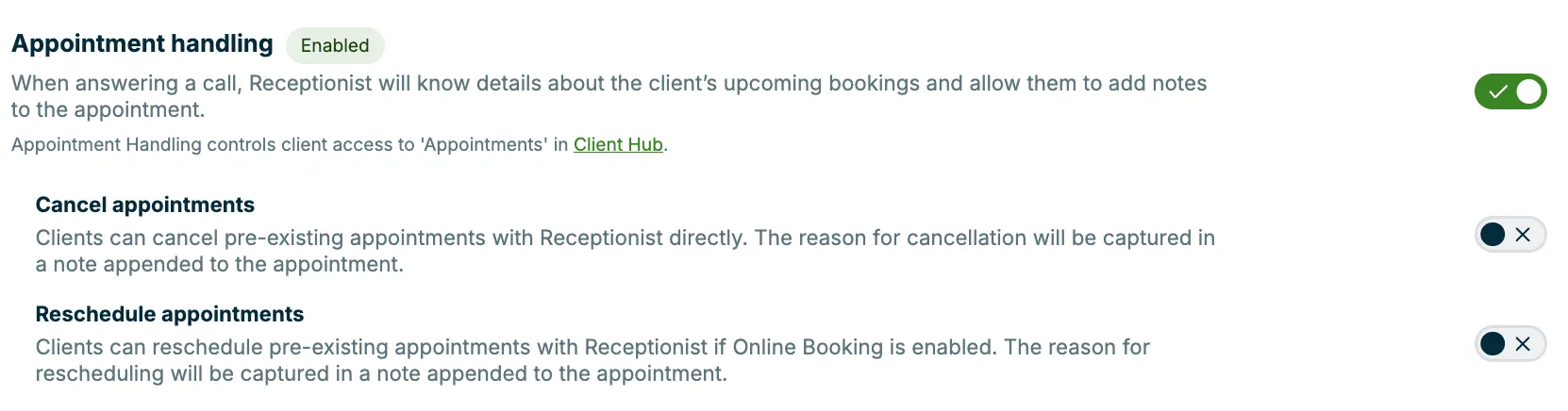
Within appointment handling, there are two setting toggles:
- Cancel appointments: When enabled, this setting will allow clients to self-manage cancelling appointments. When an appointment is cancelled, the scheduling details will be removed and it will become an unscheduled appointment, keeping the original visit details intact. A cancellation note will be added to the appointment.
- Reschedule appointments: When enabled, clients can manage moving appointments to another date and time. Online booking must be enabled for Receptionist to reschedule appointments.
Submit Requests
When enabled for your account, Receptionist uses your selected request form to submit requests. When booking directly into your schedule, your Receptionist uses your online booking settings to determine which team members to schedule for appointments as well as the services that can be booked.
Create follow-up tasks
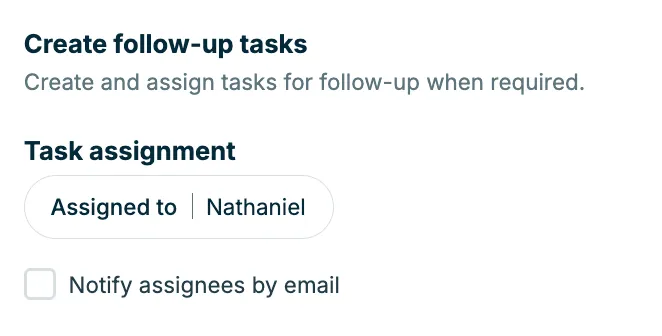
When Receptionist takes a message, it creates a task in your Jobber schedule to follow-up with the customer. By default, these tasks are assigned to all admin users however an individual team member or a group of team members can be assigned to task created by your Receptionist.
If a customer calls or texts your Receptionist and isn’t ready to schedule a job or submit a request, your Receptionist will create a task in your calendar for you to follow-up. From the task details on the schedule, select View Receptionist activity to see a summary of this conversation.
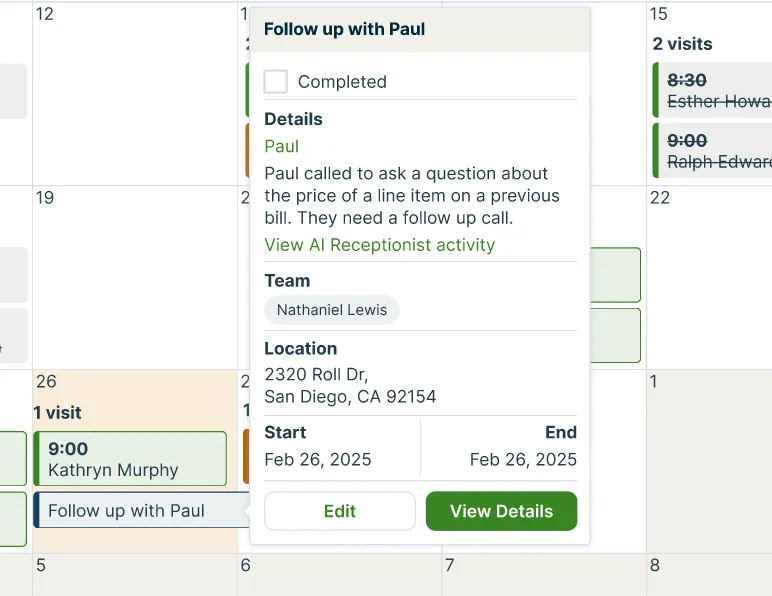
The tasks created by your Receptionist will be assigned to all team members listed under “task assignment” and will be scheduled for the same day the call occurred. If the call occurred after business hours, the task will be set for the following day.
Tasks appear in your Jobber home, schedule, and activity feed. If the task is created during business hours, you will also receive a push notification through the Jobber mobile app.
To manage your Receptionist’s task assignment:
- Select Receptionist from the side navigation to go to the Receptionist dashboard, then select the Manage tab.
- The task assignment option is in the Actions section under “Create follow-up tasks”. Click Assigned to then select the team member(s) who will follow-up on tasks created by the Receptionist. If multiple team members are selected, they will all be assigned to these tasks. Check the box for Notify assignees by email to give your team notifications about their assignments.
Explore the Receptionist dashboard
The Receptionist dashboard is where you can view the activity of your Receptionist.
To view your Receptionist dashboard, select Receptionist from your side navigation, then make sure you’re on the Dashboard tab.
Jump to Receptionist dashboard
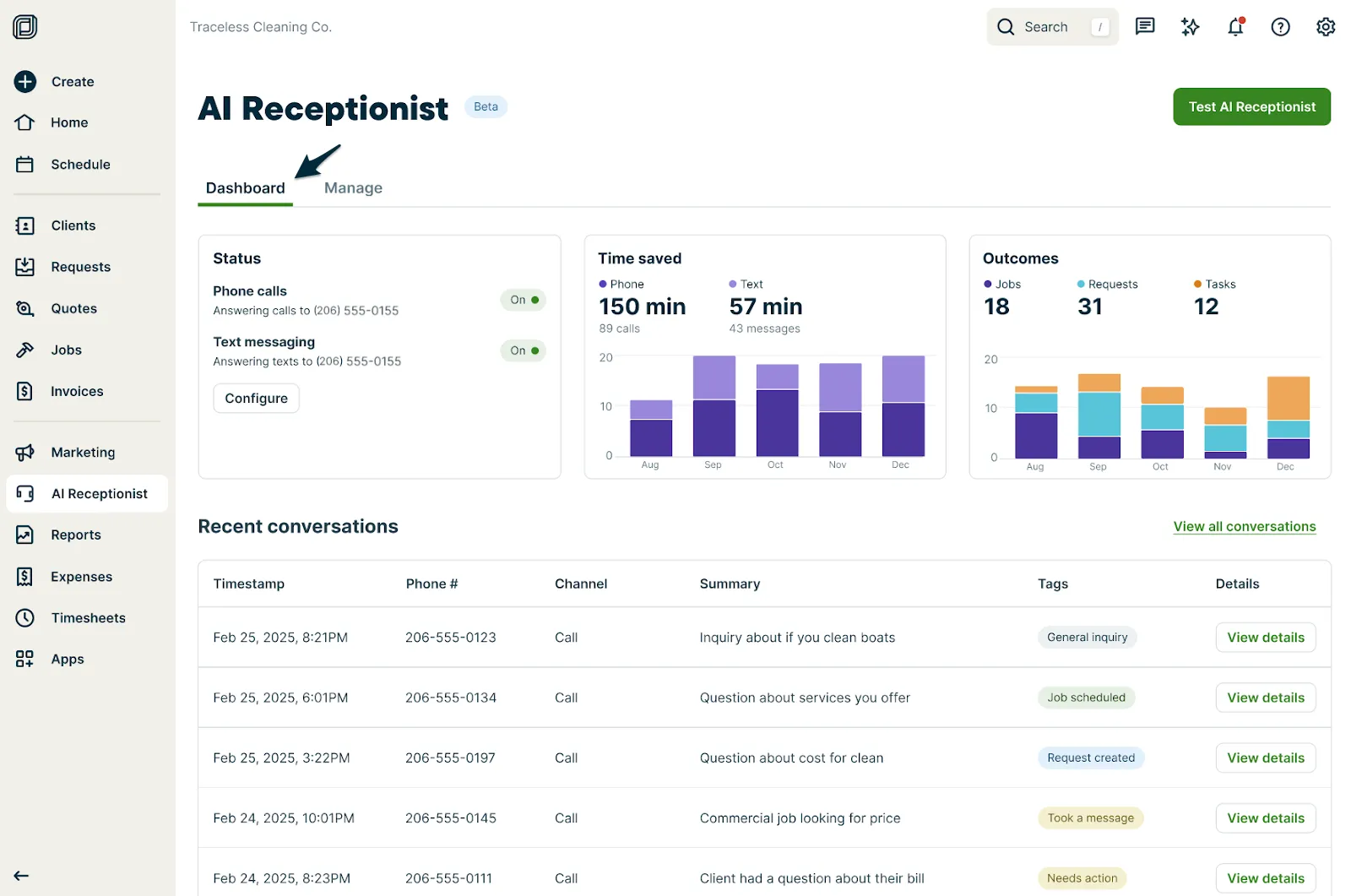
The Receptionist dashboard includes sections for:
- Status: This includes if your Receptionist is accepting both phone calls and text messages. To update the types of interactions your Receptionist is having, select the Configure button. There are three statuses:
- “On” indicates that the Receptionist is answering any call or text made (or forwarded) to your dedicated phone number.
- “Off” indicates that you do not have a dedicated phone number enabled. The Receptionist isn’t answering calls or texts.
- Time saved: This card displays the number of minutes and calls/text messages that have been answered by your Receptionist. There is also a visualization of the ratio to phone calls to texts.
- Outcomes: The outcomes card displays a visualization of the work created by your Receptionist, including jobs, requests, and tasks.
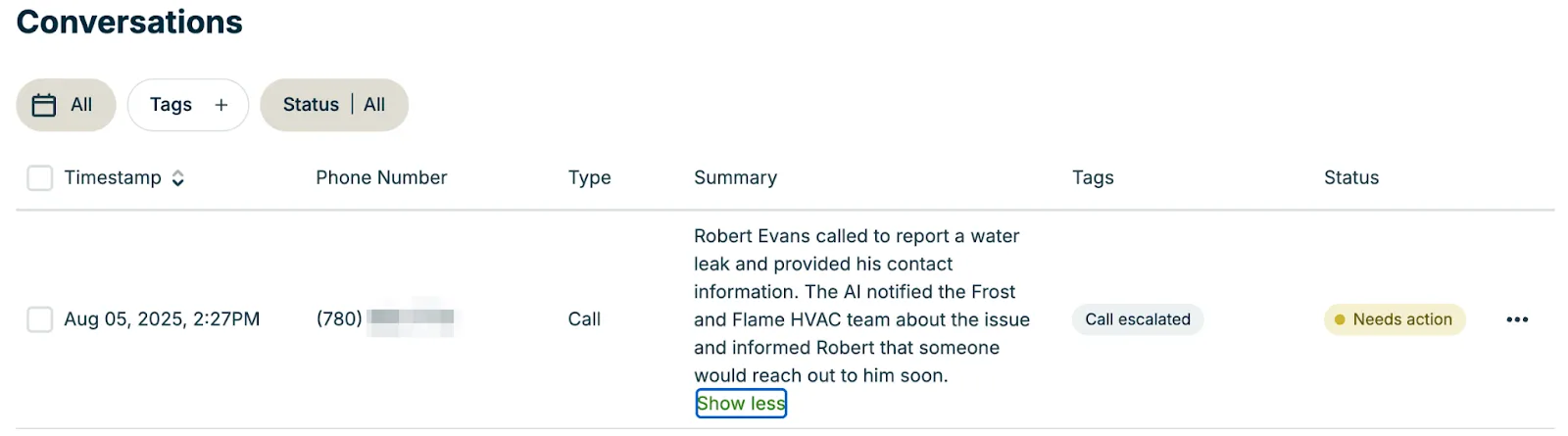
- Recent conversations: This is a log of recent Receptionist conversations. For each conversation, there is a:
- Timestamp: This is when the conversation occurred.
- Phone number: this is the number the customer called or texted from
- Channel: this will be call or text message
- Summary of the call
- Tags: A tag will be added to categorize the action taken by the Receptionist, including:
- General inquiry: Your Receptionist was able to address the caller inquiry with no more help needed. No work request or job was created.
- Needs action: Your Receptionist was not able to address the inquiry. A task will have been created for you to follow-up on.
- Request created: A request was created.
- Assessment scheduled: An assessment was scheduled
- Job scheduled: A job was scheduled.
- Took a message: Your Receptionist has created a task in Jobber for you with details of the call, to follow up with the customer.
- Spam: A call unrelated to the business.
- Call escalated: If call escalation is enabled, this indicates the call was escalated to a person.
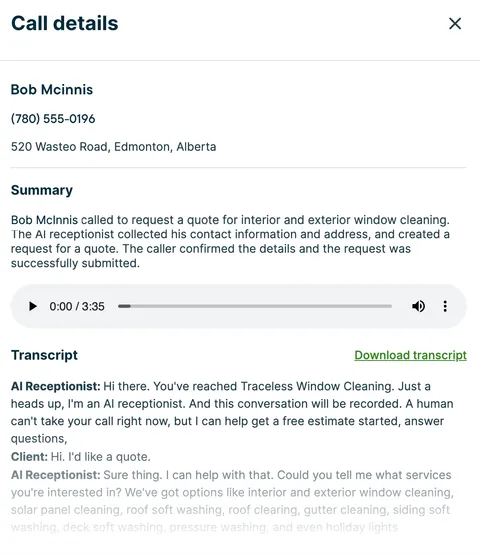
- View details button: Select this button to open the conversation details, including:
- The name of the client
- Their phone number
- Property address
- Summary of the conversation
- Call recording
- Transcript
Frequently asked questions
What exactly does the Receptionist do?
The Receptionist can handle new client inquiries, answer questions about your business, create work requests, and schedule appointments in your Jobber account through text messages and phone calls.
How do I control when my Receptionist is active?
You have full control over when your Receptionist is on or off for calls and/or text messages. You can turn it on so it can take calls and respond to texts when you’re unavailable, and turn it off when you’re ready to start your day. At this time, this is done directly from a toggle on your Receptionist dashboard in Jobber.
Is my Receptionist available 24/7?
Yes, once activated, the Receptionist can manage inquiries and requests around the clock, ensuring you never miss a potential client.
What if I get multiple calls at the same time?
Your Receptionist can handle concurrent calls at once. If you have an influx of customer calls, your Receptionist will be able to handle them all at the same time.
How can I use my Receptionist with my existing phone number?
To use the Jobber Receptionist, you’ll need a Jobber dedicated phone number. However, if you already have a business number that your clients call, you can forward those calls to your Jobber number so the Receptionist can handle them.
There are two common ways to set this up:
- Using Google Voice: If your business uses Google Voice, you can easily link your Jobber number and set up forwarding in your Google Voice settings. Follow these steps to set it up.
- Through your phone provider: Most carriers allow you to forward calls to another number after a certain number of rings or outside business hours. This often involves dialing a specific code. Check with your provider for exact instructions.
What if my Receptionist doesn’t know an answer to a client’s question?
Your Receptionist will be trained to handle the most common questions, but if it encounters something it doesn’t know, it can direct the client to contact you directly. You will be able to see a transcript of every conversation that your receptionist has with your clients.
You can also update the Essential Information in your business profile to provide Receptionist with more information about how to answer questions like these in the future.
Will using the Receptionist affect my relationship with existing clients?
Receptionist is designed to complement your existing client interactions, handling routine tasks so you can focus on more personalized service.
How can I share feedback?
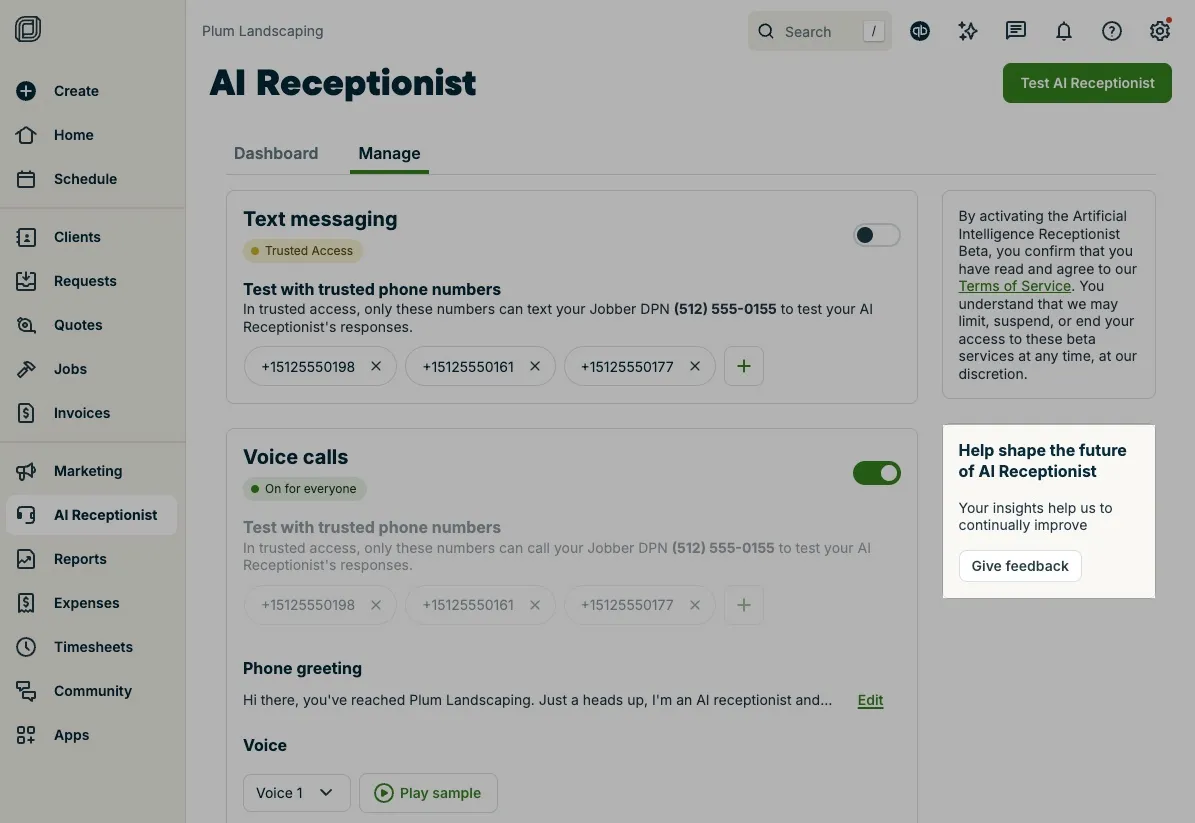
Your feedback is crucial for refining and shaping the future of Receptionist. To give feedback:
- Select Receptionist from your side navigation, then select the Manage tab.
- Locate the “Help shape the future of Receptionist” card and select Give Feedback.
Where can I see a log of my Receptionist’s conversations?
You can view recent conversation logs—including summaries, transcripts, and call recordings—by following these steps:
- Select Receptionist from your side navigation to jump to the Receptionist dashboard.
- From the Recent Conversations section, locate the conversation you’re interested in.
- Select the View Details button to see:
- The client’s name
- Their phone number
- Property address
- A summary of the conversation
- The call recording
- The transcript
How do Receptionist charges appear on my subscription invoice from Jobber?
Your Jobber invoice includes a line item for Receptionist - 30 Conversations / Month at $29.
If you go over your 30-conversation limit in a billing cycle, Jobber adds a second line item called Receptionist Additional Usage. The quantity on that line reflects the number of conversations over your limit, and the subtotal is that number multiplied by $0.79. Jobber applies overage charges to your next monthly renewal invoice.
How do I know how many conversations Receptionist has had in this billing cycle?
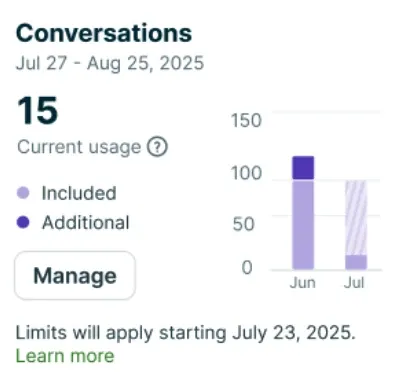
Your Receptionist dashboard shows how many conversations you have used in the current billing cycle. The dashboard separates your included conversations from any additional conversations subject to overage charges.
To view your usage, navigate to your Receptionist dashboard, then select Manage on the Conversations card. This opens a settings panel where you can review your current usage and adjust what happens when you reach your limit.
What is counted as a conversation?
AI Receptionist tracks conversations to measure your usage. Not every interaction counts — how Jobber defines a conversation depends on whether the interaction happens over a call or a text message.
A call counts toward your usage when AI Receptionist actively engages with the caller. Calls that AI Receptionist identifies as spam, or where no real interaction takes place, do not count.
A text conversation starts when AI Receptionist first responds to an incoming message. That conversation stays open for up to 24 hours. Messages exchanged within that window count as part of the same conversation — not as separate ones. Once the 24-hour window closes or a new session begins, AI Receptionist starts a new conversation.
I’ve reached my conversation limit, can I change my Receptionist settings?
Receptionist gives you two options for what happens when you use all 30 included conversations in a billing cycle:
- Continue and pay overages: Receptionist stays active. Jobber charges $0.79 for each additional conversation beyond 30.
- Pause Receptionist: Receptionist stops responding to calls and texts at your limit. No overage charges apply. Learn more about What happens when Receptionist is paused?
To update this setting, follow these steps:
- Navigate to your Receptionist dashboard.
- Select Manage on the Conversations card.
- Choose whether to continue with overages or pause Receptionist when you hit your limit.
- Select Save to apply your changes.
How am I notified about Receptionist usage overages?
Jobber sends email notifications to account admins when your Receptionist usage reaches key thresholds:
- 75% of your limit (23 conversations): Jobber sends a heads-up email letting you know you are approaching your limit.
- 100% of your limit (30 conversations): Jobber sends an email letting you know you have reached your limit and reminding you of the setting in place for your account.
An in-app banner also appears when you have 10 conversations remaining. The banner reflects your current setting, whether you are set to pause or to continue with overages.
What happens when Receptionist is paused?
If you set Receptionist to pause when you reach your 30-conversation limit, here is what changes:
- Receptionist stops responding to calls and texts via SMS.
- If a caller reaches Receptionist, it takes a message and records it for you. This does not count as a conversation toward your limit.
- Receptionist cannot book appointments or take other actions while paused.
If you do not want to miss a call while Receptionist is paused, set up call forwarding from Receptionist to redirect incoming calls to another number. Receptionist resumes at the start of your next billing cycle.