Overview
Jobber Central is a group-level workspace designed for businesses that manage multiple Jobber accounts, like franchises or multi-location businesses.
Instead of logging in and out of individual accounts, Jobber Central gives you a single place to view performance, your lead funnel, manage settings, and understand what’s happening across all of your locations. From high-level trends to unit-by-unit details, Jobber Central helps you stay informed and make decisions with confidence.
In Jobber Central, you can:
-
Get a high-level view of how your business units are performing
-
Compare activity and results across locations
-
Manage access for head office or central team members
-
Review key financial, operational, and marketing insights in one place
Each business unit still runs independently in Jobber, while Jobber Central brings the most important information together so you can manage your network more efficiently.
Jobber Central availability
Jobber Central is available on Jobber.com for admin users who manage multiple Jobber accounts within a franchise setup. Learn more about Franchising (Adding Another Account).
Aggregated insights for all locations
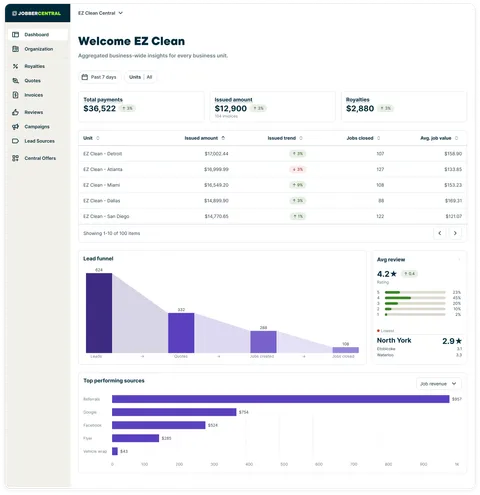
At the top of your Jobber Central dashboard is an overview showing insights aggregated across all business units. This includes:
- Total payments: This is a total of all paid invoices and paid quote deposits (including discounts) before tax, not including tips. Click this card to view the invoice summary report for a more indepth look at your total invoices and payments within the selected date range.
- Invoices issued: This card shows the dollar value of invoices issued within this date range. he total number of invoices issued in this date range also shows on the card. Click this card to view the invoices report.
- Royalties: This is the projected and paid royalty amount based off invoices issued. Click this card to view the royalties report.
Filter your Jobber Central overview
To change the date range or to narrow down the units shown, use the date and unit filters.

To filter your report by date, select the Date filter dropdown, then select a date range. Your options are:
- Last week
- Last 30 days
- Last month
- This year
- Last 12 months
- All time
- Custom range
To filter by unit, select the Unit filter, then select:
- All units
- An individual unit
Unit performance table
Below the aggregated insights is a unit performance table that breaks down each unit. This table includes:
- Unit name: This is the name of each business as listed in each account’s company settings.
- Issued amount: This is the total dollar value of invoices issued by this unit
- Issued trend: A trend indicator shows how the invoices issued in this date range compares to the previous period with a percentage.
- Jobs closed: How many jobs have been closed by this unit within the selected date range.
- Average job value: The average total of jobs.
Visualizations for aggregated locations
Below the unit performance table are some visualizations that illustrate trends across locations:
View insights for an individual franchise location
In addition to Jobber Central, which provides aggregated insights for all franchise locations, each individual franchise has its own location-specific insights available to admin users through Home.
Home includes:
- Suggested features: For new Jobber users, we’re surfacing the most valuable features to to help you be successful based on the goals you’ve identified during sign up
- Today’s appointments: See how your team is progressing through their day, and through their current appointment, so you can get ahead of any delays.
- Jobber Payments: See exactly how much money is on its way to your bank and what’s available as an instant payout.
- Business performance: Keep a pulse on your business health. At a glance, see your revenue from the past 7 days and projected revenue for the next week
Navigate to a different franchise location
To navigate to a different franchise location:
- Sign into Jobber.com
- From the top left corner, select your company name.
- From the dropdown, select a different location to view the Jobber account for that franchise.
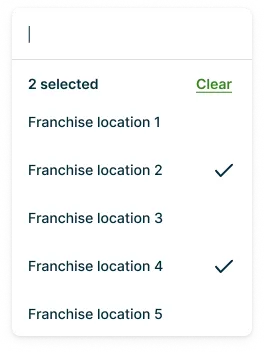
- To filter by franchise location, select the Location filter and select the location(s) from the dropdown.
Manage team members with access to Jobber Central
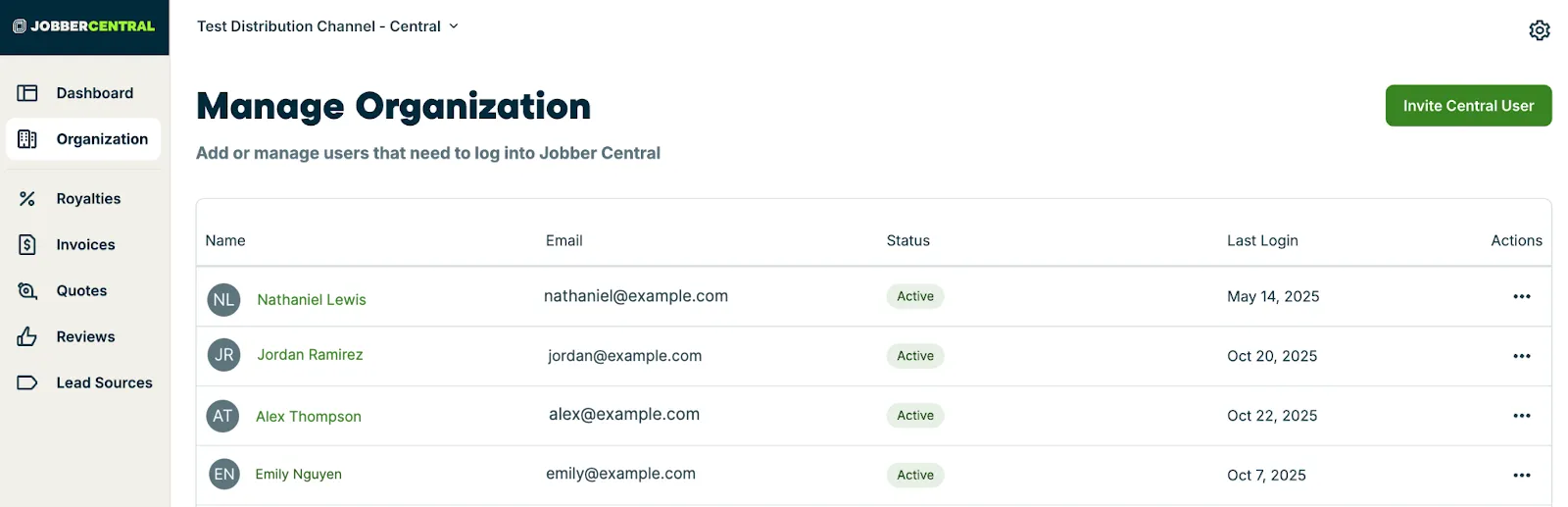
To manage your team members who can access Jobber Central, including adding or removing team members, select Organization from the Jobber Central side navigation. This will open a list of the team members who can log into Jobber Central, including their:
- Name
- Email address
- Status
- Last login
For each team member, select the three dot icon in the Actions column for options to deactivate that user. If the user has already been deactivated, the options will be to reactivate or delete the user permanently.
Invite a new team member to Jobber Central
To invite a new team member to Jobber Central:
- Select Organization from the Jobber Central side navigation.
- From the Manage Organization page, select the Invite Central User button.
- Add the new user’s:
- Name
- Email address
- Mobile phone number
- Address
- Labor cost (including wage, benefits, and taxes) for job costing
- Set their permissions. There are some default preset permission settings as well as an option to customize the team member’s permissions. Learn more about User Permissions.
Deactivate a team member from Jobber Central
To remove a team member’s access to Jobber Central:
- Select Organization from the Jobber Central side navigation.
- From the Manage Organization page, locate the user who will be deactivated.
- From the Actions column in that user’s row, select the three dot icon then select Deactivate.
Note: If you choose to deactivate a user, they will be unassigned from all incomplete items assigned to them on the calendar (visits, tasks, requests, reminders). It is recommended to re-assign their schedule to another user before deactivating them.
Delete a team member from Jobber Central
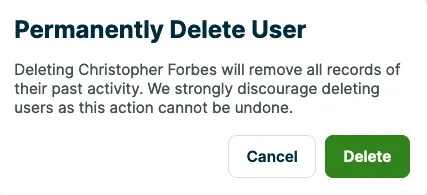
Beyond deactivation, you can delete a user to permanently remove them from your account. When a user is deleted from Jobber, all record of that user is deleted. For example, after deleting a team member you will no longer have access to their time entries or completed tasks on the calendar (however these remain for deactivated users). For record keeping, we recommend deactivating users rather than deleting them.
To delete a deactivated team member from Jobber Central follow these steps:
- If you haven’t already, deactivate the user. Team members must be deactivated before being able to be deleted.
- Select Organization from the Jobber Central side navigation.
- From the Manage Organization page, locate the user who will be deactivated.
- From the Actions column in that user’s row, select the three dot icon then select Deactivate.
- From the Actions column in that user’s row, select the three dot icon again, then select Delete.
- Select Delete to confirm this team member should be permanently deleted. Once done this cannot be undone.