

Overview
The invoices list is where you can view, track, and manage all of your invoices in Jobber. From this page, you’ll see a complete list of invoices along with tools to filter, sort, and take action—so you can stay on top of what’s been billed and what’s still outstanding.
To open the invoices list:
-
Sign into Jobber.com.
-
From the side navigation, click Invoices
At the top of the invoices list, you’ll also find key metrics that give you a snapshot of your billing activity. These insights highlight trends like total invoiced and outstanding balances, helping you understand your cash flow and what payments are still due.
Invoices are a key step in getting paid—connecting completed work to payments—so the invoices list is a central place to track billing, follow up on unpaid invoices, and keep your revenue flowing.
Key metrics on the invoice list
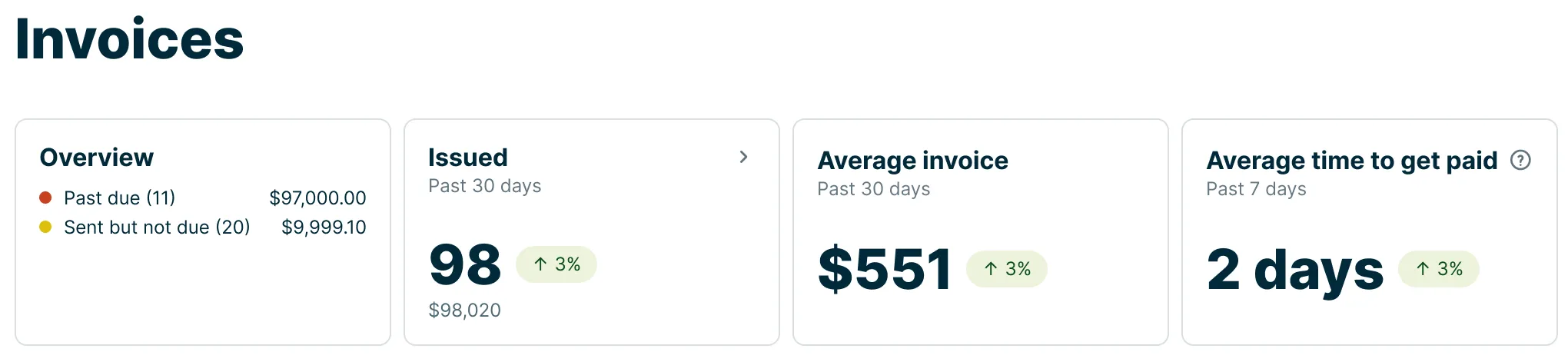
At the top of the list are some key metrics to help you understand how your invoices are performing, including:
- Overview: This is the breakdown of all your invoices across different statuses.
- Issued: This is the number of invoices you have issued over the last 30 days (not including today), as well as the dollar value of all invoices issued during this time. Hover over the trend indicator to view how this compares to the previous 30 day period.
- Average invoice price: This is the average dollar value of all invoices issued over the past 30 days (not including today). Hover over the trend indicator to view how this compares to the previous 30 day period. Select this insight to view the invoices report. The invoices report has a column for “days to paid” that shows the number of days from when the invoice was issued until the status on the invoice switched to “paid”.
- Average time to get paid: This is the average number of days that all invoices paid in the past 7 days took to get from issued to paid status.
Filter and search the invoice list
The invoice list can be filtered by:
- Status
- Invoice due date
When the invoice list is filtered, the “All invoices” heading changes to “Filtered invoice” to indicate that the list only reflects invoices that match the filters.
To filter by status, select the Status filter, then select a status.
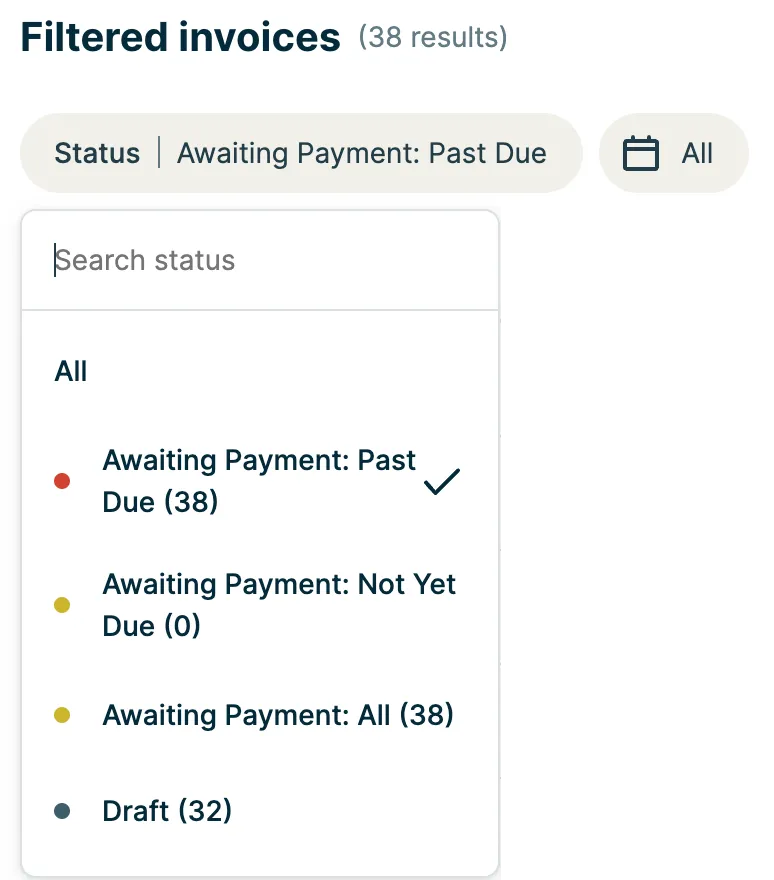
Another way to filter by status is to select an invoice status from the overview.
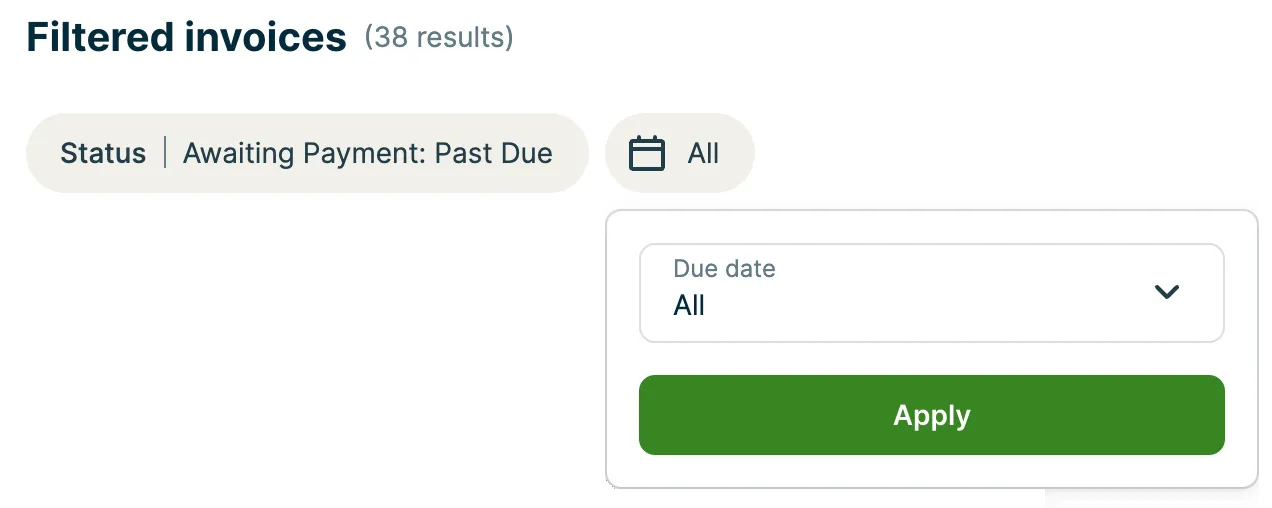
To filter by invoice due date, select the Due date filter, then from the drop down select:
- All
- This month
- Last month
- This year
- Custom range
Then select Apply to add the date range filter to the invoices list.
The invoices list is where you’ll find a list of all your invoices where you can filter by status as well as sorting by:
- Client
- first name (A-Z)
- first name (Z-A)
- Invoice number
- Due date
- Status
- Total
- Balance
Invoice statuses
The invoice statuses are:
- Draft: The invoice has been created, but hasn’t been sent to a client or marked as sent
- A draft invoice will move into the next status when it is sent (either by email or text message), or marked as sent.
- Awaiting Payment: The invoice has been sent to a client, and has not been paid yet. The invoice due date has also not passed yet.
- Past Due: The invoice is past its due date, and hasn’t been paid for, or marked Paid
- Paid: A payment for the full invoice balance has been applied, or the invoice has been manually marked as Paid
- Bad Debt: An invoice in bad debt status has been deemed partly or fully uncollectible. Either part of the remaining balance or the full invoice balance has been marked as bad debt to close out the invoice and remove it from the client’s billing history. The invoice remains in Jobber for your records.
- Voided: The invoice has been cancelled and can no longer collect payment. The invoice remains in Jobber for your records but cannot be edited, sent, or paid. You can filter the invoices list by the Voided status to view all voided invoices. Learn more about voiding an invoice.