

Overview
Reviews in Jobber Central gives you a centralized view of customer feedback across all the business units in your organization. Instead of checking reviews one location at a time, you can see overall trends, compare performance between units, and spot opportunities to improve customer satisfaction. This makes it easier to maintain consistent service quality and brand reputation as your business grows.
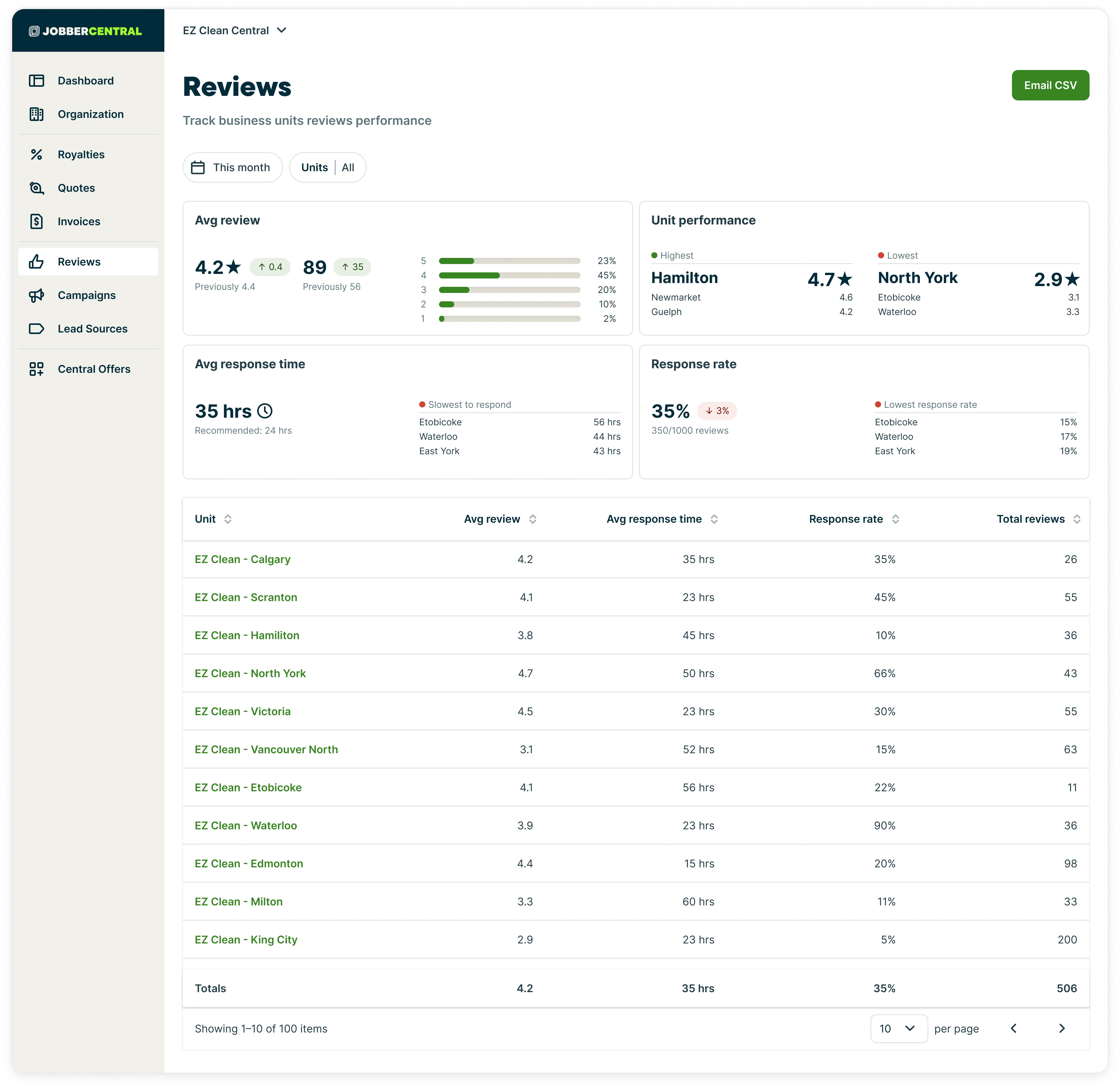
Filter the reviews module
The reviews module for Jobber Central can be filtered by:
- Date range: Select the Date filter dropdown, then select a date range. Your options are:
- Last week
- Last 30 days
- Last month
- This year
- Last 12 months
- All time
- Custom range
- Unit: Select the Unit dropdown, then select:
- All units
- An individual unit
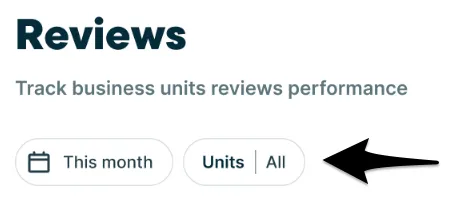
Key metrics for reviews
At the top of the page, you’ll find aggregated metrics that summarize how your organization is performing overall, including:
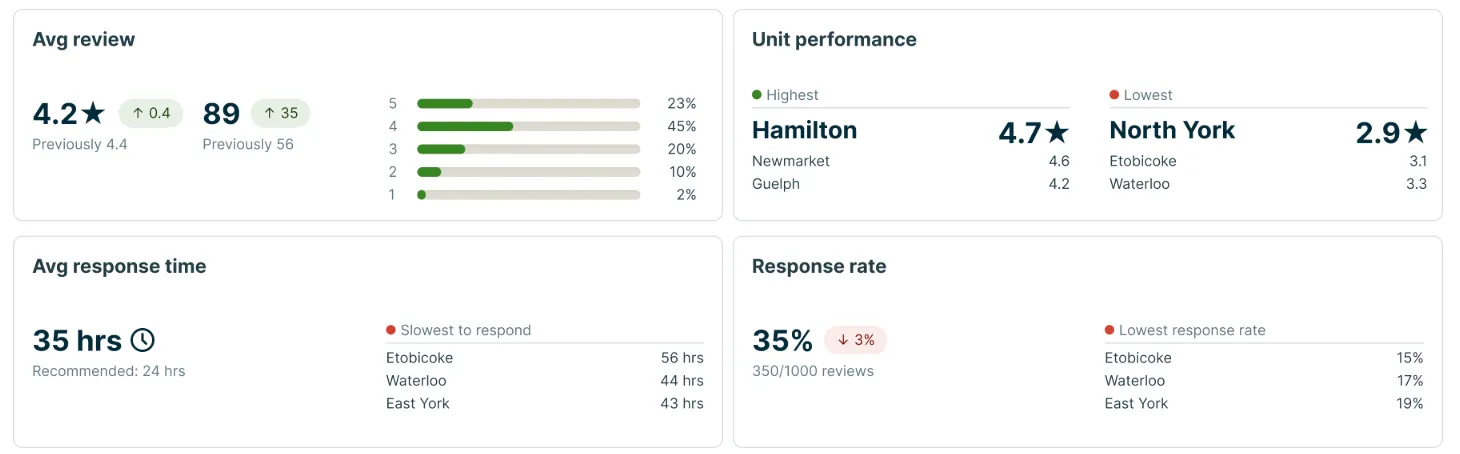
Average review rating
The average review rating displays the overall star rating across all reviews for the selected units and time period. This is calculated by averaging the star ratings (1–5 stars) from customer reviews.
-
The large star value shows the current average rating.
-
A trend indicator shows how the average rating has changed compared to the previous time period.
- A green upward arrow means the average rating has increased.
- A red downward arrow means the average rating has decreased.
-
The bar chart breaks down reviews by star rating and volume, showing the percentage of 1-star through 5-star reviews.
Response rate
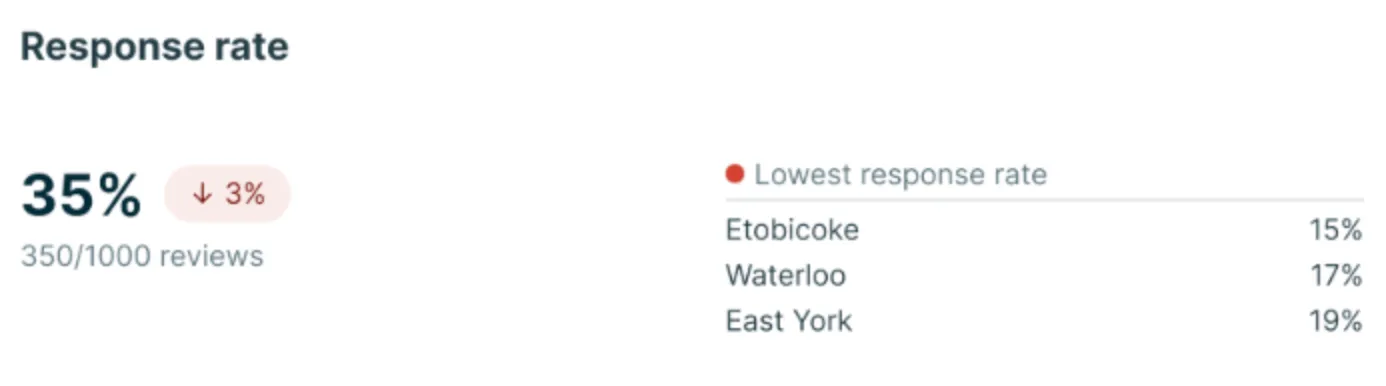
The response rate shows the percentage of customer reviews that received a response from your team. This metric is calculated by dividing the number of reviews that have been responded to by the total number of reviews, for the selected time period.
-
The percentage represents your current response rate.
-
A trend indicator shows how your response rate has changed compared to the previous period:
- An upward arrow means a higher percentage of reviews are being answered.
- A downward arrow means fewer reviews are being responded to.
-
The review count (for example, 350/1000 reviews) shows how many reviews were responded to out of the total received.
-
The three locations with the lowest response rate will be shown on the card in case you need to follow up with these units
Average response time
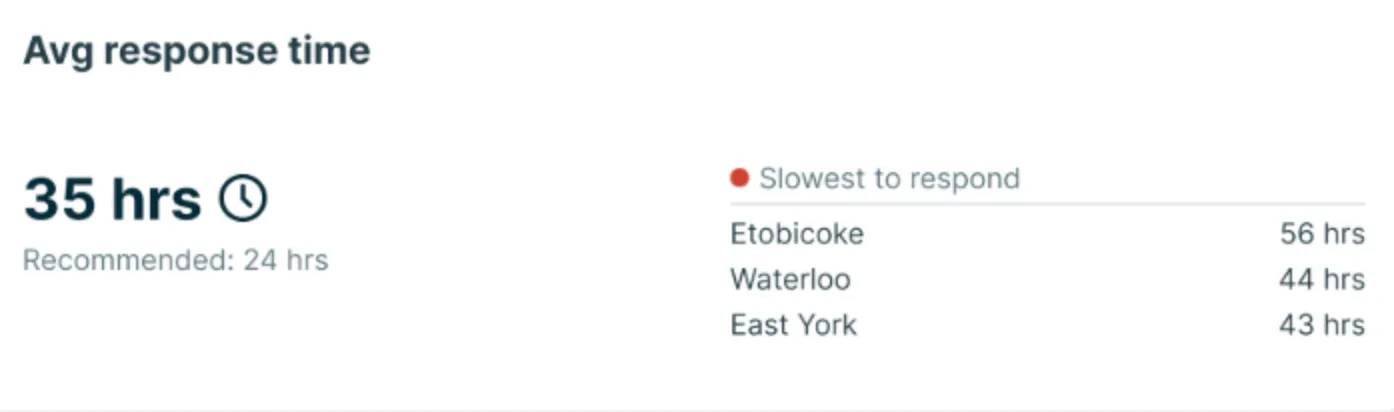
Average response time shows how long it takes, on average, for your team to respond to customer reviews.
This metric is calculated based on the time between when a review is submitted and when a response is posted.
- The time value (for example, 35 hours) shows the average response time across selected units.
- The recommended benchmark (for example, 24 hours) gives guidance on a healthy response window.
- The slowest to respond list highlights the units with the longest average response times, helping you identify where follow-up may be needed.
Use this metric to understand how quickly your locations are engaging with customer feedback and where response workflows may need improvement.
Unit performance
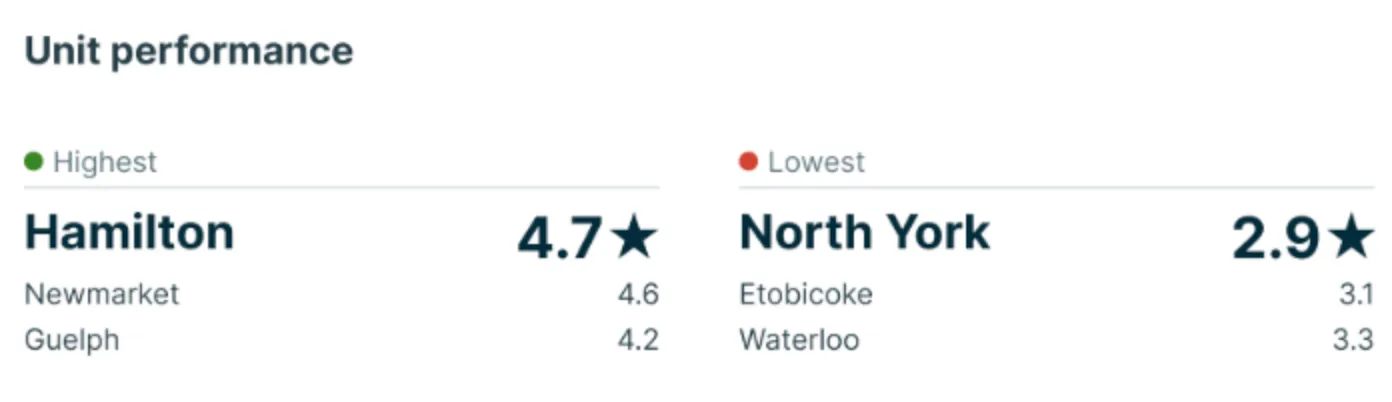
Unit performance compares review ratings across individual business units. This section highlights:
-
Highest-performing units, based on average review rating
-
Lowest-performing units, based on average review rating
Each unit is shown with its average star rating so you can quickly see which locations are excelling and which may need attention. Use unit performance to:
-
Identify best practices from high-performing locations
-
Spot units that may need coaching, process changes, or additional support
Compare performance by unit
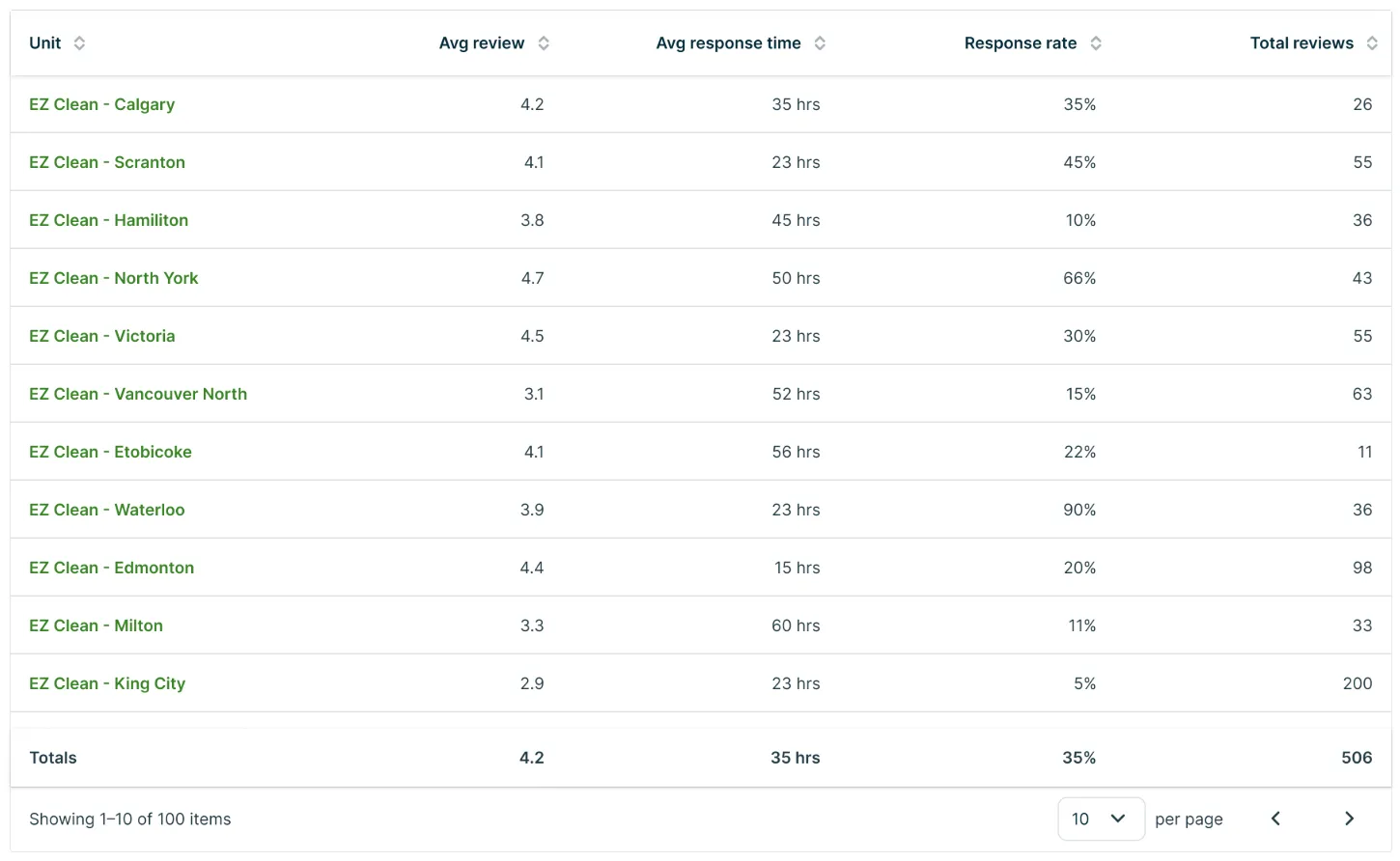
Below the summary metrics, the unit performance table shows review data for each business unit, including:
-
Average review rating
-
Response rate
-
Average response time
-
Total number of reviews
This makes it easy to identify top-performing locations, as well as units that may need additional attention or support.
Export review data to CSV
To export the data from reviews for Jobber Central, click the Export CSV button.
A CSV version of the reviews module for Jobber Central will be sent to the same email address that you use when you log into Jobber.
Exporting to CSV is a good option if you need to work with the data in the report, print the report, or share it with someone who is not a user in your Jobber account.