

What are user permissions?
Control what information your team can access in Jobber, and keep them in the loop with a notification anytime their schedule changes.
Permissions settings limit what users can access in Jobber.
To change a user’s permission settings, go to the Gear Icon then select Manage Team and click on the user’s name. Only admin users can change permission settings.
User permissions are available on select plans. View our current pricing plans.
To check what plan you’re on, navigate to the Gear Icon then select Account and Billing. If you have any questions about your plan’s features or pricing, our support team is here to help!
Preset permissions levels
There are four preset permission levels that you can choose from, however beyond these four defaults permissions can be set up as needed from the Custom permissions settings.
- Field crew: Can see their own schedule, mark work complete, add notes and photos on their jobs, and start and stop timers to track time. Can’t see anyone else’s schedule, see pricing or costs, or create and edit timesheets manually.
- Senior field crew: Includes everything Field crew can do, plus viewing client files and attachments, seeing prices, creating and editing clients, quotes, jobs, and invoices, and collecting payments. Can’t change anyone else’s schedule, edit timesheets for other team members, or view reports.
- Crew lead: Includes everything Senior field crew can do, plus viewing and changing everyone’s schedule, adding and editing everyone’s timesheets, and viewing client communications. Can’t use marketing tools or view reports.
- Manager: Includes everything Crew lead can do, plus viewing reports, and using marketing tools and the sales pipeline if they’re available on your plan. Can’t add or remove team members or change account settings.
Note: If a team member’s permission level shows as Custom but you don’t remember setting it that way, it’s likely because they were assigned one of the preset levels before Jobber updated the preset definitions. Their actual permissions haven’t changed. You can leave it as is, or reselect one of the current presets if you’d like their permissions to match it going forward.
Beyond these four defaults, there are also admin users who have greater access.
Admin users
Admin permissions in Jobber offer a fuller view of your business, including access to higher-level settings and features. It’s a great fit for people who play a key role in managing the company and need access to the tools and information that support day-to-day decisions. These might include:
- Business owners
- Operations managers
- Office administrators
To make a user an admin, check the box for Make Administrator located above the preset permission levels.
Admin users have access to settings, including:
- Company settings
- Business profile
- Products & services list
- Jobber Payments settings
- Expense tracking settings
- Chemical tracking settings
- Manage team settings (including adding, editing, and deactivating team members)
- Work settings
- Schedule settings (including calendar syncing, calendar colors, and day sheet settings)
- Location services settings
- Route optimization
- Checklist settings
- Client hub settings
- Email and text messages settings
- Requests settings
- Online booking settings
- Connected apps
- Marketing tools
- Receptionist–powered by Jobber AI
Note: You don’t need to be an admin to use certain features, but you must be an admin to access their settings. For example, non-admin users with the right permissions can fill out checklists, but only admin users can access the checklist settings to create or edit forms. The same applies to Marketing Suite: an admin must authorize the initial connection between Jobber and a marketing platform, but once that’s done, non-admin users with the Marketing Suite permission can use Marketing Suite as normal.
There are a some actions that only admins can perform, including:
- Accessing the account & billing page, which include updating subscription billing information and accessing previous subscription invoices
- Authorizing the connection between Jobber and a marketing platform, such as Facebook or Google, the first time it’s linked
- Exporting or importing your client list
- Accessing Jobber Payment reports
- Viewing Home, Insights, and Activity Feed
- Confirm payroll
Email subscriptions
Admin users can opt out of certain email subscriptions, including:
- Surveys: Occasional surveys from Jobber to gather feedback on how we’re doing.
- Error messages: warnings and errors in Jobber, like undeliverable emails or errors with integrations.
These settings are found on the Edit User page, just below the other permissions settings. To opt-out of these, deselect each message type.
In the Email & Text Messages settings page you can designate a team member to receive replies to specific email types. This team member will also receive email notifications about that item’s status. For example, if you receive email replies about quotes and a client approves a quote, you would also receive the email from Jobber letting you know a quote has been approved.
The team members who appear as options for email replies are the users who have permissions to view, create, and edit that item type. For example, if they have permission to view, create, and edit quotes then they would be eligible to receive replies for clients replying back to emails about quotes (including follow-ups, change requests, and approvals).
The email reply-to settings that can be customized are:
- Requests (including assessment reminders)
- Quotes (including follow-ups, change requests, and approvals)
- Jobs (including visit reminders, booking confirmations, checklists, and job follow-ups)
- Invoices (including follow-ups and receipts)
If you are the reply-to recipient, you will receive emails notifications about:
- Requests
- New requests received
- Note: If the reply-to for requests is the sender, all admin users will receive an email about the new request since there was no original sender.
- New requests received
- Quotes
- Quote approvals
- Quote changes requested
- Quote deposit received
- Invoices
- Invoice email opened
- Invoice payment received
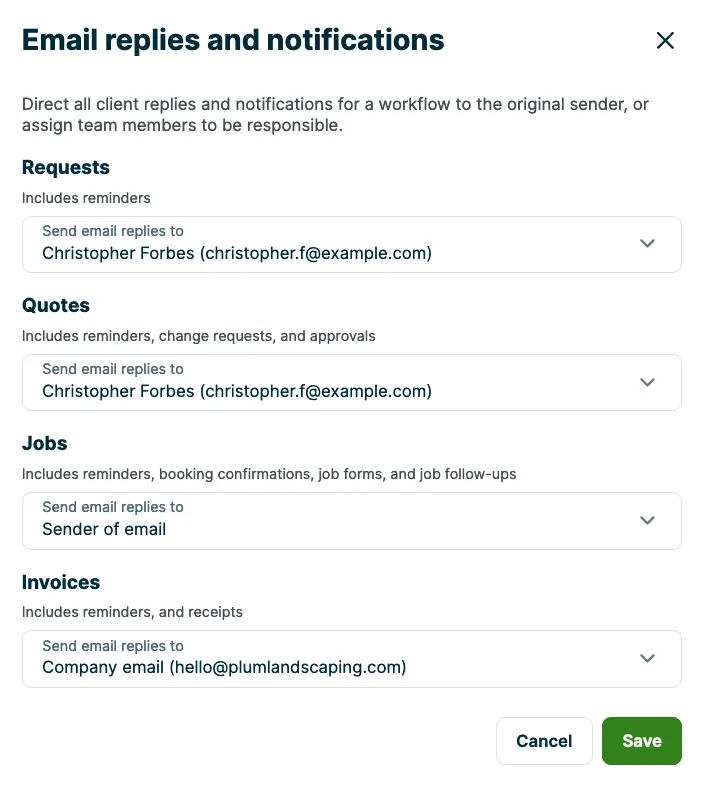
When a user who is selected to receive email replies is deactivated or if their permission settings change so that they can no longer view, create, and edit that item type, they will no longer receive email replies and notifications.
Before the change takes effect, you will be warned with a pop-up where you’ll need to confirm that they should be deactivated or downgraded. The contents of the pop-up will vary based on if you are deactivating them or changing their permission settings.
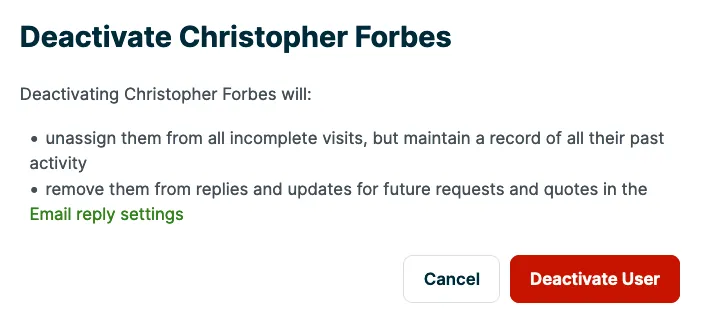
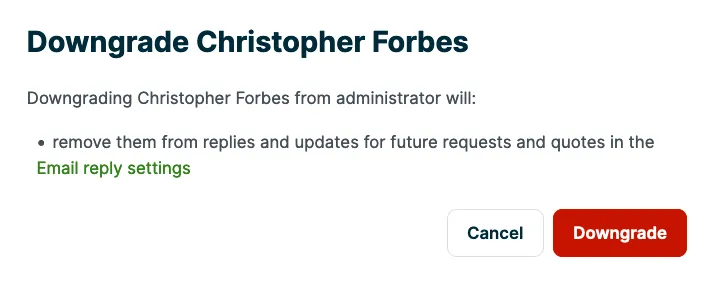
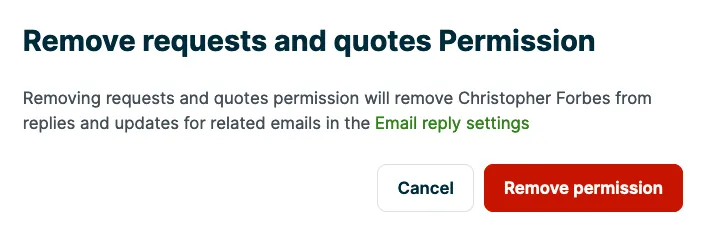
After they have been deactivated or downgraded, the default for their email replies and notifications will be the sender of that email. Learn more about Emails and Text Messages Settings.
Custom permissions settings
To see more permissions settings, click on Custom. This will show all of the permissions sections that you can edit for this user. When you select one of your defaults these fields will already be populated, but you can customize the permissions further for this user.
The items that can be customized are:
- Schedule: Includes viewing items on the calendar.
- Time Tracking and Timesheets
- Notes: Includes all notes across Jobber. You can hide notes for a feature by turning off permissions for that particular item.
- Files and Media: Allow team members to access the files and media section on a client’s profile.
- Expenses
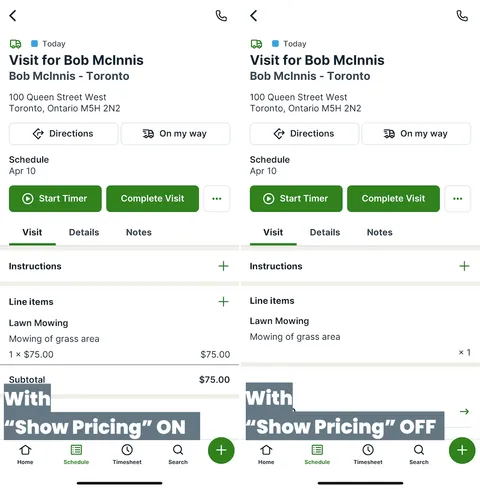
- Show Pricing: Allows users to see prices on quotes, invoices, and line items on jobs.
- Job costing: Shows job profit by tracking revenue and costs from line items, labor, and expenses.
- Marketing Suite: Grants access to all available Marketing Suite products you’ve purchased. If you don’t have the Marketing Suite add-on, the Website tool is still accessed from here.
- Pipeline: Grants access to the Pipeline board and sales outcome reporting.
- Client communications: Allows users to view email and text message history available to them based on their other permissions.
- Clients and Properties: Includes access to all client custom fields.
- Requests
- Quotes
- Jobs
- Invoices
- Payments
- Reports: Users will only be able to see reports available to them based on their other permissions.
Permissions in each section can be set to the following levels:
- On/off: To allow or restrict access to this information, set the toggle to On or Off.
- Note: When a permission level is toggled Off, it is minimized.
- View only: This allows the user to have a read-only view of information.
- View, create, and edit: This allows the user to see, add, and edit this information.
- View, create, edit, and delete: This allows the user to view, edit, add, and delete information.
- Show on Jobber menu: This allows the user to see the tab for this item in the side navigation as well as this item in the search. In the Jobber App, this permission setting adds a filter option in the search for this item type.
Some of the custom permission levels follow a different pattern, depending on the item.
The Notes section allows you the following:
- View notes on jobs and visits only: Allows the user to view notes only in the areas they have permission to view.
- View all notes: Allows the user to view all notes across Jobber, regardless of which areas they have permission to view.
- View and edit all: Allows the user to view and edit all notes across Jobber.
- View, edit, and delete all: Allows the user to view, edit, and delete all notes across Jobber.
For Files and Media, the permission setting is:
- On/off: To allow or restrict access to files and media, set the toggle to On or Off.
- Note: Files and media is a feature on the Plus Plan.
These choices differ for Schedule information, where users can:
- View their own schedule: This allows the user to see their own schedule, without the ability to mark work complete.
- View and complete their own schedule: This allows the user to see and mark work complete on their own schedule.
- Edit their schedule: This allows the user to edit the items they are assigned to, including editing the date and time. This permission gives the user the ability to edit their schedule even when multiple users are assigned to that item.
- Edit everyone’s schedule: This allows the user to view, edit, and add to all schedules on Jobber.
- Edit and delete from everyone’s schedule: This allows the user to edit, add, and delete all schedules on Jobber.
These choices differ for Time Tracking and Timesheets, where users can:
- Start and stop their own timers: This allows the user to track their own time using timers, without the ability to manually enter or edit time.
- Track, manually enter, and edit their own time: This allows the user to track, add, and edit their own time entries.
- Track, manually enter, and edit everyone’s time: This allows the user to track, add, and edit time entries for every team member.
The Clients and Properties section has the following choices:
- View client name and address only: This allows the user to view only the client names and addresses for their assigned jobs
- View full client and property info: This allows the user to view all client information for their assigned jobs
- View and edit full client and property Info: This allows the user to view, add, and edit all client information for their assigned jobs
- View, edit and delete full client and property info: This allows the user to view, edit, and delete all client information for their assigned jobs
- Show clients on their Jobber menu: When selected, this allows the user to see the tab for clients in the side navigation to view the client list. Users with this setting can also use the search to search for clients.
In the Jobber App, users who do not have Show clients on their Jobber menu selected will be able to use the Search tab to search work items (for example, quotes) that they have permission to view. They will only see clients who have that work item. For example, a user who:- has permission to View requests
- has permission to Show requests on their Jobber menu
- does not have permission to Show clients on their Jobber menu
Will be able to search and filter requests from the Search tab in the Jobber App.
For Job Costing, the option is:
- On or Off: To be able to turn this permissions toggle on for a user they must also have permissions for:
- Show pricing
- View, record, and edit all timesheets
- View, record, and edit all expenses
- View all jobs
Note: For a non-admin user to have the View, record, and edit all expenses permission, expense tracking needs to be enabled first:
- Click the Gear Icon.
- Select Settings.
- Select Expense Tracking, then click Turn On Feature.
- Click the Gear Icon, then select Manage Team.
- Select the user and turn on View, record, and edit all expenses.
For Payments, the option is:
- On or Off: To turn this permission on for a user, they must also have permission for:
- Show pricing
- View and edit full client and property info (clients and properties permission setting)
- Edit access to quotes and/or invoices
- Turning the payments permission toggle on will automatically give that user the permission settings listed above. If any of these permissions are removed, this user will no longer have payment permission enabled.
For Marketing Suite, the permission setting is:
- On/off: To allow or restrict access to Marketing Suite, set the toggle to On or Off.
- Note: When a permission level is toggled Off, it is minimized.
For Pipeline, the option is:
- On or Off: To turn this permission on for a user, they must also have permission for:
- Edit everyone’s schedule
- Edit access to requests
- Edit access to quotes
- Show pricing
- Reports
For Client communications, the option is:
- On or Off: Turning this toggle on allows the user to view email and text message history available to them, based on their other permissions.
For Show Pricing, the option is:
- On or Off: Turning this toggle on allows users to see pricing on quotes, invoices, and line items on jobs (including visits). Enabling users to see pricing unlocks other permission levels such the ability to edit quotes or invoices. This means that show pricing must be turned on first to give users permission to create and edit items such as quotes, invoices, and line items on jobs (including visits).
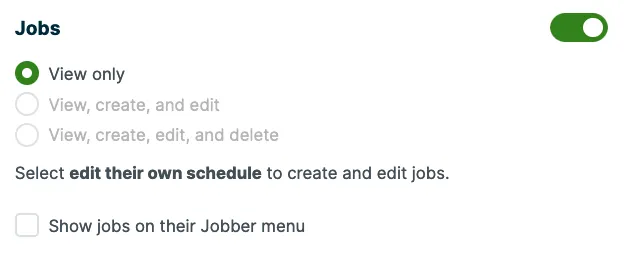
Some permission levels require other permissions first since they interact with each other. In these cases, the permission you need first to enable another is called out. For example, you must be able to edit your own schedule, before you can enable the permission to view, create, and edit jobs.
Common permission settings
Here are the permissions needed to perform some common actions in Jobber.
- Make changes to Jobber Payments settings: This is an admin permission
- See the last client communication section on the client page: View full client and property info (clients and properties permission)
- Send On My Way text messages: View name and address only (clients and properties permission)
- Edit tasks: Edit their schedule (schedule permission)
- Delete scheduled items (such as tasks or visits): Edit and delete from everyone’s schedule (schedule permission)
- Create calendar events: Edit their own schedule (schedule permission)
- Create job: Edit their schedule (schedule permission) + view and edit jobs (job permission)
- Create a job with automatic payments enabled: View and edit full client and property info (client and properties permission) + view and edit (job permission) + view and edit (invoice permission) + show pricing
- Edit line items: This permission varies depending on what you’re editing. You will need view and edit permission for whatever level you’d like to edit. So to edit line items on quotes, you would need view and edit for the quote level + show pricing.
- Closed job in the app shows “requires invoicing”: View and edit (job permission) + view and edit (invoice permission) + show pricing.
- To close a job and have it go into “requires invoicing” but users can’t see pricing or create an invoice: Edit their own schedule (schedule permission) + View, create, and edit (jobs permission).
- Put a job into “action required” status: View and edit (job permission)
- Note: “Action required” status means that a job has no more upcoming visits, but is still open. This status indicates that you should either close the job (because there is nothing upcoming) or schedule more visits in the future. This status is often used as an “on hold” status if you are waiting for parts before scheduling more visits.
- Job timers: View and complete their schedule (schedule permission) + view and record their own (time tracking permission)
- Edit checklists: View and complete their schedule (schedule permission)
- Email checklists: View and complete their schedule (schedule permission) + view (job permission)
- Add expenses to jobs: View and edit (jobs permission) + view and edit (expenses permission)
- Invoice: View and edit (job permission) + view and edit (invoice permission) + show pricing
- Delete invoice reminder: Edit and delete from everyone’s schedule (schedule permission)
- Collect signature (quote): View and edit (quote permission) + show pricing
- Collect signature (job): View full client and property info (clients and properties permission) + Edit their own schedule (schedule permission) + View and edit (job permission)
- Collect signature (invoice): View and edit (invoice permission) + show pricing
- Send a job follow-up (automatically): View and edit full client and property info (clients and properties permission) + view, create, and edit (jobs permission) + view, create, and edit (invoices permission) + Reports ON
- Send a job follow-up (manually): View and edit full client and property info (clients and properties permission) + View, create, and edit (jobs permissions) + view, create, and edit (invoices permission)
- Send manual visit and assessment reminders: View, create, and edit (jobs permission) + view, create, and edit (requests permission)
- Email a client from the Client details page: View and edit full client and property info (clients and properties permission)