

Overview
Discounts in Jobber let you reduce the price on quotes, jobs, and invoices in whatever way makes sense for your business, whether that’s offering a percentage off, a flat amount, or multiple line item discounts. You can apply discounts directly to a quote, job, or invoice, and Jobber handles how they affect the subtotal and taxes so your totals stay accurate.
Using discounts strategically can help you win more jobs, reward loyal customers, or adjust pricing on the fly, all while keeping professional, transparent invoices for your customers.
There are two ways to apply discounts to your invoices:
Global discounts
Global discounts can be added as either a dollar amount ($) or a percent (%) discount to a quote, job, or invoice. You need the Show pricing permission to see or change a discount on a job.
To apply a discount to your quote, job, or invoice:
- Create a quote, job, or invoice, or navigate to an existing one.
- If you’re editing an existing quote, job, or invoice, click the pencil icon in the Product / Service section. If you’re creating a new one, scroll down to the totals.
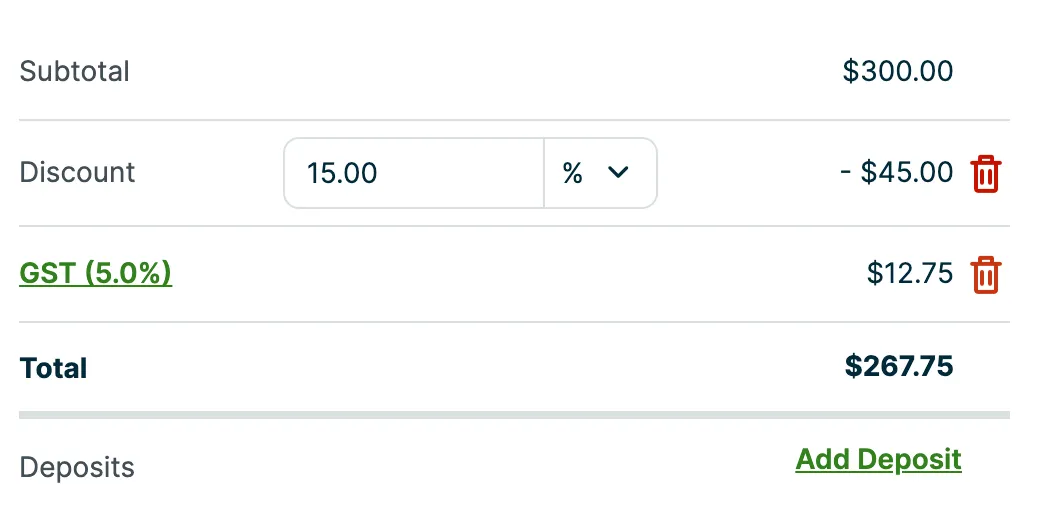
- On the discount line, below the subtotal, click Add Discount. Enter the amount, choose $ or % from the dropdown, then save your changes. The discount is deducted from the subtotal.
Discount line items
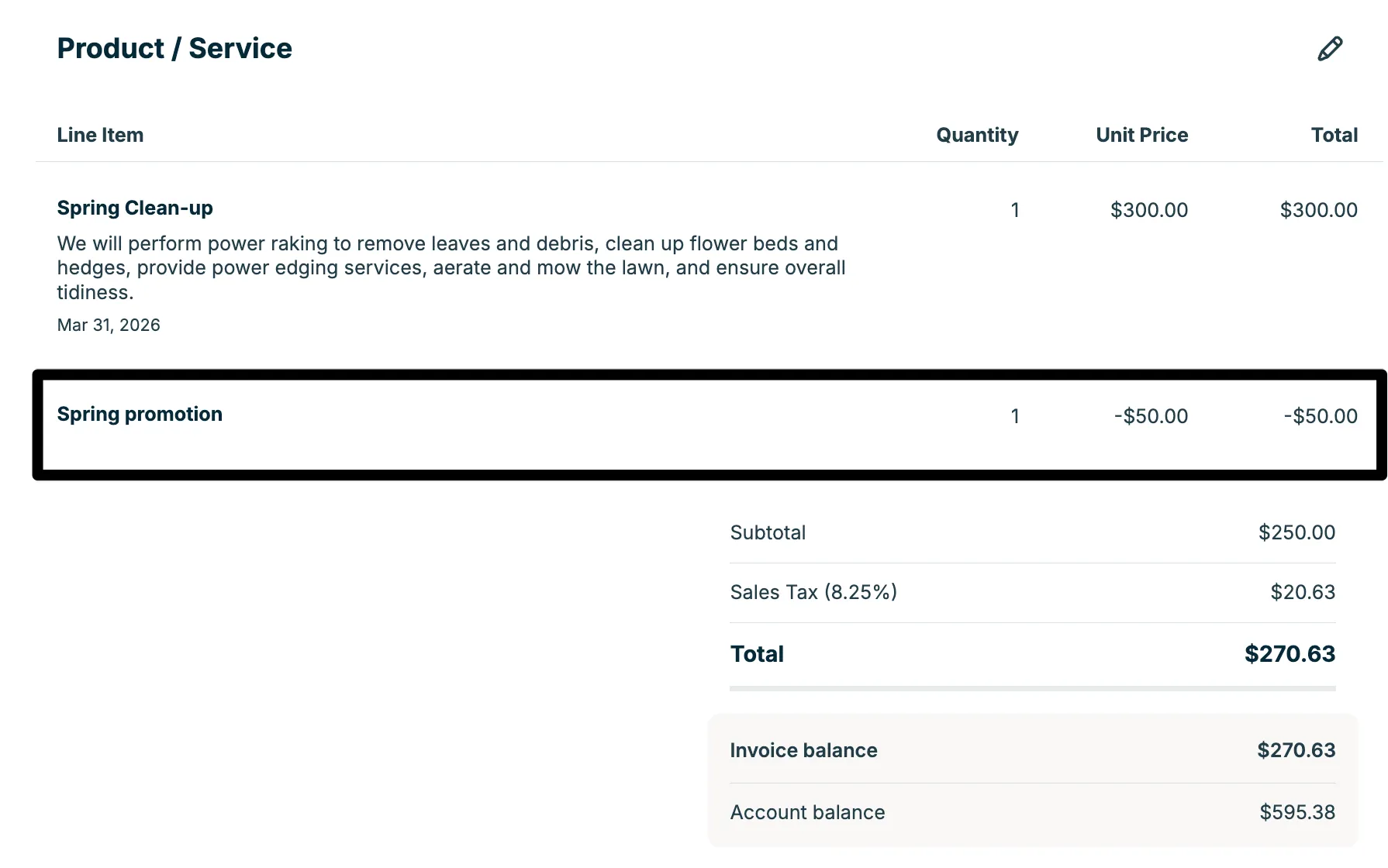
If you need to apply multiple discounts or include detailed explanations for each one, you can add discounts as line items. Discount line items work like regular line items, but use a negative unit price to reduce the total.
- From your quote or invoice, click Add line item. If you are editing an already created quote or invoice, click the pencil icon first.
- Enter a name and description for the discount (for example, “Loyalty discount” or “Seasonal promotion”).
- In the unit price ($) field, enter the discount as a negative amount (for example, -$50.00).
- Confirm the quantity if needed, then save the line item.
- Repeat these steps to add additional discount line items if you want to apply more than one discount.
As you add each discount line item, the total will automatically update to reflect the reduced amount.
Note: you can add multiple discount line items to your quote or invoice.
How discounts are applied to invoices
Discounts are applied to non-taxable items first, then on taxable items. The remainder after this is what the default tax on an invoice is applied to.
If a global discount is added to a quote and that quote is converted to a job, the discount carries over and shows on the job. Invoices created from the job use the job’s discount. For recurring jobs, the discount appears on every invoice created from the job. If you change a job’s discount, only invoices created afterward use the new discount. Existing invoices aren’t updated.
How discounts work with tax
When you apply discounts on an invoice in Jobber, the way tax is calculated depends on how those discounts affect the taxable amount on the invoice:
- Line item totals are calculated and rounded. Jobber calculates each line item total (quantity × unit price) and rounds it to 2 decimal places.
- Line items are grouped by taxability. Totals of taxable and non-taxable line items are subtotaled separately.
- Discounts are applied next. Discounts (whether global discounts or discount line items) are first deducted from non-taxable subtotals. If there’s still discount remaining, that amount is then deducted from the taxable subtotals.
- Tax is calculated on the remaining taxable amount. After discounts have reduced the taxable line item subtotal, Jobber calculates tax on that adjusted taxable amount.
- Final total is summed and rounded to 2 decimals. All components (discounted subtotals, tax, etc.) are added together and the final invoice total is rounded to 2 decimal places.
This means discounts are taken off the invoice before tax is added. They reduce non-taxable items first, and if any discount remains, it reduces taxable items. Tax is calculated on the taxable amount left after the discount is applied.