

Overview
Fast, simple, convenient payments with no hidden fees.
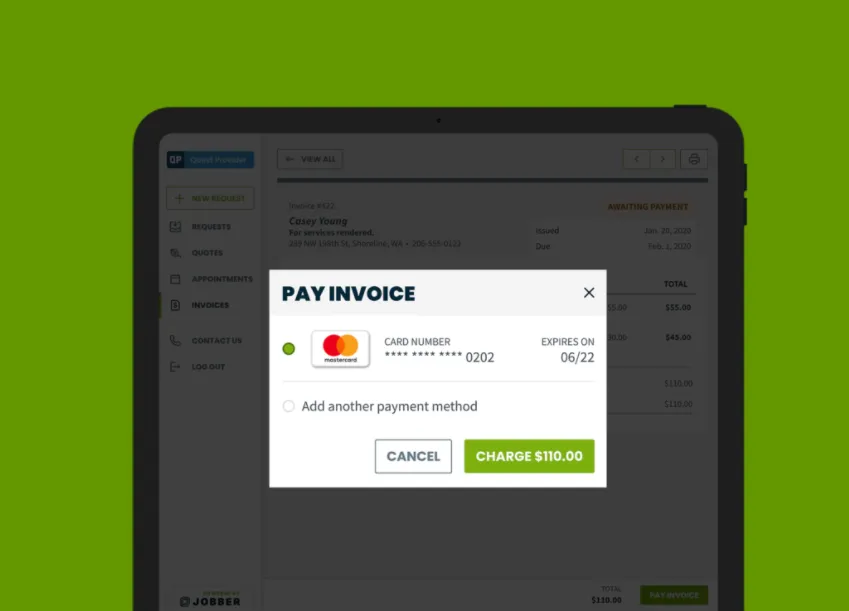
Jobber Payments is our fully integrated payment processing platform. It allows you to accept credit card transactions in person as well as payment options for clients to pay online. Studies have shown that having an option for your clients to pay online means that you can get paid up to 4x faster than with a check.
Jobber Payments in the UK offers:
- A convenient payments option for your clients to make online payments through Client Hub
- The ability for your clients to securely save credit cards on file. You can charge saved cards as needed or set them up to bill automatically on a recurring basis
- Quote deposits can be paid internally by the client’s saved card or by the client making a payment online
- Reports on transactions processed through Jobber Payments and payouts to your bank
- Refund processing directly within Jobber
Jobber Payments can process all major debit and credit cards. That means as long as it has a Visa, Mastercard, Amex, or Discover logo on it you can accept the card. When making a payment through Client Hub, clients can also choose to pay their invoice with Apple Pay or Google Pay. With Jobber Payments the minimum payment is £0.50. For payouts, the total payout must be over £1 (after fees) in order to be transferred to your bank account.
Jobber Payments is available in the UK, United States, and Canada.
Two-step verification is an extra layer of security to protect your Jobber account and uses your trusted mobile phone number to protect certain actions that are associated with Jobber Payments. With two-step verification, when making important changes to your Jobber Payments settings or following an unusual login you will be required to enter a verification code that is sent to your mobile phone via text message. While two-step verification is not required on every login, having to enter a code when making sensitive changes prevents anyone else from making changes to your account even if they know your password. This adds an additional level of security to your Jobber account.
Two-step verification can only be set up by account owners.
Important
For security purposes, your verification code should never be shared with anyone else. Jobber will never ask you to share your verification code with our team.
Learn more about Two-Step Verification for Jobber Payments
Jobber Payments rates
Processing rates vary by payment method. To view your current rates:
- Select the Gear icon
- Select Settings
- Select Jobber Payments from the Settings menu
For standard rates by payment method, visit Jobber’s pricing page.
Jobber Payments in the UK is not available while in trial.
Once you have set up Jobber Payments, your first transaction takes 7 business days to be deposited into your bank account. During this time, your account goes through a verification period where any other transactions processed during this time are also subject to the 7 days deposit schedule. Once the first transaction is deposited into your bank account, the payout window shortens to 4 business days.
Learn more about how to view your transactions and payouts.
Setup
Jobber Payments setup on Jobber.com is a guided, full-screen flow. Only the account owner can complete it. If you close the flow partway through, your progress is saved and you can pick up where you left off.
To start setup on Jobber.com:
- Select the Gear icon, then select Settings.
- Select Jobber Payments.
- Select Explore Jobber Payments, then select Set up Jobber Payments.
The first screen lists what to have ready. Setup then takes you through two main steps:
- Verify your business details
- Connect the bank account where you receive your payouts
Verify business details
Select Verify with Stripe to open a secure form hosted by Stripe, the platform that processes Jobber Payments. The form asks for your legal business name and National Insurance number (NIN), so have those ready. Know Your Customer regulations, which in the UK are governed by The Money Laundering Regulations 2017, require this information. When you finish the Stripe form, you return to Jobber, and the Business details card shows Verified once Stripe confirms your details.
To verify your identity you will be asked to provide additional verification details. You will be asked to enter your CRN (Company Registration Number) and upload a photo of your ID.
Note: You will need to submit information about who owns the company. In the case that more than one person are owners, just enter the name of the person who is the majority owner of the company. In the future, the person entered here will need to undergo a verification process where they will be asked to submit ID to verify their identity.
Connect bank account
Next, you’ll need to connect a bank account. This is where the funds that you collect via Jobber Payments will be deposited.
The information that is required to provide to connect your bank account is:
- Account holder name
- Sort code
- Account number
- Where your account is held
- Bank or building society name
- Address
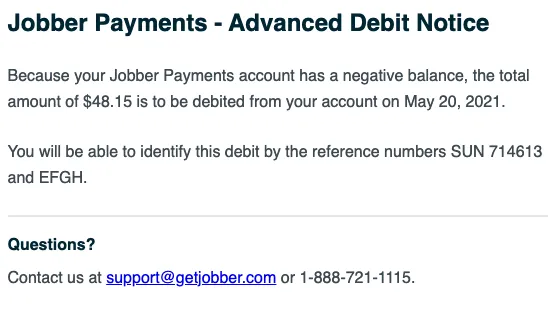
In addition to setting up your bank account for deposits, you are also authorizing your bank account to be electronically debited in the event that your Jobber payments account has a negative balance (typically this would be due to refunds or a dispute). In the event of your bank account being debited, you will receive notice via email up to two days before the funds are debited from your account. The email will contain a reference number for the debit.
Note: Payouts must be over £1 (after fees) in order to be transferred to your bank account.