

Overview
The requests list is where you can view, track, and manage all incoming client requests in Jobber. From this page, you’ll see a complete list of requests along with tools to filter, sort, and take action—so you can stay on top of new work and respond to leads quickly.
To open the Requests list:
-
Sign into Jobber.com.
-
From the side navigation, click Requests.
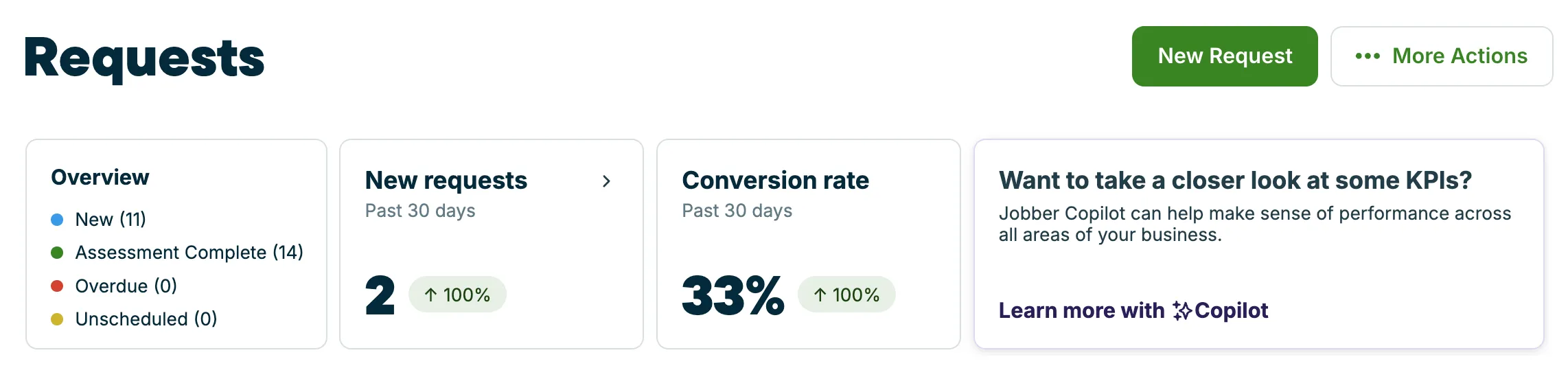
At the top of the requests list, you’ll also find key metrics that give you a snapshot of your incoming demand. These insights highlight trends like new requests and conversion activity, helping you understand how many opportunities are coming in and how they’re progressing.
Requests are often the first step in your workflow—leading to quotes and jobs—so the requests list is a central place to manage new opportunities, follow up with clients, and keep your pipeline moving.
Key metrics on the requests list
At the top of the list are some key metrics relating to requests to help you understand how your business is performing, including:
- Overview: This is the breakdown of all your requests across different statuses.
- New requests: This is the number of requests with a created date within the last 30 days. There is a trend indicator to show the percentage change over the past 30 days. Hover over this indicator to view the breakdown the last 30 days and the previous 30 day period. Click this insight to view the requests report. From the requests report, you can change the date range and add additional columns.
- Conversion rate: This is the rate at which new requests are converted into a quote or job. The conversion rate is calculated as ((number of requests with a created date in date range AND a converted to quote OR job date) / number of requests with created date in date period) * 100.
Note: This doesn’t include requests with a created date outside the date range but with a conversion date within the date range. This number will never be over 100%.
The trend indicator is calculated as ((conversion rate in the past 30 days) - (conversion rate in pervious 30 days) / (conversion rate in previous 30 days)) * 100.
Filter and search the requests list
The requests list can be filtered by:
- Status
- Request created date, the date range options are:
- All
- Last week
- Last 30 days
- Last month
- This year
- Last 12 months
- Custom range
When the requests list is filtered, the “All requests” heading changes to “Filtered requests” to indicate that the list only reflects requests that match the filters.
The requests list includes columns for:
- Client - This is the client’s name
- Request - This is the request’s title
- Property - This is the address of the property where work has been requested
- Contact - This is the phone number and email address of the client who submitted the request
- Requested - This is the date the request was submitted
- Status - This is the status the request is currently in. Learn more about request statuses.
The itemized requests list can also be sorted by clicking the ascending or descending arrows in these column headers:
- Client
- first name (A-Z)
- first name (Z-A)
- Request
- Created date
- Requested date
- Status
Request statuses
There are several statuses for requests:
- New: these are requests that have been created internally or submitted by a client, but no further action has been taken yet.
- Unscheduled: requests with an assessment required but not scheduled.
- Overdue: the assessment for the request has not been completed, but its scheduled date has passed.
- Assessment Completed: the assessment for this request has been completed, but the request hasn’t been converted (if moving ahead) or archived. This status is a prompt that something needs to be done with the request, whether that’s archiving it or converting it.
- Converted: these requests that have been converted into a quote or job. This is a final status for a request.
- Archived: these are requests that are not moving ahead. Archived requests were never converted and are not visible to clients. This is a final status for a request.