

Overview
Let your clients or new leads request work through your website or client hub—and receive a notification as soon as it happens.
Requests in Jobber help you capture and organize new work from the moment a client reaches out. When a client submits a form or contacts your business, Jobber creates a request with the details of the work they need so you can review it and decide what to do next.
Requests are the starting point for many jobs in your workflow. From a request, you can follow up with the client, schedule an assessment, create a quote, or convert the request into a job.
You can collect specific details by customizing intake forms that gather the information you need up front, such as contact details, job information, photos, or measurements. These forms can be shared through your website, client hub, or direct links, giving clients a convenient way to contact your business online.
Requests can also be created internally by you or your team. This makes it easy to track new opportunities that come in through phone calls, emails, or in-person conversations and keep all potential work organized in one place.
By capturing requests in Jobber, you can stay on top of new leads, respond quickly to client inquiries, and move work smoothly from the first request to a scheduled job.
Request Availability
Requests are available on all plans. View our current pricing plans.
To check what plan you’re on, navigate to the Gear Icon, then select Account and Billing. If you have any questions about your plan’s features or pricing, our support team is here to help!
Create request forms
To create a new form:
- Select the Gear Icon, then select Settings.
- From the settings menu, select Requests and Bookings.
- Locate the Forms section, then select + Add New Form.
- On the Choose a form type screen, select a form type: Request form, Job booking form, or Assessment booking form. You can only choose one type per form. Create separate forms if you want to offer both bookable assessments and direct job bookings. Select Next.
- On the New form screen, enter a form title and, optionally, a short description of your services or other details to appear above your form. Job booking form and Assessment booking form also show Service areas and Efficient scheduling options here; Assessment booking form additionally shows Require assessment booking approval. You can change any of these later from the form’s Settings tab.
- Select Create form.
- In the Manage form panel, select Add Questions, then drag question types into your form to customize it.
- Select Save to finalize your form. Your new form appears in the request settings page in the Forms section.
Make your form bookable
There are two ways to create a bookable form: choose Job Booking Form or Assessment Booking Form when you create a new form (see step 4 above), or start with a Request Form and add a booking action to it afterward:
- Add assessment: adds an assessment-booking action to your form, appearing at the end after required details are collected.
- Add job booking: adds a job-booking action to your form, appearing at the end after required details are collected.
A form can only have one booking type active at a time, so create separate forms if you want to offer both.
Every form can be tailored to the type of work you’re offering. By dragging and dropping new sections and questions from the Manage Form panel, you can build forms that capture the exact details you need from clients, whether that’s measurements for a landscaping project, images of a repair, or a simple yes/no choice. Organizing your form this way helps set clear expectations and ensures you have the right information up front, no matter what kind of service the client is requesting.
Every form is built from sections and questions:
- Sections act like containers. They group related questions together (for example, “Contact details” or “Project details”). If your request form includes multiple sections, each section will be its own page. Learn more about form pages.
- Questions are the individual fields inside a section that clients fill out, like their phone number, a yes/no choice, or an image upload. Questions can be set as required if there is certain information you need up-front.
The request form will already include some sections by default, like the client’s contact information, a section for service details, and and image upload field. These sections can be moved, removed, or have additional questions added.
The required fields to include on your request forms are:
- First and last name (or company name)
- At least one contact method:
- Email address
- Phone number
- Consent to receive emails and texts from your company: This field is included by default with the email address and phone number fields. It doesn’t show in the form editor, but your customers will see it when filling out request forms.
Additional questions that can be added to your forms are:
- Street address: Adds a field where clients can enter the address for the work location.
- Consent to receive emails and texts from your company: Adds a consent checkbox so clients can opt in to receive communications from your business by email or text message
- How did you hear about us: Adds a dropdown menu to your request from for clients to select how they heard about your business. Responses will automatically map to the lead source field on the client’s profile as well as in the clients report. The menu options will match Jobber’s default lead sources (Referral, Google, Facebook, Instagram, Flyer, Vehicle wrap, Event, Other) however the dropdown menu options can be customized when creating or editing your request form.
Note: The lead source on a client’s profile reflects what they selected on the form. You can update the lead source on a client’s profile at any time—for example, if you learn through a follow-up conversation how they actually found you. Updating the lead source on the client’s profile won’t change the original response recorded on the request form. - Short answer: Adds a field for a short answer question to your request form. This is useful for questions where the client won’t need to add a lot of detail in their response.
- Long answer: Adds a field for a long answer question to your request form. This is useful for questions where the client may need to provide a lot of information.
- Dropdown (multiple choice): Adds a dropdown menu to your request form where your clients can select multiple options.
- Dropdown (single choice): Adds a dropdown menu to your request form where your clients can select only a single option.
- Checkbox (multiple choice): Adds a checkbox selection to your request form where clients can check off multiple selections.
- Radio button (single choice): Adds a radio button selection to your request form where clients can select only a single answer.
- Numerical answer: Adds a field to your request form for customers to enter numbers into. This question field does not support text.
- Image upload form: Add an image upload option for your clients. Up to 10 files per form can be uploaded, where each file must be under 10MB individually. Supported file types for request image uploads are: JPEG, PNG, and HEIC. Clients and your team can also reuse existing photos already saved to the account instead of uploading new ones, filterable by client. Reusing photos requires Files and Media Library access (available on Plus, Unlimited, or with the Marketing Suite add-on). If you don’t have this yet, you can still upload new photos directly. Reused photos count toward the same 10-file limit as new uploads.
- Area: Add a section where your client can enter a length x width and the unit of measurement. The length x width field only supports numbers (no text), however the unit of measurement can contain text.
- Yes/no toggle: Add a toggle to your request form where clients can set it to Yes or No. This question field is useful for yes or no questions.
- Date picker: Add a date selection tool to your request form where your client can select a date from a calendar. This is a useful question type for questions where you’re asking the client for their availability, or when the answer is a date.
Actions
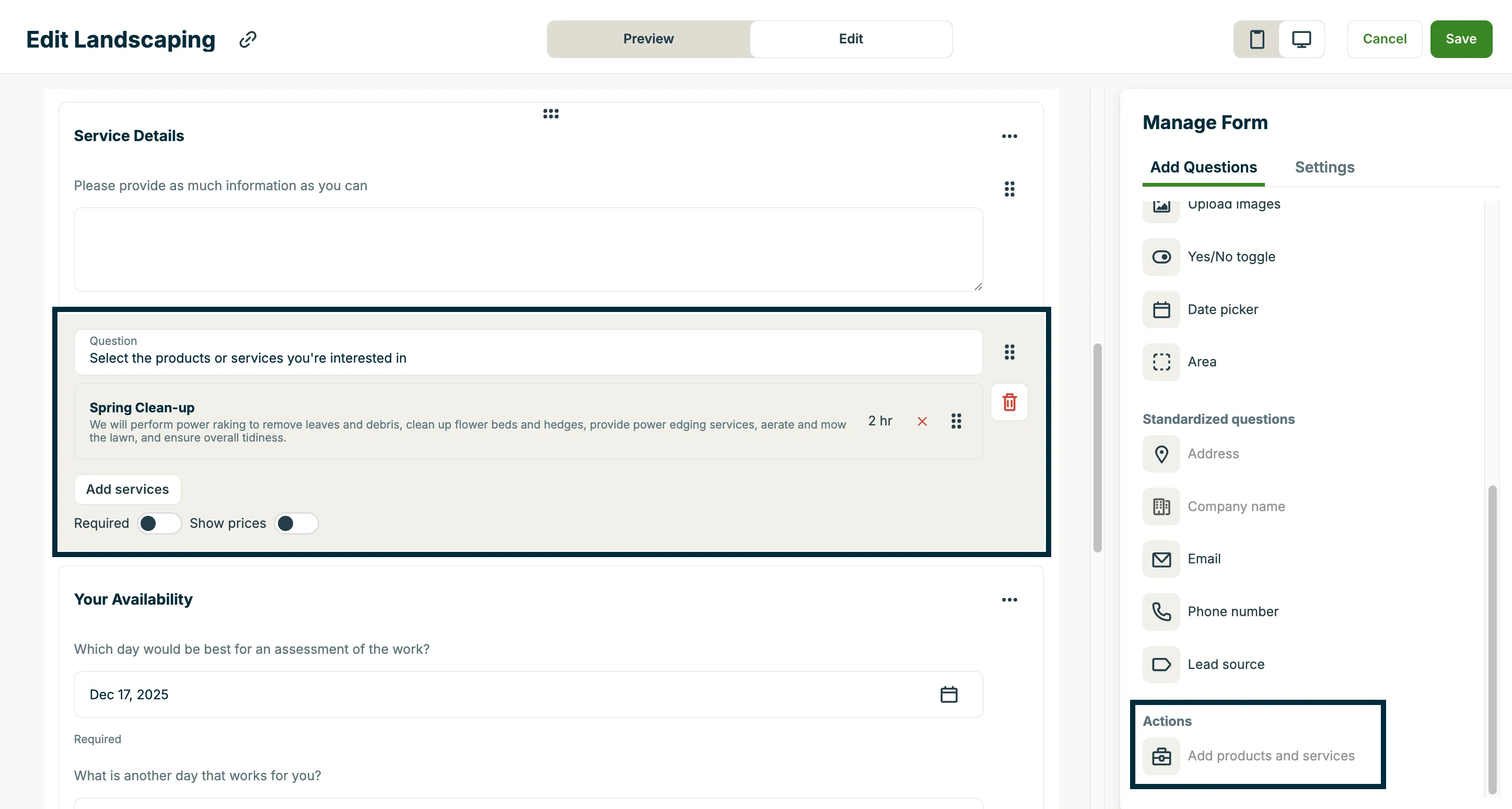
- Add products and services: Allows clients to select products and services for their booking.
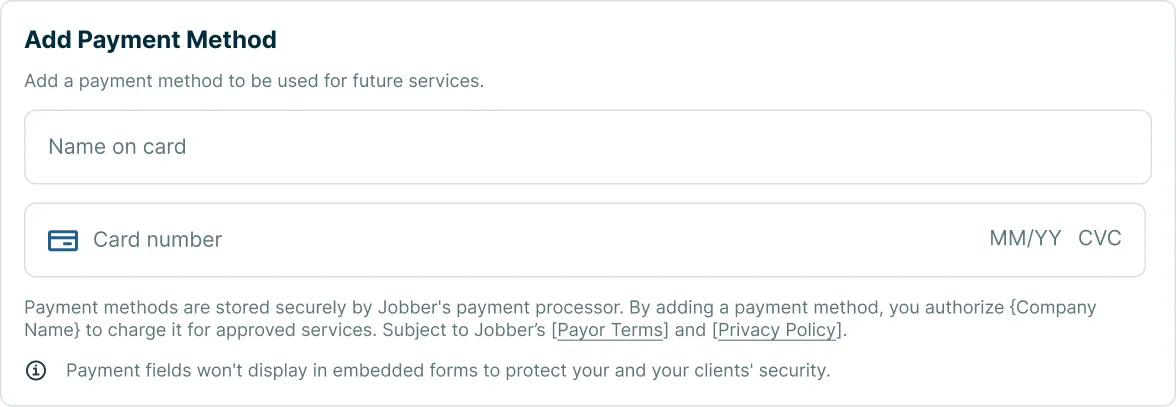
- Add payment method: This field will add a question to your request form for “Add Payment Method” that prompts clients to add their card, expiry, CVC, and the name of their card when your request form is viewed in client hub (embedded forms don’t support this field type). Payment methods are stored securely in Jobber and payment methods added through this form will be added to the client’s saved payment methods on their client profile. Note: Only card payments are supported through this form. ACH is not supported. You must have Jobber Payments enabled to add this field to your forms.
- Add assessment: Adds an action that lets clients schedule an assessment directly from the form based on your team’s availability, appearing at the end of the form after required details are collected. When a client submits the form, Jobber creates a request and schedules an assessment on your calendar.
- Add job booking: Adds an action that lets clients book a service directly from the form based on your availability, appearing at the end of the form after required details are collected. When a client submits the form, Jobber automatically converts the request and schedules a one-off job on your calendar.
By adding and organizing sections and questions, you can create forms that collect the right details for each type of request.
Learn more about creating forms
Create a request internally
In addition to client-submitted requests, you can also create requests internally from within Jobber. This is helpful when a client reaches out by phone or another channel where they aren’t filling out a form themselves. Creating a request allows you to capture important details right away, and if you need to schedule a time to provide a quote, adding an assessment ensures the client is on your calendar.
You can create work requests internally from several places in Jobber including:
- the Create button on the side navigation
- a client’s profile
- the schedule
- the requests list
To create a new request, select Create from the side navigation, then select Request. Your default request form will be the one used when creating a request internally.
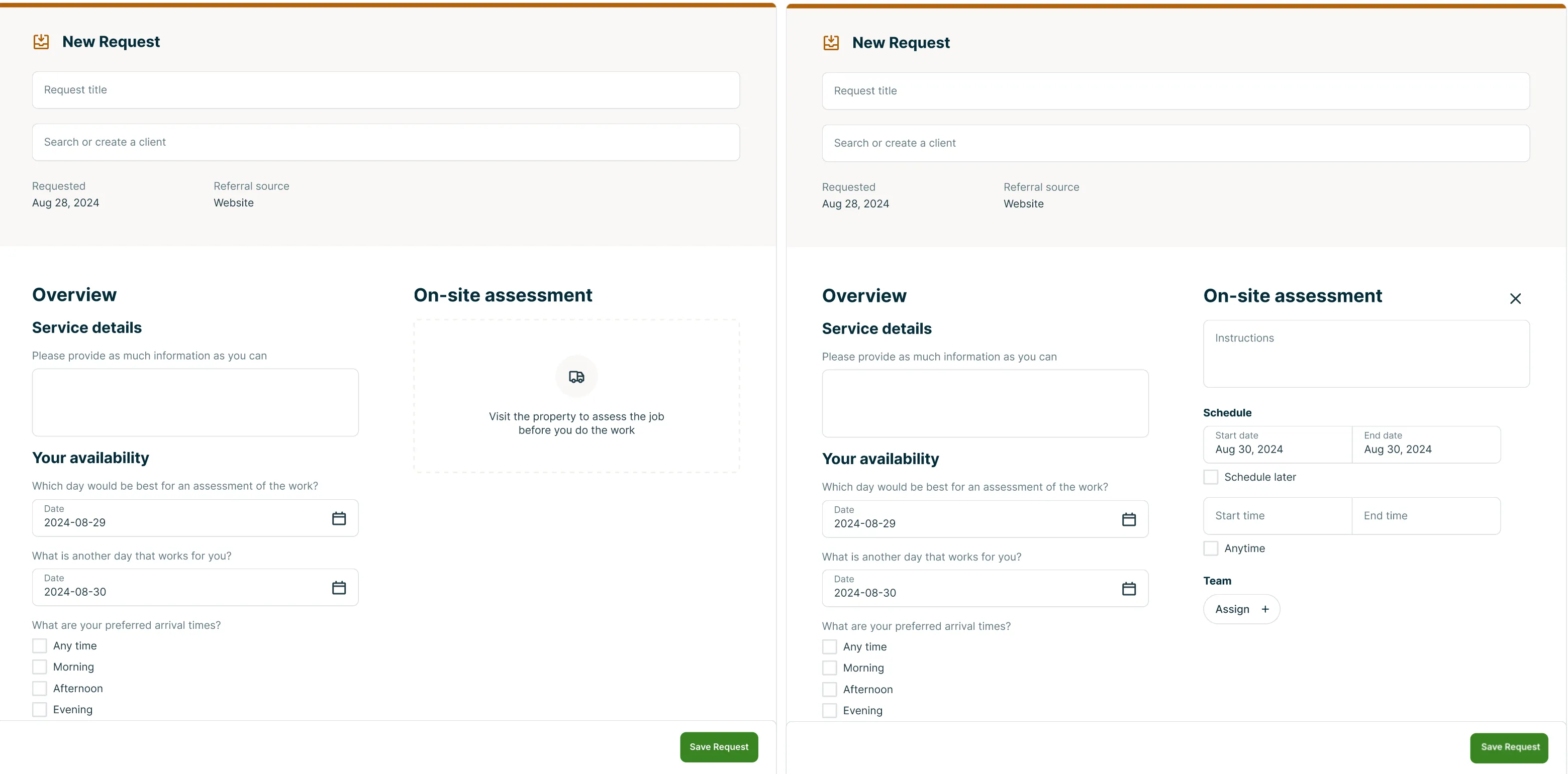
The new request form is divided into sections to help you capture the right details for each job.
- New request details:
- Request title: Enter a short title that describes the work requested (e.g., “Gutter Cleaning - Maple St.”).
- Client: Search for an existing client or click to create a new one. To add a new client start typing then select + Create new client at the bottom of the list.
- Requested date
- Referral source
- Overview:
- This section will include the request question fields that have been set up on your default request form.
- Product / Service: Line items can be added to requests to make quote creation easier later on. You can also add line items later on after saving the request by editing it. This can be useful if you add details during an assessment visit.
- On-site assessment: Click the truck icon or area labeled “Visit the property to assess the job before you do the work.” This lets your team know a site visit is needed before quoting or starting the job. The assessment will be added to your schedule. Learn more about Scheduling an Assessment.
- Instructions: Add any notes for the team doing the assessment.
- Schedule: If you already know when the assessment should happen, set:
- Start date and end date, or check the box for Schedule later to create a request in “unscheduled” status.
- Start time and end time, or check the box for Anytime if this visit can happen anytime on the scheduled date.
- Team: Use the Assign button to choose which team members will complete the assessment.
Once your request has been filled out, select the Save request button. This saves the request and takes you out of the edit screen, back to the top of the request where you can view the request details.
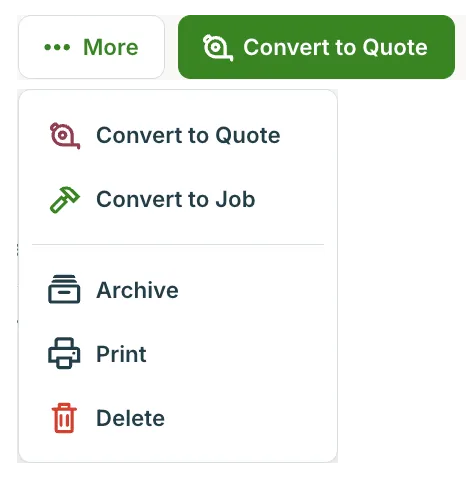
By clicking More on the saved request, you can convert the request into a quote or job. You can also archive, print, or delete.
Note:
- Requests created internally will not appear in client hub.
- Fields marked as required won’t be mandatory when you create a new request from your own account. However, if you edit a request that your client submitted, you’ll still need to make sure all required fields are filled in.
Add images to request line items
You can attach a photo to any line item on a request, the same way you can on quotes. Select the attachment icon on a line item to upload a new photo, or reuse an existing photo already saved to the account. Reusing photos requires Files and Media Library access (available on Plus, Unlimited, or with the Marketing Suite add-on). Without this, you can still upload new photos directly. Reused photos can be filtered by client to help you find the right one faster.
Only one photo can be attached per line item. If a client views the request through client hub, they’ll see the image alongside the line item. The image is tethered to the line item itself, so it carries forward if the request is converted to a quote or job.
How do clients submit a request?
When a new person submits a request, they are automatically added to your client list in Jobber. This client will be labelled as a lead since they have not yet met the criteria to be a client.
On all plans, by default their phone number will be set as ‘text message enabled’ which sets you up to send them a quote via text or communicate via two-way text messaging (two-way text messaging is available on select plans).
When a client opens your request form, they’ll be guided through the questions and sections you’ve set up. Depending on how your form is structured, this can appear in two ways:
- Paginated form: Each section of your form is shown on its own page, with a progress bar at the top so clients can see how far along they are. Clients can use Next and Back buttons to move between pages before submitting. Pagination is enabled by default, but this can be adjusted in your form settings.
- Single-page form: All sections and questions appear on one continuous page. Clients can scroll through the full form before submitting. To set up a single-page form, navigate to your form settings, and toggle off Form pages.
Once clients complete the form, they’ll see a review screen with all the details they’ve entered. From here, they can go back and make changes or confirm their submission.
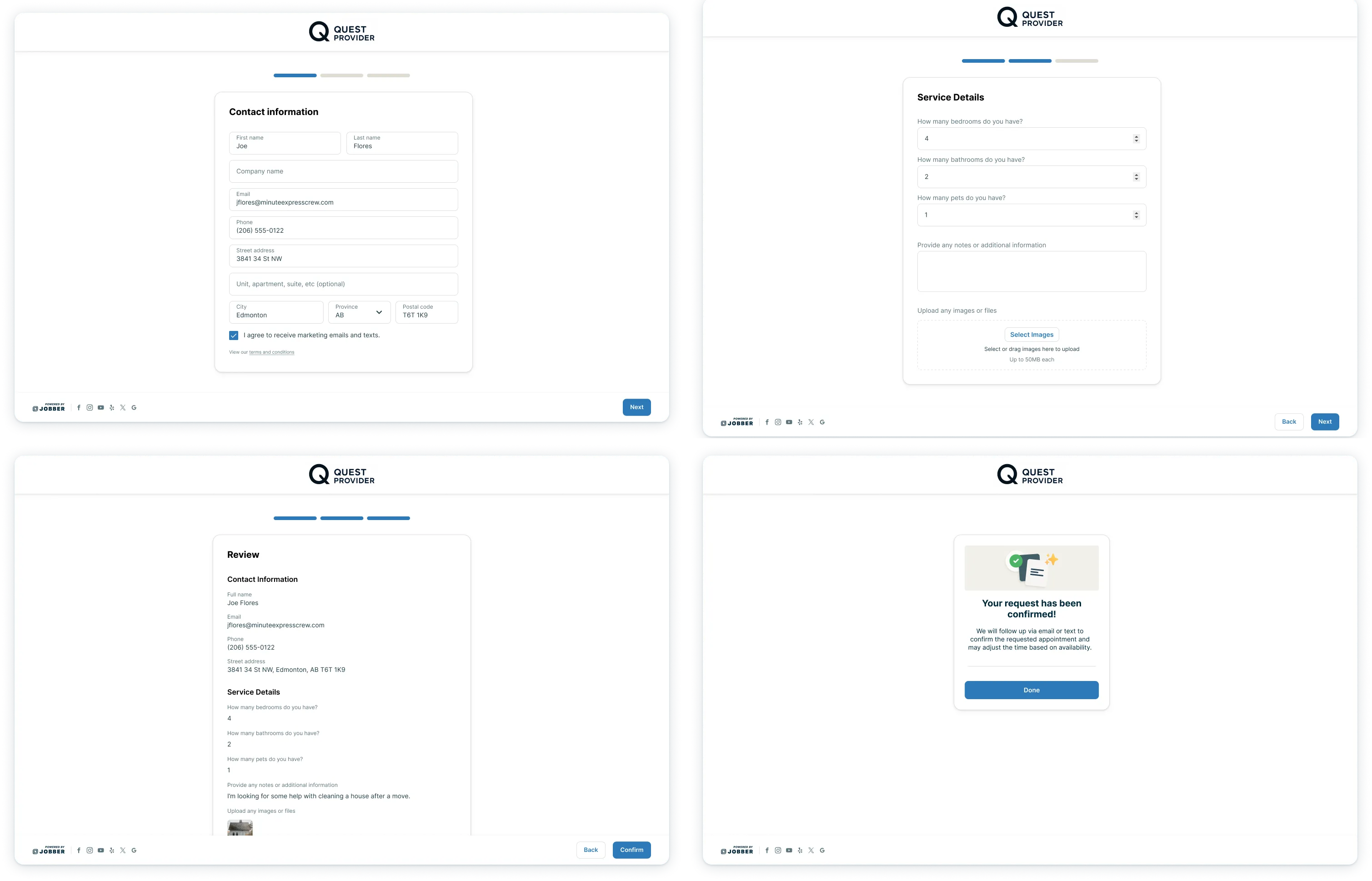
After a client confirms their request, they’ll see the confirmation message. They’ll also receive an email copy of their request for their records.
The request confirmation email is managed in your Emails and Text Messages Settings. From this page, you can:
- Choose which team member should receive replies if a client responds to the request email (including assessment reminders).
- Set up notifications so your team is alerted when new requests come in.
- Decide whether replies should go to a specific user, the email sender, or your company email.
Note: If the reply-to for requests is the sender, all admin users will receive an email about the new request since there was no original sender.
Troubleshooting tip: If a client reports that they’re unable to upload PDFs when submitting a request, try removing the image upload section from your request form, then re-adding it. This will refresh the upload field.
Change the property address on a request
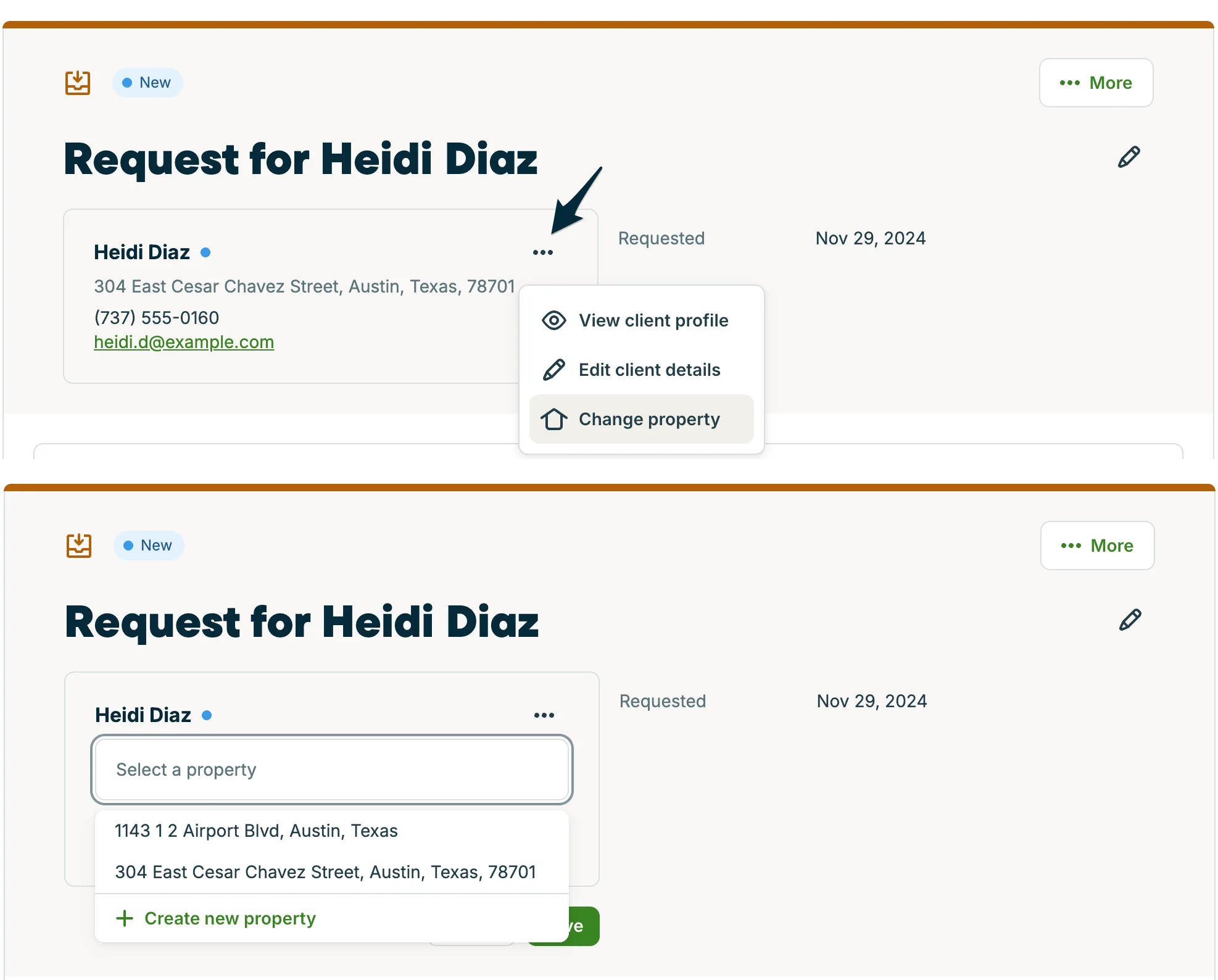
If you need to update the property address on a request (for example, if the client submitted a request for the wrong property) you can change it to any other property that belongs to the same client. This can only be done from Jobber.com, not the Jobber app.
Note: If the request needs to be linked to a different client, you’ll need to create a new request instead.
To change the property address on a request:
- From the request page, click the … button in the top-right corner of the client details card.
- Select Change property from the dropdown menu.
- A list of the client’s existing properties will appear. Select the correct property from the dropdown. If the property you need isn’t listed, click + Create new property to add a new one for this client.
- Click Save to apply the change.
Once saved, the request will now reflect the updated property address. This change is also visible to the client if they view the request through client hub.
Requests list
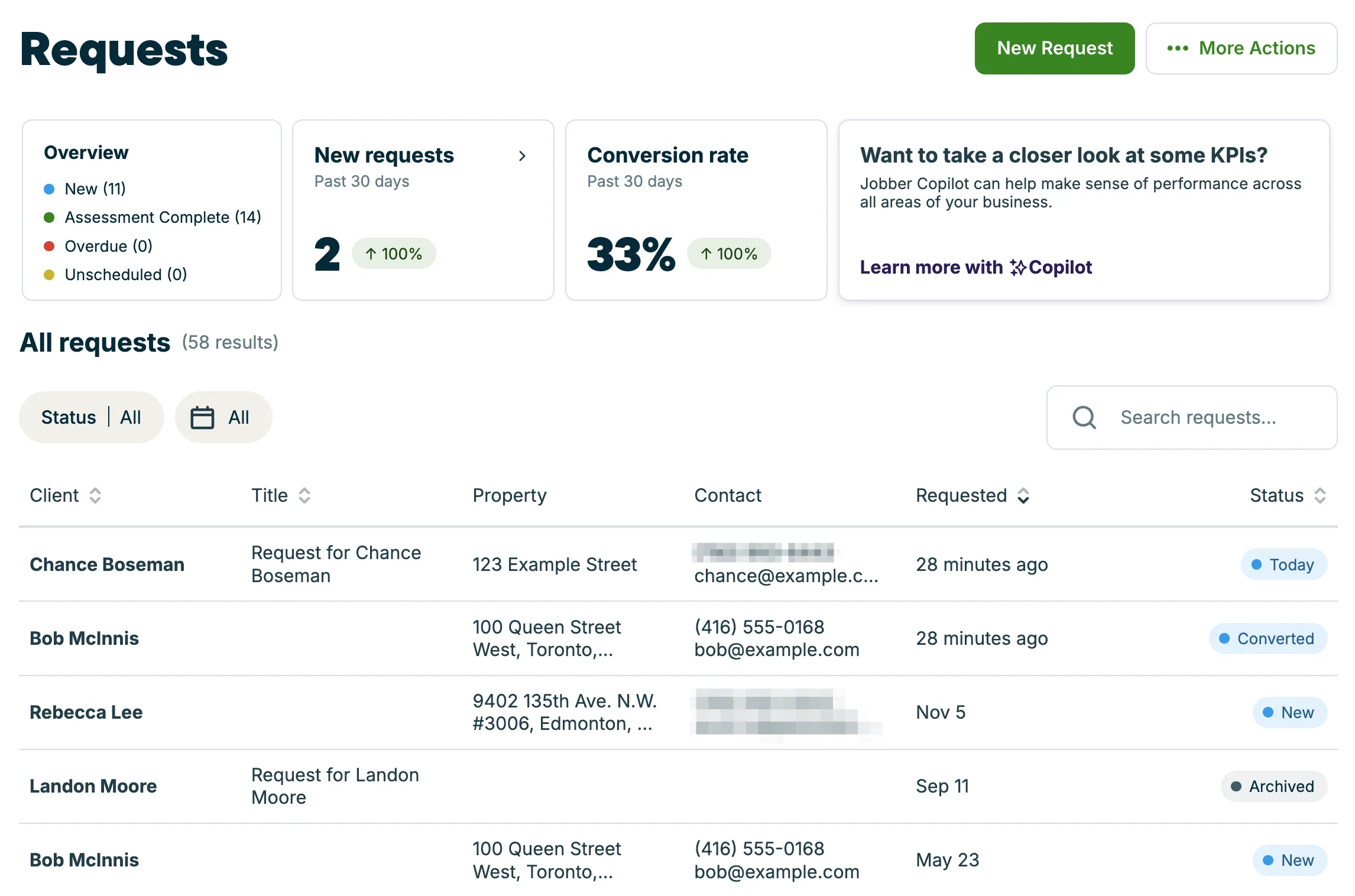
To get to the requests list, click Requests from the side navigation.
The request list is where you will find insights about your requests including an overview, number of new requests in the last 30 days, and your request conversion rate over the last 30 days. The requests list also contains a list of all your requests. You can think of this page as the inbox for all your requests; they will show here no matter if they were created internally or submitted by a client online.
Learn more about List Pages and Key Metrics.
Request statuses
There are several statuses for requests:
- New: these are requests that have been created internally or submitted by a client, but no further action has been taken yet.
- Unscheduled: requests with an assessment required but not scheduled.
- Overdue: the assessment for the request has not been completed, but its scheduled date has passed.
- Assessment Completed: the assessment for this request has been completed, but the request hasn’t been converted (if moving ahead) or archived. This status is a prompt that something needs to be done with the request, whether that’s archiving it or converting it.
- Converted: these requests that have been converted into a quote or job. This is a final status for a request.
- Archived: these are requests that are not moving ahead. Archived requests were never converted and are not visible to clients. This is a final status for a request.
View request activity history
The request activity feed shows a complete history of a request: what changed, who made the change, and when it happened. Use it to track progress, review edits, or understand how a request reached its current state.
To view the activity on a request:
- Select Requests in the side navigation menu. Click a request from the list to open it.
- Select the History icon at the top of the request.
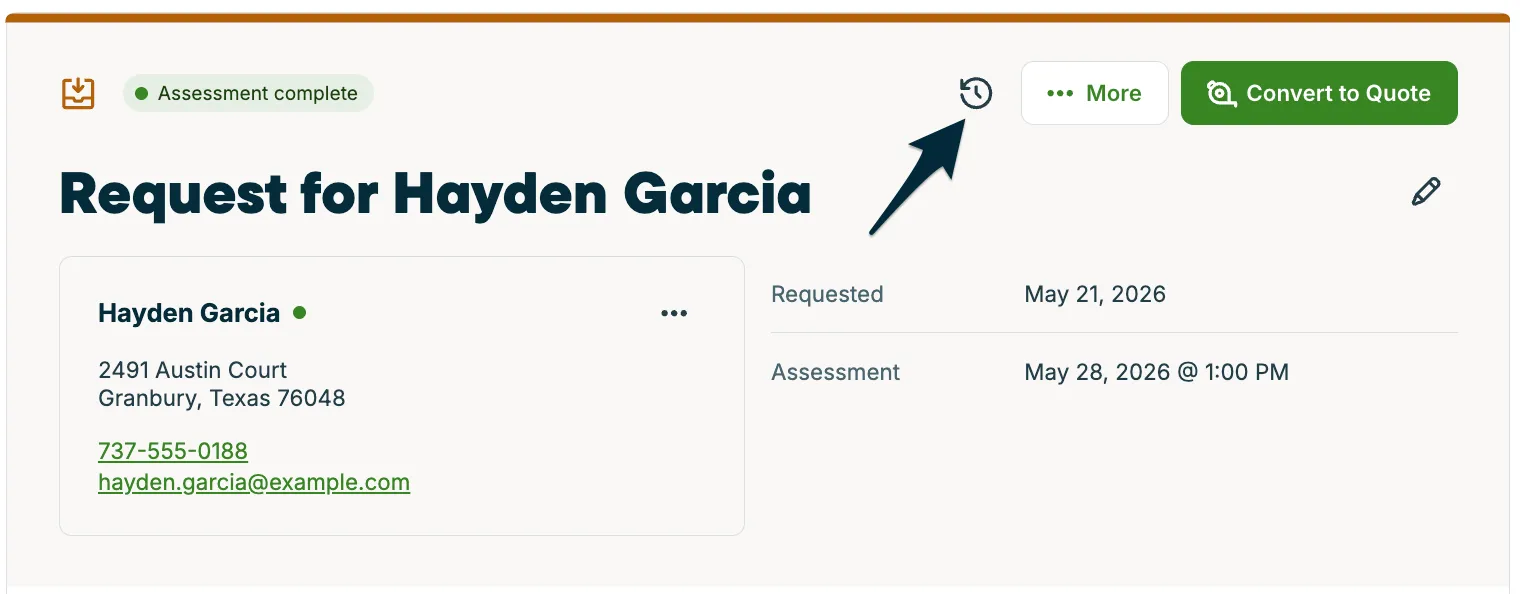
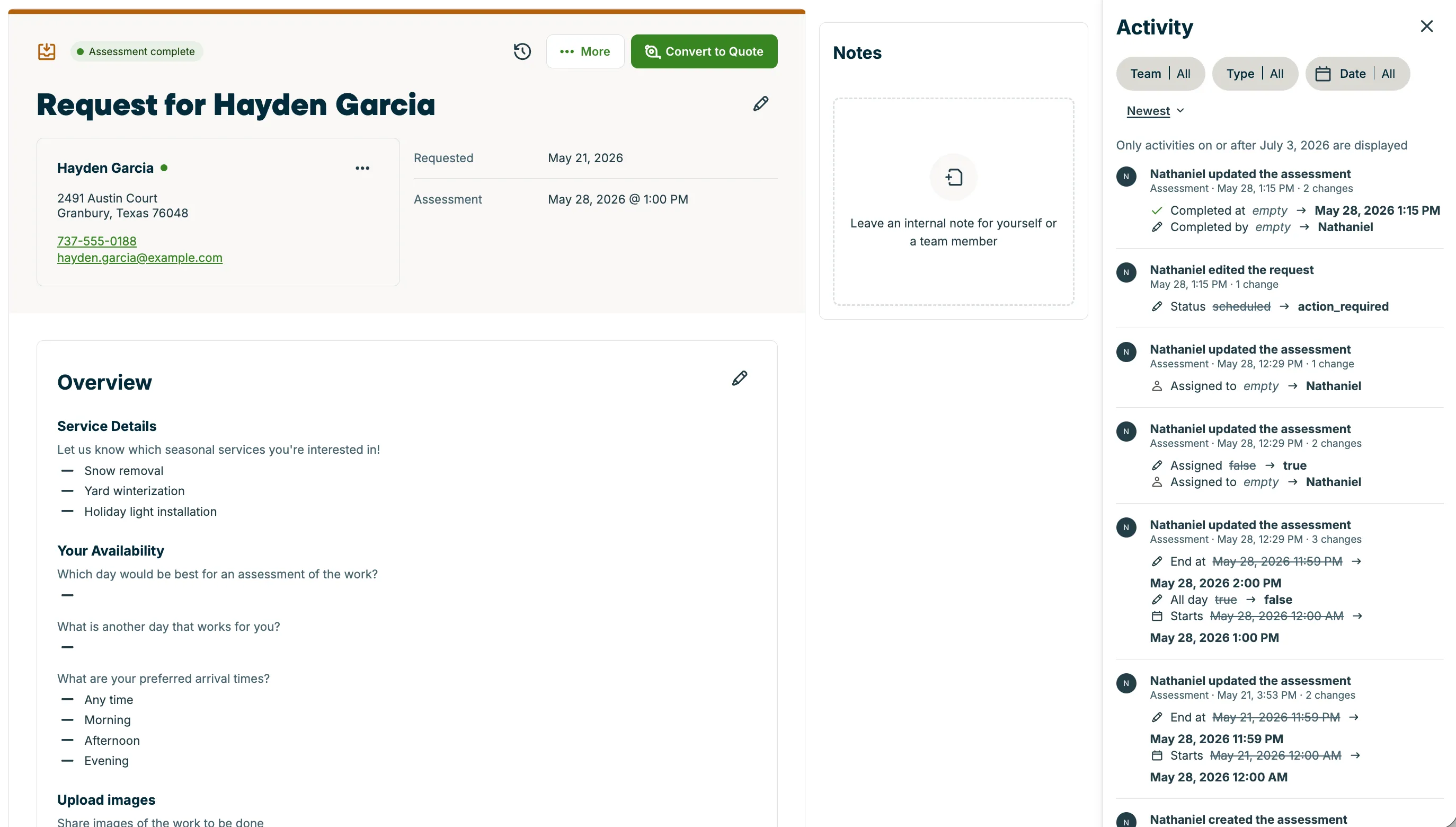
The activity panel opens on the right side of the page. To close the panel, select X in the top right corner.
The activity feed captures key events on a request, including:
- Creating the request
- Editing the request title or status
- Creating or updating an on-site assessment
- Assigning a team member to an assessment
- Adding or editing notes
Filter the activity feed on requests
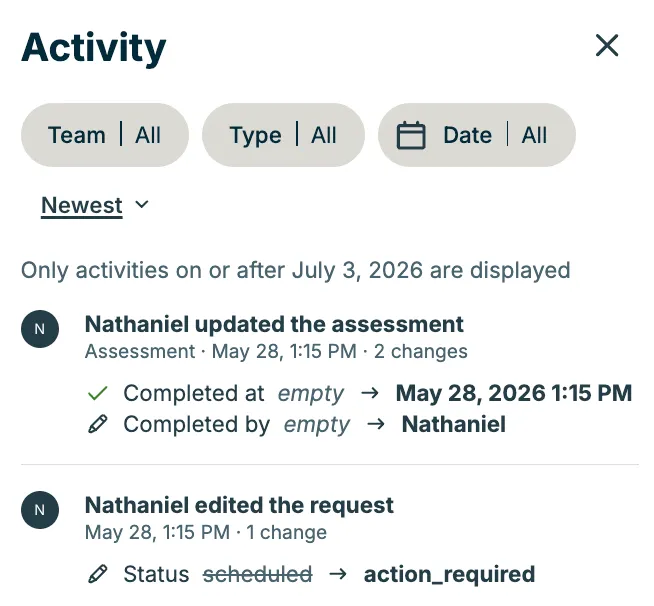
Use the filters at the top of the activity panel to narrow what you see. The following filters are available:
- Team: show activity from a specific team member
- Type: show a specific type of event, including:
- created
- updated
- deleted
- Date: show activity within a specific date range
By default, the feed sorts from newest to oldest. For field-level changes (such as a status update or a title edit) the feed shows the previous value alongside the updated value.
Who has access to requests?
Requests are one of the areas in Jobber where you can customize user permissions to select which users can view, create, edit and delete requests. By default, the ability to view requests (not including seeing requests on the side navigation) is included in all the preset permission levels (limited worker, worker, dispatcher, and manager) but it can also be customized further.
To customize request permissions:
- Select the Gear icon, then choose Manage Team.
- Click Users and select the team member you’d like to update.
- From the user’s profile, scroll to the Permissions section.
- Scroll down to Requests.
- Select the permission level you’d like to assign for requests.
- Click Save Changes when you’re done.
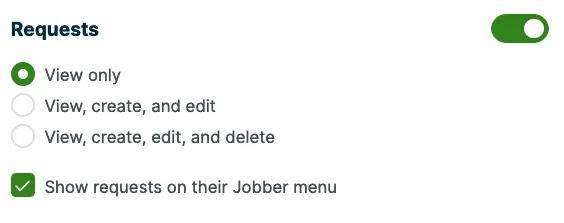
Permission options for requests are:
- On/off: To allow or restrict access to this information, set the toggle to On or Off.
- Note: When a permission level is toggled Off, it is minimized from the permissions list. To select any of the following options, the toggle must be On.
- View only: This allows the user to have a read-only view of requests.
- View, create, and edit: This allows the user to see, add, and edit requests.
- View, create, edit, and delete: This allows the user to view, edit, add, and delete requests.
- Show: This allows the user to see the tab for this request in the side navigation as well as requests in the search.
Learn more about user permissions.
Requests report
The Requests Report gives you a clear picture of all the requests coming into your business. Think of it as your snapshot of potential jobs — you can see who’s reaching out, when they submitted a request, and what the status is.
To navigate to the requests report, select Insights then Reports from the side navigation. The requests report is located in the Work reports section.
From the report, you can track which requests are brand new, which ones have been followed up on, and which have already been turned into quotes or jobs. It’s a handy way to stay on top of your pipeline so nothing slips through the cracks.
You can also filter the report by things like date, status, or client. This makes it easy to answer questions like: How many requests came in last month? or Which team member is handling the most new requests?