

Overview
The insights dashboard is your one-stop view for understanding business performance at a glance. Designed to help service professionals track, analyze, and act on key metrics, this dashboard simplifies decision-making—so you can run a more efficient and profitable business.
The insights dashboard is available on all plans. View our current pricing plans.
To check what plan you’re on, navigate to the Gear Icon > Account and Billing. If you have any questions about your plan’s features or pricing, our support team is here to help!
To view the insights dashboard, select Insights from the side navigation. The insights dashboard is accessible to users with permissions to view reports, however what appears on the dashboard will be determined by the rest of the user’s permissions.
Jump to the Insights Dashboard
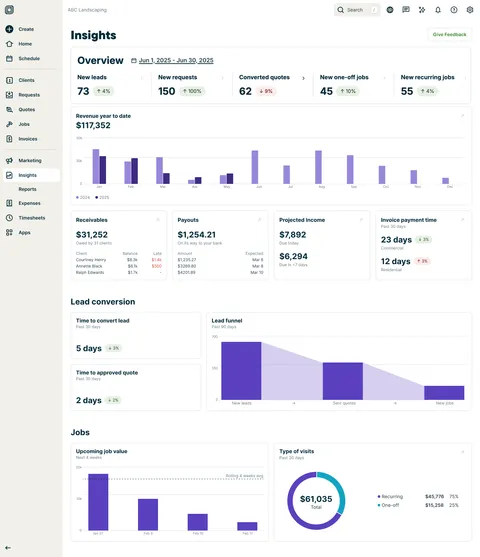
Overview insights
The overview section highlights key stages of work for the selected date range, including:
- New leads: This is the number of new leads. Click this insight to view the clients report.
- New requests: This is the number of new requests. Click this insight to view the requests report.
- Converted quotes: This is the number of quotes you’ve converted to jobs. Click this insight to view the quotes report.
- New one-off jobs: This is the number of new one-off jobs created. Click this insight to view the one-off jobs report.
- New recurring jobs: This is the number of new recurring jobs created. Click this insight to view the recurring jobs report.
The trend indicator shows how the metric has changed compared to the previous year. When the date range for the overview is less than a year, the trend will show a comparison with the data from the same period in the previous calendar year. Hover over the trend indicator to view the date range and the values for the current and previous period.
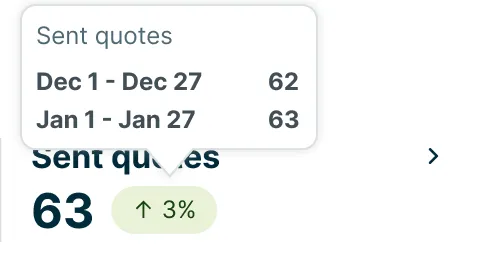
The date range for the overview section can be customized. To change the date range, click the dates then use the date picker to select your desired range:
- month to date
- last month
- year to date
- custom range (a date range of your choice)

Revenue
The revenue section of the insights dashboard includes:
Revenue
The revenue section compares your revenue so far this period to a previous period, helping you identify trends and track growth over time.
To change the date range of the report, click the date in the top left of the chart. The date range options for this chart are:
- Last 12 weeks
- This year
- Last 12 months
- Last year to date
- Last 2 years to date
- Last 3 years to date
Once you’ve selected the date range, select Apply.
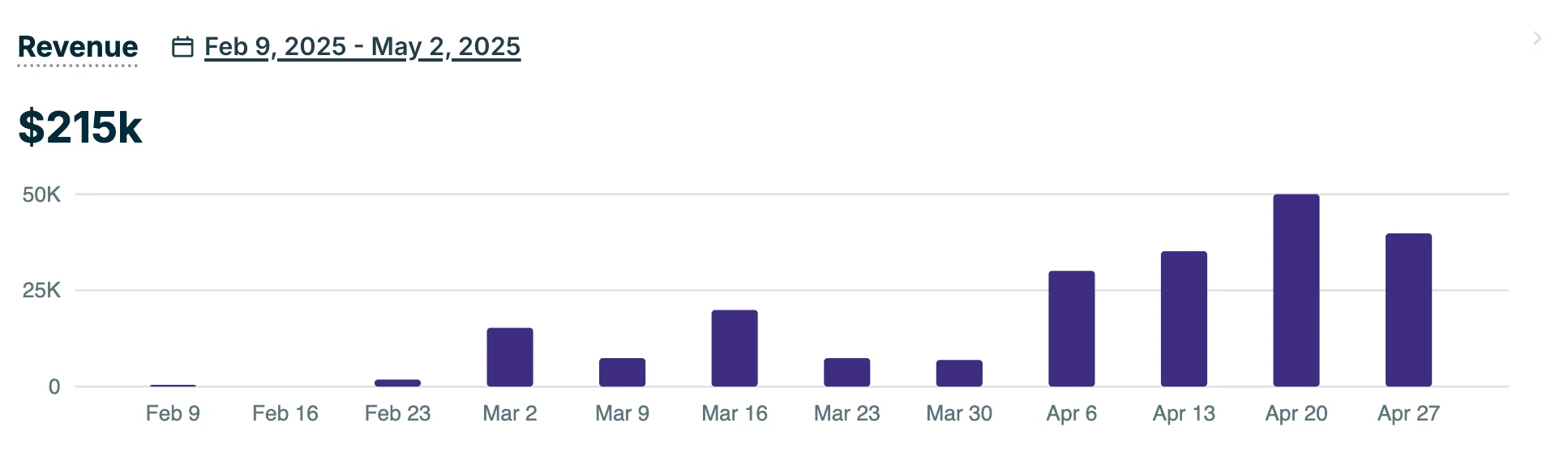
Revenue is calculated as the monthly value of sent invoices (after discounts and before tax). A comparison to the previous year is included with the “this year” date range.
Select View report from the revenue year to date section to open the invoices report.
Learn more about the invoices report
Revenue by lead source
The revenue by lead source chart provides a quick snapshot of where your recent revenue is coming from. It helps you understand which lead sources are driving the most invoiced work over the past 90 days. The revenue by lead source chart shows:
-
The total value of sent first invoices for leads created in the last 90 days.
-
Revenue is grouped by lead source (e.g., Google, Facebook, Vehicle Wrap).
-
Each segment represents the percentage and dollar amount contributed by that source.
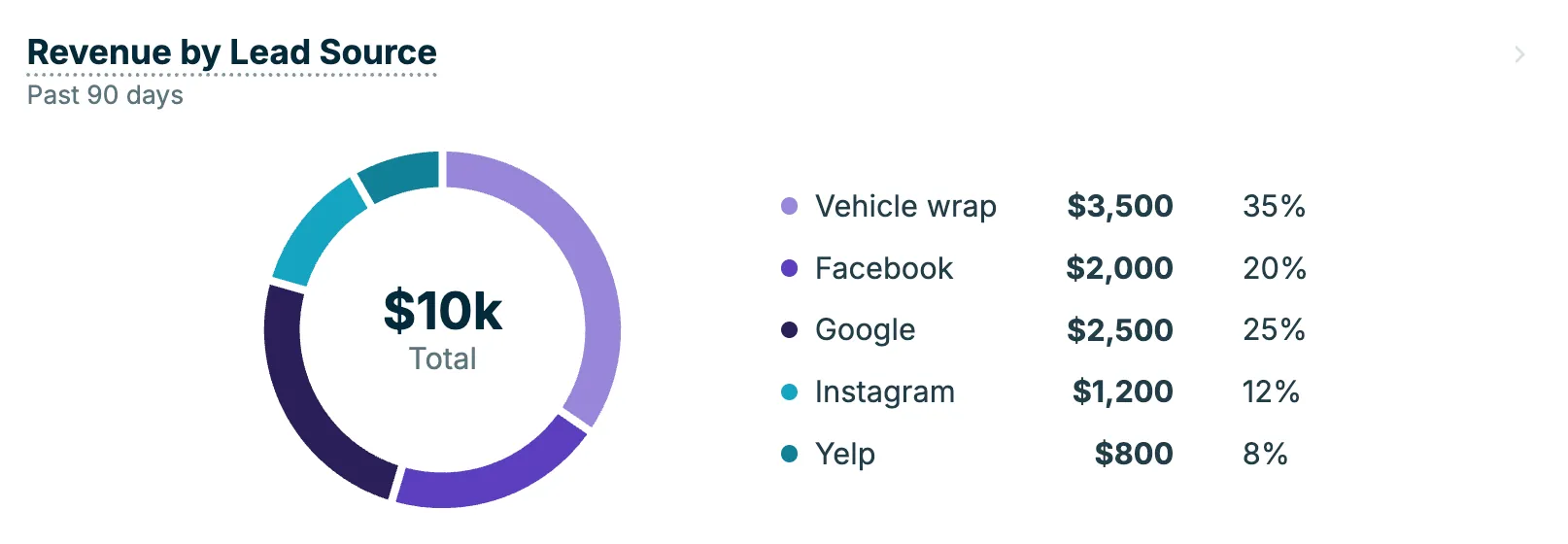
Click the insight to open the Lead Source Report to learn more about where your leads are coming from.
Profit and loss
The profit and loss section of the insights dashboard includes:
Recent one-off jobs
The recent one-off jobs insight gives you a profit snapshot of your most recent one-off jobs. Use the toggle at the top of the widget to switch between views:
- Completed: Shows finished jobs with profit percentage highlighted. This gives you a clear view of how each job landed financially.
- Active: Shows in-progress jobs with costs so far. Because these jobs are not yet finished, Jobber shows what you’ve spent to date rather than a profit percentage — which would reflect incomplete data.
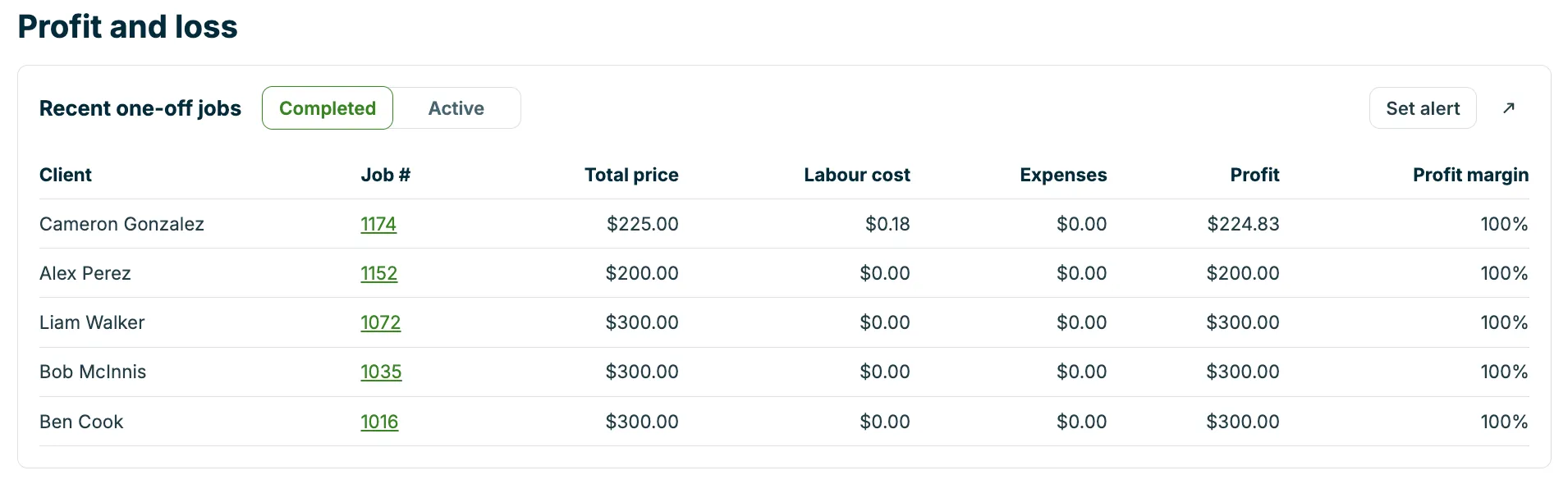
If you’ve set a profit margin alert, Jobber highlights any job that falls below your threshold directly in this widget. Select See alert to configure or update your alert.
Job profit data requires job costing to be active on your account and job costing permissions enabled for your user. Learn more about job costing.
Revenue heatmap
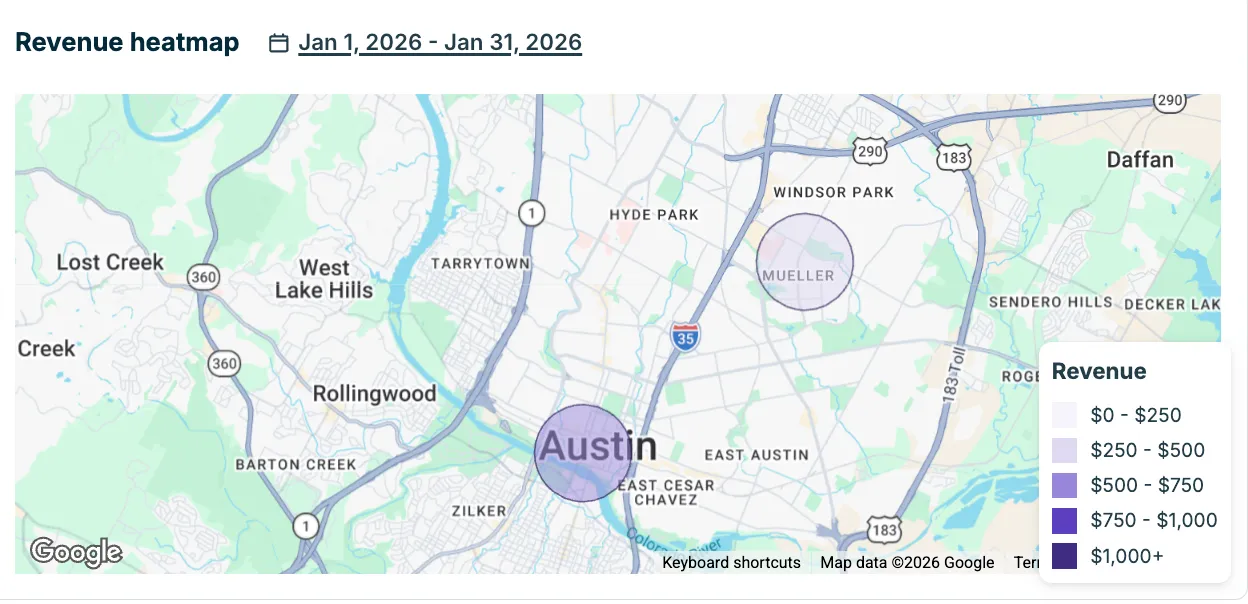
The revenue heatmap helps you visualize where your revenue is coming from geographically so you can make informed decisions about where to focus your marketing efforts.
The heatmap shows the total value of sent invoices from last month (by default), using the service address on each invoice to determine the location. To change the date range of the heatmap, click the dates. Other date range options include:
- Month to date
- Last month
- Year to date
- Custom range
In the United States, revenue is grouped by the full zip code and displayed within that zip code boundary on the map.
In Canada and the UK, revenue is grouped by the first three digits of the postal code and shown as circles centered on the postal code area. Each circle has a fixed 1,000-metre radius, so the size never changes based on revenue. Circles may overlap if postal code areas are close together.
The color shading shows how much revenue came from that area, lighter shades represent lower amounts, while darker shades represent higher amounts.
Cashflow
The cashflow section of the insights dashboard includes:
Receivables
To help you stay on top of money owed, the receivables section shows outstanding balances owed to you by clients.
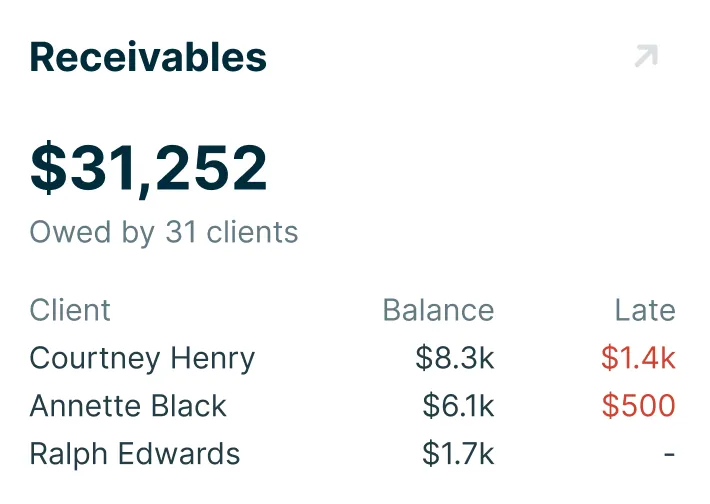
The receivables section shows the:
- Total number of clients with a balance owing
- Total outstanding balance
- Top 3 clients (based on account balance) owing and late payments
Select the arrow icon to open the client balance summary report.
Learn more about the
client balance summary report
Payouts
The payouts section displays the funds that are on the way to your bank through Jobber Payments. This section includes the value of the payouts on their way as well as the expected date they will arrive in your bank account.
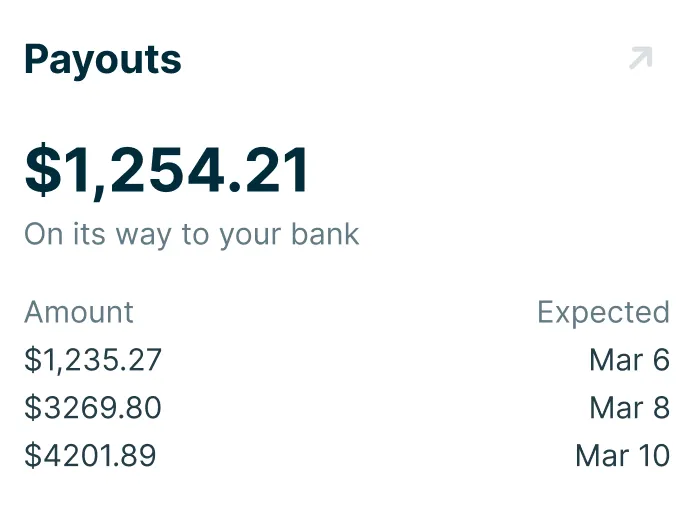
Select the arrow icon to open the Jobber Payments payouts report.
Learn more about the
Jobber Payments payouts report
Projected income
To give you an idea of the money that will be coming in, the projected income section of the insights dashboard displays the value of invoices due within the next 7 days (including today).
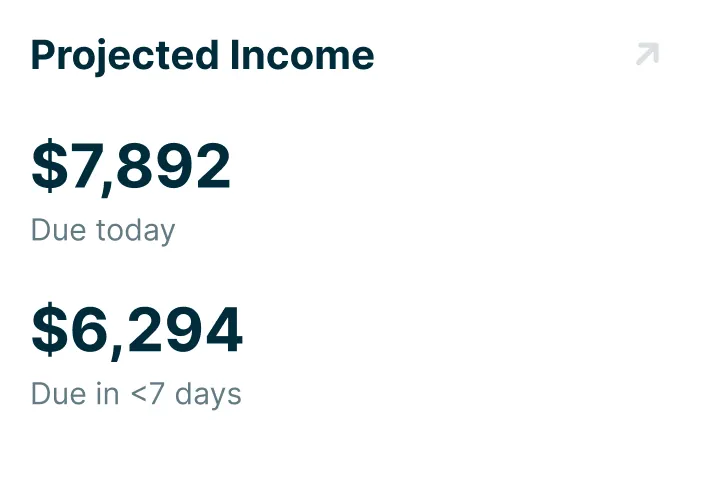
Select the arrow icon to open the projected income report.
Learn more about the
projected income report
Invoice payment time
The invoice payment time metric calculates how long, on average, it takes for invoices to be paid. This is determined using invoices with a paid date within the last 30 days.
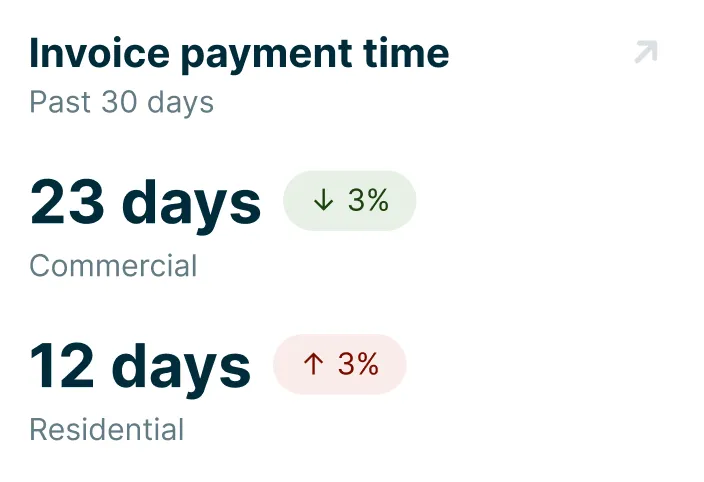
The average time to get paid calculation follows this formula: (Paid Date - Issued Date) ÷ Number of Invoices.
To provide more detailed insights, this metric is separated into residential and commercial values. An invoice is categorized as commercial if the client has the “Company name is primary name” setting enabled.
There are trend indicators for the average time to get paid for both commercial and residential clients. Hover over the indicator to see a breakdown comparing the last 30 days to the previous 30-day period.
Select the arrow icon to open the invoices report.
Learn more about the invoices report
Payment methods
The Payment methods chart shows how your business has received payments over a selected date range. This helps you understand which payment types your customers are using most often, so you can make decisions that improve your cash flow.
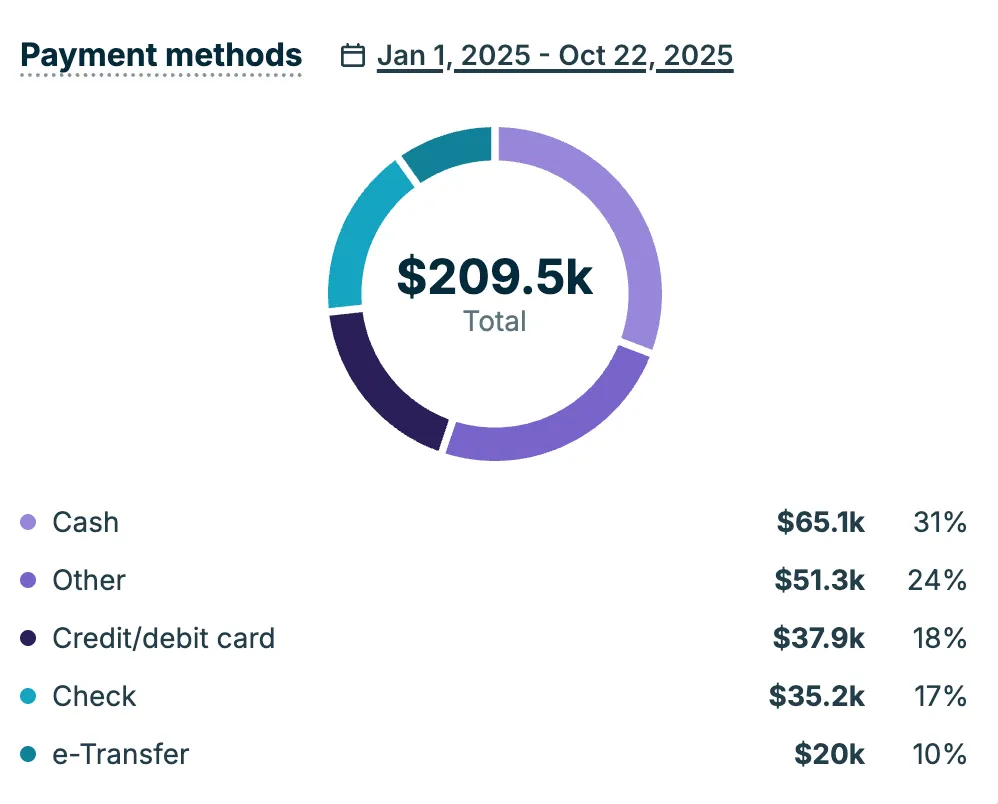
The chart displays the total amount collected and a percentage breakdown by payment type. Each section of the chart represents the percentage of total payments received through that method. You can hover over or view the legend to see exact dollar amounts and percentages for each type.
Payment types include:
-
Jobber Payments: Includes both card and ACH payments processed through Jobber Payments. These transactions are grouped together on the chart.
-
Cash: Payments recorded as cash in Jobber.
-
Check: Payments recorded as checks.
-
Credit/debit card: Payments accepted through credit or debit outside of Jobber Payments.
-
E-transfer: Payments recorded as e-transfers.
-
Other: Payments received through alternative methods, such as Venmo or other external platforms.
Using this chart, you can see at a glance how much of your revenue is coming from fast, online payment methods like Jobber Payments compared to cash or check. Increasing the share of payments made through Jobber Payments can help you get paid faster and reduce time spent managing cash or deposits.
Lead conversion
The lead conversion section of the insights dashboard includes:
Lead conversion time
The lead conversion time metric measures how long it takes, on average, to turn a lead into a client. This is calculated using all clients with a conversion date within the past 30 days.
Leads are considered clients once they have:
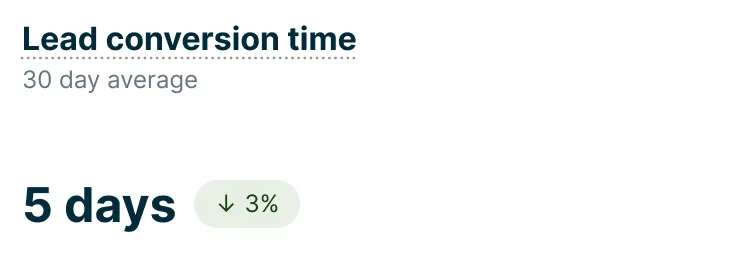
The calculation for time to convert lead follows this formula: Average of (Client Conversion Date - Lead Creation Date).
The final value is rounded to the nearest whole day. This metric helps you track how efficiently leads are moving through your sales process.
The time to convert lead section also shows a trend indicator of the previous 30-day period. Hover over the indicator to see a breakdown comparing the last 30 days to the previous 30-day period.
Quote approval time
The quote approval time section displays the average time for a quote to be approved or converted to a job within the last 30 days.
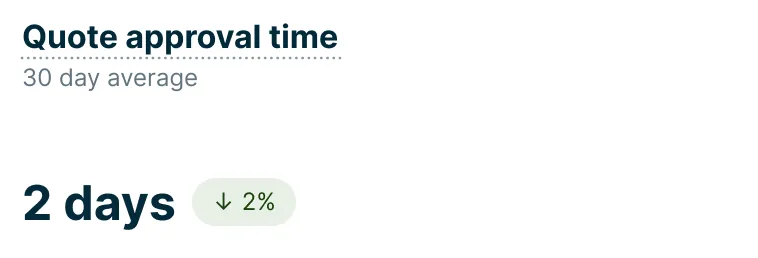
There is a trend indicator to show how the time to approved quote compares to the the previous 30-day period. Hover over the indicator to see a breakdown comparing the last 30 days to the previous 30-day period.
Lead funnel
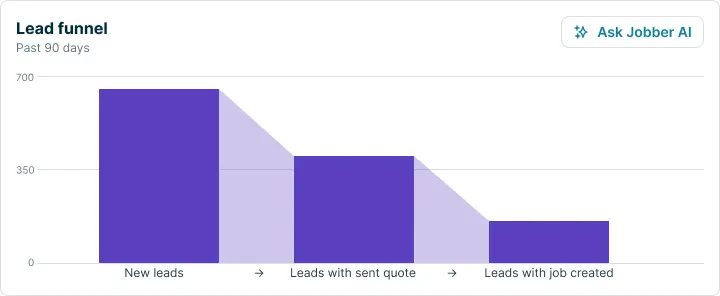
The lead funnel visualization illustrates how efficiently leads are converted into sent quotes and new jobs over the past 90 days, providing a clear funnel view of the process.
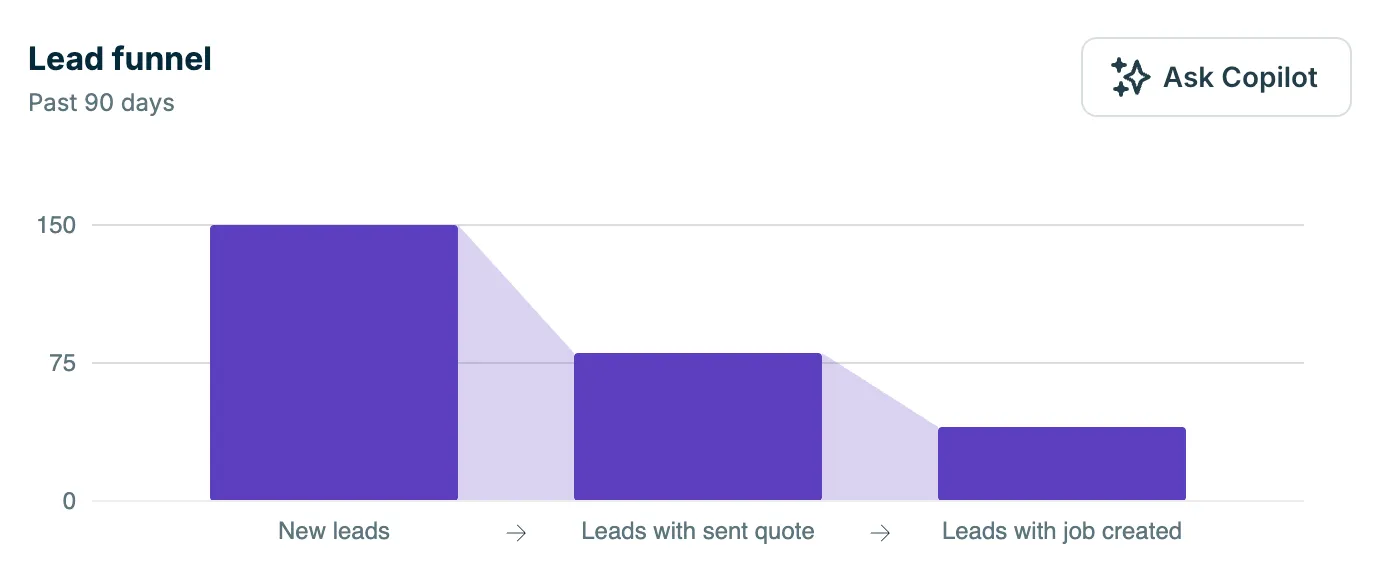
The funnel is calculated as follows:
- New Leads: The total number of new leads created in the last 90 days.
- Leads with a Sent Quote: The number of these leads that have at least one sent quote (this counts the number of leads, not the total number of sent quotes).
- Leads with a Created Job: The number of these leads that have resulted in at least one job being created.
For more insights into your lead funnel health, select the Ask Jobber AI button.
Jobs
The jobs section of the insights dashboard includes:
Scheduled job value
The upcoming job value section shows the total value of scheduled work for the next four weeks, helping you understand how much revenue is booked and how it compares to your average weekly bookings. This provides insight into how booked out your business is and helps with planning and forecasting.
The date range for the schedule job value section can be:
- Next 14 days: This returns daily job values from the start of this calendar week.
- Next 4 weeks This returns weekly job values from the start of this calendar week.
- Next 4 months: This returns monthly job values from the start of this calendar month.
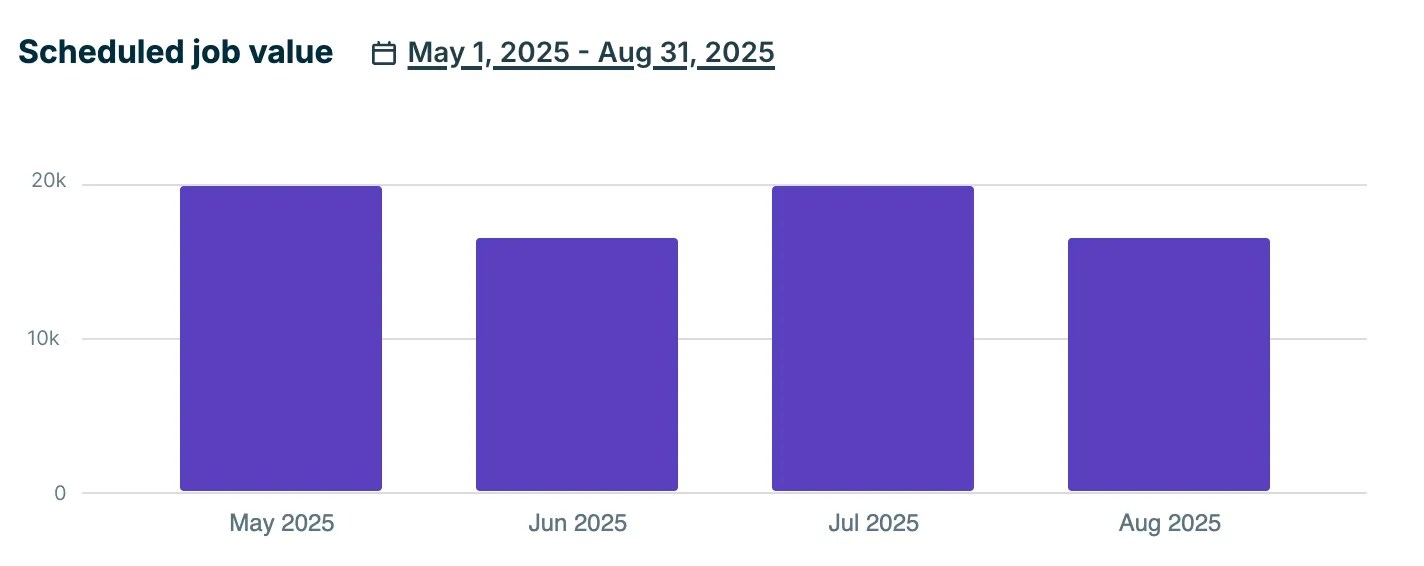
Scheduled job value is calculated based on:
- The value is based on the start date of each visit.
- The total job value is pre-tax and pre-discount.
- Includes:
- One-off jobs
- Recurring jobs with per-visit billing (based on visit dates)
- Recurring jobs with fixed-price billing (based on invoice reminder dates)
- For comparison, the dashboard also displays the average weekly job value from the previous four weeks.
Recurring vs one-off
The recurring vs one-off section shows a visualization of the ratio of your one-off and recurring job types.
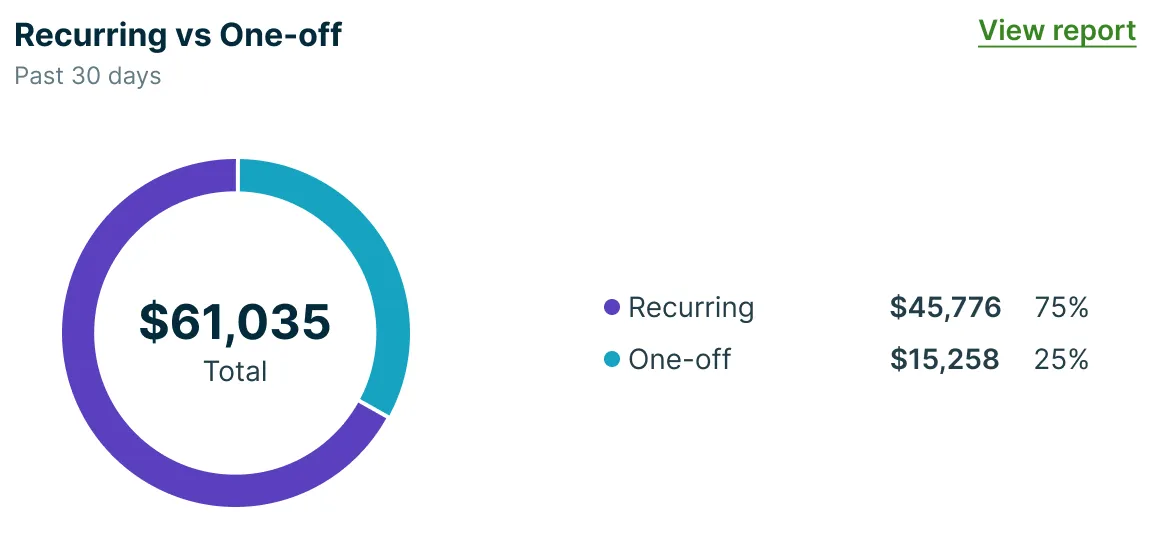
The type of visits are calculated by:
- Number and value of visits belonging to one-off jobs (based on visit start date)
- Number and value of visits belonging to recurring jobs (based on visit start date)
- Percentage ratio of one-off vs. recurring jobs
From the type of visits section, select View report to view the visits report.
Learn more about the visits report
Average job value
Understanding your average job value (sometimes called “average ticket”) is key to tracking overall revenue health and identifying areas for pricing or operational improvements.
The average job value insight shows the average value of your jobs over the last 30 days, broken down into:
-
One-off jobs: Average value of jobs with a single visit that started in the last 30 days, including a trend indicator from the previous 30-day period.
-
Recurring jobs: Average value of recurring jobs that had a visit or invoice reminder in the last 30 days, including a trend indicator from the previous 30-day period.

From the average job value section, select View report to view the visits report.
Learn more about the visits report
Monthly recurring job value
The monthly recurring job value section shows the total value of all recurring jobs completed in the last calendar month. It also includes a trend indicator to show how this month’s revenue compares to the previous month.

From the monthly recurring job value section, select View report to view the recurring jobs report.
Learn more about the
recurring jobs report
Top performing team members
The Top performing team members section of the insights dashboard highlights your most productive team members over the past 30 days. It displays the top three users based on the total value of their visits, along with the number of visits they completed.
This table is shown only if your account has at least three active users. Its purpose is to provide a quick snapshot of individual productivity, helping you easily identify high-performing team members.
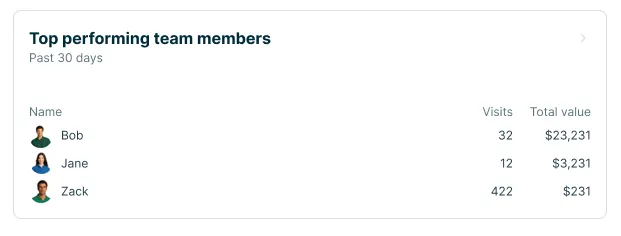
To dive deeper into team activity and performance trends, you can click on the card to open the full team productivity report.