

Overview
Keep your timesheets accurate by tracking unpaid breaks separately from work time. Your team tracks breaks from the Jobber app, and your office team reviews and edit break entries in Timesheets on Jobber.com.
Time tracking category availability
All plans with time tracking have access to the Visit and General timers.
On the Plus plan, there are also timers for Driving, Office, Supplies, and Break, plus the ability to create up to 6 custom time tracking labels. View our current pricing plans.
To check what plan you’re on, select the Gear Icon, then choose Account and Billing. If you have any questions about your plan’s features or pricing, our support team is here to help!
Clock in and clock out from the home screen
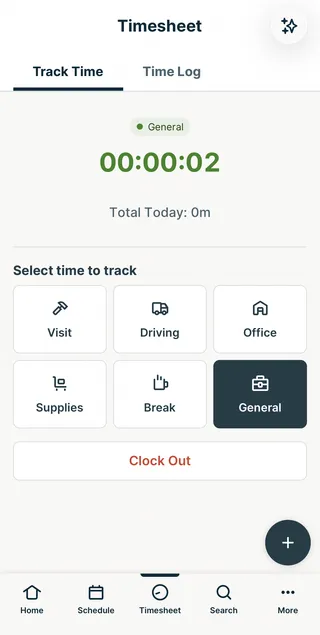
The home screen timer widget in the Jobber app shows how much time has been tracked on the active timer. At the start of the day, tap Clock in to begin tracking time. When all visits for the day are complete, a Clock out button appears. Learn more about Timers and Timesheets in the Jobber App.
Tapping the widget opens the Timesheets area of the app.
Track time in the Jobber app
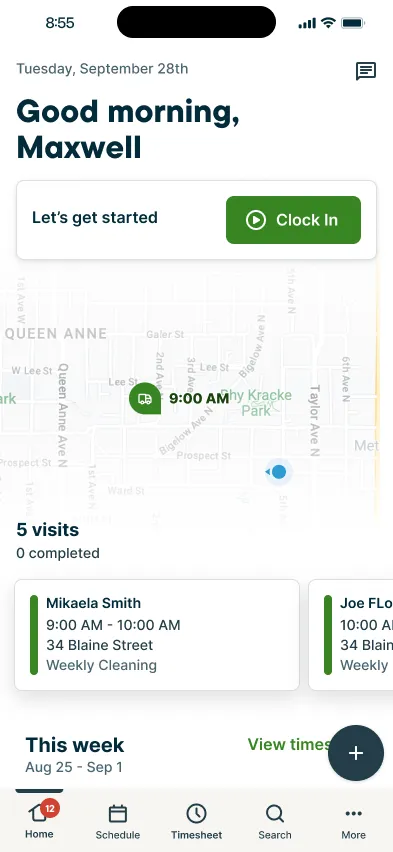
The Timesheets area of the Jobber app has two tabs:
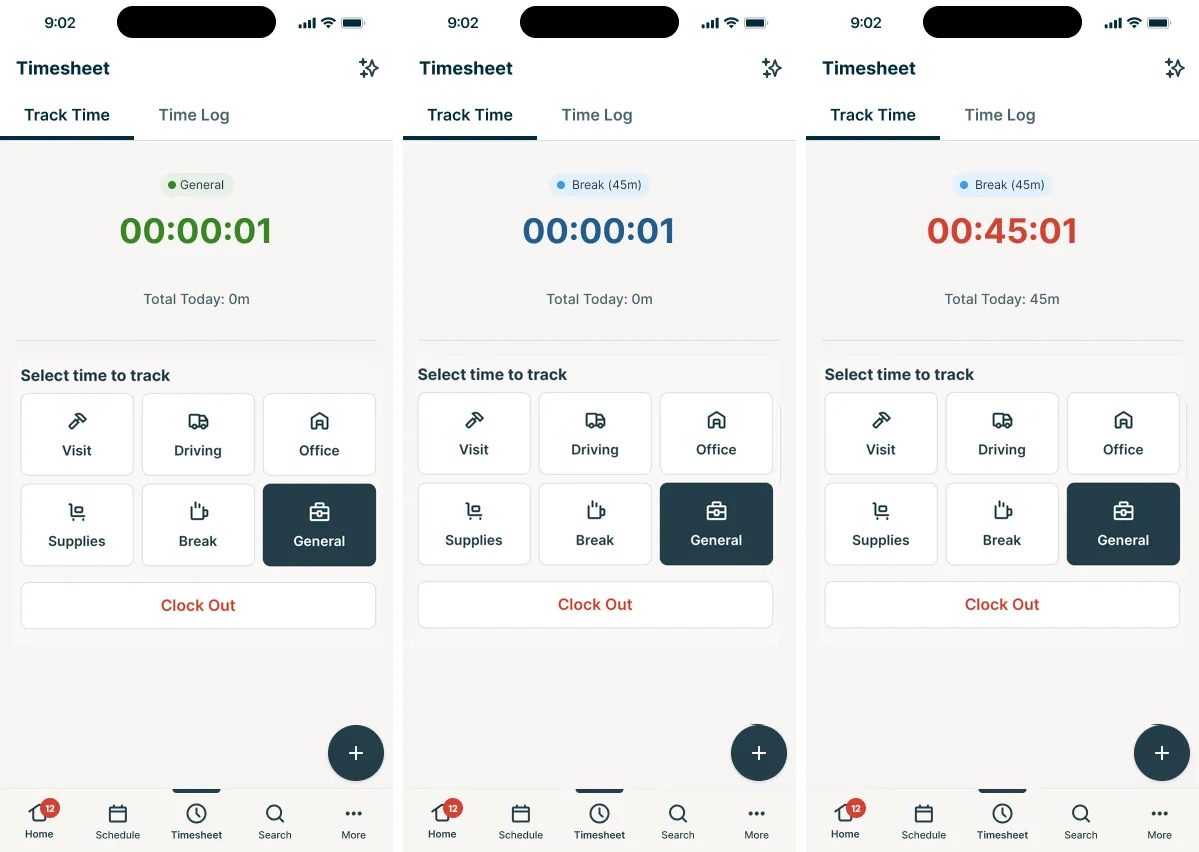
- Track time shows a running timer, the current activity label, and total time tracked for the day. Activity buttons on the page start time against different activities.
- Timelog shows all logged time entries for the day.
To open the Timesheets area, tap Timesheets from the bottom menu in the Jobber app.
On plans that don’t include break tracking, the Track time tab shows two activity buttons: Visit and General. Tap General to clock in and start tracking non-visit time, or tap Visit to choose a scheduled visit to track time against.
Timer types on the Plus plan
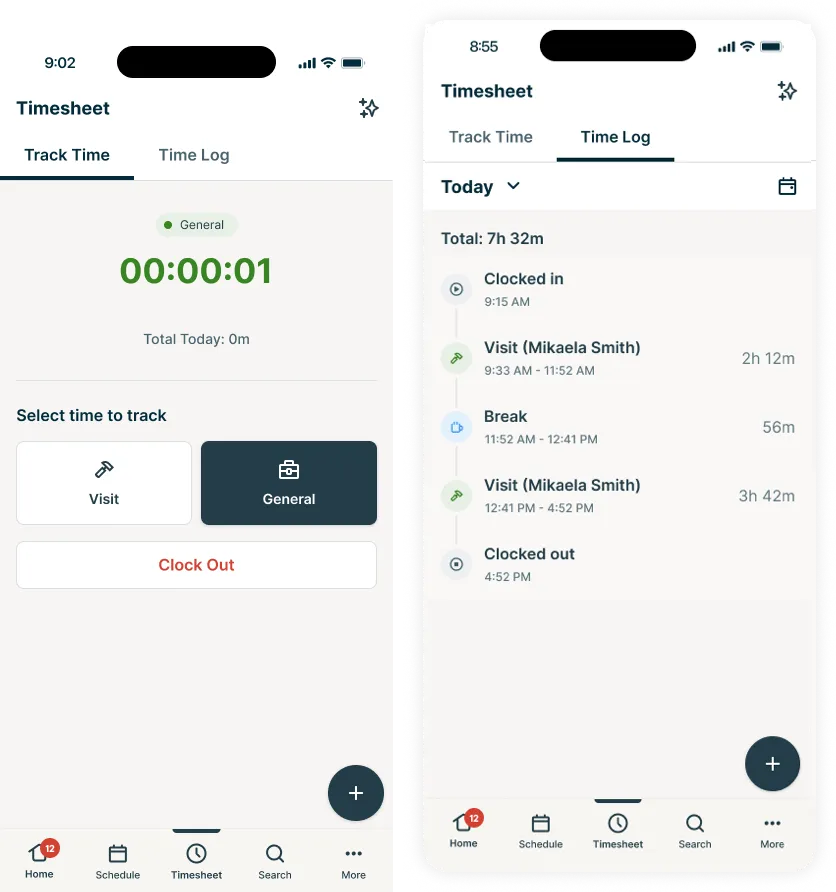
On Plus and Unlimited plans, the Track time tab shows additional activity buttons. Each button starts a timer for that activity. Starting a new timer stops the currently running one.
The following timer types are available:
- Visit: Time spent on a scheduled visit. Visit time counts towards your daily total.
- General: Non-job time with no specific category. General time counts towards your daily total.
- Driving: Time spent driving. Driving time counts towards your daily total.
- Office: Time spent on office or administrative work. Office time counts towards your daily total.
- Supplies: Time spent on supply runs. Supply time counts towards your daily total.
- Break: Unpaid break time. Breaks do not count towards your daily total.
On the Plus plan, these timers can be renamed or custom timers can be added.
All timer types except Break count toward your team member’s total time tracked for the day. Break time is tracked separately as unpaid time and does not appear in payable hours totals.
Manage timers
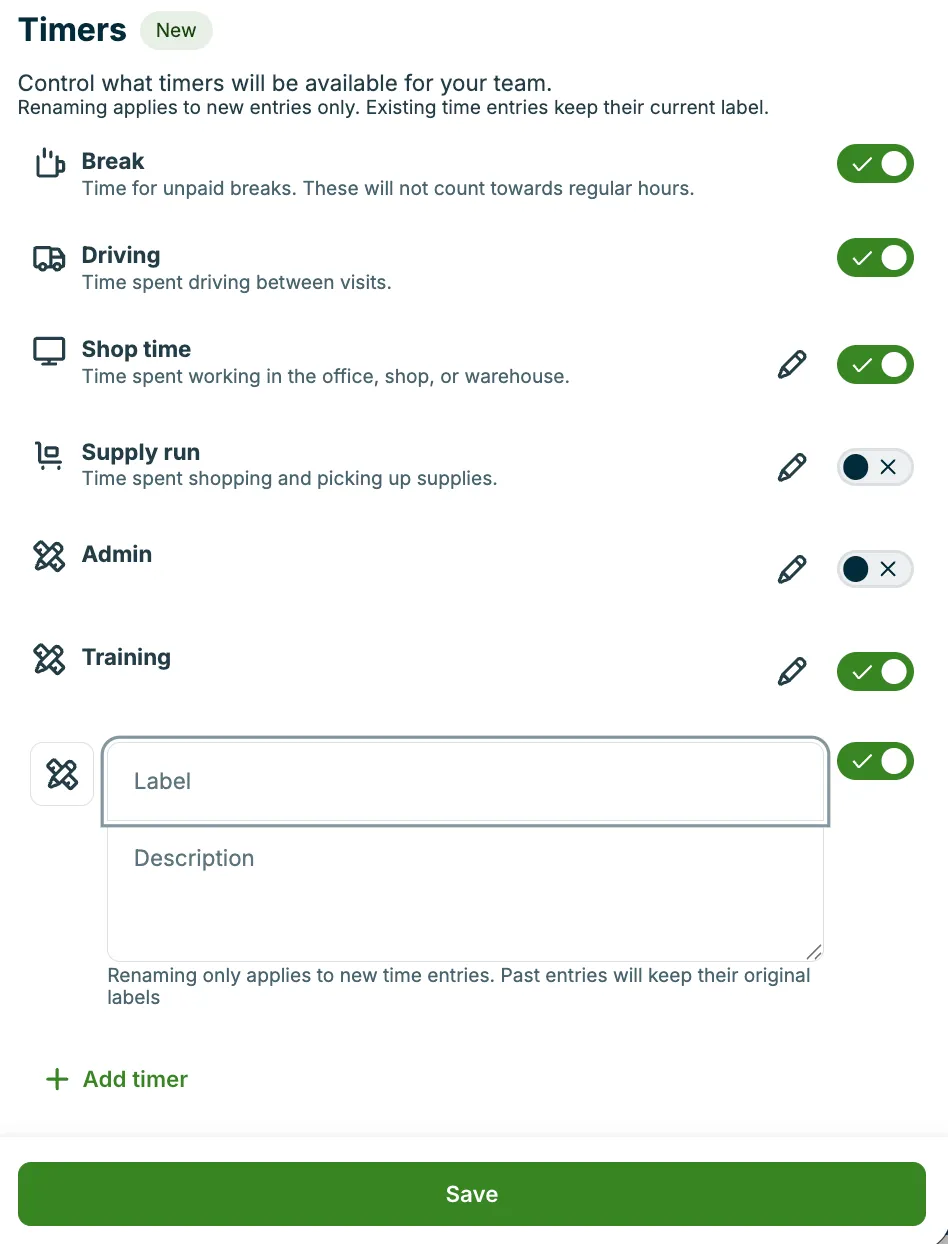
Control which timer types your team sees in the Jobber app. Visit and General are always available and cannot be turned off. Break, Driving, Office, and Supplies can be turned on or off.
The following timers can be managed:
- Driving
- Office
- Supplies
- Break
Turn a timer type on or off
- Sign in to Jobber.com (not the Jobber app).
- Select Timesheets from the side navigation menu.
- Click the Settings button.
- Under Timers, toggle the timer on or off.
- Select Save.
When a timer type is turned off, that type of timer button does not appear on the Track time page in the Jobber app. Existing break entries are not deleted and remain visible in Timesheets and reports.
Rename a timer label
- Sign in to Jobber.com (not the Jobber app).
- Select Timesheets from the side navigation menu.
- Click the Settings button.
- Under Timers, select the pencil icon next to Office or Supplies.
- Enter a new name.
- Select Save.
Note: Renaming applies to new entries only. Existing time entries keep their original label.
Create a custom timer label
In addition to the built-in timer types, you can create up to 6 custom time tracking labels for your team to use in the Jobber app. Custom labels let you categorize time in a way that matches how your business works — for example, “Training,” “Admin,” or “Warehouse.”
To create a custom time tracking label:
- Sign in to Jobber.com (not the Jobber app).
- Select Timesheets from the side navigation menu.
- Click the Settings button.
- Under Timers, select Add label.
- Enter a name and description for the label.
- Choose an icon to represent the label.
- Select Save.
Your team can now select the custom label from the Track time tab in the Jobber app.
Note: Custom time tracking labels do not sync to QuickBooks Online or Gusto. Only paid hours sync to payroll integrations. Custom labels appear in Timesheets and the timesheets report in Jobber for your review.
Track breaks
The break timer behaves differently than other timers: it tracks unpaid breaks and does not count towards your total time tracked for the day.
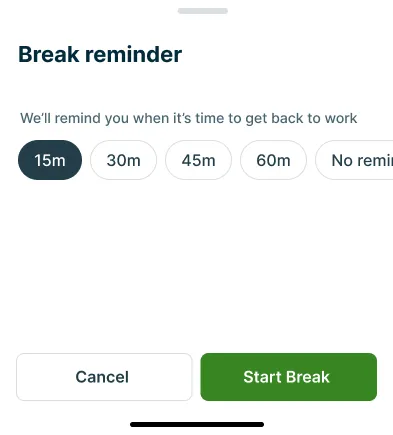
Selecting the break option opens a bottom sheet in the app where you can enter the length of your break. If you set a break duration, there will be a push notification when your break has two minutes left.
While on the break, you’ll also see the timer color change. While your break is in progress the timer will be in blue. If you go over your break’s allotted time, it will turn red.
To track a break:
- Open the Jobber app and tap Timesheets from the bottom menu.
- Tap the Track time tab.
- Tap Break.
- Choose a break duration or select No reminder to start an open-ended break.
- When the break is finished, tap the activity button for what you are doing next, such as Visit or General. This ends the break and starts the next timer.
Review your entries in the Timelog
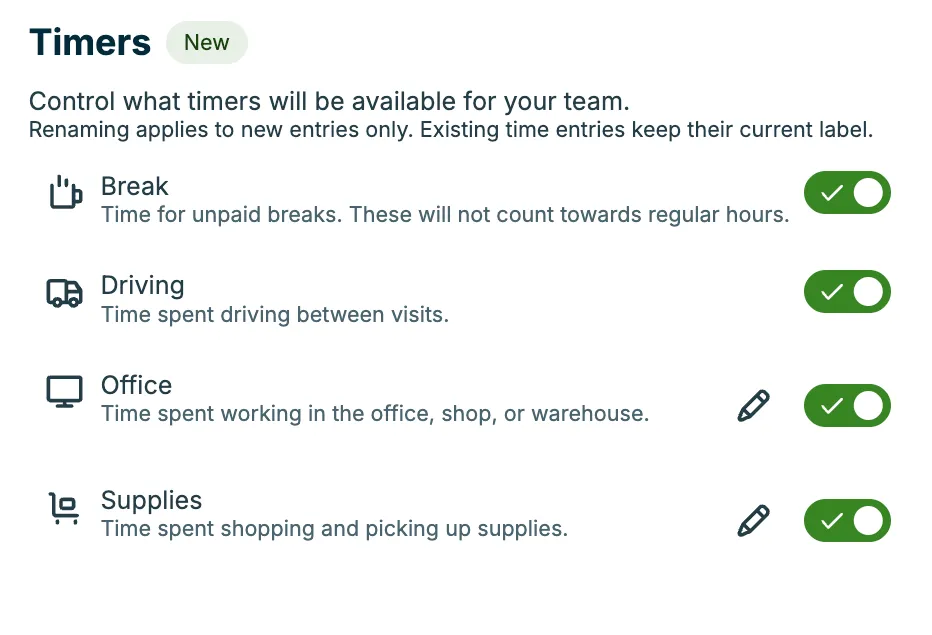
The Timelog tab shows all the time entries your team has logged for the day. Each entry shows the timer type, start time, end time, and duration.
To review entries in the Timelog:
- Open the Jobber app and tap Timesheets from the bottom menu.
- Tap the Timelog tab.
- Scroll through your entries for the day.
Tap any entry to view its details.
Review break time in Timesheets on Jobber.com
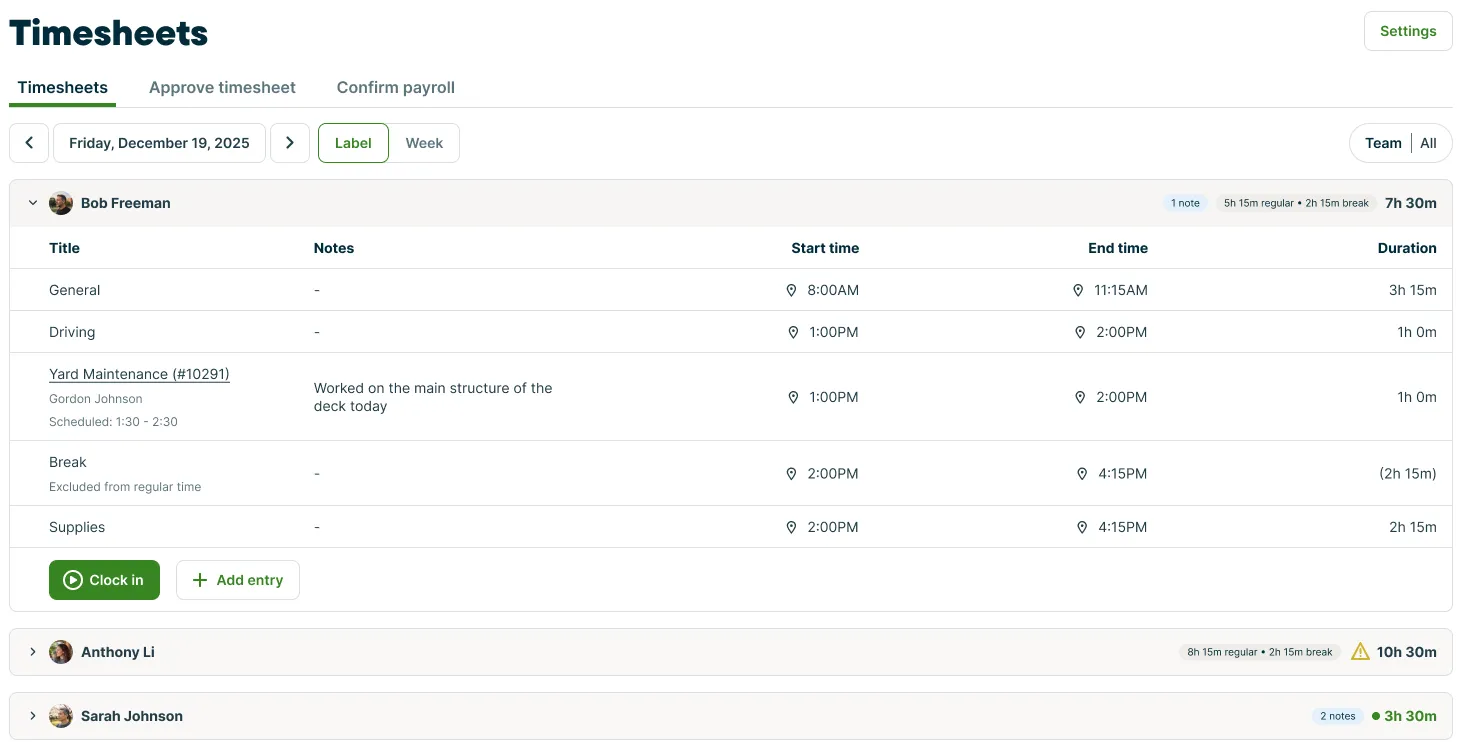
When your team tracks breaks in the Jobber app, those entries appear in Timesheets on Jobber.com alongside visit and general time entries. Each break entry includes the start time, end time, and duration.
To review break time:
- Sign in to Jobber.com.
- Select Timesheets from the side navigation.
- Use the date controls at the top of the page to navigate to the day you want to review.
- Look for entries labeled as breaks in the day’s time entries.
The day view includes a breakdown of time by type, so you can see paid and unpaid time at a glance.
Edit a time entry from Jobber.com
You can edit existing time entries to correct start times, end times, or other details.
Note: Time entries can be edited on Jobber.com but can only be created from the Jobber app.
To edit a time entry
- Sign in to Jobber.com.
- Select Timesheets from the side navigation.
- Navigate to the day that contains the break entry.
- Click the time entry you want to update.
- Make your changes to the start time, end time, or other fields.
- Select Save.
Configure timer settings
To manage your timer settings:
- Sign in to Jobber.com (not the Jobber app).
- Select Timesheets from the side navigation menu.
- Click the Settings button.
Note: You need the Manage timesheets permission to change settings
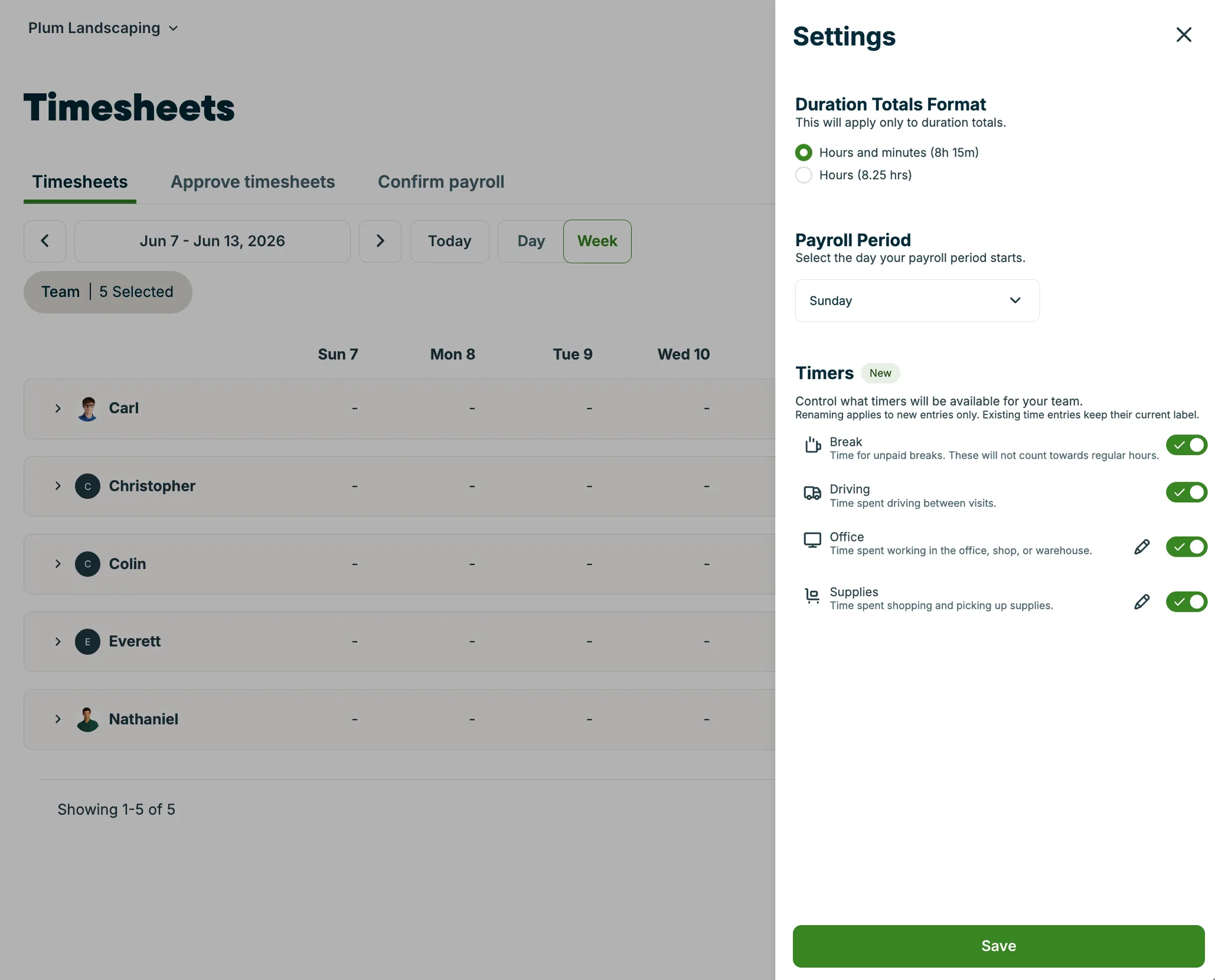
The settings that can be updated are:
Set the duration totals format
Choose how time durations appear in timesheets. This setting applies to duration totals only.
The following formats are available:
- Hours and minutes: for example, 8h 15m
- Hours: for example, 8.25 hrs
To change the format:
- Sign in to Jobber.com (not the Jobber app).
- Select Timesheets from the side navigation menu.
- Click the Settings button.
- Under Duration Totals Format, select your preferred format.
- Select Save.
Set the payroll period start day
Select the day of the week your payroll period starts. Timesheets use this day to group entries by period when you review them.
To change the payroll period start day:
- Sign in to Jobber.com (not the Jobber app).
- Select Timesheets from the side navigation menu.
- Click the Settings button.
- Under Payroll Period, select a day from the dropdown.
- Select Save.
View time by category in the timesheets report
Time entries appear in the timesheets report with their timer type label. You can review all categories — including breaks — separately from paid time. Use the timesheets report when preparing for payroll.
To access the timesheets report:
- Sign in to Jobber.com.
- Select Insights then Reports from the side navigation.
- Select the timesheets report.
- Filter by date range, team member, or other criteria as needed.
Each timer type appears as its own line in the report so you can review categories separately from paid time.
Break time and payroll integrations
If you use the Gusto or QuickBooks Online payroll integration, unpaid break hours are not synced to your payroll provider. Break time stays in Jobber for your review and does not appear as a separate category in Gusto or QuickBooks Online.
Paid and regular hours continue to sync as expected. The full picture of break time, including timestamps and duration, is available in Timesheets and timesheets reports in Jobber.
If you use a different payroll provider or export timesheets manually, break entries appear in the timesheets report and any exported data with their timer type label.
Frequently asked questions about break tracking
- What timer types are available?
- Can I create a break entry from Jobber.com?
- Does break time count toward total hours?
- Do unpaid breaks sync to Gusto or QuickBooks Online?
- Does Jobber calculate overtime or run payroll?
- Does Jobber enforce meal break or rest break rules?
- Can I rename timer labels?
- Do custom time tracking labels sync to payroll integrations?
What timer types are available?
On all plans with time tracking, the Track time tab shows Visit and General. On Plus and Unlimited plans, you also have Driving, Office, Supplies, and Break. All types except Break count toward your team’s total time tracked for the day.
On the Plus plan, you can also create up to 6 additional custom labels. Create a custom time tracking label.
Can I create a break entry from Jobber.com?
You can edit existing break entries, but break entries can only be created from the Jobber app. Learn more about tracking breaks in the Jobber app.
Does break time count toward total hours?
No. Break time is tracked as unpaid time and does not count toward the payable hours total. It appears in Timesheets and reports so you can review it, but it is separated from paid time.
Do unpaid breaks sync to Gusto or QuickBooks Online?
No. Unpaid break hours stay in Jobber and are not pushed to Gusto or QuickBooks Online. Paid and regular hours continue to sync as expected.
Does Jobber calculate overtime or run payroll?
No. Jobber tracks time and structures it for review. Overtime calculation and payroll processing happen outside of Jobber, either manually or through a connected payroll provider.
Does Jobber enforce meal break or rest break rules?
No. Jobber does not automate jurisdiction-specific meal break, rest break, or compliance rules. You are responsible for your own pay policies and applicable labor laws.
Can I rename timer labels?
You can rename the display labels for Office and Supplies in Timesheets settings on Jobber.com. Other system labels (Visit, General, Driving, and Break) cannot be renamed.
Do custom time tracking labels sync to payroll integrations?
No. Custom time tracking labels do not sync to QuickBooks Online or Gusto. Only paid hours sync to connected payroll providers. Custom label entries appear in Timesheets and the timesheets report in Jobber so you can review them when preparing for payroll.