

Overview
From the side navigation in Jobber, you can access your work items, including:
- Clients
- Requests
- Quotes
- Jobs
- Invoices
- Payments
Select any of these to open its list page. Each list page displays key metrics for that item type, along with a filterable list of all related records.
For example, selecting Quotes opens the quotes list, where you can view metrics such as your quote conversion rate and manage your quotes.
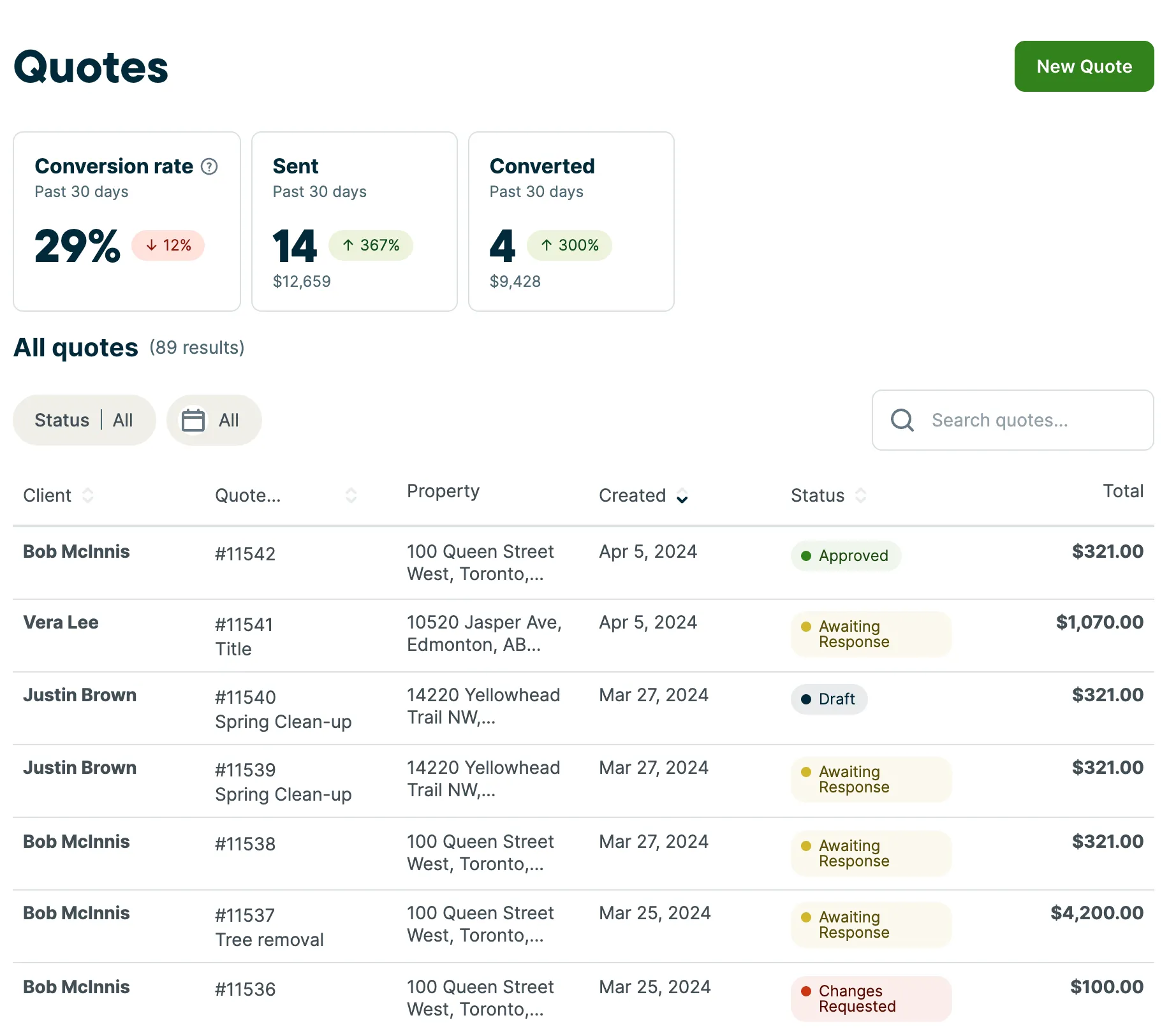
For detailed information about each list page and its metrics, refer to the individual articles for each item type.
Clients
The Clients tab on the side navigation in Jobber.com opens your client list. You can search for clients and properties using the search bar in the top left.
Learn more about the client list page and metrics
Client key metrics
At the top of the list are some metrics to help you understand how your business is performing, including:
- New leads: On pricing plans that include lead management, new leads added in the last 30 days (including today) will show. There is a trend indicator to show change over the previous time period. Hover over the trend indicator to see a breakdown of the leads per period.
- New clients: This is the number of new active clients added in the last 30 days (including today). There is a trend indicator to show change over the previous time period. Hover over the trend indicator to see a breakdown of the leads per period.
Note: When clients are imported, they will appear as both “new leads” and “new clients”. - New clients YTD: This shows the number of new active clients added this calendar year (including today).
Note: If a lead becomes a client within 30 days of the lead being created in Jobber, it will appear in both the “new leads” and “new clients” counts. A lead becomes an active client when they take one of the following actions:
- approve a quote
- have a scheduled job
- receive an invoice
Requests
The Requests tab on the side navigation in Jobber.com opens your requests list.
Learn more about the requests list page and metrics
Requests key metrics
At the top of the list are some key metrics relating to requests to help you understand how your business is performing, including:
- Overview: This is the breakdown of all your requests across different statuses.
- New requests: This is the number of requests with a created date within the last 30 days. There is a trend indicator to show the percentage change over the past 30 days. Hover over this indicator to view the breakdown the last 30 days and the previous 30 day period. Click this insight to view the requests report. From the requests report, you can change the date range and add additional columns.
- Conversion rate: This is the rate at which new requests are converted into a quote or job. The conversion rate is calculated as ((number of requests with a created date in date range AND a converted to quote OR job date) / number of requests with created date in date period) * 100.
Note: This doesn’t include requests with a created date outside the date range but with a conversion date within the date range. This number will never be over 100%.
The trend indicator is calculated as ((conversion rate in the past 30 days) - (conversion rate in pervious 30 days) / (conversion rate in previous 30 days)) * 100.
Quotes
The Quotes tab on the side navigation in Jobber.com opens your quotes list. You can search for properties using the search bar in the top left.
Learn more about the quotes list page and metrics
Quote key metrics
At the top of the list are some key metrics relating to quotes to help you understand how your business is performing, including:
- Overview: This is the breakdown of all your quotes across different statuses.
- Conversion rate: The conversion rate is calculated as ((number of quotes converted in the date period ) / number of quotes sent in the date period) * 100.
Since this measures a specific date range, it’s possible that there may be more converted quotes than sent quotes within that date range, which means that the quote conversion rate may exceed 100%.
The trend indicator for the conversion rate is calculated as ((conversion rate in current date period) - (conversion rate in previous date period) / (conversion rate in previous date period) * 100. - Sent quotes: These are quotes that have a sent date within this date period. The dollar value displayed reflects the value of sent quotes after discounts and tax.
The trend indicator is calculated by ((quote sent in current date period) - (quotes sent in previous date period) / (quotes sent in previous date period) * 100. - Converted quotes: These are quotes that have been converted to a job within this date period. The dollar value displayed reflects the value of converted quotes after discounts and tax.
The trend indicator is calculated by ((quote conversion rate in current date period) - (quote conversion rate in previous date period) / (quotes conversion rate in previous date period) * 100.
Jobs
The Jobs tab on the side navigation in Jobber.com opens your jobs list.
Learn more about the jobs list page and metrics
Job key metrics
At the top of the list are some key metrics to help you understand how your jobs are performing, including:
- Overview: This is the breakdown of all your jobs across different statuses.
- Recent visits: This is the number of visits with a scheduled start date within the last 30 days (including today) for all job types. The dollar value is the line items total for:
- One-off jobs with a last scheduled visit date in date range
- Recurring jobs with per visit billing x number of visits in the date range
- Recurring jobs with per visit billing with custom visit line items within the date range
- Recurring jobs with fixed price billing where an invoice reminder start date is in date range
- Visits scheduled: This is the number of visits scheduled within the next 30 days (not including today) for all job types. The dollar value is the total of:
- One-off jobs with a last scheduled visit date within the date range
- Recurring jobs with per visit billing x number of visits in the date range
- Recurring jobs with per visit billing with custom visit line items in the date range
- Recurring jobs with fixed price billing where an invoice reminder start date is in the date range
Invoices
The Invoices tab on the side navigation in Jobber.com opens your invoices list.
Learn more about the invoice list page and metrics
Invoice key metrics
At the top of the list are some key metrics to help you understand how your invoices are performing, including:
- Overview: This is the breakdown of all your invoices across different statuses.
- Issued: This is the number of invoices you have issued over the last 30 days (not including today), as well as the dollar value of all invoices issued during this time. Hover over the trend indicator to view how this compares to the previous 30 day period.
- Average invoice price: This is the average dollar value of all invoices issued over the past 30 days (not including today). Hover over the trend indicator to view how this compares to the previous 30 day period. Select this insight to view the invoices report. The invoices report has a column for “days to paid” that shows the number of days from when the invoice was issued until the status on the invoice switched to “paid”.
- Average time to get paid: This is the average number of days that all invoices paid in the past 7 days took to get from issued to paid status.
Payments
The Payments list page provides a centralized view of the payments your business has collected and the payouts deposited to your bank account. This page helps you track, review, and manage all of your payment activity in one place, including both online payments processed through Jobber Payments and offline payment methods such as cash or checks.
Learn more about the payments list page and metrics
The payments list page has two tabs: Overview and Payouts.
The Overview tab contains information about the payments you’ve collected (including offline methods like cash and check), whereas the Payouts tab has information about the online payments that will be deposited into your bank account through Jobber Payments.
In the upper right corner of the Payments page, you can access:
- Settings: Opens your Jobber Payments settings, where you can manage payment configurations, payout preferences, and other related options.
- Disputes: Opens the Disputes dashboard, where you can view and respond to payment disputes.
Overview tab on the payments list page
Click Payments on the side navigation in Jobber.com to open the Payments list page. This page opens to the Overview tab of the payments list by default.
Payments key metrics
The key metrics at the top of the payments overview tab are:
- Available funds: The amount ready for an instant payout to your bank.
- Invoice payment time: The average time it takes an invoice for a residential client to be paid once sent. There is a trend indicator to show how this compares to the previous 30-day period.
- Invoices paid on time: This is the percentage of invoices that were paid on time (before their due date passes) over the last 60 days. There is a trend indicator that shows how this compares to the previous 60-day period.
Payouts tab on the payments list page
The Payouts tab displays the funds that have been deposited to your bank account from payments processed through Jobber Payments. This tab provides visibility into the timing, amounts, and details of each payout, including processing fees and related transactions.
To access the Payouts tab, click Payments in the side navigation, then select Payouts.
Payouts key metrics
At the top of the Payouts tab, you’ll see three summary sections:
- Processing: Shows the amount collected that is processing for a future payout. If you would like to access these funds sooner, you can click Get it now to initiate an instant payout to your bank account.
- On the Way: Displays the total amount that is currently in transit to your bank account. The visual bar chart shows a breakdown of payout amounts and dates to help you understand when you can expect deposits.
- Deposited: Shows the total amount deposited in your bank account for both the current week and the current month.