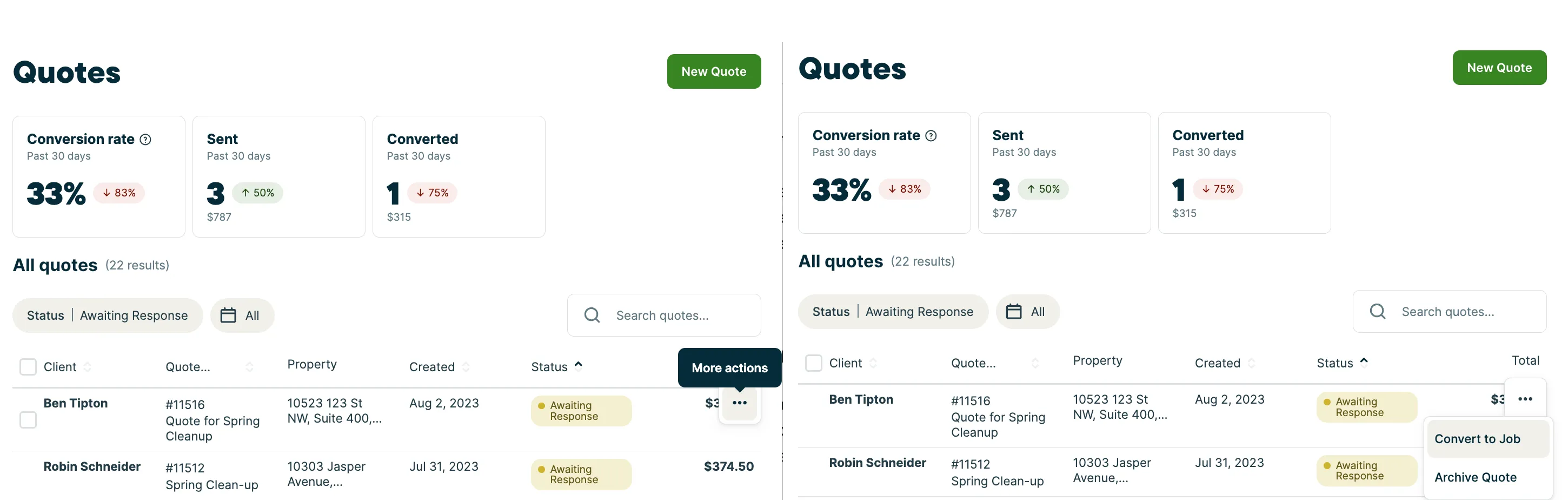
Overview
The quotes list is where you can view, track, and manage all of your quotes in Jobber. From this page, you’ll see a complete list of quotes along with tools to filter, sort, and take action—so you can stay organized and keep work moving forward.
To open the quotes list:
-
Sign into Jobber.com.
-
From the side navigation, click Quotes
At the top of the quotes list, you’ll also find key metrics that give you a snapshot of your quoting activity. These insights highlight trends like quote totals and conversion activity, helping you understand how your quotes are performing and how much work is moving toward approval.
Quotes are a key step between requests and jobs, so the quotes list is a central place to track opportunities, follow up with clients, and turn approved quotes into scheduled work.
Key metrics on the quotes list
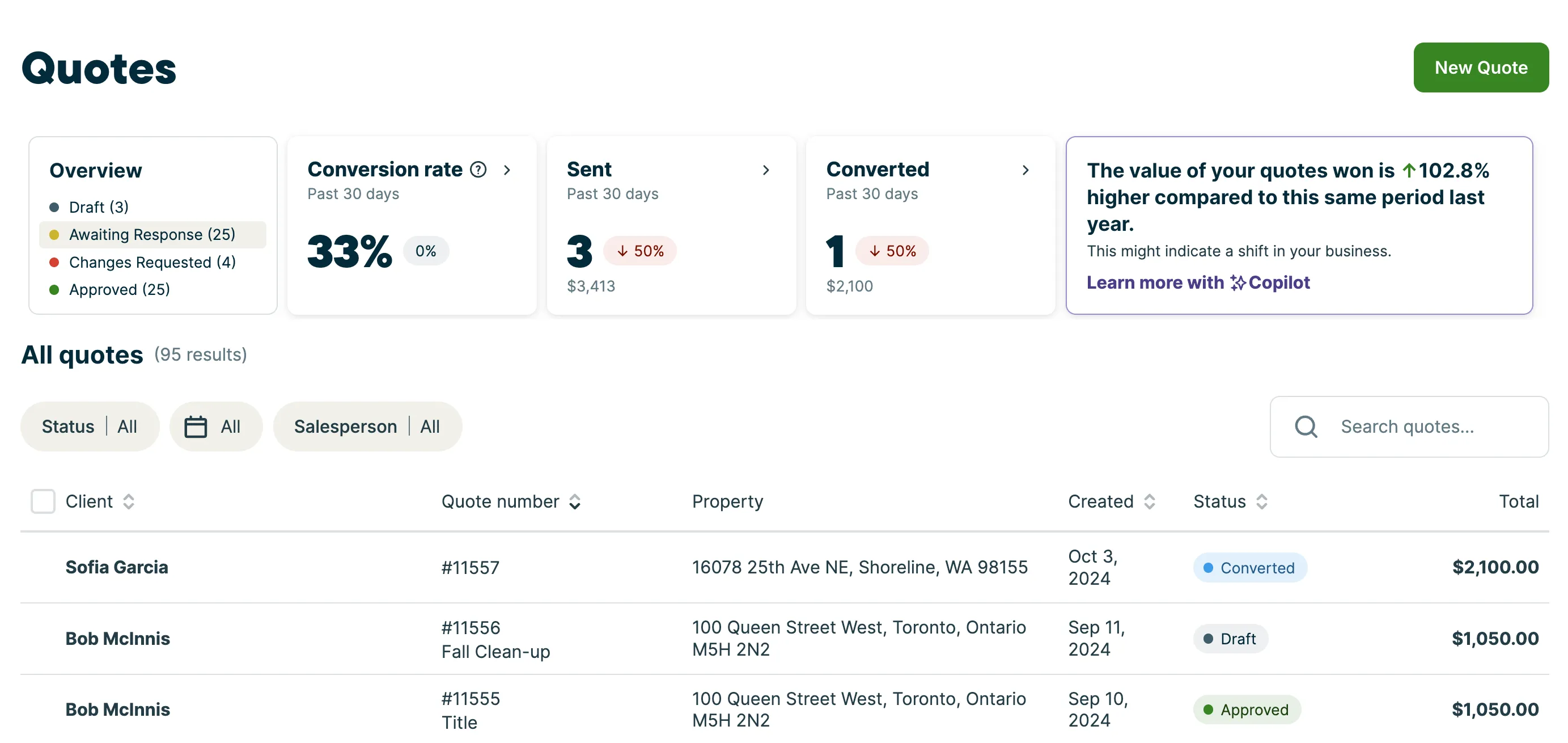
At the top of the list are some key metrics relating to quotes to help you understand how your business is performing, including:
- Overview: This is the breakdown of all your quotes across different statuses.
- Conversion rate: The conversion rate is calculated as ((number of quotes converted in the date period ) / number of quotes sent in the date period) * 100.
Since this measures a specific date range, it’s possible that there may be more converted quotes than sent quotes within that date range, which means that the quote conversion rate may exceed 100%.
The trend indicator for the conversion rate is calculated as ((conversion rate in current date period) - (conversion rate in previous date period) / (conversion rate in previous date period) * 100. - Sent quotes: These are quotes that have a sent date within this date period. The dollar value displayed reflects the value of sent quotes after discounts and tax.
The trend indicator is calculated by ((quote sent in current date period) - (quotes sent in previous date period) / (quotes sent in previous date period) * 100. - Converted quotes: These are quotes that have been converted to a job within this date period. The dollar value displayed reflects the value of converted quotes after discounts and tax.
The trend indicator is calculated by ((quote conversion rate in current date period) - (quote conversion rate in previous date period) / (quotes conversion rate in previous date period) * 100.
Filter and search your quotes list
The quotes list can be filtered by:
- Status
- Quote created date, the date range options are:
- All
- Last week
- Last 30 days
- Last month
- This year
- Last 12 months
- Custom range
- Salesperson
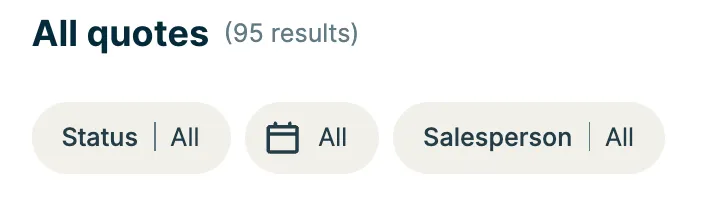
When the quotes list is filtered, the “All quotes” heading changes to “Filtered quotes” to indicate that the list only reflects quotes that match the filters.
The itemized quotes list can also be sorted by clicking the ascending or descending arrows in these column headers:
- Client
- first name (A-Z)
- first name (Z-A)
- Quote number
- Property
- Created date
- Status
- Total
Quote statuses
There are 6 statuses a quote can be in:
- Draft: This is a quote that has not been sent to your client yet, and is only visible to you. Once a quote has been sent (or marked awaiting response) it is not possible to put the quote back into draft status.
- Awaiting response: This is a quote that has been sent to your client and is awaiting approval or a change request.
- Changes Requested: This is a quote that a client is requesting changes on.
- Approved: This is a quote that has been approved by the client, or has been marked as approved manually. Learn more about Quote Approvals
- Converted: A quote that has been converted into a job. Converted is a final status for a quote, once it’s converted the status will stay converted even if the linked job is deleted.
- Archived: A quote that has been archived in the system. These are only visible to you in Jobber, not to your clients in client hub.
There is an overview of your quotes by status at the top of the quotes list along with the quote metrics.
Bulk actions on the quotes list
There are some actions on quotes that can be done directly from the quotes list, including:
- Archive quotes: Quotes can be archived individually from the quotes list, or multiple quotes can be archived at once. Quotes must be in one of these statuses to be archived: awaiting response, approved, or changes requested. A draft quote cannot be archived.
- Convert a quote to a job
- Send a single quote via text or email
- Delete quotes: Quote can be deleted individually from the quotes list, or admin users can delete multiple quotes at once.
To archive or delete quotes in bulk:
- Select Quotes from the side navigation to view your quotes list.
- From the quotes list, check the boxes next to each client name.
- Select the more actions button above the quotes list, select the icon for Bulk Archive or the … icon > Bulk delete.
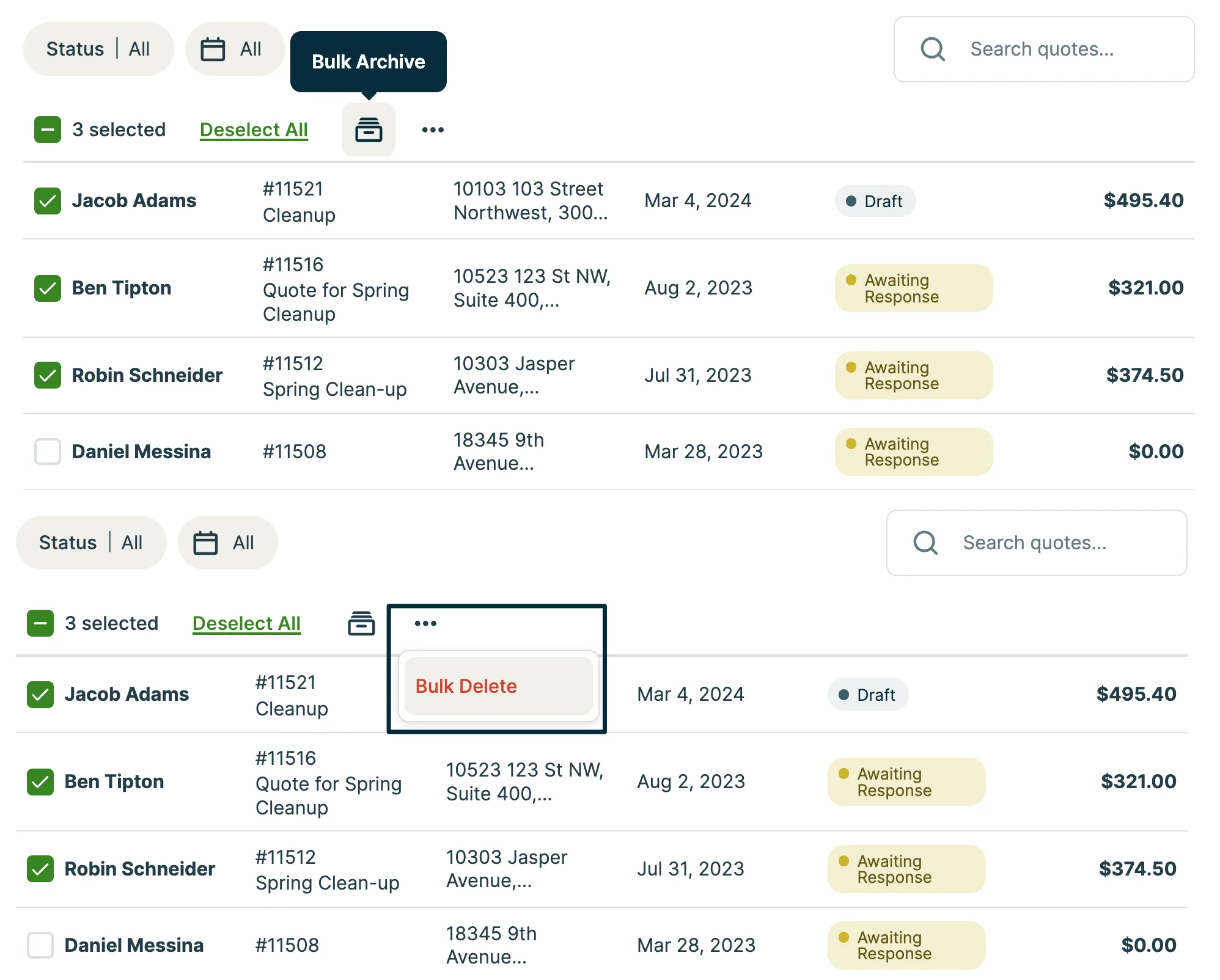
To take an action (including deleting, archiving, or converting) on a single quote from the quotes list:
- Select Quotes from the side navigation to view your quotes list.
- From the quotes list, locate the quote you wish to archive or convert to a job. From that row, select the more actions button (…) then select Convert to Job, Archive, or Delete.