Overview
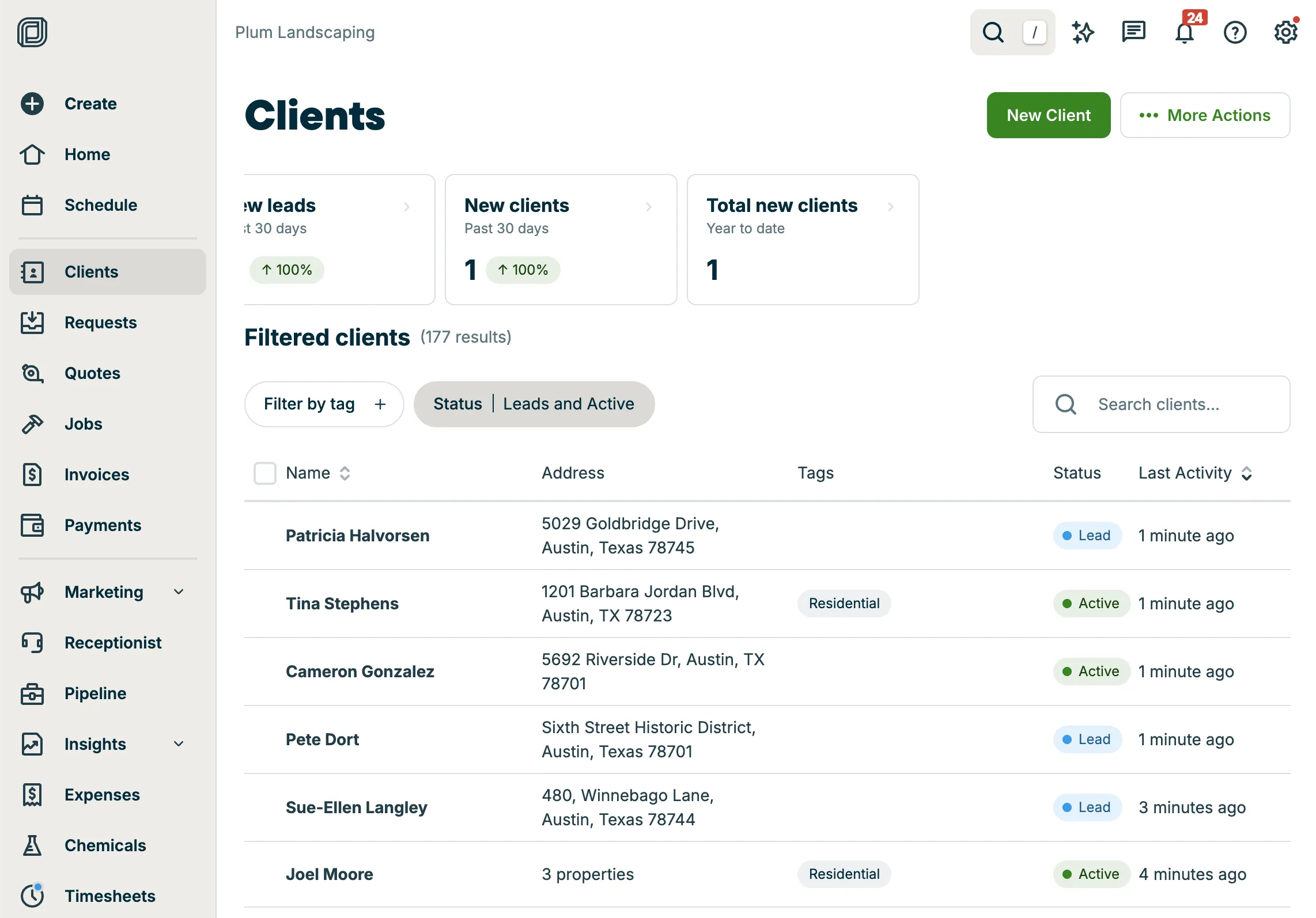
The clients list is where you can view, search, and manage all of your clients in Jobber. From this page, you’ll see a complete list of your clients along with tools to filter, sort, and take action; so you can quickly find the information you need and keep your client records up to date.
To open the clients list:
-
Sign into Jobber.com.
-
From the side navigation, click Clients.
At the top of the clients list, you’ll also find key metrics that give you a snapshot of how your business is growing. These insights highlight trends like new leads and new clients, helping you understand how your client base is changing over time without needing to run a report.
Because clients are the foundation of your work in Jobber—connected to requests, quotes, jobs, and invoices—the clients list is a central place to monitor activity, track growth, and take action on your customer relationships.
Key metrics on the clients list
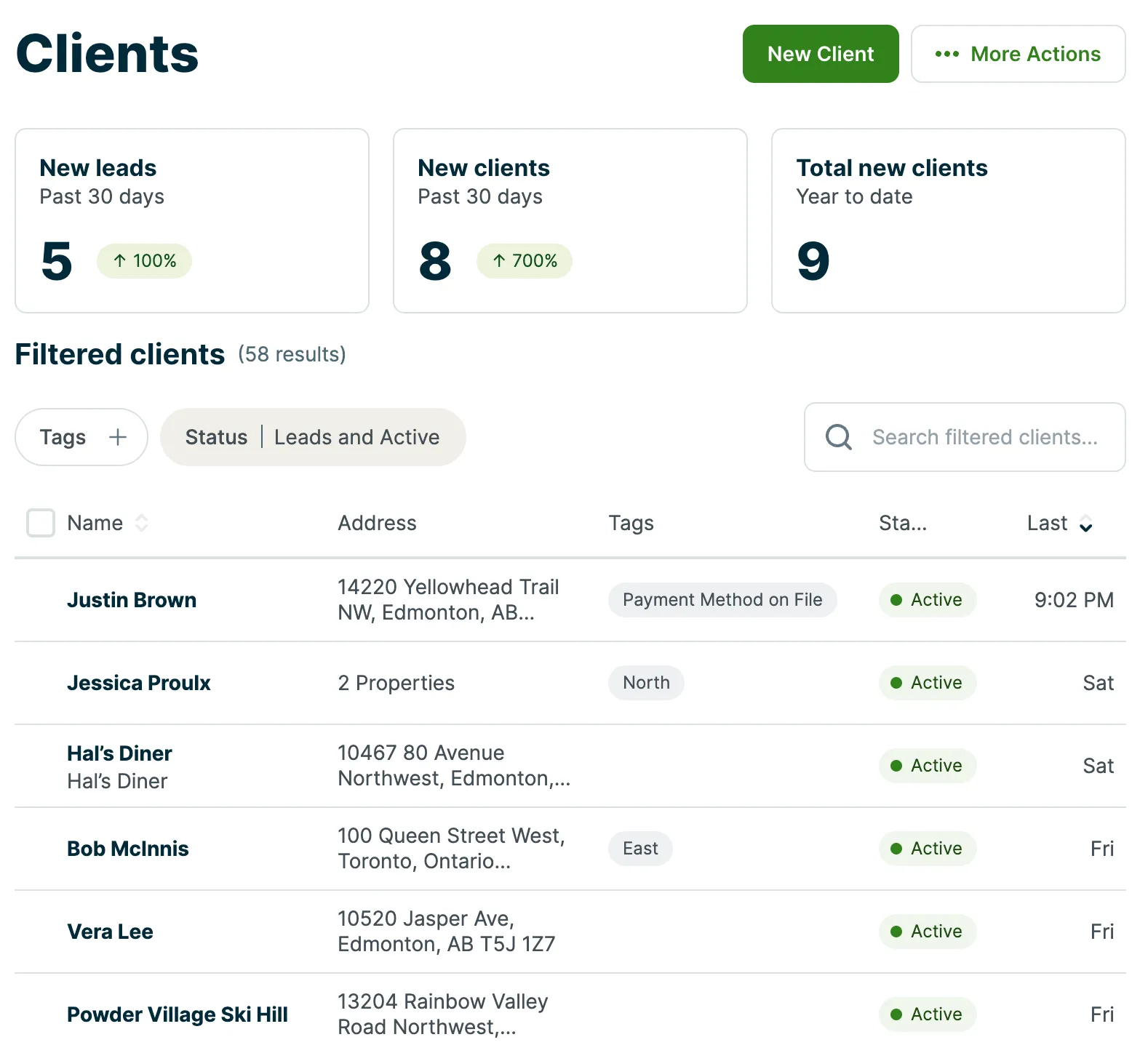
At the top of the list are some metrics to help you understand how your business is performing, including:
- New leads: On pricing plans that include lead management, new leads added in the last 30 days (including today) will show. There is a trend indicator to show change over the previous time period. Hover over the trend indicator to see a breakdown of the leads per period.
- New clients: This is the number of new active clients added in the last 30 days (including today). There is a trend indicator to show change over the previous time period. Hover over the trend indicator to see a breakdown of the leads per period.
Note: When clients are imported, they will appear as both “new leads” and “new clients”. - New clients YTD: This shows the number of new active clients added this calendar year (including today).
Note: If a lead becomes a client within 30 days of the lead being created in Jobber, it will appear in both the “new leads” and “new clients” counts. A lead becomes an active client when they take one of the following actions:
- approve a quote
- have a scheduled job
- receive an invoice
Filter and search your client list
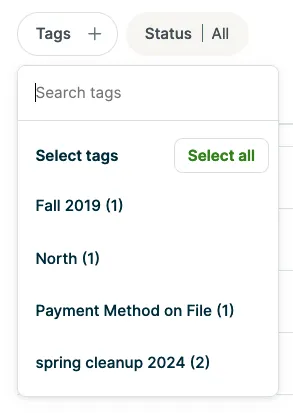
To narrow down your client list, tags and statuses can be used as filters. Click Tags or Status to open a list of all tags and statuses and select one to filter the list. If you are filtering the list with tags, multiple tags can be selected. Learn more about Tags.
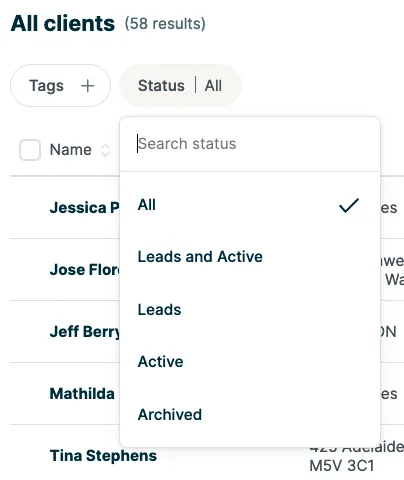
Clients can be sorted by name or last activity. Click on the Name or Last activity headings to sort your client list in ascending or descending order.
To remove filters from your client list, click the Status dropdown, then select All.
Clients can also be searched using the search bar. When filters are applied to the client list, the search bar text will say “Search filtered clients”. When no filters are applied, it will read “Search all clients”.
Actions on the client list
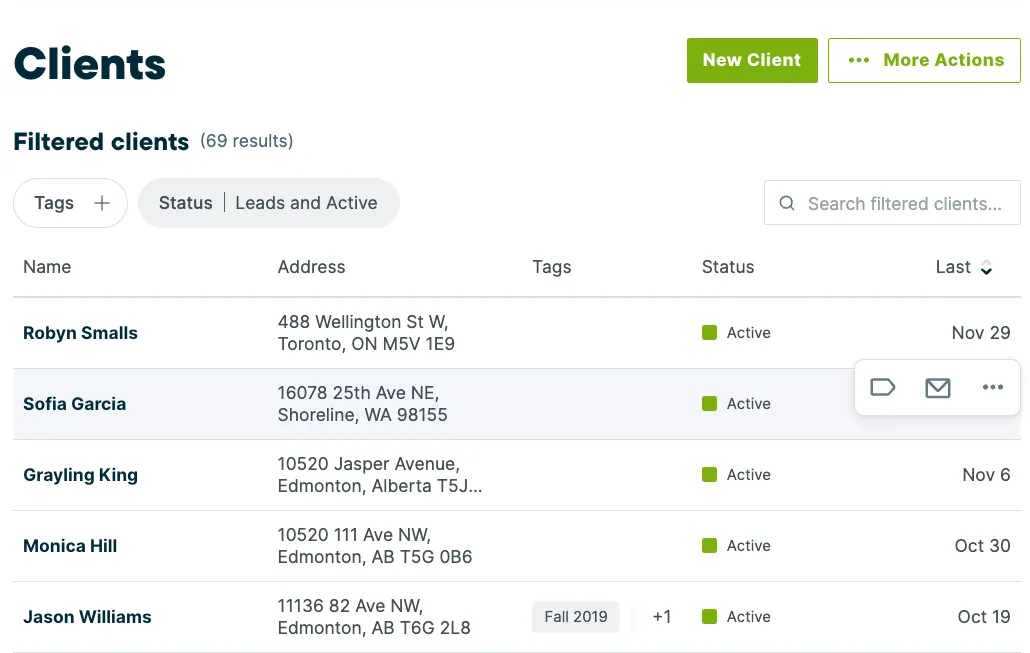
There are actions you can take on clients directly from the client list that save you the time of clicking into the client. These actions are:
- Edit tags (including adding and removing tags)
- Sending a general email
- More actions - Select … (More actions) to:
- Archive client
- Delete client
- Open in new tab
Hover over the client in the list to view the actions.
Bulk actions on the client list
Tags can be edited for multiple clients at once. To edit tags for multiple clients:
- Select Clients from the side navigation to view your client list.

- From the client list, check the boxes next to each client name, then select Bulk edit tags from the menu above the client list to open the Edit tags pop-up.
- For the selected clients, select tags to add or remove.
- Then select Save.
Note: A maximum of 10,500 tags can be bulk added at a time.
To select all clients, check the box above the list to check the box beside every client.
To deselect all your selections, click Deselect all located above the list.