

Overview
Use request and booking forms to collect information from customers and allow them to request work or schedule appointments online.
Forms gather the details you need about a customer’s request and can optionally include booking options. Depending on how the form is set up, customers can either submit a request for review or choose an available time to schedule work based on your team’s availability.
Forms start as request forms, which collect job details so you can review the work before scheduling. If you want customers to schedule work online, you can add booking questions to the form. Depending on the booking question you add, customers can either schedule an assessment or book a job directly based on your availability.
You can create different forms depending on the type of work you offer. For example, one form for general inquiries, another for assessment or walk-through bookings, and another for services that clients can book right away.
To manage all request and booking forms:
- Sign into Jobber.com.
- Select the Gear Icon, then select Settings.
- Select Requests and Bookings from the settings menu.
Requests and bookings availability
Requests and bookings are available on select plans. View our current pricing plans.
To check what plan you’re on, select the Gear Icon, then choose Account and Billing. If you have any questions about your plan’s features or pricing, our support team is here to help!
Types of request and booking forms
Forms allow customers to contact your business, submit job details, and schedule work online. However, there are different types of forms for collecting different details and creating bookings.
Each form can be set up in one of three ways depending on how you want customers to contact you.
- Request forms: Collect information from a customer about the work they need. Customers can submit their details and preferred dates, and the submission will appear in Jobber as a Request so you can follow up and schedule the work. Use request forms when you want to review requests before scheduling an appointment. You can set a price for the assessment or offer it for free.
- Assessment booking forms: Assessment booking forms allow customers to schedule an on-site assessment or appointment where you’ll visit their property to complete a request. Customers choose an available time based on your team’s schedule. When the form is submitted:
- A request is created
- An assessment is scheduled on your calendar
- New assessment booking forms require your approval before a booking is confirmed by default. You can turn this off in the form’s settings.
- Job booking form: Allow customers to book services directly into your schedule. Customers select a service and choose an available time based on your team’s availability. When the form is submitted:
- A request is automatically converted
- A one-off job is scheduled in your calendar.
Review and update your booking form
If you previously used Jobber’s Online Booking feature, we’ve released an update that requires you to review and update your online booking form. Now that requests and bookings are managed together, this is a small change so that your forms are ready for all types of intake.
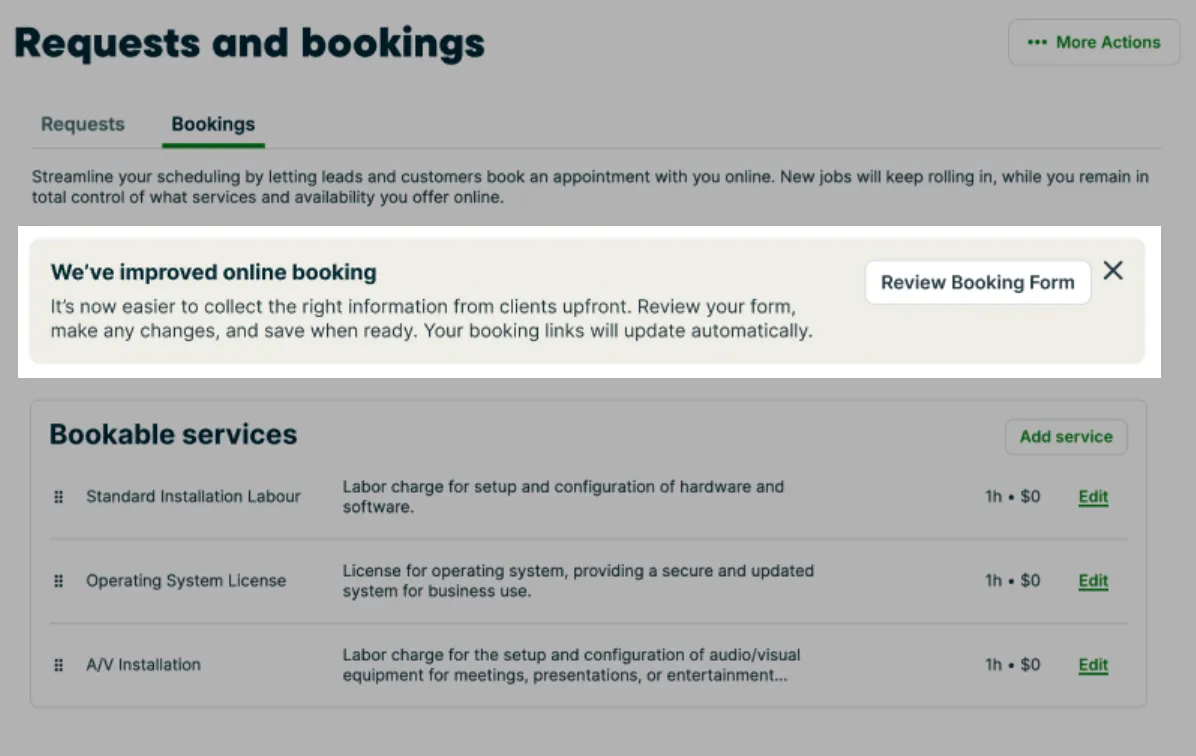
- You’ll see a banner prompting you to Review Booking Form. Select Review Booking Form to open your current form in the form builder and confirm your settings.
- Jobber will notify you during setup if you need to create a second form. If you offer bookable assessments on your booking form you’ll need to create a new assessment booking form, as they’re now handled as a different type of booking. If your previous booking page included both services and assessments, create two separate forms:
- One form for job bookings
- One form for assessment bookings
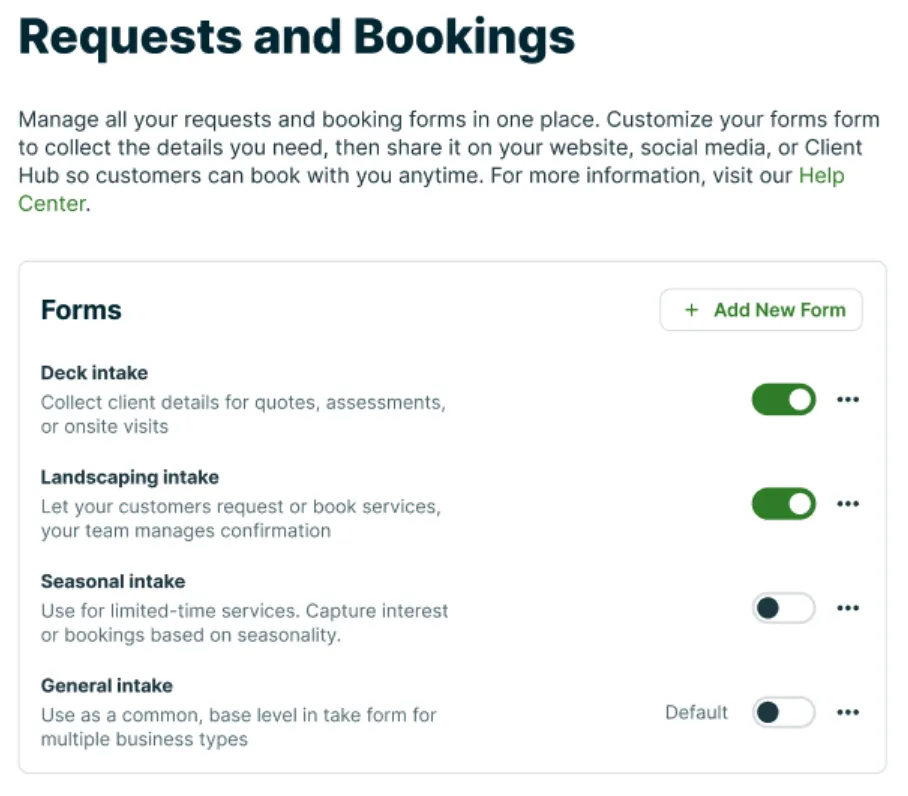
- Click Update to finalize your changes. Once your forms have been updated, Jobber adds the form to your Requests and booking settings page. This is where you can view and manage all forms from one shared list.
What happens to my existing booking link?
Your existing booking link will continue to work.
When you update your booking form, Jobber automatically redirects your existing booking link to the updated form. Customers who use your current link (such as the one on your website, social media, or Google Business Profile) will still be able to submit a request or make a booking. You do not need to update the link anywhere it is already shared. If you create additional forms, each form will have its own unique link that you can share or embed where needed.
Create forms
To create a new form:
-
Click the Gear Icon then select Settings.
-
From the settings menu, select Requests and Bookings.
-
Locate the Forms section. All your request forms will appear in this section. Click the Add New Form button.
-
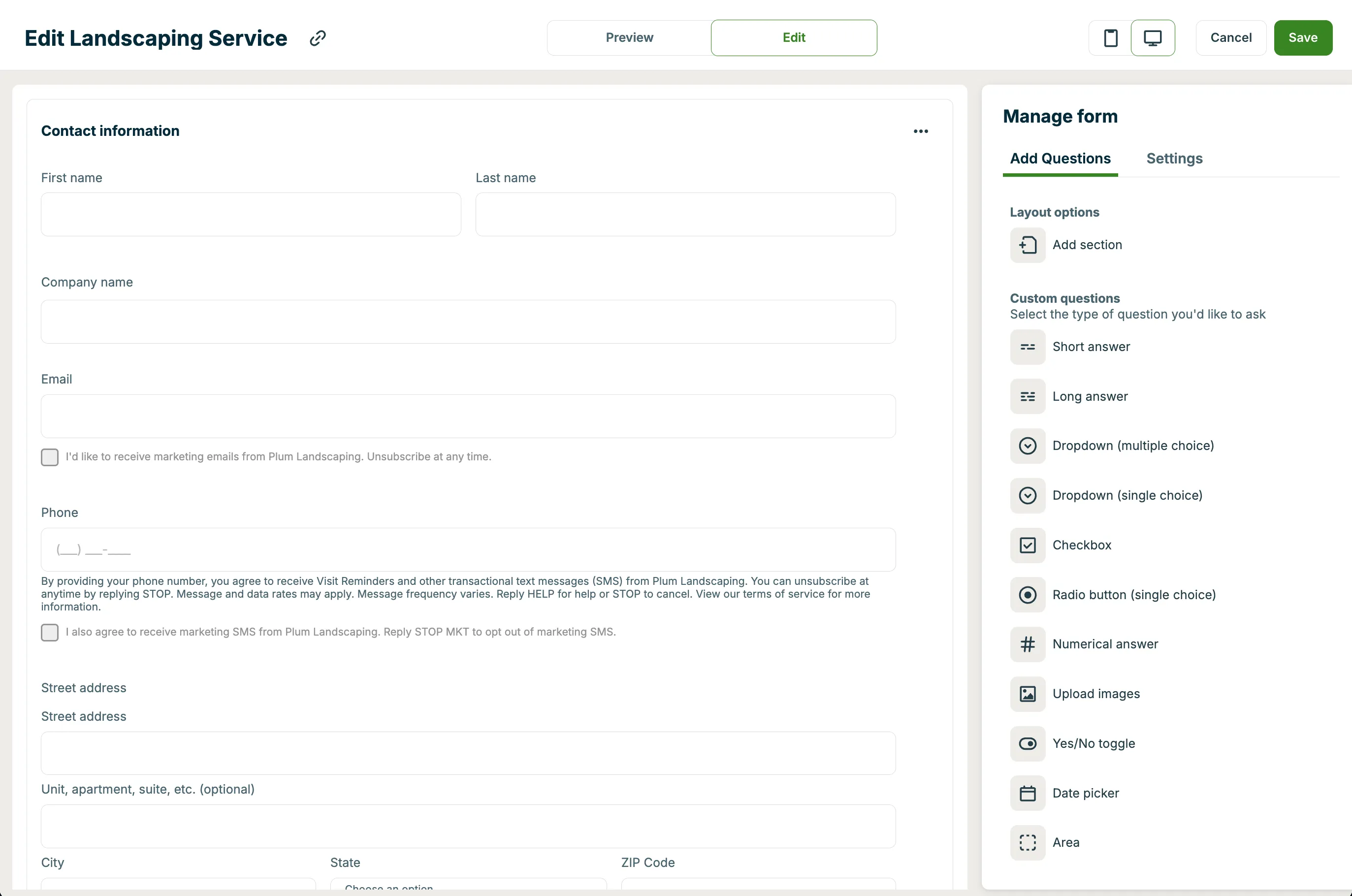
By default, forms start as request forms and include a few questions to help you get started. To customize your form, drag questions from the questions list in the right-hand panel into your form.
-
You can add additional intake questions or booking questions depending on how you want customers to submit requests or book work:
You can add additional intake questions or booking questions depending on how you want customers to submit requests or book work:- To allow clients to book assessments using this form, add the assessment booking question to the form.
- To allow clients to book visits for jobs using this form, add the job booking section to the form.
- Note: Your form can include either a job booking or assessment booking, but not both. If you offer services that customers can book directly and also offer consultations or estimates, create separate forms for each booking type.
-
Click Save to finalize your form. Your new intake form will now appear in the request settings page in the Forms section.
Every form can be tailored to the type of work you’re offering. By dragging and dropping new sections and questions from the Manage Form panel, you can build forms that capture the exact details you need from clients, whether that’s measurements for a landscaping project, images of a repair, or a simple yes/no choice. Organizing your form this way helps set clear expectations and ensures you have the right information up front, no matter what kind of service the client is requesting.
Every form is built from sections and questions:
- Sections act like containers. They group related questions together (for example, “Contact details” or “Project details”). If your request form includes multiple sections, each section will be its own page. Learn more about form pages.
- Questions are the individual fields inside a section that clients fill out, like their phone number, a yes/no choice, or an image upload. Questions can be set as required if there is certain information you need up-front.
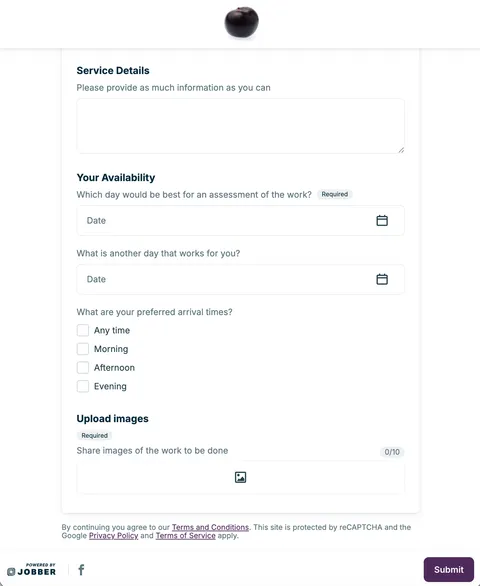
The request form will already include some sections by default, like the client’s contact information, a section for service details, and and image upload field. These sections can be moved, removed, or have additional questions added.
The required fields to include on your request forms are:
- First and last name (or company name)
- Address
- At least one contact method:
- Email address
- Phone number
- Consent to receive emails and texts from your company: This field is included by default with the email address and phone number fields. It doesn’t show in the form editor, but your customers will see it when filling out request forms.
Additional questions that can be added to your forms are:
- Assessment booking: Allows clients to schedule an assessment directly from the form based on your team’s availability. When a client submits the form, Jobber creates a request and schedules an assessment on your calendar.
- Job booking: Allows clients to book a service directly from the form based on your availability. When a client submits the form, Jobber automatically converts the request and schedules a one-off job on your calendar.
- Street address: Adds a field where clients can enter the address for the work location.
- Consent to receive emails and texts from your company: Adds a consent checkbox so clients can opt in to receive communications from your business by email or text message
- How did you hear about us: Adds a dropdown menu to your request from for clients to select how they heard about your business. Responses will automatically map to the lead source field on the client’s profile as well as in the clients report. The menu options will match Jobber’s default lead sources (Referral, Google, Facebook, Instagram, Flyer, Vehicle wrap, Event, Other) however the dropdown menu options can be customized when creating or editing your request form.
- Short answer: Adds a field for a short answer question to your request form. This is useful for questions where the client won’t need to add a lot of detail in their response.
- Long answer: Adds a field for a long answer question to your request form. This is useful for questions where the client may need to provide a lot of information.
- Dropdown (multiple choice): Adds a dropdown menu to your request form where your clients can select multiple options.
- Dropdown (single choice): Adds a dropdown menu to your request form where your clients can select only a single option.
- Checkbox (multiple choice): Adds a checkbox selection to your request form where clients can check off multiple selections.
- Radio button (single choice): Adds a radio button selection to your request form where clients can select only a single answer.
- Numerical answer: Adds a field to your request form for customers to enter numbers into. This question field does not support text.
- Image upload form: Add an image upload option for your clients. Up to 10 files per form can be uploaded, where each file must be under 10MB individually. Supported file types for request image uploads are: JPEG, PNG, and HEIC.
- Area: Add a section where your client can enter a length x width and the unit of measurement. The length x width field only supports numbers (no text), however the unit of measurement can contain text.
- Yes/no toggle: Add a toggle to your request form where clients can set it to Yes or No. This question field is useful for yes or no questions.
- Date picker: Add a date selection tool to your request form where your client can select a date from a calendar. This is a useful question type for questions where you’re asking the client for their availability, or when the answer is a date.
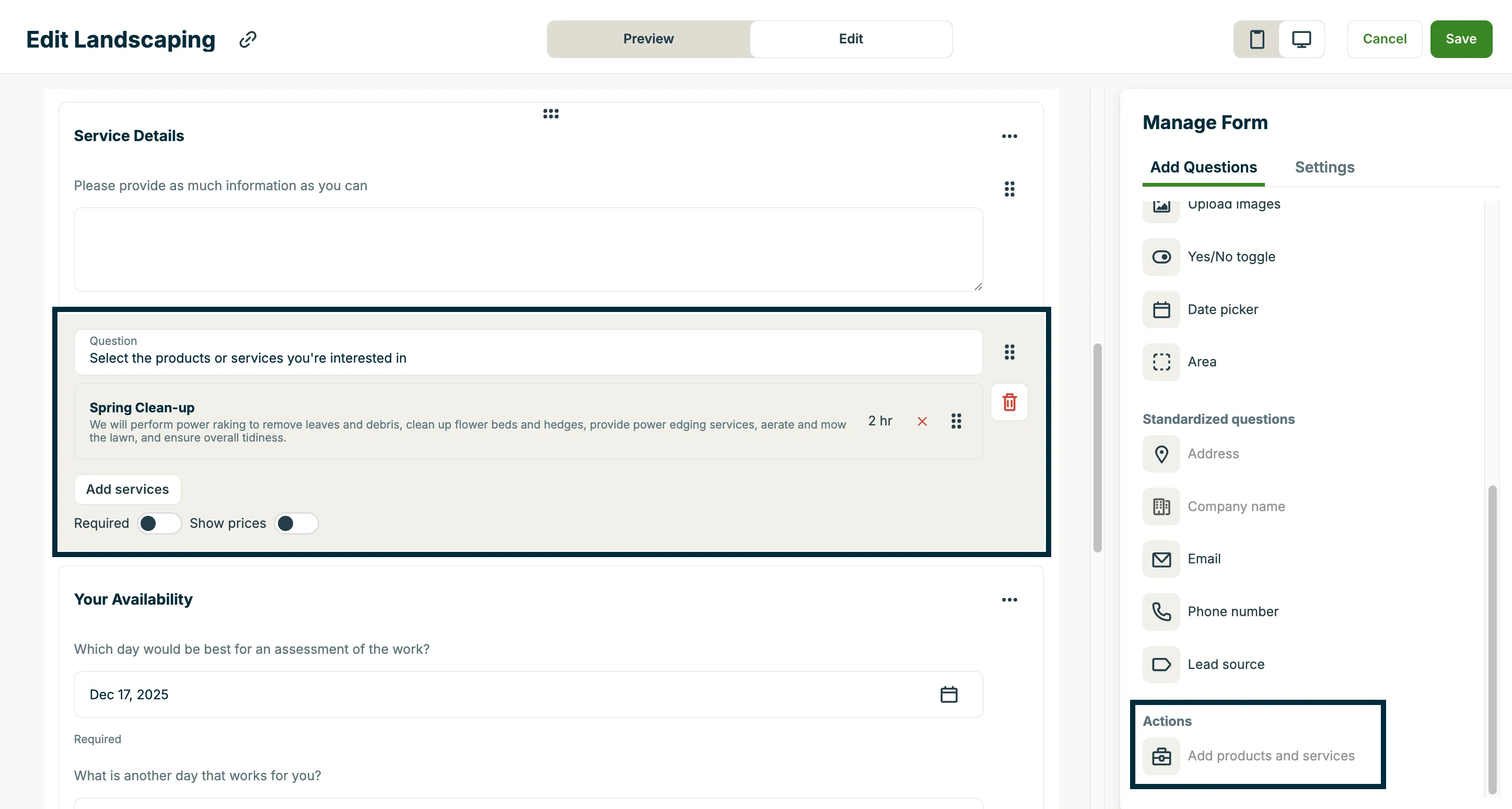
Below the questions is a section for actions that can be added to your request form that includes:
-
Add products and services: This allows clients to select products or services as part of their request.
-
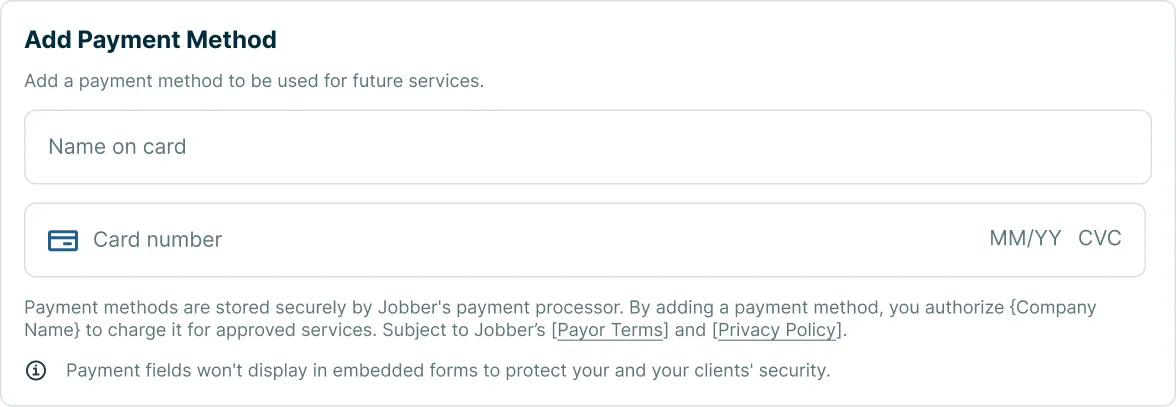
Add payment method: This field will add a question to your request form for “Add Payment Method” that prompts clients to add their card, expiry, CVC, and the name of their card when your request form is viewed in client hub (embedded forms don’t support this field type). Payment methods are stored securely in Jobber and payment methods added through this form will be added to the client’s saved payment methods on their client profile. Note: Only card payments are supported through this form. ACH is not supported. You must have Jobber Payments enabled to add this field to your forms.
- Add job booking: Add a question that allows customers to book services directly into your schedule. Customers select a service and choose an available time based on your team’s availability. Learn more about job bookings.
- Add assessment booking: Add a question that allows customers to book on-site assessment or appointment where you’ll visit their property to complete a request. Customers choose an available time based on your team’s schedule. Learn more about assessment bookings.
By adding and organizing sections and questions, you can create forms that collect the right details for each type of request.

To add a new section to your form, follow these steps:
- From the Manage Form panel, select Add section from the menu on the right, then drag and drop the new section into your form.
- Click the new section in your form to edit it. Type in a name for this section.
- Drag and drop questions from the Manage Form panel to add questions into this section.
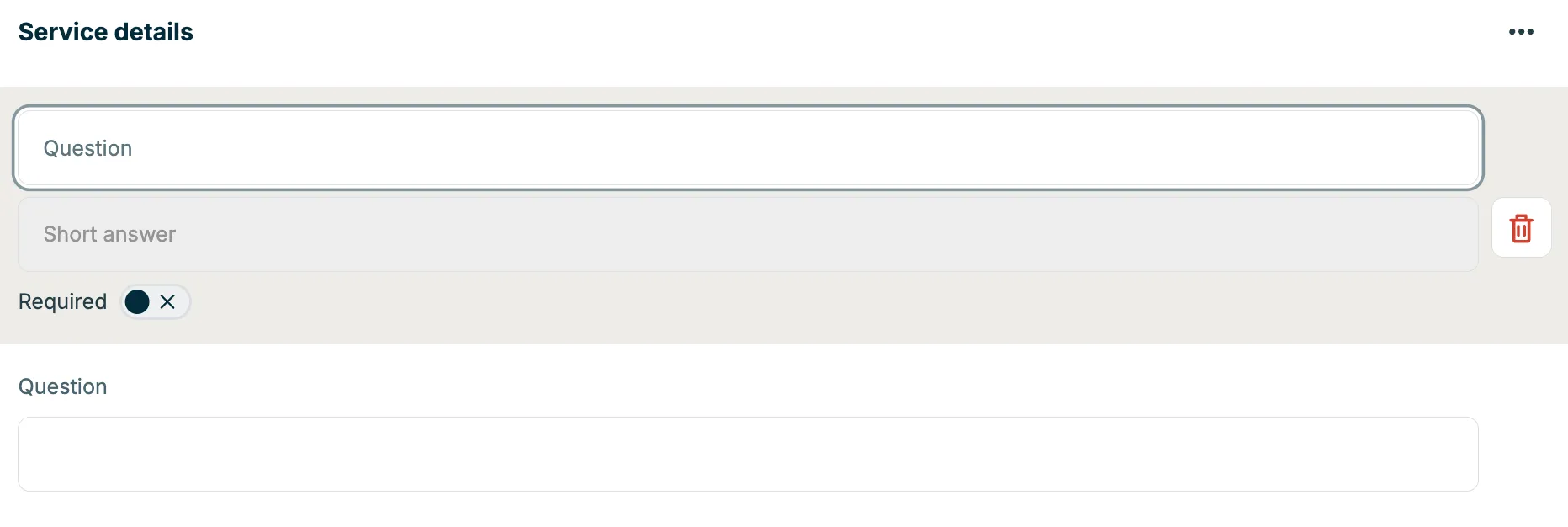
To add a new question to your form, follow these steps:
- From the Manage Form panel, choose the type of question you want to add.
- Drag and drop the question into the section of the form where you want it to appear.
- Click the question field to edit the options or instructions, so clients know what to enter.
To make a question required on your form, follow these steps:
- From the form editor, click into the question you want to edit.
- Use the Required toggle to turn the field on or off. When a question is marked as required, clients must complete it before they can submit the form.
To reorder your form, follow these steps:
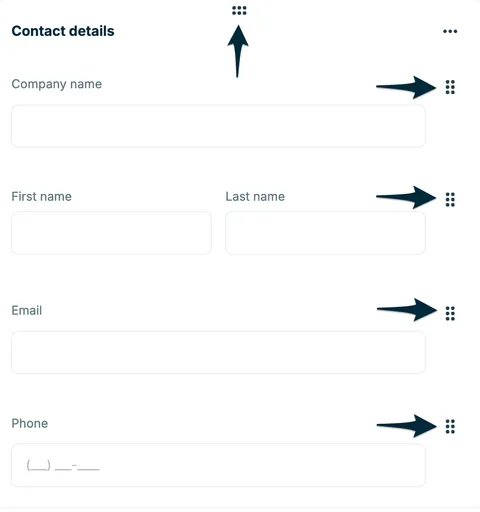
- In the form editor, hover over the section or question you want to move.
- Select the drag handle (⋮⋮).
- Drag the content to its new place on the form.
- Release the section when it’s in the right spot.
Your form will automatically update to reflect the new order.
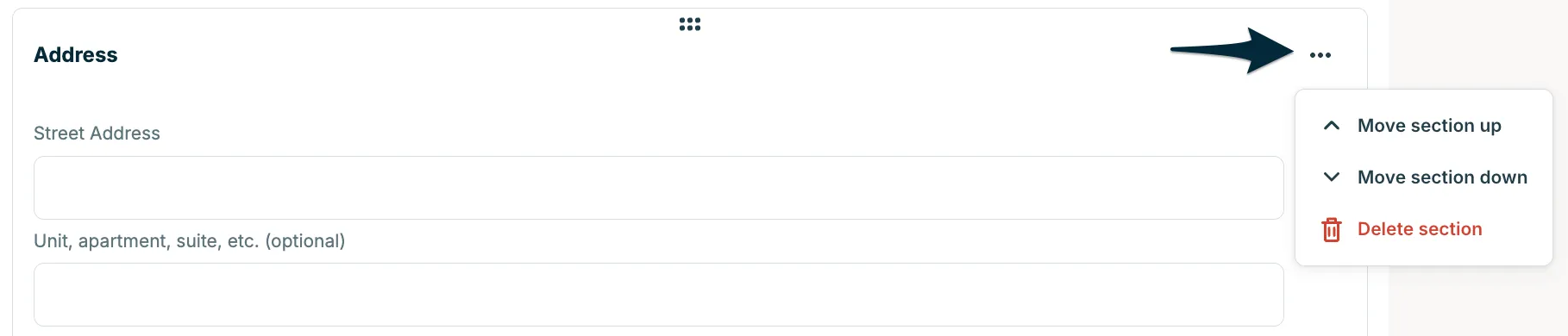
Another option to reorder form sections is to select the More actions menu from a section, then select either Move section up or Move section down.
Adjust form settings
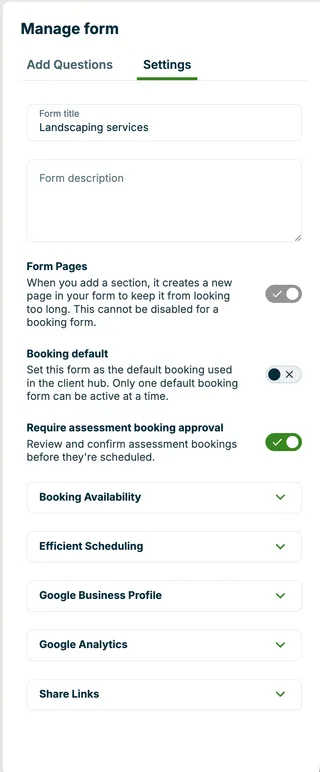
In the Settings tab of the Manage Form panel, you can set up how your form looks and behaves:
- Form title and description: Add a title and description to help you identify the form and give clients context about what kind of request they’re submitting.
- Form pages: By default, each section you add becomes its own page. This keeps longer forms easier to read and complete by breaking them into smaller steps. You can toggle this setting off at any time if you’d prefer all sections to appear on one continuous page.
- Default form: Mark a form as your default to have it automatically used when creating requests internally, by clients in Client Hub, through Jobber’s request WordPress plugin, and in franchise lead routing. Only one default form can be active at a time.
- Require assessment booking approval: When this is turned on, new bookings from this form come in as Needs Approval requests instead of being confirmed automatically. You can review each request and accept or decline it before it’s added to your schedule. New assessment booking forms have this turned on by default. This setting applies to assessment booking forms only. To learn how to review and act on pending requests, see Review and approve booking requests.
- Service areas: Each booking and request form has its own service area setting. When this setting is on, clients filling out the form must be within your service area. When it is off, clients can submit the form regardless of their location.
- Google Analytics: Connect your form to Google Analytics to track client submissions and measure request conversions on your website.
Set a custom confirmation message or page
After a client submits your form, you can choose what they see next. In the form editor, scroll below your form’s questions to the Confirmation message section.
By default, you can set a Message title and Message description to customize the confirmation clients see after submitting. Or, under Show a custom confirmation page instead, enter a Link to confirmation webpage to redirect clients to a page of your choice instead. If you provide a link, the confirmation message is skipped.
Note: Custom confirmation pages aren’t available on embedded forms. Embedded forms always show the confirmation message instead.
Redirects to any custom page you enter trigger a notice telling the client they’re leaving Jobber before continuing. This is similar to warnings you might have seen on other websites and helps clients recognize when they’re about to leave Jobber and visit an external site.
Add your terms and conditions or privacy policy
Your legal information, including your businesses’ terms and conditions and your privacy policy are managed in your business profile in Jobber.
To add terms and conditions or a privacy policy:
- Click the Gear Icon, then select Settings.
- From the Settings menu, select Business profile
- Scroll to the Legal information section.
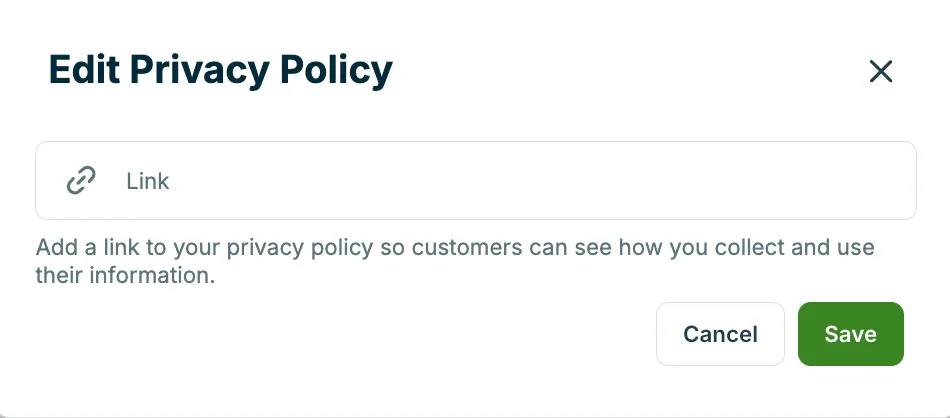
- Click Edit next to Terms and Conditions or Privacy Policy.
- Paste the full URL to your policy.
- Click Save.
Note: Both your terms and conditions and privacy policy must be hosted publicly online (for example, on your website). If you don’t already have a Privacy Policy, or you’re not sure what it should include, see our article on Privacy Policy Requirements for your Dedicated Phone Number Application.
Once added, your terms and conditions and privacy policy links automatically appear at the bottom of client-facing pages, including your:

Preview your form
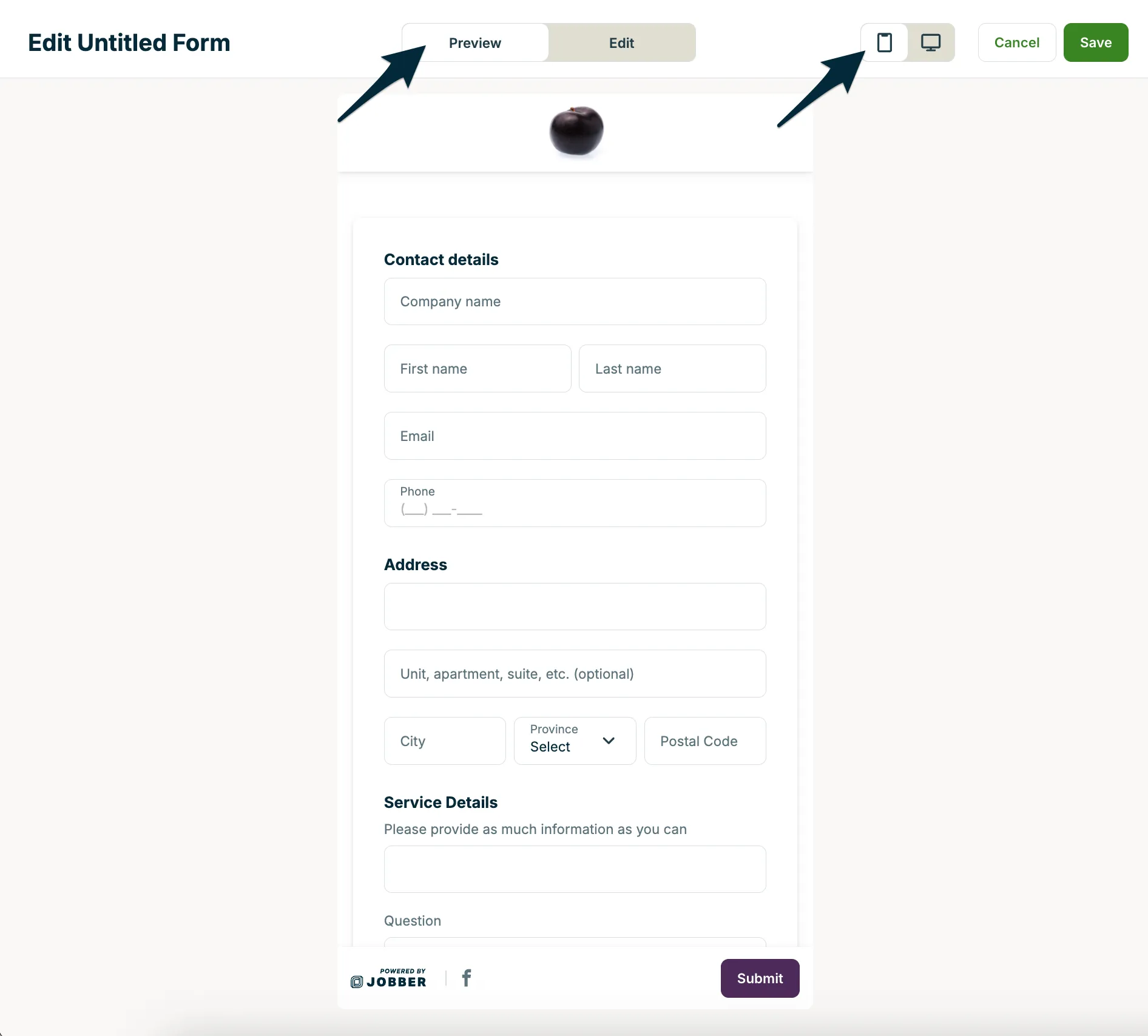
Before sharing your form with clients, you can preview it to see exactly what they’ll experience. Preview mode shows you how the form looks on both desktop and mobile, so you can double-check the flow and make sure all your questions are clear.
Tip: Many clients submit requests from their phones. Use the mobile preview to make sure your form is easy to read and complete on a smaller screen.
To preview your form, follow these steps:
- From the form editor, select Preview at the top of the page.
- Use the device icons in the top right to switch between mobile view and desktop view.
- Review the form layout, sections, and questions to confirm everything looks the way you expect.
When you’re done previewing, select Edit to return to editing mode, or choose Save to keep your changes.
Manage forms
From the requests and booking settings page, you can directly manage your forms and share request form settings:
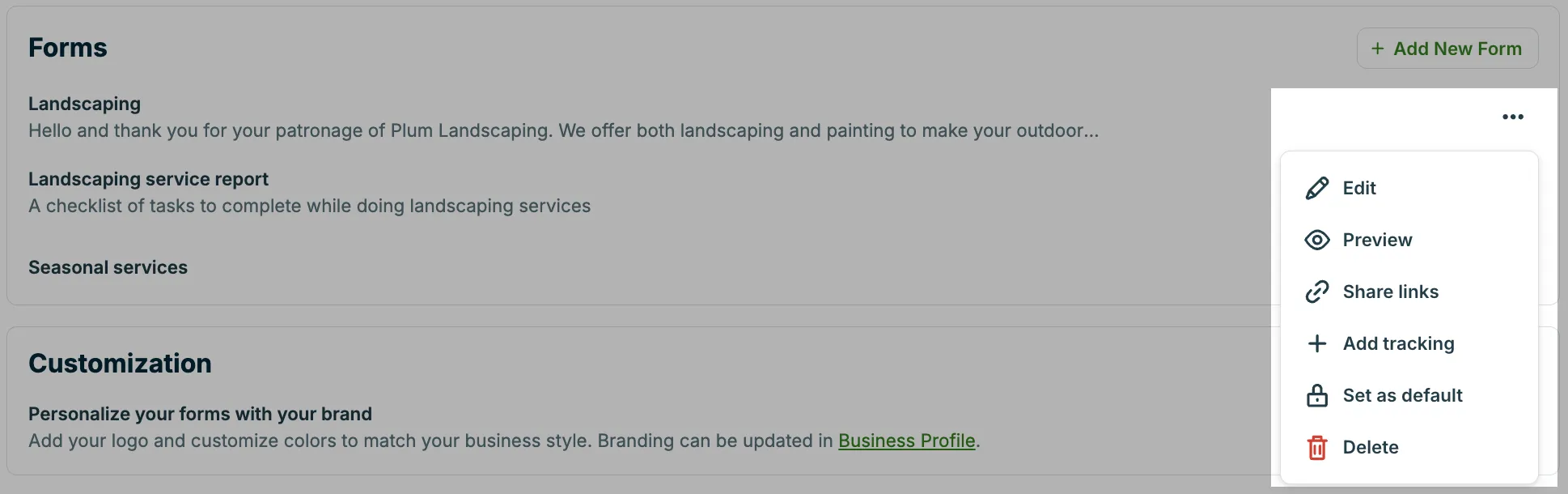
- Forms: Add new request forms, edit existing ones, and set a default form that will appear in your client hub. From the three dot menu (also called More Actions) beside each form, you can:
- Edit to update questions, sections, or form settings.
- Preview to see the form from your client’s perspective.
- Share links to copy your form’s URL for use on your website, social media, or emails.
- Add tracking to connect the form with Google Analytics (GA4) and monitor submissions. In your Google Analytics this will track “form_submit” events which is helpful to understand which marketing sources are driving conversions.
Note: Google Analytics tracking is supported on both embedded forms and request links. - Set as default if you have multiple request forms for different purposes.
- Delete to remove request forms that are no longer useful.
Customization and availability settings
Other settings shown on the requests settings page are managed elsewhere in Jobber but are surfaced here for convenience since they are used to customize your request form. These are broken down into sections for customization and availability.
Customization
Personalize your forms with your brand: Logos and brand colors are set in your Business Profile and automatically applied so your request forms match your company branding.
Availability
- Business hours: Your business hours (set up in your Company Settings) affect when clients can book. When filling out the customer availability section, the days that you are unavailable will appear greyed out on your request form. This will prevent clients from requesting work when you are unavailable.
- Service areas: If you would like to limit your bookings to certain areas or regions, a service area can be set up in your Company Settings.
- Team members: Manage your team member’s availability for online bookings through the Manage Team settings.
Share forms
In order for requests to start coming in, you need to make your forms accessible to your clients.
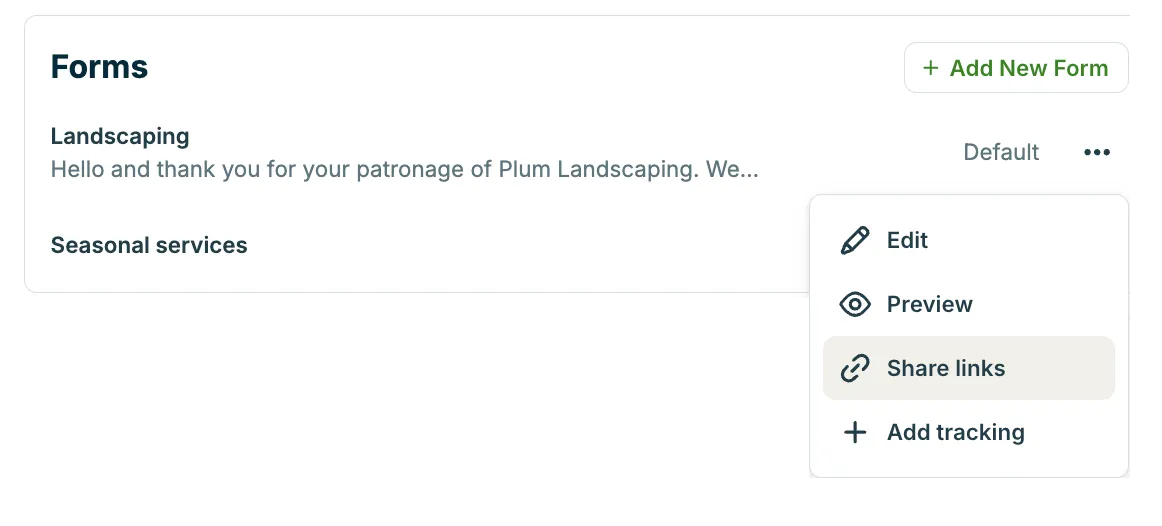
To share your form links, follow these steps:
- Go to the requests settings page.
- Hover over the form you want to share.
- Select the More actions menu (…).
- Click Share links to copy your request form URL
- You can then paste this link anywhere you’d like clients to access your form, such as your website, social media, emails, or QR codes.
If you have multiple request forms set up, repeat the process for each form that you wish to share.
Tip: Keep your form visible so clients always have an easy, self-serve way to reach you.
Learn how to add request forms to your website and social media
Enabling this setting allows clients to access any form you’ve shared through their links, however only one request form can be set as the default. Only one request form can be set as the default and displayed in client hub at a time.
Note: When you refer a friend to Jobber through client hub, the link will always direct them to your default request form if you have multiple forms set up.
You’ll also have a unique URL for each of your request forms that you can share anywhere you connect with clients. Many businesses add this link to their website, include it in emails, post it on social media, or even create a QR code that links directly to their form. How you share it is up to you—the link will always take clients straight to your request form.