

Overview
This article covers how to reassign visits on Jobber’s legacy schedule. On Jobber’s new schedule, the Reschedule and Reassign tool is used to assign multiple team members at once to appointments. Learn more about the reschedule and reassign tool on the new schedule.
New Schedule Coming Soon
We’re introducing a new schedule to make managing your calendar faster, clearer, and more efficient. With fewer clicks, less clutter, and smarter tools, scheduling and tracking jobs is easier than ever.
Behind the scenes, we’ve also improved the technology to boost performance and reliability, making the schedule faster and more responsive.
Try the new schedule
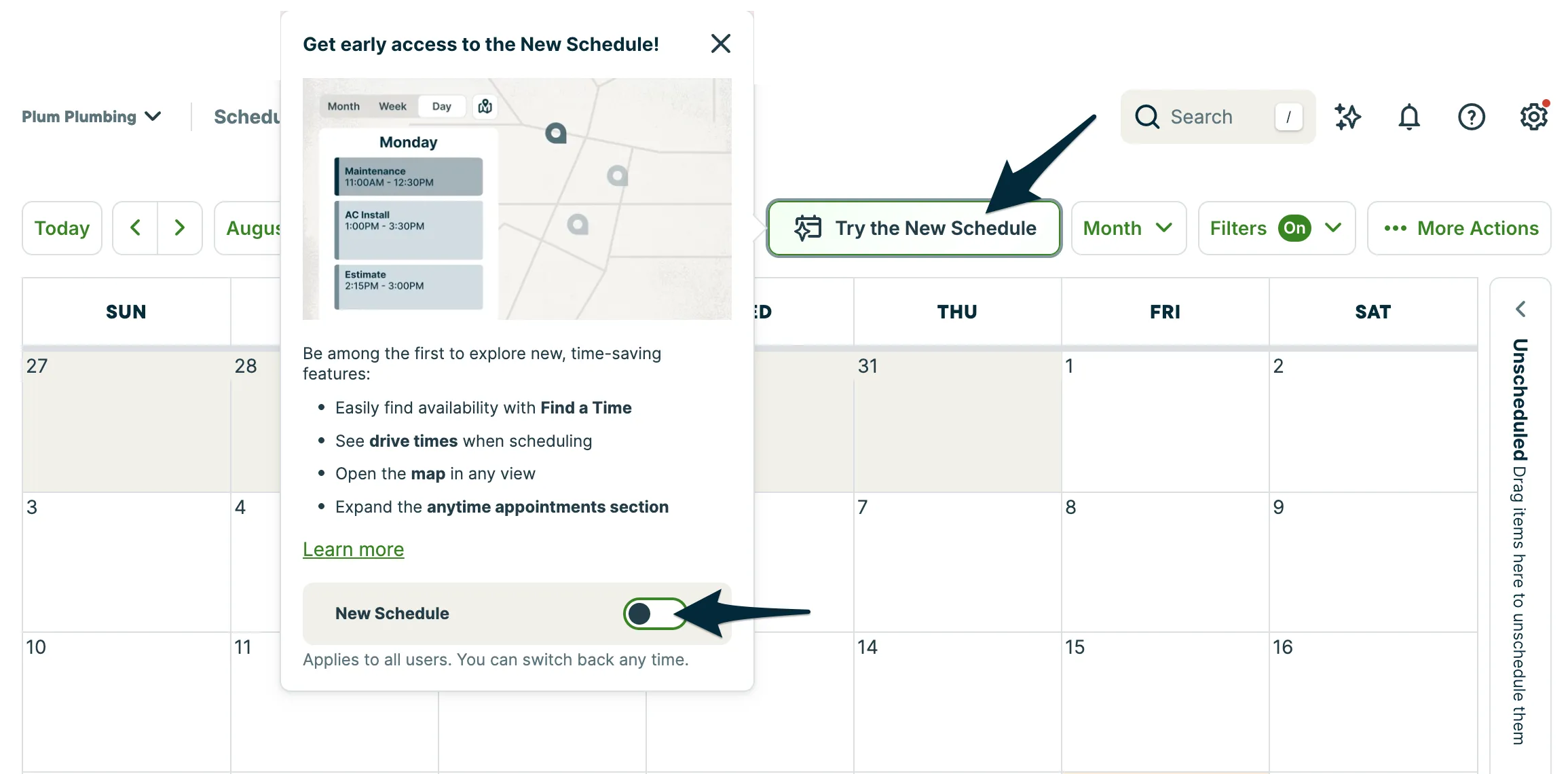
The new schedule is available to try before it officially rolls out later this fall. To turn it on, go to the Schedule tab from the side navigation. From there, select Try the New Schedule and toggle on New Schedule.
During this early access period, you can switch between the current schedule and the new schedule as you get used to the changes. Once the rollout is complete, everyone will be moved to the new schedule.
If you need to assign multiple visits to a user for a particular day, the fastest way to do this is using the map view of the schedule. This comes in handy when an employee calls in sick, or when there are schedule changes.
Assign a single visit
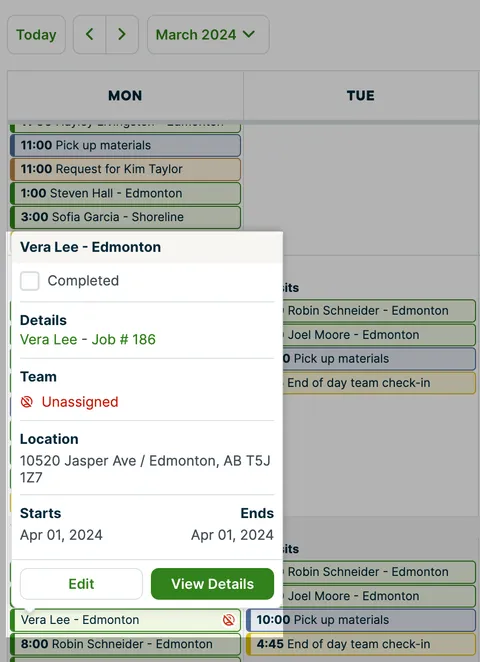
If a visit is not assigned, it will show the red Unassigned icon in the team section of the visit details. To assign a single visit, click on it, then click Edit. From the edit pop-up, select Assign.
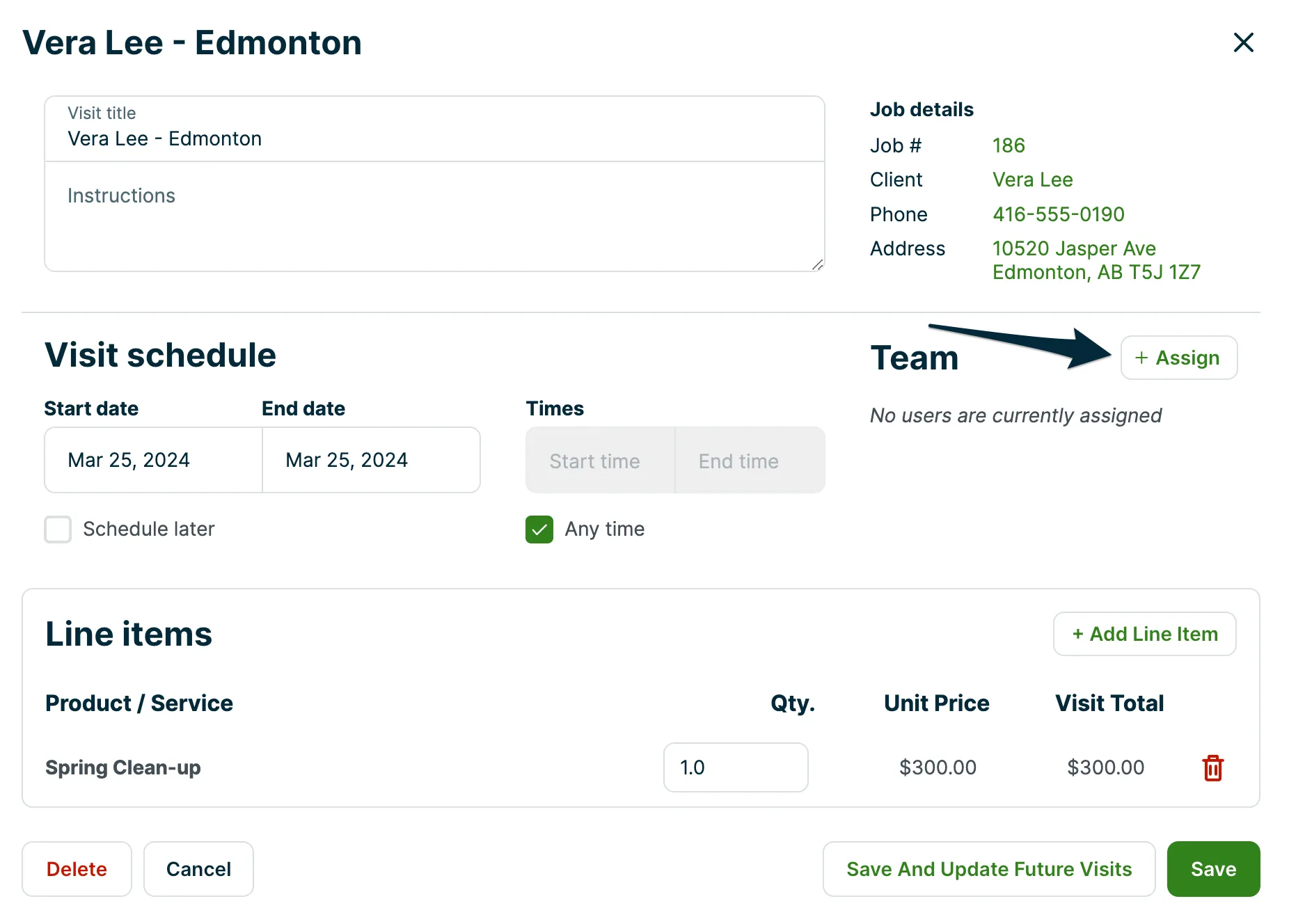
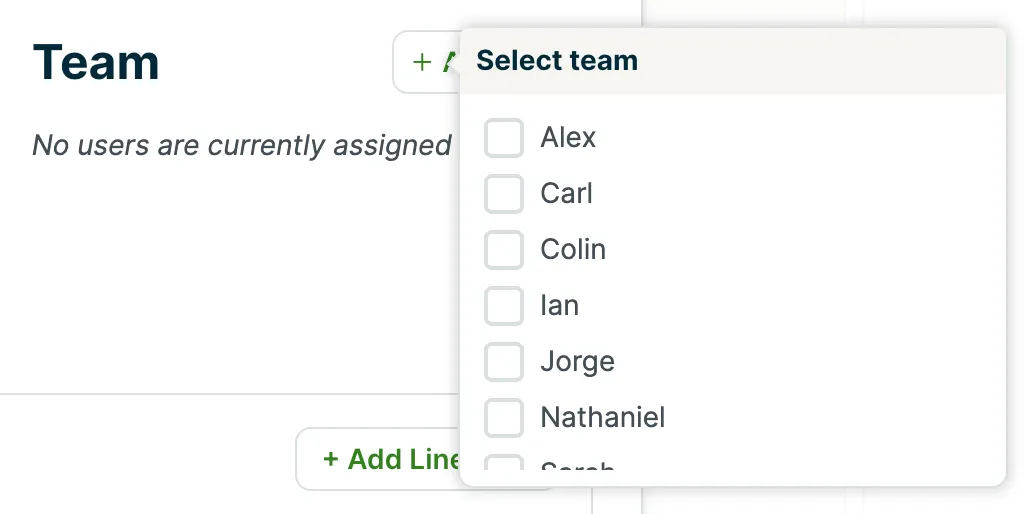
A box will come up, where you can click Assign and select your team. You can then select Save to update the visit.
Assign multiple visits
To assign visits in the Map view, select the user’s name at the top of the map. Then select the visit(s) that you would like to assign to them, either in the map or list. Once you have the tasks selected you can then click Save in the top right corner.

Once you save the visit selection, the map will have blue lines between appointments to represent the route for that user. You can use Daily Route Optimization to optimize the route for each user. Routing on the map only works for unscheduled visits. If a visit has a set time, it will not be part of the route.