Overview
The Billing section on a client’s profile is a complete record of all financial activity between you and that client. It includes every invoice, payment, deposit, and refund associated with the client, and calculates their current account balance.
To view a client’s billing history, navigate to their client profile and scroll to the Billing section.
What appears in the billing section on a client’s profile?
The billing section displays a list of all financial items associated with the client. Each item shows the type of record and its number — for example, Invoice #18 or Payment. If the item is linked to a specific invoice or quote, that appears in the Applied to column. The Created date column shows when the item was created or recorded, and the Amount column shows its value. Invoices appear as positive amounts; payments appear as negative amounts.
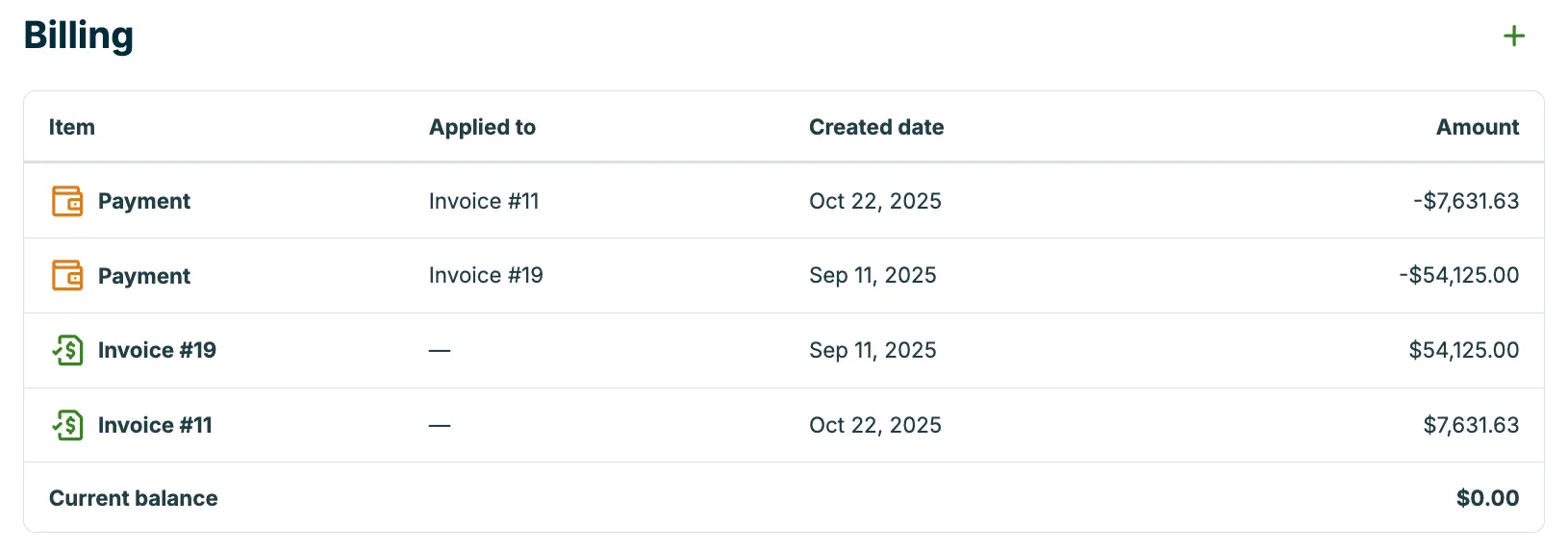
The Current balance row at the bottom of the list shows the client’s net balance across all items. A positive balance means the client has outstanding invoices and owes you money. A negative balance means they have overpaid or have a credit on their account — for example, a deposit recorded before any invoice was issued. If all invoices have been paid in full, the balance shows $0.00.
If a client pays an invoice through client hub using Jobber Payments and chooses to leave a tip—nice work!—the tip will also appear in the billing section. However, tips are not included in the account balance calculation. So if a client has paid all invoices and left a tip, their account balance will still be $0.00.
Use the “New” button
Items that affect your client’s account balance will automatically appear in the billing section on the client’s profile. However, you can also create new items directly from the billing section by clicking the + button.
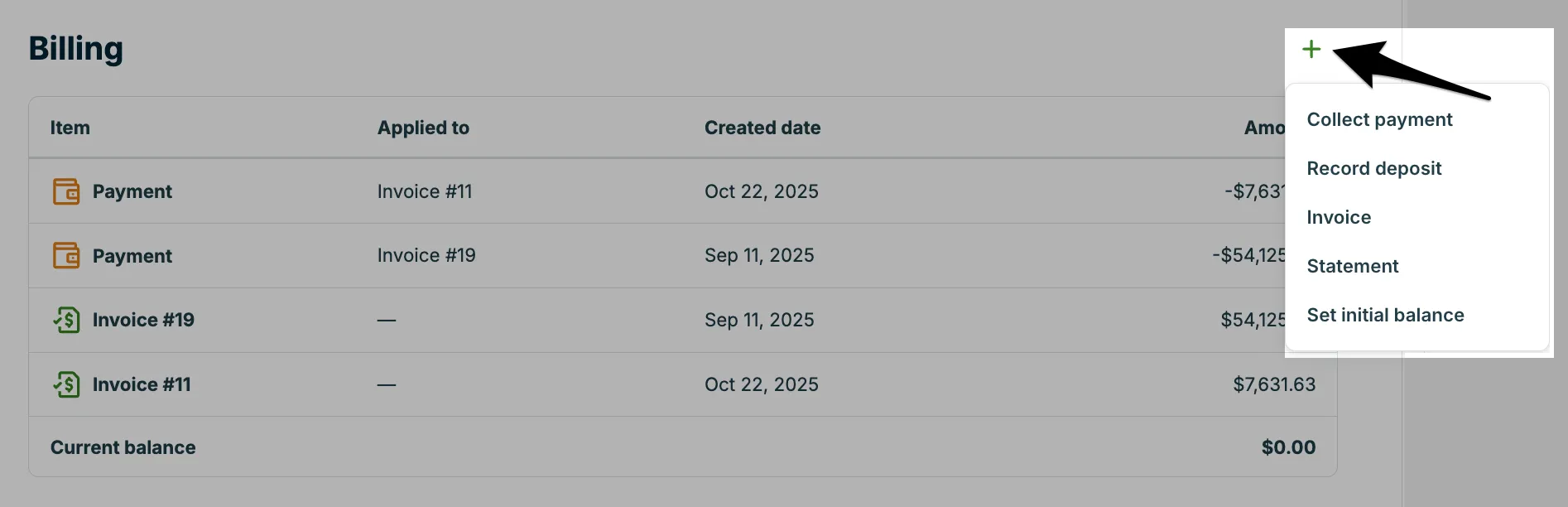
The + button has options to:
- Collect payment: This option is for charging a client though Jobber Payments or recording a payment you’ve accepted offline. Enter the payment method (cash, check, credit card, bank transfer, money order, or other) as well as the payment amount, transaction date, and any other details. Learn more about collecting payments from the billing section on a client’s profile.
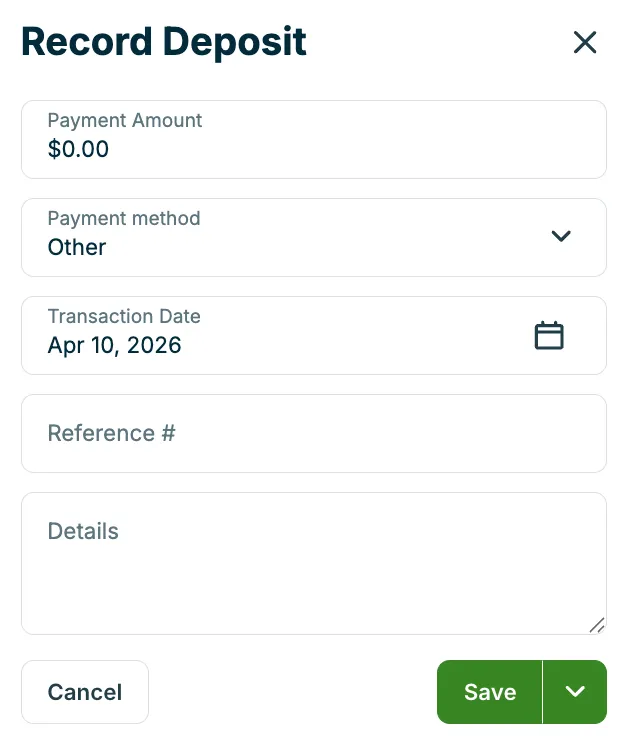
- Record deposit: This is for recording a deposit that you have received from this client. Enter the payment method (cash, check, credit card, bank transfer, money order, or other) as well as the deposit amount, transaction date, and any other details.
- Note: Deposits cannot be collected through the billing section via Jobber Payments. To charge a client’s credit card, the deposit must be collected from the quote. Learn more about Quote Deposits and Jobber Payments.
- Invoice: Generate an invoice for this client. If the client has any outstanding work that has not been invoiced for yet, you will be prompted to select any jobs you’d like to add to the invoice. If you want to create an invoice from scratch that doesn’t reflect any ongoing work, skip selecting any jobs and click Next Step.
- Statement: Generate a statement that reflects the client’s account balance showing invoices as well as any deposits or payments. Learn more about statements.
- Set an initial balance: This option is for adding an account balance for the client. You might choose this option if you are coming over from another software where the client has an outstanding balance that you would like to reflect in Jobber. Learn more about initial balances.
Collect a payment from the billing section on a client’s profile
To collect a payment from the billing section:
- Navigate to the client’s profile and locate the billing section.
- Select the + button, then select Collect Payment.
- Select the payment method and enter the relevant details.
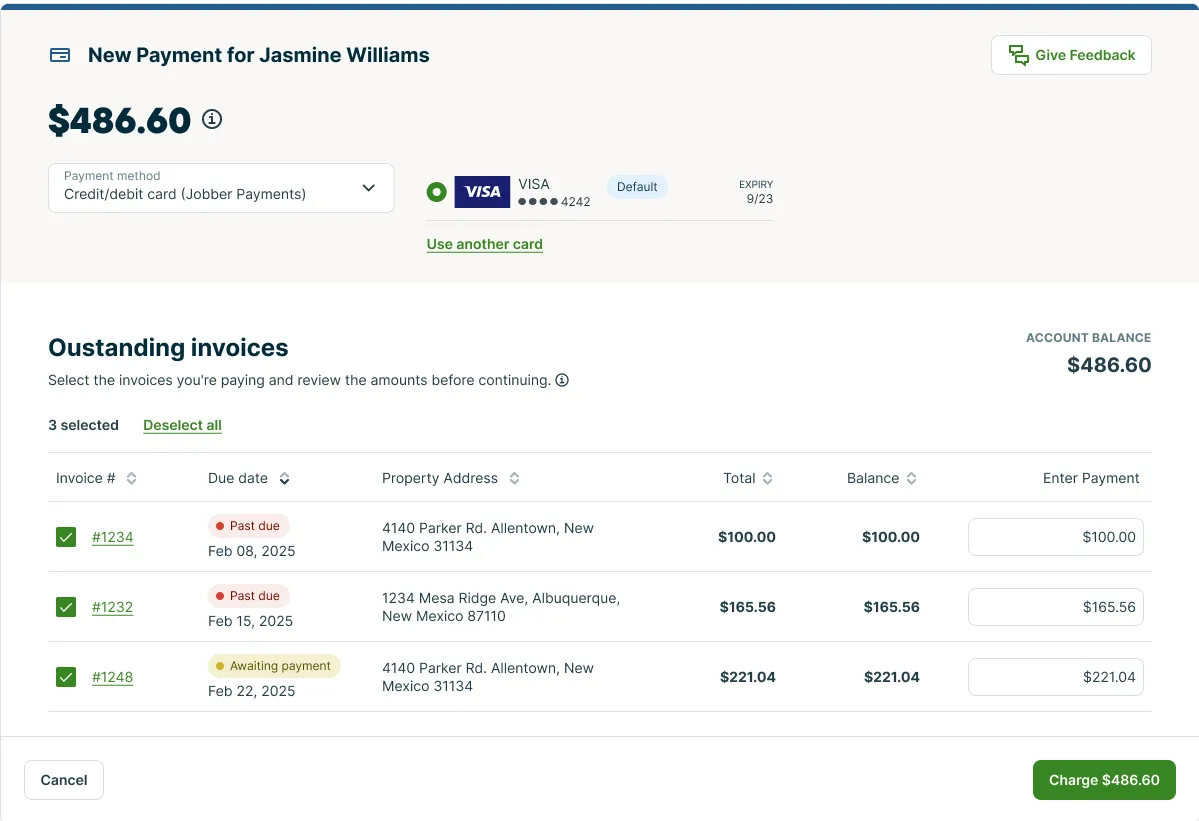
When collecting a payment, you’ll be taken to the new payment screen. Since we’re collecting a payment from the billing section, we’ll have the option to associate this payment with any outstanding invoices for this client, or make a payment on multiple invoices at once.
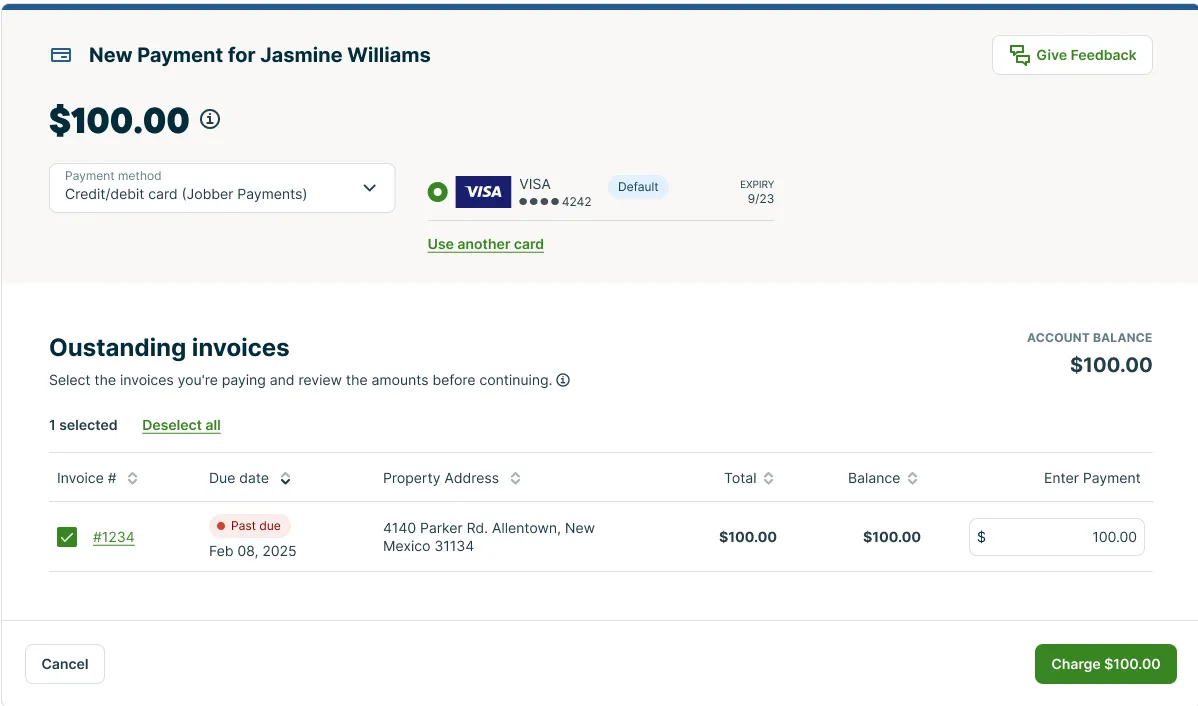
At the top of the payment screen, you’ll see the total amount to be collected and the client’s information, including their name, contact details, and billing address.
Just below that is the payment method section. You can choose how the client is paying—such as by credit/debit card, cash, or check. When you select a method:
- For credit/debit card payments, fields will appear for the cardholder’s name, card number, expiry date, and CVC.
- For other methods (like check), different fields will show—for example, a check number and payment details.
Below the payment method, you’ll see a list of outstanding invoices for the client. To collect payment on one or more invoices, check the box next to each invoice you want to include. The table displays:
-
Total: the original invoice amount
-
Balance: what’s still owed
-
Payment: the amount you’re collecting now
By default, the full remaining balance of each selected invoice is filled in as the payment amount, but you can adjust this if the invoice is only being partially paid. As you select or adjust payments, the payment total at the top of the screen updates automatically to reflect the combined amount being collected.
When you’re ready to complete the payment, click the Save or Charge button at the bottom of the screen. The text on this button depends on the payment method you’ve selected, and it will also display the total amount being collected.
If you’re collecting payment through Jobber Payments and you’ve selected the credit/debit card payment method, the button will say Charge, since the client will be charged immediately. If you’re recording a payment that was already collected outside of Jobber such as cash, check, or another offline method, the button will say Save, because you’re recording a payment you’ve already accepted in the system. This ensures the payment is recorded correctly based on how it was received.
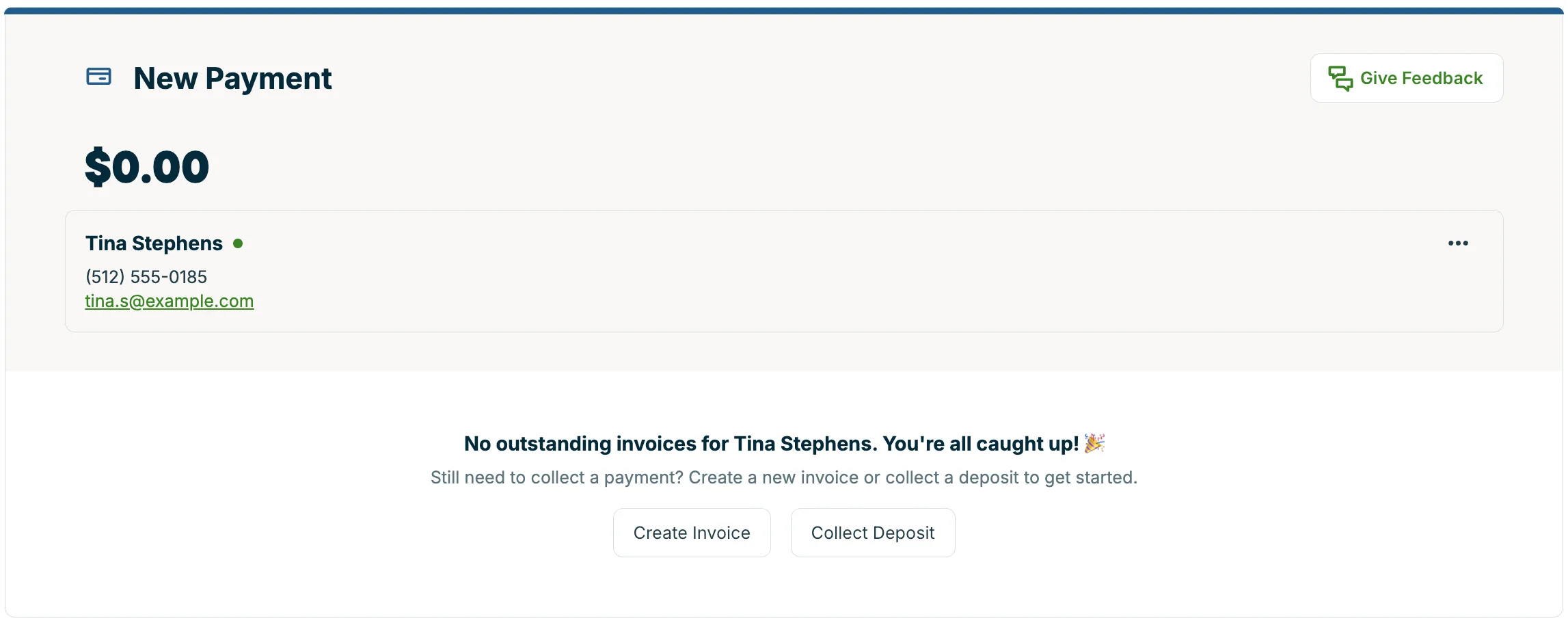
If you are collecting a payment, but the client doesn’t have an invoice issued yet, you will see options instead to generate an invoice or record a deposit. Payments cannot be collected on the client’s account balance, however deposits can be.
Collect a bulk payment
Bulk (or lump sum) payments are useful in situations where clients want to pay off multiple outstanding invoices with a single payment.
To collect a bulk payment:
- Select the payment method.
- To collect payment for multiple invoices, check the box next to the invoice number to select the invoice. To select all outstanding invoices for this client, select Select all.
- Optional: If the client isn’t paying an invoice in full, you can adjust the amount in the Payment field. The table displays the Total amount of the invoice, the remaining Balance, and the Payment you’re collecting now. By default, the full balance of each selected invoice is entered, but you can edit it as needed.
- Review the total payment amount. As you’ve selected invoices, the total you are charging the client has been updated at the top of the new payment screen and on the Charge button. This is the total amount your client will be charged across all selected invoices.
- Charge the payment. Select the Charge button to collect this payment.
Note: Bulk payments will be reflected in the client’s billing history as a “payment applied to account balance” so as not to break the payment total up.
Record a deposit from the client’s billing
While most payments in Jobber are collected for completed work—such as approved quotes or issued invoices—there are times when you may want to record a payment before any work has been created. In these cases, you can record a deposit directly from the billing section on the client’s profile.
Deposits are helpful if a client pays in advance, overpays, or wants to keep a credit on their account—for example, if they purchase a gift card or prepay for future services. Later, once an invoice has been created, the deposit can be applied toward the invoice balance.
To record a deposit from the billing section of a client’s profile:
- Navigate to the client’s profile and locate their billing.
- Select the + button, then select Record Deposit.
- Enter the deposit details, including:
- Payment method
- Amount
- Transaction date
- Details
Note: This is a record of a deposit that has already been paid, cards cannot be charged from the billing section. If a client is paying their deposit by card, they would need to pay the deposit on a quote. Learn more about Quote Deposits and Jobber Payments.
Send a receipt
To send a receipt for a payment:
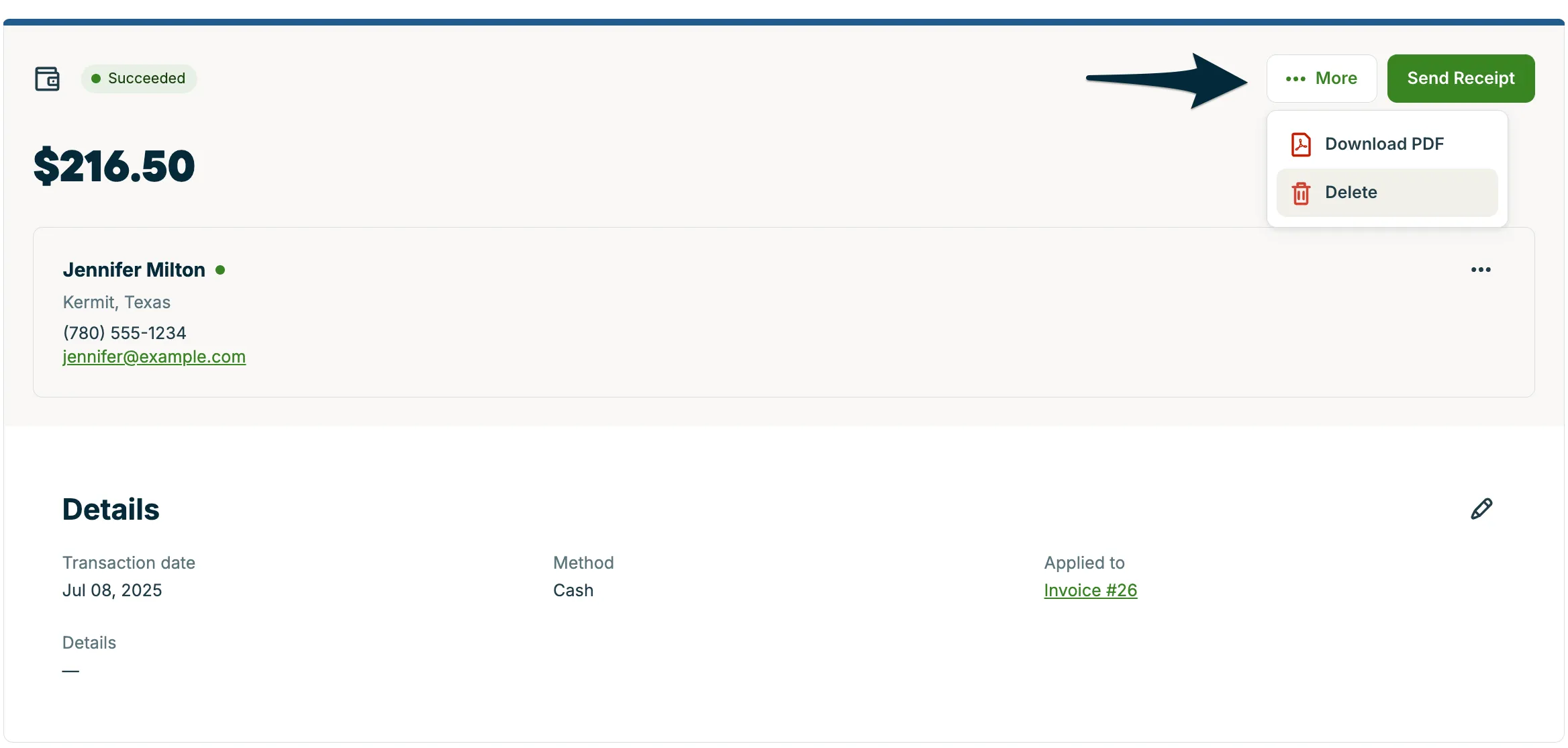
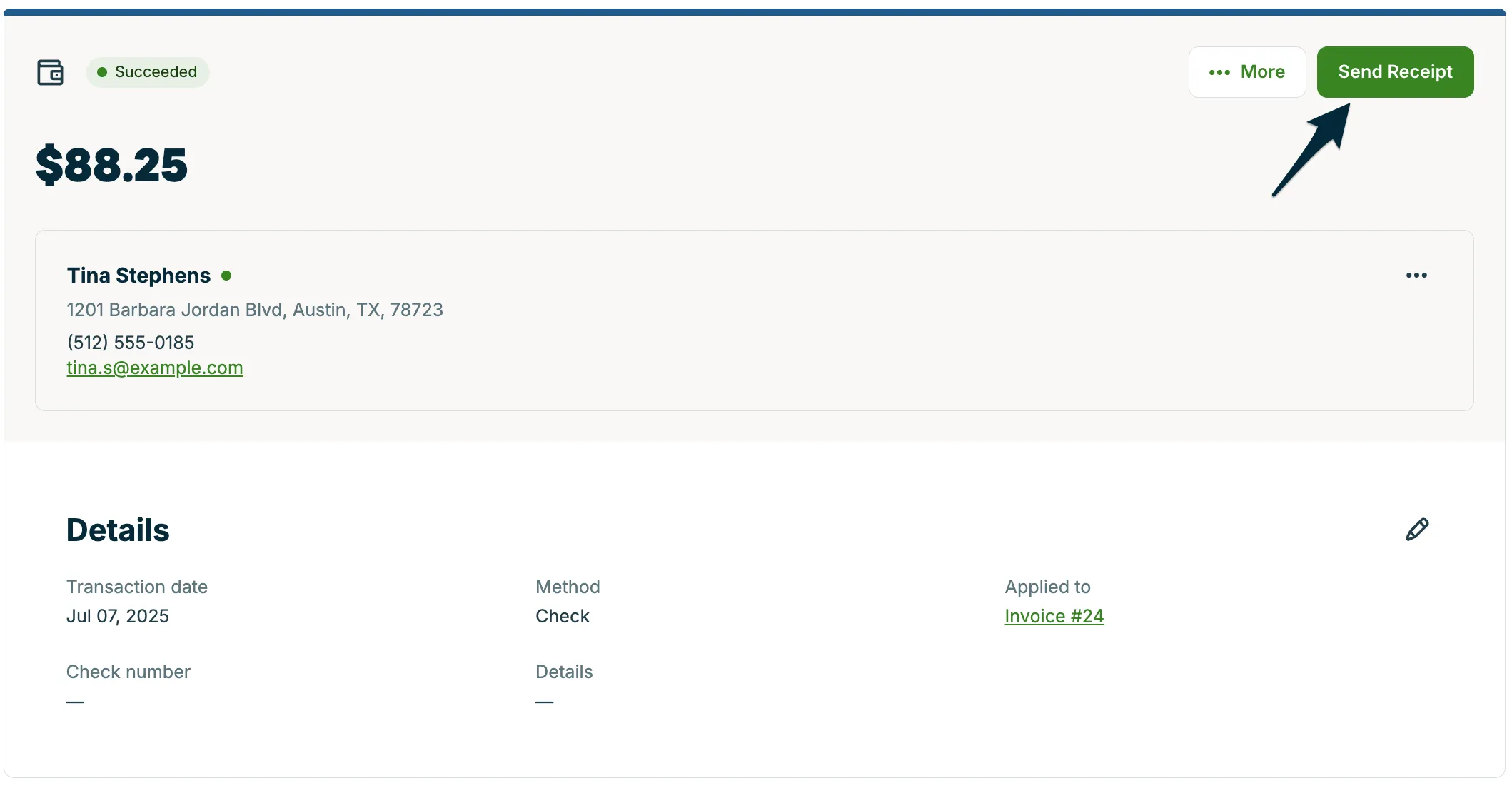
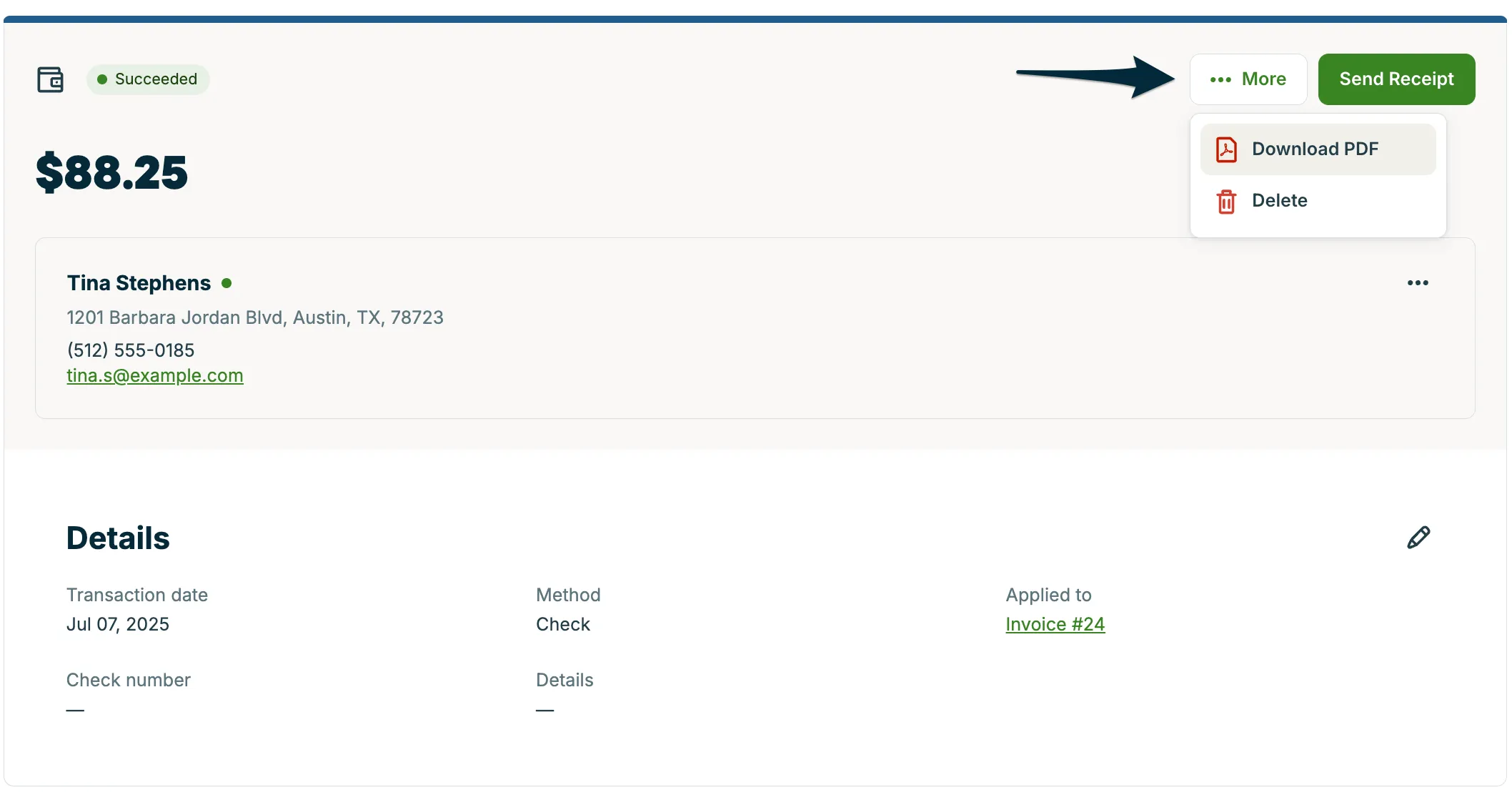
- Navigate to the payment from the client’s billing section, and click on it to open the payment details.
- From the payment screen, select the button for Send Receipt.
Tip: If you are using Jobber Payments, your receipts for transactions paid by credit card might be set to sent automatically when a payment is made. This can be turned off in your Jobber Payments Settings.
Download a payment receipt PDF
To download a payment receipt as a PDF:
- Navigate to the payment from the client’s billing section, and click on it.
- From the payment screen, select the button for … More, then select Download PDF.
- From your browser, save the PDF.
Note: If you wish to print a payment receipt, the PDF can be printed.
Generate a statement for a client
You can generate a statement of a client’s account balance from the billing history section on their profile.
To generate a statement for a client:
-
Navigate to the client’s profile on Jobber.com.
-
Scroll down to the Billing section.
-
Click + in the top-right corner of the box, then select Statement.
There are several date ranges that can be selected for the statement:
- Client Lifetime: This is the entire client’s billing history
- Since Last Zero Balance: This will show a report that shows the client statement since the last recorded 0 balance
- Pick a Start Time: This will show a report from a selected point in time onwards
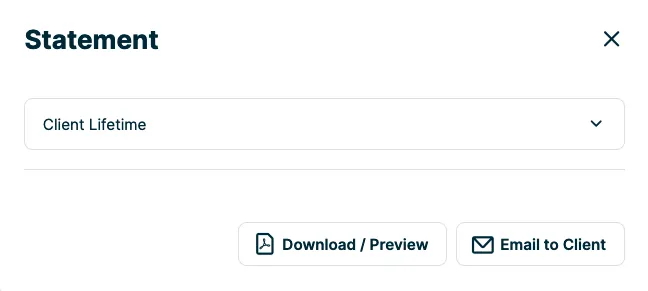
To preview the statement, select Download/Preview. To email the client a statement, select Email to Client. The email template that is sent along with the attached statement can be edited from your email and text message settings.
The statement has columns that reflect:
- Date: This is the transaction date of the payment or invoice.
- Description: A description of what this transaction is (for example, the invoice number or if a payment was received and which invoice it was applied towards).
- Amount: The invoice balance.
- Payment: The payment total.
- Tip: If a tip was left, this column reflects the tipped amount.
- Note: Tips were released on December 6, 2021 so this column will show $0.00 for any payments prior to that since the functionality did not exist in Jobber at that time.
- Balance: Overall account balance at that point in time, including this transaction.
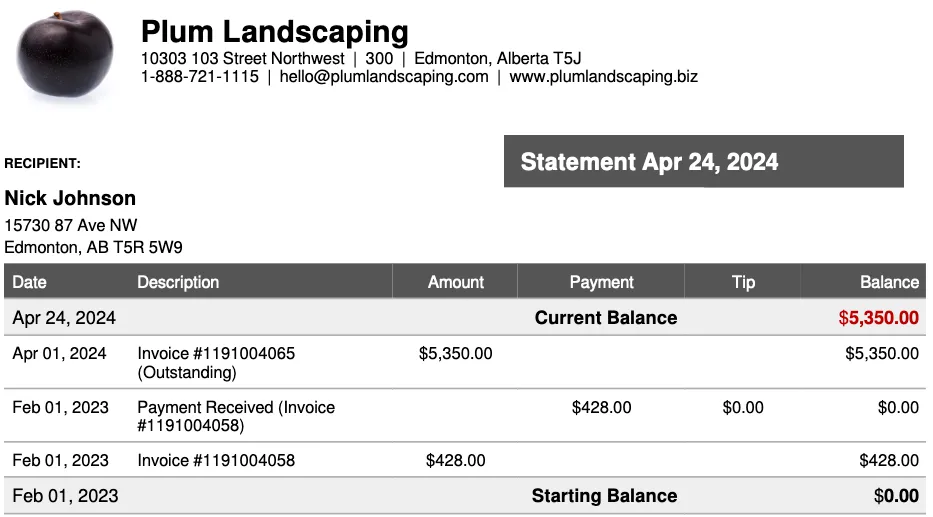
A statement reflects the client’s current account balance, including any outstanding invoices, payments, and credits. It’s important to note that statements are for reference only; clients cannot make payments directly toward a statement.
If a client has an outstanding balance, they’ll need to make payments on the individual invoices listed in the statement. The outstanding balance is shown in red to indicate the total amount currently owed. This balance is based on all issued invoices, regardless of whether they are past due or not. For example, if an invoice has been sent but is not yet due, it will still be included in the outstanding balance.
The red color of the outstanding balance is built into the statement design and cannot be changed or removed.
The order that transactions appear on the statement can be managed from the Gear Icon then select Work Settings. Learn more about Work Settings.
Set an initial balance for a client
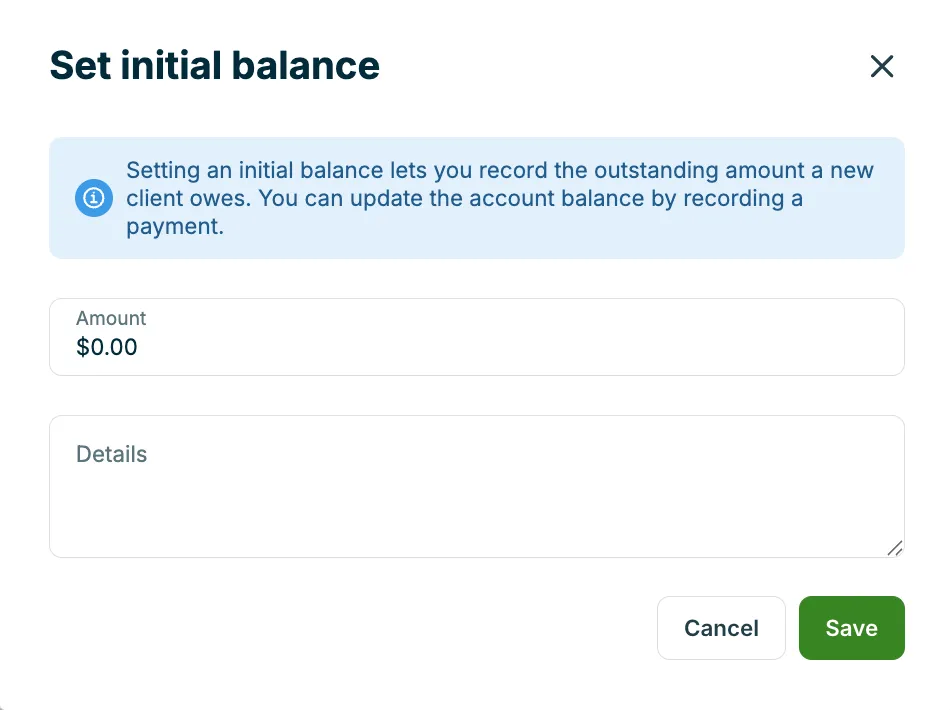
If a client has an outstanding amount due before you started using Jobber, you can record it as an initial balance. This helps ensure their account in Jobber reflects what they already owe your business.
To set an initial balance:
-
Navigate to the client’s profile.
-
Scroll to the Billing section, then click +, then select Set Initial Balance.
-
Enter the amount and any details, then select Save.
This amount will appear as an outstanding balance on the client’s account and can be paid down over time through invoice payments or deposits.
How to edit payments or deposits
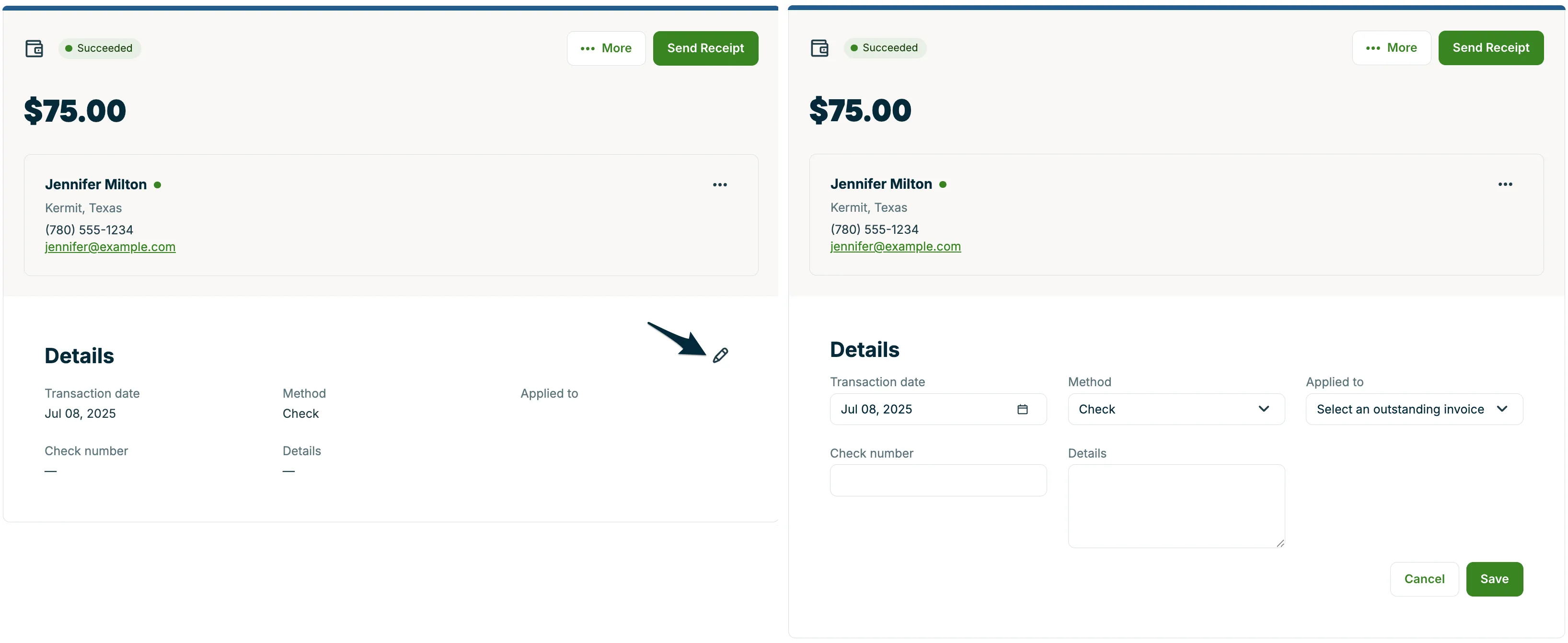
Payments and deposits in the client’s billing section can be edited to update their:
- Transaction date
- Payment method
- Payment details (such as check number)
- Details
- Applied to field
To edit a payment or deposit:
-
Navigate to the client’s profile on Jobber.com and locate their billing.
-
Select the payment or deposit you wish to edit to open it.
-
From the payment screen, select the Pencil icon to edit the payment or deposit.
-
Once your changes are made, select Save.
Apply payments and deposits to invoices or the account balance
When payments are collected, they are associated with a specific invoice. When deposits are recorded from the billing section, they will sit on the account balance until later applied to an invoice. Deposits collected from quotes will be associated with the quote until an invoice is later generated for that work.
The billing section will show where payments are applied.
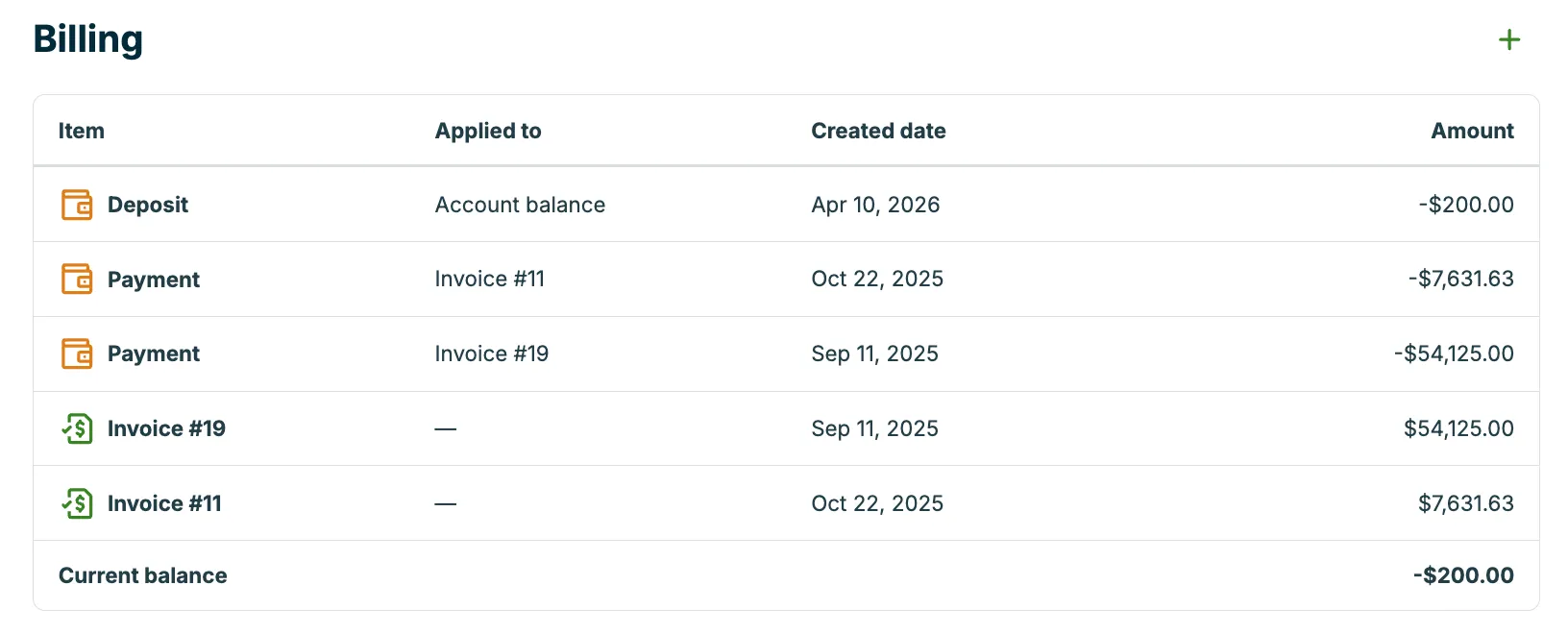
Payments that are applied to a specific invoice cannot be moved to another invoice. If the invoice is later deleted, the payment will be returned to the client’s account balance, where it can be applied to a different invoice.
To maintain accurate payment records, payments processed through Jobber Payments cannot be edited. If you need to move a Jobber Payments transaction to another invoice for the same client, please contact Jobber’s Support Team for assistance.
Deposits applied to the account balance can be manually applied to any outstanding invoice for the same client.
Delete a payment, deposit, or initial balance
To delete a payment, deposit, or initial balance:
-
Navigate to the client’s profile on Jobber.com and locate their billing section.
-
Select the payment or deposit you wish to delete.
-
From the payment screen, select …More then select Delete.
-
Confirm the deletion.
Note: Once a payment is deleted, it cannot be recovered.