

Overview
Your team can clock in and out of jobs and track expenses from anywhere, so you can prep payroll faster.
Approving timesheets confirms that your team’s tracked time is accurate and ready for payroll.
From the Approve timesheets tab, you can review hours worked across your team and approve time entries up to a selected date. This ensures all tracked time has been checked before moving forward with payroll processing, reporting, or syncing with tools like QuickBooks or Gusto.
Time tracking in Jobber follows a step-by-step workflow to ensure accurate payroll:
- Timesheets: Track and review your team’s time.
- Approve timesheets: Validate that all time entries are correct.
- Confirm payroll: Record that employees have been paid and finalize payroll.
Once approved, timesheets are locked for most users to prevent changes. Admins or users with the appropriate permissions can still update approved entries if needed.
Time tracking availability
Time tracking is available on select plans. View our current pricing plans.
To check what plan you’re on, navigate to the Gear Icon, then select Account and Billing. If you have any questions about your plan’s features or pricing, our support team is here to help!
Approve timesheets
To approve your timesheets in Jobber:
-
Sign in to Jobber.com.
-
Select Timesheets from the side navigation.
-
From the tabs at the top of the timesheets page, select Approve Timesheets.

-
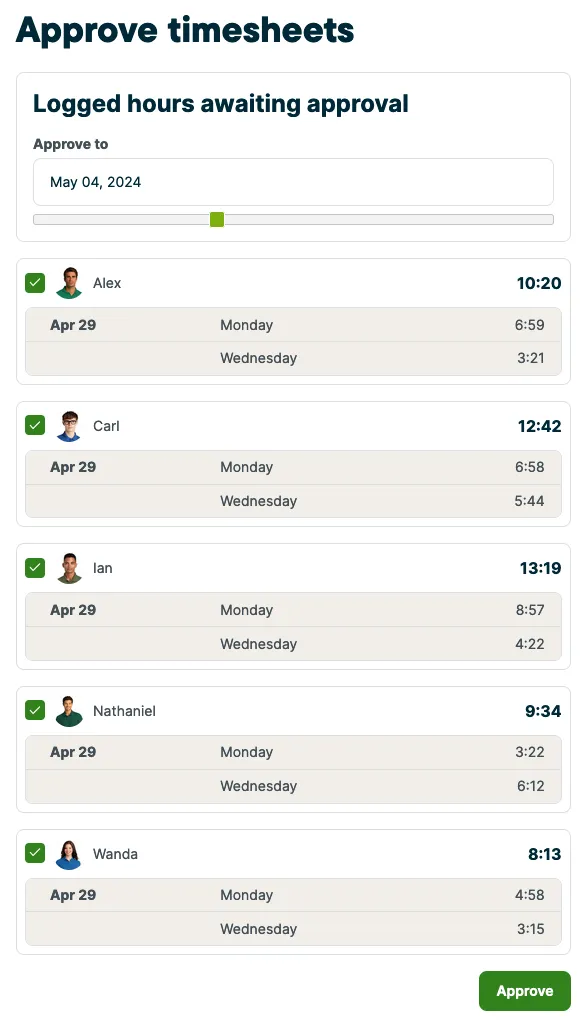
This page shows time entries that have not yet been approved. You can review and approve timesheets for multiple team members at once. Use the slider to select a cut off date. Any time entries up to and including that date will be approved.
-
Select the team members you want to include by checking the box next to their name.
-
Click Approve to approve your timesheet selections.
Modifying approved timesheets
To edit approved timesheets:
- Click Timesheets from the side navigation menu.
- Navigate to the date of the time entry you want to update.
- Locate the team member and expand their row.
- Select the time entry to open the details.
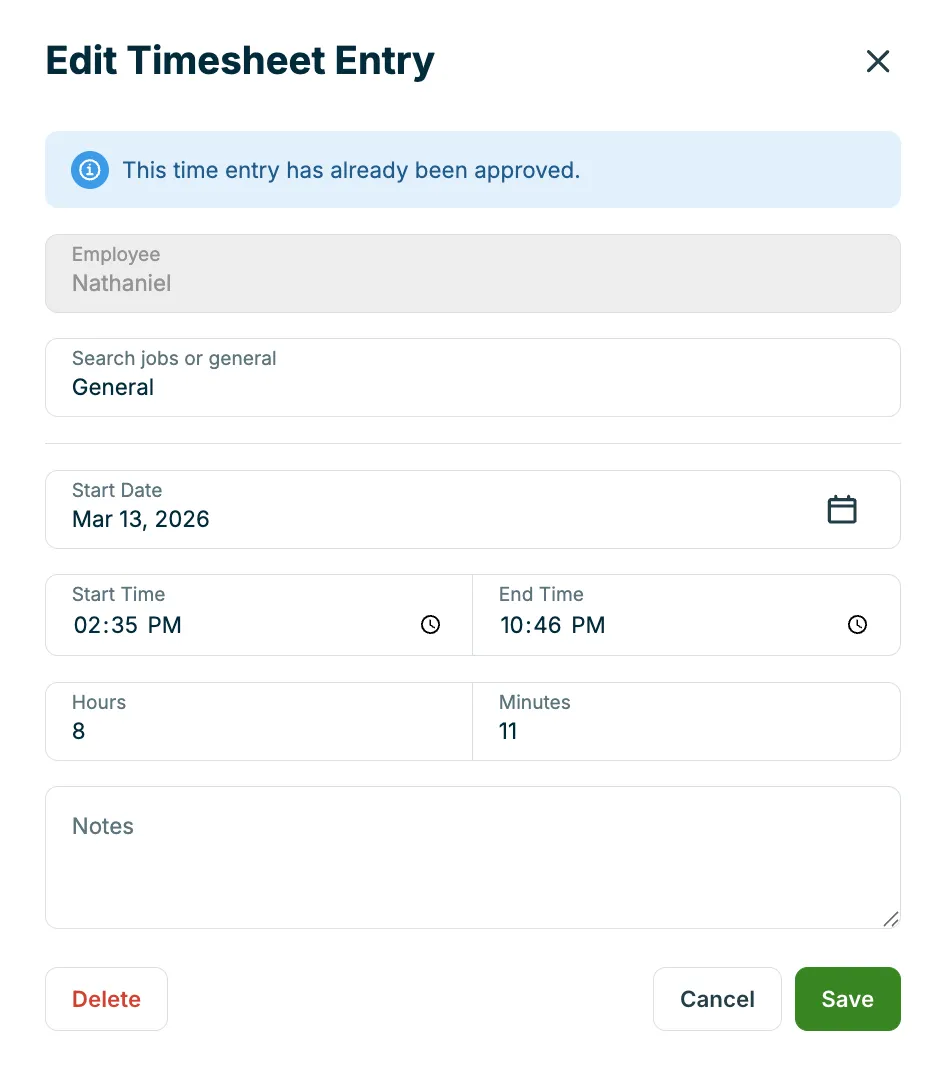
- Update the category, start time, end time, or duration as needed.
- Click Save to apply your changes.
Since this timesheet entry was already approved, you will see a banner message indicating that at the top of the edit timesheet popup.
Timesheet approval permissions
To approve timesheets, a user needs the custom permission to “View, record, and edit everyone’s” timesheets, or be an admin user. Users who have “View and record their own” or “View, record, and edit their own” timesheets, cannot approve or modify approved timesheets.
Update a user’s permissions for time tracking:
- Click the Gear icon.
- Select Manage Team.
- Click the name of the user you want to update.
- Under permissions, select Custom.
- Set the Timesheets permission to “View, record, and edit everyone’s”.
- Save your changes.
Note: Only users with “View, record, and edit everyone’s” timesheets permission or admin users can approve timesheets or modify approved time. Users with “View and record their own” or “View, record, and edit their own” permissions cannot approve or modify approved timesheets.
Learn more about user permissions.