

Overview
The Marketing Dashboard is your central view of marketing activity across all of Jobber’s marketing tools. From here you can track how your campaigns, reviews, referrals, website, Job Showcase, Facebook posts, and Google Business Profile are performing, act on recommended actions to get the most out of your tools, and quickly navigate to any part of Jobber Marketing.
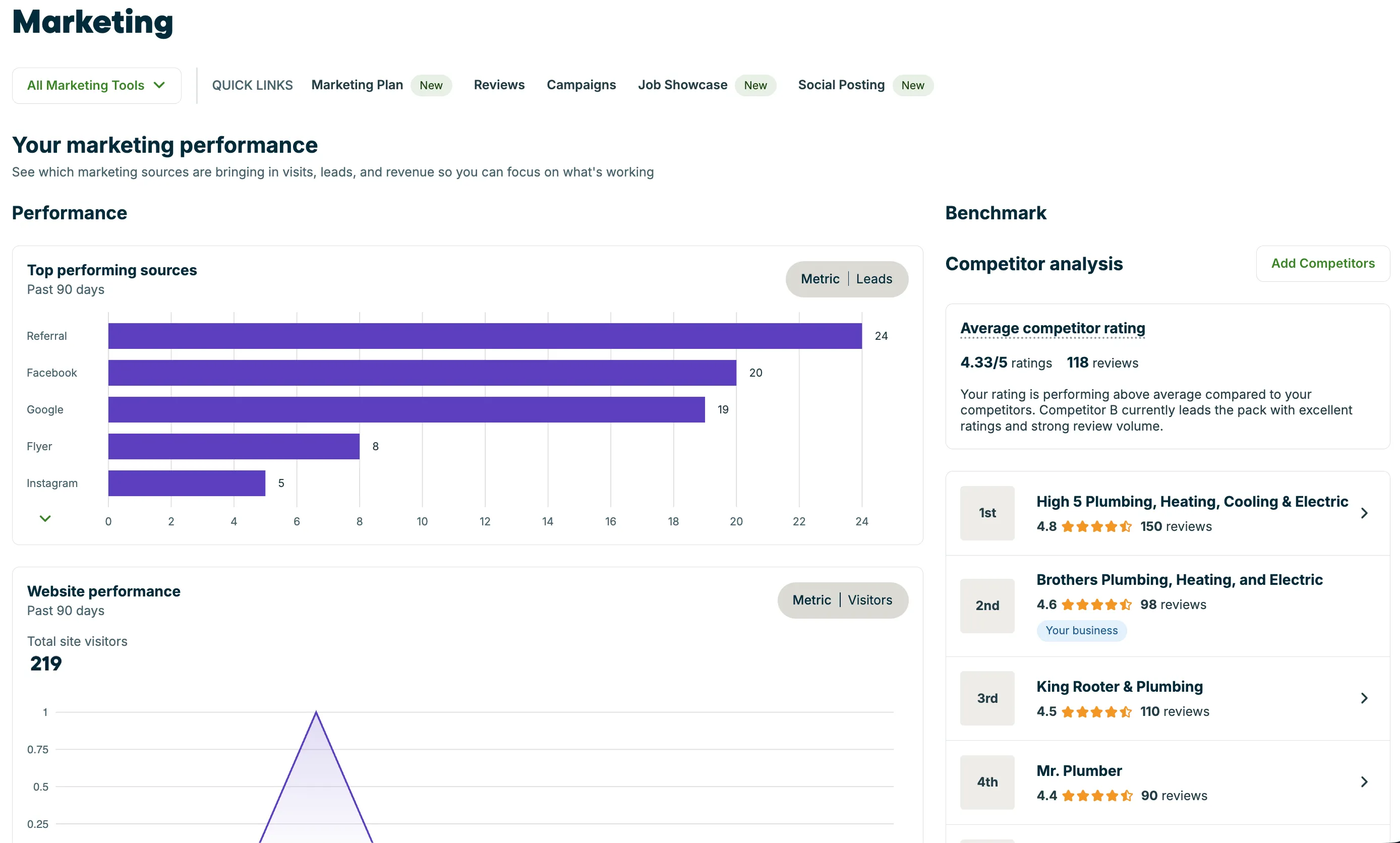
Marketing performance availability
Marketing performance is available on select plans, however the insights will correspond to the marketing tools you’d added on to your subscription plan. Learn how to add marketing tools to your Jobber plan subscription.
To check what plan you’re on, navigate to the Gear Icon, then select Account and Billing. If you have any questions about your plan’s features or pricing, our support team is here to help!
Benchmark
There is a benchmarks section at the top of the Marketing Performance page that brings in the competitive analysis feature from Reviews. This is where you you can see recent Google reviews left for your competitors as well as an average competitor rating.
Note: You need to have a connected Google Business Profile to use the benchmarks feature.
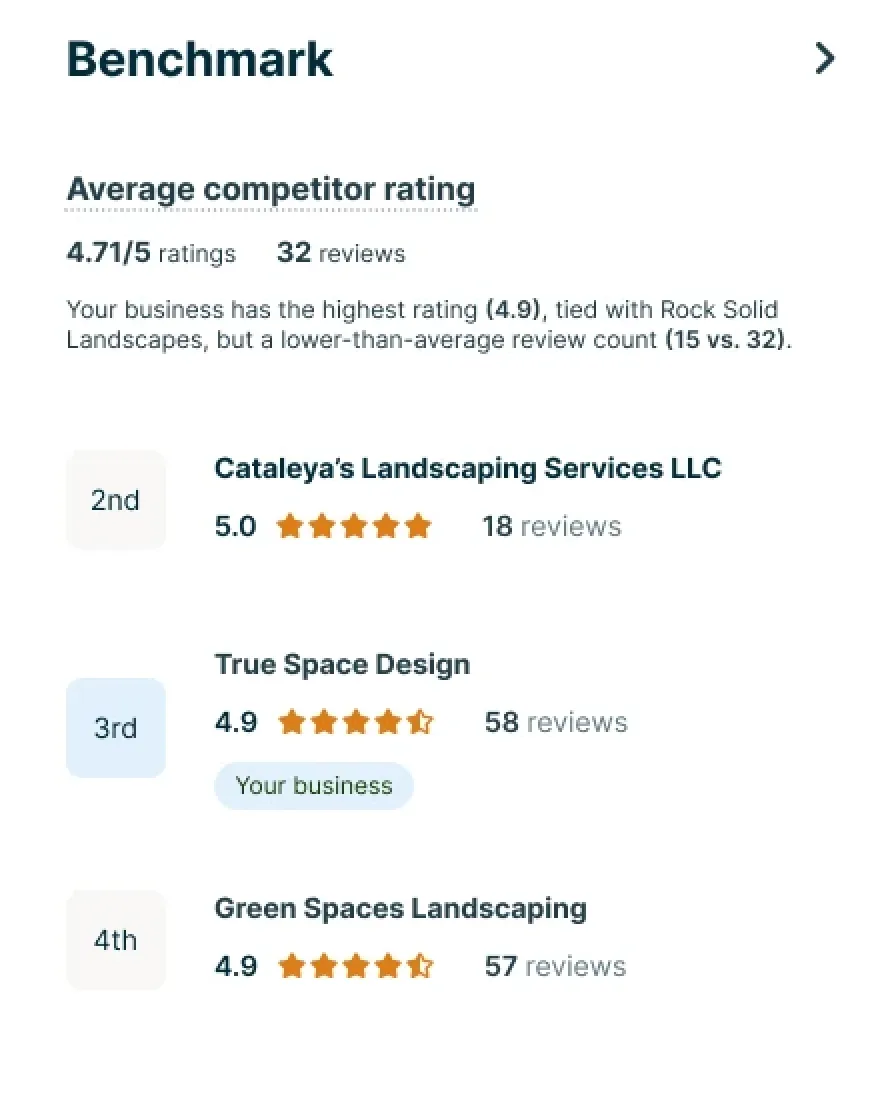
To add a competitor to the leaderboard:
- Navigate to the reviews dashboard by selecting Marketing from the side navigation, then Reviews.
- From the Competitor analysis section, click the Add Competitors button.
- Use the slider to adjust the radius around your business, competitors within the radius will show under “recommended”. You can also search competitors by name using the “company name” search bar.
- To add a competitor to your leaderboard, select the button for + Add to list.
Note: To show up in this list, your competitors need to have an address listed in their Google Business Profile, rather than a service area.
Marketing tools performance
Each of your marketing tools is represented in a section breaking down their performance, including:
Reviews
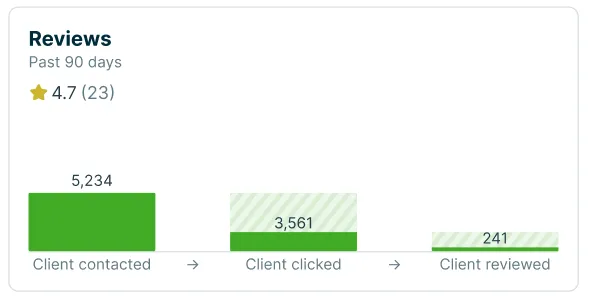
The insights about reviews highlight your overall star rating as well as the number of:
- clients who were sent a review ask (client contacted)
- clients who opened the review ask text message (client clicked)
- clients who submitted a review (client reviewed)
Campaigns
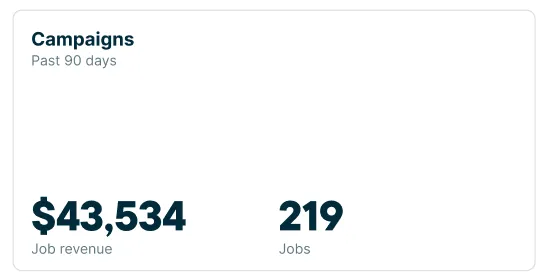
Marketing Performance has insights for your campaigns including:
- the job revenue total ($) from jobs booked from campaigns. This number includes:
- Jobs created within 30 days after a client receives an email campaign.
- Both one-off and recurring jobs.
- total number of jobs booked from campaigns (excluding automated campaigns). This number includes:
- Jobs created within 30 days after a client receives an email campaign.
- Both one-off and recurring jobs.
These insights are updated only for 90 days after an one-off campaign is sent, after which no new data will adjust the campaign’s attributed jobs.
Referrals
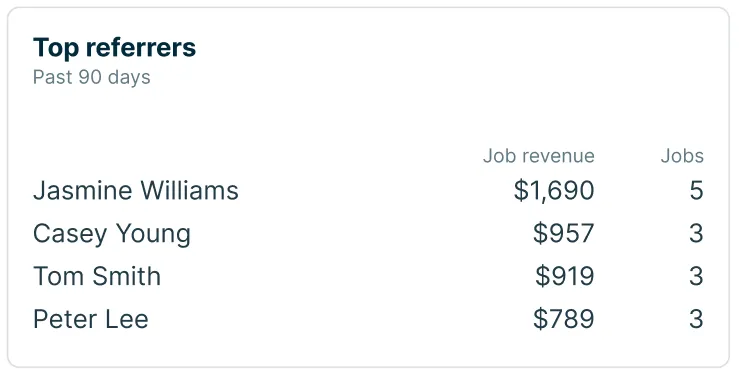
Marketing Performance shows your top four clients who have referred others to your company. This insight shows the total revenue brought in from each top client’s referrals and the number of jobs that were booked as a result of their referral.
This insight reflects jobs created within the last 90 days.
Website
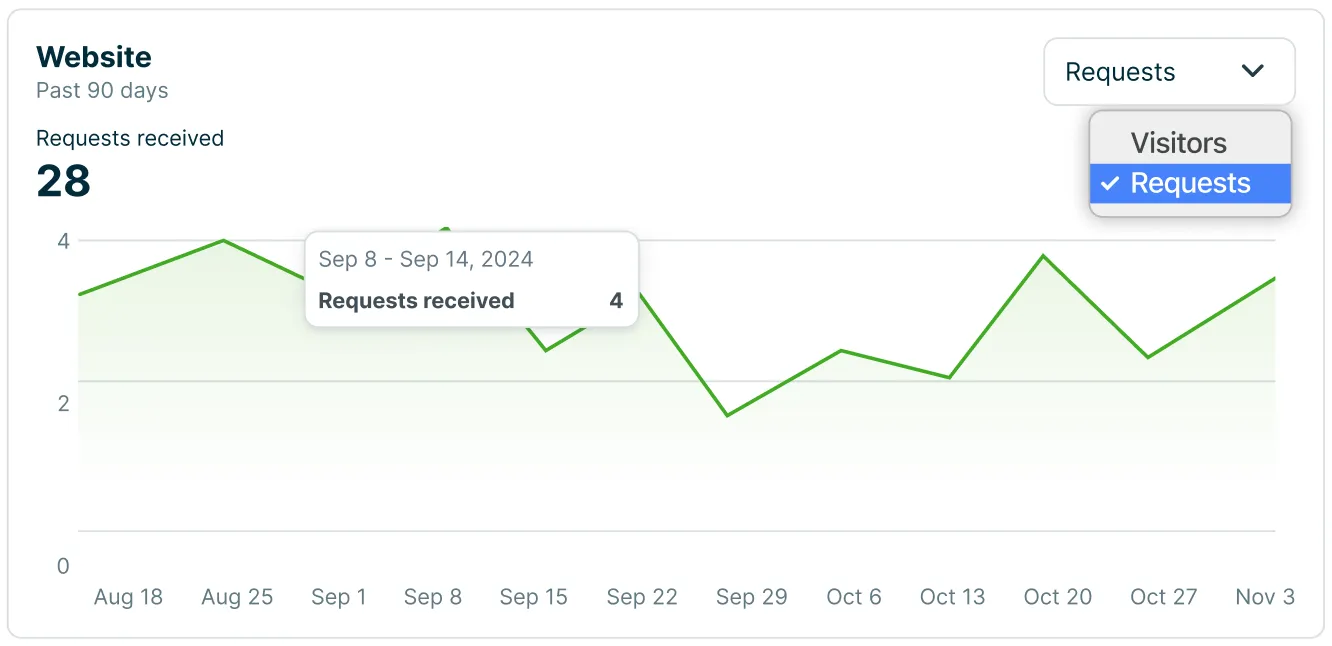
The website insight shows a chart with two options:
- Visitors: This is the number of visitors you’ve had to your website generated through Jobber.
- Requests: This is the number of requests that have been submitted through your website using your Jobber request form.
Both visitors and requests reflect the last 90 days.
Top performing sources
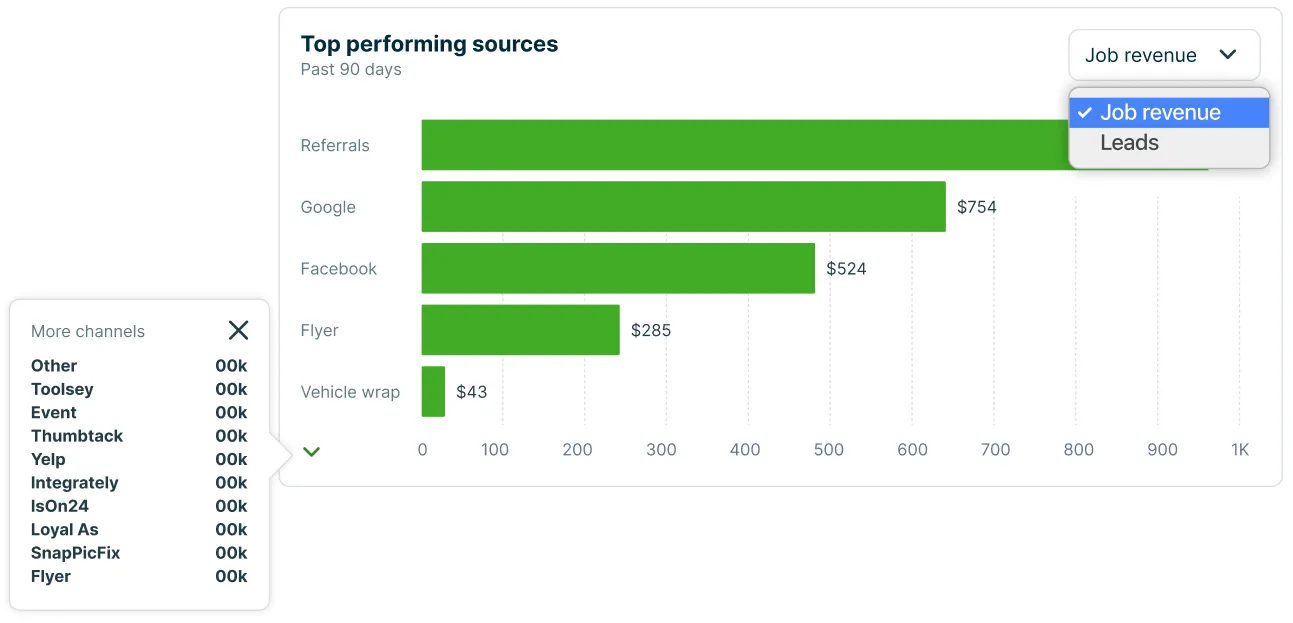
The insight for top performing sources has two options:
- Job revenue: This shows the total job revenue for the first job from each client with this lead source created within the last 90 days. To appear in this insight, these jobs must be for a client that has the “lead source” field filled out.
- Leads: These are the total number of leads based on the “lead source” field on clients. To be included in this insight, clients must have been created within the last 30 days.
Use the dropdown menu in the “top performing sources” insight to switch between job revenue and jobs.
Add marketing suite to your Jobber plan subscription
Add Marketing Suite to your plan to get access to all Marketing Tools. Marketing Suite is available on all plans, in Canada, United States, and Great Britain.
To add Marketing Suite to your plan,
- Select the Gear Icon, then select Account & Billing from the dropdown.
- From the account overview section, select the button for View Add-Ons.
- Next, review the available add-ons. To add Marketing Suite to your checkout, select Add. To remove Marketing Suite from your cart, select Remove.
- Once you’re ready to checkout, select Confirm & Subscribe from the checkout menu. You will be prompted to review your payment information and billing address.
- Select Confirm Subscription to submit your payment.
Add-ons (including Marketing Suite) are separate from your Jobber plan subscription and can be added or removed at any time. However, the add-on will appear on the same invoice as your plan so that you are billed on the same date. For your first month, it is likely the cost of your add-ons will be prorated to line up with your existing billing date.
Add-ons are available as a monthly subscription and are not available annually.