

Overview
Your Jobber Website is a simple way to create an online presence for your business. It gives you a professional-looking webpage where potential clients can learn about your services, request work, and get in touch—all without needing to build a site from scratch.
You can improve your branding and even boost your search ranking by customizing your website address with a custom domain—your own unique web address, like www.yourbusinessname.com. A custom domain adds a professional touch, helps reinforce your brand identity, and makes your site easier to find and remember.
Through Jobber’s partners, you can connect a domain you already own or purchase a new one to use with your Jobber Website. This way, your website feels like a seamless extension of your business and makes a stronger impression on potential clients.
Set up a custom domain
Note
In order to set up a custom domain, you must first publish your website. You won’t see the option to add a custom domain if you website is unpublished.
To add a custom domain:
- Select Marketing, then Website from the side navigation.
- From under Customize website, select Add custom domain.
There are two options when setting up a custom domain:
If you already have a custom domain, select Connect existing. If you’ll need to purchase a domain name, select Purchase New for options.
Purchase a new custom domain
Once you’ve selected the Purchase New button, the first step is making sure your desired domain name is available.
Enter a domain name, then select Check to view the availability. Domains are offered by IONOS.
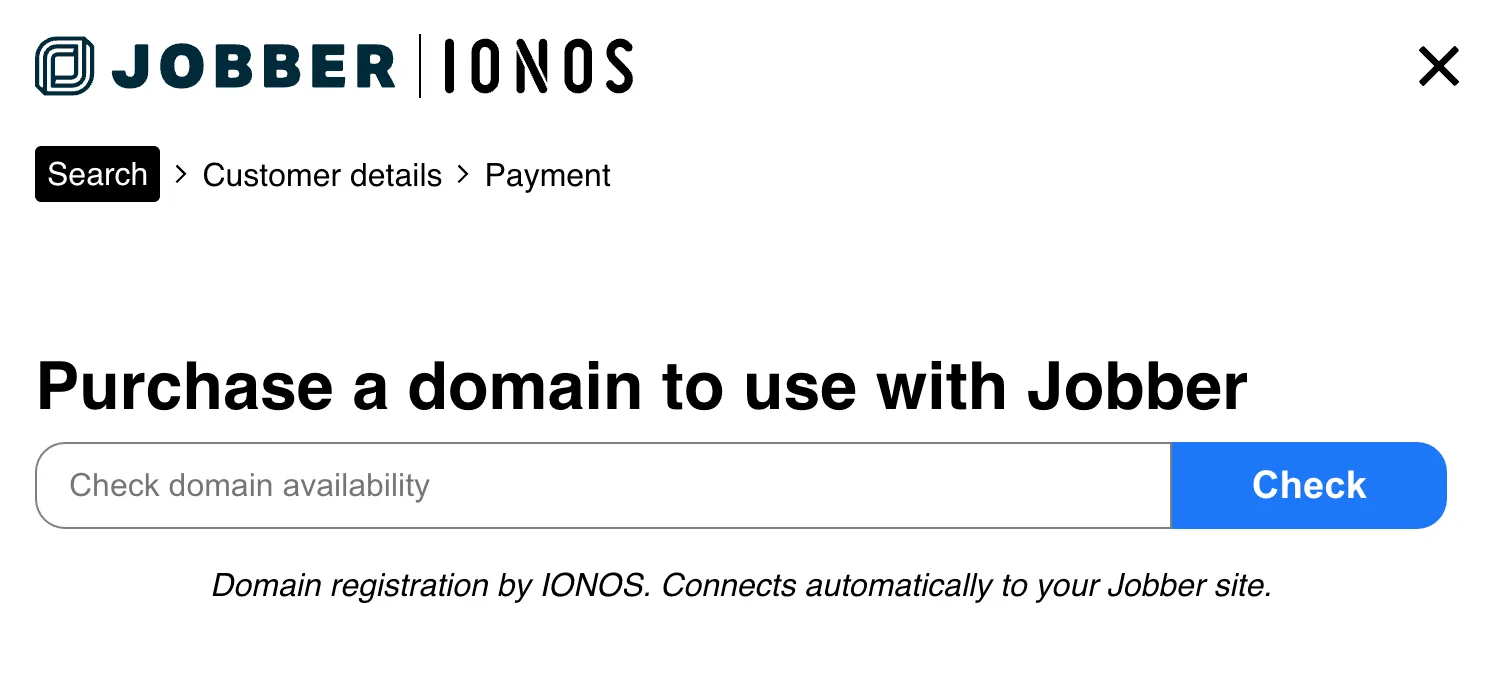
Add a domain name to your cart and then complete your checkout when ready to purchase the domain.
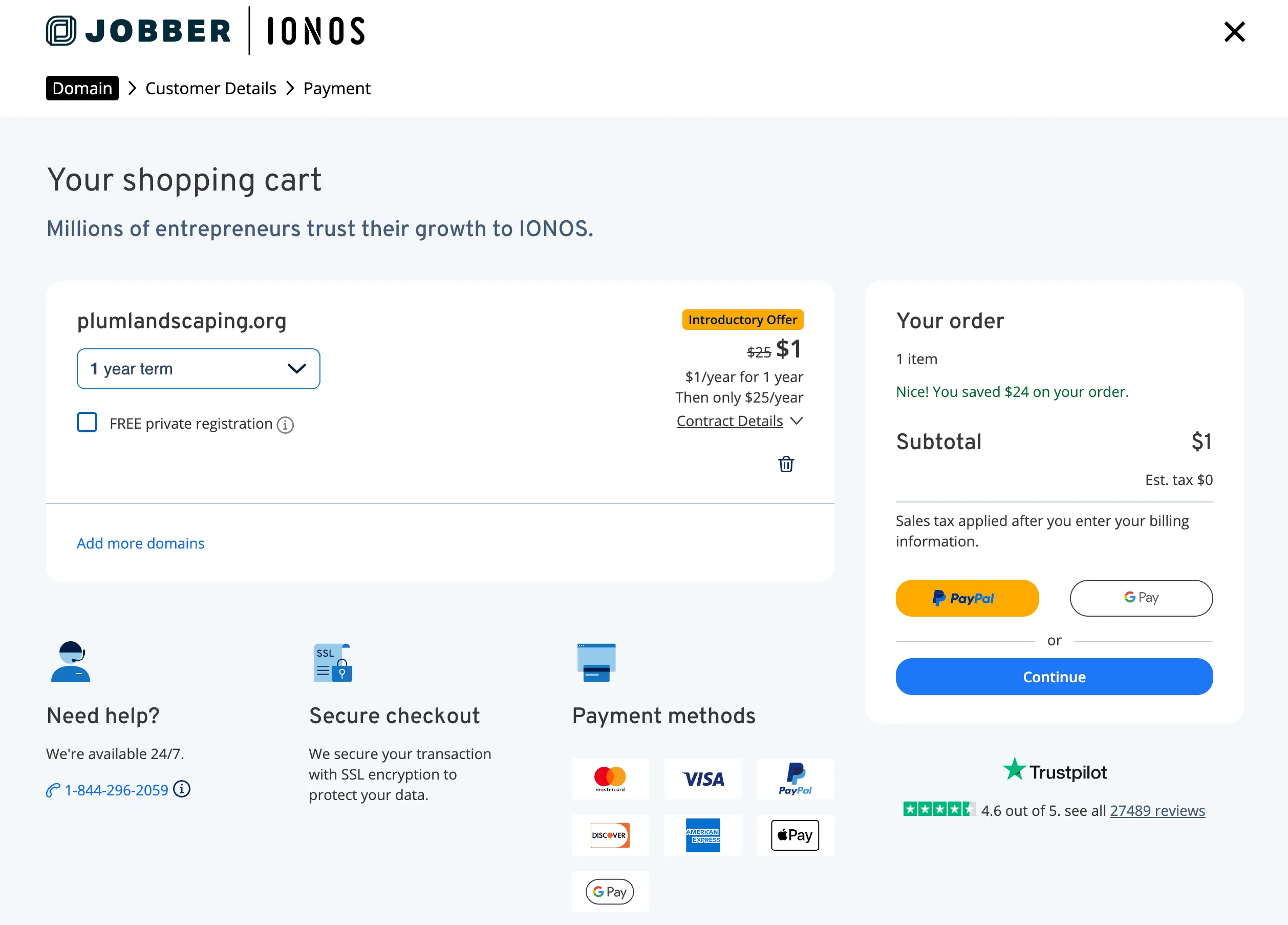
Once your purchase is complete, you will see a confirmation in Jobber that you’re ready to go. Your domain will be automatically set up with your Jobber website.
Note
If you purchase a custom domain through Jobber, it will be managed by our domain partner, IONOS. Domains are registered for set terms (for example, one year), and you’ll need to renew and continue paying for your domain through IONOS to keep it active. If you ever decide to cancel or stop using your domain, that will also be managed directly through IONOS, not Jobber.
Connect an existing custom domain
If you’ve already purchased a domain from another host, you can connect it to your Jobber website. After selecting Connect existing, you’ll be prompted to use a secure app called Entri to look up your domain and link it to Jobber automatically:
- Enter your domain name in the search bar, then select Continue.
- If Entri recognizes your domain provider, select Continue with [Provider], then sign in using your provider credentials to connect automatically. If you’d rather not sign in this way, select Connect a different way to set up your DNS records manually, send a login link to whoever manages the domain, or choose a different provider.
- If your domain provider isn’t automatically identified, choose it from the list provided. If you don’t see your provider listed, scroll to the bottom and select Go to our manual setup.
Connect your domain manually
If your domain provider isn’t listed, you can still connect your domain by manually adding three DNS records from Jobber to your domain provider’s settings. This includes one CNAME record and two A records, which help route traffic so your domain connects correctly to your Jobber website.
- Start by selecting Go to our manual setup from the list of domain providers in Jobber.
- Copy your CNAME and A records from Jobber. The records are:
- CNAME: Set the host name to
wwwand the required value to domains.jobbersites.com - A record #1: Set the host name to
@and the required value to 3.33.229.73 - A record #2: Set the host name to
@and the required value to 15.197.212.204
- CNAME: Set the host name to
- Paste the CNAME and A records into your domain provider’s settings.
- Navigate back to Jobber, then select I have copied 3/3 records.
Once your CNAME and A records have been added, it can take up to 48 hours for your custom domain to go live for your Jobber website.
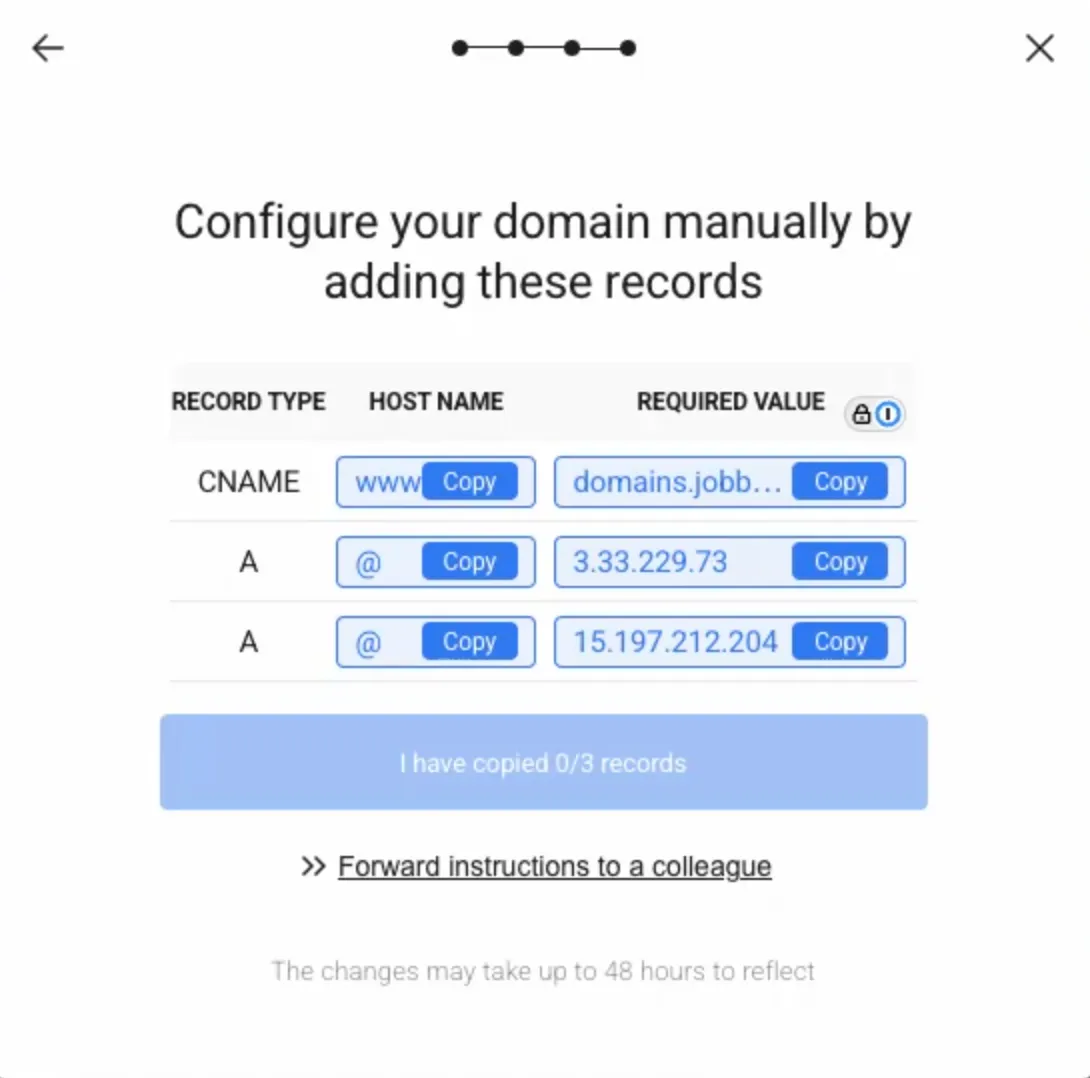
If you’re not sure where to find these settings, we’ve included links to guides for some common domain providers to help you locate where to add your records. If your domain provider isn’t listed, you can likely find instructions by searching Google for terms like ‘[provider name] edit A record’ or ‘[provider name] edit CNAME record.‘
Go Daddy
Support: 1-866-938-1119
Squarespace
Support: Squarespace Support
Note: You must be logged in to access Squarespace support.
Wix
Support: Wix support
Note: You must be logged in to access Wix support.
Why does my sitemap show my .jobbersites.com domain instead of my custom domain?
If you’ve connected a custom domain (for example, example.com) to your Jobber Website (such as example.jobbersites.com), you might notice that your sitemap.xml file still references the .jobbersites.com subdomain.
This is expected behavior and does not affect how your website appears in Google search results.
When you connect a custom domain, we explicitly set your custom domain as the canonical URL. A canonical URL tells search engines which version of a page should be treated as the primary or authoritative version. By setting your custom domain as canonical, you’re signaling to Google that:
- Your custom domain (example.com) is the version that should receive ranking and indexing credit.
- Any other versions of the same page (like example.jobbersites.com) should defer to the canonical version.
Even though the .jobbersites.com subdomain may still appear in your sitemap for technical and Google-related reasons, Google will:
- Crawl the pages
- Identify the canonical URL
- Consolidate ranking signals to your custom domain
- Prioritize your custom domain in search results
What this means for you
- Your website can be indexed by Google
- Your custom domain receives SEO credit
- The sitemap behavior is normal and does not impact functionality or search performance
If you’ve properly connected your custom domain and it’s resolving correctly, no additional action is needed.