

Overview
Quotes tracking in Jobber Central gives you a centralized view of quoting activity across all the business units in your organization. Instead of reviewing quotes one account at a time, you can monitor quote volume, conversion performance, and revenue opportunities across your entire group from a single place.
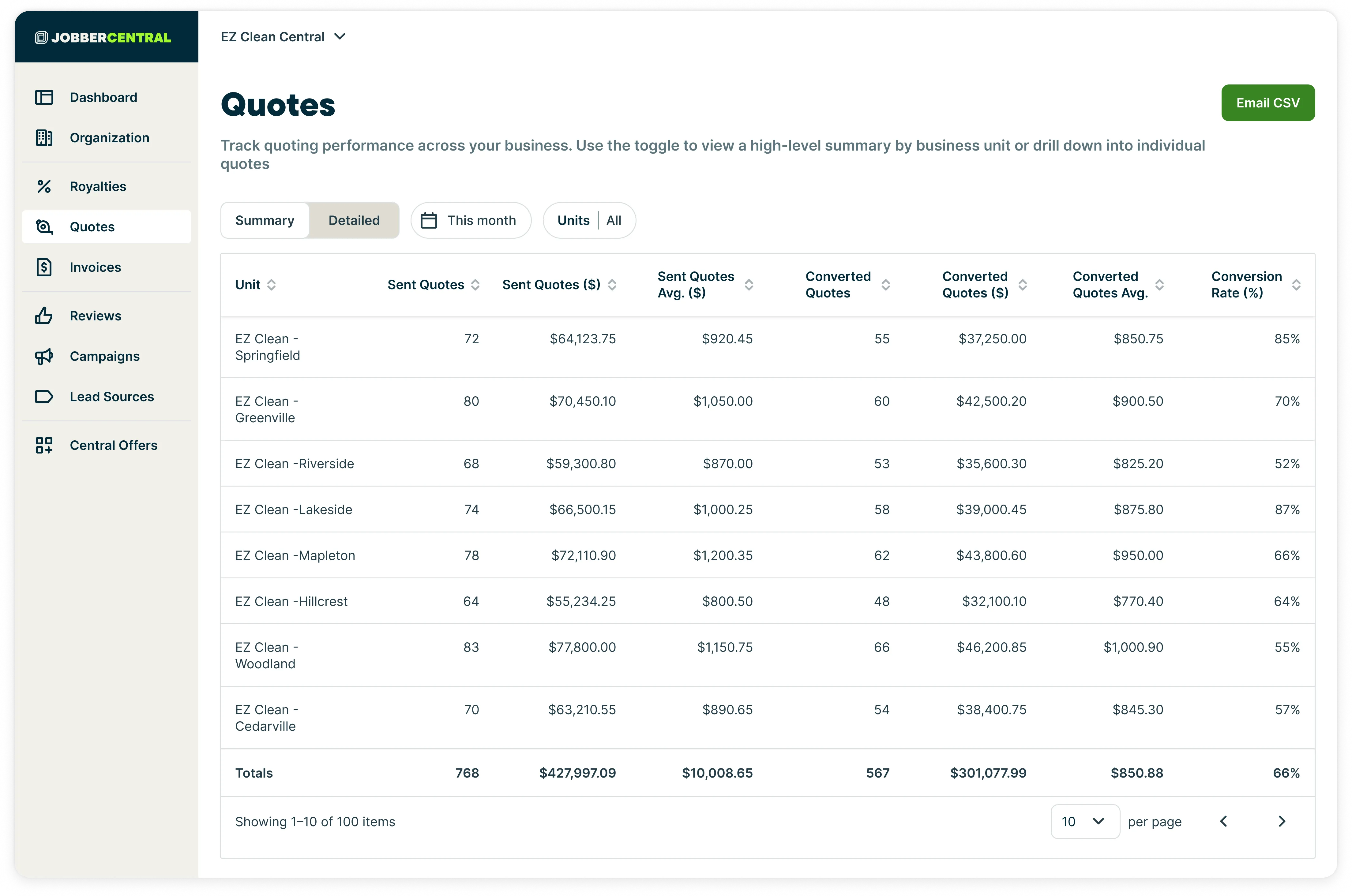
To navigate to an overview of quoting performance across business units, select the Quotes tab on the Jobber Central side navigation.
Navigate the quotes dashboard for Jobber Central
Select the summary view or detailed view
The Quotes dashboard includes two viewing modes:
-
Summary view: displays aggregated quote metrics by business unit.
-
Detailed view: lists individual quotes for deeper analysis
These views work together to help group operators understand quoting trends, compare performance between units, and identify opportunities to improve conversion rates and revenue at scale.
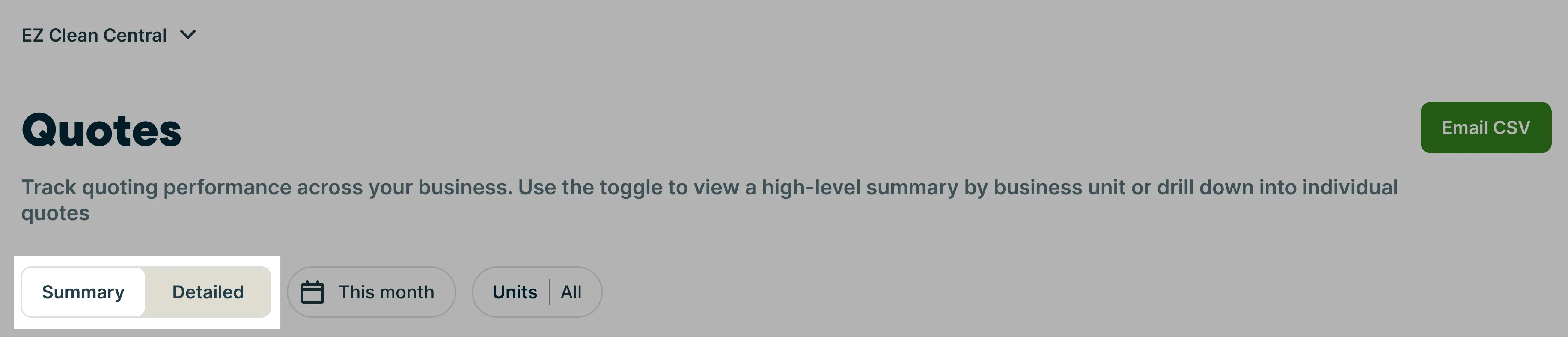
To switch between the summary and detailed view, use the selector at the top of the quotes table.
Set filters for the quotes report
Quote tracking for Jobber Central can be filtered by:
- Date range: Select the Date filter dropdown, then select a date range. Your options are:
- Last week
- Last 30 days
- Last month
- This year
- Last 12 months
- All time
- Custom range
- Unit: Select the Unit dropdown, then select:
- All units
- An individual unit
Columns on the quotes report
The columns that appear in the quotes dashboard for Jobber Central varies based on if you’re viewing the summary or detailed views.
The summary view includes columns for:
- Unit
- Sent quotes
- Sent quotes total ($)
- Converted quotes ($)
- Conversion rate (%)
The detailed view includes columns for:
- Unit
- Quote number
- Client
- Property
- Status (converted, awaiting response, archived)
- Drafted/sent dates
- Approved/converted dates
- Total ($)
Export quote data
To export the data from the quotes dashboard for Jobber Central, click the Export CSV button.
A CSV version of the quotes table will be sent to the same email address that you use when you log into Jobber.
Exporting to CSV is a good option if you need to work with the data in the report, print the report, or share it with someone who is not a user in your Jobber account.