

Overview
The campaigns module in Jobber Central gives you a centralized view of marketing email campaign performance across all business units in your organization. Instead of reviewing campaign data one account at a time, you can monitor email volume, engagement rates, and attributed revenue across your entire network from a single place.
By tracking campaign activity across all units, the campaigns module helps group operators evaluate marketing effectiveness, compare engagement between locations, and understand how email campaigns contribute to revenue at scale.
Jobber Central is a centralized experience for managing multiple Jobber accounts. It’s built for Group Service Providers, such as franchises and multi-location businesses, and helps head office teams oversee settings, activity, and performance across their group. This article is part of a collection that covers Jobber Central features.
Navigate to campaigns in Jobber Central
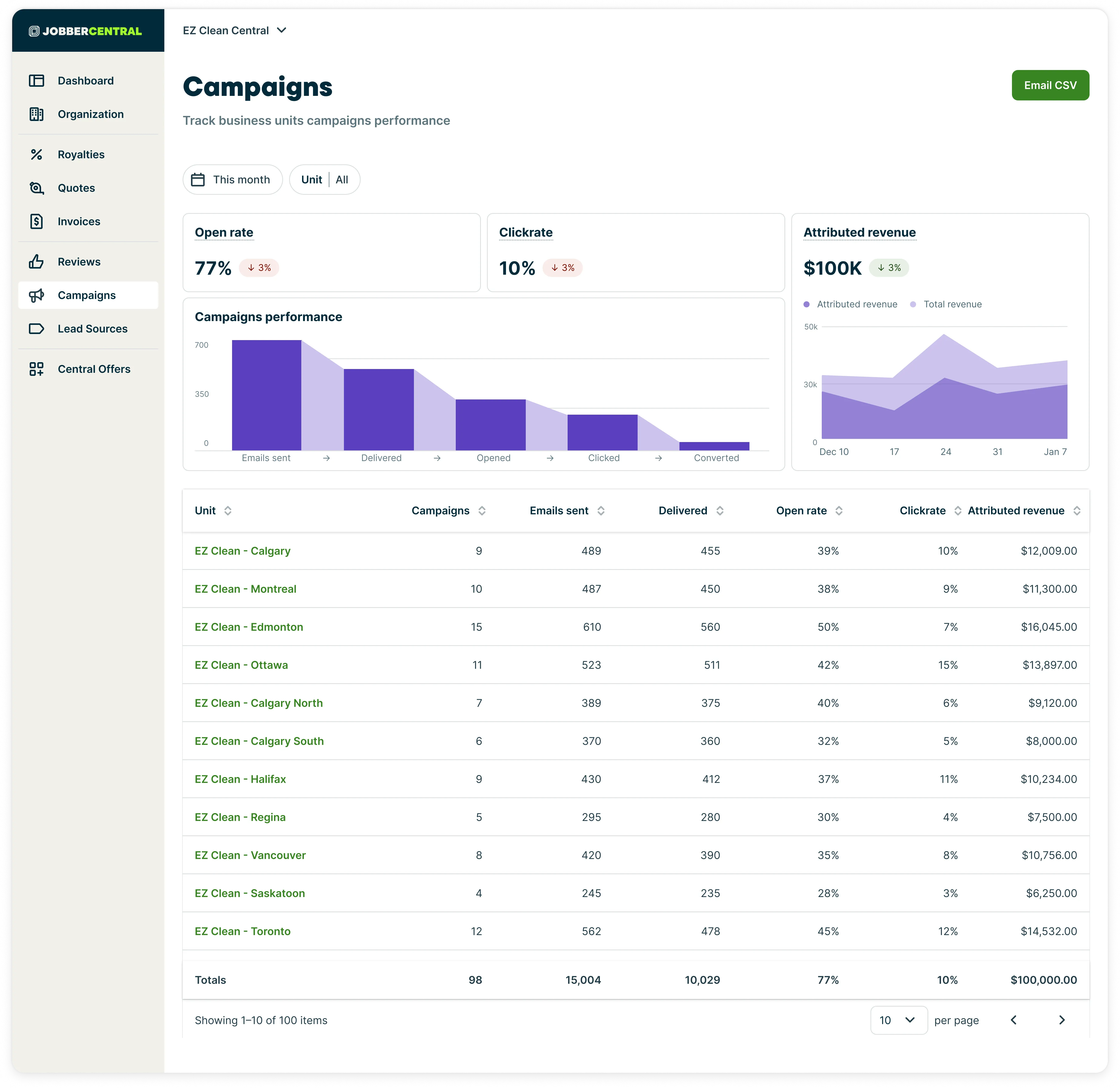
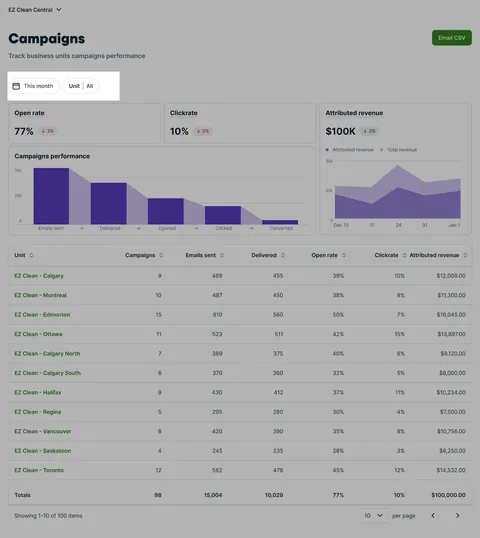
To view an overview of campaign performance across business units, select the Campaigns tab on the Jobber Central side navigation.
Campaigns performance metrics
At the top of the Campaigns page are three summary metrics aggregated across all business units for the selected time period:
- Open rate: The percentage of delivered emails that were opened. A trend indicator shows how this compares to the previous period.
- Click rate: The percentage of delivered emails where a recipient clicked a link. A trend indicator shows how this compares to the previous period.
- Attributed revenue: The total revenue attributed to campaign activity across all units. A trend indicator shows how this compares to the previous period. The attributed revenue chart breaks this down over time, showing attributed revenue alongside total revenue.
Campaigns performance funnel
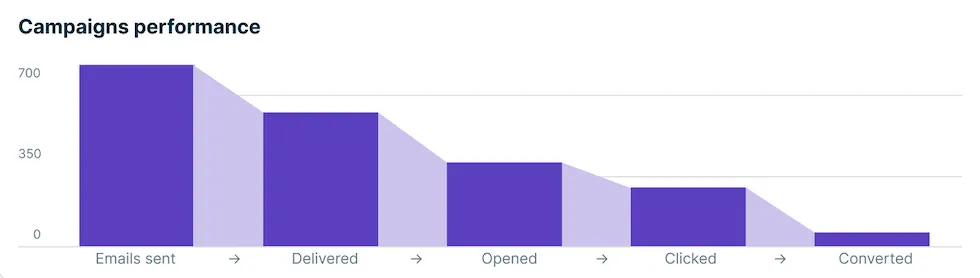
The Campaigns performance chart displays a funnel view of email activity, showing how emails progress through each stage. The stages shown are:
- Emails sent: The total number of emails sent across all campaigns in the selected period.
- Delivered: The number of emails successfully delivered to recipients.
- Opened: The number of delivered emails that were opened by recipients.
- Clicked: The number of emails where a recipient clicked a link.
- Converted: The number of emails that resulted in a conversion, such as a booked job.
Campaigns table by unit
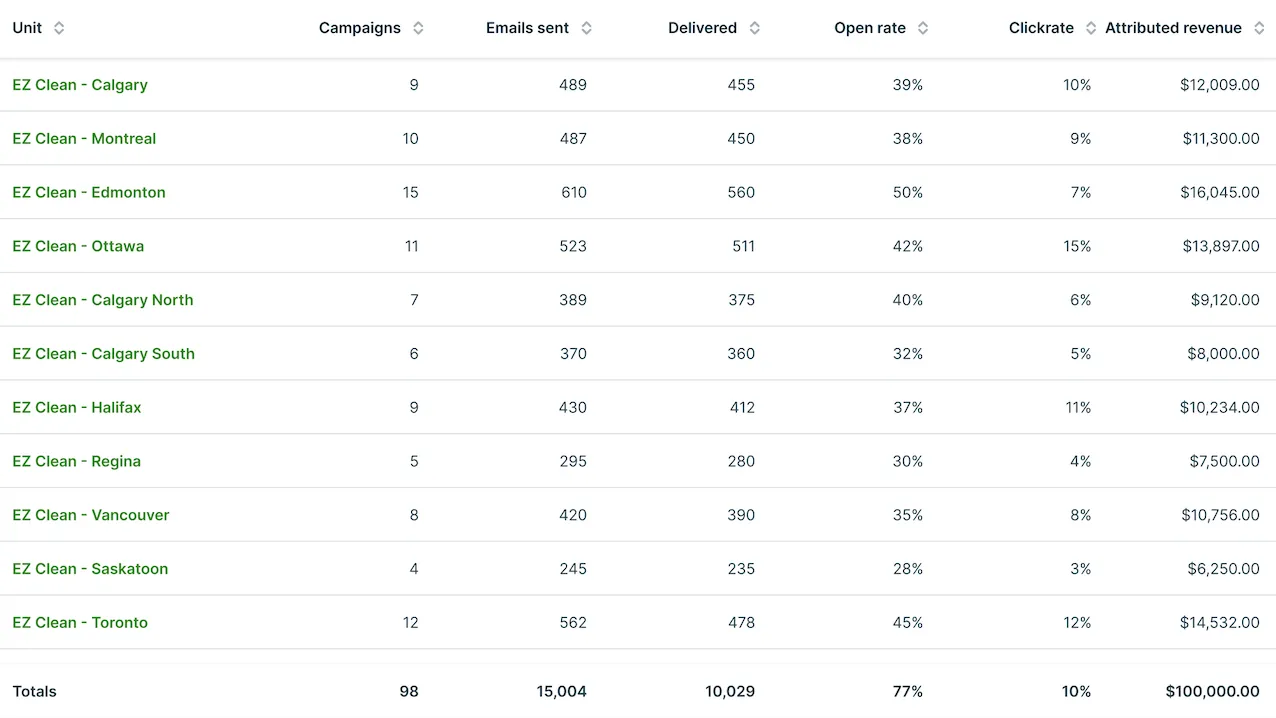
Below the performance funnel is a table that breaks down campaign activity by business unit. Each row in the table represents one unit. The columns in the campaigns table are:
- Unit: The name of the business unit. Select the unit name to navigate directly to that unit’s Jobber account.
- Campaigns: The number of campaigns sent by this unit in the selected period.
- Emails sent: The total number of emails sent across all campaigns for this unit.
- Delivered: The number of emails successfully delivered to recipients for this unit.
- Open rate: The percentage of delivered emails opened by recipients for this unit.
- Click rate: The percentage of delivered emails where a recipient clicked a link for this unit.
- Attributed revenue: The total revenue attributed to campaign activity for this unit.
A Totals row at the bottom of the table aggregates all columns across every unit.
Filter and sort the campaigns table
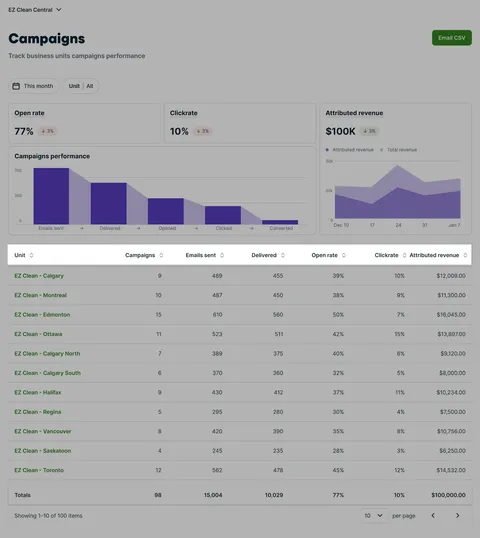
Each column in the campaigns table can be sorted in ascending or descending order. Select the column header to sort by that column. This is useful for quickly identifying which units have the highest or lowest performance on any given metric.
Campaign data in Jobber Central can be filtered by:
- Date range: Select the date filter at the top of the page, then select a date range. Your options are: This month, Last month, Last 3 months, Last 6 months, Last 12 months, or a custom date range.
- Unit: Use the Unit filter to view data for all units or a specific subset of units.
Export campaigns data
To export campaigns data from Jobber Central, select the Email CSV button in the top right corner of the Campaigns page. A CSV version of the campaigns table will be sent to the email address associated with your Jobber Central login.
Exporting to CSV is a good option if you need to work with the data outside of Jobber Central, print the report, or share it with someone who does not have access to your Jobber Central account.