

Overview
Your schedule in Jobber can sync with your favourite calendar app, so that you can set up reminders about your appointments or view your Jobber calendar alongside your personal appointments.
How does the calendar sync work?
The calendar sync is one-way from Jobber into your calendar app. This means that you will see your Jobber appointments in your calendar app, but you won’t see any of your personal appointments in your Jobber account.
Calendars will pull information from 2 weeks in the past and 20 weeks in the future from the current date when the sync is initiated. Syncing is not in real time and how frequently data is pulled may vary based on the calendar app you’re using and your settings in that app.
Calendar syncing must be set up on Jobber.com. If you’re using a mobile device, open Jobber.com in your browser rather than the Jobber app.
There are two steps when syncing your calendar:
- Copy your calendar URL from Jobber. Learn more.
- Paste the URL (that you copied from Jobber) into the calendar app of your choice.
This article provides steps to sync your Jobber calendar with Google and Apple Calendars, however you can use the same Jobber calendar URL with most other calendar apps. Look for an option to add or subscribe to a calendar using a URL, then paste your Jobber link there. The name of this setting may differ by app. Some common examples of popular calendars you can sync with include:
- Google calendar
- Apple iCal (iPhone/iPad calendar)
- iCloud calendar
- Yahoo calendar
- Mozilla Thunderbird
- Microsoft Outlook
How to sync your Jobber calendar to an external calendar
The first step of syncing your Jobber calendar with another calendar is copying the URL from your Jobber calendar. To find your calendar URL, follow these steps:
- From the schedule, click the More button then select Schedule Settings.
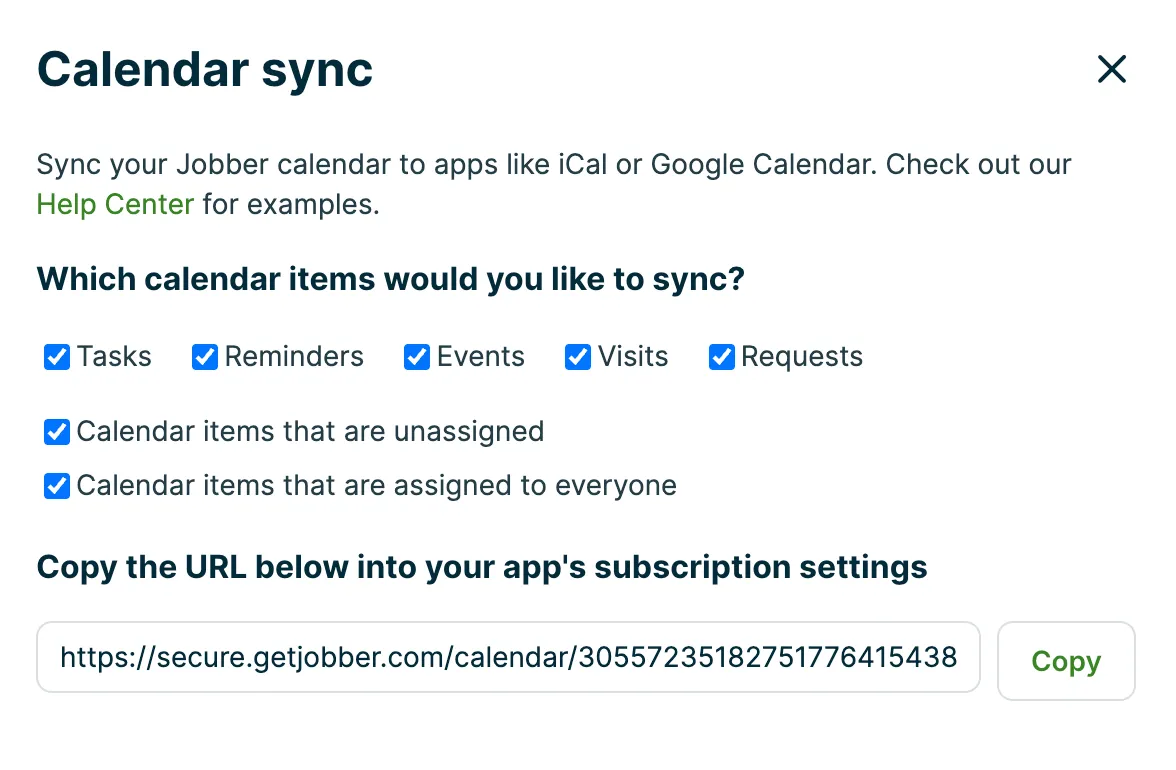
- Locate the “calendar sync” section of your schedule settings, then select the Set up calendar sync button.
- Check the boxes for any calendar items you’d like to sync. Options include:
- Tasks
- Reminders
- Events
- Visits
- Requests
- Calendar items that are unassigned
- Calendar items that are assigned to everyone
- Select Copy to save the URL with these options selected.
- Paste that URL into your preferred calendar app.
Depending on your calendar app of choice, the field you paste the calendar URL from Jobber may vary. Below, we’ve outlined the steps for two common calendar apps:
Sync your Jobber calendar to Google calendar
To sync your Jobber calendar to your Google calendar, follow these steps:
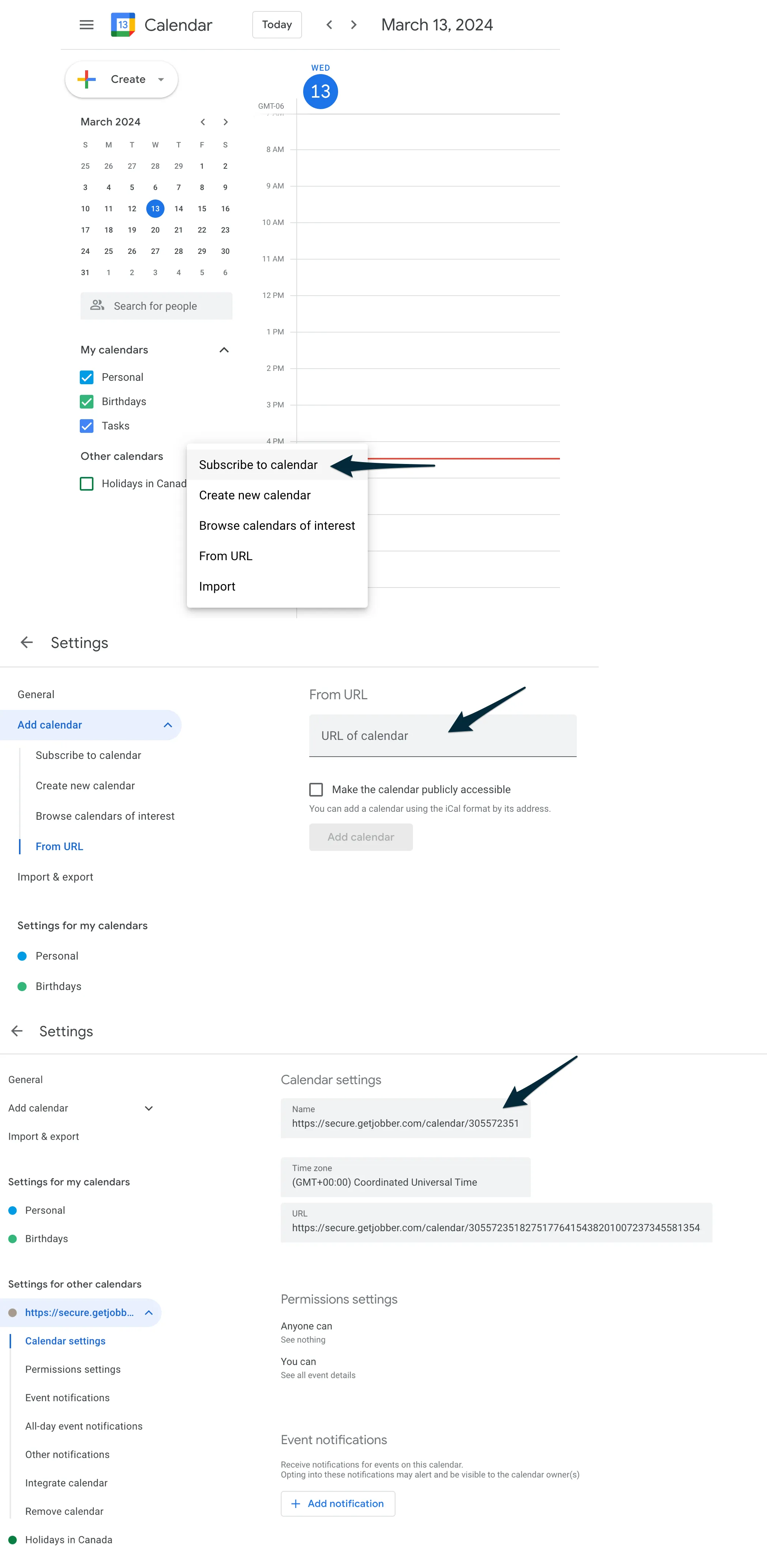
- Open Google calendar. On the left, click the down arrow beside Other Calendar and click Subscribe to calendar.
- From the Add calendar settings menu, select From URL. Copy the URL from Jobber into the field for URL of calendar. Then select Add calendar.
- Now that you Jobber calendar has been added to your Google calendar, let’s change the name of your Jobber calendar so that it’s not an URL. In Google calendar:
- Click the Gear Icon in the top right corner of Google calendar and click Settings.
- Click the Settings for other calendars tab along the side navigation.
- Click your Jobber calendar link at the bottom of the page. It will begin with “http://getjobber.com/”.
- Change the calendar name to whatever you prefer. If you are unsure, “Jobber” can be a good calendar title.
Note: Jobber syncs to Google Calendar roughly every 12 hours. Google doesn’t offer a manual refresh, so if you need faster updates, you might find Apple Calendar (syncs as often as every 5 minutes) or another calendar option more suitable. Google Calendar supports syncing up to 1,111 items, and will pause the sync if that limit is exceeded.
Sync your Jobber calendar to Apple iPhone calendar
To sync your Jobber calendar to your Apple calendar, follow these steps:
- Select the Settings icon on your home screen.
- Search for Calendar, or navigate there by selecting Apps. From the list of apps, select Calendar.
- Select Calendar Accounts.
- Select Add Account.
- Select Other Account.
- Select Subscribed Calendar.
- Paste the calendar URL from Jobber into the “Server” field.
- Tap Next.
