

How to cancel your Jobber subscription
You must be an admin user to cancel a Jobber subscription.
To cancel your subscription from Jobber.com, follow these steps:
- Sign in to Jobber.com.
- Click the Gear Icon, then select Account and Billing.
- Locate the “Change your subscription” section of the page. From this box, click Cancel Subscription.
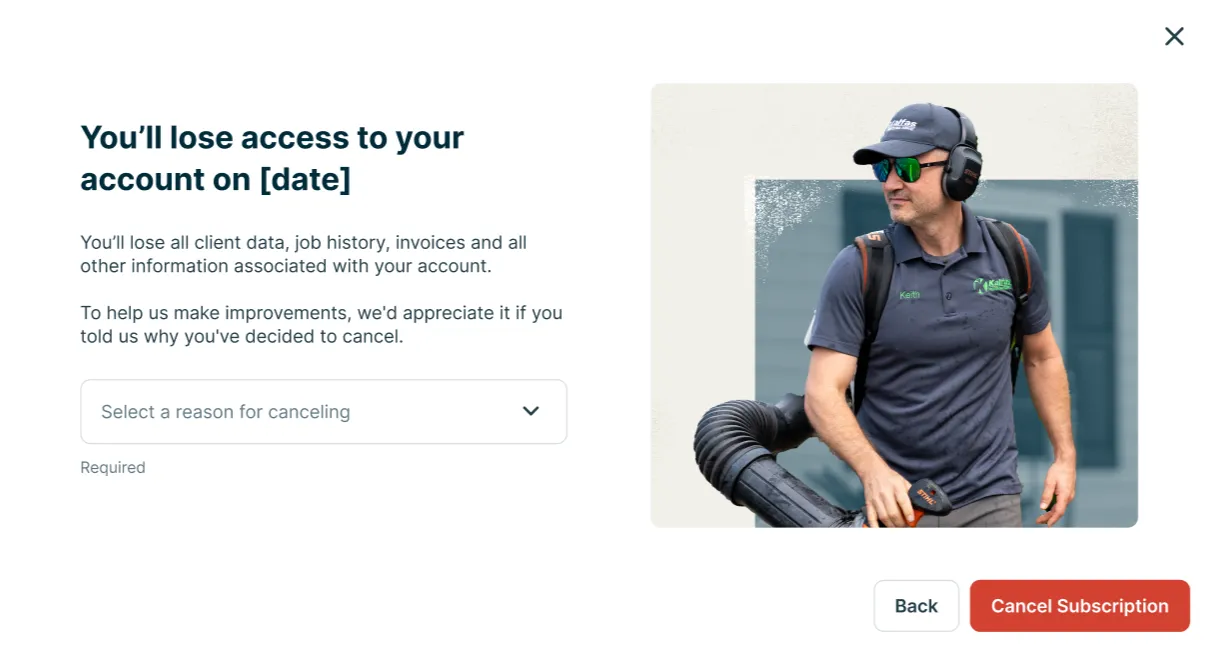
- Confirm you wish to cancel your subscription by selecting Cancel Subscription on any pop-ups. From the dropdown menu, select the reason for your cancellation. Your feedback is used to make improvements to Jobber.
- You’ll then see a confirmation that your Jobber account cancellation is in progress. This screen will display the date your subscription was set to renew — this is the last day you’ll have access to your account.
When you cancel your Jobber subscription, you’ll keep full access to your account until the end of your current billing period. After that date, your subscription won’t renew and you’ll lose access to your account data, including clients, jobs, invoices, and any other information stored in Jobber.
If you’re on an annual or monthly 1-year commitment plan, your access continues until the end of that full term — not just the current month. Your end-of-term date is listed in your Account and Billing section.
How to cancel your subscription in the Jobber app
If you originally subscribed to Jobber from the Jobber App, your subscription will need to be canceled in the Jobber App.
To cancel your account from the Jobber app:
- Log into the Jobber App as an admin user.
- Navigate to More, then select Subscription.
- Click the red button to Cancel Subscription.
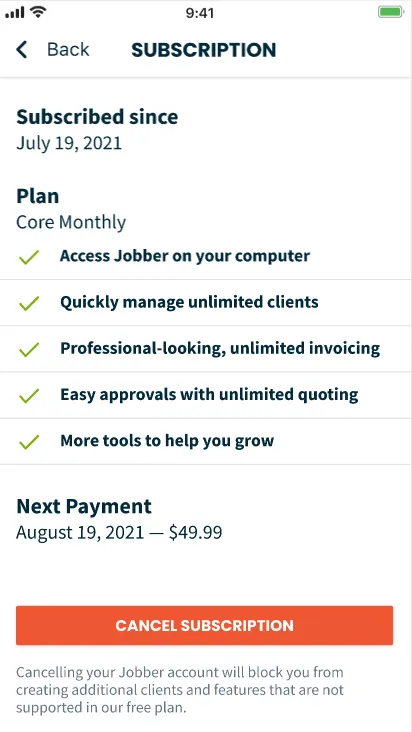
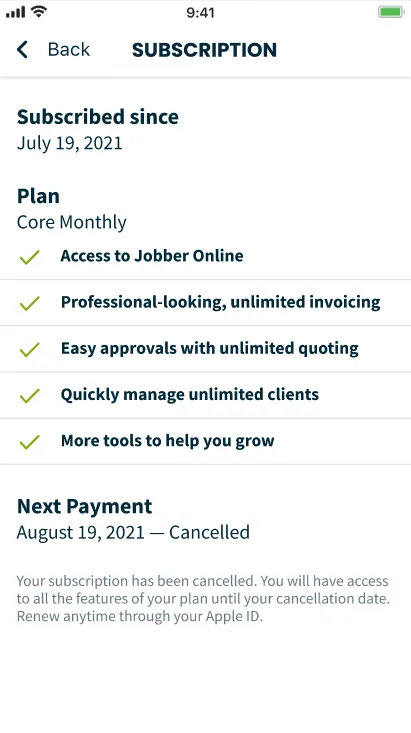
After canceling, you’ll keep access to your account (online and in the app) until your next scheduled billing date, which is shown on this page.
Since your subscription is billed through the Apple App Store or Google Play Store, any refund requests must go directly to your app store. Jobber isn’t able to process these on your behalf.
Once your billing date passes, your subscription will expire and this page will update to show available plans. To resubscribe in the future, you can do so through your Apple ID or Google Play Store account.
Learn more about subscriptions in the app.
Learn more about subscriptions in the app.
Tip: Looking to lower your costs instead of canceling?
You can switch to a lower-tier plan at any time. Plan changes take effect at the start of your next billing period, so you’ll keep access to your current features until then. To change your plan, go to Gear Icon, then Account and Billing.
Learn more about downgrading your Jobber subscription
Subscription terms of service
For information about subscription billing and refunds for your Jobber subscription, refer to our terms of service.
If you subscribed to Jobber through Jobber.com, please refer to Section 3 “Fees, Payments, Refunds, Upgrading, and Downgrading.”
Jobber App subscribers, please refer to Section 14 “App Terms” for details relating to subscription plans, fees, and service cancellation through the App.