

Overview
Angi helps pros grow their business by connecting them with homeowners who need pros for their repair, maintenance, and home improvement projects. Whether you’re filling last-minute openings or scaling your business, Angi helps you keep a steady flow of new job opportunities.
When you connect Angi with Jobber, new leads are automatically added to Jobber as requests, so you can respond quickly, stay organized, and manage every job from start to finish in one place.
Eligibility for the Angi Leads Integration
The Angi Leads integration is available for Jobber users in the United States on paid Jobber plans, including Core, Connect, and Grow. View our current pricing plans.
To check what plan you’re on, navigate to the Gear Icon > Account and Billing. If you have any questions about your plan’s features or pricing, our support team is here to help!
If you don’t already have an Angi Leads account, use this link to sign up and receive a discount of 25% off leads for your first 30 days.
Connect your Angi account
You will need an Angi account in order to use Jobber’s integration with Angi. The Angi and Jobber integration can be set up from Jobber’s App Marketplace or Angi’s Integration Marketplace.
To connect Jobber to your Angi account:
- Sign into Jobber.com, then select Apps from the side navigation.
- From the App Marketplace, select Angi.
- From the Angi header, select Connect.
- To authorize the Angi integration to access the listed information from your Jobber account, select Allow.
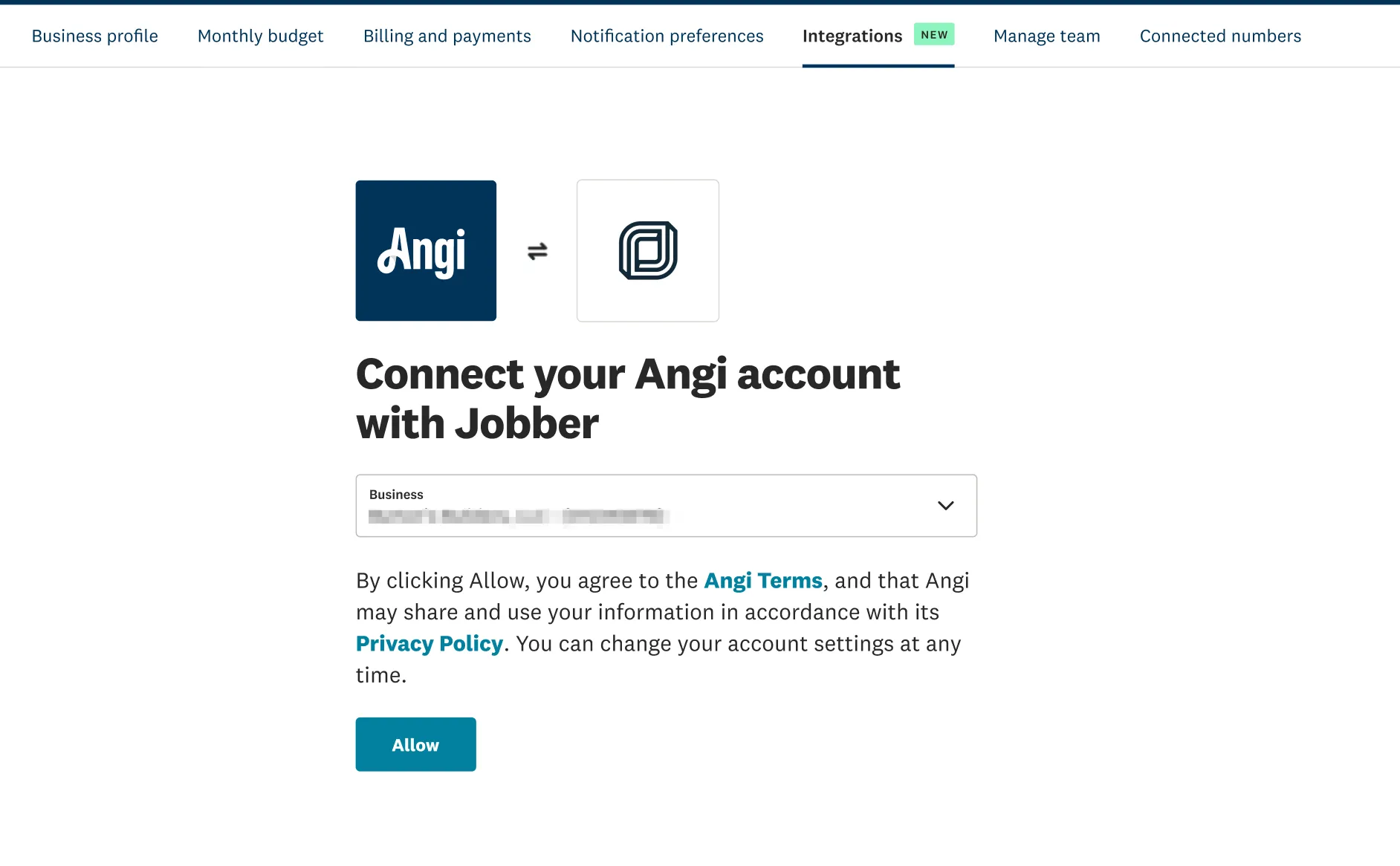
Once the setup is complete, all leads from Angi will be automatically sent to Jobber so you can continue with your operations in one place.
How the Angi and Jobber integration works
When you receive a new lead from Angi, the integration will create a new client and new request in Jobber. Any new clients created by the integration will automatically have “Angi” as the lead source.
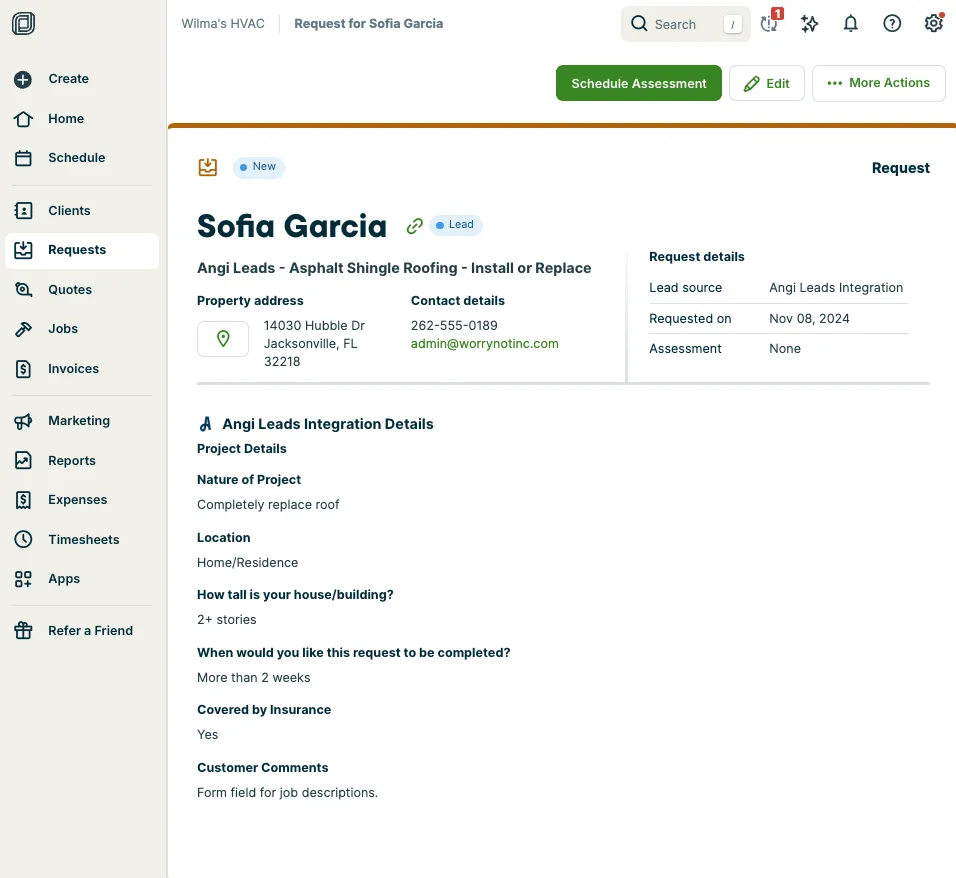
Automatically add new clients
Clients created from Angi will include the lead:
- Name
- Property address
- Email address
- Phone number
If the lead matches a client that already exists in Jobber, the integration will update the existing client in your Jobber account as long as the first and last names and either a phone number or email address match. Any additional contact information (such as an address, email, or phone number) will be automatically added to the client in Jobber.
Automatically create new requests
A request for the lead from Angi will be automatically created in Jobber. The request will be the starting point for your workflow in Jobber, so from here, you can evaluate if this request will move forward to a quote or job. Learn more about Converting a Request to a Quote or Job.
Requests created through the Angi integration will automatically have a title that begins with “Angi” followed by additional information about the lead category.
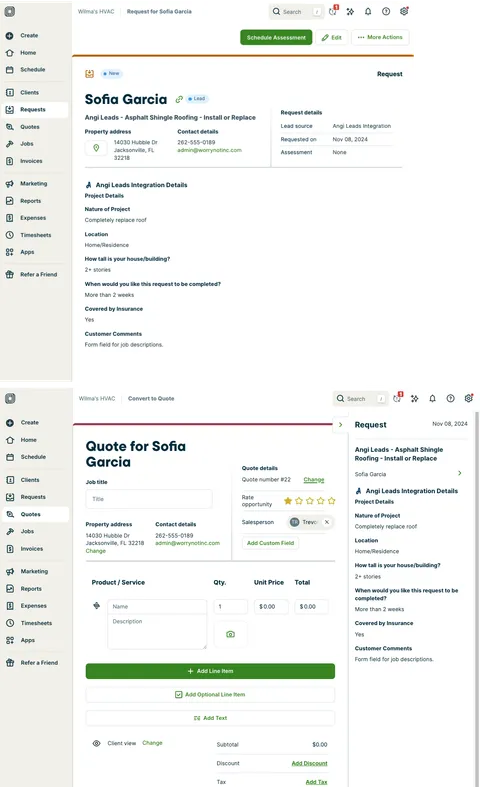
The request details contain the information from the lead from Angi. These details cannot be edited because they come from the original lead from Angi. If you convert the request either to a quote or job in Jobber, you can view the lead details in the right-hand side of Jobber.com.
Update your Angi integration
If you connected the original version of the Angi integration before the updated version became available, you may see two Angi listings in the App Marketplace: “Angi” and “Angi (Legacy Integration).”
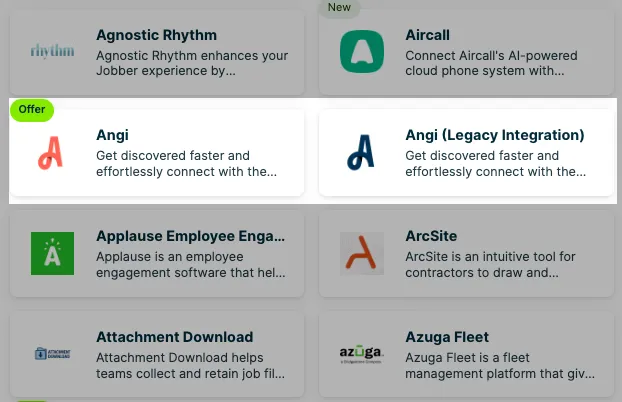
The updated “Angi” integration replaces the legacy version. If you are still using the legacy integration, you can switch to the updated version at any time by disconnecting the legacy integration and connecting the current one.
To switch from the legacy integration to the updated version:
- Navigate to the App Marketplace, then select Angi (Legacy Integration).
- Select Disconnect.
- Return to the App Marketplace and select Angi.
- Select Connect and follow the prompts to complete the setup.