

Overview
Jobber connects your Google Business Profile (GBP) to your account automatically. When clients search for services on Google, they can book with you directly from your business listing.
Availability
Connecting your Google Business Profile is an option on all plans. View our current pricing plans.
To check what plan you’re on, select the Gear Icon, then choose Account and Billing. If you have any questions about your plan’s features or pricing, our support team is here to help!
Your Google Business Profile helps potential clients find your business when they search for home services on Google Search and Google Maps. Jobber links your default booking or request form to your GBP so that a Book Online button appears on your listing. This means clients can reach your booking or request form without you needing to set anything up.
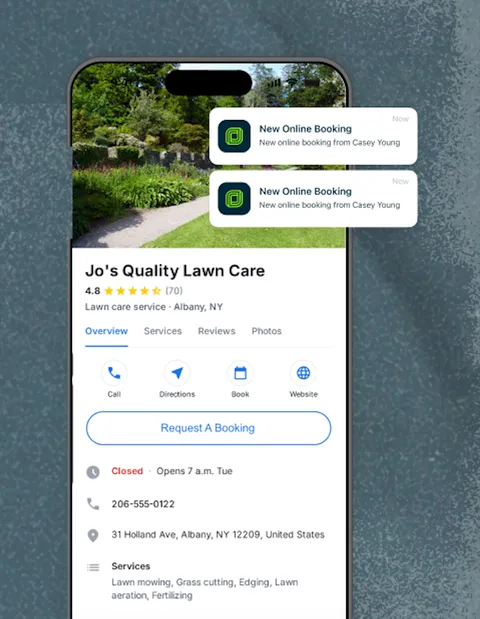
How automatic Google Business Profile connection works
Jobber matches your Google Business Profile to your account using the address in your company settings. When Jobber finds a match, it automatically sends your default request form link to Google.
Your GBP listing then displays a Book Online button that links to your request form. Potential clients who find your business on Google can submit a request directly from your listing.
If you would prefer Google to show your booking form instead of your request form, you can change which form appears in your form settings.
Make sure your addresses match
Google matches your business listing to your Jobber account based on your address. To avoid connection issues, make sure the address in your Jobber company settings matches the address on your Google Business Profile.
To check your address in Jobber:
- Select the Gear Icon, then select Settings.
- Select Company Settings.
- Confirm that your address in Jobber matches the one listed on your Google Business Profile.
If you use a service area rather than a physical address for your Google Business Profile, reach out to Jobber’s support team for help matching your account.
Choose which form appears on your Google listing
Jobber initially connects your default request form to your Google Business Profile. After that first connection, you control which form Google shows by turning the Google Business Profile setting on or off for individual forms.
Each form in Jobber has its own Google Business Profile setting. The form that has this setting turned on is the one Google displays on your listing. Only one form can be connected to your GBP at a time.
If you want Google to show your booking form instead of your request form, move the GBP setting from one form to the other.
To switch your Google Business Profile listing from the default request form to a booking form:
- Select the Gear Icon, then select Settings.
- From the Settings menu, select Requests and Booking.
- Open the form that is currently connected to your Google Business Profile.
- Turn off the Google Business Profile setting for that form.
- Go back to the Requests and Booking settings page and open the booking form you want to connect to your GBP.
- Turn on the Google Business Profile setting for that form.
Google will update your listing to show the booking form instead of your request form. You can move this setting between any of your forms at any time.
If you have multiple request forms and want a different one on your GBP listing, follow the same process: turn off the GBP setting on the currently connected form, then turn it on for the form you want Google to show.
Disconnect your Google Business Profile from Jobber
Only one request or booking form can connect to your Google Business Profile at a time. The connected form is the one Google surfaces through the “Book Online” button on your business listing. By default, this is your default booking form.
If you want to connect a different form to your Google Business Profile, you need to remove the connection from the current form first.
To disconnect your Google Business Profile from a form:
- Click the Gear Icon, then select Settings.
- Select Requests & Booking.
- Select the form that currently has Google Business Profile connected, click the three dots, then select Edit.
- Select the Settings tab under Manage form.
- Expand the Google Business Profile section.
- Click Disable.
After you disable the connection, the Enable button becomes available on your other forms. Select the form you want to connect, follow the same steps to reach the Google Business Profile section, and click Enable.
It can take up to 72 hours for Google to update the booking link on your business listing after you change or remove the connected form.
Reconnect your Google Business Profile to Jobber
If you previously disconnected and want to turn the connection back on, you can reconnect from your form settings.
To reconnect your GBP to Jobber:
- Select the Gear Icon, then select Settings.
- Select Booking (or Requests, depending on which form you want to connect).
- Locate the Google Business Profile setting for your form.
- Turn on the toggle to reconnect your form to your GBP listing.
Google will match your listing to the address in your Jobber company settings. Make sure your addresses match before reconnecting. It can take up to 72 hours for the Book Online button to appear on your Google Business Profile after reconnecting.
Google Business Profile and Marketing Tools
Jobber automatically connects your default booking or request form to your Google Business Profile on all plans. This puts the Book Online button on your listing without any setup. The Marketing Suite connection is separate and lets you publish content (posts, job photos, service highlights) to your social channels.
The two connections to Google Business Profile work independently of each other.
Connect your Google account to Marketing Suite
Marketing Suite includes Social Posting and Job Showcase which let you create and publish content directly to your Google Business Profile listing. This is a separate capability from the automatic booking form connection, which requires you to connect your Google account to Jobber through Marketing.
With this connection, you can:
- Publish social posts to your Google Business Profile directly from Jobber
- Share completed job work to your listing using Job Showcase
- Let Jobber recommend posts based on your job activity
- Approve Google-suggested photos from your recent jobs to keep your listing fresh
Once connected, you can create and publish posts to your Google Business Profile from Social Posting and Job Showcase.
To sign up for a profile or connect your existing Google Business Profile, click the button below
Connect Google Business Profile
Your Google business profile can also be set up when adding a new social post.
To connect your Google Business Profile when adding a social post:
- Navigate to Marketing, then select Social Posting.
- Select New Social Post.
- Select Write your own post.
- Write your post in the text field.
- Select Google as social channel where this should be posted. You will be prompted to connect Jobber and Google, click Connect Account.
- Sign in to your Google Business account, by entering your email address or phone number. You may need to verify through two factor authentication.
- You’ll be asked to allow Jobber to access your Google account, click Allow Access.
- Select with Google account should be connected to Jobber, then select Connect. This must be a verified account.
Approve photos for your Google Business Profile
Jobber AI suggests photos from your recent jobs to post to your Google Business Profile, so your profile stays fresh and visible in local search without you finding and uploading photos yourself.
Jobber AI surfaces a Google photo suggestion in any of these places:
- Plan
- Dashboard
- Social Posting
- Google Profile
To approve photos for your profile:
- Open the suggestion. It shows 1 to 3 photos Jobber AI selected from your recent jobs.
- Select the green checkmark on each photo you want to post, or the red X on each photo you don’t.
- Select Approve Photo to post one photo, or Approve All Photos to post everything you approved.
Jobber adds each approved photo directly to your Google Business Profile. There’s no caption or job description attached.
Note: This is different from a Job Showcase post, which includes a full write-up about the job. A Google photo suggestion is a photo only.
If you have more than one suggestion waiting, they appear together in a single review queue so you can go through them one after another.
Frequently asked questions
Why do I see a “Book Online” button on my Google Business Profile?
Jobber automatically connects your default booking or request form to your Google Business Profile when it can match your business listing. This causes a Book Online button to appear on your listing. The connection is authorized under Jobber’s Terms of Service (section 12.2) and is designed to make it easier for potential clients to reach you from Google.
This helps potential clients find and book your services directly from Google. If you do not want this button on your listing, you can disconnect your GBP from Jobber in your form settings.
Which form does Jobber send to Google for client bookings?
Jobber sends your default booking form if you have one set up. If you do not have a booking form, Jobber sends your default request form instead.
How long do changes take to appear on Google?
Changes to your GBP connection can take up to 72 hours to appear on your Google Business Profile listing. This applies to both connecting and disconnecting.