

Overview
Find every photo, document, and file associated with a client in one place, without needing to remember where it was saved.
The Files and media tab on a client’s profile consolidates images and files from across that client’s notes and checklists into a single gallery. Instead of navigating through individual job notes or visits to track down a file, you can browse everything in one view.
Files and media library availability
The files and media library is available on the Plus Plan or with Marketing Suite. View our current pricing plans.
To check what plan you’re on, select the Gear Icon, then choose Account and Billing. If you have any questions about your plan’s features or pricing, our support team is here to help!
Files and media is accessible:
- On the web: from the Files and media tab on a client’s profile.
- On the Jobber mobile app: from the Files tab on a client’s profile.
Access files and media
To view a client’s files and media on Jobber.com:
- Navigate to Clients from the side navigation.
- Select the client whose files you want to view.
- Select the Files and media tab on the client’s profile.
To view a client’s files and media in the Jobber App:
- Tap Search in the main menu.
- Select the Clients tab.
- Select the client’s name whose files and media you’d like to review.
- In the client’s profile, select the Files tab.
The gallery displays all files associated with that client, organized by date. On Jobber.com, the total number of files appears beside the “All files” heading, and you can switch between a grid view and a list view using the view toggle icons on the right side of the gallery.
User permission for files and media
There is a dedicated user permission setting for Files and media.
When this permission setting is enabled, team members will be able to access the files and media tab on a client’s profile. By default, admin users will have access to files and media.
Add new files and media
To add new content, attach files to notes or upload images on checklists either on Jobber.com or the Jobber App. These files automatically populate in the client’s files and media section, regardless of where they were added.
Search files and media
Use the Search files bar to quickly find a file by keyword. Search looks at information linked to the file (such as the name of the quote, job, or invoice it’s connected to), not just the file’s own name, and matches partial words. Combine search with the filters below to narrow results further.
Filter files and media
To narrow down the gallery and find the right file quickly, select the filter name, then choose the value. The following filters are available:
- Property: Filter by the property associated with the file. This filter is available for files added to objects linked to a property, such as jobs and visits.
- Source: Filter by stage of the workflow where the file or files were added:
- Client
- Requests
- Quotes
- Jobs
- Invoices
- File type: Filter by the type of file, including:
- Image
- Video
- Word Document
- Excel
- Other file types
- Date: Filter by when the file was added.
In the Jobber App, tap the Filter Files button to filter the gallery using the same options.
Note: Files added at the client level, such as attachments on client notes, are not linked to a property. These files will not appear when you filter by Property.
View file details
Select any file in the gallery to open it in a larger view. The detail view shows metadata about the file, including:
- Client: The client this file belongs to.
- Source: Where the file was added (for example, a specific job).
- Added: The date, time, and address associated with the file.
- Added by: The team member who added the file.
Preview a PDF
On Jobber.com, you can preview PDFs inline in the detail view without downloading.
From the Files and Media tab, select a file to open it. To narrow down the list of files, filter by source or file type.
From the open file, use the page navigation arrows to scroll through the other file content in the carousel.
To open the PDF in a new tab instead, click the external link icon in the left corner of the file.
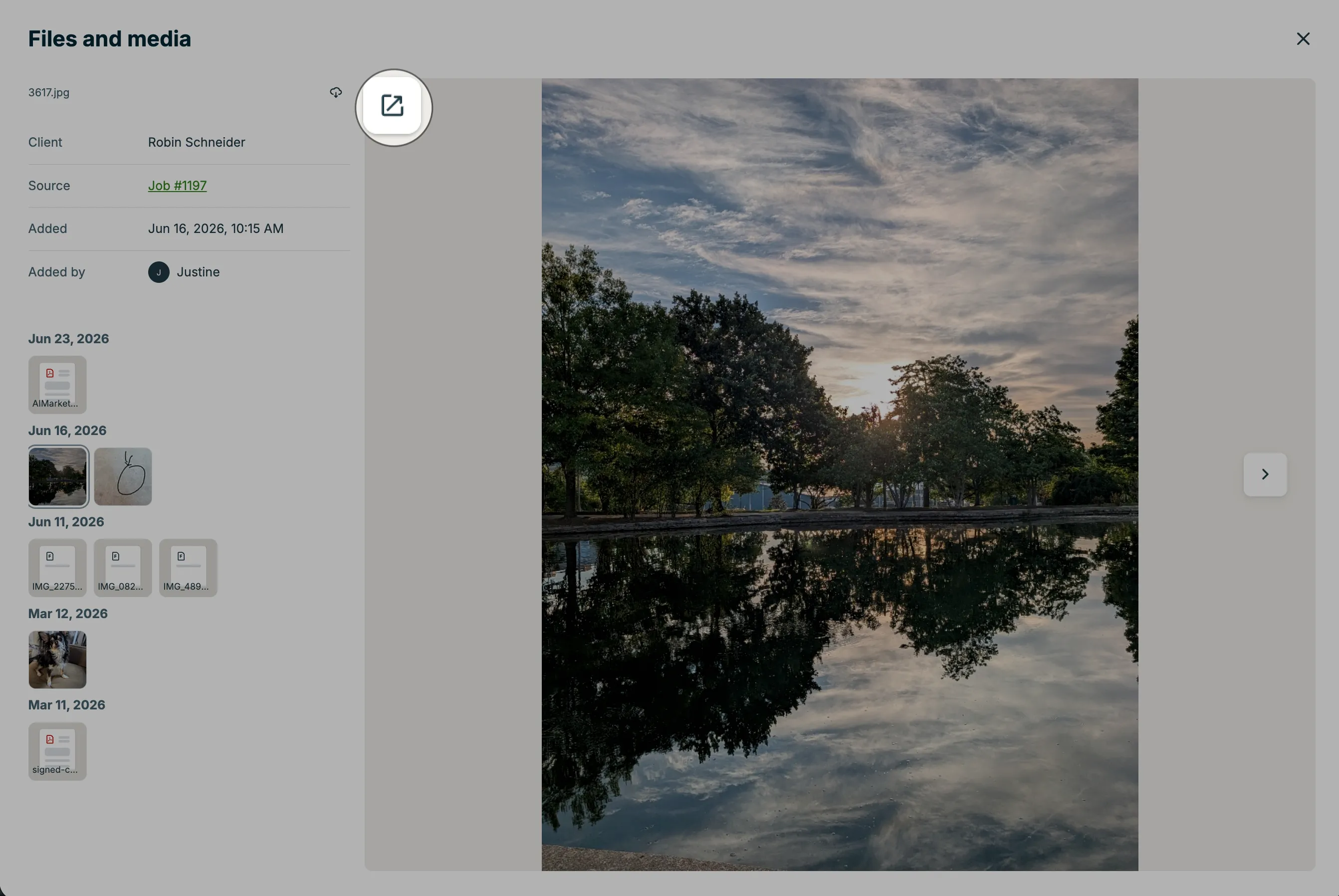
Note: Inline PDF preview is available on Jobber.com only.
Download files
To download one or more files:
- Navigate to Clients from the side navigation.
- Select the client whose files you want to view.
- Select the Files and media tab on the client’s profile.
- Select the checkbox on each file you want to download, or select Select All to choose every file shown.
- Select the download icon to save the selected files to your device.
You can also download a file from its detail view:
- Click a file to open it.
- Click the download icon in the top left corner of the preview.
Note: Downloading by checkbox selection works within one client’s Files and media library at a time. You can’t select or download files across multiple clients in a single action.
Is there a storage limit for files and media?
There is no storage limit for files and media at this time.
Can I download all files at once?
You can download multiple files at once, but only within a single client’s Files and media library. Select the files you want, or select Select All to choose every file shown, then select the download icon. Learn how to download files.
Can I pull files from the library into a note or attachment on another item?
The Files and Media tab on a client’s profile is a view-only gallery, you can’t add files to other items directly from this tab. However, you can reuse existing photos and files from your Jobber account when adding images or attachments to an invoice, a request, or when creating marketing content as a job showcase.
What metadata is stored for each file?
Each file includes the client, source, date and time it was added, the address, and who added it. Device-level metadata like camera settings is not stored.