

Overview
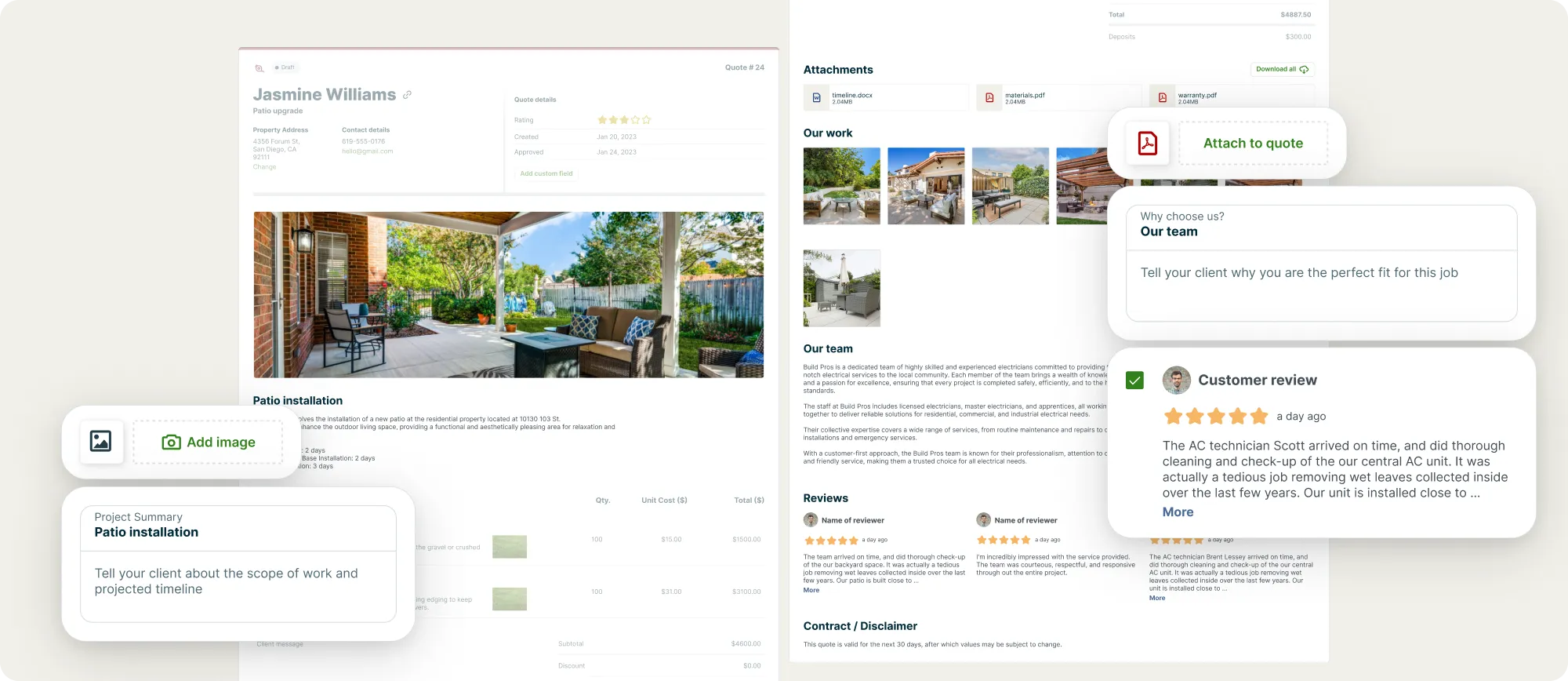
Close more deals by showcasing your expertise with a photo gallery. Add detail with clarity and customizable project summaries and attachments. Boost credibility with 5-star Google Reviews and personalize your quotes with your branding and company values to stand out.
Advanced quote customization availability
Advanced quote customization is available on the Grow and Plus Plans on Jobber.com.
Partial advanced quote customization is available in the Jobber app. On iOS devices the introduction section can be added to quotes in the app, however full customization options are currently only available on desktop. View our current pricing plans.
To check what plan you’re on, select the Gear Icon, then choose Account and Billing. If you have any questions about your plan’s features or pricing, our support team is here to help!
Create a quote with advanced customization
To create a quote with advanced customization, from the side navigation, select Create the select Quote.
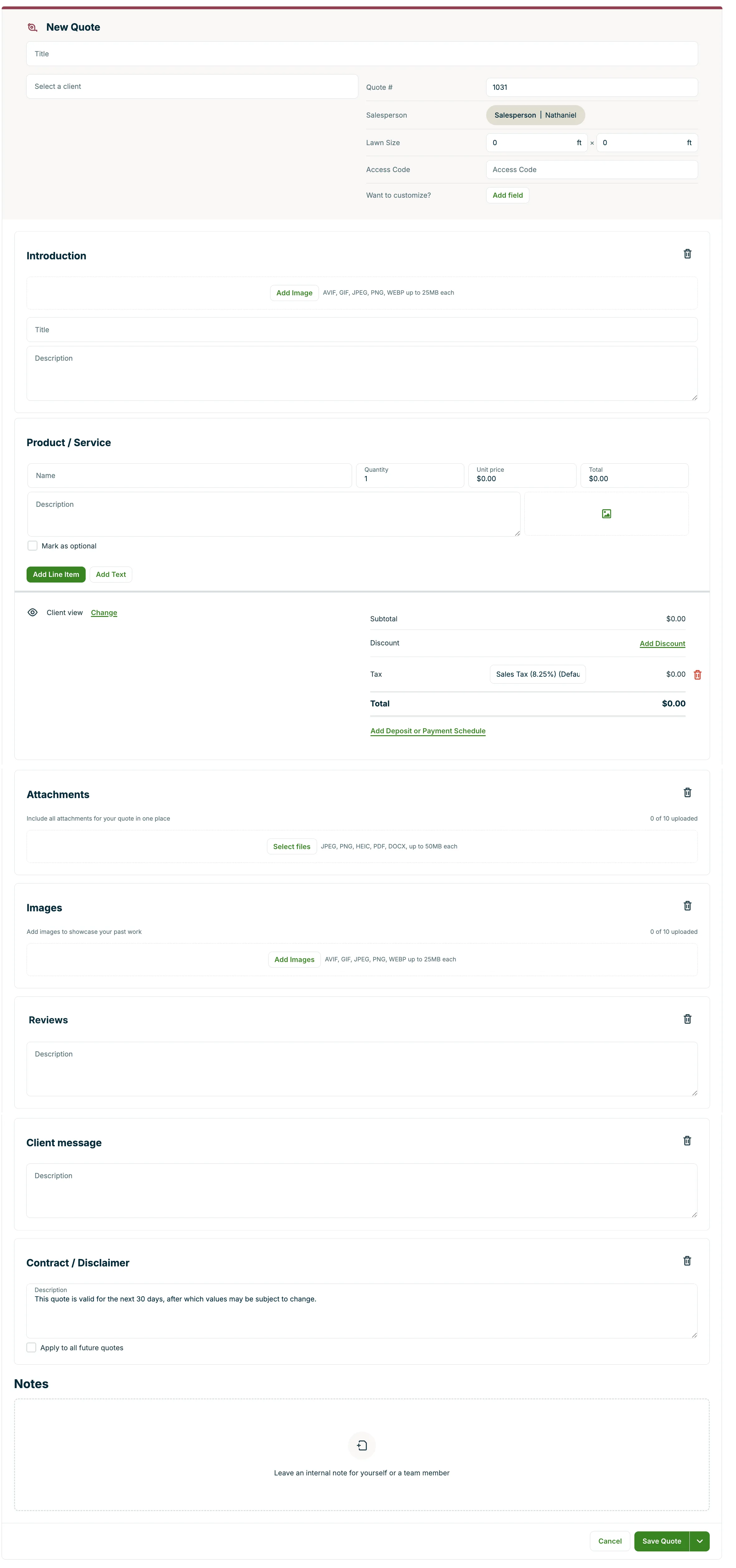
On plans that include advanced quote customization, there will be options to add sections to your quote for:
- Introduction:
- Header image, title, and description: Select Choose Image to reuse a photo already in your Jobber account, or Upload New to add one from your computer, to represent your expertise or showcase your brand. Write an impactful introduction that summarizes your services.
- Attachments: Include detailed attachments directly on the quote, either by uploading a new file or choosing one already stored in your Jobber account. Attachments are all centralized and easily accessible through client hub so your clients won’t have to search through their emails to find them.
- Images: Personalize your quote with up to 10 images that clarify the work to be done or showcase your past projects to build trust with your customers. Select Choose Image to reuse an existing photo, or Upload New to add a new one. The 10-image limit applies regardless of whether an image is newly uploaded or reused.
- Note: Images must be under 25MB each. Supported file types are AVIF, GIF, JPEG, and WEBP. When adding images to the gallery, they are resized to 168 x 168 pixels in the preview. However, when clicked, images display at their full size. To ensure a consistent viewing experience, try to use images with similar dimensions.
- Reviews: Include up to 3 customer reviews from Google to build trust with your client.
- Note: You must be using Jobber’s reviews add-on in order to add customer reviews to your quotes.
To add one of these section to your quote, select the section type from the + Add Section button.
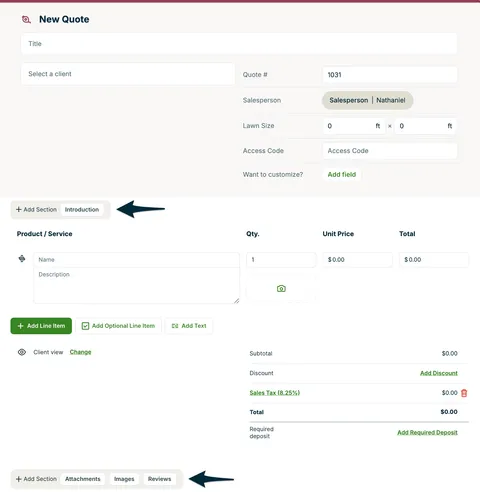
The below image shows a new quote with all the advanced quote customization fields added.
Remove a section from your quote
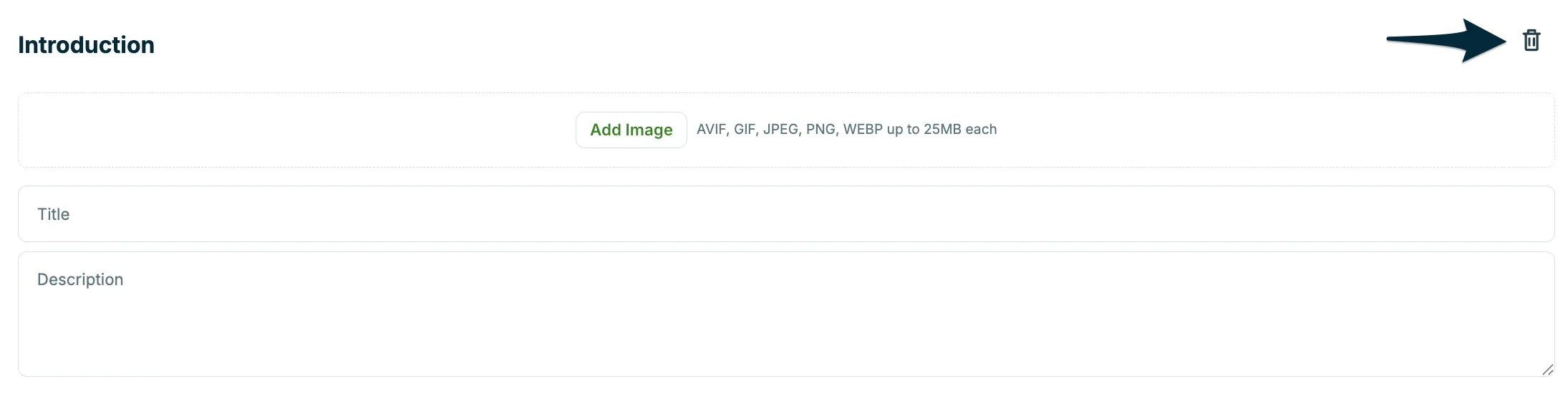
To remove an advanced quote customization section from your quote, click the garbage can icon in the top right corner of the section.
Quote templates
Quote templates help you create quotes quickly by using a preset format. You can customize templates for specific job types, so most of the details are already filled in for you. Just add any final details, and you’re ready to share the quote with your client!
Learn more about Quote Templates
Frequently asked questions about advanced quote customization
Is advanced quote customization available on the Jobber mobile app?
No. Advanced quote customization and quote templates are only available on Jobber.com, not the Jobber mobile app.
If you need to create a quote with advanced quote functionality while using a mobile device, use your device’s browser to access Jobber.com.
What do I need to do to add Google Reviews to my quotes?
In order to show customer reviews on quotes, you need to be using Jobber Reviews. Learn more about Reviews | Marketing Tools.
Note: Newly-submitted reviews may take up to 1 day to appear on Jobber.
Can I reuse an existing photo or file on a quote?
Yes. When adding an image to a quote, select Choose Image to open the Select images window. From here, you can choose from two tabs:
- Files from related work: images already linked to this client’s other jobs, quotes, and invoices, grouped by where they came from.
- Client files and media: every image and file stored for this client, which you can narrow down using the Source and Date filters.
Use the Search files bar to find an image or file by keyword. You can combine search with the filters to narrow the results.
Reused images still count toward the 10-image limit on the Images section.
Image and attachment fields on quotes are part of advanced quote customization, available on the Grow Plan and up. Reusing an existing photo or file works the same way wherever these fields are already available; it doesn’t require a different or additional plan.