

Overview
In Jobber you can set up different tax names and rates. For situations where multiple tax rates are needed for a quote or invoice, you can combine the rates into a tax group.
Taxes can be set on a global level, for all of your future quotes, jobs, and invoices, or can be set individually per property, quote, job, or invoice.
Creating a new tax rate
To add new tax rates or edit your tax settings:
- Click the Gear Icon then select Settings.
- Navigate to your Company Settings and scroll down to the Tax settings section.
- To add a new tax rate, click + Create Tax Rate and enter in a name and rate for the tax.
- To make this tax the default rate for your account, click the button next to the tax rate. The default tax rate will be automatically be set as the tax rate for any new properties, but existing properties won’t be updated retroactively.
- Add your Tax ID name (such as GST) and your Tax ID number. These fields appear in the bottom left corner of all your invoices automatically. If you are required to share your Tax ID information with your clients, this is a good way to make sure it appears on every invoice without entering it manually.
Note: If you are based in Australia and need your invoices to say Tax Invoice, enter your Tax ID number and set your country to Australia. This will automatically update your invoices to say Tax Invoice.
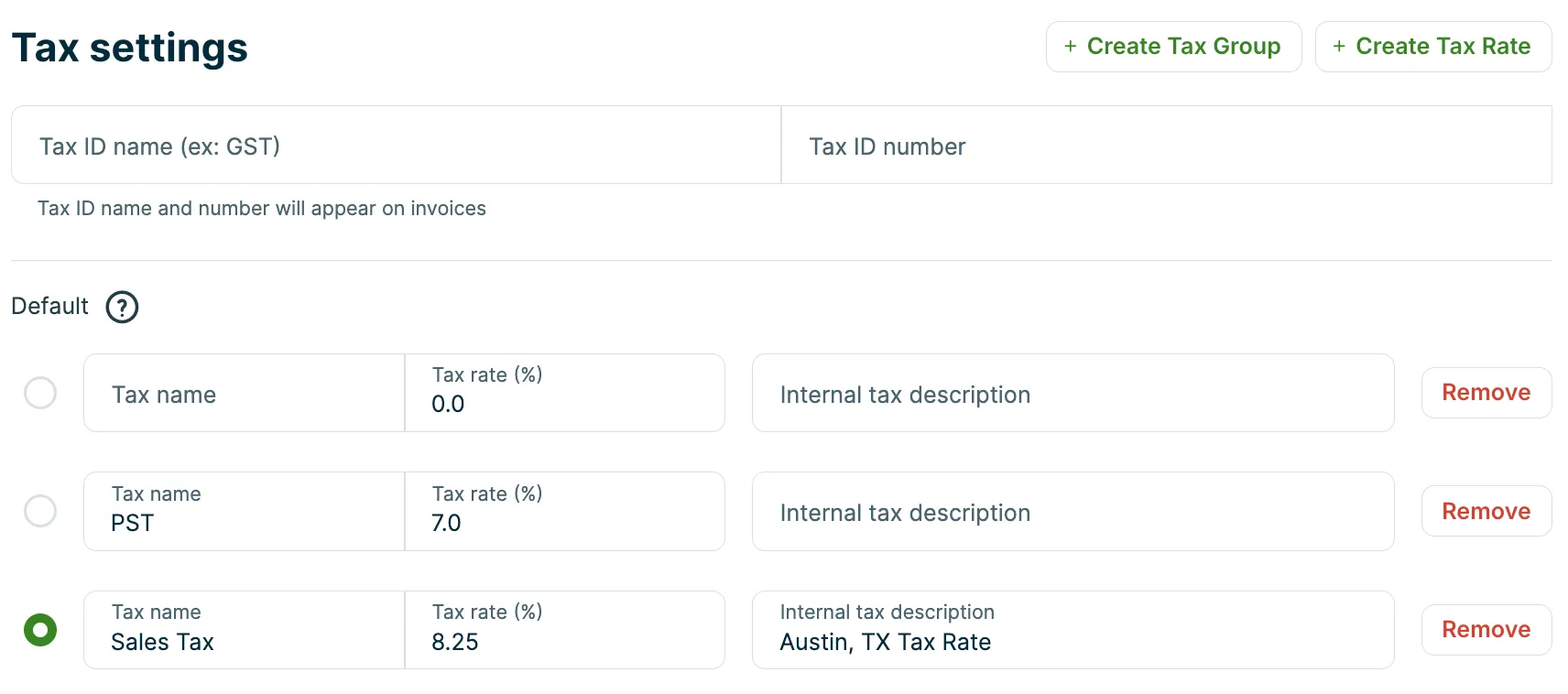
Understand how default and custom property rates interact
The tax rate on each property is either linked to the global default or set to a custom rate. This controls whether future changes to the global default affect that property.
If a property is set to the default rate, Jobber applies any future changes to the global default in your company settings automatically. If a property has a custom rate assigned, changes to the global default do not affect it. That property keeps its custom rate until you change it manually.
This also applies when a property was previously on a custom rate and was changed back to the default. Once a property is back on the default setting, it follows the global default going forward, including any future changes you make to it.
Understand which tax rate is used on quotes, jobs, and invoices
Jobber starts each quote, job, and invoice with a tax rate, and you can change it at any time.
- Quotes: Jobber uses the property’s tax rate. If the property doesn’t have its own rate, Jobber uses your default tax rate.
- Jobs created from a quote: The job uses the quote’s tax rate.
- Jobs created on their own: The job uses the property’s tax rate, or your default tax rate if the property doesn’t have one.
- Invoices created from a job: The invoice uses the job’s tax rate. If the job doesn’t have a tax rate, the invoice won’t have tax.
- Invoices created without a job (for example, from the Create button or a client’s profile): The invoice uses the property’s tax rate, or your default tax rate if the property doesn’t have one.
Once a job has a tax rate, it keeps that rate. Later changes to the quote, the property, or your default tax rate don’t change it. If you change a job’s tax rate, only invoices created after the change use the new rate. Existing invoices aren’t updated.
You can choose a different tax rate on any individual invoice. This doesn’t change the job.
Creating a new group tax
Once you have multiple tax rates set up in your account, you can add them into a tax group. This makes applying taxes to quotes and invoices easier as you can only have one default tax in your account and you can then make the group rate your default tax.
To create a new tax group, click + Create Tax Group. You can specify a name for this particular group and then click onto Select Tax Rates to choose which tax rates from your account you want included in the group.
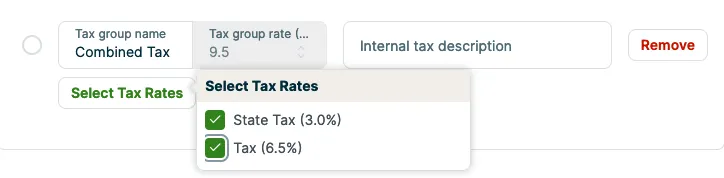
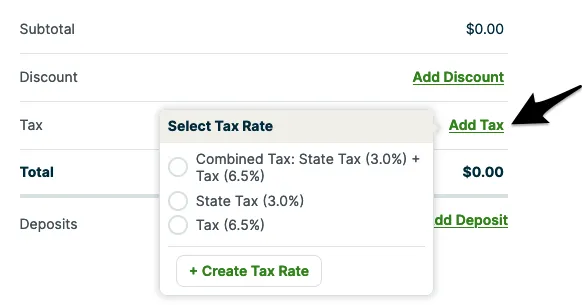
The group tax rate will be the sum of the individual tax rates you’ve chosen. When a tax group is chosen to be applied to a quote or invoice, the rates will appear individually for your clients to see the break down.
Selecting tax rates on quotes, jobs, or invoices online
When you create a quote, job, or invoice, choose a tax rate from the Tax dropdown below the subtotal. New quotes and jobs start with the property’s tax rate, or your default tax rate if the property doesn’t have one.
To change the tax rate on an existing quote, job, or invoice:
- Open it.
- In the Product / Service section, click the pencil icon.
- Below the subtotal, choose a different tax rate from the Tax dropdown.
- Click Save.
To remove tax, click the trash can icon next to the tax rate, then click Save. If you remove tax from a job, invoices created from it won’t have tax.
You need the Show pricing permission to see or change a job’s tax rate.
Add a tax rate to a client’s property
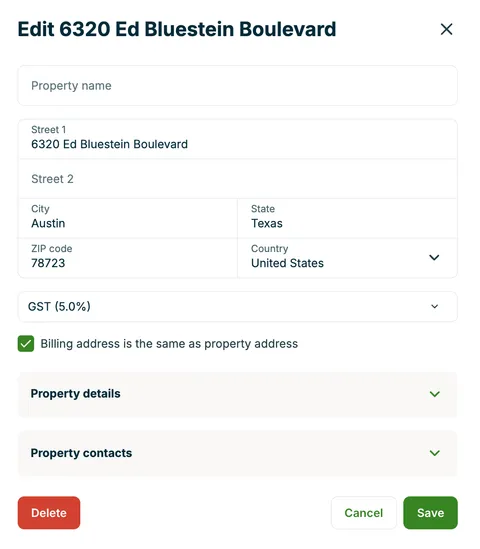
Another option is to assign a tax rate to your client’s property. This overrides the default tax rate in your Jobber account and uses their assigned tax rate as the starting rate for all quotes, jobs, and invoices created for them. You can still choose a different rate on any individual quote, job, or invoice.
To assign a tax rate to a client’s property:
- Navigate to the client’s profile. One way to do this is to search for the client’s property using the search bar and select it from the results.
- From the properties section of the client’s profile, locate the property you want to add a tax rate to.
- Click the pencil icon next to that property.
- There is a tax rate drop down menu underneath the property address, use this to select your tax rate, or select the option from the dropdown menu to create a new tax rate.
- Click Save to save the property information with the new tax rate.
Report on taxes
In Jobber there is a Taxation report that shows you the amount of taxable and non-taxable income in your account for a specific time frame. Learn more about the Taxation Report.
The Invoices report and Bad Debt report will also show a column breakdown for what tax rate and how much tax was collected on a per-invoice basis.
To access reports in Jobber, click on the Reports section from your navigation bar.
Taxes and the QuickBooks Online Sync.
Jobber doesn’t sync tax names and rates into QuickBooks. During a sync, if the name doesn’t match, then Jobber looks for the first instance of that tax rate and tries to match to that value.
This will come up as a warning on your Sync & Settings page. The invoice will still sync over, but will apply the next applicable tax with the same rate.
We recommend editing your tax names and rates so that both accounts match directly, this will prevent any sync errors and warnings from occurring.