

Overview
Tasks are scheduled time for work you don’t invoice for, such as errands, picking up supplies, or follow-up appointments. Tasks appear on the Schedule, on the Home page, and in the Jobber app. On the Schedule they are blue, unless a calendar color is assigned to the team member.
Note: Tasks don’t send client notifications, even when a client is linked. Your clients won’t receive a reminder before a scheduled task.
Permissions
A team member’s Schedule permission, set in user permissions, controls what they can do with tasks:
- View and complete their own schedule: mark their own tasks complete.
- Edit their own schedule: create and edit tasks.
- Edit and delete everyone’s schedule: delete tasks. Edit everyone’s schedule isn’t enough, and this level applies to everyone’s schedule, not only the team member’s own tasks.
Create a task
- Go to the Schedule.
- Select an open spot on the calendar.
- Select the Task tab.
- Enter a Title. You can also add a client, instructions, and a team member.
- Set the date and time, or check Anytime if the task has no set time.
- Select Save.
To set more options, select More Options before you save. These options are available:
- Client: Optional. When you link a client, their contact information appears on the task.
- Repeats: Set the task to repeat on a schedule.
- Assign: Add one or more team members.
- Email team when assigned: Appears after you assign a team member. Emails the assigned team members when you save the task.
- Team reminder: Appears after you assign a team member. Use Remind team to email a reminder a set time before the task starts.
You can also create a task in these places:
- Client page: Select Create, then select Task. You can also select + in the Client schedule section, then select Task.
- Jobber app: Select + in the bottom right, then select Task.
- Today’s Activities (non-admin users): Select the Jobber logo in the top left, select More Actions, then select Task.
Complete a task
To complete a task on the Schedule, select the task, then check Completed. You can also select Details, then select Mark Complete. In the Jobber app, open the task and select Complete Task.
Push notifications in the app
When you assign a user to a task on the same day the task is occurring, the assigned users will receive a push notification to their device. These notifications occur when:
- A new user is assigned to a task.
- A task scheduled for today is moved.
- The user is unassigned.
Note: Users need to enable push notifications for the Jobber app on their device in order to receive them. This can be done by tapping More, then Preferences in the app.
If you are the user who is assigning the task, you will not receive a push notification to your device when you assign yourself to the task.
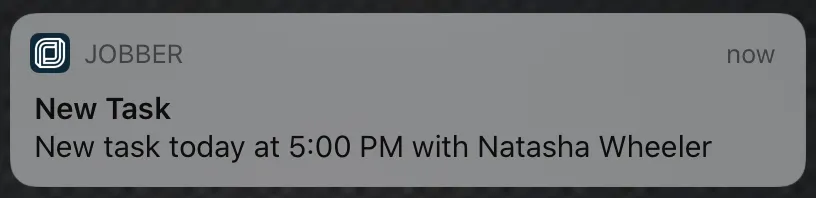
This notification will appear when a user is assigned to a new task. It will indicate that it is today and the time of the task.
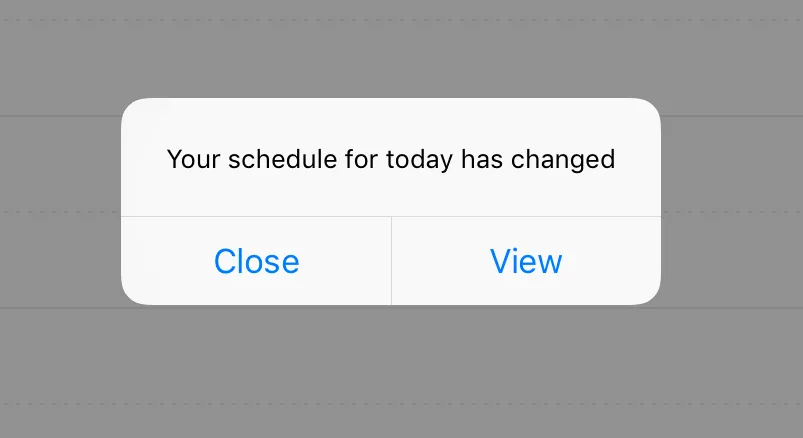
This notification occurs when a task has been removed from your schedule today.
Delete a task
On the Schedule:
- Select the task.
- Select Details.
- Select More Actions, then select Delete.
In the Jobber app, open the task, select the three dots, then select Delete task.
Note: If Delete doesn’t appear, the team member needs the Edit and delete everyone’s schedule permission.