What are work settings?
From the settings menu, Work Settings is the area that contains the settings for quotes, jobs, invoices, and statements. To navigate here:
- Click the Gear Icon.
- Select Settings.
- Select Work Settings.
Quote Settings
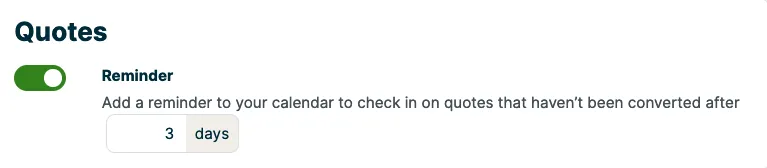
In the Quotes section of the Work Settings page, you can set up quote reminders. To turn them on:
- Click the Gear Icon.
- Select Settings.
- Select Work Settings.
- In the Quotes section, turn on Reminder.
- Enter the number of days after the quote is sent that you’d like the reminder to appear.
Quote reminders
Quote reminders appear on your Jobber.com schedule to remind you about quotes that haven’t converted into a job yet. Unlike automatic quote follow-ups (available on select plans), these reminders do not contact the client. Instead, they are for team members to manually reach out, and can be a good option if you prefer to reach out by phone, rather than text or email.
Note: Quote reminders don’t appear in the app.
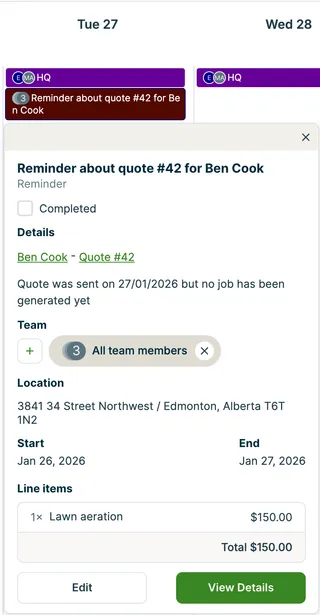
The reminder is assigned to the user who created the quote, prompting them to follow up with the client.
Job Settings
In the Jobs section of the Work Settings page, you can customize:
- your arrival window settings - Arrival windows are a way to communicate to your clients that you’ll be arriving within a window of time, rather than an exact start time. Learn more about arrival windows.
Note: Your default arrival window will apply to all jobs that are active (including those in action required, requires invoicing, or late statuses). Learn more about job statuses. - visit titles - Visit titles are displayed on your calendar on jobber.com
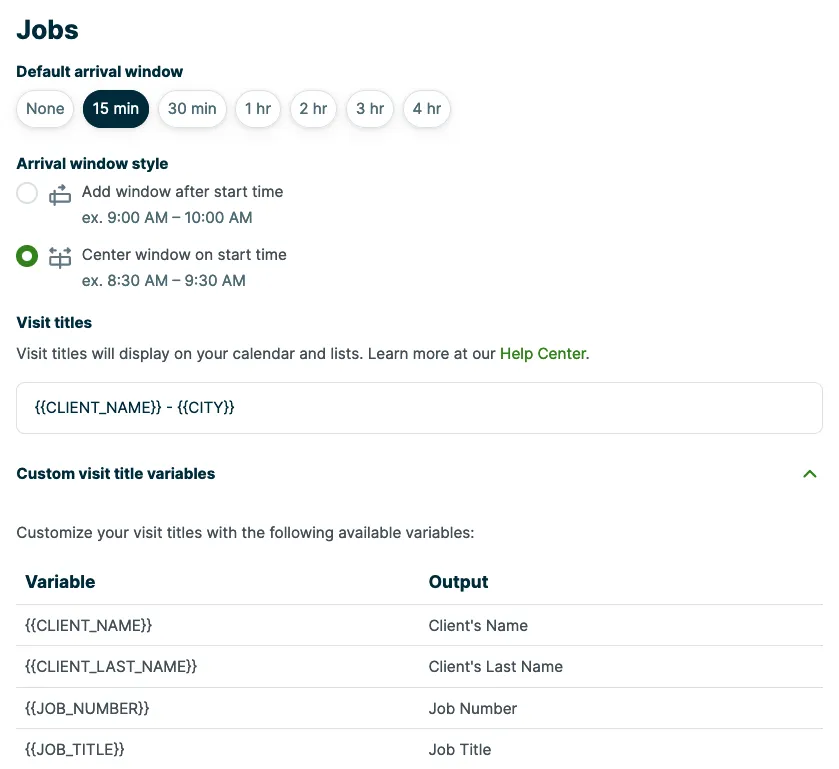
For jobs, you can customize:
Arrival window settings
Select your Default arrival window. This is the duration of the arrival window. The options are:
- None (no arrival window at all)
- 15 minutes
- 30 minutes
- 1 hour
- 2 hours
- 3 hours
- 4 hours
Next select your Arrival window style. There are two options:
- Add window after start time - With this style, if a job has a scheduled start time at 9AM, the arrival window will start at 9AM.
- Center window after start time - With this style, the arrival window will center around the job’s start time. This means that a job with an arrival window of two hours and a start time at 9AM would have arrival window from 8AM until 10AM.
To turn your arrival windows off:
- Click the Gear Icon.
- Select Settings.
- Select Work Settings.
- Set Default arrival window to None.
This will turn arrival windows off for all jobs.
Customize your visit titles on the schedule
Visit titles are displayed on your calendar on Jobber.com. You can customize them in the Jobs section of the Work Settings page, using custom visit variables to change the details that appear on the schedule in Jobber.com, including:
- Client’s name (first and last)
- Client’s last name
- Job number
- Job title
- Street address fields
- Property’s first street address field
- Property’s second street address field
- Property’s city
- Property’s state or province
- Property’s zip or postal code
- Client’s phone number
These variables can be copied then pasted into the “Visit Title Template” field.
Note: Saving a new visit title template replaces the title of every visit, including past visits, unscheduled visits, and titles you’ve edited by hand. This can’t be undone in bulk.
For example, with the visit title configuration {{CLIENT_NAME}} - {{JOB_TITLE}} - {{CITY}}, visits would appear like this in the schedule:
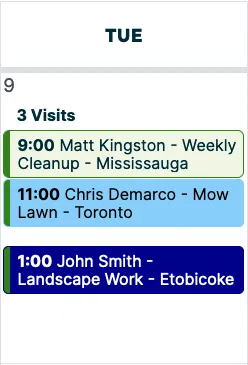
The schedule titles in the app will appear a bit differently than on the desktop. They will show the visit title (or job title if there is no visit title), then the client name, then the address. The other information (such as city) will be viewable if you open the visit.
Invoice Settings
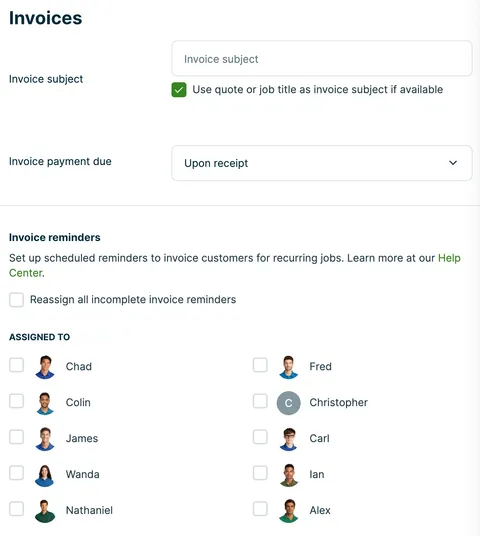
In the Invoices section of the Work Settings page, you can customize your invoice preferences, including:
- The default subject line on all invoices. By default, this is “For Services Rendered”. Check the box for Use quote or job title as invoice subject if available to have invoices carry the quote or job title forward.
- Invoice payment due date (these are your payment terms)
- Automatically assigning invoice reminders to a team member
Statements
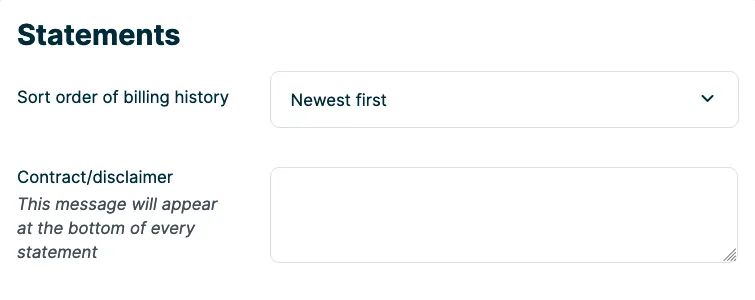
For statements (which are generated from a client’s profile from their Billing History Box by clicking New, then Statement), you can set the order in which the statement’s transactions appear. For example, the most recent payments and invoices can appear at the top, or at the bottom.
You can also add a contract/disclaimer to statements here, that will appear at the bottom of the statement.
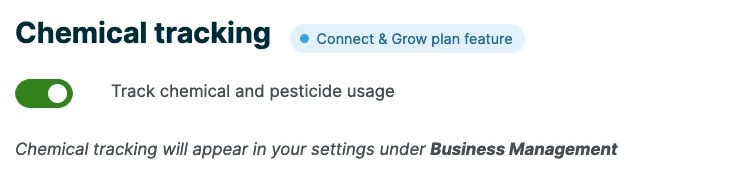
Chemical Tracking
Learn more about Chemical Tracking.
Note: Chemical tracking is not available in the Jobber app. Settings and chemical treatments are all managed from jobber.com.