

Overview
Instantly communicate with your clients to keep them in the loop at key points before, during, and after the work.
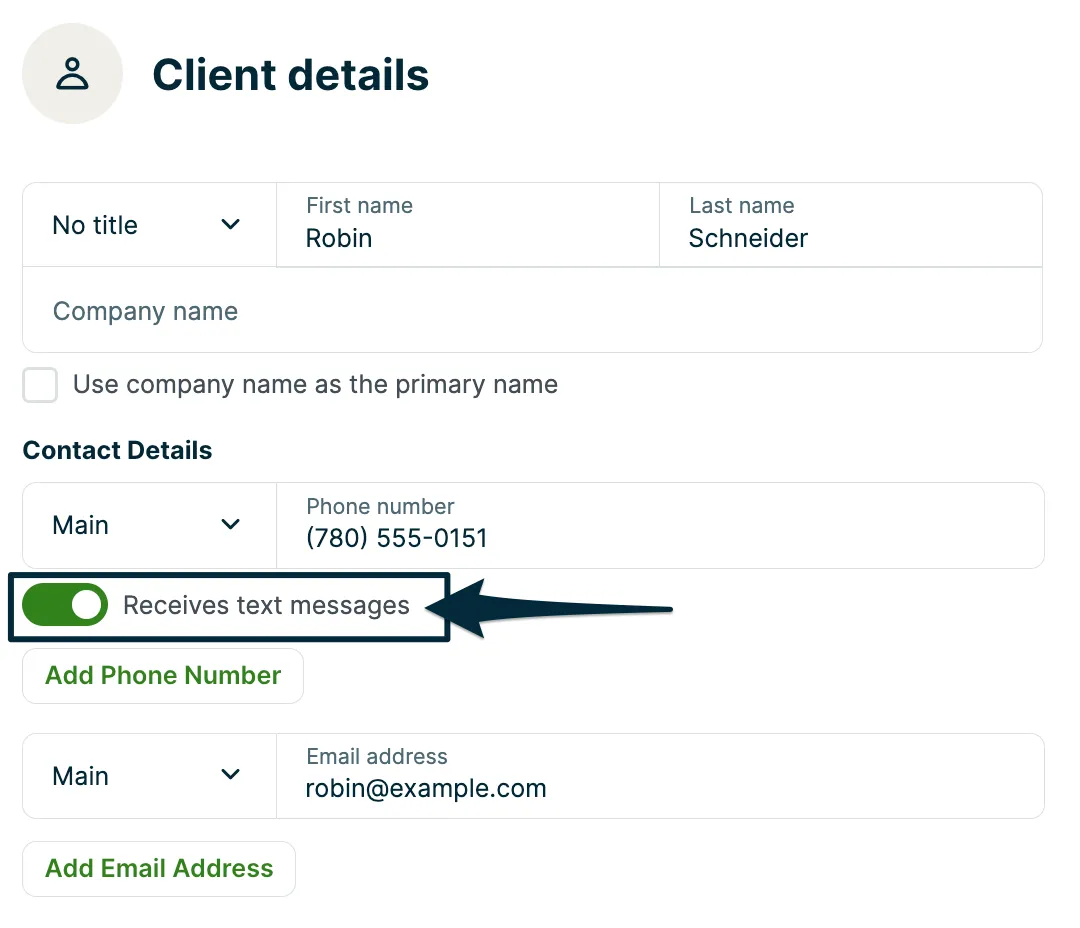
When adding a new client, there is an option for Receives text messages which turns on the ability for that client to receive text messages to their phone number. To successfully send a text message to a client, this needs to be turned ON.
Text messages can be enabled:
- Manually, by editing clients individually
- En masse, by using the client import tool to make mass changes.
Automated text messages are available on select plans in the United States, Canada, and Great Britain. View our current pricing plans.
To check what plan you’re on, navigate to the Gear Icon, then select Account and Billing. If you have any questions about your plan’s features or pricing, our support team is here to help!
Editing clients manually
When you enter a phone number for a new client, by default that phone number will be enabled to receive text messages.
To edit an existing client, navigate to that client’s profile and click Edit.
Under the phone number field, toggle the switch for Receives text messages to ON to enable text messages to this phone number.
Using the client import tool
First, you will need to export your current client list:
- Click Clients from the side navigation.
- Click More Actions.
- Select Export Clients.
- Under Choose export format, select CSV.
- Click Export. Jobber emails you the CSV file when it’s ready.
Once you have the CSV file, you can scroll to the right to find the columns Text Message Enabled Phone # and Receives automatic client reminders?.
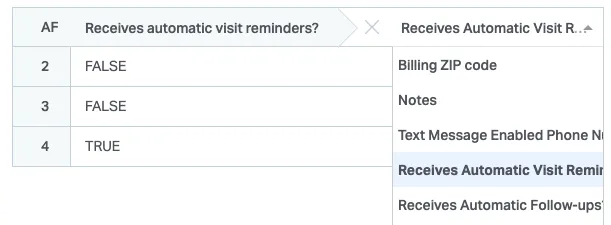
Make sure that the phone number entered in the Text Message Enabled Phone # column is the number that you would like to send text messages to. For Receives automatic client reminders?, true will indicate that it is turned on for them while FALSE will indicate that it is turned off.

Tip: We recommend looking to see if there are any custom field columns on this CSV file and removing them before saving your new changes.
After you have made the changes:
- Save the CSV file.
- Go back to Clients.
- Click More Actions on the right of this page.
- Select Import Clients.
The client import process will walk you through mapping the headings in your CSV. You will need to make sure that the headings for Receives automatic visit reminders? and Receives automatic job follow-ups? are mapping correctly.
Important Notes:
- Any changes made to this CSV file will not affect the notification schedule itself. In order for messages to be sent automatically, you still need to set up a schedule for those notifications:
- Click the Gear Icon.
- Select Settings.
- Select Emails & Text Messages.
- Clients with multiple properties will show up multiple times in the CSV export - you will want to fill in each row for each client to avoid any jobs under different properties being missed.